Chatfuel
The Chatfuel modules allow you to create broadcast messages and send JSON responses from your Chatfuel account.
Prerequisites
-
A Facebook account through which you connect Chatfuel
-
A Facebook page
In order to use Chatfuel with Boost.space Integrator, it is necessary to have a Chatfuel account. If you do not have one, you can create a Chatfuel account at https://chatfuel.com/.
The module dialog fields that are displayed in bold (in the Boost.space Integrator scenario, not in this documentation article) are mandatory!
Triggers
JSON Listener
Listens for incoming messages from Chatfuel’s JSON API plugin. The enclosing scenario has to be run once, in order for user attributes from Chatfuel to become visible and available for mapping.
Connecting to JSON Webhook
-

Go to Boost.space Integrator and open the JSON Listener module. Enter a name for the webhook and click Save.
-
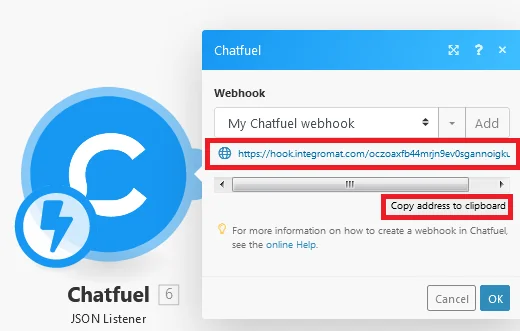
Copy the URL to the clipboard.
-
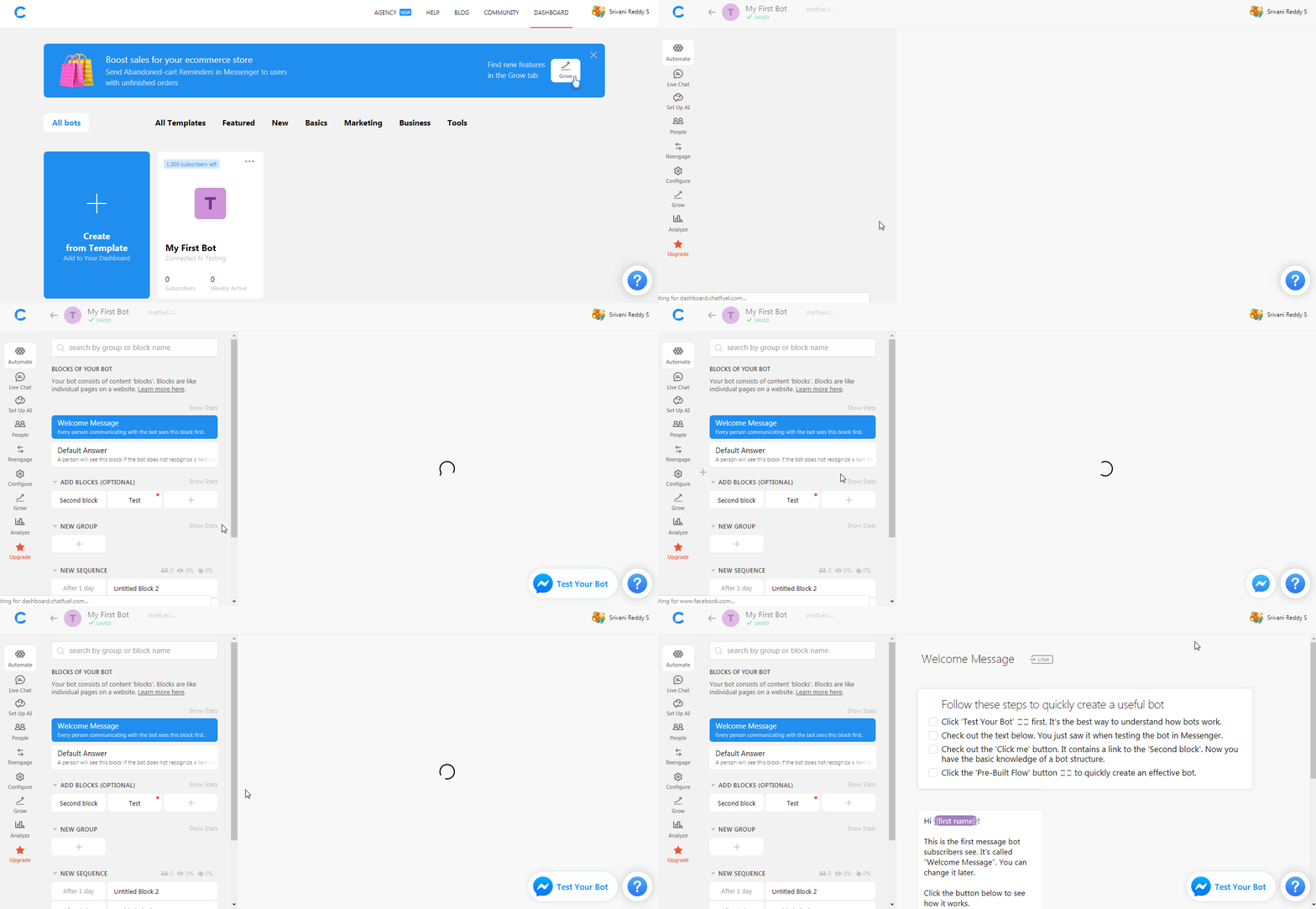
Log into your Chatfuel account, select the bot, and then select Automate.
-
Open the block containing the JSON API, select the Type as POST, and enter the URL copied in step 2.
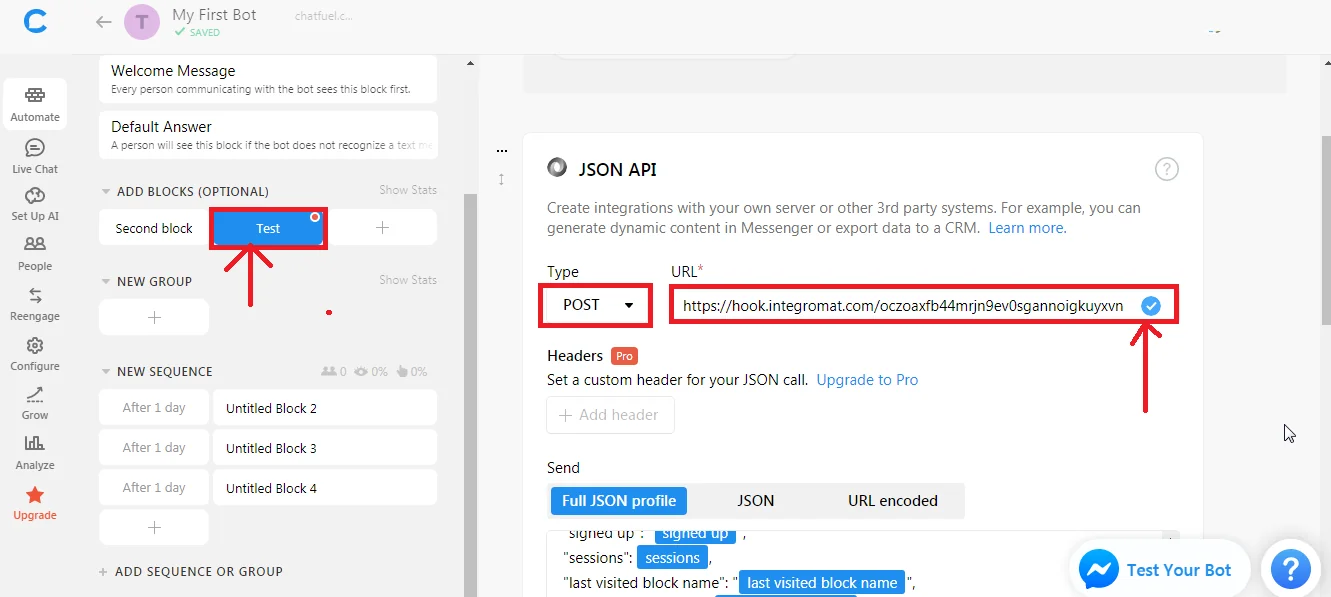
The connection has been established.
Now you can start building the scenarios in Boost.space Integrator.
Sending a response is as simple as inserting a JSON Response module in the scenario‘s data flow.
Following is an example scenario which uses filters to send a personalized greeting if a user’s first name is available, and a generic greeting otherwise.
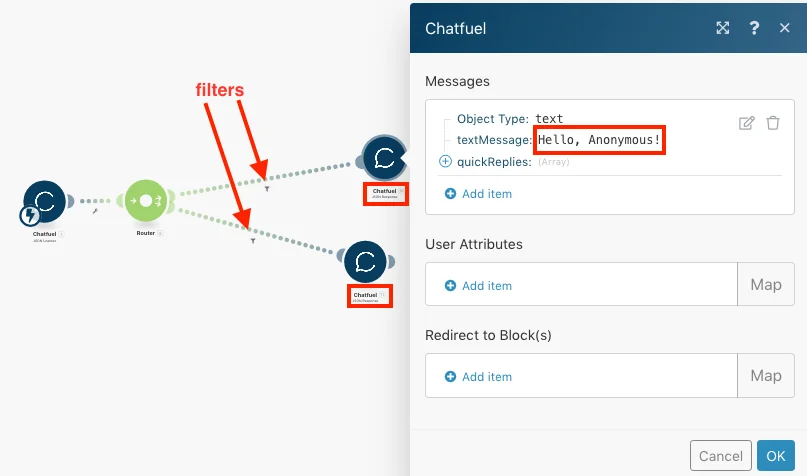
With this scenario setup, sending the first name as part of the user attributes from Chatfuel causes the default “Hello, Anonymous” response to instead include the user’s first name.
Actions
Broadcast Message
Sends any block from the bot’s structure or sets user attributes.
Bot ID
Enter the Bot ID from which you want to send the message.
Broadcasting API Token
Enter the Secret API token to connect to the Bot ID.
Messenger User ID
Enter the Messenger User ID to whom you are sending the message.
Select Block By
Select the option to send the block:
-
Name
-
ID
Message Tag
Select a tag for the message to send to a specific group or person.
User Attributes
Add the user attributes:
Attribute Name
Enter the name of the attribute.
Attribute Value
Enter the value of the attribute.
JSON Response
Sends a response to the address from which a message was received.
Messages
Select the message type:
-
Text
-
Image
-
Video
-
Audio
-
Generic File
-
Image Gallery
-
Itemized List
-
Buttons
Text
Text Message
Enter the message text.
Quick Replies
Add the quick reply:
-
JSON Plugin URL
-
Redirect to Blocks
JSON Plugin URL
Add the details of the quick reply:
Quick Reply Title
Enter the title of the quick reply.
URL Address
Enter the website URL Address.
Redirect to Block(s)
Add the details to redirect the user to the block:
Quick Reply Title
Enter the title of the quick reply.
Block Names
Add the block names.
User Attributes
Add the user attributes:
Attribute Name
Enter the name of the attribute.
Attribute Value
Enter the value of the attribute.
Redirect to Block(s)
Add the details to redirect the user to the block or a sequence of blocks:
Block Name
Enter the block name.
Legacy article, imported from the original Boost.space knowledge base (/knowledge-base/applications/communication/chatfuel/).

