Microsoft Teams
Any references to third-party products or services do not constitute Boost.space Product Documentation nor do they create any contractual obligations. This material is for informational purposes only and is subject to change without notice.
Boost.space does not warrant the availability, accuracy, reliability, completeness, or usefulness of any information regarding the subject of third-party services or systems.
With Microsoft Teams modules in Boost.space Integrator, you can monitor, list, create, update, delete, and retrieve teams and channels in your Microsoft Teams account.
To use the Microsoft Teams modules, you must have a Microsoft business account. You also should be an admin of the account and Microsoft Office 365 Premium must be activated for your admin business account. You can create an account at https://www.microsoft.com/en-us/microsoft-365/business.
Refer to the Microsoft Teams API documentation for a list of available endpoints.
Connect Microsoft Teams to Boost.space Integrator
To establish the connection in Boost.space Integrator:
-
Log in to your Boost.space Integrator account, add a Microsoft Teams module to your scenario, and click Create a connection.
-
Optional: In the Connection name field, enter a name for the connection.
-
Optional: Click Show advanced settings to enter your custom app client credentials, tenant ID, and add additional scopes as needed. Refer to the Microsoft Teams documentation regarding client credentials.
If requested, use the following Redirect URI when creating your custom app:
https://integrator.boost.space/oauth/cb/azurehttps://auth.redirect.celonis.cloud/oauth/cb/azureFor more information about the permissions, see the Microsoft Graph permissions reference.
-
Click Save.
-
If prompted, authenticate your account and confirm access.
You have successfully established the connection. You can now edit your scenario and add more Microsoft Teams modules. If your connection requires reauthorization at any point, follow the connection renewal steps here.
Team
You can watch, list, retrieve, create, update teams and create and update teams for groups with the following modules.
Watch Teams
Retrieves a team’s details when a new team/group is created or an existing team is edited.
Connection
Establish a connection to your Microsoft Teams account.
Filter
Define the filter settings for the returned groups. You can retrieve only groups whose name or email starts with the specified term.
Limit
Set the maximum number of results Boost.space Integrator will return during one execution cycle.
List Joined Teams
Retrieves all the teams in Microsoft Teams that you are a member of.
Connection
Establish a connection to your Microsoft Teams account.
Limit
Set the maximum number of teams Boost.space Integrator will return during one execution cycle.
List All Teams & Groups
Returns all teams (including Office 365 Groups) in your account.
Connection
Establish a connection to your Microsoft Teams account.
Filter
Define the filter settings for the returned groups. You can retrieve only groups whose name or email starts with the specified term
Order By
Select whether to order results by displaying names in ascending or descending order.
Limit
Set the maximum number of teams Boost.space Integrator will return during one execution cycle.
Get Team
Returns a team’s/group’s details.
Connection
Establish a connection to your Microsoft Teams account.
Group ID
Enter (map) or select the ID of the team/group you want to retrieve details about.
Create Office 365 Group
Creates a new Office 365 group (unified group) or Security group.
You can’t currently create a team via this module.
Connection
Establish a connection to your Microsoft Teams account.
Display Name
Enter the name that is displayed in the address book for the group.
Alias for Group
Enter the mail alias (nickname) for the group.
Alias can only contain lowercase letters, numbers, and underscores. For Security Group type, simply provide an alias as a nickname.
Group Type
Enable the Unified option (or enter “Unified”) to create an Office 365 group. Otherwise, the Security group (used for granting access to SharePoint resources) is created.
Description
Enter the description of the group.
Security Enabled
Enable this option if a group is a security group and you have not enabled the “Unified” option in the Group Type field.
Owners
Select the owners of the group. The owners are a set of non-admin users who can modify this object.
Members
Select users and groups that are members of this group.
Update Team
Updates a group’s/team’s properties.
Connection
Establish a connection to your Microsoft Teams account.
Group ID
Enter the ID or select the group/team you want to update.
Visibility
Set the Office 365 group to public or private.
Please find the descriptions of the fields in the Create Office 365 group section above.
Create Team
Creates a new team from a group.
If the group was created less than 15 minutes ago, it’s possible for the Create Team module to fail with a 404 error code due to replication delays. The recommended pattern is to re-run the Create Team module three times, with a 10 seconds delay between calls.
Connection
Establish a connection to your Microsoft Teams account.
Group ID
Enter the ID or select the group from which you want to create a team.
Admin and Settings
Set the team’s Member Settings, Messaging Settings, Fun Settings, and Guest Settings.
Delete Team or Group
Deletes a team/group.
Connection
Establish a connection to your Microsoft Teams account.
Group ID
Enter the ID or select the group you want to delete.
Channel
You can list, retrieve, create, update, and delete channels with the following modules.
List Channels
Lists all channels in the Microsoft Team.
Connection
Establish a connection to your Microsoft Teams account.
Team ID
Enter the ID or select the team you want to list channels from.
Limit
Set the maximum number of channels Boost.space Integrator will return during one execution cycle.
Get a Channel
Retrieves the properties and relationship of a channel.
Connection
Establish a connection to your Microsoft Teams account.
Team ID
Enter the ID or select the team that contains the channel you want to retrieve details about.
Channel ID
Enter the ID or select the channel you want to retrieve details about.
Create Channel
Creates a new channel in a Microsoft Team.
Connection
Establish a connection to your Microsoft Teams account.
Team ID
Enter the ID or select the team you want to create a channel for.
Channel Name
Enter the name for the new channel.
Description
Enter the channel description.
Update Channel
Updates the properties of the specified channel.
Connection
Establish a connection to your Microsoft Teams account.
Team ID
Enter the ID or select the team that contains the channel you want to update.
Channel ID
Enter the ID or select the channel you want to update.
Please find the descriptions of the fields in the Create Channel section above.
Delete Channel
Deletes a channel from the team.
Connection
Establish a connection to your Microsoft Teams account.
Team ID
Enter the ID or select the team that contains the channel you want to delete.
Channel ID
Enter the ID or select the channel you want to delete.
Message
You can watch and send messages and replies with the following modules.
Watch Messages
Triggers when someone sends a message in a team’s channel or in a chat.
Connection
Establish a connection to your Microsoft Teams account.
Choose a Type of Messages to be Watched
Select the types of messages you want to watch. You can choose between channel and chat messages.
Team ID
only appears for channel messages
Select or map the Team ID whose channel messages you want to watch.
Channel ID
only appears for channel messages
Select or map the Channel ID whose messages you want to watch.
Chat ID
only appears for chat messages
Select or map the Chat ID whose messages you want to watch.
Limit
Set the maximum number of messages Boost.space Integrator will return during one execution cycle.
Watch New Replies
Triggers when a new reply to a selected message is received. Not available for personal accounts.
Connection
Establish a connection to your Microsoft Teams account.
Team ID
Select or map the Team ID whose replies you want to watch.
Channel ID
Select or map the Channel ID whose replies you want to watch.
Message ID
Select or map the Message ID whose replies you want to watch.
Limit
Set the maximum number of messages Boost.space Integrator will return during one execution cycle.
Send a Message
Sends a message to a team’s channel or to a chat.
Connection
Establish a connection to your Microsoft Teams account.
Send a Message
Select a message type you want to send. You can choose a channel or chat message.
Team ID
only appears for channel messages
Select or map the Team ID to which you want to send the message.
Channel ID
only appears for channel messages
Select or map the Channel ID to which you want to send the message.
Create a New Chat
only appears for chat messages
Select either Yes or No.
Yes to create a new chat.
Chat Type
only appears for chat messages
Select or map either One On One or Group.
Message
Enter the message text.
Content Type
Select or map the format in which you want to send the message. For example, HTML.
Reply to a Channel Message
Creates a new reply to a message in the specified channel.
Connection
Establish a connection to your Microsoft Teams account.
Team ID
Select or map the Team ID to which you want to reply.
Channel ID
Select or map the Channel ID to which you want to reply.
Message ID
Select or map the Message ID to which you want to reply.
Reply Message
Enter the reply message text.
Content Type
Select or map the format in which you want to send the message. For example, HTML.
Member
You can add members to teams and to groups with the following modules.
Add a Member
Adds a new member.
Connection
Establish a connection to your Microsoft Teams account.
Enter a Member Name
Enter the new member’s name.
Password Profile
Enter the new member’s profile password.
Add a Member to a Group
Adds a member to an Office 365 Group.
Connection
Establish a connection to your Microsoft Teams account.
Group ID
Select or map the Group ID to which you want to add the member.
Member ID
Select or map the Member ID whom you want to add to the group.
Online Meeting
You can create, retrieve, update, and delete online meetings with the following modules.
Create an Online Meeting
Creates an online meeting. This will be a standalone meeting that is not associated with any event on the user’s calendar; therefore, meetings created via this module will not show on the user’s calendar.
Connection
Establish a connection to your Microsoft Teams account.
Subject
Enter the subject of the online meeting.
Start Date and Time
Enter the meeting start time
End Date and Time
Enter the meeting end time
Allowed Presenters
Select or map a type of user who can be a presenter in the meeting.
Attendees
Information about a participant in a meeting.
Identity > User > ID
Select or map the ID of the user who is attending.
Role
Select or map the attendee’s role in the online meeting.
Allow Attendee To Enable Camera
Select or map whether attendees can turn on their cameras.
Allow Attendee To Enable Mic
Select or map whether attendees can turn on their microphones.
Allow Meeting Chat
Select or map whether to enable meeting chat.
Allow Teamwork Reactions
Select or map whether to enable reactions for the meeting.
Chat Info
Enter the chat information associated with this online meeting.
Thread ID
Enter the ID of a thread in the Microsoft Teams channel.
Message ID
Enter the ID of a message in a Microsoft Teams channel.
Reply Chain Message ID
Enter the ID of the reply message.
Is Entry and Exit Announced
Select or map whether to announce when callers join or leave.
Lobby Bypass Settings
Select or map which participants can bypass the meeting lobby.
Scope
Select or map the type of participants that are automatically admitted into a meeting, bypassing the lobby.
Is Dial In Bypass Enabled
Select or map whether or not to always let dial-in callers bypass the lobby.
Record Automatically
Select or map whether to record the meeting automatically.
Update an Online Meeting
Updates an online meeting by its ID.
Connection
Establish a connection to your Microsoft Teams account.
Meeting ID
Enter the ID associated with the online meeting.
Subject
Enter the subject of the online meeting.
Start Date and Time
Enter the meeting start time.
End Date and Time
Enter the meeting end time.
Allowed Presenters
Select or map a type of user who can be a presenter in the meeting.
Attendees
Information about a participant in a meeting.
Identity > User > ID
Select or map the ID of the user who is attending.
Role
Select or map the attendee’s role in the online meeting.
Allow Attendee To Enable Camera
Select or map whether attendees can turn on their cameras.
Allow Attendee To Enable Mic
Select or map whether attendees can turn on their microphones.
Allow Meeting Chat
Select or map whether to enable meeting chat.
Allow Teamwork Reactions
Select or map whether to enable reactions for the meeting.
Is Entry and Exit Announced
Select or map whether to announce when callers join or leave.
Lobby Bypass Settings
Select or map which participants can bypass the meeting lobby.
Scope
Select or map the type of participants that are automatically admitted into a meeting, bypassing the lobby.
Is Dial In Bypass Enabled
Select or map whether or not to always let dial-in callers bypass the lobby.
Record Automatically
Select or map whether to record the meeting automatically.
Get an Online Meeting
Retrieves an online meeting by its ID.
Connection
Establish a connection to your Microsoft Teams account.
Meeting ID
Enter the ID associated with the online meeting.
Delete an Online Meeting
Deletes an online meeting by its ID.
Connection
Establish a connection to your Microsoft Teams account.
Meeting ID
Enter the ID associated with the online meeting.
Other
You can search users, retrieve users’ statuses, and call APIs with the following modules.
Search Users
Searches for users by a filter parameter.
Connection
Establish a connection to your Microsoft Teams account.
Filter
Add filters to search for users who match your specified filters.
Limit
Set the maximum number of users Boost.space Integrator will return during one execution cycle.
Keyword Query Language Use Keyword Query Language (KQL) search syntax to build your search queries in Microsoft modules. For more information, see Microsoft Graph help.
Get User’s Presence
Retrieves the selected users’ availability and activity status
Connection
Establish a connection to your Microsoft Teams account.
User IDs
Select or map the users whose status you want to retrieve.
Make an API Call
Allows you to perform a custom API call.
Connection
Establish a connection to your Microsoft Teams account.
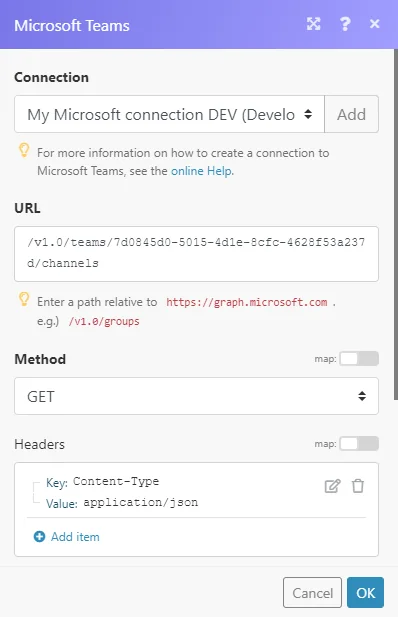
URL
Enter a path relative to https://graph.microsoft.com. E.g. /v1.0/teams/<TEAM_ID>/channels – where the <GROUP_ID> is the ID of the team you want to retrieve channels from.
For the list of available endpoints, refer to the Microsoft Graph REST API Reference.
Method
Select the HTTP method you want to use:
GET to retrieve information for an entry.
POST to create a new entry.
PUT to update/replace an existing entry.
PATCH to make a partial entry update.
DELETE to delete an entry.
Headers
Enter the desired request headers. You don’t have to add authorization headers; we already did that for you.
Query String
Enter the request query string.
Body
Enter the body content for your API call.
Example of Use – List Team’s Channels
The following API call returns a list of all channels from the specified team in your Microsoft Teams account:
URL:/v1.0/teams/7d0845d0-5015-4d1e-8cfc-4628f53a237d/channels where the 7d0845d0-5015-4d1e-8cfc-4628f53a237d is the Group ID of the team you want to retrieve channels from.
You can retrieve the group ID, for example, using the List All Teams > Groups or Watch Teams module.
Method: GET
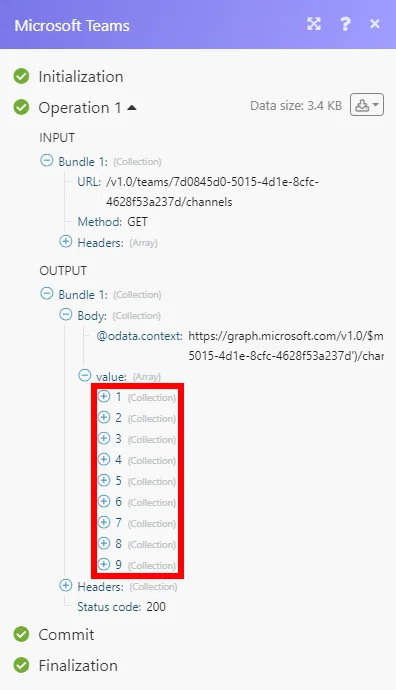
Matches of the search can be found in the module’s Output under Bundle > Body > value.
In our example, 9 channels were returned:
Permissions Information for Microsoft Teams
-
Add a Member – offline_access, User.Read, User.ReadWrite.All
-
Add a Member to a Group – offline_access, User.Read, User.Read.All, GroupMember.ReadWrite.All
-
Create a Channel – offline_access, User.Read, Group.ReadWrite.All
-
Create an Office 365 Group – offline_access, User.Read, Group.ReadWrite.All, User.Read.All
-
Create a Team from a Group – offline_access, User.Read, Group.ReadWrite.All
-
Create an Online Meeting – offline_access, User.Read, OnlineMeetings.ReadWrite
-
Delete a Channel – offline_access, User.Read, Group.ReadWrite.All
-
Delete a Team or Group – offline_access, User.Read, Group.ReadWrite.All
-
Delete an Online Meeting – offline_access, User.Read, OnlineMeetings.ReadWrite
-
Get a Channel – offline_access, User.Read, Group.Read.All
-
Get an Online Meeting – offline_access, User.Read, OnlineMeetingArtifact.Read.All, OnlineMeetings.Read
-
Get a Team – offline_access, User.Read, Group.Read.All
-
Get User’s Presence – offline_access, User.Read, Presence.Read.All, User.Read.All
-
List All Teams & Groups – offline_access, User.Read, Group.Read.All
-
List Channels – offline_access, User.Read, Group.Read.All
-
List Jointed Teams – offline_access, User.Read, Group.Read.All
-
Reply to a Channel Message – offline_access, User.Read, ChannelMessage.Send, Group.Read.All, ChannelMessage.Read.All
-
Search Users – offline_access, User.Read, User.Read.All
-
Send a Message – offline_access, User.Read, ChannelMessage.Send, Chat.ReadWrite, User.Read.All, Group.Read.All
-
Update a Channel – offline_access, User.Read, Group.ReadWrite.All
-
Update an Online Meeting – offline_access, User.Read, OnlineMeetings.ReadWrite
-
Update a Team – offline_access, User.Read, Group.ReadWrite.All
-
Watch Messages – offline_access, User.Read, ChannelMessage.Read.All, Chat.Read
-
Watch New Replies – offline_access, User.Read, ChannelMessage.Read.All, Group.Read.All
-
Watch Teams – offline_access, User.Read, Group.Read.All
-
Make an API Call – offline_access, User.Read
Legacy article, imported from the original Boost.space knowledge base (/knowledge-base/applications/communication/microsoft-teams/).

