Freshworks CRM
Getting Started with Freshworks CRM
The Freshworks modules allow you to watch, create, update, view, list, search, and delete contacts, leads, accounts, tasks, deals, notes, and sales activities in your Freshworks CRM account.
Prerequisites
- A Freshworks CRM account – create an account at freshworks-crm/signup.
The module dialog fields that are displayed in bold (in the Boost.space Integrator scenario, not in this documentation article) are mandatory!
Connecting FreshWorks CRM to Boost.space Integrator
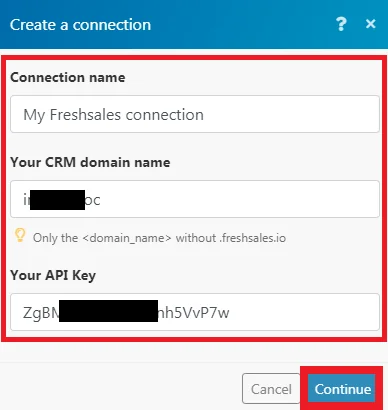
To connect your Freshworks CRM account to Boost.space Integrator you need to obtain the API Key from your Freshworks account and insert it in the Create a connection dialog in the Boost.space Integrator module.

1. Log in to your Freshworks CRM account and open your Dashboard.
2. Click your Profile Icon > Settings > API Keys.
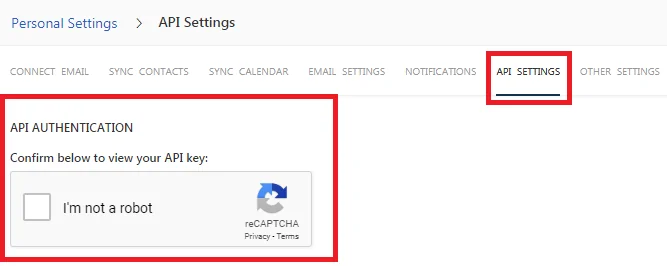
3. Authenticate to view the API Key.
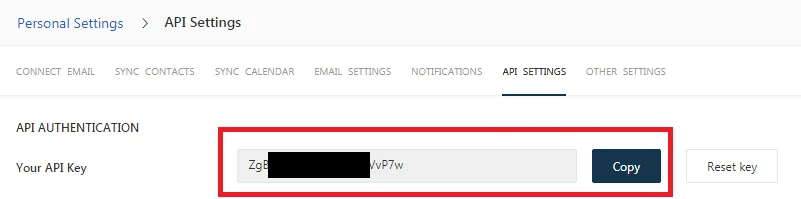
4. Copy the API Key to your clipboard.
5. Go to Boost.space Integrator and open the Freshsales module’s Create a connection dialog.

6. In the Connection name field, enter a name for the connection.
7. In the Domain field, enter the domain name. For example, if your Freshworks CRM account accessing URL is www.xyz.freshsales.com, then your domain is xyz.
8. In the API Key field, enter the API Key copied in step 4.
9. Click Continue.
The connection has been established.
Triggers
Watch New Accounts
Checks if a new account was created.
Connection
Establish a connection to your Freshworks CRM account.
Filter
Select the option to filter the accounts you want to watch.
Limit
The maximum number of accounts Boost.space Integrator should return during one execution cycle.
Watch New Appointments
Checks if a new appointment was created.
Connection
Establish a connection to your Freshworks CRM account.
Filter
Select the option to filter the appointments you want to watch.
Limit
The maximum number of appointments Boost.space Integrator should return during one execution cycle.
Watch New Contacts
Checks if a new contact was created.
Connection
Establish a connection to your Freshworks CRM account.
Filter
Select the option to filter the contacts you want to watch.
Limit
The maximum number of contacts Boost.space Integrator should return during one execution cycle.
Watch New Deals
Checks if a new deal was created.
Connection
Establish a connection to your Freshworks CRM account.
Filter
Select the option to filter the deals you want to watch.
Limit
The maximum number of deals Boost.space Integrator should return during one execution cycle.
Watch New Leads
Checks if a new lead was created.
Connection
Establish a connection to your Freshworks CRM account.
Filter
Select the option to filter the leads you want to watch.
Limit
The maximum number of leads Boost.space Integrator should return during one execution cycle.
Watch New Sales Activity
Checks if new sales activity was created.
Connection
Establish a connection to your Freshworks CRM account.
Filter
Select the option to filter the leads you want to watch.
Limit
The maximum number of leads Boost.space Integrator should return during one execution cycle.
Actions
Convert a Lead
Converts a lead to a contact.
Connection
Establish a connection to your Freshworks CRM account.
Lead ID
Enter the Lead ID you want to convert to a contact.
First Name
Enter the first name.
Last Name
Enter the last name.
Owner
Select the user who owns this contact.
Lead Stage
Select the status of the lead:
-
New
-
Contacted
-
Interested
-
Under Review
-
Demo
-
Unqualified
Job Title
Enter the job title of the contact.
Department
Enter the department to which the contact belongs.
Email Address
Enter the email address of the contact.
Work Number
Enter the work phone number of the contact.
Mobile Number
Enter the mobile number of the contact.
Has Authority
When selected, specifies that the lead has the authority to make decisions regarding the purchase.
Do Not Disturb
When selected, specifies that the lead has enabled the Do Not Disturb or unsubscribed from your marketing emails.
Territory
Select the territory where the lead belongs to.
Time Zone
Select the time zone the lead belongs to.
Address
Enter the address of the contact.
City
Enter the city name.
State
Enter the state name.
Zipcode
Enter the zipcode of the region to which the lead belongs to.
Country
Enter the country name to which the lead belongs.
Enter the Facebook URL of the lead.
Enter the Twitter URL of the lead.
Enter the LinkedIn URL of the lead.
Company Name
Enter the company name to which the lead belongs.
Company Address
Enter the company address.
Company City
Enter the city name.
Company State
Enter the state name.
Company Zipcode
Enter the zipcode of the region where the company is located.
Company Country
Enter the country name where the company is situated.
Number of Employees
Enter the number of employees in the company.
Company Annual Revenue
Enter the company’s annual revenue amount.
Company Website
Enter the website URL of the company.
Company Phone
Enter the phone number of the company.
Industry Type
Select the industry in which the company is doing business.
Business Type
Select the business type the company belongs to
Deal Name
Enter the name of the deal.
Deal Value
Enter the deal amount.
Deal Expected Close Date
Enter the date when the deal with the lead is expected to close.
Product
Select the product for which the deal is for.
Source
Select the source from where you got the lead.
Campaign
Select the campaign from which you got the lead.
Medium
Enter the source through which contact has reached your website.
Keyword
Enter the keywords contact used to reach your website or app.
Create an Account
Creates a new account.
Connection
Establish a connection to your Freshworks CRM account.
Name
Enter a new name for the account.
Website
Enter the website URL of the account.
Phone
Enter the phone number of the account.
Sales Owner
Select the user who owns the account.
Parent Account
Enter the Sales Parent Account ID for this account.
Number of Employees
Enter the number of employees in the account’s company.
Annual Revenue
Enter the annual revenue of the account.
Tags
Enter the keyword to filter the account when searching.
Industry Type
Select the industry to which the account belongs.
Business Type
Select the business of the account.
Territory
Enter the ID of the territory to which the account belongs to.
Address
Enter the address of the account.
city
Enter the city name.
state
Enter the state name.
Zipcode
Enter the zipcode of the region to which the account belongs.
Country
Enter the country name.
Enter the Facebook URL of the account.
Enter the Twitter URL of the account.
Enter the LinkedIn URL of the account.
Create a Lead
Creates a new lead.
Connection
Establish a connection to your Freshworks CRM account.
First Name
Enter the first name.
Last Name
Enter the last name.
Enter the email address of the lead.
Mobile
Enter the mobile number of the lead.
Work
Enter the work phone number of the lead.
Sales Owner
Select the user who owns this lead.
Lead Stage
Select the status of the lead:
-
New
-
Contacted
-
Interested
-
Under Review
-
Demo
-
Unqualified
Unqualified Reasons
Select the reason for unqualifying the lead:
-
Junk Lead
-
Unable to reach
-
Not interested
Subscription Status
Select the subscription status of the lead:
-
Unsubscribed
-
Subscribed
-
Not Subscribed
-
Reported as Spam
-
Bounced
Job Title
Enter the job title of the lead.
Tags
Enter the keyword to filter the lead when searching.
Territory
Select the territory where the lead belongs to.
Time Zone
Select the time zone the lead belongs to.
Address
Enter the address of the contact.
City
Enter the city name.
State
Enter the state name.
Zipcode
Enter the zipcode of the region to which the lead belongs to.
Country
Enter the country name to which the lead belongs.
Enter the Facebook URL of the lead.
Enter the Twitter URL of the lead.
Enter the LinkedIn URL of the lead.
Company Name
Enter the company name to which the lead belongs.
Company Address
Enter the company address.
Company City
Enter the city name.
Company State
Enter the state name.
Company Zipcode
Enter the zipcode of the region where the company is located.
Company Country
Enter the country name where the company is situated.
Number of Employees
Enter the number of employees in the company.
Company Annual Revenue
Enter the company’s annual revenue amount.
Company Website
Enter the website URL of the company.
Company Phone
Enter the phone number of the company.
Industry Type
Select the industry in which the company is doing business.
Business Type
Select the business type the company belongs to
Deal Name
Enter the name of the deal.
Deal Value
Enter the deal amount.
Deal Expected Close Date
Enter the date when the deal with the lead is expected to close.
Product
Select the product for which the deal is for.
Source
Select the source from where you got the lead.
Campaign
Select the campaign from which you got the lead.
Medium
Enter the source through which contact has reached your website.
Keyword
Enter the keywords contact used to reach your website or app.
Create an Appointment
Creates a new appointment.
Connection
Establish a connection to your Freshworks CRM account.
Title
Enter a name for the appointment.
All Day
Select if the appointment is for all day.
From
Enter the start time of the appointment.
To
Enter the end time of the appointment.
Outcome
Select the appointment outcome:
-
Interested
-
Left Message
-
No Response
-
Not Interested
-
Not able to reach
Time Zone
Select the time zone in which the appointment is scheduled.
Where
Enter the location of the appointment.
Description
Enter the details of the appointment.
Target Type
Select the agenda of the appointment:
-
Lead
-
Contact
-
Freshsales account
-
Deal
Attendees
Add the attendees to the appointment.
ID
Enter the ID of the lead, contact, or account.
Create a Contact
Creates a new contact.
Connection
Establish a connection to your Freshworks CRM account.
First Name
Enter the first name.
Last Name
Enter the last name.
Account ID
Enter the Account ID of the contact.
Email Address
Enter the email address of the contact.
Mobile
Enter the mobile number of the contact.
Work
Enter the work phone number of the contact.
Sales Owner
Select the user to whom the contact is assigned.
Subscription Status
Select the subscription status of the contact:
-
Unsubscribed
-
Subscribed
-
Not Subscribed
-
Reported as Spam
-
Bounced
Tags
Enter the keyword to filter the contact when searching.
Job Title
Enter the position of the contact in the company to which he/she belongs to.
Status
Select the type for the contact:
-
Qualified Lead
-
Prospect
-
Customer
-
List
-
Partner
-
Reseller
-
Other
Time Zone
Select the time zone the contact belongs to.
Address
Enter the address of the contact.
City
Enter the city name.
State
Enter the state name.
Zipcode
Enter the zipcode of the region to which the contact belongs to.
Country
Enter the country name to which the contact belongs.
Enter the Facebook URL of the contact’s company or the lead.
Enter the Twitter URL of the lead’s company or the lead.
Enter the LinkedIn URL contact’s company or the lead.
Territory
Select the place where the contact belongs to.
Source
Select the source from where you got the lead.
Campaign
Select the campaign from which you got the lead.
Medium
Enter the source through which contact has reached your website.
Keyword
Enter the keywords contact used to reach your website or app.
Create a Deal
Creates a new deal.
Connection
Establish a connection to your Freshworks CRM account.
Name
Enter a name for the deal.
Deal Value
Enter the deal amount.
Account ID
Enter the Account ID of the deal.
Related Contacts
Add the contacts involved in the deal.
Deal Pipeline
Select the pipeline applicable for the deal.
Deal Stage
Select the stage of the deal:
-
New
-
Follow-up
-
Under Review
-
Demo
-
Lost
-
Negotiation
-
Won
Lost Reason
Select the reason for the loss if the deal is lost:
-
Opted our rival
-
Price is too high
-
Junk lead
-
Not interested
-
No requirement
-
Need only in future
-
Product not satisfying
-
No proper follow-up
-
Appointment missed
Closed Date
Enter the date when the deal is closed.
Sales Owner
Select the user associated with this deal.
Tags
Enter the keywords to filter the contact when searching.
Product
Select the product associated with the deal.
Currency
Select the currency applicable for the deal.
Deal Value in Base Currency
Enter the deal amount in base currency.
Payment Status
Select the payment status of the deal:
-
Offline
-
Online
Expected Close Date
Enter the date when the deal is expected to close.
Probability (%)
Enter the probability (in percentage) that the deal will be closed successfully.
Territory
Select the location of the contact of the deal.
Type
Enter the deal type:
-
New Business
-
Existing Business – Renewal
-
Existing Business – Upgrade
Source
Select the source from where you have received the lead for the deal.
Campaign
Select the campaign from where you have received the lead for the deal.
Last Activity Type
Select the mode of contact for the deal:
-
Appointment
-
Chat
-
Phone
-
Email
-
SMS
-
Task
Last Activity Date
Enter the date when was the last time contacted the deal representatives.
Expected Deal Value
Enter the amount expected in the deal.
Create a Manual Call Log
Creates a manual call log for new or existing lead/contact or an existing account.
Connection
Establish a connection to your Freshworks CRM account.
Call Type
Select the call type:
-
Incoming
-
Outgoing
Outcome
Select the outcome result of the call.
Associate this phone call with
Select the category applicable to whom you have called:
-
Existing leaf
-
New Lead
-
Existing contact
-
New Contact
-
Existing Account
Description
Enter the details of the call.
Create a Note
Creates a note for a specific object.
Connection
Establish a connection to your Freshworks CRM account.
Text
Enter the note text.
Target Type
Select the target type associated with the note:
-
Lead
-
Contact
-
Freshsales Account
-
Deal
Lead ID
Enter the Lead ID.
Contact ID
Enter the Contact ID.
Account ID
Enter the Account ID.
Deal ID
Enter the Deal ID.
Create a Sales Activity
Creates a new Freshsales activity.
Connection
Establish a connection to your Freshworks CRM account.
Title
Enter a name for the sales activity.
Note
Enter the details of the sales activity.
Target Type
Select the option to whom the sales activity is for:
-
Lead
-
Contact
-
Freshsales Account
-
Deal
Start Date
Enter the date when the sales activity begins.
End Date
Enter the date when the sales activity ends.
Owner
Select the user who owns this sales activity.
Sales Activity Type
Select the sales activity type:
-
Appointment
-
Chat
-
Phone
-
Task
-
SMS
Sales Activity Outcome
Select the sales activity outcome.
Create a Task
Creates a new task.
Connection
Establish a connection to your Freshworks CRM account.
Title
Enter a name for the task.
Due Date
Enter the date by when the task must be completed.
Task Type
Select the task type:
-
Follow-up
-
Reminder
Outcome
Select the appointment outcome:
-
Interested
-
Left Message
-
No Response
-
Not Interested
-
Not able to reach
Description
Select the details of the task.
Owner
Select the user to whom you want to assign the task.
Target Type
Select the option to whom the task is targeted for:
-
Lead
-
Contact
-
Freshsales account
-
Deal
Status
Select the status of the task:
-
Open
-
Completed
Delete an Account
Deletes a specific account.
Connection
Establish a connection to your Freshworks CRM account.
Account ID
Enter the Account ID you want to delete.
Delete an Appointment
Deletes a specific appointment.
Connection
Establish a connection to your Freshworks CRM account.
Appointment ID
Enter the Appointment ID you want to delete.
Delete a Contact
Deletes a specific contact.
Connection
Establish a connection to your Freshworks CRM account.
Contact ID
Enter the Contact ID you want to delete.
Delete a Deal
Deletes a specific deal.
Connection
Establish a connection to your Freshworks CRM account.
Deal ID
Enter the Deal ID you want to delete.
Delete a Lead
Deletes a specific lead.
Connection
Establish a connection to your Freshworks CRM account.
Lead ID
Enter the Lead ID you want to delete.
Delete a Note
Deletes a specific note.
Connection
Establish a connection to your Freshworks CRM account.
Note ID
Enter the Note ID you want to delete.
Delete a Sales Activity
Deletes a specific Freshsales activity.
Connection
Establish a connection to your Freshworks CRM account.
Sales Activity
Select the Sales Activity you want to delete.
Delete a Task
Deletes a specific task.
Connection
Establish a connection to your Freshworks CRM account.
Task ID
Enter the Task ID you want to delete.
Update an Account
Updates information of specific account.
Connection
Establish a connection to your Freshworks CRM account.
Account ID
Enter the Account ID you want to update.
Name
Enter a new name for the account.
Website
Enter the website URL of the account.
Phone
Enter the phone number of the account.
Sales Owner
Select the user who owns the account.
Parent Account
Enter the Sales Parent Account ID for this account.
Number of Employees
Enter the number of employees in the account’s company.
Annual Revenue
Enter the annual revenue of the account.
Tags
Enter the keyword to filter the account when searching.
Industry Type
Select the industry to which the account belongs.
Business Type
Select the business of the account.
Territory
Enter the ID of the territory to which the account belongs to.
Address
Enter the address of the account.
city
Enter the city name.
state
Enter the state name.
Zipcode
Enter the zip code of the region to which the account belongs to.
Country
Enter the country name.
Enter the Facebook URL of the account.
Enter the Twitter URL of the account.
Enter the LinkedIn URL of the account.
Update an Appointment
Updates information of specific appointments.
Connection
Establish a connection to your Freshworks CRM account.
Appointment ID
Enter the Appointment ID you want to update.
Title
Enter a name for the appointment.
All Day
Select if the appointment is for all day.
From
Enter the start time of the appointment.
To
Enter the end time of the appointment.
Outcome
Select the appointment outcome:
-
Interested
-
Left Message
-
No Response
-
Not Interested
-
Not able to reach
Time Zone
Select the time zone in which the appointment is scheduled.
Where
Enter the location of the appointment.
Description
Enter the details of the appointment.
Target Type
Select the option to whom the appointment is targeted for:
-
Lead
-
Contact
-
Freshsales account
-
Deal
Attendees
Add the attendees to the appointment.
ID
Enter the ID of the lead, contact, or account.
Update a Contact
Updates information of a specific contact.
Connection
Establish a connection to your Freshworks CRM account.
Contact ID
Enter the Contact ID you want to update.
First Name
Enter the first name.
Last Name
Enter the last name.
Account ID
Enter the Account ID of the contact.
Email Address
Enter the email address of the contact.
Mobile
Enter the mobile number of the contact.
Work
Enter the work phone number of the contact.
Sales Owner
Select the user to whom the contact is assigned.
Subscription Status
Select the subscription status of the contact:
-
Unsubscribed
-
Subscribed
-
Not Subscribed
-
Reported as Spam
-
Bounced
Tags
Enter the keyword to filter the contact when searching.
Job Title
Enter the position of the contact in the company to which he/she belongs to.
Status
Select the contact type:
-
Qualified Lead
-
Prospect
-
Customer
-
List
-
Partner
-
Reseller
-
Other
Time Zone
Select the time zone the contact belongs to.
Address
Enter the address of the contact.
City
Enter the city name.
State
Enter the state name.
Zipcode
Enter the zip code of the region to which the contact belongs to.
Country
Enter the country name to which the contact belongs.
Enter the Facebook URL of the contact’s company or the lead.
Enter the Twitter URL of the lead’s company or the lead.
Enter the LinkedIn URL contact’s company or the lead.
Territory
Select the place where the contact belongs to.
Source
Select the source from where you got the lead.
Campaign
Select the campaign from which you got the lead.
Medium
Enter the source through which contact has reached your website.
Keyword
Enter the keywords contact used to reach your website or app.
Update a Deal
Updates information of a specific deal.
Connection
Establish a connection to your Freshworks CRM account.
Deal ID
Enter the Deal ID you want to update.
Name
Enter a name for the deal.
Deal Value
Enter the deal amount.
Account ID
Enter the Account ID of the deal.
Related Contacts
Add the contacts involved in the deal.
Deal Pipeline
Select the pipeline applicable for the deal.
Deal Stage
Select the stage of the deal:
-
New
-
Follow-up
-
Under Review
-
Demo
-
Lost
-
Negotiation
-
Won
Lost reason
Select the reason for the loss if the deal is lost:
-
Opted our rival
-
Price is too high
-
Junk lead
-
Not interested
-
No requirement
-
Need only in future
-
Product not satisfying
-
No proper follow-up
-
Appointment missed
Closed Date
Enter the date when the deal is closed.
Sales Owner
Select the user associated with this deal.
Tags
Enter the keywords to filter the contact when searching.
Product
Select the product associated with the deal.
Currency
Select the currency applicable for the deal.
Deal Value in Base Currency
Enter the deal amount in base currency.
Payment Status
Select the payment status of the deal:
-
Offline
-
Online
Expected Close Date
Enter the date when the deal is expected to close.
Probability (%)
Enter the probability (in percentage) that the deal will be closed successfully.
Territory
Select the location of the contact of the deal.
Type
Enter the deal type:
-
New Business
-
Existing Business – Renewal
-
Existing Business – Upgrade
Source
Select the source from where you have received the lead for the deal.
Campaign
Select the campaign from where you have received the lead for the deal.
Last Activity Type
Select the mode of contact for the deal:
-
Appointment
-
Chat
-
Phone
-
Email
-
SMS
-
Task
Last Activity Date
Enter the date when was the last time contacted the deal representatives.
Expected Deal Value
Enter the amount expected in the deal.
Update a Lead
Updates information of a specific lead.
Connection
Establish a connection to your Freshworks CRM account.
Lead ID
Enter the Lead ID you want to update.
First Name
Enter the first name.
Last Name
Enter the last name.
Enter the email address of the lead.
Mobile
Enter the mobile number of the lead.
Work
Enter the work phone number of the lead.
Sales Owner
Select the user who owns this lead.
Lead Stage
Select the status of the lead:
-
New
-
Contacted
-
Interested
-
Under Review
-
Demo
-
Unqualified
Unqualified Reasons
Select the reason for unqualifying the lead:
-
Junk Lead
-
Unable to reach
-
Not interested
Subscription Status
Select the subscription status of the lead:
-
Unsubscribed
-
Subscribed
-
Not Subscribed
-
Reported as Spam
-
Bounced
Job Title
Enter the job title of the lead.
Tags
Enter the keyword to filter the lead when searching.
Territory
Select the territory where the lead belongs to.
Time Zone
Select the time zone the lead belongs to.
Address
Enter the address of the contact.
City
Enter the city name.
State
Enter the state name.
Zipcode
Enter the zip code of the region to which the lead belongs to.
Country
Enter the country name to which the lead belongs.
Enter the Facebook URL of the lead.
Enter the Twitter URL of the lead.
Enter the LinkedIn URL of the lead.
Company Name
Enter the company name to which the lead belongs.
Company Address
Enter the company address.
Company City
Enter the city name.
Company State
Enter the state name.
Company Zipcode
Enter the zipcode of the region where the company is located.
Company Country
Enter the country name where the company is situated.
Number of Employees
Enter the number of employees in the company.
Company Annual Revenue
Enter the company’s annual revenue amount.
Company Website
Enter the website URL of the company.
Company Phone
Enter the phone number of the company.
Industry Type
Select the industry in which the company is doing business.
Business Type
Select the business type the company belongs to
Deal Name
Enter the name of the deal.
Deal Value
Enter the deal amount.
Deal Expected Close Date
Enter the date when the deal with the lead is expected to close.
Product
Select the product for which the deal is for.
Source
Select the source from where you got the lead.
Campaign
Select the campaign from which you got the lead.
Medium
Enter the source through which contact has reached your website.
Keyword
Enter the keywords contact used to reach your website or app.
Update a Note
Updates a specific note.
Connection
Establish a connection to your Freshworks CRM account.
Note ID
Enter the Note ID you want to update.
Text
Enter the note text.
Target Type
Select the target type associated with the note:
-
Lead
-
Contact
-
Freshsales Account
-
Deal
Target ID
Enter the Target ID for the above-selected target type. For example, Lead ID.
Update a Sales Activity
Updates information of a specific Freshsales activity.
Connection
Establish a connection to your Freshworks CRM account.
Sales Activity
Select the sales activity you want to update.
Title
Enter a name for the sales activity.
Note
Enter the details of the sales activity.
Target Type
Select the option to whom the sales activity is for:
-
Lead
-
Contact
-
Freshsales Account
-
Deal
Start Date
Enter the date when the sales activity begins.
End Date
Enter the date when the sales activity ends.
Owner
Select the user who owns this sales activity.
Sales Activity Type
Select the sales activity type:
-
Appointment
-
Chat
-
Phone
-
Task
-
SMS
Sales Activity Outcome
Select the sales activity outcome.
Update a Task
Updates a specific task.
Connection
Establish a connection to your Freshworks CRM account.
Task ID
Enter the Task ID you want to update.
Title
Enter a name for the task.
Due Date
Enter the date by when the task must be completed.
Task Type
Select the task type:
-
Follow-up
-
Reminder
Outcome
Select the appointment outcome:
-
Interested
-
Left Message
-
No Response
-
Not Interested
-
Not able to reach
Description
Select the details of the task.
Owner
Select the user to whom you want to assign the task.
Target Type
Select the option to whom the task is targeted for:
-
Lead
-
Contact
-
Freshsales account
-
Deal
Status
Select the status of the task:
-
Open
-
Completed
View an Account
View details of a specific account.
Connection
Establish a connection to your Freshworks CRM account.
Account ID
Enter the Account ID whose details you want to view.
View an Appointment
View details of a specific appointment.
Connection
Establish a connection to your Freshworks CRM account.
Appointment ID
Enter the Appointment ID whose details you want to view.
View a Contact
View details of a specific contact.
Connection
Establish a connection to your Freshworks CRM account.
Contact ID
Enter the Contact ID whose details you want to view.
View a Deal
View details of a specific deal.
Connection
Establish a connection to your Freshworks CRM account.
Deal ID
Enter the Deal ID whose details you want to view.
Include
Select the options whose details you want to view:
-
Owner
-
Creator
-
Updater
-
Source
-
Contacts
-
Sales Account
-
Deal Stage
-
Deal Type
-
Deal Reason
-
Campaign
-
Deal Payment Status
-
Deal Product
-
Currency
-
Probability
-
Created at
-
Updated at
View a Lead
Views details of a specific lead.
Connection
Establish a connection to your Freshworks CRM account.
Lead ID
Enter the Lead ID you want to update.
Include
Select the options whose details you want to view:
-
Owner
-
Creator
-
Updater
-
Source
-
LeadStage
-
Lead Reason
-
Territory
-
Campaign
-
Tasks
-
Appointments
-
Notes
View a Sales Activity
View details of a specific Freshsales activity.
Connection
Establish a connection to your Freshworks CRM account.
Sales Activity
Enter the sales activity whose details you want to view.
View a Task
Views details of a specific task.
Connection
Establish a connection to your Freshworks CRM account.
Task ID
Enter the Task ID you want to update.
Include
Select the options whose details you want to view:
-
User
-
Target
Searches
List All Accounts
Lists all accounts on your Freshsales account.
Connection
Establish a connection to your Freshworks CRM account.
Filter
Select the option to filter the accounts you want to list:
-
My Accounts
-
All Accounts
-
My Territory Accounts
-
Recently Imported
-
Recycle Bin
Include
Select the options whose details you want to view:
-
Creator
-
Updater
-
Deals
-
Industry type
-
Child Sales Accounts
-
Territory
-
Tasks
-
Appointments
-
Business Type
-
Contacts
Sort By
Select the option to sort the accounts:
-
Open deals amount
-
Created at
-
Updated at
-
Last contacted
Limit
The maximum number of accounts Boost.space Integrator should return during one execution cycle.
List All Contacts
Lists all contacts on your Freshsales account.
Connection
Establish a connection to your Freshworks CRM account.
Filter
Select the option to filter the contacts you want to list.
List All Files and Links
Lists all files and links attached to a specified lead, contact, account, or deal.
Connection
Establish a connection to your Freshworks CRM account.
ID
Enter the Lead, Contact, Deal, or Sales Account ID to list the related files and links.
List All Appointments
Lists all appointments on your Freshsales account.
Connection
Establish a connection to your Freshworks CRM account.
Filter
Select the option to filter the appointments you want to list:
-
Past
-
Upcoming
List All Deals
Lists all deals on your Freshsales account.
Connection
Establish a connection to your Freshworks CRM account.
Filter
Select the option to filter the accounts you want to list:
-
Open Deals
-
My Deals
-
My Territory Deals
-
Recent Deals
-
Recently Imported
-
Lost Deals
-
Won Deals
-
Hot Deals
-
Cold Deals
-
Closing This Week
-
This Month Sales
-
Recycle Bin
Number of deals returned
The maximum number of deals Boost.space Integrator should return during one execution cycle.
List All Leads
Lists all leads on your FreshSales account.
Connection
Establish a connection to your Freshworks CRM account.
Filter
Select the option to filter the leads you want to list:
-
My Leads
-
New Leads
-
Unassigned Leads
-
All LEads
-
Recently Modified
-
Recently Imported
-
My Territory Leads
-
Hot Leads
-
Warm Leads
-
Cold Leads
-
Recycle Bin
List All Sales Activities
Lists all Freshsales activities on your account.
Connection
Establish a connection to your Freshworks CRM account.
Number of Sales Activities Returned
The maximum number of sales activities Boost.space Integrator should return during one execution cycle.
List All Tasks
Lists all tasks on your Freshsales accounts.
Connection
Establish a connection to your Freshworks CRM account.
Filter
Select the option to filter the leads you want to list:
-
Overdue
-
Today
-
Tomorrow
-
Open
-
Completed
Search Accounts
Searches through your Freshsales account for match.
Connection
Establish a connection to your Freshworks CRM account.
Search
Enter the text or phrase to search the accounts.
Number of accounts returned
The maximum number of accounts Boost.space Integrator should return during one execution cycle.
Search Contacts
Searches through your Freshsales account for match.
Connection
Establish a connection to your Freshworks CRM account.
Search
Enter the text or phrase to search the contacts.
Number of contacts returned
The maximum number of contacts Boost.space Integrator should return during one execution cycle.
Search Deals
Searches through your Freshsales account for match.
Connection
Establish a connection to your Freshworks CRM account.
Search
Enter the text or phrase to search the deals.
Number of deals returned
The maximum number of deals Boost.space Integrator should return during one execution cycle.
Search Leads
Search through your Freshsales account for match.
Connection
Establish a connection to your Freshworks CRM account.
Search
Enter the text or phrase to search for the leads.
Number of leads returned
The maximum number of leads Boost.space Integrator should return during one execution cycle.
Search Users
Searches through your Freshsales account for match.
Connection
Establish a connection to your Freshworks CRM account.
Search
Enter the text or phrase to search the users.
Number of users returned
The maximum number of users Boost.space Integrator should return during one execution cycle.
Follow Up Boss
GetProspect
Legacy article, imported from the original Boost.space knowledge base (/knowledge-base/applications/crm-and-sales-tools/freshsales-2/).

