Daylite
The Daylite modules allow you to watch, search, get, create, update, and delete the contacts, companies, opportunities, projects, forms, appointments, tasks, and notes from your Daylite account.
Getting Started with Daylite
Prerequisites
- A Daylite account – create an account at marketcircle.com.
The module dialog fields that are displayed in bold (in the Boost.space Integrator scenario, not in this documentation article) are mandatory!
Connect Daylite with Boost.space Integrator
To connect your Daylite account to Boost.space Integrator :
-

Log in to your Boost.space Integrator account and add a module from the Daylite app into an Boost.space Integrator scenario.
-
Click Add next to the Connection field.
-
In the Connection name field, enter a name for the connection and click Continue.
-
Enter your credentials and click Sign In.
-
Confirm your access by clicking Authorize.
You have successfully connected the Daylite app with Boost.space Integrator and can now build scenarios.
Contacts
Boost.space Integrator automatically creates a webhook in DFFaylite once you add an instant trigger to your scenario.
Watch New Contact
Triggers when a new person is created in Daylite.
Webhook
Enter (map) a name for the webhook.
Connection
Establish a connection to your Daylite account.
Watch Contact Updated
Triggers when a person is updated in Daylite.
Webhook
Enter (map) a name for the webhook.
Connection
Establish a connection to your Daylite account.
Watch Contact Deleted
Triggers when a person is deleted in Daylite.
Webhook
Enter (map) a name for the webhook.
Connection
Establish a connection to your Daylite account.
Search Contacts
Searches for contact or lists them all.
Connection
Establish a connection to your Daylite account.
Search Criteria
Search Criteria
Select the criteria to search:
-
First Name
-
Last Name
-
Middle Name
-
Prefix
-
Suffix
-
Full Name
-
Alias
-
Nickname
-
Category
-
Details
Equals
Enter (map) the value for the search criteria selected
Note: You can select AND rule or OR rule for searching.
Limit
Set the maximum number of contacts Boost.space Integrator should return during one execution cycle. The default value is 10.
Get a Contact
Shows the details of a contact.
Connection
Establish a connection to your Daylite account.
Contact ID
Select or map the Contact ID to retrieve.
Create a Contact
Creates a new contact.
Connection
Establish a connection to your Daylite account.
First Name
Enter (map) the first name for the contact.
Last Name
Enter (map) the last name for the contact.
Prefix
Enter (map) the prefix for the contact.
Suffix
Enter (map) the suffix for the contact.
Alias
Enter (map) the alias for the contact.
Nickname
Enter (map) the nickname for the contact.
Category
Select or map the type of category for the contact.
Keywords
Select the keyword for the contact:
-
Newsletter
-
Unsubscribed
-
Company Advocate
-
Original Source Referral
-
Original Source: Networking
-
Original Source: Direct
-
Original Source: Trade Show
Emails
Label
Select or map the label for the email address:
-
Home
-
Personal
-
Work
Email Address
Enter (map) the email address of the contact.
Note
Enter (map) the note for the contact created.
Social Profiles
Label
Select or map the label for Social Profiles:
-
Home
-
Work
Service
Enter (map) the service name of the social profile.
Username
Enter (map) the username of the social profile.
URL’s
Label
Select the label
URL
Enter (map) the URL of the website.
Companies
Company
Select or map the type of company.
Title
Enter (map) the name of the company.
Opportunities
Opportunity
Select or map the type of opportunity.
Title
Enter (map) the name for the opportunity.
Projects
Project
Select or map the project type.
Title
Enter (map) the name of the project.
Notes
Select or map the type of notes to create a contact.
Tasks
Select or map the type of tasks to create a contact.
Appointments
Select or map the type of appointment to create a contact.
Groups
Select or map the type of group to create a contact.
Update a Contact
Modifies a contact.
Connection
Establish a connection to your Daylite account.
Contact ID
Select or map the Contact ID to update a contact.
First Name
Enter (map) the first name for the contact.
Middle Name
Enter (map) the middle name for the contact.
Last Name
Enter (map) the last name for the contact.
Category
Select the category of the contact:
-
Client
-
Lead Qualified
-
Lead unqualified
-
Employee
-
Personal
-
Vendor
Keywords
Select the keyword for the contact:
-
Newsletter
-
Unsubscribed
-
Company Advocate
-
Original Source Referral
-
Original Source: Networking
-
Original Source: Direct
-
Original Source: Trade Show
Emails
Label
Select or map the label for the email address:
-
Home
-
Personal
-
Work
Email Address
Enter (map) the updated email address of the contact.
Note
Enter (map) the updated note for the contact created.
URL’s
Label
Select the label for the URL address.
URL
Enter (map) the URL of the website.
Address
Label
Select the label for the address:
-
Billing
-
Home
-
Shipping
-
Work
Street
Enter (map) the street number and name of the contact.
City
Enter (map) the city/town/village name of the contact.
State
Enter (map) the state/province/country name of the contact.
Postal Code
Enter (map) the postal/zip code of the contact.
Country
Enter (map) the country name of the contact.
Note
Enter (map) the additional information of the contact.
Prefix
Enter (map) the prefix for the contact.
Delete a Contact
Removes a contact.
Connection
Establish a connection to your Daylite account.
Contact ID
Select or map the Contact ID to remove the contact.
Companies
You can watch, create, update, list, retrieve, and delete the companies using the following modules.
Boost.space Integrator automatically creates a webhook in Daylite once you add an instant trigger to your sscenario.
Watch New Company
Triggers when a new company is created in Daylite.
Webhook
Enter a name for the webhook.
Connection
Establish a connection to your Daylite account.
Watch Company Updated
Triggers when a company is updated in Daylite.
Webhook
Enter a name for the webhook.
Connection
Establish a connection to your Daylite account.
Search Companies
Searches for companies or lists them all.
Connection
Establish a connection to your Daylite account.
Search Criteria
Select or map the criteria and enter their value to search for the companies that match the specified criteria.
Limit
Set the maximum number of companies Boost.space Integrator will return during one execution cycle. The default value is 10.
Get a Company
Shows the details of a company.
Connection
Establish a connection to your Daylite account.
Company ID
Select or map the Company ID whose details you want to retrieve.
Create a Company
Creates a new company.
Connection
Establish a connection to your Daylite account.
Name
Enter (map) the company’s first name.
Category
Select the company category type:
-
Client
-
Lead Qualified
-
Lead unqualified
-
Personal
-
Vendor
Keywords
Select or map the keyword that helps search for the company. For example, Original Source Referral.
Type
Select or map the company type. For example, a corporation.
Industry
Select or map the company industry type. For example, Advertising.
Region
Select or map the region of the company.
Emails
Add the contact email addresses of the company. You can add multiple contacts.
URL’s
Add the URL addresses related to the company. You can add multiple URL addresses.
Social Profiles
Label
Select or map the label for Social Profiles:
-
Home
-
Work
Service
Enter (map) the social service name of the social profile.
Username
Enter (map) the username of the social profile.
Phone Number
Label
Select or map the label for the phone number:
-
Home
-
Main
-
Mobile
-
Work
Format
Select the format for the phone number:
-
E.164
-
Free Form
Number
Enter (map) the phone number of the company.
Note
Enter (map) the additional information on the phone number.
Address
Label
Select the label for the address:
-
Billing
-
Home
-
Shipping
-
Work
Street
Enter (map) the street number and name of the company.
City
Enter (map) the city/town/village name of the company.
State
Enter (map) the state/province/country name of the company.
Postal Code
Enter (map) the postal/zip code of the company.
Country
Enter (map) the country name of the company.
Note
Enter (map) the additional information of the company.
Details
Enter (map) the details of the company.
Owner
Select or map the owner of the company.
Contacts
Contact
Select or map the contact of the company.
Title
Enter (map) the title of the contact.
Department
Enter (map) the department of the contact.
Opportunities
Opportunity
Select or map the type of opportunity.
Title
Enter (map) the name for the opportunity.
Update a Company
Modifies a company.
Connection
Establish a connection to your Daylite account.
Company ID
Select or map the Company ID to update the company details.
Name
Enter (map) the name of the company.
Category
Select the type of category for the company:
-
Client
-
Lead Qualified
-
Lead unqualified
-
Personal
-
Vendor
Keywords
Select the keyword for the company:
-
Original Source Referral
-
Original Source: Networking
-
Original Source: Direct
-
Original Source: Trade Show
Type
Select the type of the company:
-
Corporation
-
Government
-
Limited Liability
-
Non-Profit
-
Partnership
-
Sole Proprietor
Industry
Select the type of industry:
-
Accounting
-
Advertising
-
Agriculture
-
Charity and Voluntary Work
-
Construction
-
Consulting
-
Creative Art & Design
-
Education
-
Energy & Utilities
-
Engineering
-
Events Management
-
Financial Services
-
Healthcare
-
Hospitality
-
Information Technology
-
Legal
-
Manufacturing
-
Marketing & HR
-
Media and Internet
-
Property Management
-
Public Services and Administration
-
Real Estate
-
Retail
-
Social Care
-
Sports
-
Tourism
-
Transport and Logistics
Region
Select or map the region of the company.
Emails
Label
Select or map the label for the email address:
-
Home
-
Personal
-
Work
Email Address
Enter (map) the email address of the contact.
Note
Enter (map) the note for the contact created.
URL’s
Label
Select the label of the URL.
URL
Enter (map) the URL of the website.
Note
Enter (map) the note for the company updated.
Social Profiles
Label
Select or map the label for Social Profiles:
-
Home
-
Work
Service
Enter (map) the social service name of the social profile.
Username
Enter (map) the username of the social profile.
Phone Number
Label
Select or map the label for the phone number:
-
Home
-
Main
-
Mobile
-
Work
Format
Select the format for the phone number:
-
E.164
-
Free Form
Number
Enter (map) the phone number of the company.
Note
Enter (map) the additional information on the phone number.
Address
Label
Select the label for the address:
-
Billing
-
Home
-
Shipping
-
Work
Street
Enter (map) the street number and name of the company.
City
Enter (map) the city/town/village name of the company.
State
Enter (map) the state/province/country name of the company.
Postal Code
Enter (map) the postal/zip code of the company.
Country
Enter (map) the country name of the company.
Note
Enter (map) the additional information of the company.
Details
Enter (map) the details of the company.
Owner
Select or map the owner of the company.
Contacts
Select or map the contact of the company.
Opportunities
Opportunity
Select or map the type of opportunity.
Title
Enter (map) the name for the opportunity.
Delete a Company
Removes a company.
Connection
Establish a connection to your Daylite account.
Company ID
Select or map the Company ID to delete the company.
Opportunities
Boost.space Integrator automatically creates a webhook in Daylite once you add an instant trigger to your sscenario.
Watch New Opportunity
Triggers when a new opportunity is created in Daylite.
Webhook
Enter (map) the name of the webhook.
Connection
Establish a connection to your Daylite account.
Watch Opportunity Updated
Triggers when an opportunity is updated in Daylite.
Webhook
Enter (map) the name of the webhook.
Connection
Establish a connection to your Daylite account.
Search Opportunities
Searches for opportunities or lists them all.
Connection
Establish a connection to your Daylite account.
Search Criteria
Search Criteria
Select the criteria to search:
-
Name
-
State
-
Type
-
Category
-
Details
Equal
Enter (map) the value for the search criteria selected
Note: You can select AND rule or OR rule for searching.
Limit
Set the maximum number of opportunities Boost.space Integrator should return during one execution cycle. The default value is 10.
Get an Opportunity
Shows the details of an opportunity.
Connection
Establish a connection to your Daylite account.
Opportunity ID
Select or map the Opportunity ID to retrieve.
Create an Opportunity
Creates a new opportunity.
Connection
Establish a connection to your Daylite account.
Name
Enter (map) a name for the opportunity to create.
Contacts
Contact
Select or map the contact to create an opportunity.
Role
Select the type of role for the contact:
-
Client
-
Lead Qualified
-
Lead unqualified
-
Employee
-
Personal
-
Vendor
Title
Enter (map) the title for the contact.
List of company roles
Company
Select or map the company to create an opportunity.
Role
Select the type of role for the contact:
-
Client
-
Lead Qualified
-
Lead unqualified
-
Personal
-
Vendor
Title
Enter (map) the title of the company.
Notes
Select or map the notes for the opportunity to be created.
Tasks
Select or map the tasks for the opportunity to be created.
Appointments
Select or map the appointment for the opportunity to be created.
Groups
Select or map the groups for the opportunity to be created.
Update an Opportunity
Modifies an opportunity.
Connection
Establish a connection to your Daylite account.
Opportunity ID
Select or map the Opportunity ID to update.
Name
Enter (map) a name for the opportunity to update.
Contacts
Contact
Select or map the contact to create an opportunity.
Role
Select the type of role for the contact:
-
Client
-
Lead Qualified
-
Lead unqualified
-
Employee
-
Personal
-
Vendor
Title
Enter (map) the title for the contact.
Company
Company
Select or map the company to create an opportunity.
Role
Select the type of role for the contact:
-
Client
-
Lead Qualified
-
Lead unqualified
-
Personal
-
Vendor
Title
Enter (map) the title of the company.
Notes
Select or map the notes for the opportunity to be created.
Tasks
Select or map the tasks for the opportunity to be created.
Appointments
Select or map the appointment for the opportunity to be created.
Groups
Select or map the groups for the opportunity to be created.
Delete an Opportunity
Removes an opportunity.
Connection
Establish a connection to your Daylite account.
Opportunity ID
Select or map the Opportunity ID you want to delete.
Projects
Boost.space Integrator automatically creates a webhook in Daylite once you add an instant trigger to your sscenario.
Watch New Project
Triggers when a new project is created in Daylite.
Webhook
Enter a name for the webhook.
Connection
Establish a connection to your Daylite account.
Watch Project Updated
Triggers when a project is updated in Daylite.
Webhook
Enter a name for the webhook.
Connection
Establish a connection to your Daylite account.
Search Projects
Searches for projects or lists them all.
Connection
Establish a connection to your Daylite account.
Search Criteria
Search Criteria
Select the criteria to search:
-
Name
-
Status
-
Category
Equal
Enter (map) the value for the search criteria selected
Note: You can select AND rule or OR rule for searching.
Limit
Set the maximum number of projects Boost.space Integrator should return during one execution cycle. The default value is 10.
Get a Project
Shows the details of a project.
Connection
Establish a connection to your Daylite account.
Project ID
Select or map the Project ID to retrieve.
Create a Project
Creates a new project.
Connection
Establish a connection to your Daylite account.
Name
Enter or map a name for the project.
Status
Select the status of the project:
-
New
-
In Progress
-
Done
-
Abandoned
-
Canceled
-
Deferred
Due
Enter (map) the due date of the project.
Started
Enter (map) the starting date of the project.
Completed
Enter (map) the completion date of the project.
Details
Enter (map) the details of the project.
Priority
Enter (map) the priority of the project.
This must be an integer value between 0 and 10. This value must be lower than 10 and higher than 0.
Category
Select the category of the project:
-
Product
-
Service
Keywords
Select or map the keywords for the project created.
Owner
Select or map the owner for the project created.
Contacts
Contact
Select or map the contact to create a project.
Role
Select the type of role for the contact:
-
Client
-
Lead Qualified
-
Lead unqualified
-
Employee
-
Personal
-
Vendor
Title
Enter (map) the title for the contact.
Companies
Company
Select or map the company to create a project.
Role
Select the type of role for the contact:
-
Client
-
Lead Qualified
-
Lead unqualified
-
Personal
-
Vendor
Title
Enter (map) the title of the company.
Notes
Select or map the notes for the project to be created.
Tasks
Select or map the tasks for the project to be created.
Appointments
Select or map appointments for the project to be created.
Groups
Select or map the groups for the project to be created.
Update a Project
Modifies a project.
Connection
Establish a connection to your Daylite account.
Project ID
Select or map the Project ID to update.
Name
Enter (map) a name for the project.
Status
Select the status of the project:
-
New
-
In Progress
-
Done
-
Abandoned
-
Canceled
-
Deferred
Due
Enter (map) the updated due date of the project.
Started
Enter (map) the updated starting date of the project.
Completed
Enter (map) the updated completion date of the project.
Details
Enter (map) the details of the project.
Priority
Enter (map) the priority of the project.
This must be an integer value between 0 and 10. This value must be lower than 10 and higher than 0.
Category
Select the category of the project:
-
Product
-
Service
Keywords
Select or map the keywords for the project created.
Owner
Select or map the owner for the project created.
Contacts
Contact
Select or map the contact to create a project.
Role
Select the type of role for the contact:
-
Client
-
Lead Qualified
-
Lead unqualified
-
Employee
-
Personal
-
Vendor
Title
Enter (map) the title for the contact.
Companies
Company
Select or map the company to create a project.
Role
Select the type of role for the contact:
-
Client
-
Lead Qualified
-
Lead unqualified
-
Personal
-
Vendor
Title
Enter (map) the title of the company.
Notes
Select or map the notes for the project to be updated.
Tasks
Select or map the tasks for the project to be updated.
Appointments
Select or map appointments for the project to be updated.
Groups
Select or map the groups for the project to be updated.
Delete a Project
Removes a project.
Connection
Establish a connection to your Daylite account.
Project ID
Select or map the Project ID to delete the project.
Forms
Boost.space Integrator automatically creates a webhook in Daylite once you add an instant trigger to your sscenario.
Watch New Form
Triggers when a new form is created in Daylite.
Webhook
Enter a name for the webhook.
Connection
Establish a connection to your Daylite account.
Watch Form Updated
Triggers when a form is updated in Daylite.
Webhook
Enter a name for the webhook.
Connection
Establish a connection to your Daylite account.
List Form Definitions
Get the list of form definitions.
Connection
Establish a connection to your Daylite account.
Limit
Set the maximum number of forms Boost.space Integrator should return during one execution cycle. The default value is 10.
Get a Form
Shows the details of a form.
Connection
Establish a connection to your Daylite account.
Form ID
Select or map the Form ID whose details you want to retrieve.
Create a Form
Creates a new form.
Connection
Establish a connection to your Daylite account.
Name
Enter or map a name for the form.
Definition ID
Select the Definition ID to enter additional details.
Values
How did you hear about us?
Select or map how you came across this product.
What have you used in the past?
Enter (map) what products you have used in the past.
What is your budget for this project?
Enter (map) the budget of the project.
How many people are in the office
Select the number of employees in the organization.
What is the ideal target date?
Enter (map) the target date for the form to be created.
Keywords
Select or map the keywords for the form to be created.
Contacts
Select or map the contacts to add them to the form being created.
Companies
Select or map the companies to add them to the form being created.
Projects
Select or map the projects to add them to the form being created.
Tasks
Select or map the tasks to add them to the form being created.
Appointments
Select or map the appointment to add them to the form being created.
Groups
Select or map the groups to add them to the form being created.
Create a Form Definition
Creates a new form definition.
Connection
.
Name
Enter or map a name for the form template definition.
Is Active
Select whether the form template is active or inactive.
Key Definitions
Name
Enter (map) a name for the key definitions.
Type
Select the type of form field:
-
Text
-
Number
-
Date
-
Time
-
Date Time
-
Money
-
Float
-
Checkbox
-
Dropdown list
-
Combo
-
Multiple Checkboxes
Update a Form
Modifies a form.
Connection
Establish a connection to your Daylite account.
Form ID
Select or map the Form ID to update the form.
Name
Enter or map the updated name for the form.
Definition ID
Select or map the Definition ID to enter additional details.
Values
How did you hear about us?
Select or map how you came across this product.
What have you used in the past?
Enter (map) what products you have used in the past.
What is your budget for this project?
Enter (map) the budget of the project.
How many people are in the office
Select the number of employees in the organization.
What is the ideal target date?
Enter (map) the target date for the form to be created.
Keywords
Select or map the keywords for the form to be created.
Contacts
Select or map the contacts to add them to the form being created.
Companies
Select or map the companies to add them to the form being created.
Projects
Select or map the projects to add them to the form being created.
Tasks
Select or map the tasks to add them to the form being created.
Appointments
Select or map the appointment to add them to the form being created.
Groups
Select or map the groups to add them to the form being created.
Delete a Form
Removes a form.
Connection
Establish a connection to your Daylite account.
Form ID
Select or map the Form ID you want to delete.
Appointments
Watch New Appointment
Triggers when a new appointment is created in Daylite.
Webhook
Enter a name for the webhook.
Connection
Establish a connection to your Daylite account.
Search Appointment
Searches for appointments or lists them all.
Connection
Establish a connection to your Daylite account.
Search Criteria
Select or map the criteria and enter its value to search for the appointment that matches the specified criteria.
Limit
Set the maximum number of appointments Boost.space Integrator will return during one execution cycle. The default value is 10.
Get an Appointment
Shows the details of an appointment.
Connection
Establish a connection to your Daylite account.
Appointment ID
Select or map the Appointment ID whose details you want to retrieve.
Create an Appointment
Creates a new appointment.
Connection
Establish a connection to your Daylite account.
Subject
Enter (map) a subject line for the appointment.
UTC Start
Enter (map) the appointment start date and time in the UTC timezone.
UTC End
Enter (map) the appointment end date and time in the UTC timezone.
Local Start
Enter (map) the appointment start date and time in the user’s local timezone.
Local End
Enter (map) the appointment end date and time in the user’s local timezone.
Location
Enter (map) the location of the appointment. For example, Zoom meeting.
Category
Select or map the appointment category:
-
Internal Meeting
-
Vacation
-
Client Meeting
-
Travel Time
-
Personal
Keywords
Select or map the keywords that help in searching the appointment.
Details
Enter (map) the appointment details.
All Day
Select whether this is an all-day appointment.
Type
Select or map the appointment type. For example, online.
Show as
Select or map the appointment status:
-
Busy
-
Free
Time Zone
Select or map the appointment timezone.
Resources
Select or map the resources to add to the appointment. For example, business reports.
Contacts
Select or map the contacts to add to the appointment.
Companies
Select or map the companies to add to the appointment.
Tasks
Select or map the tasks to complete before or perform during the appointment.
Delete an Appointment
Removes an appointment.
Connection
Establish a connection to your Daylite account.
Appointment ID
Select or map the Appointment ID you want to delete.
Tasks
Boost.space Integrator automatically creates a webhook in Daylite once you add an instant trigger to your sscenario.
Watch New Task
Triggers when a new task is created in Daylite.
Webhook
Enter a name for the webhook.
Connection
Establish a connection to your Daylite account.
Watch Task Updated
Triggers when a task is updated in Daylite.
Webhook
Enter a name for the webhook.
Connection
Establish a connection to your Daylite account.
Search Tasks
Searches for tasks or lists them all.
Connection
Establish a connection to your Daylite account.
Search Criteria
Search Criteria
Select the criteria to search:
-
Title
-
Category
-
Details
-
Location
-
Type
-
Status
-
Priority
Equal
Enter (map) the value for the search criteria selected.
Note: You can select AND rule or OR rule for searching.
Limit
Set the maximum number of tasks Boost.space Integrator should return during one execution cycle. The default value is 10.
Get a Task
Shows the details of a task.
Connection
Establish a connection to your Daylite account.
Task ID
Select or map the Task ID whose details you want to retrieve.
Create a Task
Creates a new task.
Connection
Establish a connection to your Daylite account.
Title
Enter (map) a title for the task to create.
Details
Enter (map) the additional details for the task.
Category
Select or map the category for the task to be created.
Keywords
Select or map the keywords for the task to be created.
Type
Select the type of the task:
-
To Do
-
Inbound Call
-
Outbound call
-
Fax
-
Email
-
Mail
-
Print
Status
Select the status of the task:
-
Open
-
Pending
-
Deferred
-
In Progress
-
Done
-
Canceled
Location
Enter (map) a location for the task.
Priority
Select the priority for the task:
-
Low
-
Medium
-
High
Due
Enter (map) the due date for the task to be created.
Started
Enter (map) the start date for the task to be created.
Completed
Enter (map) the estimated end time to complete the task.
Estimated Time
Enter (map) the estimated time to complete the task in seconds.
Subtasks
Select or map the subtask to create a new task.
Parent Task
Select or map the parent task to create a new task.
Update a Task
Modifies a task.
Connection
Establish a connection to your Daylite account.
Task ID
Select or map the Task ID to update the task.
Title
Enter (map) a title for the task to update.
Details
Enter (map) the additional details for the task.
Category
Select or map the category for the task to be updated.
Keywords
Select or map the keywords for the task to be updated.
Type
Select the type of the task:
-
To Do
-
Inbound Call
-
Outbound call
-
Fax
-
Email
-
Mail
-
Print
Status
Select the status of the task:
-
Open
-
Pending
-
Deferred
-
In Progress
-
Done
-
Canceled
Location
Enter (map) a location for the task.
Priority
Select the priority for the task:
-
Low
-
Medium
-
High
Due
Enter (map) the date when the task is due.
Started
Enter (map) the date when the task starts.
Completed
Enter (map) the estimated end time to complete the task.
Estimated Time
Enter (map) the estimated time to complete the task in seconds.
Subtasks
Select or map the subtask to create a new task.
Parent Task
Select or map the parent task to create a new task.
Contacts
Select or map the contacts associated with the task.
Companies
Select or map the companies associated with the task.
Opportunities
Select or map the opportunities associated with the task.
Projects
Select or map the projects associated with the task.
Notes
Select or map the notes associated with the task.
Appointments
Select or map the appointments associated with the task.
Delete a Task
Removes a task.
Connection
Establish a connection to your Daylite account.
Task ID
Select or map the Task ID you want to delete.
Notes
Boost.space Integrator automatically creates a webhook in Daylite once you add an instant trigger to your sscenario.
Watch New Note
Triggers when a new note is created in Daylite.
Webhook
Enter a name for the webhook.
Connection
Establish a connection to your Daylite account.
Watch Note Updated
Triggers when a note is updated in Daylite.
Webhook
Enter a name for the webhook.
Connection
Establish a connection to your Daylite account.
Search Notes
Searches for notes or lists them all.
Connection
Establish a connection to your Daylite account.
Search Criteria
Search Criteria
Select the criteria to search:
-
Title
-
Category
-
Details
Equal
Enter (map) the value for the search criteria selected.
Note: You can select AND rule or OR rule for searching.
Limit
Set the maximum number of notes Boost.space Integrator should return during one execution cycle. The default value is 10.
Get a Note
Shows the details of a note.
Connection
Establish a connection to your Daylite account.
Note ID
Select or map the Note ID whose details you want to retrieve.
Create a Note
Creates a new note.
Connection
Establish a connection to your Daylite account.
Title
Enter (map) a title for the note to create.
Details
Enter (map) the additional details for the note.
Category
Select or map the category for the note to be created.
Keywords
Select or map the keywords for the note to be created.
Owner
Select or map the owner for the note to be created.
Contacts
Select or map the contacts associated with the note.
Companies
Select or map the companies associated with the note.
Opportunities
Select or map the opportunities associated with the note.
Tasks
Select or map the tasks associated with the note.
Appointments
Select or map the appointments associated with the task.
Groups
Select or map the groups associated with the note.
Update a Note
Modifies a note.
Connection
Establish a connection to your Daylite account.
Title
Enter (map) a title for the note to update.
Details
Enter (map) the additional details for the note.
Category
Select or map the category for the note to be updated.
Keywords
Select keywords for the note:
-
Procedure – Checklist
-
Meeting Notes
-
Reference
Owner
Select or map the owner for the note to update.
Contacts
Select or map the contacts associated with the note.
Companies
Select or map the companies associated with the note.
Opportunities
Select or map the opportunities associated with the note.
Tasks
Select or map the tasks associated with the note.
Appointments
Select or map the appointments associated with the task.
Groups
Select or map the groups associated with the note.
Delete a Note
Removes a note.
Connection
Establish a connection to your Daylite account.
Note ID
Select or map the Note ID you want to delete.
Others
Make an API Call
Performs an arbitrary authorized API Call.
Connection
Establish a connection to your Daylite account.
URL
Enter a path relative to https://api.marketcircle.net/ For example: /v1/contacts
For the list of available endpoints, refer to the Daylite API Documentation.
Method
Select the HTTP method you want to use:
GET
to retrieve information for an entry.
POST
to create a new entry.
PUT
to update/replace an existing entry.
PATCH
to make a partial entry update.
DELETE
to delete an entry.
Headers
Enter the desired request headers. You don’t have to add authorization headers; we already did that for you.
Query String
Enter the request query string.
Body
Enter the body content for your API call.
Example of Use – List Companies
The following API call returns all the companies from your Daylite account:
URL: /v1/companies
Method: GET
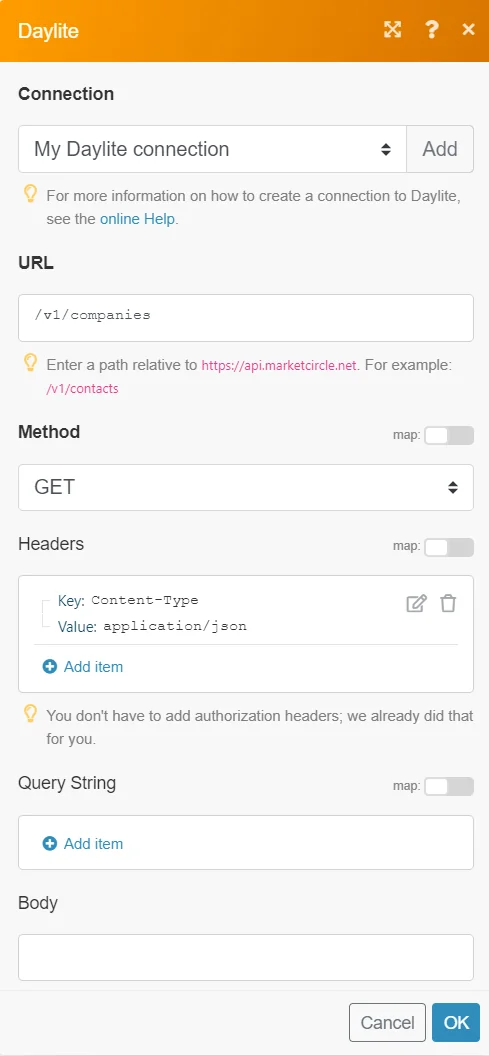
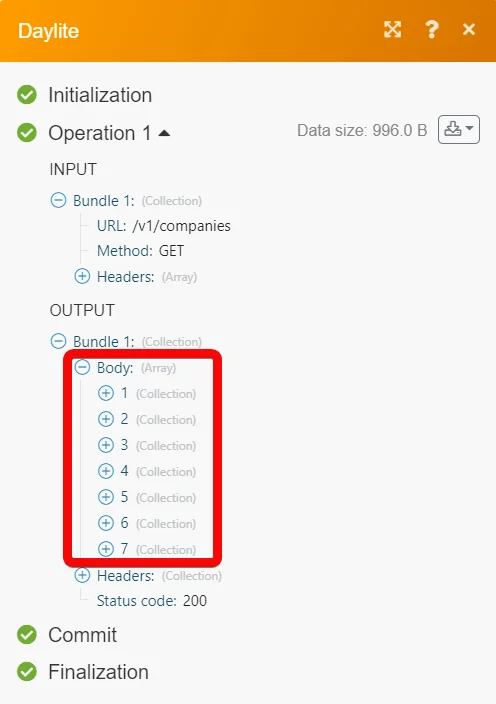
Matches of the search can be found in the module’s Output under Bundle > Body. In our example, 7 companies were returned:
Costbucket
Deskera
Legacy article, imported from the original Boost.space knowledge base (/knowledge-base/applications/crm-and-sales-tools/marketcircle-daylite/).

