1CRM
Any references to third-party products or services do not constitute Boost.space Product Documentation nor do they create any contractual obligations. This material is for informational purposes only and is subject to change without notice.
Boost.space does not warrant the availability, accuracy, reliability, completeness, or usefulness of any information regarding the subject of third-party services or systems.
The 1CRM modules enable you to monitor, search, retrieve, create, update, or delete records in your 1CRM account.
Getting Started with 1CRM
Prerequisites
- A 1CRM account
In order to use 1CRM with Boost.space Integrator, it is necessary to have a 1CRM account. If you do not have one, you can create a 1CRM account at 1crm.com/free-trial.
The module dialog fields that are displayed in bold (in the Boost.space Integrator scenario, not in this documentation article) are mandatory!
Connecting 1CRM to Boost.space Integrator

To connect your 1CRM account to Boost.space Integrator you need to enter your 1CRM domain and login credentials to the Create a connection dialog in Boost.space Integrator.
-
Open any 1CRM module in the Boost.space Integrator scenario.
-
Click the Add button next to the Connection field.
-
Fill the fields as follows:
Connection name
Enter the name for your 1CRM connection.
Domain
Enter the URL of your 1CRM account without the https prefix.
Username
Enter the user name for your 1CRM account. E.g. Admin.
Password
Enter the password to your 1CRM account.
-
Click the Continue button to establish the connection to your 1CRM account.
The connection has been established. You can proceed with setting up the module.
Records
New Event
Triggers when a record is created or updated.
Click the Add button to create a new webhook in your 1CRM account.
Webhook name
Enter the name for the webhook. E.g. Account Created.
Connection
Establish a connection to your 1CRM account.
Type
Select whether you want to monitor created, or updated records.
Module
Select the records you want to watch.
Search for Records
Performs a search by defined filter settings.
Connection
Establish a connection to your 1CRM account.
Module
Select the module where you want to search for records.
Fields
Select fields you want to be retrieved by Boost.space Integrator. If left empty, a limited number of fields will be retrieved.
Filter text
Enter the search term. Fields involved in search depend on model.
Other fields that are available for filtering results are loaded dynamically, depending on the module selected above.
Sort order
Select a field representing the default sort order, overriding the default order.
Limit
Set the maximum number of records Boost.space Integrator will return during one execution cycle.
Get a Record
Retrieves data of the specified record.
Connection
Establish a connection to your 1CRM account.
Module
Select the module that contains the record you want to retrieve details about.
Record ID
Enter (map) the ID of the record you want to retrieve details about.
Create a Record
Creates a new record.
Connection
Establish a connection to your 1CRM account.
Module
Select the module that you want to create a record for.
The corresponding fields are loaded dynamically, depending on the selected module.
Update a Record
Updates an existing record.
Connection
Establish a connection to your 1CRM account.
Module
Select the module that you want to create a record for.
Record ID
Enter (map) the ID of the record you want to update.
The corresponding fields are loaded dynamically, depending on the selected module.
Delete a Record
Removes a Record
Connection
Establish a connection to your 1CRM account.
Module
Select the module you want to remove the record from.
Record ID
Enter (map) the ID of the record you want to delete.
Other
List Modules
Returns all modules in your account.
Connection
Establish a connection to your 1CRM account.
Limit
Set the maximum number of modules Boost.space Integrator will return during one execution cycle.
List Fields
Returns all fields of the specified module.
Connection
Establish a connection to your 1CRM account.
Module
Select the module you want to retrieve fields for.
Limit
Set the maximum number of fields Boost.space Integrator will return during one execution cycle.
Get My Info
Retrieves information about the authenticated user.
Connection
Establish a connection to your 1CRM account.
Upload a File
Uploads a File.
Connection
Establish a connection to your 1CRM account.
Source file
Map the file you want to upload from the previous module (e.g. HTTP > Get a File or Google Drive > Download a File), or enter the file name and file data manually.
Make an API Call
Allows you to perform a custom API call.
Connection
Establish a connection to your 1CRM account.
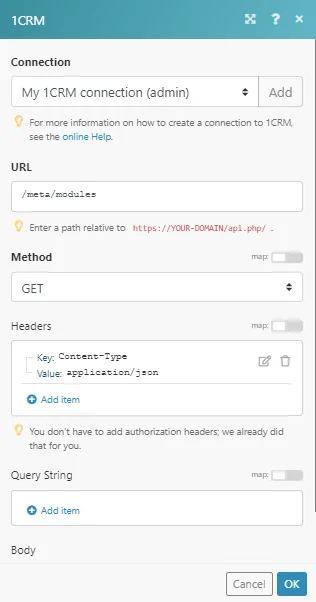
URL
Enter a path relative to https://{{YOUR-DOMAIN}}/api.php/.For example: /meta/modules/.
For the list of available endpoints, refer to the Section 2.2 Next Generation REST API in 1CRM Developer Guide.
Method
Select the HTTP method you want to use:
GET to retrieve information for an entry.
POST to create a new entry.
PUT to update/replace an existing entry.
PATCH to make a partial entry update.
DELETE to delete an entry.
Headers
Enter the desired request headers. You don’t have to add authorization headers; we already did that for you.
Query string
Enter the request query string.
Body
Enter the body content for your API call.
Example of Use – List Modules
The following API call returns all of the modules in your 1CRM account:
URL: /meta/modules/
Method: GET
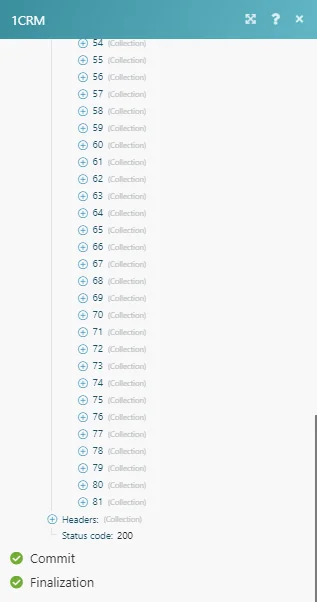
The result can be found in the module’s Output under Bundle > Body > list. In our example, all 81 modules were returned:
Legacy article, imported from the original Boost.space knowledge base (/knowledge-base/applications/crm-and-sales-tools/onecrm/).

