Facebook Catalogs
With Facebook Catalogs modules in Boost.space Integrator, you can list, create, and update your product feeds, product sets, and products in your Facebook account.
To get started with Facebook Catalogs, create an account at facebook.com.
The module dialog fields that are displayed in bold (in the Boost.space Integrator scenario, not in this documentation article) are mandatory.
Connecting Facebook Catalogs to Boost.space Integrator
- In your Boost.space Integrator scenario, open the module you want to use.
- Next to Connection, click Add.
- Choose a name for your new connection.
- Click Save.
- When the window appears, log in to your Facebook account.
- Allow Boost.space Integrator to access your Facebook account by clicking Continue.
- You have now established the connection.
Connect Facebook Conversion Catalogs to Boost.space Integrator
We are trying to make the connections for you as easy as possible. You can establish a connection with some modules by following the general process here.
Unfortunately, for some modules you need to create your own connection by following the guide below.
Modules: Create a Product Set, Create Products, Delete a Product Set, Delete Products, Get a Product Feed, Check Batch Request Status, List Product Feeds, List Product Sets, Reupload Existing Product Feed, Search Products, Set Up a Product Feed, Update a Product Set, Update Products
You can find out how to create your own connection in the guide below. This guide is for Lead Ads, but the setup works the same way for this application.
_Ensure that you create a connection with the same profile you are logged into on Facebook. If you are making a connection with another account, it won’t work for you and you will see this error: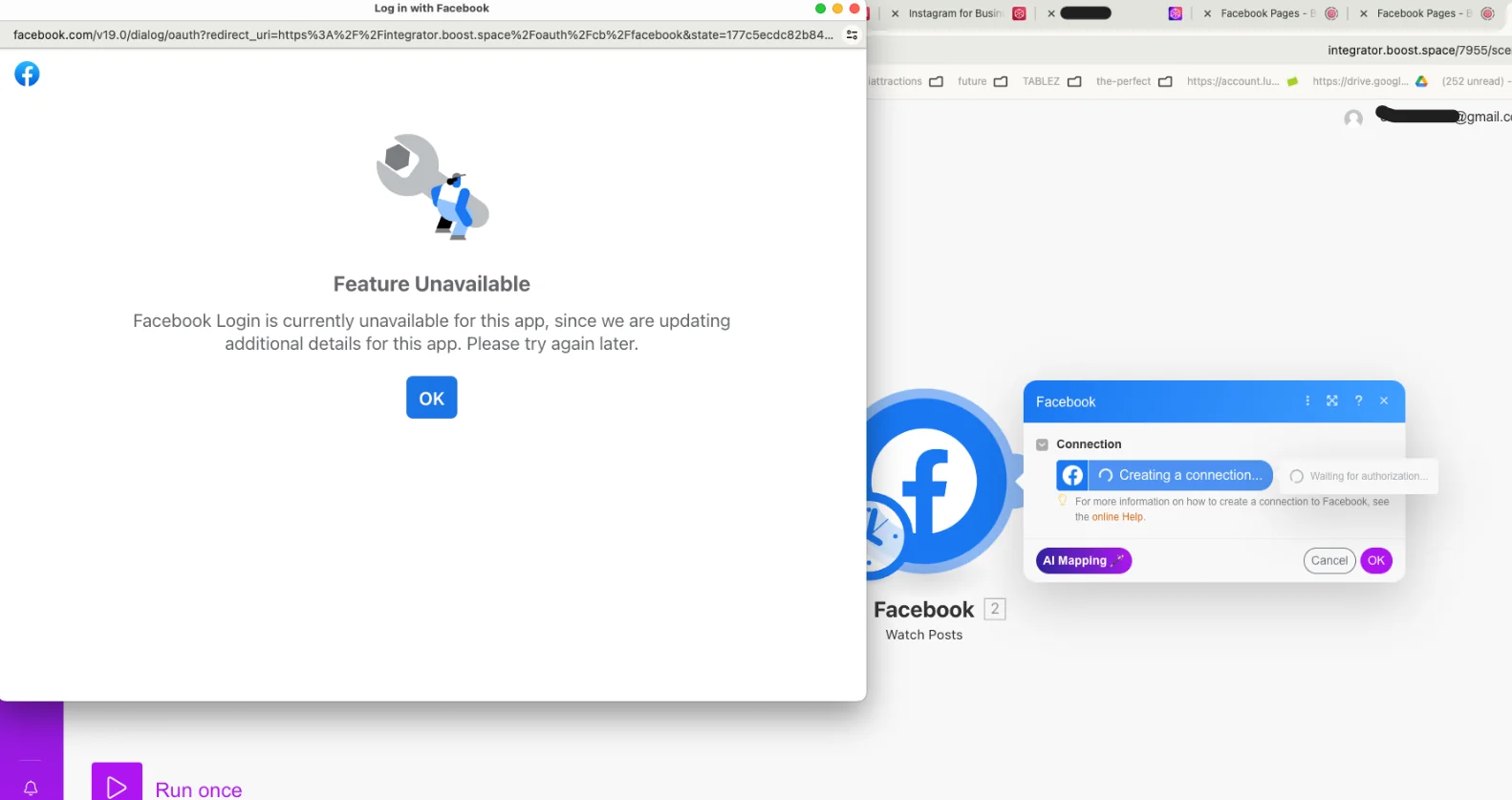
If this happens, you need to add another administrator to your application. Follow our step-by-step guide HERE.
- You will need a Developer Account
Product Feed
List Product Feeds
Retrieves a list of product feeds by the catalog ID.
Connection
Establish a connection to your Facebook account.
Business ID
Select the ID of the relevant business.
Catalog ID
Select the ID of the catalog.
Limit
Select the maximum number of product feeds Boost.space Integrator returns during one scenario execution cycle.
Set Up a Product Feed
Configures the source and polling interval of a product feed.
Connection
Establish a connection to your Facebook account.
Business ID
Select the ID of the relevant business.
Catalog ID
Select the ID of the catalog.
Name
Enter the name of the product feed.
Type of Schedule
Select the type of schedule.
-
Replace Schedule
A full replace operation where items not present in the feed file will be removed, new items will be created and existing items will be updated.
Update Schedule
�NOTE� Update existing items with the information delta provided or create new ones if not present.
Schedule
URL
Enter the location of the product feed to fetch.
Interval
Select the interval at which the product feed gets fetched.
- Hourly
- Daily
- Weekly
- Monthly
Hour
Enter the hour of the day to fetch the product feed, PDT during summer and PST during winter.
If the Interval is hourly and Interval Count more than 0, the next upload will occur the Interval Count time after the upload.
Minute
Enter the minute of the hour to fetch the product feed.
Interval Count
Specify number of intervals between each upload, default is 1. For example, when Interval Count is 2 with Interval set to daily, feed will we uploaded every two days at the given time.
Timezone
Select the timezone.
Username
Enter the username needed to access the url.
Password
Enter the password.
Country
Enter the two letter country code where the products can be sold.
Default Currency
Enter the default currency used by provided feed if the currency is not specified in the feed file.
Is Deletion Enabled
Select whether to enable deletion.
When true, this will remove products from a catalog that are no longer present in a feed. When false, uploading a product feed is additive and products will remain in the catalog even if they are removed from a feed. This field cannot be disabled once enabled.
Encoding
Select the character encoding used by the provided feed.
Feed Type
Select the type of the feed. Decides type of catalog item this feed will create.
- Auto
- Automotive Model
- Destination
- Flight
- Home Listing
- Hotel
- Hotel Room
- Local Inventory
- Market
- Media Title
- Offer
- Products
- Transactable Items
- Vehicle Offer
- Vehicle
File Name
Enter the name of the product feed.
Ingestion Source Type
Select the ingestion source type to decide type of feed.
- Primary Feed
- Supplementary Feed
Item Sub Type
Select the sub type of items to be uploaded by this feed.
- Appliances
- Baby Feeding
- Baby Transport
- Beauty
- Bedding
- Cameras
- Cell Phones and Smart Watches
- Cleaning Supplies
- Clothing
- Clothing Accessories
- Computers and Tablets
- Diapering and Potty Training
- Electronics Accessories
- Furniture
- Health
- Home Goods
- Jewelry
- Nursery
- Printers and Scanners
- Projectors
- Shoes and Footwear
- Software
- Toys
- TVs and Monitors
- Video Game Consoles and Video Games
- Watches
Migrated from Feed ID
Used to split an original feed into multiple new feeds, this denotes the original feed’s ID. Setting this field ensures that items from an original field can be migrated to a new one, without the need of deletion. This field is generally used when splitting a large feed into multiple smaller feeds.
Example:
- You have a large feed called Feed A and want to split it.The items from feed A have been moved to feed B.
- You create a new feed called Feed B and specify Feed A’s ID under
Migrated From Feed ID. - You upload Feed B’s catalog information, including the products you want to add to Feed B.
- Going forward, you do not need to specify those items in Feed A and they can be removed from feed A.
Quoted Fields Mode
Select whether or not there will be quotes around each field, only for TSV feeds.
- Auto Detect
- On
- Off
Rules
Add a list of rules applied to feed uploads using a JSON-encoded string.
Selected Override Fields
Add any selected override fields of the feed.
Get a Product Feed
Retrieves the details of a product feed by its ID.
Connection
Establish a connection to your Facebook account.
Business ID
Select the ID of the relevant business.
Catalog ID
Select the ID of the catalog.
Product Feed ID
Select the ID of the product feed you want to retrieve.
Reupload Exiting Product Feed
Uploads product feeds manually along with scheduled feed fetches.
Connection
Establish a connection to your Facebook account.
Business ID
Select the ID of the relevant business.
By
File
- File Name
- Data
URL
Enter the URL of the product feed.
Update Only
Select whether or not to update only. When set to Yes, Facebook creates new items and updates existing ones, but doesn’t delete items from the feed.
Product Set
List Product Sets
Retrieves a list of product sets by the catalog ID.
Connection
Establish a connection to your Facebook account.
Business ID
Select the ID of the relevant business.
Catalog ID
Select the ID of the catalog.
Limit
Select the maximum number of product sets Boost.space Integrator returns during one scenario execution cycle.
Create a Product Set
Creates a new product set.
Connection
Establish a connection to your Facebook account.
Business ID
Select the ID of the relevant business.
Catalog ID
Select the ID of the catalog.
Name
Enter the name of the product set.
Filter
Select the filter.
Metadata
Description
Enter the customer-facing description of the product set.
Cover Image URL
Enter the URL of the cover image.
The image size must be at least 800 x 600.
External URL
Select the external URL of the product set.
Update a Product Set
Updates a product set by its ID.
Connection
Establish a connection to your Facebook account.
Business ID
Select the ID of the relevant business.
Catalog ID
Select the ID of the catalog.
Product Set ID
Select the ID of the product set.
Name
Enter the name of the product set.
Filter
Select the filter.
Metadata
Description
Enter the customer-facing description of the product set.
Cover Image URL
Enter the URL of the cover image.
External URL
Select the external URL of the product set.
Delete a Product Set
Updates a product set by its ID.
Connection
Establish a connection to your Facebook account.
Business ID
Select the ID of the relevant business.
Catalog ID
Select the ID of the catalog.
Product Set ID
Select the ID of the product set.
Force Delete
Select whether or not to force delete the product set.
By default a product set can not be deleted while it is being used in an active ad, shop collection, or other usages.
Product
Search Products
Retrieves a list of products filtered by criteria.
Connection
Establish a connection to your Facebook account.
Business ID
Select the ID of the relevant business.
Catalog ID
Select the ID of the catalog.
Filter
Select the filter
Limit
Select the maximum number of products Boost.space Integrator returns during one scenario execution cycle.
Create Products
Creates products by the catalog ID.
Connection
Establish a connection to your Facebook account.
Business ID
Select the ID of the relevant business.
Catalog ID
Select the ID of the catalog.
Retailer ID
Enter the ID of the retailer.
Title
Enter the title of the product.
Description
Enter a description for the product.
Price
Enter the price of the product.
Price followed by the 3-characters currency code separated by a space. For example, 9.99 USD.
Availability
Select the product’s availability.
- In Stock
- Out of Stock
- Available for order
- Discontinued
Condition
Select the condition of the product.
- New
- Refurbished
- Used
Brand
Enter the brand of the product.
Link
Enter the link for the product.
Image Link
Enter the image link for the product.
Additional Image Link
Enter any additional image links.
Age Group
Select the age group the product item is targeted towards.
- Newborn
- Infant
- Toddler
- Kids
- Adults
App Link
Add any app links.
Color
Enter the color of the product item.
Custom Label 0
Enter an optional custom label that can contain additional information about the item.
Custom Label 1
Enter an additional optional custom label that can contain additional information about the item.
Custom Label 2
Enter an additional optional custom label that can contain additional information about the item.
Custom Label 3
Enter an additional optional custom label that can contain additional information about the item.
Custom Label 4
Enter an additional optional custom label that can contain additional information about the item.
Disabled Capabilities
Select any capabilities you don’t want the product to be listed on.
- Marketplace
- B2C Marketplace
- Buy on Facebook
- CPAS Parent Catalog
- Marketplace Shops
- Shops
- IG Onsite Shopping
- IG Product Tagging
- C2C Marketplace
- Groups
- Profile
- DA
- LDP
- Mini Shops
- Business Inbox Messenger
- Neighborhoods
- Test Capability
Gender
Select the gender the product item is targeted towards.
- Male
- Female
- Unisex
Google Product Category
Enter the Google product category the product falls into.
Global Trade Item Number
Enter the global trade ID of the product item.
Include UPC, EAN, JAN, and ISBN.
Inventory
Enter the inventory count for the product item.
Item Group ID
Enter the item group ID that this product is a variant of.
The advertiser-supplied ID of a product group, not the FBID.
Manufacturer Part Number
Enter the manufacturer’s ID for the product item.
Pattern
Enter the pattern of the product item.
Sale Price
Enter the sale price of the item with 2 digits added for cents.
Discounted price if the item is on sale. Price followed by the 3-characters currency code separated by a space. For example, 9.99 USD.
Sale Start
Enter the date when the sale price starts. See the list of supported date and time formats.
Both Sale Start and Sale End are required for a valid sale period.
Sale End
Enter the date when the sale price ends. See the list of supported date and time formats.
Shipping
Add any shipping information for the product item.
Size
Enter the size of the product item. For example, Small or XL.
Get Error Report
Select whether or not to get an error report.
Wait until the batch action is finished and retrieve the error report.
Update Products
Updates products by the catalog ID.
Connection
Establish a connection to your Facebook account.
Business ID
Select the ID of the relevant business.
Catalog ID
Select the ID of the catalog.
Retailer ID
Enter the ID of the retailer.
Title
Enter the title of the product.
Description
Enter a description for the product.
Price
Enter the price of the product.
Price followed by the 3-characters currency code separated by a space. For example, 9.99 USD.
Availability
Select the product’s availability.
- In Stock
- Out of Stock
- Available for order
- Discontinued
Condition
Select the condition of the product.
- New
- Refurbished
- Used
Brand
Enter the brand of the product.
Link
Enter the link for the product.
Image Link
Enter the image link for the product.
Additional Image Link
Enter any additional image links.
Age Group
Select the age group the product item is targeted towards.
- Newborn
- Infant
- Toddler
- Kids
- Adults
App Link
Add any app links.
Color
Enter the color of the product item.
Custom Label 0
Enter an optional custom label that can contain additional information about the item.
Custom Label 1
Enter an additional optional custom label that can contain additional information about the item.
Custom Label 2
Enter an additional optional custom label that can contain additional information about the item.
Custom Label 3
Enter an additional optional custom label that can contain additional information about the item.
Custom Label 4
Enter an additional optional custom label that can contain additional information about the item.
Disabled Capabilities
Select any capabilities you don’t want the product to be listed on.
- Marketplace
- B2C Marketplace
- Buy on Facebook
- CPAS Parent Catalog
- Marketplace Shops
- Shops
- IG Onsite Shopping
- IG Product Tagging
- C2C Marketplace
- Groups
- Profile
- DA
- LDP
- Mini Shops
- Business Inbox Messenger
- Neighborhoods
- Test Capability
Gender
Select the gender the product item is targeted towards.
- Male
- Female
- Unisex
Google Product Category
Enter the Google product category the product falls into.
Global Trade Item Number
Enter the global trade ID of the product item.
Include UPC, EAN, JAN, and ISBN.
Inventory
Enter the inventory count for the product item.
Item Group ID
Enter the item group ID that this product is a variant of.
The advertiser-supplied ID of a product group, not the FBID.
Manufacturer Part Number
Enter the manufacturer’s ID for the product item.
Pattern
Enter the pattern of the product item.
Sale Price
Enter the sale price of the item with 2 digits added for cents.
Discounted price if the item is on sale. Price followed by the 3-characters currency code separated by a space. For example, 9.99 USD.
Sale Start
Enter the date when the sale price starts. See the list of supported date and time formats.
Both Sale Start and Sale End are required for a valid sale period.
Sale End
Enter the date when the sale price ends. See the list of supported date and time formats.
Shipping
Add any shipping information for the product item.
Size
Enter the size of the product item. For example, Small or XL.
Allow Upsert
Select whether or not non existing items that are being updated should be inserted or should throw the error.
Get Error Report
Select whether or not to get an error report.
Wait until the batch action is finished and retrieve the error report.
Delete Products
Deletes products by their ID and the catalog ID.
Connection
Establish a connection to your Facebook account.
Business ID
Select the ID of the relevant business.
Catalog ID
Select the ID of the catalog.
Retailer ID
Enter the ID of the retailer.
Get Error Report
Select whether or not to get an error report.
Wait until the batch action is finished and retrieve the error report.
Check Batch Request Status
Retrieves the details of the batch request status by the handle.
Connection
Establish a connection to your Facebook account.
Business ID
Select the ID of the relevant business.
Catalog ID
Select the ID of the catalog.
Handle
Enter the handle.
This is returned by Create Products, Update Products and Delete Products.
Permissions Information for Facebook Catalogs
List Product Feeds – catalog_management, business_management
Set Up a Product Feed – catalog_management, business_management
Get a Product Feed – catalog_management, business_management
Reupload Exiting Product Feed – catalog_management, business_management
List Product Sets – catalog_management, business_management
Create a Product Set – catalog_management, business_management
Update a Product Set – catalog_management, business_management
Delete a Product Set – catalog_management, business_management
Search Products – catalog_management, business_management
Create Products – catalog_management, business_management
Update Products – catalog_management, business_management
Delete Products – catalog_management, business_management
Check Batch Request Status – catalog_management, business_management
Legacy article, imported from the original Boost.space knowledge base (/knowledge-base/applications/marketing/facebook-catalogs/).

