Mailchimp
With Mailchimp modules in Boost.space Integrator, you can manage the campaigns, merge fields, subscribers, lists, segments and more in your Mailchimp account.
To use the Mailchimp modules, you must have a Mailchimp account. You can create an account at mailchimp.com/signup.
Refer to the Mailchimp API documentation for a list of available endpoints.
Connect Mailchimp to Boost.space Integrator
To establish the connection, you must:
-
Log in to your Boost.space Integrator account, add a Mailchimp module to your scenario, and click Create a connection.
-
Optional: In the Connection name field, enter a name for the connection.
-
Optional: Switch on the Show advanced settings toggle and enter your custom app client credentials. For more information, refer to Mailchimp OAuth 2 Guide.
If requested, use the following Redirect URI when creating your custom app:
https://integrator.boost.space/oauth/cb/mailchimp/. -
Click Save.
-
If prompted, authenticate your account and confirm access.
You have successfully established the connection. You can now edit your scenario and add more Mailchimp modules. If your connection requires reauthorization at any point, follow the connection renewal steps here.
Campaign
Watch Campaigns
Triggers when a new campaign is created or sent.
Connection
Establish a connection to your Mailchimp account.Connecting Mailchimp to Boost.space Integrator
Watch Campaigns
Select the options for the campaigns you want to watch:
-
By Created Time
-
By Updated Time
Type
Select the campaign type:
-
Regular
-
Plaintext
-
Absplit
-
RSS
-
Variate
List ID
Select the campaign List ID you want to watch.
Folder ID
Select the Folder ID whose campaigns you want to watch.
Member’s Email
Enter the email address of the member whose campaigns you want to watch.
Limit
Set the maximum number of campaigns Boost.space Integrator should return during one scenario execution cycle.
Create a Campaign
Creates a new campaign.
Connection
Establish a connection to your Mailchimp account.Connecting Mailchimp to Boost.space Integrator
Campaign Title
Enter a name for the campaign.
List (Audience ID)
Select the List ID to whom you want to send the campaign.
Segment (Tag) ID
Select the Tag ID for the campaign.
Subject Line
Enter the subject line of the campaign email.
Preview Text
Enter the preview text of the email.
From Name
Enter the name that appears in the From field of the email.
From Email Address
Enter the email address from which you want to send the campaign.
To Name
Enter the recipient’s name.
Use Conversation
Select the checkbox to use the Mailchimp feature for conversation.
Folder ID
Select the Folder ID to which you want to add the campaign.
Fill the Body Content
Enter the campaign email message:
-
By Template ID
-
By HTML Format Text
Template ID
Select the Template ID for the campaign.
HTML Content
Enter the campaign’s email body message in HTML format.
Update a Campaign
Updates an existing campaign.
Connection
Establish a connection to your Mailchimp account.Connecting Mailchimp to Boost.space Integrator
Campaign ID
Select the Campaign ID whose details you want to update.
Campaign Title
Enter a name for the campaign.
List (Audience ID)
Select the List ID to whom you want to send the campaign.
Segment (Tag) ID
Select the Tag ID for the campaign.
Subject Line
Enter the subject line of the campaign email.
Preview Text
Enter the preview text of the email.
From Name
Enter the name that appears in the From field of the email.
From Email Address
Enter the email address from which you want to send the campaign.
To Name
Enter the recipient’s name.
Use Conversation
Select whether to use the Mailchimp feature for conversation.
Folder ID
Select the Folder ID to which you want to add the campaign.
Fill the Body Content
Enter the campaign email message:
-
By Template ID
-
By HTML Format Text
Template ID
Select the Template ID for the campaign.
HTML Content
Enter the campaign’s email body message in HTML format.
Edit a Campaign Template Content
Edits a defined content area of a custom HTML template.
Connection
Establish a connection to your Mailchimp account.Connecting Mailchimp to Boost.space Integrator
Enter a Campaign ID
Select the option to edit the campaign:
-
Enter Manually
-
Select from List
Campaign ID
Select or enter the Campaign ID you want to edit. You can only edit the campaign with editable campaigns.
Editable Content Area
Add the edits:
Content Area Name
Enter the section you want to edit. For example, if the content area is named mc:edit="section", select section.
Content of the Area
Enter the content you want to add in the HTML format.
Perform a Campaign Action
Performs a campaign action.
Connection
Establish a connection to your Mailchimp account.Connecting Mailchimp to Boost.space Integrator
Campaign ID
Select the Campaign ID to perform the action.
Action
Select the action to perform:
-
Cancel a Campaign
-
Send a Campaign
-
Schedule a Campaign
-
Unschedule a Campaign
-
Pause an RSS-Driven Campaign
-
Resume an RSS-Driven Campaign
-
Replicate a Campaign
-
Send a Test Mail
-
Resend a Campaign
Get a Campaign
Gets metadata of a specified campaign.
Connection
Establish a connection to your Mailchimp account.Connecting Mailchimp to Boost.space Integrator
Campaign ID
Select the Campaign ID whose details you want to retrieve.
Get a Campaign Report
Gets a campaign report.
Connection
Establish a connection to your Mailchimp account.Connecting Mailchimp to Boost.space Integrator
Campaign ID
Select the Campaign ID whose report details you want to retrieve.
Search Campaigns
Searches for the campaigns.
Connection
Establish a connection to your Mailchimp account.Connecting Mailchimp to Boost.space Integrator
Search
Enter a word or phrase to search the campaigns based on the specified entry.
Limit
Set the maximum number of campaign Boost.space Integrator should return during one scenario execution cycle.
List Campaign Open Details
LIsts all campaign open details.
Connection
Establish a connection to your Mailchimp account.Connecting Mailchimp to Boost.space Integrator
Campaign ID
Select or map the Campaign ID whose open details you want to list.
Since
Enter the date from which you want to list the campaign open details. See the list of supported formats of date and time.
Limit
Set the maximum number of campaign open details Boost.space Integrator will return during one execution cycle. The default value is 10.
Delete a Campaign
Deletes a campaign.
Connection
Establish a connection to your Mailchimp account.Connecting Mailchimp to Boost.space Integrator
Campaign ID
Select the Campaign ID you want to delete.
Merge Fields
Create a Merge Field
Creates a new merge field.
Connection
Establish a connection to your Mailchimp account.Connecting Mailchimp to Boost.space Integrator
List ID
Select or map the List ID whose merge field you want to create.
Name
Enter a name for the merge field.
Type
Select the type for the merge field. The possible values are "text", "number", "address", "phone", "date", "URL", "imageurl", "radio", "dropdown", "birthday", or "zip".
Tag
Enter the merge tags used for Mailchimp campaigns and add contact information.
Required
Select whether the merge field is required to import a contact.
Default Value
Enter the default value for the merge field if null
Public
Select whether to display the merge field on the signup form.
Display Order
Enter the order that the merge field displays on the list signup form.
Help Text
Enter the additional text to help the subscriber fill out the form.
Update a Merge Field
Updates an existing merge field.
Connection
Establish a connection to your Mailchimp account.Connecting Mailchimp to Boost.space Integrator
List ID
Select or map the List ID whose merge field you want to update.
Merge ID
Select or map the Merge ID whose merge field you want to update.
Name
Enter an updated name for the merge field.
Tag
Select the type for the merge field. The possible values are "text", "number", "address", "phone", "date", "URL", "imageurl", "radio", "dropdown", "birthday", or "zip".
Required
Select whether the merge field is required to import a contact.
Default Value
Enter the default value for the merge field if null
Public
Select whether to display the merge field on the signup form.
Display Order
Enter the order that the merge field displays on the list signup form.
Options
Enter the details of options:
Default Country
Enter a default country code in an address field, if none is supplied.
Phone Format
Enter the phone number type, such as US or International in a phone field.
Date Format
Enter the format of the date in a date or birthday field.
Choices
Enter the available options for members to pick from in a radio or dropdown non-group field.
Help Text
Enter the additional text to help the subscriber fill out the form.
Get a Merge Field
Retrieves an existing merge field.
Connection
Establish a connection to your Mailchimp account.Connecting Mailchimp to Boost.space Integrator
List ID
Select or map the List ID whose merge field you want to retrieve.
Merge Field ID
Select or map the Merge ID whose details you want to create.
Search Merge Fields
Searches for merge fields or lists them all.
Connection
Establish a connection to your Mailchimp account.Connecting Mailchimp to Boost.space Integrator
List ID
Select or map the List ID whose merge field you want to search.
Type
Select the merge field type.
Required
Select whether this is a required merge field.
Delete a Merge Field
Deletes an existing merge field.
Connection
Establish a connection to your Mailchimp account.Connecting Mailchimp to Boost.space Integrator
List ID
Select or map the List ID whose merge field you want to delete.
Merge ID
Select or map the Merge ID you want to delete.
Subscriber
Watch Subscribers
Triggers when a new subscriber joins a list.
Connection
Establish a connection to your Mailchimp account.Connecting Mailchimp to Boost.space Integrator
List ID
Select the List-ID whose subscribers you want to watch.
Status
Select the status of the subscribers you want to watch:
-
Subscribed
-
Unsubscribed
-
Cleaned
-
Pending
-
Transactional
-
Archived
VIP Only
Select the checkbox if you want to watch only VIP subscribers.
Email Type
Select the email type of the subscribers you want to watch:
-
HTML
-
Plain Text
Limit
Set the maximum number of subscribers Boost.space Integrator should return during one scenario execution cycle.
Watch Unsubscribes
Triggers when a Subscriber unsubscribes from a campaign.
Connection
Establish a connection to your Mailchimp account.Connecting Mailchimp to Boost.space Integrator
Campaign ID
Select the Campaign ID whose unsubscribers you want to watch.
Limit
Set the maximum number of unsubscribers Boost.space Integrator should return during one scenario execution cycle.
Search Subscribers
Searches for the subscribers.
Connection
Establish a connection to your Mailchimp account.Connecting Mailchimp to Boost.space Integrator
List ID
Select the Campaign ID whose unsubscribers you want to watch.
Status
Select the status of the subscribers you want to search:
-
Subscribed
-
Unsubscribed
-
Cleaned
-
Pending
-
Transactional
-
Archived
VIP Only
Select the checkbox if you want to search only VIP subscribers.
Email Type
Select the email type of the subscribers you want to search:
-
HTML
-
Plain Text
Since Date Added
Enter the date to search the subscribers added on or after the specified date.
Before Date Added
Enter the date to search the subscribers added on or before the specified date.
Since Last Changed Date
Enter the date to search the subscribers changed on or after the specified date.
Before Last Changed Date
Enter the date to search the subscribers changed on or before the specified date.
Sort By
Select the option to sort the subscribers:
-
Date Added – Ascending
-
Date Added – Descending
-
Date Signup – Ascending
-
Date Signup – Descending
-
Date Updated – Ascending
-
Date Updated – Descending
Limit
Set the maximum number of subscribers Boost.space Integrator should return during one scenario execution cycle.
Get a Subscriber
Gets metadata of a subscriber by email.
Connection
Establish a connection to your Mailchimp account.Connecting Mailchimp to Boost.space Integrator
List ID
Select the List-ID whose subscribers details you want to retrieve.
Email ID
Enter the email address of the subscriber whose details you want to retrieve.
Add/Update a Subscriber
Adds an email address to a subscriber list.
Connection
Establish a connection to your Mailchimp account.Connecting Mailchimp to Boost.space Integrator
List ID
Select the List-ID whose subscribers details you want to add or update.
Email ID
Enter the email address of the subscriber whose details you want to add or update.
First Name
Enter the first name of the subscriber.
Last Name
Enter the last name of the subscriber.
Birthday
Enter the birthdate of the subscriber in the MM/DD format.
Create a new customer or update an existing one
Select the checkbox to create a new customer or update an existing customer with the above details.
Status
Select the status for the subscriber:
-
Subscribed
-
Unsubscribed
-
Cleaned
-
Pending
-
Transactional
-
Archived
VIP
Select whether the subscriber is a VIP.
Email Type
Select the email type of the subscriber:
-
HTML
-
Plain Text
Language Code
Select the language applicable to the subscriber.
Tags
Add the tags to the subscriber.
Note
Enter any additional information about the subscriber you want to mention.
Edit a Subscriber
Edits an existing subscriber.
Connection
Establish a connection to your Mailchimp account.Connecting Mailchimp to Boost.space Integrator
List ID
Select the List-ID whose subscribers details you want to add or update.
Email ID
Select the email address of the subscriber whose details you want to edit.
New Email
Enter the new email address of the subscriber.
First Name
Enter the first name of the subscriber.
Last Name
Enter the last name of the subscriber.
Birthday
Enter the birthdate of the subscriber in the MM/DD format.
Create a new customer or update an existing one
Select the checkbox to create a new customer or update an existing customer with the above details.
Status
Select the status for the subscriber:
-
Subscribed
-
Unsubscribed
-
Cleaned
-
Pending
-
Transactional
-
Archived
VIP
Select whether the subscriber is a VIP.
Email Type
Select the email type of the subscriber:
-
HTML
-
Plain Text
Language Code
Select the language applicable to the subscriber.
Tags
Add the tags to the subscriber.
Note
Enter any additional information about the subscriber you want to mention.
Delete a Subscriber
Archives or permanently delete a subscriber.
Connection
Establish a connection to your Mailchimp account.Connecting Mailchimp to Boost.space Integrator
List ID
Select the List-ID whose subscribers details you want to delete.
Email ID
Select the email address of the subscriber whose details you want to delete.
Delete a Subscriber permanently
Select the checkbox to delete the subscriber permanently.
List
Watch List Events
Triggers when one of the defined events occurs on a list.
Webhook Name
Enter a name for the webhook.
Connection
Establish a connection to your Mailchimp account.Connecting Mailchimp to Boost.space Integrator
List ID
Select the List ID whose events you want to list.
Event
Select the event type you want to watch:
-
Subscribes
-
Unsubscribes
-
Profile Updates
-
Cleaned Email
-
Email Address Changes
-
Campaign Sending Status
Sources
Select the sources of the events you want to watch:
-
User
-
Administrator
-
API
Watch Lists
Triggers when a new list is created.
Connection
Establish a connection to your Mailchimp account.Connecting Mailchimp to Boost.space Integrator
Subscriber’s Email
Enter the email address of the subscriber whose lists you want to watch.
Limit
Set the maximum number of lists Boost.space Integrator should return during one scenario execution cycle.
Search Lists
Searches for the lists.
Connection
Establish a connection to your Mailchimp account.Connecting Mailchimp to Boost.space Integrator
Subscriber’s Email
Enter the email address of the subscriber whose lists you want to search.
Sort
Select the option to sort the lists:
-
Date Created – Ascending
-
Date Created – Descending
From Date Created
Enter the date to search the lists created on or after the specified date.
To Date Created
Enter the date to search the list created on or before the specified date.
From Campaign Last Sent
Enter the date to search the list based on the campaign sent on or after the specified date.
To Campaign Last Sent
Enter the date to search the list based on the campaign sent on or before the specified date.
Limit
Set the maximum number of lists Boost.space Integrator should return during one scenario execution cycle.
Get a List
Gets metadata of a specified list.
Connection
.Establish a connection to your Mailchimp accountConnecting Mailchimp to Boost.space Integrator
List ID
Select the List ID whose details you want to retrieve.
Create a List
Creates a new list.
Connection
Establish a connection to your Mailchimp account.Connecting Mailchimp to Boost.space Integrator
List Name
Enter a name for the list.
Company Name
Enter the company name of the list.
Address
Enter the street address of the list contact.
Address 2
Enter the street address of the list contact.
City
Enter the city name of the list contact.
State
Enter the state name of the list contact.
Zip Code
Enter the area zip code of the list contact.
Country Code
Enter the country code of the list contact. For example, US, CZ.
Phone Number
Enter the phone number of the list contact.
Permission Reminder
Enter the permission reminder details for the list.
Use Archive Bar
Select the checkbox if you want campaigns to use the archive bar option in archives
From Email
Enter the email address from which campaigns will be sent to this list.
From Name
Enter the name that appears in the From field of the campaigns sent to this list .
Subject
Enter the subject line for the campaigns in this list.
Language Code
Select the language applicable to the list.
Notify on Subscribe
Enter the email address to notify if any member subscribes from the list.
Notify on Unsubscribe
Enter the email address to notify if any member unsubscribes from the list.
Email Type Option
Select the checkbox if you want to enable the email type for the list.
Visibility
Select the List’s visibility:
-
Public
-
Private
Double Opt In
Select the checkbox to make it a requirement for the subscriber to confirm subscription via email.
Marketing Permissions
Select the checkbox to enable the marketing permission for the list. For example,GDPR.
Update a List
Updates an existing list.
Connection
Establish a connection to your Mailchimp account.Connecting Mailchimp to Boost.space Integrator
List ID
Select the List ID whose details you want to update.
List Name
Enter a name for the list.
Company Name
Enter the company name of the list.
Address
Enter the street address of the list contact.
Address 2
Enter the street address of the list contact.
City
Enter the city name of the list contact.
State
Enter the state name of the list contact.
Zip Code
Enter the area zip code of the list contact.
Country Code
Enter the country code of the list contact. For example, US, CZ.
Phone Number
Enter the phone number of the list contact.
Permission Reminder
Enter the permission reminder details for the list.
Use Archive Bar
Select the checkbox if you want campaigns to use the archive bar option in archives
From Email
Enter the email address from which campaigns will be sent to this list.
From Name
Enter the name that appears in the From field of the campaigns sent to this list .
Subject
Enter the subject line for the campaigns in this list.
Language Code
Select the language applicable to the list.
Notify on Subscribe
Enter the email address to notify if any member subscribes from the list.
Notify on Unsubscribe
Enter the email address to notify if any member unsubscribes from the list.
Email Type Option
Select the checkbox if you want to enable the email type for the list.
Visibility
Select the List’s visibility:
-
Public
-
Private
Double Opt In
Select the checkbox to make it a requirement for the subscriber to confirm subscription via email.
Marketing Permissions
Select the checkbox to enable the marketing permission for the list. For example,GDPR.
Delete a List
Deletes a list.
Connection
Establish a connection to your Mailchimp account.Connecting Mailchimp to Boost.space Integrator
List ID
Select the List ID you want to delete.
List Members
Add/Update a List Member
Adds or updates a list member.
Connection
Establish a connection to your Mailchimp account.Connecting Mailchimp to Boost.space Integrator
List ID
Select or map the List ID whose member’s details you want to update.
Select
Select an option to add or update a list member:
-
Email
-
Contact ID
Select or map the subscriber’s email address.
Contact ID
Select or map Subscriber’s Contact ID.
Add/Updated Merge Fields
Select whether to add or update merge fileds.
Interest Category
Select an interest category:
-
Checkboxers
-
Radio Buttoner
-
Drop Downer
-
No Showing Grouper
-
Interests
Interests
Select the object’s properties as the ID of the interest in question.
Skip Merge Validation
Select whether to accept member data without merge filed values, even if the merge field is required.
Email Address
Enter the email address of the subscriber if it is not already present.
Status if New
Select the status:
-
Subscribed
-
Unsubscribed
-
Cleaned
-
Pending
-
Transactional
Email Type
Select the email type:
-
HTML
-
Text
Status
Select the status:
-
Subscribed
-
Unsubscribed
-
Cleaned
-
Pending
-
Transactional
Language
Select the language:
-
English
-
Arabic
VIP
Select whether the member is a VIP.
Location
Enter the location details:
Latitude
Enter the location’s latitude.
Longitude
Enter the location’s longitude.
Marketing Permissions
Enter the marketing permissions details:
Marketing Permission ID
Enter the Marketing Permission ID on the list.
Enabled
Select whether the subscriber has opted for the marketing permission.
IP Signup
Enter the IP address used by the subscriber to signup the form.
Timestamp Signup
Enter the date and time the subscriber signed up for the list in ISO 8601 format. See the list of supported date and time formats.
IP Opt
Enter the IP address used by the subscriber to confirm their opt-in status.
Timestamp Opt
Enter the date and time the subscriber confirmed their opt-in status. See the list of supported date and time formats.
Segment
Watch List Segments
Triggers when a segment is created or updated.
Connection
Establish a connection to your Mailchimp account.Connecting Mailchimp to Boost.space Integrator
Watch List Segments
Select the option to watch the list segments:
-
By Created Time
-
By Updated Time
List ID
Select the List ID whose segments you want to watch.
Included Cleaned Members
Select whether you want to include the cleaned members in the response.
Include Transactional Members
Select whether you want to include the transactional members in the response.
Include Unsubscribed Members
Select whether you want to include the unsubscribed members in the response.
Limit
Set the maximum numbers of List Segments Boost.space Integrator should return during one scenario execution cycle.
Lists Segment Members
Retrieves a list of all segment members.
Connection
Establish a connection to your Mailchimp account.Connecting Mailchimp to Boost.space Integrator
List ID
Select the List ID whose segment’s members you want to list.
Segment ID
Select the Segment ID whose members you want to list.
Included Cleaned Members
Select whether you want to include the cleaned members in the response.
Include Transactional Members
Select whether you want to include the transactional members in the response.
Include Unsubscribed Members
Select whether you want to include the unsubscribed members in the response.
Limit
Set the maximum numbers of Segment’s members Boost.space Integrator should return during one scenario execution cycle.
Add a Member to a Segment
Adds a new member to a static segment.
Connection
Establish a connection to your Mailchimp account.Connecting Mailchimp to Boost.space Integrator
List ID
Select the List ID to whose segment you want to add a member.
Segment ID
Select the Segment ID to which you want to add a member.
Email Address
Select the email address of the member you want to add.
Remove a Member from a Segment
Removes a member from the specified static segment.
Connection
Establish a connection to your Mailchimp account.Connecting Mailchimp to Boost.space Integrator
List ID
Select the List ID from whose segment you want to remove a member.
Segment ID
Select the Segment ID from which you want to remove a member.
Email Address
elect the email address of the member you want to remove.
Orders
Create an Order
Creates a new order.
Connection
Establish a connection to your Mailchimp account.Connecting Mailchimp to Boost.space Integrator
Store ID
Select or map the Store ID whose order you want to create.
Customer
Enter the customer’s details:
Select
Select an option:
-
Select an Existing Customer
-
Create a New Customer
Customer ID
Select or map the Customer ID whose order you want to create.
Customer ID
Enter a unique identifier for the customer.
Email Address
Enter the customer’s email address.
Opt-in Status
Select whether to choose the opt-in status.
Company
Enter the customer’s company name.
First Name
Enter the customer’s first name.
Last Name
Enter the customer’s last name.
Address
Enter the details of the address:
Address 1
Enter the customer’s mailing address.
Address 2
Enter an additional field for the customer’s mailing address.
City
Enter the city the customer is located in.
Province
Enter the customer’s state name or normalized province.
Province Code
Enter the two-letter code for the customer’s province or state.
Postal Code
Enter the customer’s postal or zip code.
Country
Enter the customer’s country.
Country Code
Enter the two-letter code for the customer’s country.
Lines
Enter the details of the lines:
Line ID
Enter the unique identifier for the order line item.
Product ID
Select the unique identifier for the product associated with the order line item.
Product Variant ID
Select the unique identifier for the product variant associated with the order line item.
Quantity
Enter the quantity of an order line item.
Price
Enter the price of an order line item.
Discount
Enter the total discount amount applied to this line item.
Order ID
A unique identifier for the order.
Currency Code
The three-letter ISO 4217 code for the currency that the store accepts.Must be exactly 3 characters long.
Order Total
The total for the order.
Campaign ID
A string that uniquely identifies the campaign for an order.
Landing Site
Select the URL for the page where the buyer landed when entering the shop:
-
Settings
-
Home
-
Product Detail Page
-
Shop
Financial Status
Select the order status:
-
Paid
-
Pending
-
Refunded
-
Canceled
Fulfillment Status
Select the fulfillment status for the order:
-
Paid
-
Pending
-
Refunded
-
Canceled
Order URL
Enter the URL’s order.
Discount Total
Enter the total discount amount to be applied to the price of the order.
Tax Total
Enter the order’s total tax.
Tracking Code
Enter the order’s Mailchimp tracking code. The possible value: “prec”.
Processed at Foreign
The date and time the order was processed in ISO 8601 format.
Canceled at Foreign
The date and time the order was canceled in ISO 8601 format.
Passing a value for this parameter will cancel the order being created.
Updated at Foreign
Enter the date and time the order was updated in ISO 8601 format. See the list of supported date and time formats.
Shipping Address
Enter the order shipping address.
Name
The name associated with an order’s shipping address.
Address 1
Enter the order’s shipping address.
Address 2
Enter an additional field for the shipping address.
City
Enter the order’s shipping address city.
Province
Enter the state or normalized province in the order’s shipping address.
Province Code
Enter the two-letter code for the province or state in the shipping address. It must be exactly 2 characters long.
Postal Code
Enter the shipping address’s postal or zip code.
Country
Enter the shipping address’s country.
Country Code
Enter the two-letter code for the country in the shipping address.
Longitude
Enter the shipping address’s longitude location.
Latitude
Enter the shipping address’s latitude location.
Phone
Enter the phone number of the order’s shipping address.
Company
Enter the company associated with the shipping address.
Promos
Enter the promo’s details:
Code
Enter the promo code.
Amount Discounted
Enter the amount of discount applied to the total price.
Type
Select the type of discount:
-
Fixed
-
Percentage
Outreach
Enter the unique identifier for the outreach. Can be an email campaign ID.
Tracking Number
Enter the tracking number associated with the order.
Tracking Carrier
Enter the tracking carrier associated with the order.
Tracking URL
Enter the tracking URL associated with the order.
Activity
List List’s Activities
Retrieves up to the previous 180 days of daily detailed aggregated activity stats for a list.
Connection
Establish a connection to your Mailchimp account.Connecting Mailchimp to Boost.space Integrator
List ID
Select the List ID whose list activities you want to list.
Limit
Set the maximum number of lists activities Boost.space Integrator should return during one scenario execution cycle.
List List Members Activities
Get the last 50 events of a member’s activity on a specific list.
Connection
Establish a connection to your Mailchimp account.Connecting Mailchimp to Boost.space Integrator
Campaign ID
Select the Campaign ID whose list’s member’s activities you want to list.
Limit
Set the maximum number of activities Boost.space Integrator should return during one scenario execution cycle.
Member Tag
List Member Tags
Retrieves a list of all member tags.
Connection
Establish a connection to your Mailchimp account.Connecting Mailchimp to Boost.space Integrator
List ID
Select the List ID whose member’s tags you want to list.
Enter the email address of the member whose tags you want to list.
Limit
Set the maximum number of tags Boost.space Integrator should return during one scenario execution cycle.
Add/Remove Member Tags
Adds or removes tags from a list member.
Connection
Establish a connection to your Mailchimp account.Connecting Mailchimp to Boost.space Integrator
List ID
Select the List ID whose member’s tags you want to add or remove.
Enter the email address of the member whose tags you want to add or remove.
Tags
Add the tags you want to add or remove:
Name
Enter the name of the tag.
Status
Select the action you want to perform.
-
Add
-
Delete
Limit
Set the maximum number of tags Boost.space Integrator should return during one scenario execution cycle.
Events
Add an Event
Adds a new event to the member.
Connection
Establish a connection to your Mailchimp account.Connecting Mailchimp to Boost.space Integrator
List ID
Select or map the List ID whose event you want to add.
Select
Select an option:
-
Email
-
Contact ID
Select or map the subscriber’s email address.
Contact ID
Select or map the subscriber’s Contact ID.
Name
Enter the event name. The event name must only contain letters, numbers, underscores, and dashes.
Properties
Enter the details of the properties:
Key
Enter the key name of the property.
Value
Enter the value of the property.
Is Syncing
Select whether to create events with syncing value not to trigger automation.
Occurred at
Enter the date and time of the event in ISO 8601 format. See the list of supported date and time formats.
Search Member Events
Searches for member events or lists them all.
Connection
Establish a connection to your Mailchimp account.Connecting Mailchimp to Boost.space Integrator
List ID
Select or map the List ID whose member events you want to search.
Select
Select an option to search the events:
-
Email
-
Contact ID
Select or map the member’s email address to search for the events.
Contact ID
Select or map the member’s Contact ID to search the events.
Limit
Set the maximum number of member events Boost.space Integrator will return during one execution cycle. The default value is 10.
Survey Answers
List Survey Answers
List survey answers.
Connection
Establish a connection to your Mailchimp account.Connecting Mailchimp to Boost.space Integrator
Enter a List ID
Select an option:
-
Enter manually
-
Select from the list
Survey ID
Enter the Survey ID whose survey answers you want to list.
Survey ID
Select or map the Survey ID whose survey answers you want to list.
Question ID
Enter the Question ID to list the answers.
Limit
Set the maximum number of survey answers Boost.space Integrator will return during one execution cycle. The default value is 10.
Reports
Get a Click Report
Retrieves an existing click report.
Connection
Establish a connection to your Mailchimp account.Connecting Mailchimp to Boost.space Integrator
Enter a List ID
Select an option:
-
Enter manually
-
Select from the list
Campaign ID
Enter a Campaign ID whose click report you want to retrieve.
Campaign ID
Select or map a Campaign ID whose click report you want to retrieve.
Click Report ID
Enter a Click Report ID you want to retrieve.
List Click Reports
Lists all click reports.
Connection
Establish a connection to your Mailchimp account.Connecting Mailchimp to Boost.space Integrator
Campaign ID
Select or map the Campaign ID whose click reports you want to list.
Limit
Set the maximum number of click reports Boost.space Integrator will return during one execution cycle. The default value is 10.
Files
Watch Files
Triggers when a new file is added.
Connection
Establish a connection to your Mailchimp account.Connecting Mailchimp to Boost.space Integrator
Limit
Set the maximum number of files Boost.space Integrator will return during one execution cycle. The default value is 2.
Other
Make an API Call
Performs an arbitrary authorized API call.
Connection
Establish a connection to your Mailchimp account.Connecting Mailchimp to Boost.space Integrator
URL
Enter a path relative to {you_mailchimp_domain.com}/3.0. For example, /campaigns
For the list of available endpoints, refer to the Mailchimp API Documentation.
Method
Select the HTTP method you want to use:
GET to retrieve information for an entry.
POST to create a new entry.
PUT to update/replace an existing entry.
PATCH to make a partial entry update.
DELETE to delete an entry.
Headers
Enter the desired request headers. You don’t have to add authorization headers; we already did that for you.
Query String
Enter the request query string.
Body
Enter the body content for your API call.
Example of use – List Campaigns
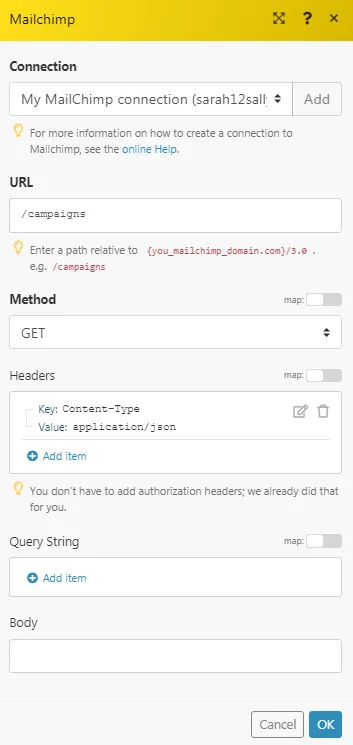
The following API call returns all the campaigns from your Mailchimp account:
URL: campaigns
Method: GET
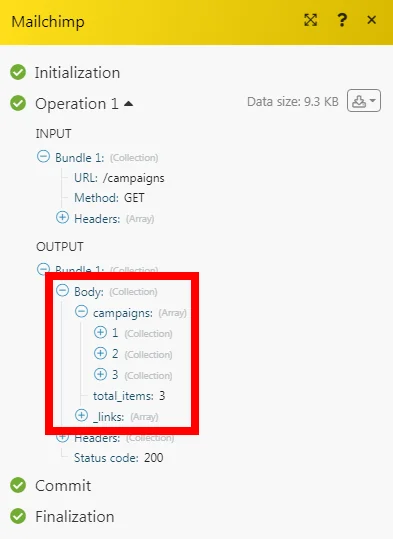
Matches of the search can be found in the module’s Output under Bundle > Body > campaigns. In our example, 3 campaigns were returned:
Legacy article, imported from the original Boost.space knowledge base (/knowledge-base/applications/marketing/mailchimp/).

