StealthSeminar
The StealthSeminar modules allow you to monitor and manage projects, tasks, and users in your StealthSeminar account.
Getting Started with StealthSeminar
Prerequisites
- A StealthSeminar account
In order to use StealthSeminar with Boost.space Integrator, it is necessary to have a StealthSeminar account. If you do not have one, you can create a StealthSeminar account at stealthseminarapp.com/register.
The module dialog fields that are displayed in bold (in the Boost.space Integrator scenario, not in this documentation article) are mandatory!
StealthSeminar does not require any connection. You can integrate the scenarios with Webinar ID.
Triggers

Watch Webhook Events
Trigger by one of the events checked at Stealth Seminar.
-
Open the_Watch Webhook Events_ module, enter a name for the webhook connection, click Save, and copy the URL address to your clipboard.
-

Log in to your Stealth Seminar account. Click Your Profile Icon > Marketing Plugins.
-
Locate Webhook and click Configure.
Name
Enter a name for the webhook.
URL
Enter the URL address copied in step 1.
Inactive/Active
Toggle the button to activate or inactivate the webhook.
-
Click Add Custom Webhook.
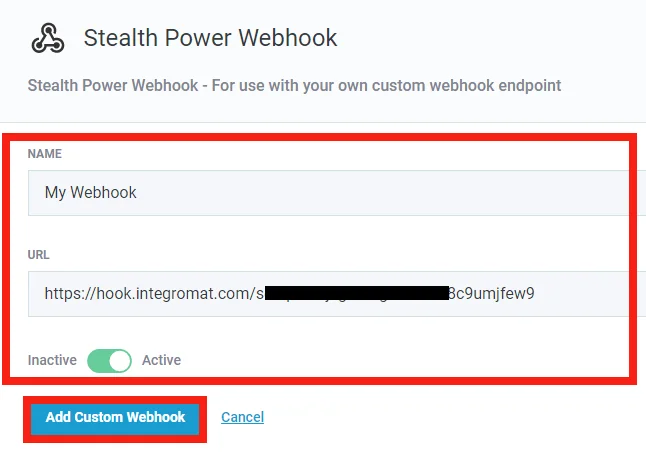
The webhook is successfully added.
Actions
Get Webinar Information
Gets a webinar registration information.
Webinar ID
Enter the Webinar ID whose details you want to retrieve. The Webinar ID is a six-character unique ID found in your webinar URL.
For example, if your webinar URL address is https://joinnow.live/s/uSYTbY then the Webinar ID is uSYTbY.
Register a New Attendee
Registers a new webinar attendee.
Webinar ID
Enter the Webinar ID for which you want to register a new attendee. The Webinar ID is a six-character unique ID found in your webinar URL.
For example, if your webinar URL address is https://joinnow.live/s/uSYTbY then the Webinar ID is uSYTbY.
Start Time
Enter the start time of the webinar. See the list of supported date and time formats.
Enter the email address of the attendee.
Name
Enter the name of the user.
Timezone
Select the timezone of the user or the webinar.
Watch Yesterday’s Webinar Now
Select whether you want to enable the Watch Yesterday’s Webinar Now:
-
Yes
-
No
-
Not defined
Registration Page ID
Enter the Registration Page ID from which the attendee is registered.
Number for SMS Reminders
Enter the attendee’s phone number to send reminders for attending the webinar.
Has Given GDPR Consent
Select whether the attendee has provided GDPR consent:
-
Yes
-
No
-
Not defined
UTM Source
Enter the UTM source URL parameter.
UTM Medium
Enter the UTM medium URL parameter.
UTM Campaign
Enter the UTM campaign URL parameter.
UTM Term
Enter the UTM term URL parameter.
UTM Content
Enter the UTM content URL parameter.
Custom Fields
Add the custom fields:
Name
Enter the name of the custom field.
Value
Enter the value of the field.
Make an API Call
Performs an arbitrary API call.
URL
Enter a path relative to https://api.joinnow.com/. For example: /webinars/webinarID/registration-information
For the list of available endpoints, refer to the StealthSeminar API Documentation.
Method
Select the HTTP method you want to use:
GET
to retrieve information for an entry.
POST
to create a new entry.
PUT
to update/replace an existing entry.
PATCH
to make a partial entry update.
DELETE
to delete an entry.
Headers
Enter the desired request headers. You don’t have to add authorization headers; we already did that for you.
Query String
Enter the request query string.
Body
Enter the body content for your API call.
Example of Use – Get Webinar Registration Information
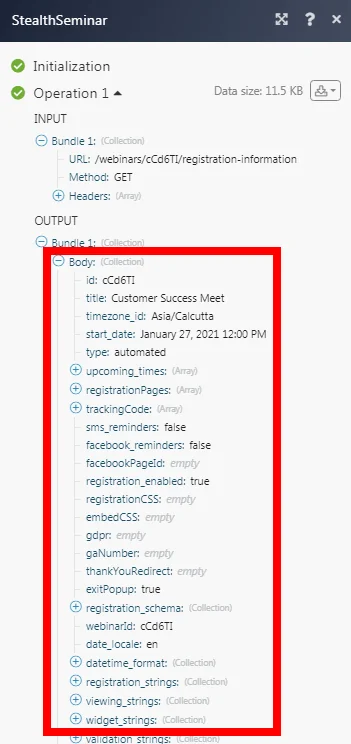
The following API call returns the webinar registration information from your StealthSeminar account:
URL:
/webinars/cCd6TI/registration-information
Method:
GET
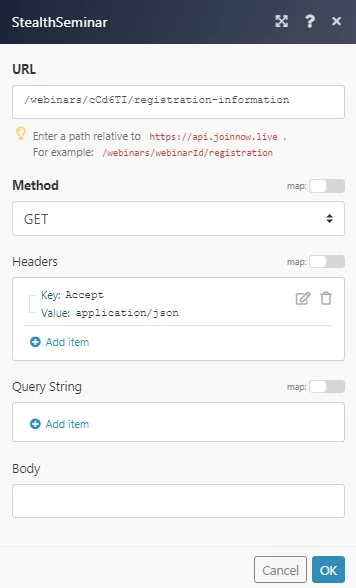
Matches of the search can be found in the module’s Output under Bundle > Body.
In our example, the specified webinar registration information is returned:
Legacy article, imported from the original Boost.space knowledge base (/knowledge-base/applications/marketing/stealth-seminar/).

