Keys
This article will show you how you can use keys and the Encryptor app to encrypt your credentials.
The technique described below uses:
- AES Encrypt / Decrypt modules
- A data structure for defining key-value storage
- A data store for persistent encrypted values
Data Store Setup
First you need to create a Data store to store your encrypted credentials. This Data store will hold the encrypted key records created by the Encryptor app.
You can store as many keys as you need, with each one being independently encrypted.
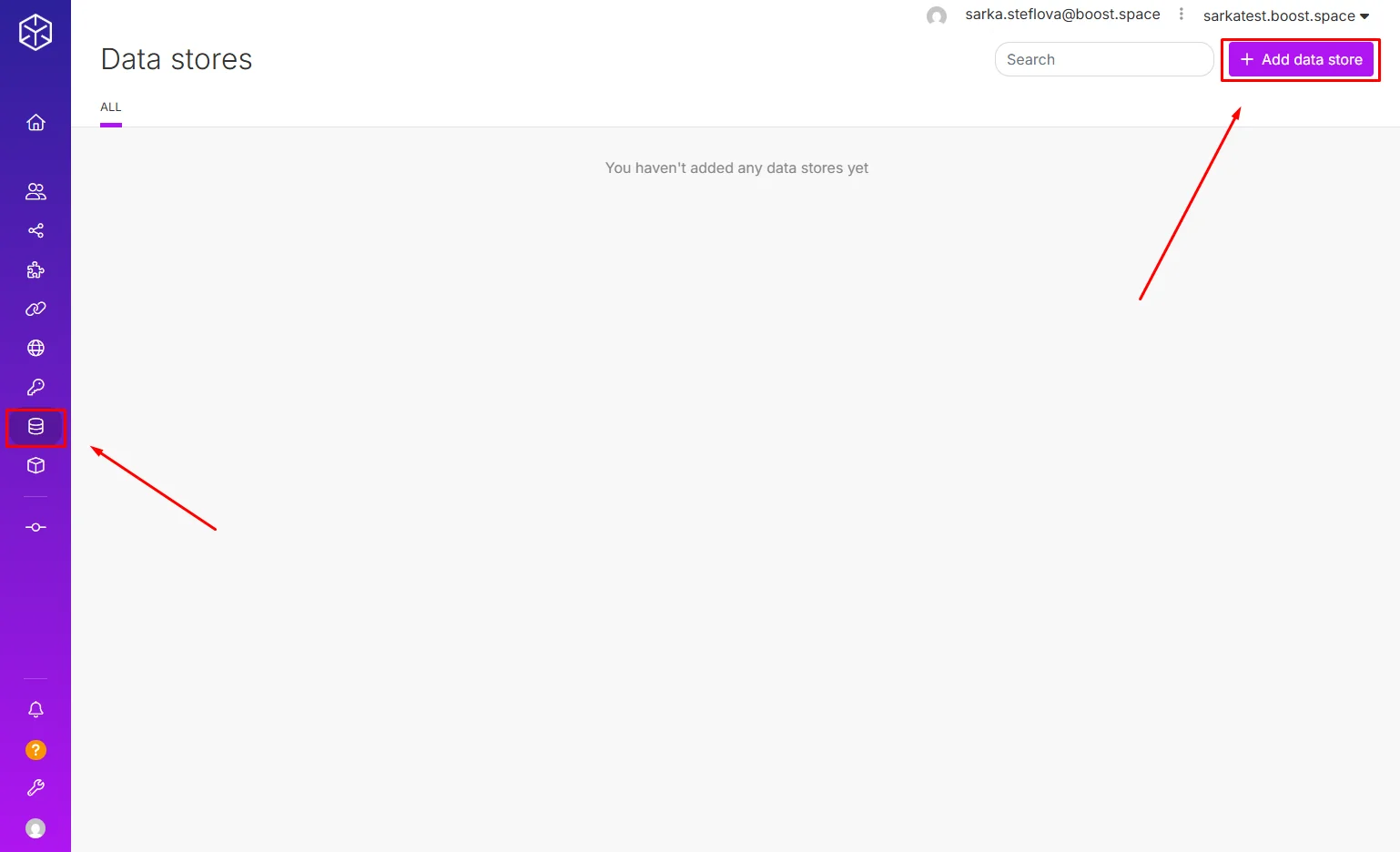
Data Structure Example
Now, you would need to set up a Data structure used in the Data store. This Data structure defines how the encrypted credentials will be stored and retrieved.
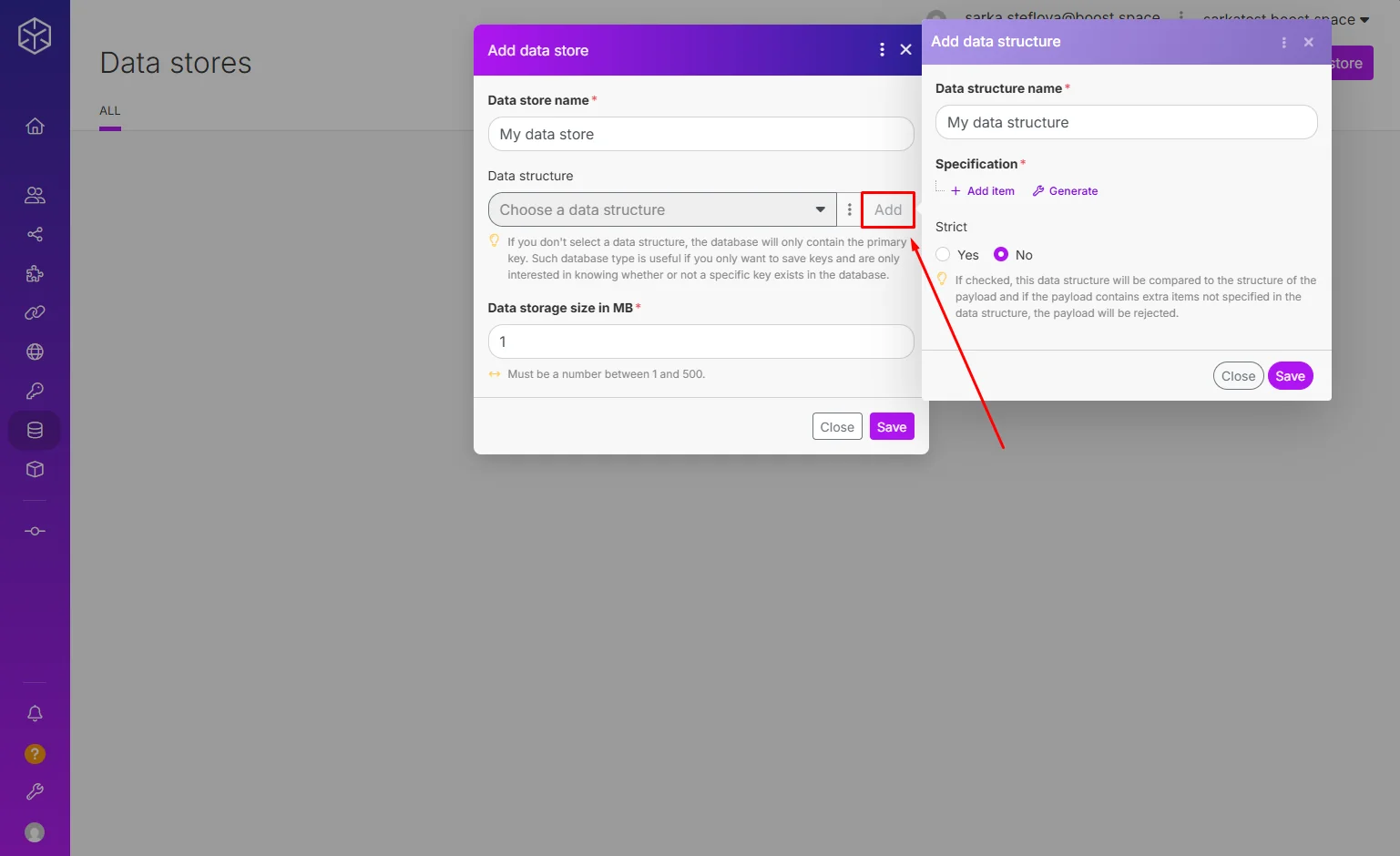
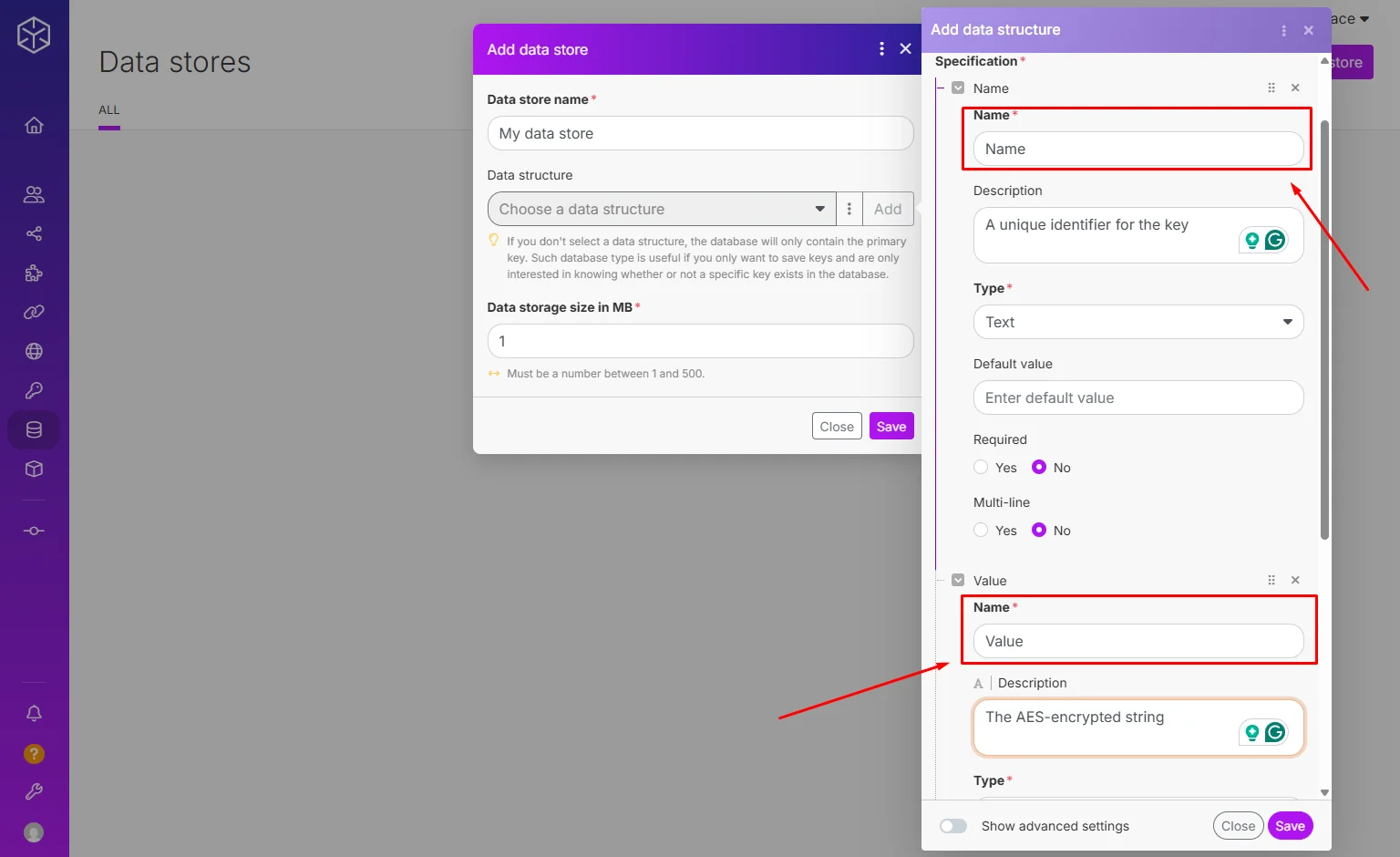
Each record typically contains:
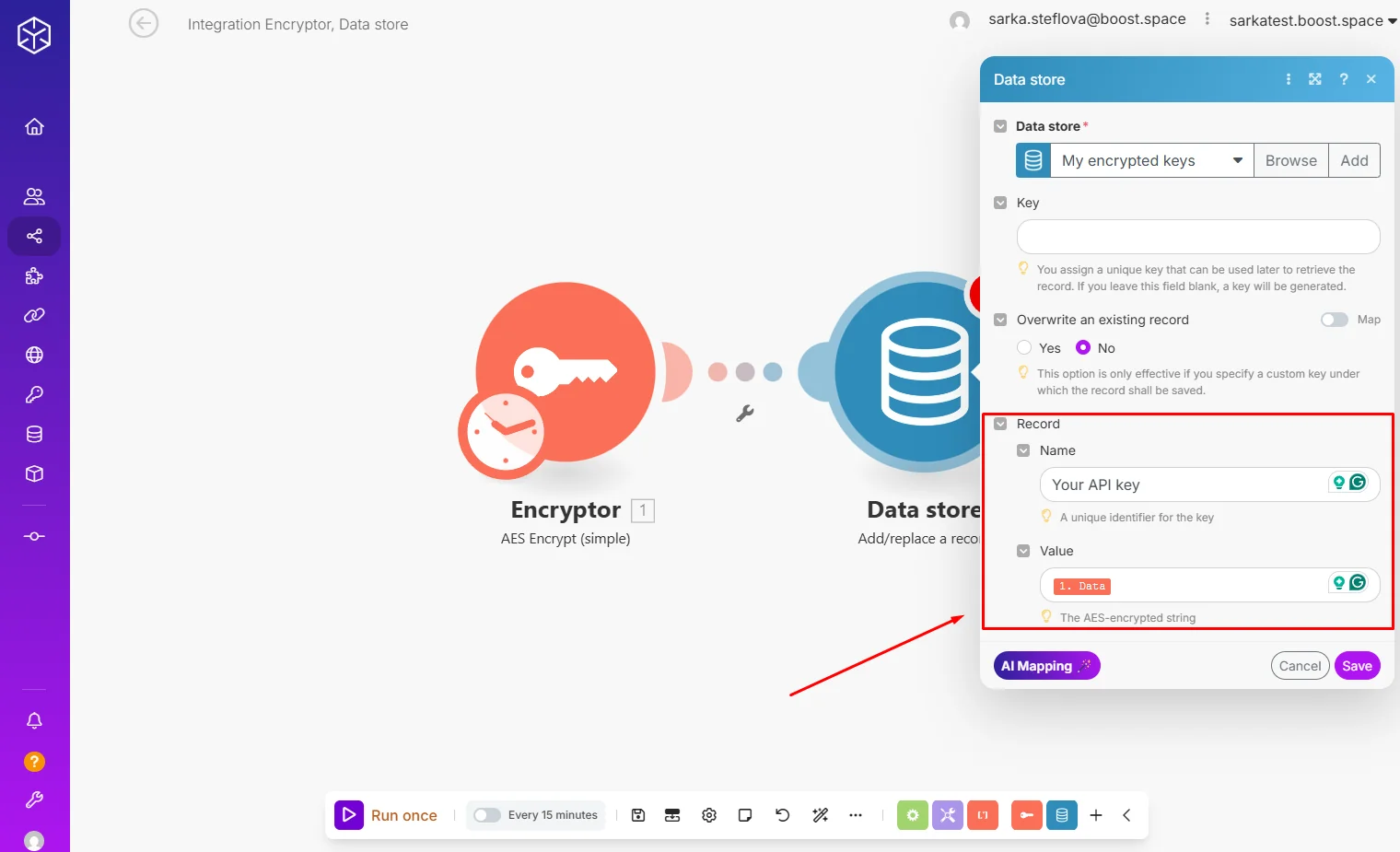
- name — A unique identifier for the key (e.g. “Your API key”)
- value — The AES-encrypted string
Encryptor Scenario
Now you need to create a simple encrypting scenario that will encrypt your credentials and store them in the Data store.
Step by step:
Step 1: Add the Encryptor app. Use the AES Encrypt (simple) module.
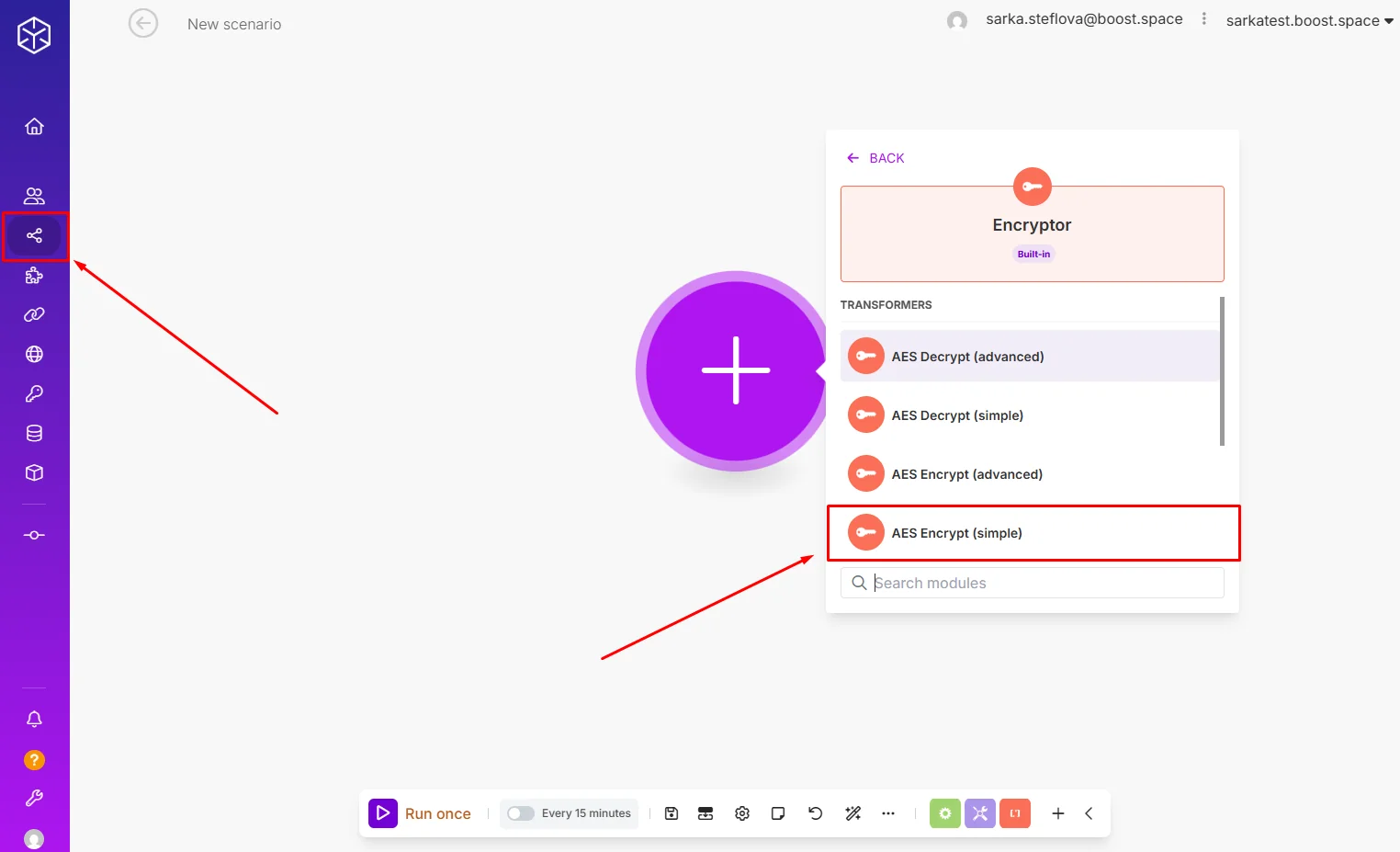
Step 2: Create a new encryption secret key. Remember it and encase it in a sha256 function.
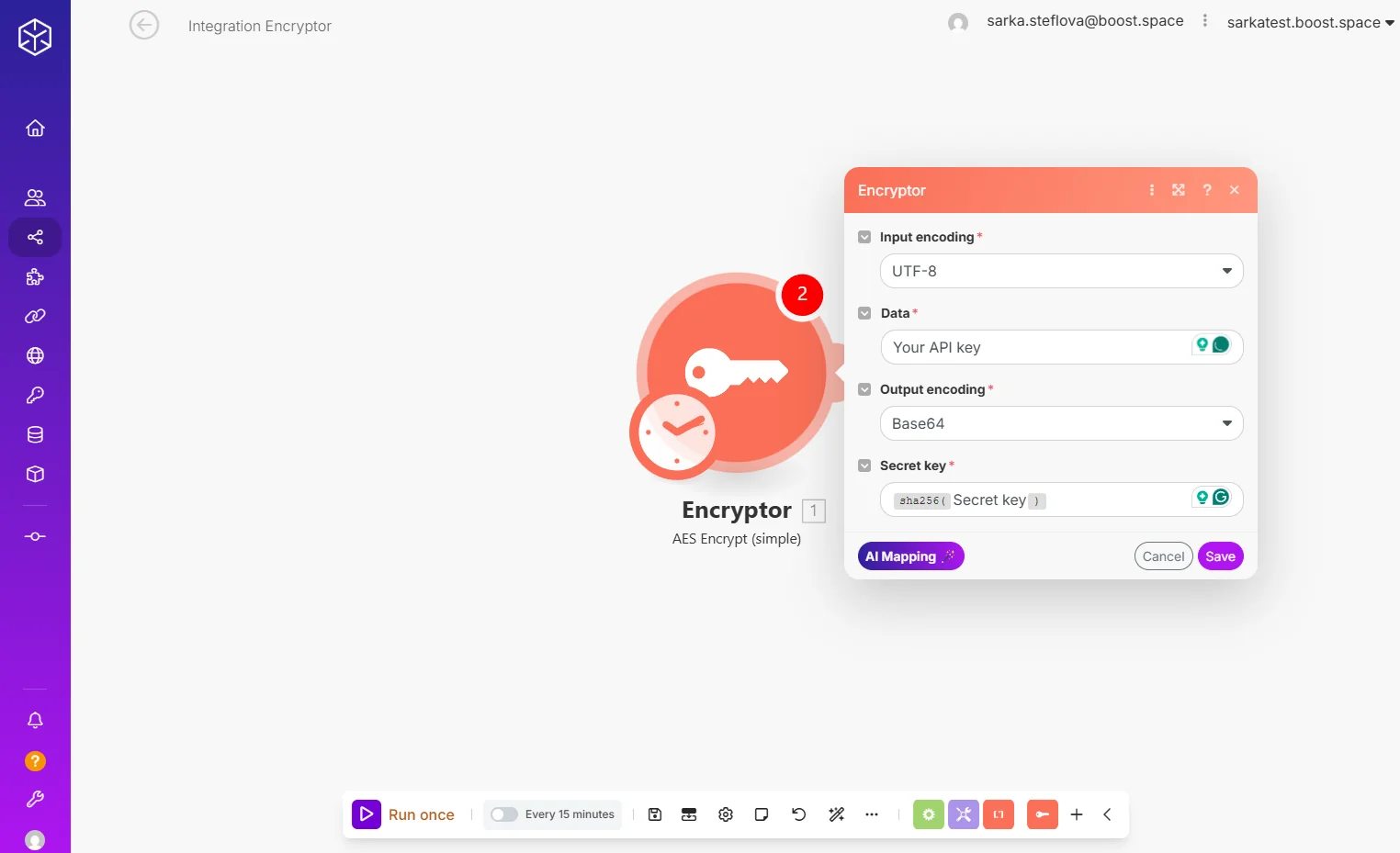
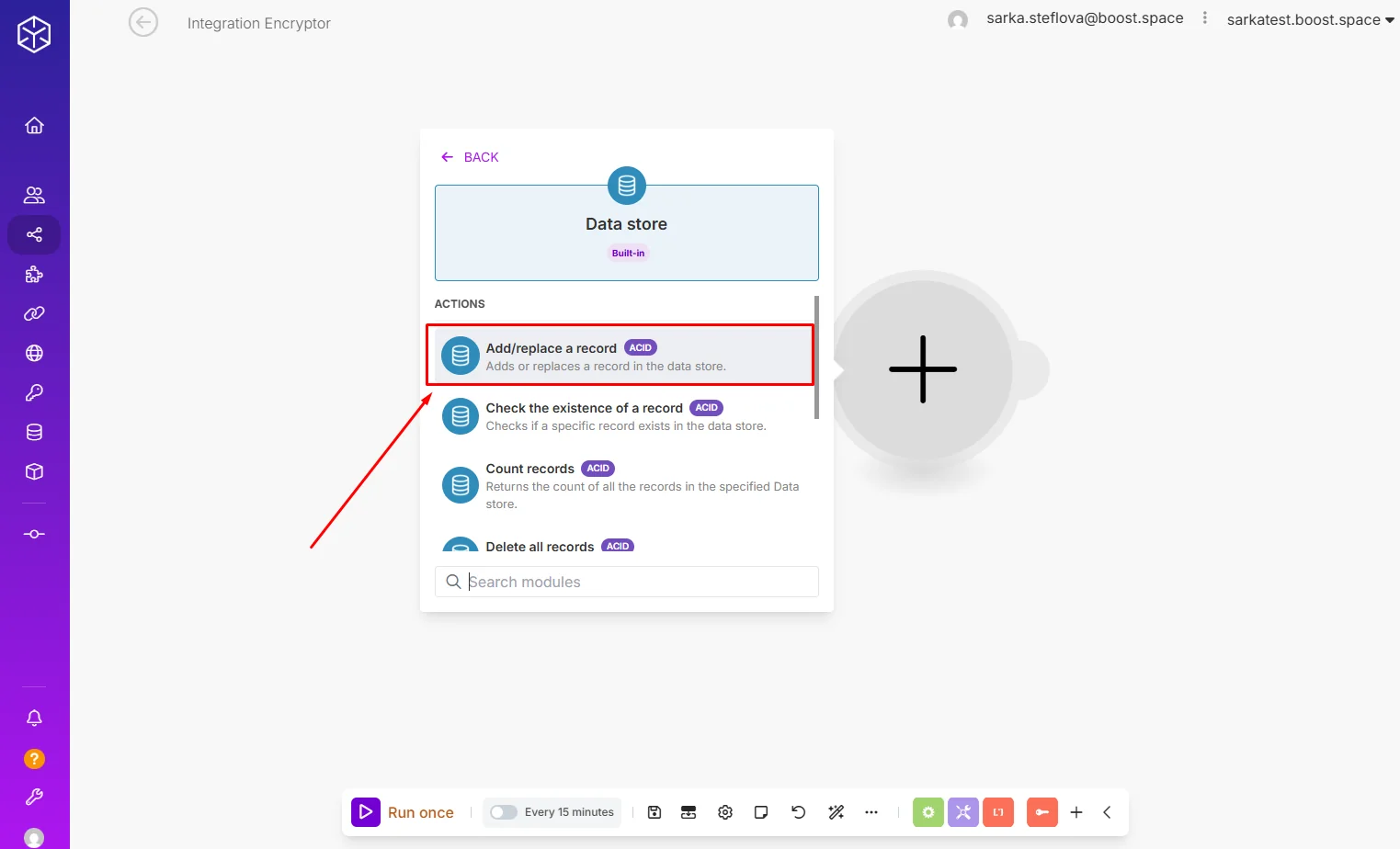
Step 3: Add a Data store app. Use the Add/replace a record module.
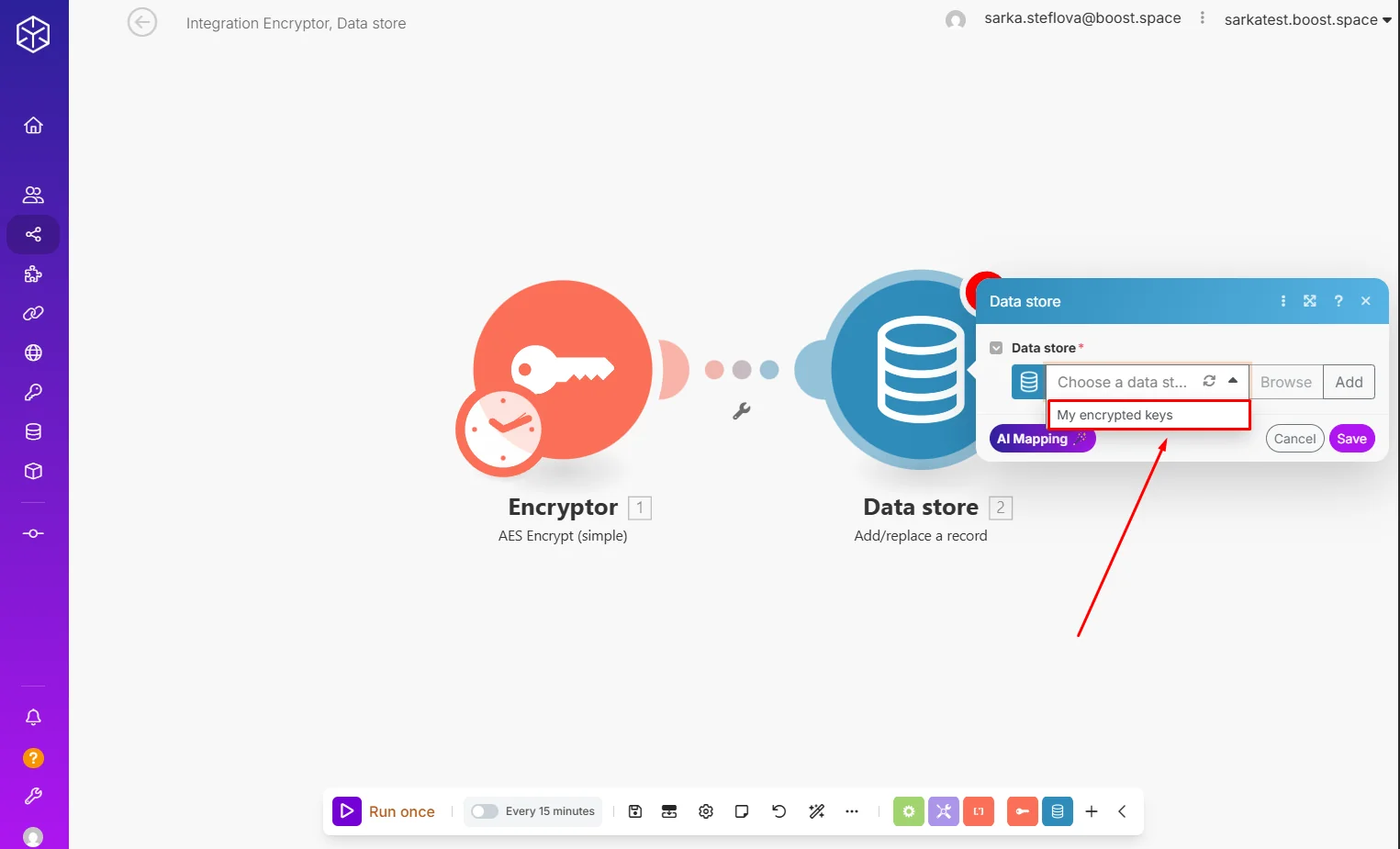
Step 4: In the Data store module, select the previously created Data store for your encrypted credentials.
Step 5: Map the module.
Step 6: Run the scenario.
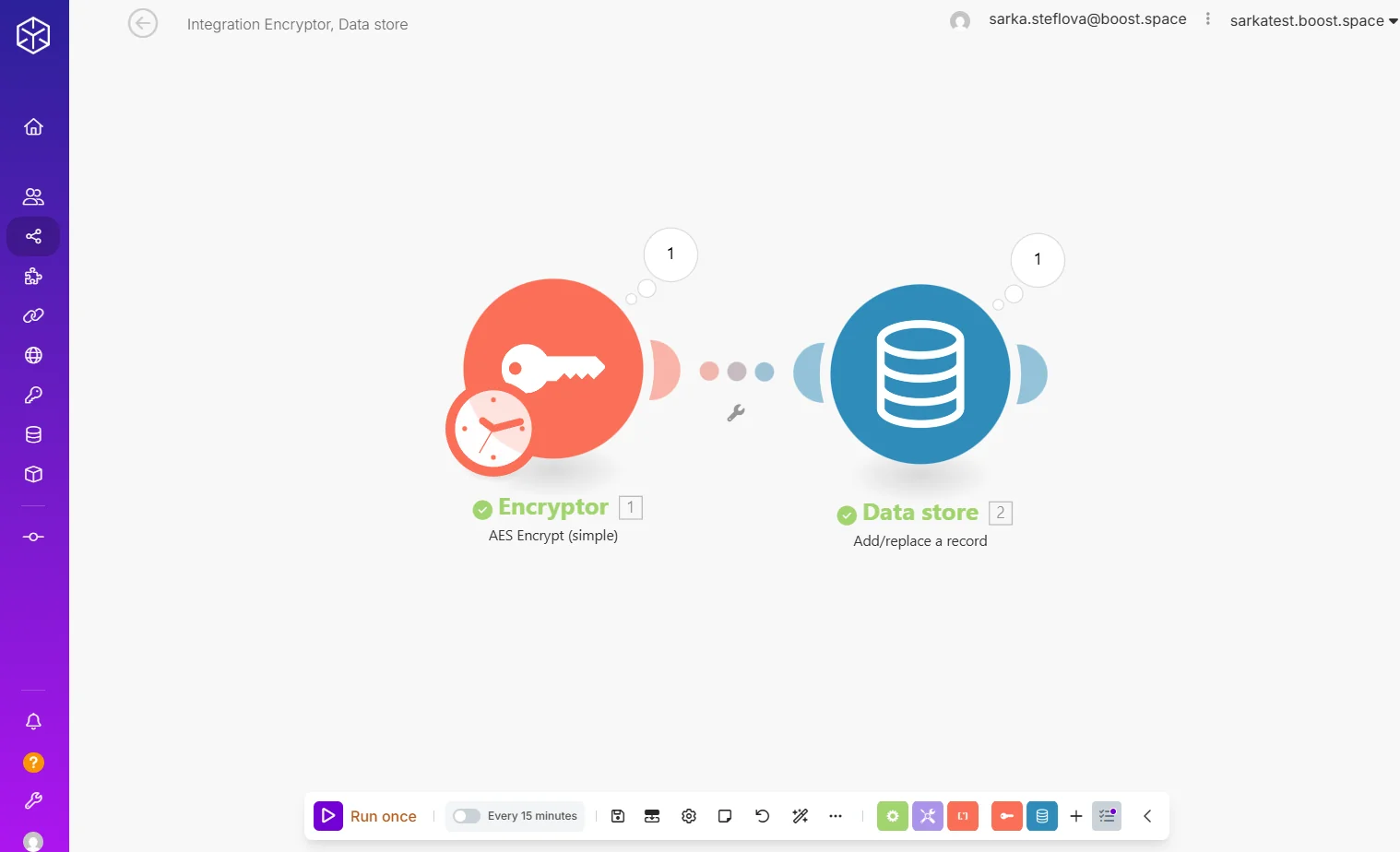
The Encryptor App inserts encrypted values right into your data store.
You should run this scenario once for each credential you wish to protect.
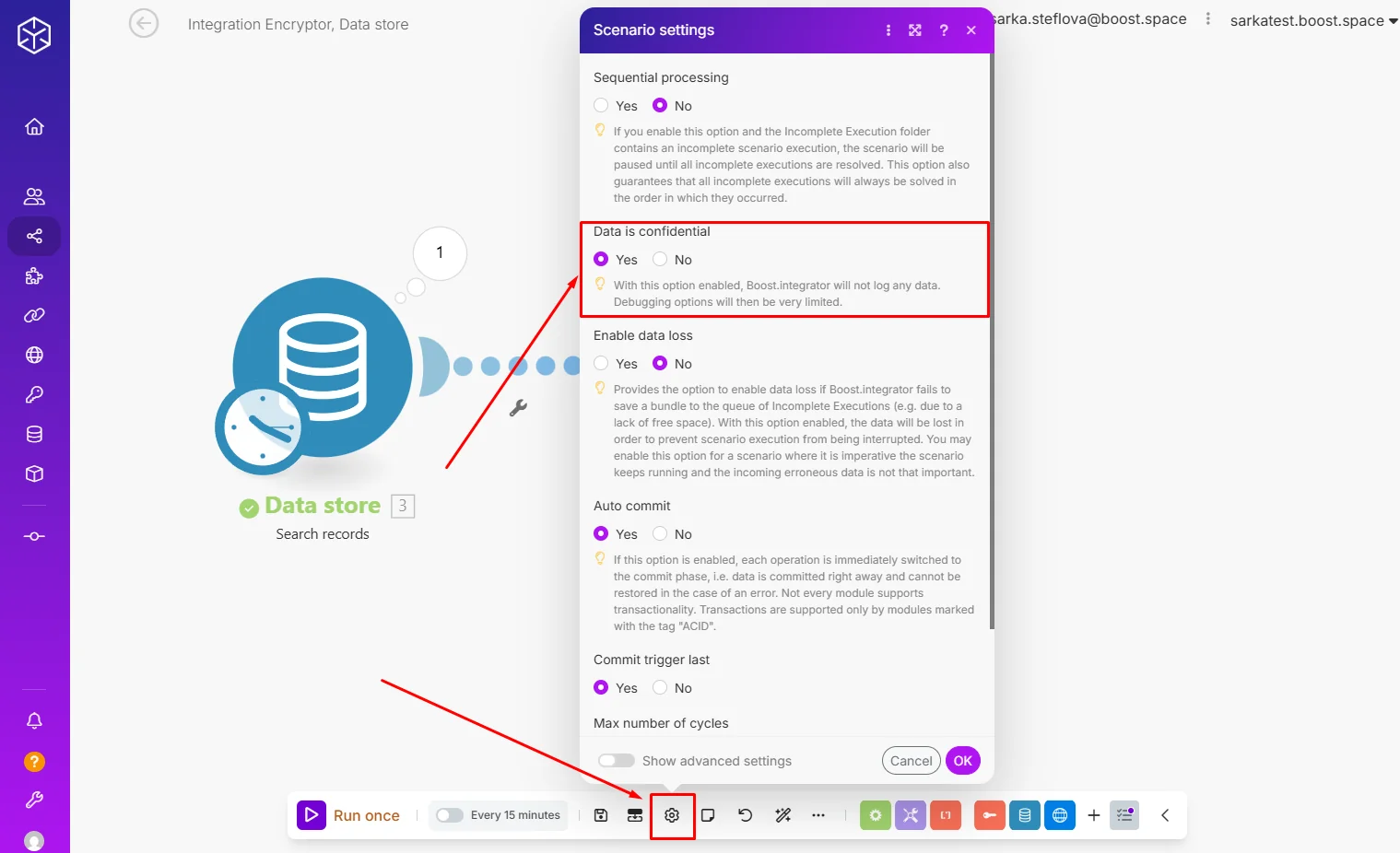
Important: After testing, set the scenario to “Data is confidential” mode to prevent sensitive information from being stored in execution logs.
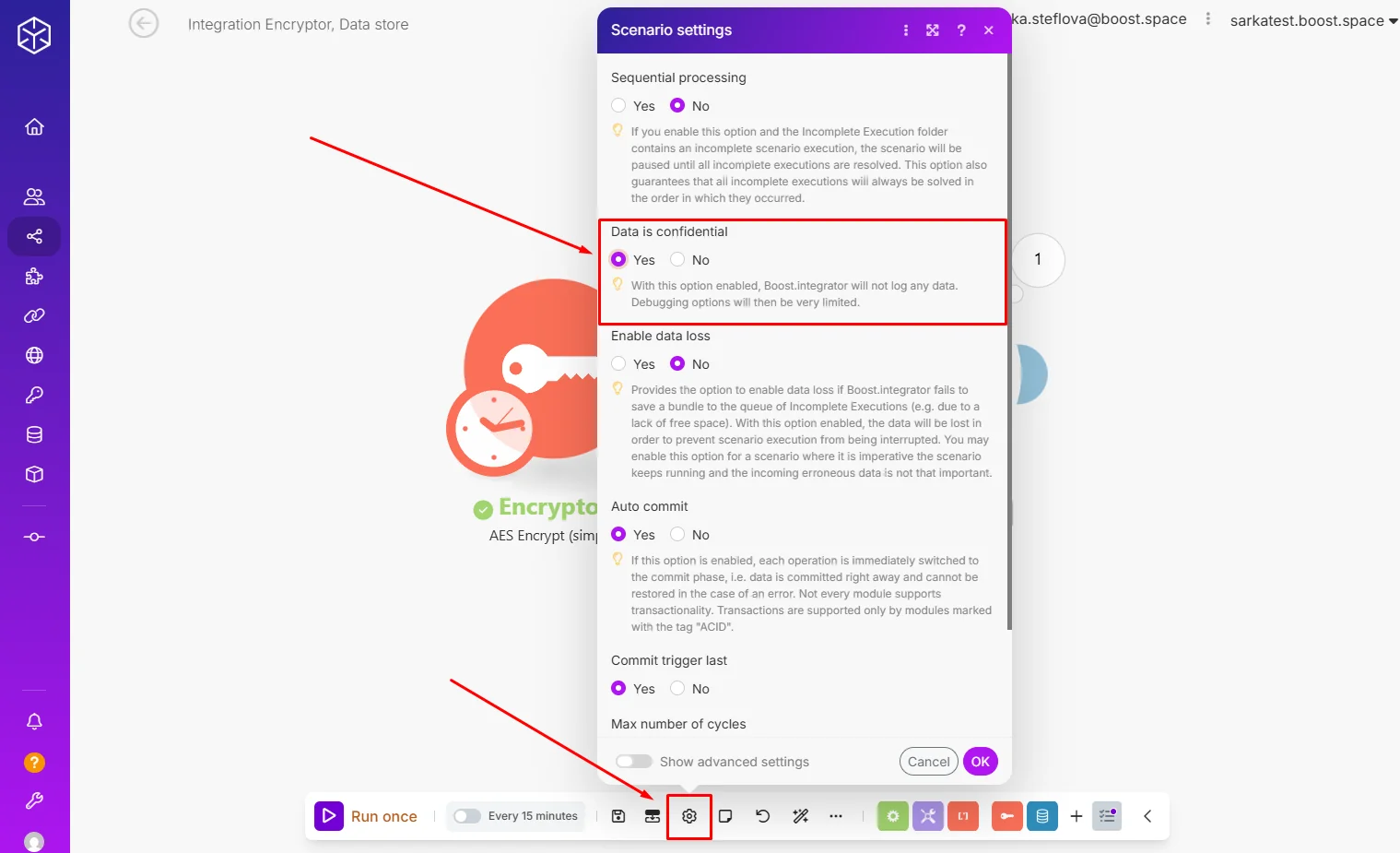
Boost.space Integrator also does not allow deletion of execution history, so it’s recommended to:
- Clone the scenario after testing,
- Delete the original version,
- And use the clone for production use.
Decryptor Scenario
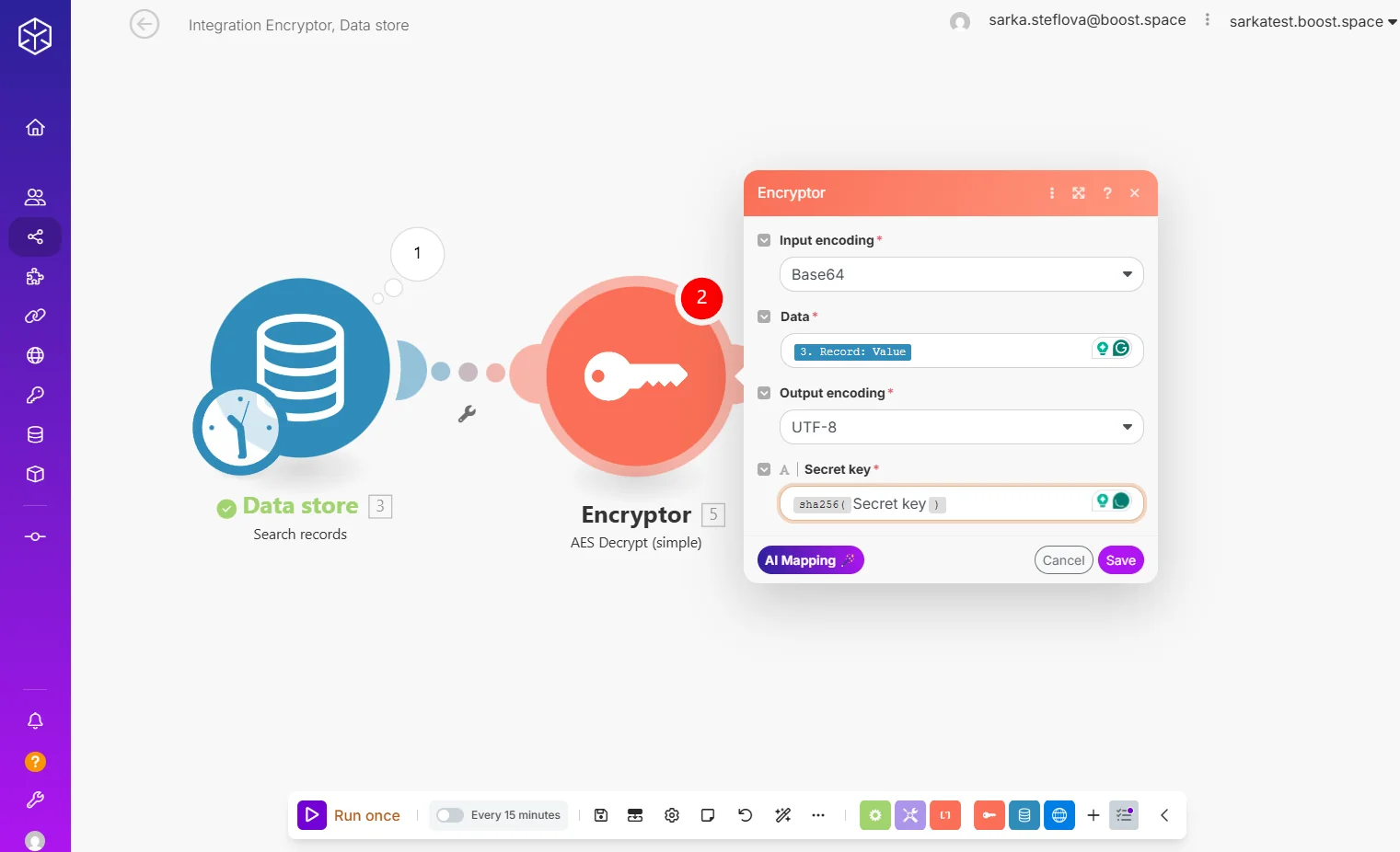
The Encryptor App also has an AES Decrypt (simple) module that retrieves and decrypts values for use in other scenarios. For this, you would need your secret key again to be able to decrypt the values from your Data store.
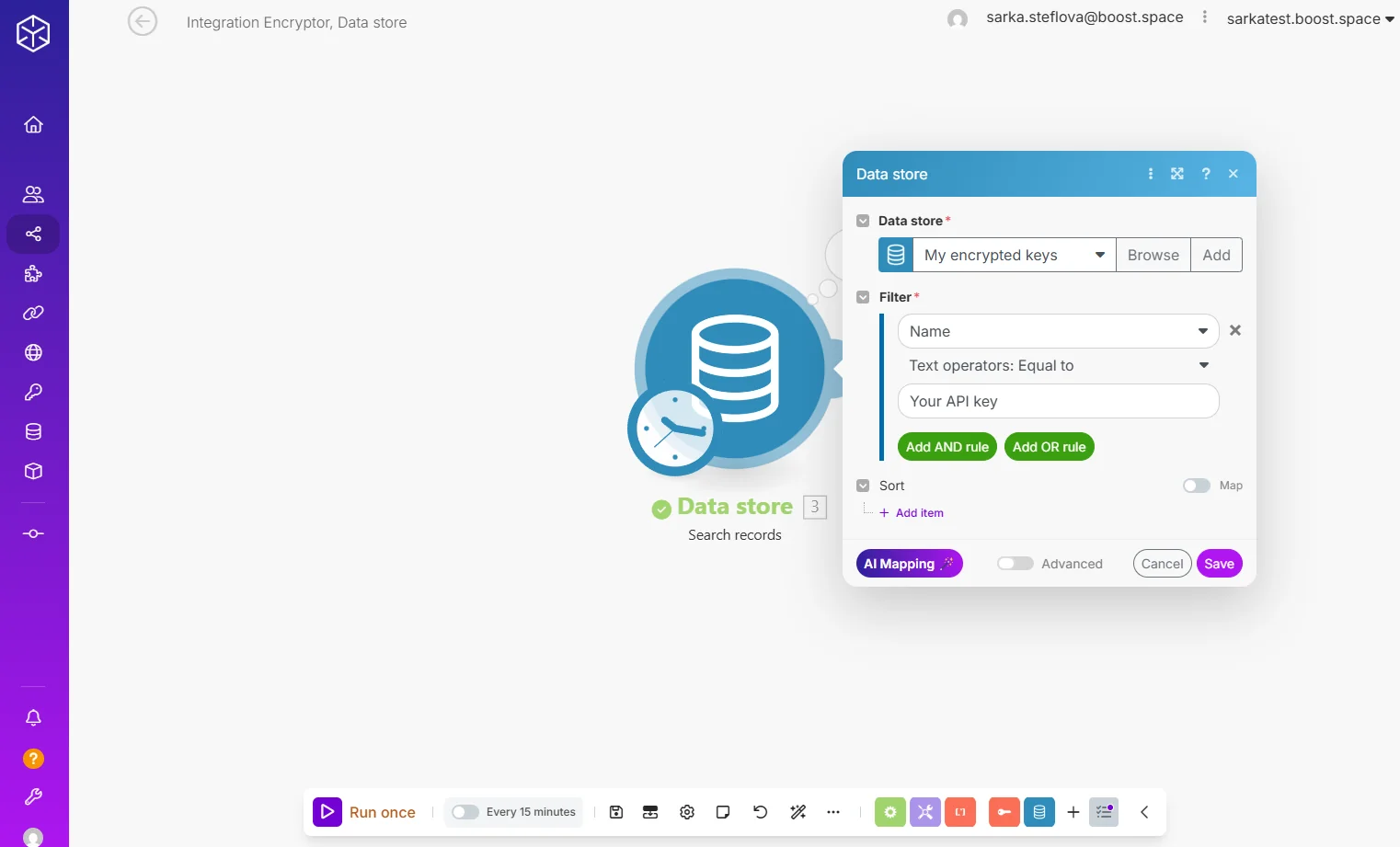
Step 1: Find encrypted credentials.
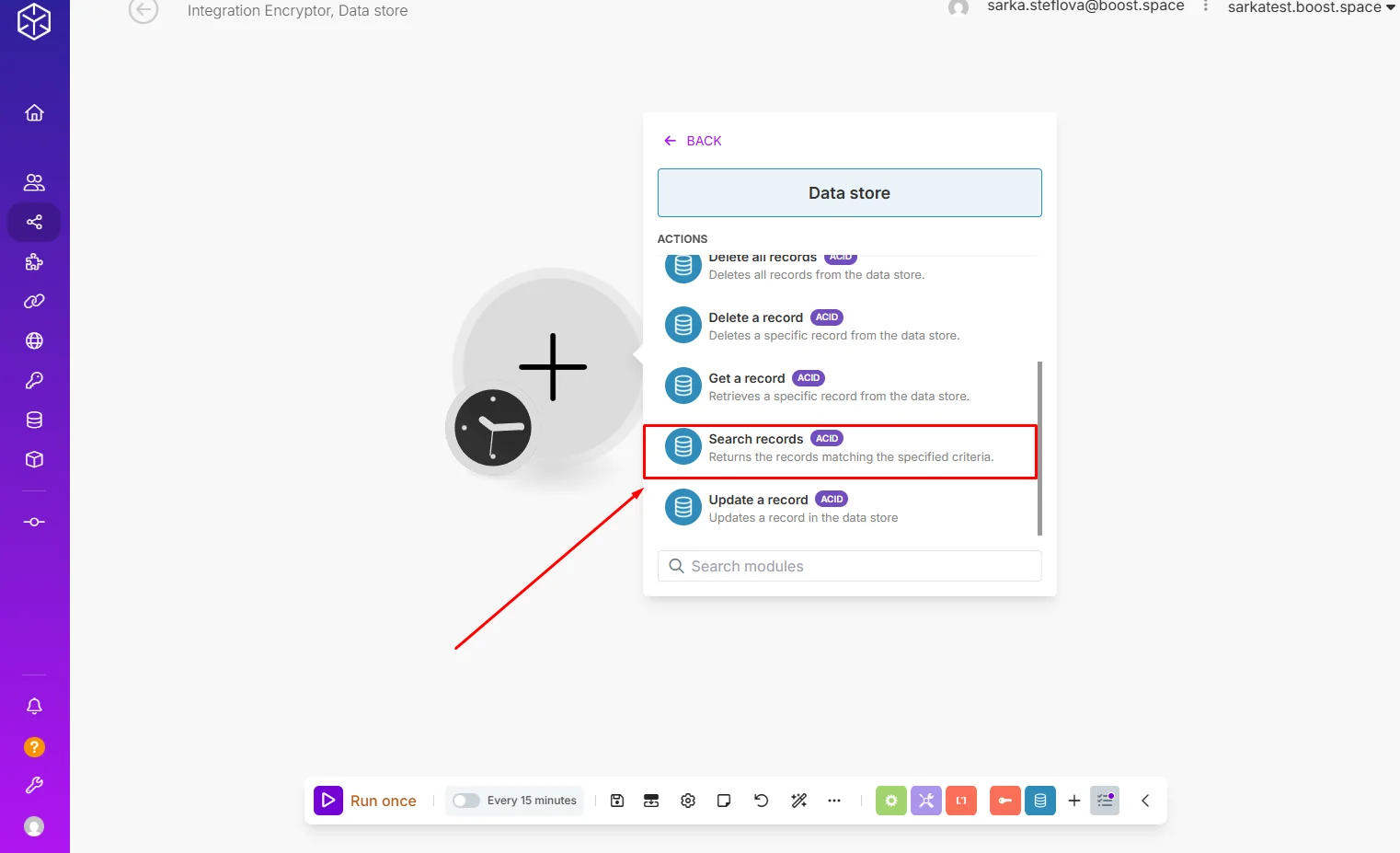
Step 2: Search the data store.
Step 3: Decrypt the credentials. (You need to use the same secret key.)
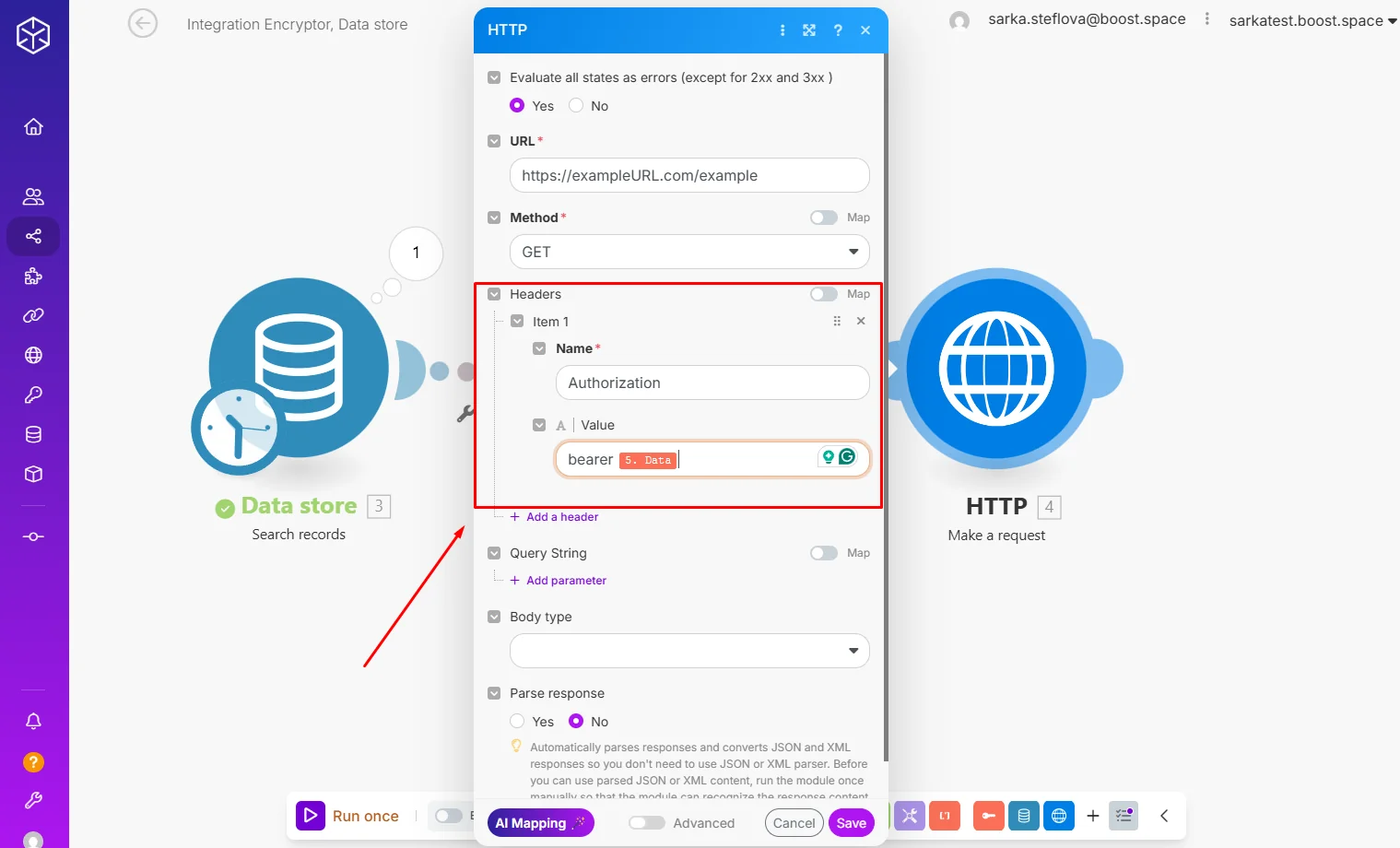
Step 4: Use the decrypted key.
Again, switch this scenario to “Data is confidential” to ensure secrets are not logged or exposed in execution history.
Limitations and Security Considerations
While this method prevents direct viewing of sensitive data in Boost.space Integrator’s interface or blueprint exports, it’s not bulletproof:
- Anyone with full access to your Boost.space Integrator account could still execute scenarios that decrypt and expose the data.
- Logs and execution history may still contain traces if not properly configured.
- AES secret keys must be managed carefully; if the encryption key is exposed, all stored data can be decrypted.
By implementing AES encryption with a data structure and data store, you can reduce the risk of exposing sensitive credentials within Boost.space Integrator. While this method is not a replacement for a full-featured secret management system, it offers a practical layer of security that keeps your credentials hidden from plain view.
If you will need any help along the way please contact us at support@boost.space.

