Optimizing Your Webhooks
At Boost.space, we understand the critical importance of maintaining smooth and efficient operations within your systems and webhooks. Managing slowdowns requires a proactive approach to event configuration and scheduling. Here, we share two effective strategies to manage and mitigate these issues, ensuring that your operations remain seamless and efficient.
1. Configure Event Types Triggering the Webhook/Scenario
One of the most effective ways to manage webhook and scenario slowdowns is to configure the event types that triggers these processes. By setting up a specific webhooks for specific actions, you can streamline data processing and reduce unnecessary operations.
For example, instead of sending all data to a webhook and then filtering it in the scenario’s next step, you can set the webhook to trigger only for a specific action, such as creating a particular record. This targeted approach ensures that only relevant data is processed, saving a significant amount of operational resources.
Button
The button triggers an action that sends selected data from the system to the scenario, where it can be further processed.
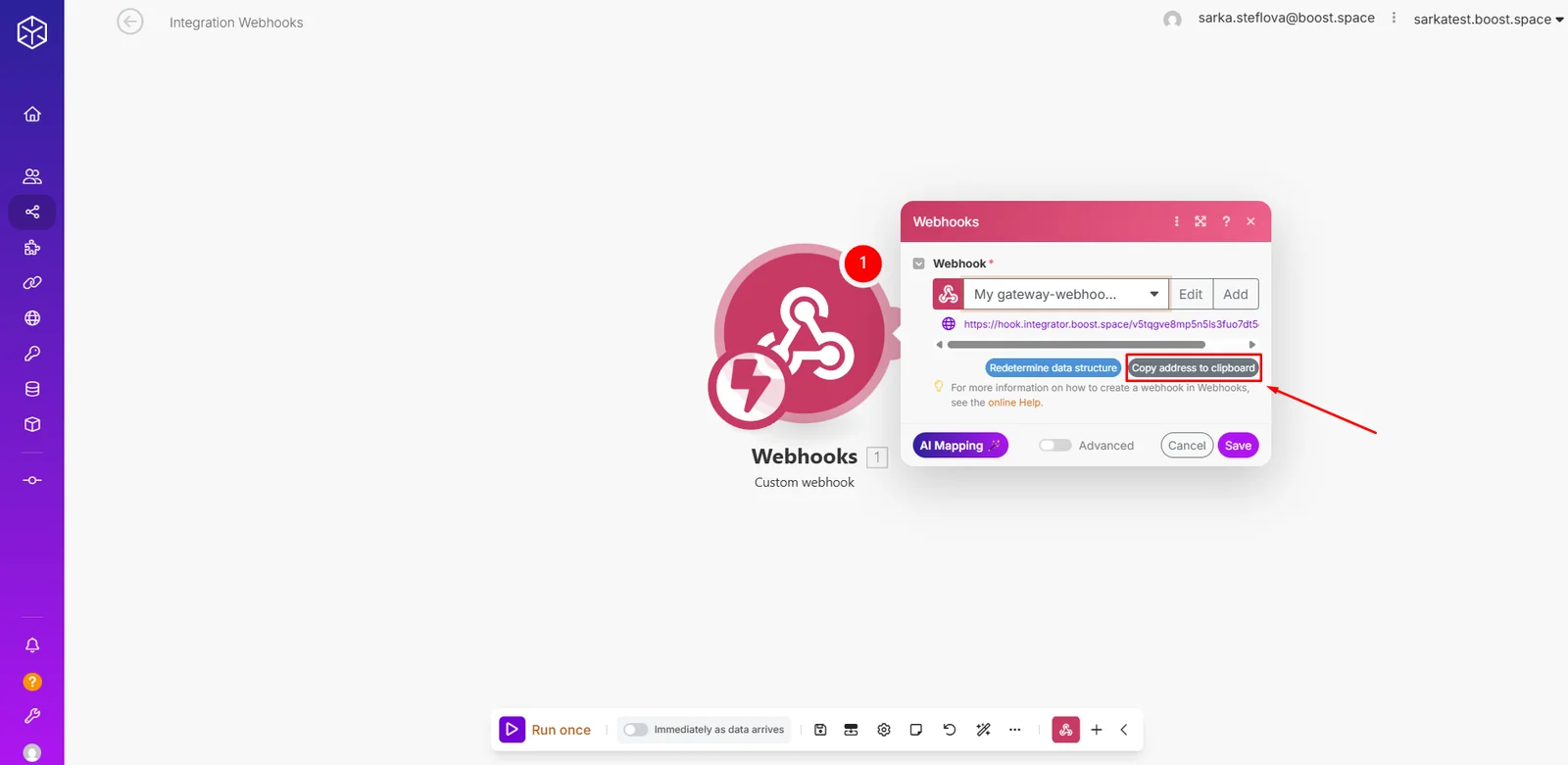
1- Open the Webhook module and click Copy address to clipboard.
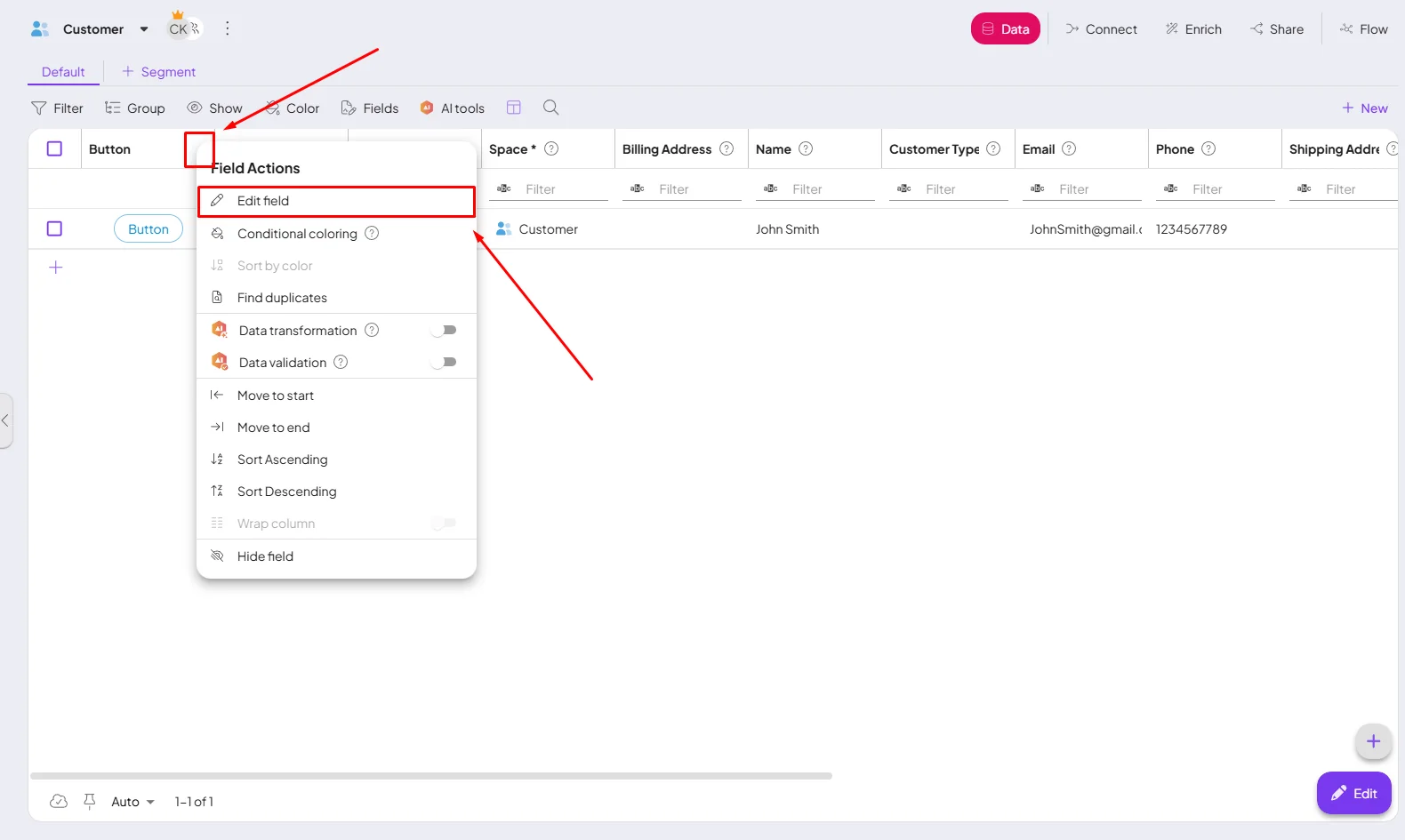
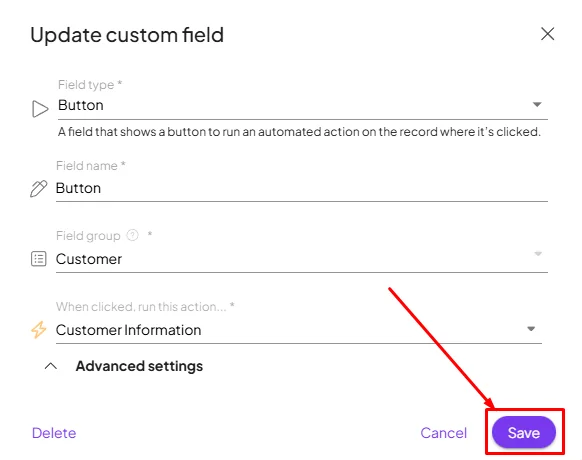
2- Go to your module where you want your button to be. In your module, click Edit field.
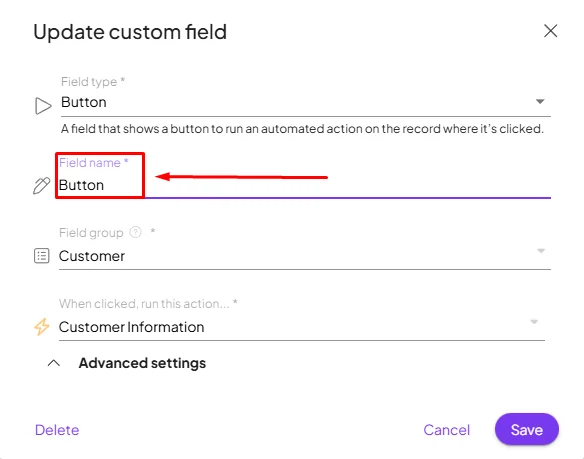
3- Add a Name for the field.
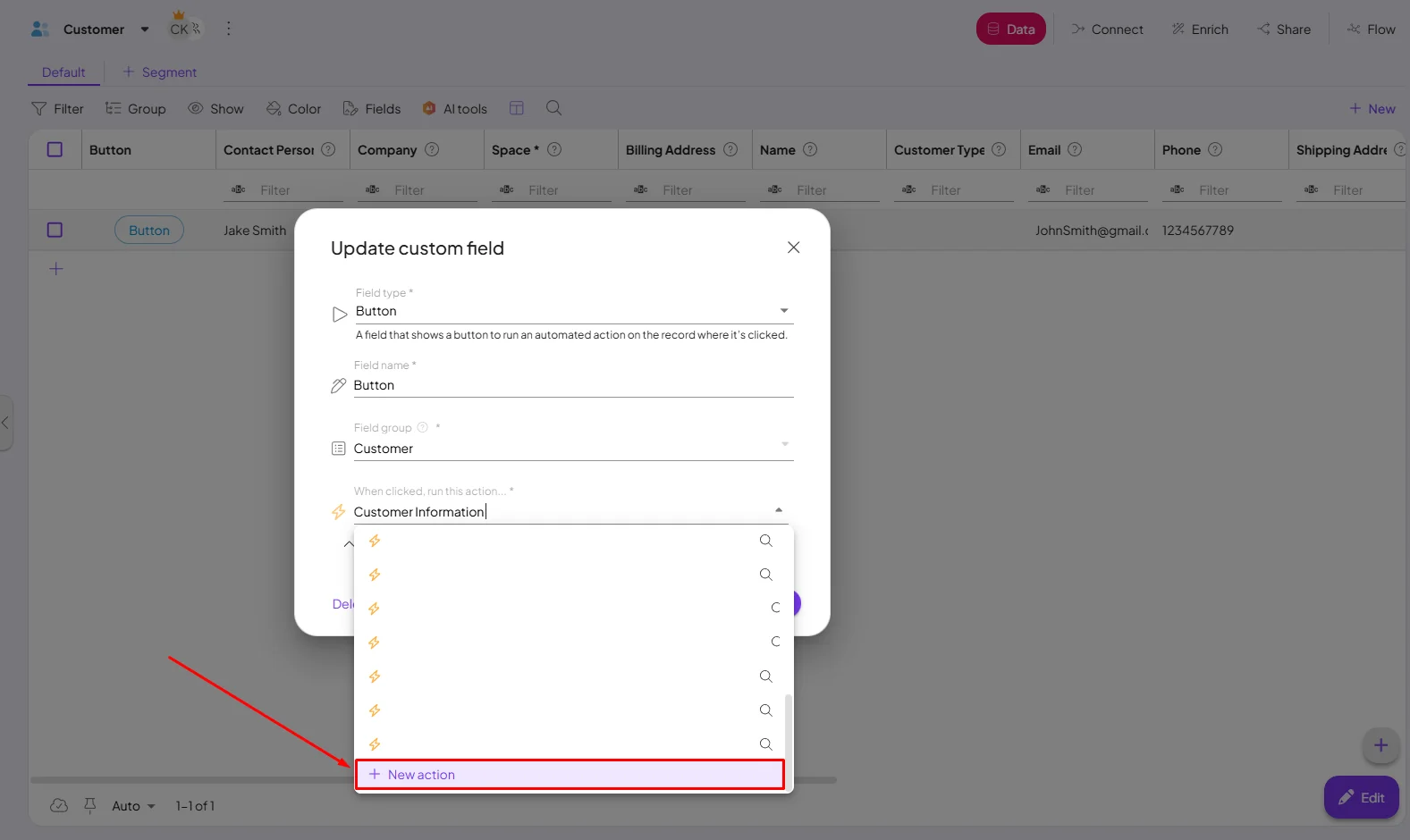
4- Now click on +New action and create the action you want this button to perform.
5- Name the action.
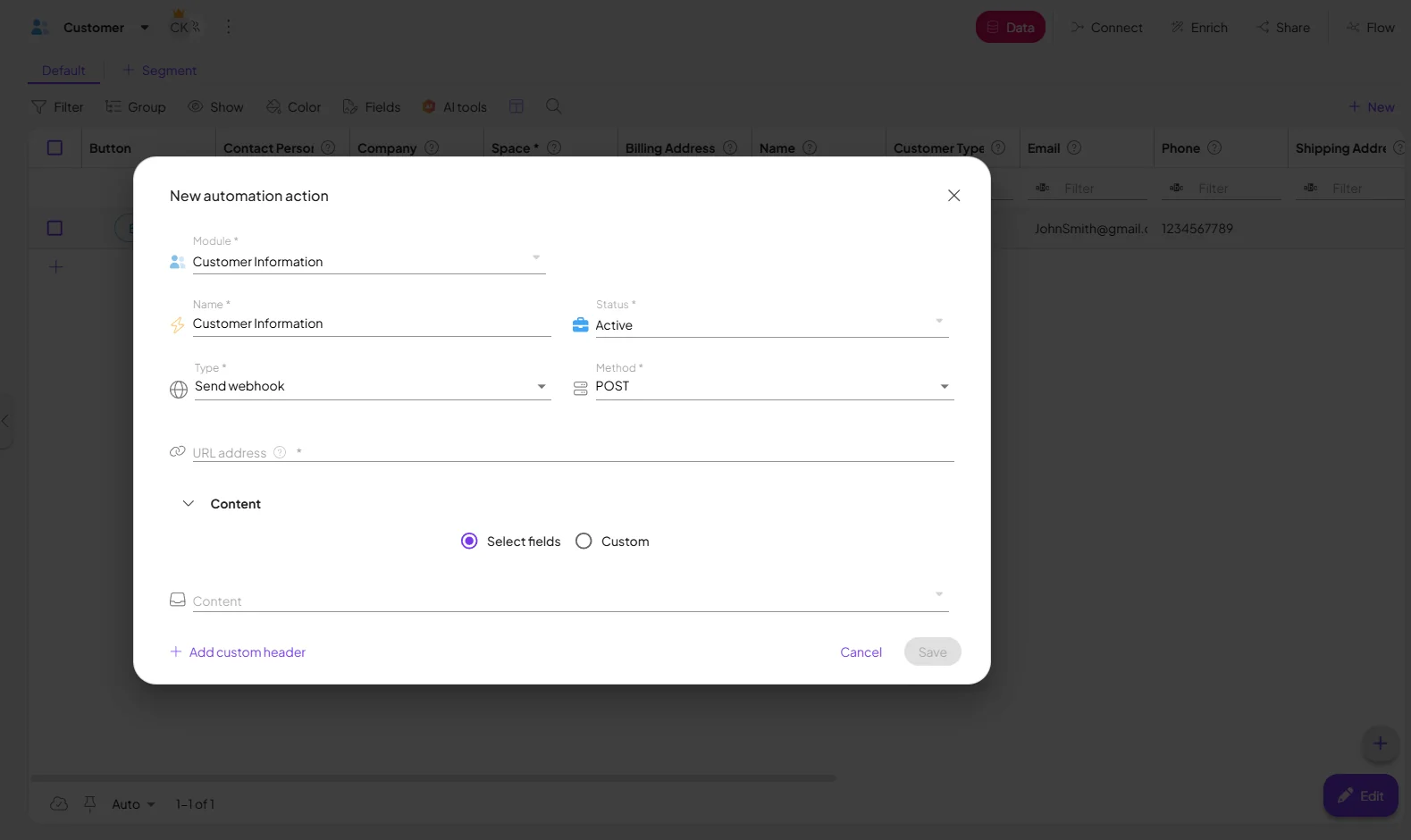
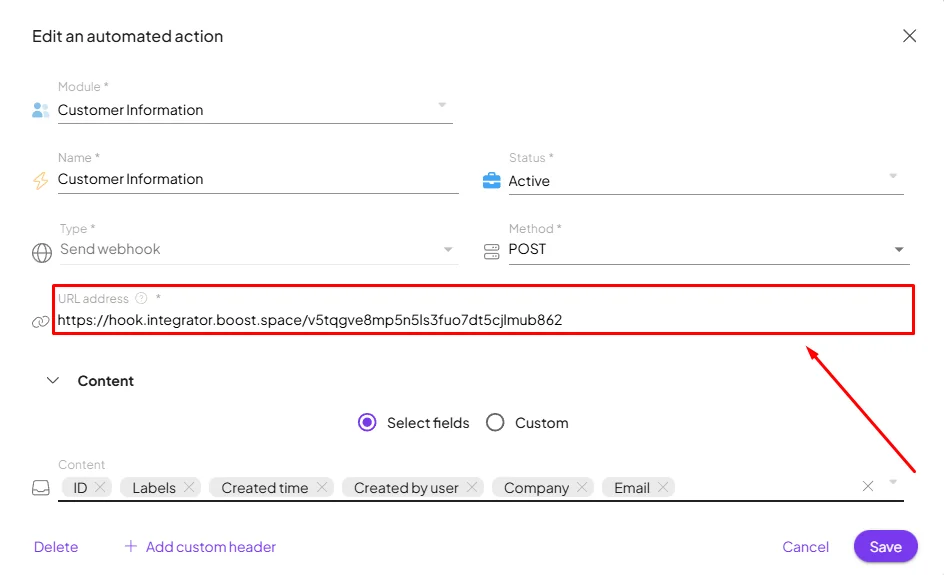
6- Paste the copied Webhook URL into the appropriate field.
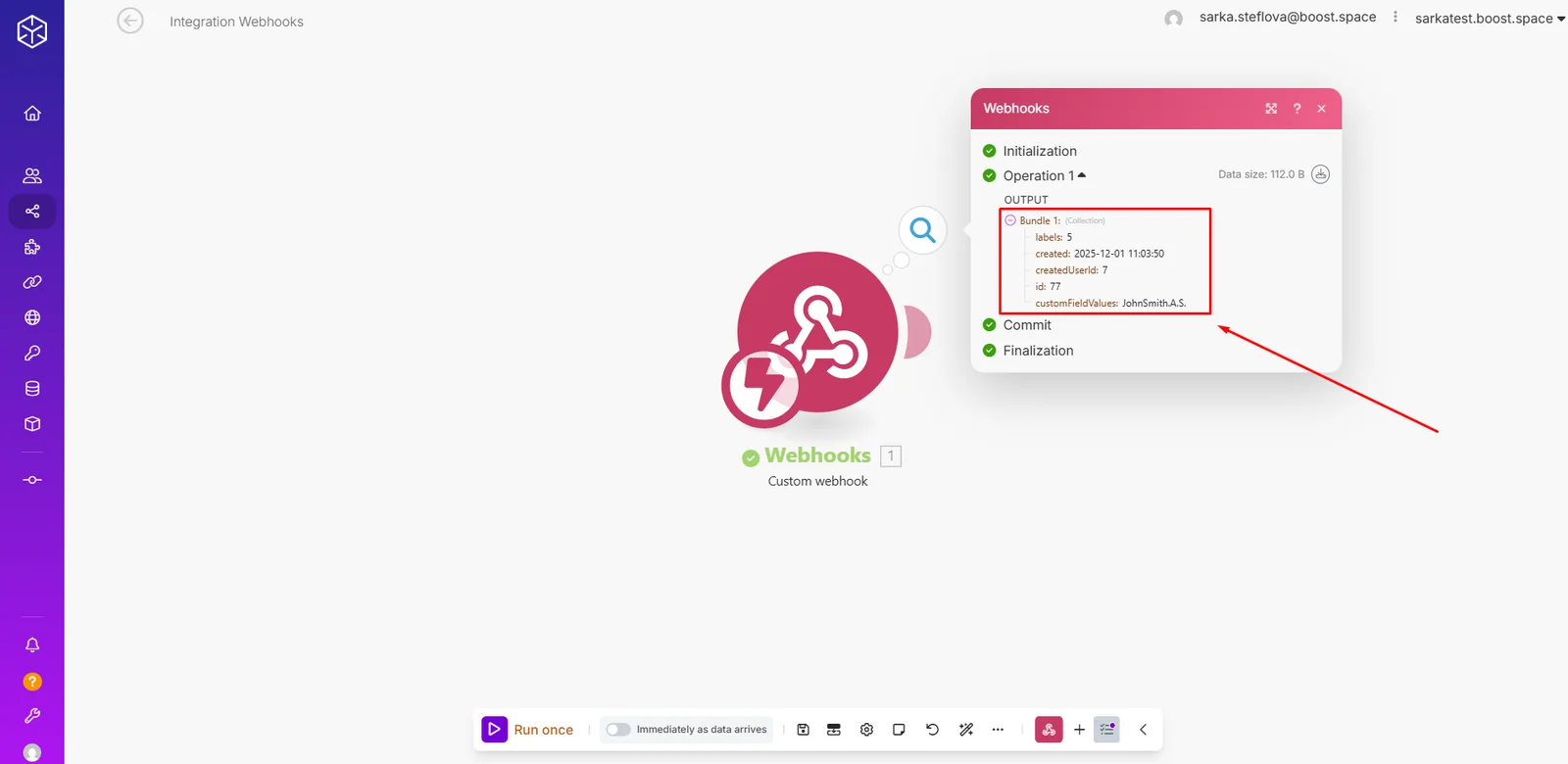
7- Select the information you want to retrieve from the record (for exampleall ID, Labels, Email etc.).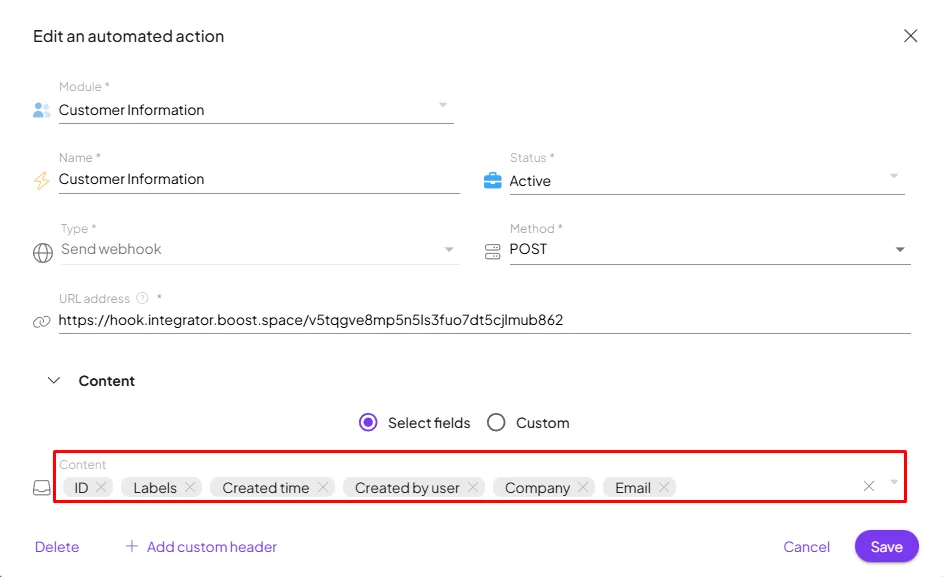
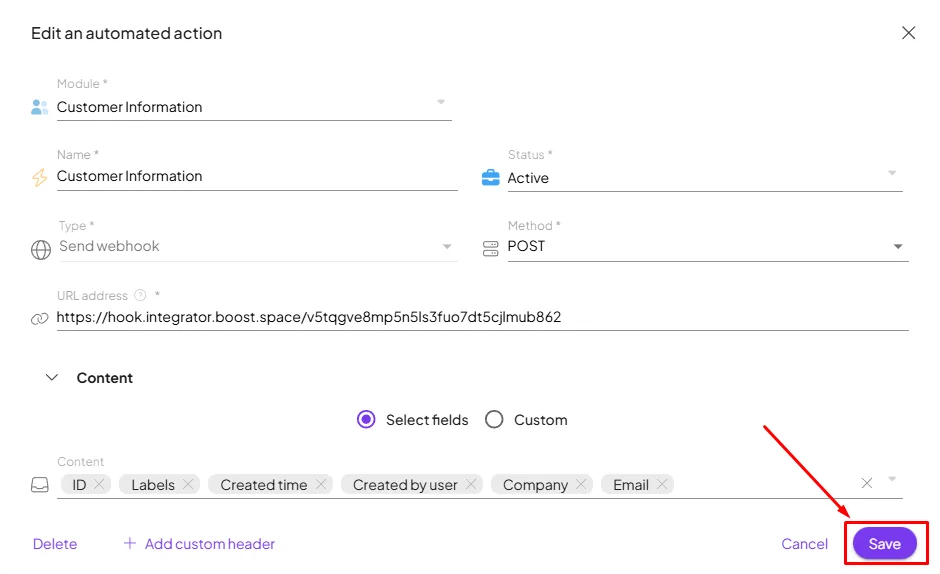
8- Save the configuration.
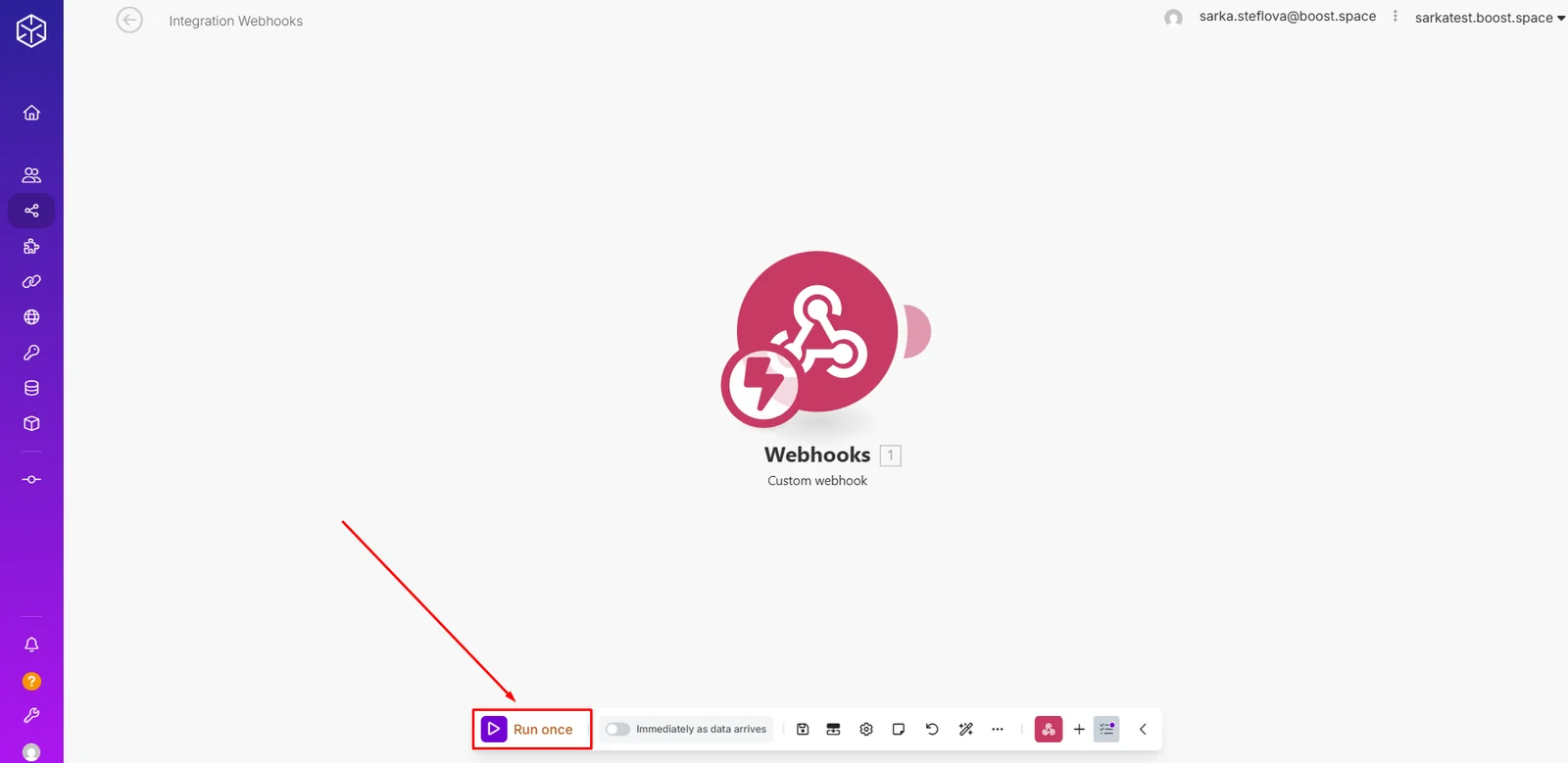
9- Go back to Integrator and Run the scenario.
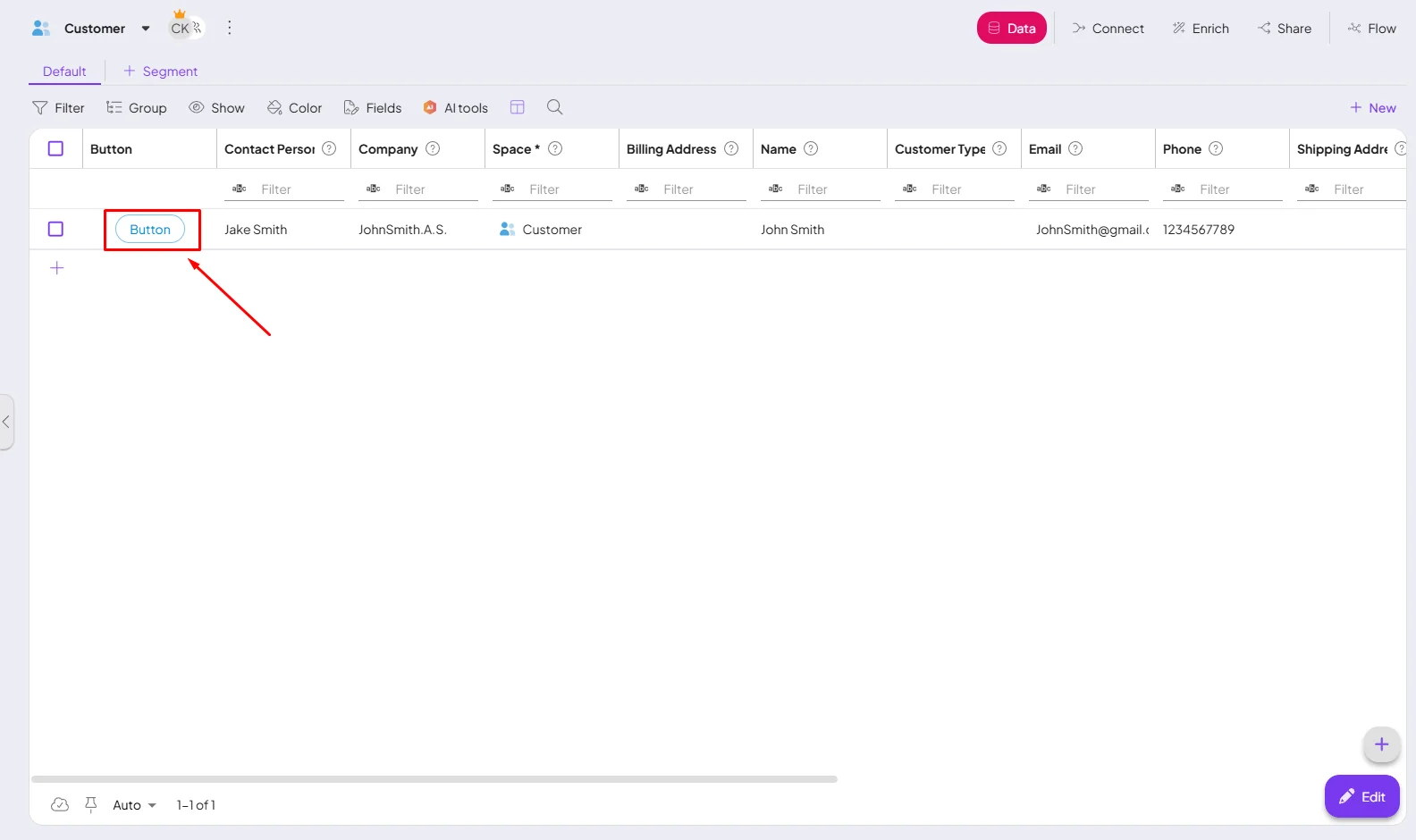
10- Finally, click the button in your system to trigger the scenario and send data to the webhook.
11- Once these steps are completed, the webhook will receive the data.
2. Adjust Scheduling and Batch Processing
If you don’t have the option to configure event types, you can address slowdowns by adjusting the scheduling and batch processing settings.
First, change the scheduling from “Immediately” to a specific interval, such as once every X minutes. This helps spread out the processing load and prevents system overloads during peak times.
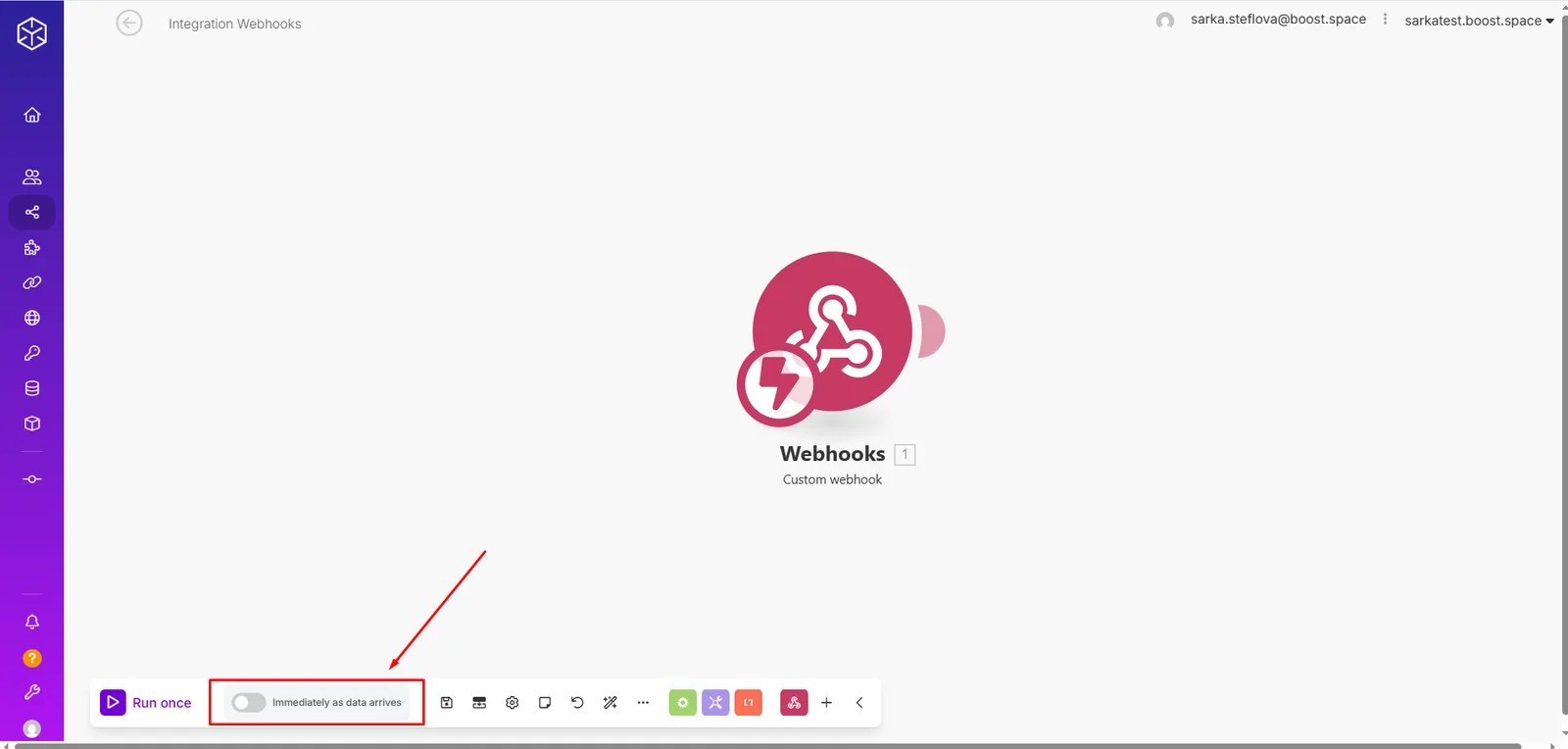
Additionally, in the webhook module, use the advanced settings to set the maximum number of results processed in one run. This means you specify the number of records processed in each batch, ensuring that data is handled in manageable chunks rather than all at once.
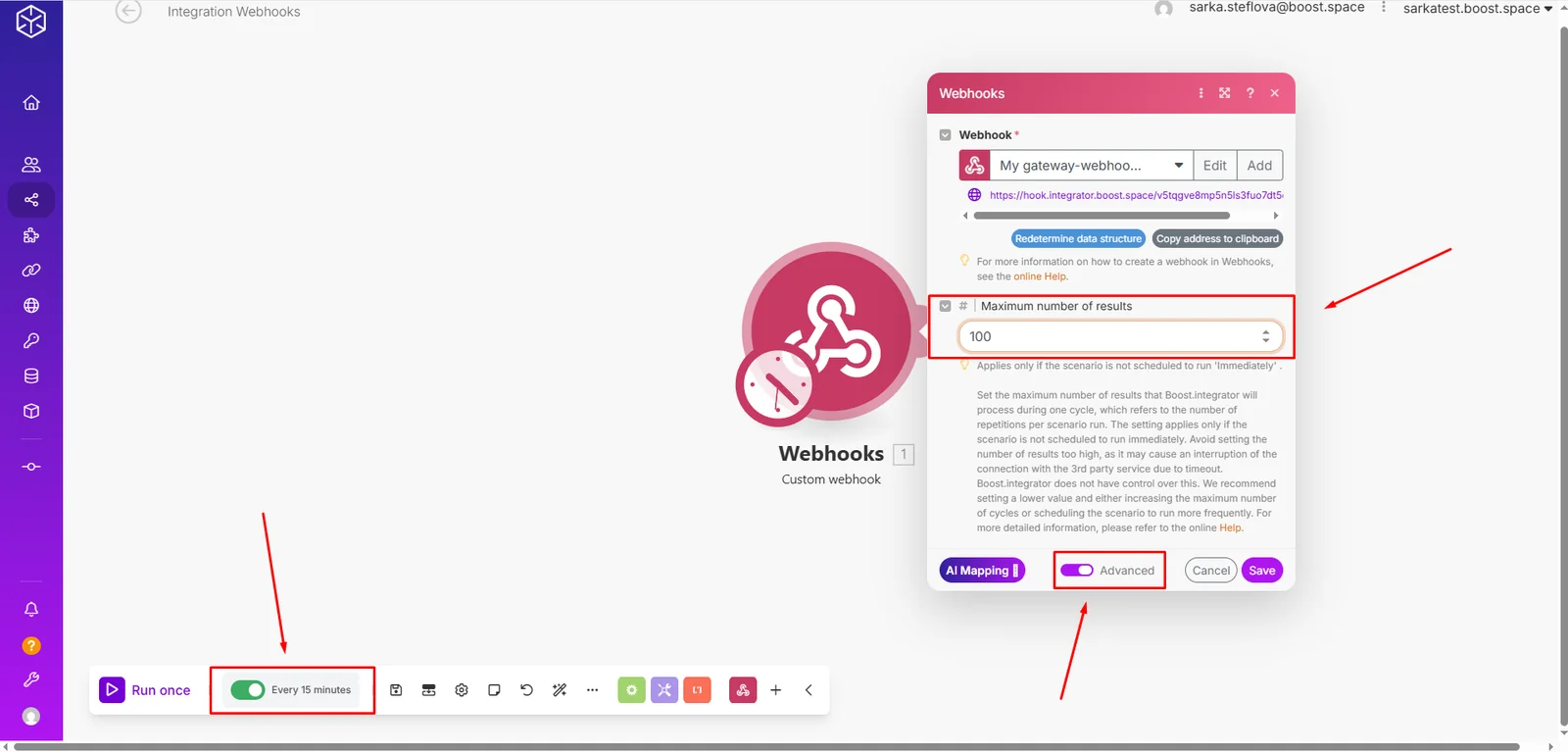
By processing data in batches, you can maintain system performance and avoid the pitfalls of large, unmanageable data loads.

