Contact module
The Contact Module serves as the central hub for managing personal and corporate identities within your system. The data flow between Boost.space and your integrated third-party applications, allowing for real-time monitoring, automated updates, and complex relationship mapping.
Trigers
Watch:
Contact and Address (updated, deleted, CUD, created) have the same mapping.
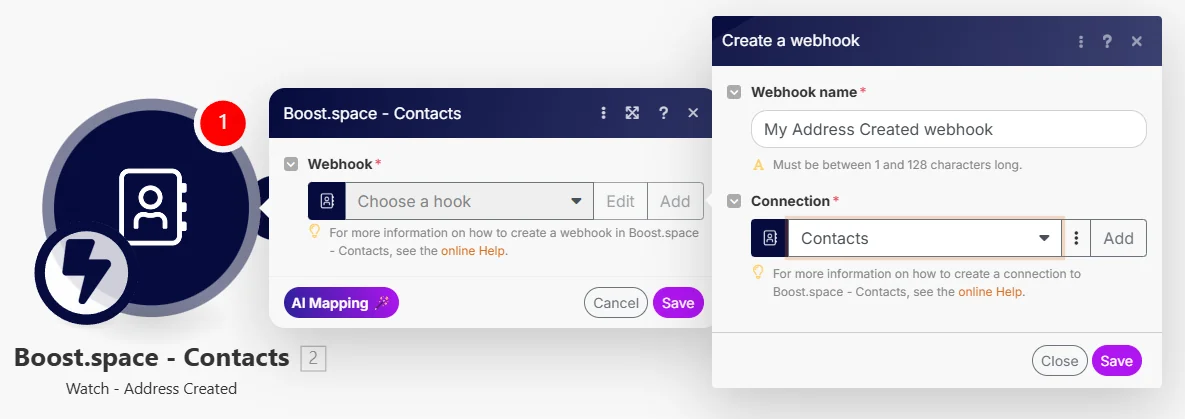
Create a webhook
By clicking on Add you will be directed to creation of your webhook.
Webhook name
Give your webhook a name.
Connection
By clicking on add you will be directed to creating your connection using System key and API key.
Actions
Update
Contact´s file
Connection
By clicking on add you will be directed to creating your connection using System key and API key.
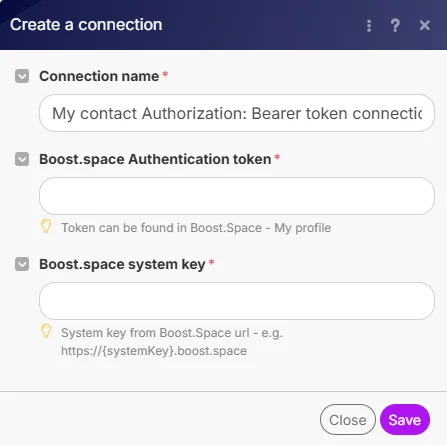
Contact ID
Here, you put the ID of the contact you want to upload your file to.
Contact´s CustomInfo
Connection
By clicking on add you will be directed to creating your connection using System key and API key.
Contact ID
Here, you put the ID of the contact you want to upload your file to.
Custom Info ID
Paste here your Custom Info ID from your system.
Contact Group
Connection
By clicking on add you will be directed to creating your connection using System key and API key.
Contact ID
Here, you put the ID of the contact you want to upload your file to.
Contact
Connection
By clicking on add you will be directed to creating your connection using System key and API key.
Select space
Choose the specific space from your system that you want to map.
Contact ID
Here, you put the ID of the contact you want to upload your file to.
Get
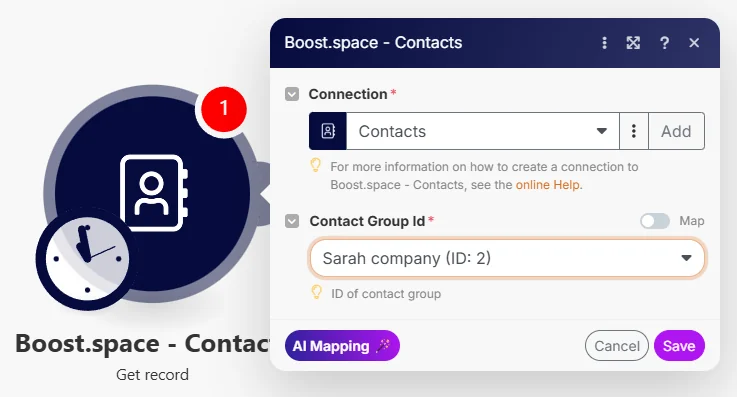
Record
Connection
By clicking on add you will be directed to creating your connection using System key and API key.
Contact group ID
Enter the Contact Group ID from your system.
Contacts File Upload Status
Connection
By clicking on add you will be directed to creating your connection using System key and API key.
Contact ID
Here, you put the ID of the contact you want to upload your file to.
Resumable IDentifier
Select or map Resumable IDentifier to check if the part is uploaded.
Contact file
Connection
By clicking on add you will be directed to creating your connection using System key and API key.
Contact ID
Here, you put the ID of the contact you want to upload your file to.
File ID
ID of the file that you want to get.
Contacts CustomInfo List
Connection
By clicking on add you will be directed to creating your connection using System key and API key.
Contact ID
Here, you put the ID of the contact you want to upload your file to.
Contacts Custom Info
Connection
By clicking on add you will be directed to creating your connection using System key and API key.
Contact ID
Here, you put the ID of the contact you want to upload your file to.
Custom Info ID
Paste here your Custom Info ID from your system.
Contacts Connected Label List
Connection
By clicking on add you will be directed to creating your connection using System key and API key.
Contact ID
Here, you put the ID of the contact you want to upload your file to.
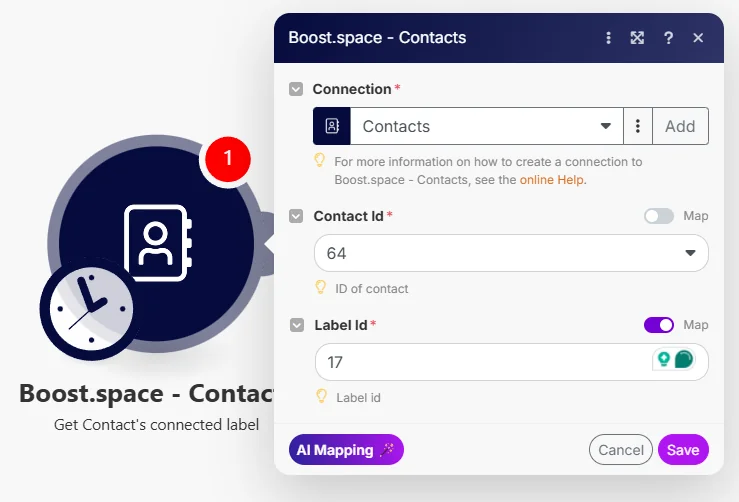
Contacts Connected Label
Connection
By clicking on add you will be directed to creating your connection using System key and API key.
Contact ID
Here, you put the ID of the contact you want to upload your file to.
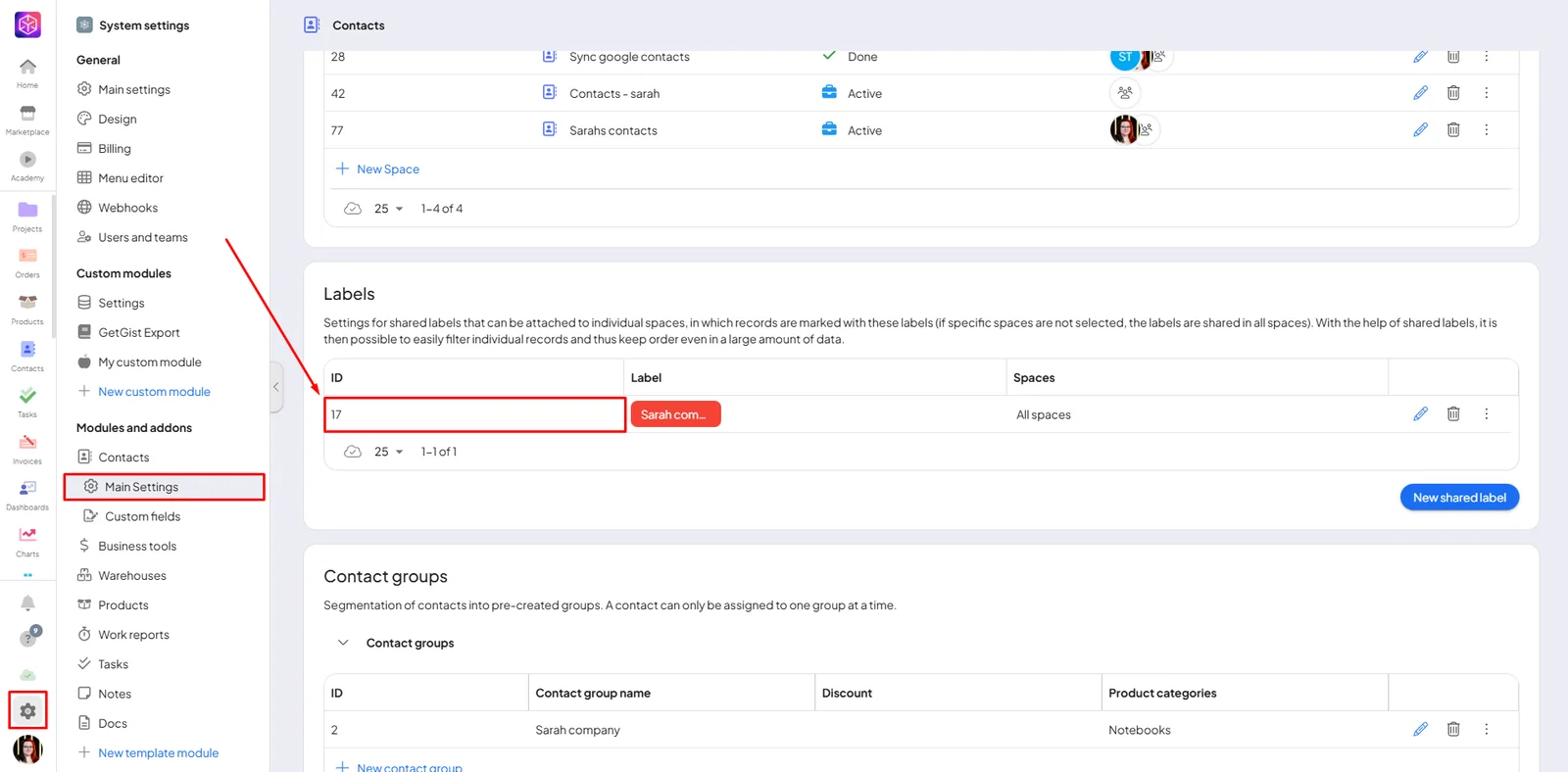
Label ID
Select the Label ID from your system.
Contacts Connected File List
Connection
By clicking on add you will be directed to creating your connection using System key and API key.
Contact ID
Here, you put the ID of the contact you want to upload your file to.
Contact’s Address List
Connection
By clicking on add you will be directed to creating your connection using System key and API key.
Contact ID
Here, you put the ID of the contact you want to upload your file to.
Contacts Address
Connection
By clicking on add you will be directed to creating your connection using System key and API key.
Contact ID
Here, you put the ID of the contact you want to upload your file to.
Address ID
ID of the address from your system.
Contact List
Connection
By clicking on add you will be directed to creating your connection using System key and API key.
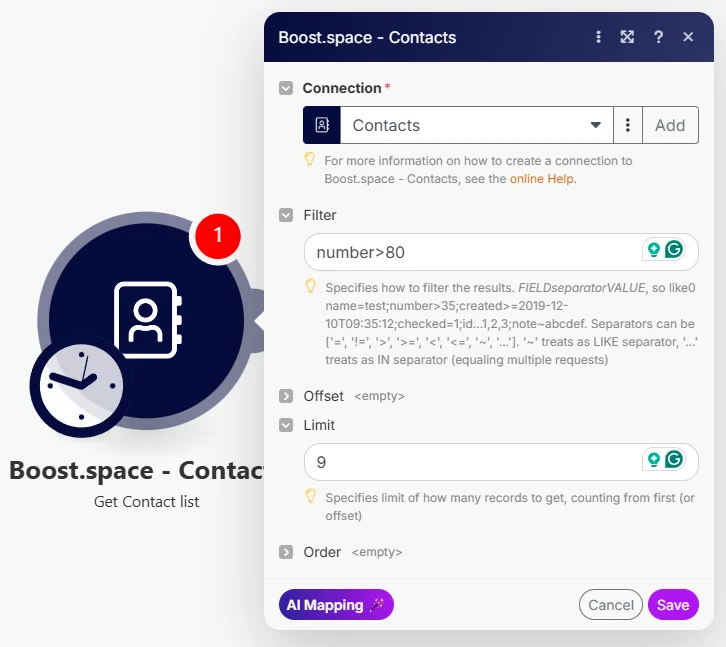
Filter
Here you can filter the data from your contacts.
Limit
The number of records that will be loaded.
Contact Groups Statistics
Connection
By clicking on add you will be directed to creating your connection using System key and API key.
Contact Group ID
Enter the Contact Group ID from your system.
Contact Group List
Connection
By clicking on add you will be directed to creating your connection using System key and API key.
Filter
Here you can filter the data from your contacts.
Limit
The number of records that will be loaded.
Contact by Remote ID
Connection
By clicking on add you will be directed to creating your connection using System key and API key.
Remote ID
ID from remote application (3rd party tools).
Remote application
Name of the remote application (3rd party tool).
Contact
Connection
By clicking on add you will be directed to creating your connection using System key and API key.
Contact ID
Here, you put the ID of the contact you want to upload your file to.
Connectible Labels
Connection
By clicking on add you will be directed to creating your connection using System key and API key.
Contact ID
Here, you put the ID of the contact you want to upload your file to.
Address List
Connection
By clicking on add you will be directed to creating your connection using System key and API key.
Search
Parameters to search the address list in your system.
Disconect
A person from the company
Connection
By clicking on add you will be directed to creating your connection using System key and API key.
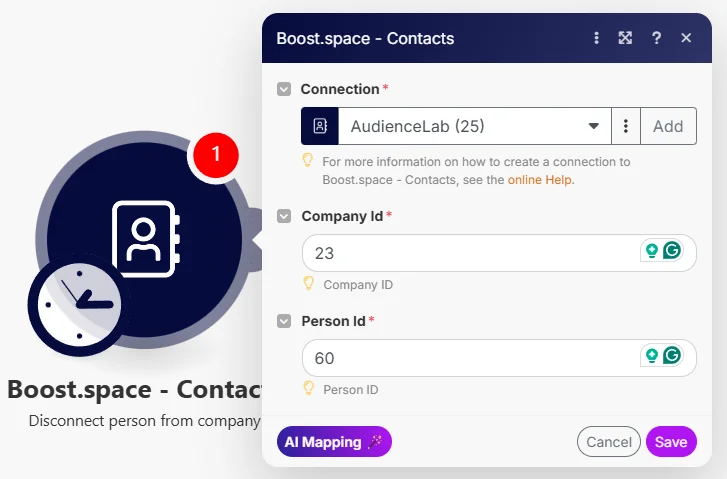
Person ID
System ID of the person that you want to connect to the company.
Company ID
System ID of the company that you want the person to connect to.
Label from contact
Connection
By clicking on add you will be directed to creating your connection using System key and API key.
Contact ID
Here, you put the ID of the contact you want to upload your file to.
Label ID
Select the Label ID from your system.
and Delete CustomInfo from the Contact
Connection
By clicking on add you will be directed to creating your connection using System key and API key.
Contact ID
Here, you put the ID of the contact you want to upload your file to
Custom Info ID
Paste here your Custom Info ID from your system.
Address from Contact
Connection
By clicking on add you will be directed to creating your connection using System key and API key.
Contact ID
Here, you put the ID of the contact you want to upload your file to.
Address ID
ID of the address from your system.
Delete
Contacts file
Connection
By clicking on add you will be directed to creating your connection using System key and API key.
Contact ID
Here, you put the ID of the contact you want to upload your file to.
File ID
ID of the file that you want to get.
Contact Group
Connection
By clicking on add you will be directed to creating your connection using System key and API key.
Contact group ID
Enter the Contact Group ID from your system.
Contact
Connection
By clicking on add you will be directed to creating your connection using System key and API key.
Contact ID
Here, you put the ID of the contact you want to upload your file to.
Create
Contact Group
Connection
By clicking on add you will be directed to creating your connection using System key and API key.
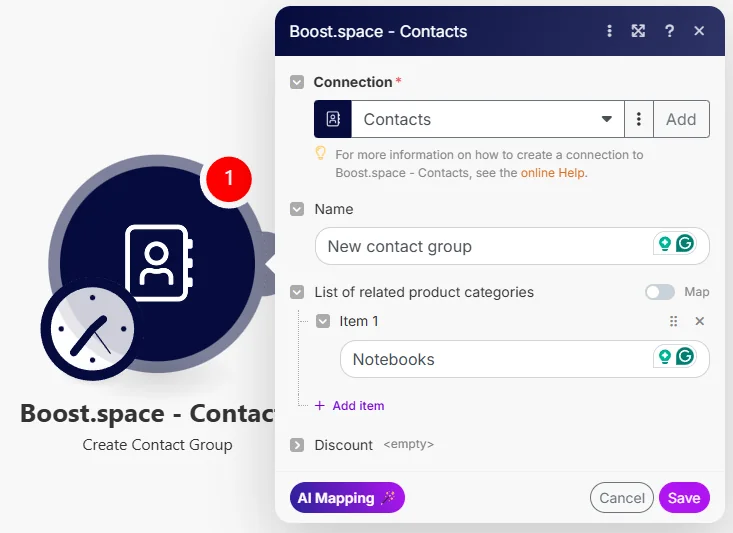
Name
Name of the contact group.
List of related product categories
List of product categories that you want to relate to the contact group.
Contact
Connection
By clicking on add you will be directed to creating your connection using System key and API key.
Select space
Choose the specific space from your system that you want to map.
Contact surname (or company name)
Surname of the contact or name of the company.
and Connect CustomInfo to the Contact
Connection
By clicking on add you will be directed to creating your connection using System key and API key.
Contact ID
Here, you put the ID of the contact you want to upload your file to.
Address
Connection
By clicking on add you will be directed to creating your connection using System key and API key.
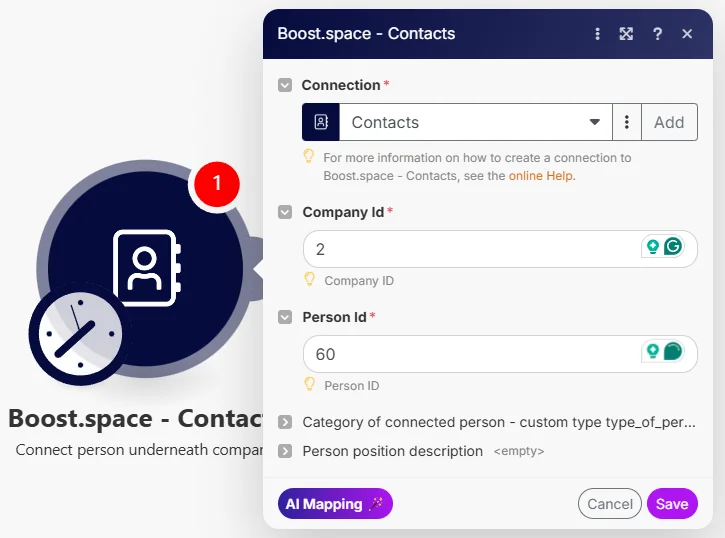
Connect
Person underneath the Company
Connection
By clicking on add you will be directed to creating your connection using System key and API key.
Company ID
System ID of the company that you want the person to connect to.
Person ID
System ID of the person that you want to connect to the company.
Label to Contact
Connection
By clicking on add you will be directed to creating your connection using System key and API key.
Contact ID
Here, you put the ID of the contact you want to upload your file to.
Label ID
Select the Label ID from your system.
Address to Contact
Connection
By clicking on add you will be directed to creating your connection using System key and API key.
Contact ID
Here, you put the ID of the contact you want to upload your file to.
Address ID
ID of the address from your system.
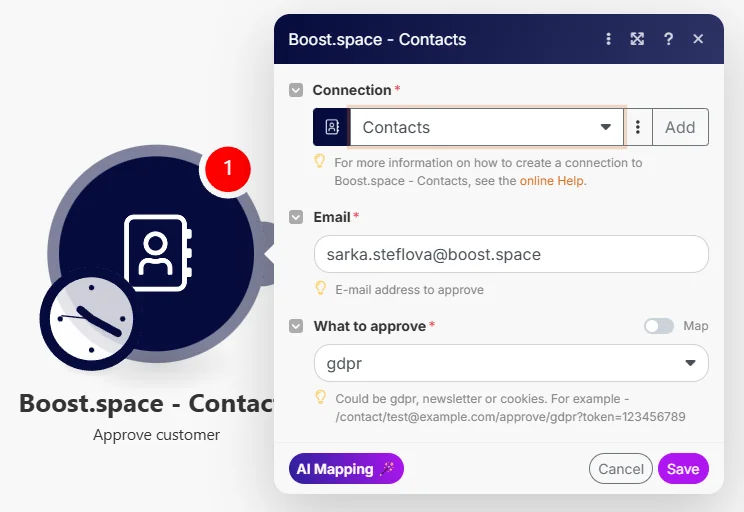
Approve customer
Connection
By clicking on add you will be directed to creating your connection using System key and API key.
Email address to approve.
What to approve
Select or map what you want to approve.
Upload a file to contact
Connection
By clicking on add you will be directed to creating your connection using System key and API key.
Contact ID
Here, you put the ID of the contact you want to upload your file to.
Resumable filename
Select or map the Resumable filename to check if the part is uploaded.
File Contents
Stream of data of the file.
Synchronize remote Record
Connection
By clicking on add you will be directed to creating your connection using System key and API key.
Select space
Choose the specific space from your system that you want to map.
Remote ID
ID from remote application (3rd party tools).
Contact´s surname (or company name)
Surname of the contact or name of the company.
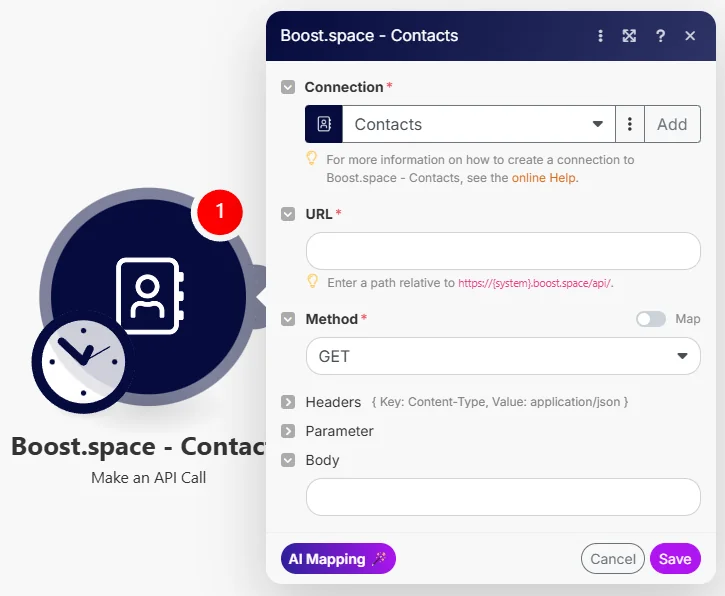
Make an API call
Connection
By clicking on add you will be directed to creating your connection using System key and API key.
URL
URL to perform the API call to.
Method
Select a method for the API call.
If you need any further help with additional mapping, please don’t hesitate to contact us at support@boost.space.

