AfterShip
With AfterShip modules in Boost.space Integrator, you can create and monitor your trackings, manage notifications, and make API calls.
To get started with AfterShip, create an account at aftership.com.
The module dialog fields that are displayed in bold (in the Boost.space Integrator scenario, not in this documentation article) are mandatory.
Connecting AfterShip to Boost.space Integrator
To make a connection you need an API key.
-
Log in to your AfterShip account.
-
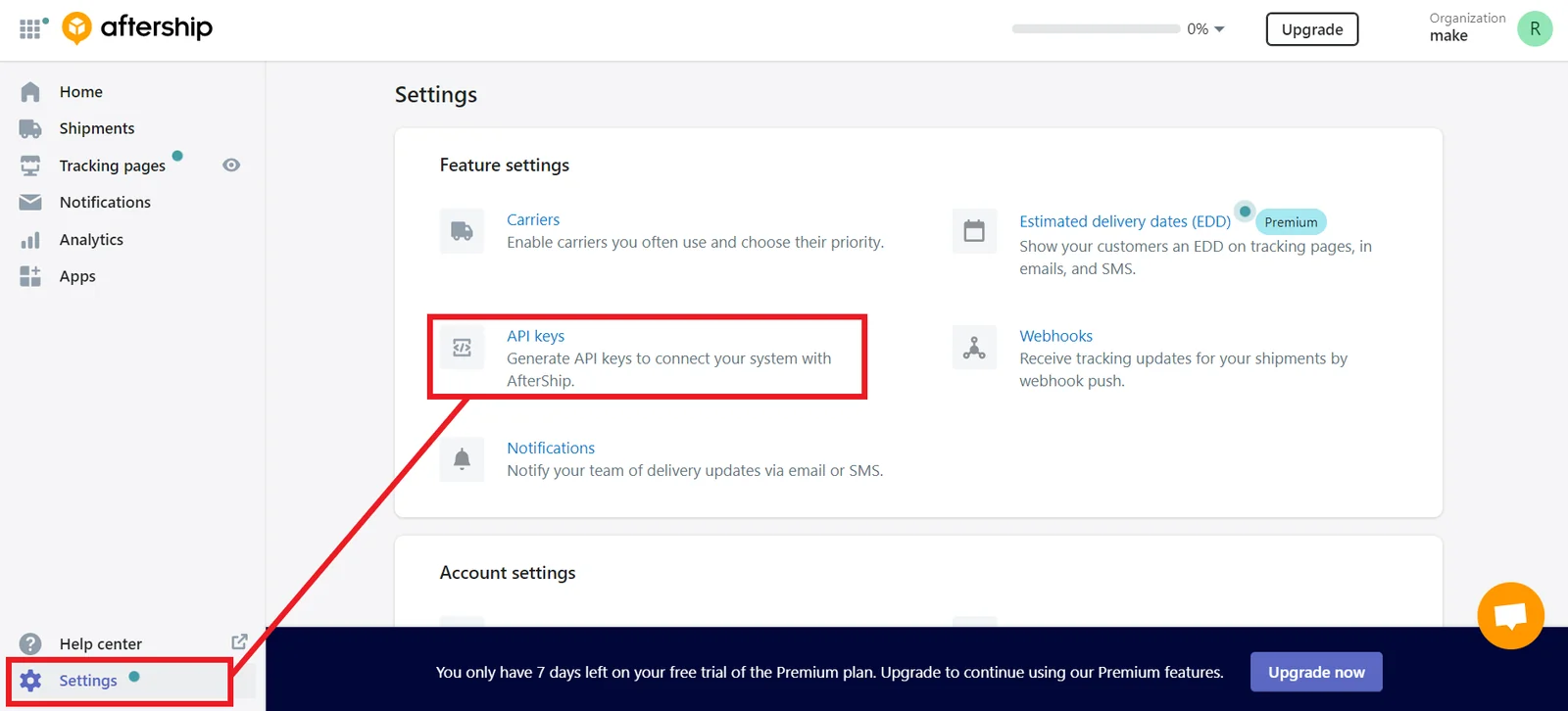
Click Settings, then click API Keys.
-
A default API is already created. You use this one or create a new one. Copy the API key to your clipboard.
-
Go to your Boost.space Integrator scenario and choose the AfterShip module you want to use.
-
Under Connection, click Add.
-
Give your new connection a name.
-
Paste the API key in the field below.
-
Click Save.
You have successfully created the connection.
Trackings
Search Trackings
Searches for trackings or lists them all.
Connection
Establish a connection to your AfterShip account.
Keyword
Enter any keywords to search the content of the tracking record fields: tracking_number, title, order_id, customer_name, custom_fields, order_id, emails, smses.
Slug
Select couriers.
Delivery Time
Enter the total delivery time in days.
Value as 0 for pending shipments or delivered shipment with only one checkpoint.
Origin
Select the origin country.
Destination
Select the destination country.
Tag
Select the current status of tracking.
-
Pending
-
Info Received
-
In Transit
-
Out For Delivery
-
Attempt Fail
-
Delivered
-
Available For Pickup
-
Exception
-
Expired
Created at Minimum
Enter the start date and time of trackings created. See the list of supported date and time formats.
Created at Maximum
Enter the end date and time of trackings created. See the list of supported date and time formats.
Updated at Minimum
Enter the start date and time of trackings updated. See the list of supported date and time formats.
Updated at Maximum
Enter the end date and time of trackings updated. See the list of supported date and time formats.
Fields
Select the fields to include in the results.
Language
Select the language.
Last Updated at
Enter when the tracking was last updated. See the list of supported date and time formats.
Return to Sender
Select whether the shipment gets returned to the sender.
Courier Destination Country ISO3
Select the destination country of trackings returned by courier.
Limit
Enter the maximum number of trackings Boost.space Integrator returns during one scenario execution cycle.
Get a Tracking
Retrieves an existing tracking.
Connection
Establish a connection to your AfterShip account.
Tracking Number
Enter or select the tracking number of the tracking you want to retrieve.
Fields
Select the fields to include in the results.
Language
Select the language.
Tracking Account Number
Enter the account number of the shipper for a specific courier.
Tracking Origin Country
Enter the origin country of the shipment for a specific courier.
Tracking Destination Country
Enter the destination country of the shipment for a specific courier.
Tracking Key
Enter the key of the shipment for a specific courier.
Tracking Postal Code
Enter the postal code of receiver’s address.
Tracking Ship Date
Enter the shipping date. See the list of supported date formats.
Tracking State
Enter the located state of the shipment for a specific courier.
Create a Tracking
Creates a new tracking.
Connection
Establish a connection to your AfterShip account.
Tracking Number
Enter the tracking number of the shipment.
Slug
Select couriers.
Title
Enter the title of the tracking.
Order ID
Enter the order ID.
Order ID Path
Enter the order ID path.
Custom Fields
Add any custom fields to the tracking.
Language
Select the language.
Order Promised Delivery Date
Enter the promised delivery date of the order. See the list of supported date formats.
Delivery Type
Select the shipment delivery type.
-
Pickup at Store
-
Pickup at Courier
-
Door to Door
Pickup Location
Enter the shipment pickup location for receiver.
Pickup Note
Enter the shipment pickup note for receiver.
Tracking Account Number
Enter the account number of the shipper for a specific courier.
Tracking Origin Country
Enter the origin country of the shipment for a specific courier.
Tracking Destination Country
Enter the destination country of the shipment for a specific courier.
Tracking Key
Enter the key of the shipment for a specific courier.
Tracking Postal Code
Enter the postal code of receiver’s address.
Tracking Ship Date
Enter the shipping date. See the list of supported date formats.
Tracking State
Enter the located state of the shipment for a specific courier.
IOS
Add Apple IOS device IDs to receive the push notifications.
Android
Add Google cloud message registration IDs to receive the push notifications.
Emails
Add email address(es) to receive email notifications.
SMSes
Add phone number(s) to receive sms notifications.
Customer Name
Enter the customer name of the tracking.
Origin Country ISO3
Select the origin country of the shipment.
Destination Country ISO3
Select the destination country of the shipment.
Note
Enter any additional notes.
Update a Tracking
Updates an existing tracking.
Connection
Establish a connection to your AfterShip account.
Tracking Number
Enter the tracking number of the shipment.
SMSes
Add phone number(s) to receive sms notifications.
Emails
Add email address(es) to receive email notifications.
Title
Enter the title of the tracking.
Customer Name
Enter the customer name of the tracking.
Order ID
Enter the order ID.
Order ID Path
Enter the order ID path.
Custom Fields
Add any custom fields to the tracking.
Note
Enter any additional notes.
Language
Select the language.
Order Promised Delivery Date
Enter the promised delivery date of the order. See the list of supported date formats.
Delivery Type
Select the shipment delivery type.
-
Pickup at Store
-
Pickup at Courier
-
Door to Door
Pickup Location
Enter the shipment pickup location for receiver.
Pickup Note
Enter the shipment pickup note for receiver.
Delete a Tracking
Deletes an existing tracking.
Connection
Establish a connection to your AfterShip account.
Tracking Number
Enter or select the ID number of the tracking you want to delete.
Notifications
Get a Notification
Retrieves an existing notification.
Connection
Establish a connection to your AfterShip account.
Tracking Number
Enter or select the ID number of the tracking.
Tracking Account Number
Enter the account number of the shipper for a specific courier.
Tracking Origin Country
Enter the origin country of the shipment for a specific courier.
Tracking Destination Country
Enter the destination country of the shipment for a specific courier.
Tracking Key
Enter the key of the shipment for a specific courier.
Tracking Postal Code
Enter the the postal code of receiver’s address.
Tracking Ship Date
Enter the shipping date. See the list of supported date formats.
Tracking State
Enter the located state of the shipment for a specific courier.
Add a Notification
Adds notification receivers to a tracking number.
Connection
Establish a connection to your AfterShip account.
Tracking Number
Enter or select the ID number of the tracking.
Emails
Add email address(es) to receive email notifications.
SMSes
Add phone number(s) to receive sms notifications.
Tracking Account Number
Enter the account number of the shipper for a specific courier.
Tracking Origin Country
Enter the origin country of the shipment for a specific courier.
Tracking Destination Country
Enter the destination country of the shipment for a specific courier.
Tracking Key
Enter the key of the shipment for a specific courier.
Tracking Postal Code
Enter the the postal code of receiver’s address.
Tracking Ship Date
Enter the shipping date. See the list of supported date formats.
Tracking State
Enter the located state of the shipment for a specific courier.
Remove a Notification
Removes an existing notification.
Connection
Establish a connection to your AfterShip account.
Tracking Number
Enter or select the ID number of the tracking.
Emails
Add email address(es) to receive email notifications.
SMSes
Add phone number(s) to receive sms notifications.
Tracking Account Number
Enter the account number of the shipper for a specific courier.
Tracking Origin Country
Enter the origin country of the shipment for a specific courier.
Tracking Destination Country
Enter the destination country of the shipment for a specific courier.
Tracking Key
Enter the key of the shipment for a specific courier.
Tracking Postal Code
Enter the the postal code of receiver’s address.
Tracking Ship Date
Enter the shipping date. See the list of supported date formats.
Tracking State
Enter the located state of the shipment for a specific courier.
Other
Make an API Call
Performs an arbitrary authorized API call.
Connection
Establish a connection to your AfterShip account.
URL
Enter a path relative to https://api.aftership.com/v4. For example: /v4/trackings
For the list of available endpoints, refer to the AfterShip API documentation.
Method
Select the HTTP method you want to use:
GET to retrieve information for an entry.
POST to create a new entry.
PUT to update/replace an existing entry.
PATCH to make a partial entry update.
DELETE to delete an entry.
Headers
Enter the desired request headers. You don’t have to add authorization headers; we already did that for you.
Query String
Enter the request query string.
Body
Enter the body content for your API call.
Example of use – List trackings
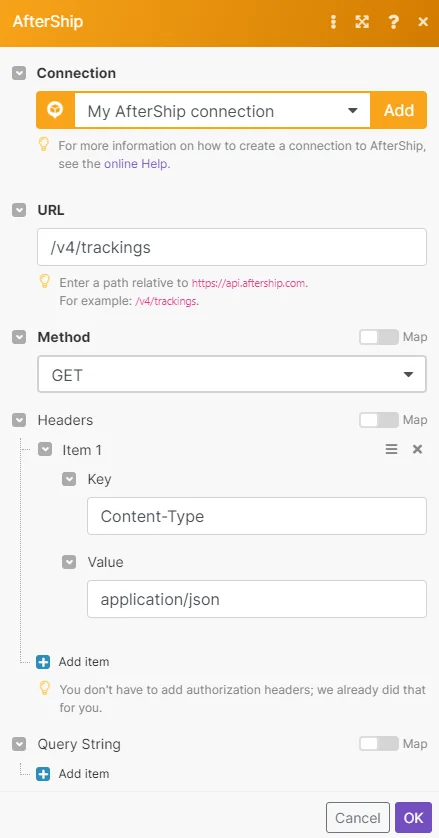
The following API call returns a list of all the shipment trackings in your AfterShip account.
URL: /v4/trackings
Method: GET
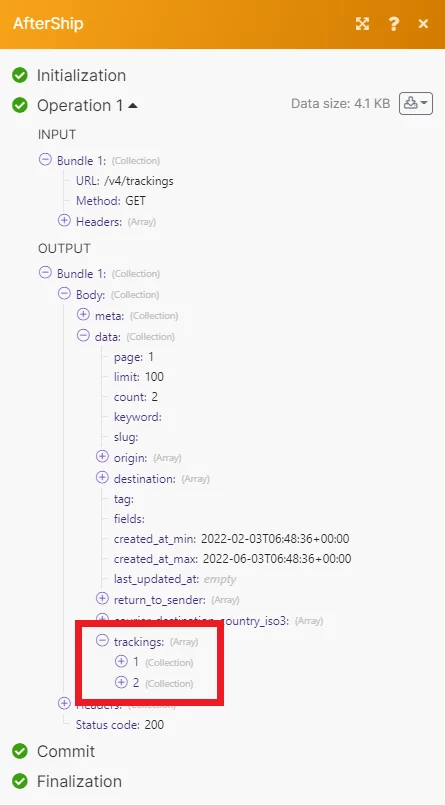
Matches of the search can be found in the module’s Output under Bundle > Body > data > trackings. Our example returned 2 shipment trackings:
Legacy article, imported from the original Boost.space knowledge base (/knowledge-base/applications/business-operations-and-erps/aftership/).

