Float
With Float modules in Boost.space Integrator, you can:
-
watch, create, update, retrieve, list, and delete clients
-
watch, create, update, retrieve, list, and delete departments
-
watch, create, update, retrieve, list, and delete logged time
-
create, update, retrieve, list, and delete milestones
-
watch, create, update, retrieve, list, and delete persons
-
watch, create, update, retrieve, list, and delete projects
-
watch, create, update, retrieve, list, and delete tasks
-
watch, create, update, retrieve, list, and delete time offs
To get started with Float, create an account at app.float.com.
Connecting Float to Boost.space Integrator
To connect Float with Boost.space Integrator you need to obtain the Float Access Token values from your Float account:
-
Log in to your Float account.
-
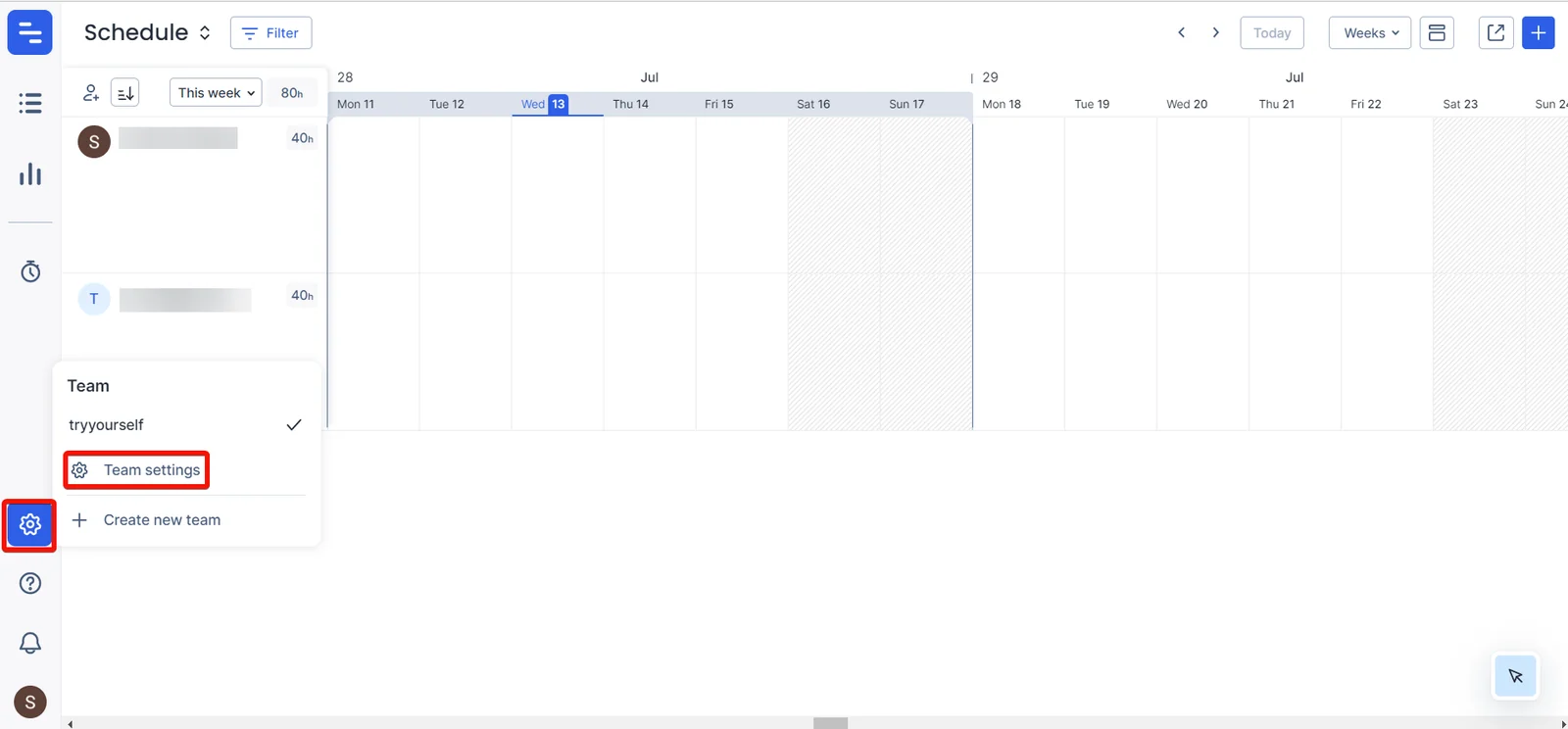
Click Teams > Team Settings.
-
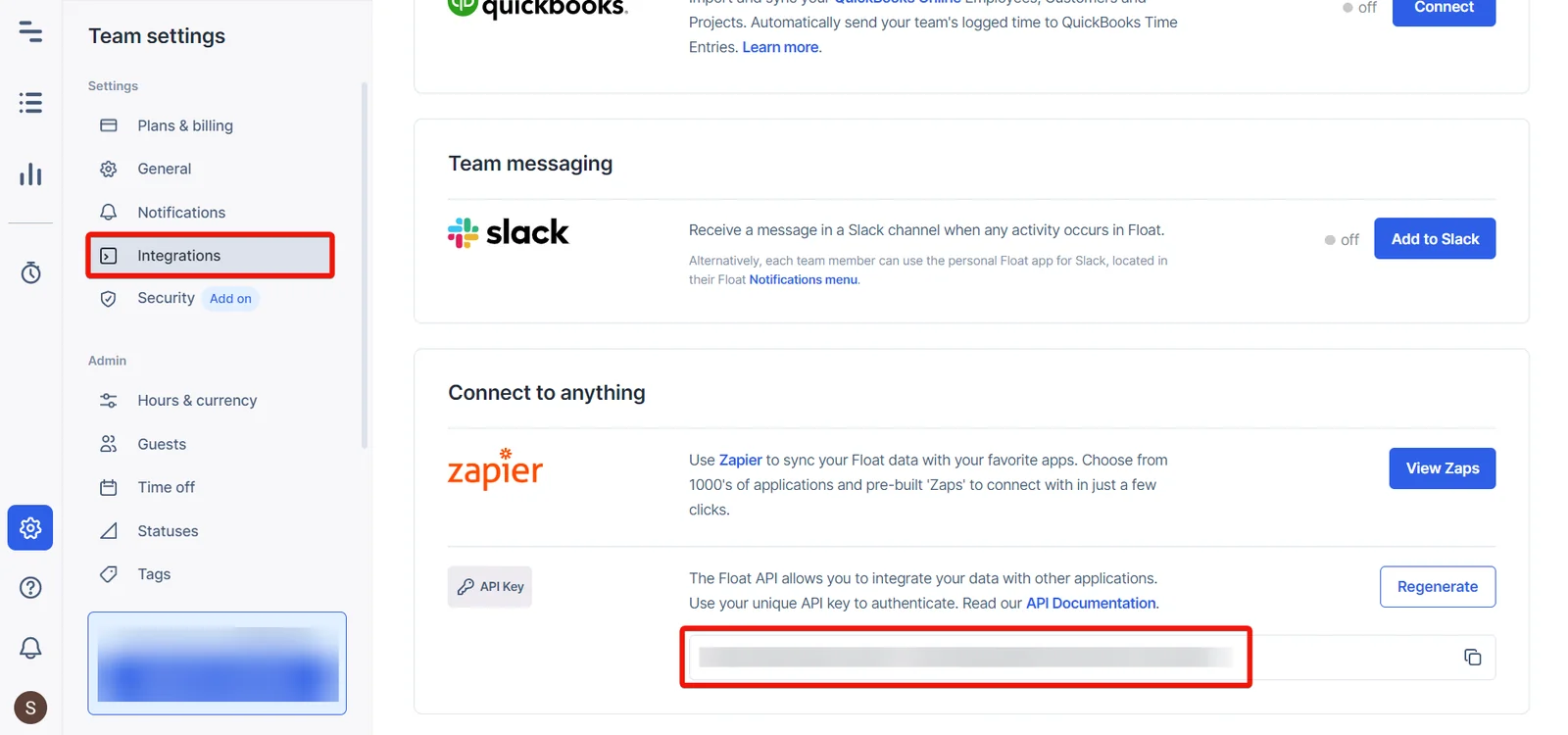
Click Integrations. Copy the API Key to a safe place.
-

Log in to your Boost.space Integrator account, and add a module from the Float app into a Boost.space Integrator scenario.
-
Click Add next to the Connection field.
-
In the Connection name field, enter a name for the connection.
-
In the Float Access Token field, enter the details copied in step 3, and click Save.
You have successfully established the connection and can now build scenarios.
Clients
You can watch, create, update, retrieve, list, and delete the clients using the following modules.
Watch New Clients
Triggers when a new client is created.
Connection
Establish a connection to your Float account.
Limit
Set the maximum number of clients Boost.space Integrator will return during one execution cycle. The default value is 2.
Create a Client
Creates a new client.
Connection
Establish a connection to your Float account.
Name
Enter (map) a name for the client.
Update a Client
Updates an existing client.
Connection
Establish a connection to your Float account.
Client ID
Select or map the Client ID whose details you want to update.
Name
Enter (map) a new name for the client.
Get a Client
Retrieves an existing client.
Connection
Establish a connection to your Float account.
Client ID
Select or map the Client ID whose details you want to retrieve.
List Clients
Retrieves a list of clients.
Connection
Establish a connection to your Float account.
Limit
Set the maximum number of clients Boost.space Integrator will return during one execution cycle. The default value is 10.
Delete a Client
Deletes an existing client.
Connection
Establish a connection to your Float account.
Client ID
Select or map the Client ID you want to delete.
Departments
You can watch, create, update, retrieve, list, and delete the departments using the following modules.
Watch New Departments
Triggers when a new department is created.
Connection
Establish a connection to your Float account.
Limit
Set the maximum number of departments Boost.space Integrator will return during one execution cycle. The default value is 2.
Create a Department
Creates a new department.
Connection
Establish a connection to your Float account.
Name
Enter (map) a name for the department.
Update a Department
Updates an existing department.
Connection
Establish a connection to your Float account.
Department ID
Select or map a Department ID whose details you want to update.
Name
Enter (map) a new name for the department.
Get a Department
Retrieves an existing department.
Connection
Establish a connection to your Float account.
Department ID
Select or map a Department ID whose details you want to retrieve.
List Departments
Retrieves a list of departments.
Connection
Establish a connection to your Float account.
Limit
Set the maximum number of departments Boost.space Integrator will return during one execution cycle. The default value is 10.
Delete a Department
Deletes an existing department.
Connection
Establish a connection to your Float account.
Department ID
Select or map a Department ID you want to delete.
Logged Times
You can watch, create, update, retrieve, list, and delete the logged time using the following modules.
Watch New Logged Times
Triggers when a new logged time is created.
Connection
Establish a connection to your Float account.
Limit
Set the maximum number of new logged times Boost.space Integrator will return during one execution cycle. The default value is 2.
Watch Updated Logged Times
Triggers when an existing logged time is updated.
Connection
Establish a connection to your Float account.
Limit
Set the maximum number of updated logged times Boost.space Integrator will return during one execution cycle. The default value is 2.
Create a Logged Time
Creates a new logged time.
Connection
Establish a connection to your Float account.
Date
Enter (map) the date for which you want to log the time. See the list of supported date and time formats.
Hours
Enter (map) the time in hours to log.
People ID
Select or map the Person ID whose time entry you want to log.
Project ID
Select or map the Project ID to which you want to associate whose time entry is being logged.
Billable
Select whether this time entry is billable.
Notes
Enter (map) the additional information about the time entry.
Phase ID
Select or map the project’s Phase ID of this time entry. For example, In progress.
Task ID
Select or map the Task ID to which you want to log this time. Assigns the time log to an existing task.
Task Name
Enter (map) the name of the task against which this entry is being logged. If the task name does not exist, a new task will be created.
Update a Logged Time
Updates an existing logged time.
Connection
Establish a connection to your Float account.
Logged Time ID
Select or map the Logged Time ID whose details you want to update.
For field descriptions, see Create a Logged Time.
Get a Logged Time
Retrieves an existing logged time.
Connection
Establish a connection to your Float account.
Logged Time ID
Select or map the Logged Time ID whose details you want to retrieve.
List Logged Times
Retrieves a list of logged times.
Connection
Establish a connection to your Float account.
People ID
Select or map the Person ID whose logged times you want to list.
Project ID
Select or map the Project ID whose logged times you want to list.
Start Date
Enter (map) the date to list the logged times created from the specified date. See the list of supported date and time formats.
End Date
Enter (map) the date to list the logged times until the specified date. See the list of supported date and time formats.
Limit
Set the maximum number of updated logged times Boost.space Integrator will return during one execution cycle. The default value is 10.
Delete a Logged Time
Deletes an existing logged time.
Connection
Establish a connection to your Float account.
Logged Time ID
Select or map the Logged Time ID you want to delete.
Milestones
You can create, update, retrieve, list, and delete the milestones using the following modules.
Create a Milestone
Creates a new milestone.
Connection
Establish a connection to your Float account.
Name
Enter (map) the name of the milestone.
Project ID
Select or map the project to which the milestone belongs.
Date
Enter (map) the start date of the milestone. See the list of supported date and time formats.
End Date
Enter (map) the end date if the milestone is set for more than one day. See the list of supported date and time formats.
Update a Milestone
Updates an existing milestone.
Connection
Establish a connection to your Float account.
Milestone ID
Select or map the Milestone ID whose details you want to update.
Name
Enter (map) a new name for the milestone.
Project ID
Select or map the Project ID to which the milestone belongs.
Date
Enter (map) the start date of the milestone. See the list of supported date and time formats.
End Date
Enter (map) the end date if the milestone is set for more than one day. See the list of supported date and time formats.
Get a Milestone
Retrieves an existing milestone.
Connection
Establish a connection to your Float account.
Milestone ID
Select or map the Milestone ID whose details you want to retrieve.
List Milestones
Retrieves a list of milestones.
Connection
Establish a connection to your Float account.
Limit
Set the maximum number of miles Boost.space Integrator will return during one execution cycle. The default value is 10.
Delete a Milestone
Deletes an existing milestone.
Connection
Establish a connection to your Float account.
Milestone ID
Select or map the Milestone ID you want to delete.
Persons
You can watch, create, update, retrieve, list, and delete the persons using the following modules.
Watch New Persons
Triggers when a new person is created.
Connection
Establish a connection to your Float account.
Limit
Set the maximum number of persons Boost.space Integrator will return during one execution cycle. The default value is 2.
Create a Person
Creates a new person.
Connection
Establish a connection to your Float account.
Name
Enter (map) the person’s full name.
Enter (map) the person’s email address.
Job Title
Enter (map) the person’s job title. For example, project manager.
Department
Select or map the Department ID of the person.
Notes
Enter (map) the additional information about the person.
Auto Email
Select whether to send the schedule at the start of the week.
Employee Type
Select or map the person’s employee type. For example, full-time.
Work Days Hours
Enter (map) the hours a part-time person is available for scheduling each day in order from Sunday to Saturday.
Active
Select the person’s status. For example, active.
People Type ID
Select or map the People Type ID. For example, employee.
Tags
Enter (map) the tags applicable to the person.
Start Date
Enter (map) the person’s start date at work. See the list of supported date and time formats.
End Date
Enter (map) the person’s end date at the work. See the list of supported date and time formats.
Default Hourly Rate
Enter (map) the default hourly rate for fee-based projects.
Update a Person
Updates a person.
Connection
Establish a connection to your Float account.
Person ID
Select or map the Person ID whose details you want to update.
Name
Enter (map) the person’s full name.
Enter (map) the person’s email address.
Job Title
Enter (map) the person’s job title. For example, project manager.
Department
Select or map the Department ID to which the person belongs.
Notes
Enter (map) the additional information about the person.
Auto Email
Select whether to send the schedule at the start of the week.
Employee Type
Select or map the employee type. For example, full-time.
Work Days Hours
Enter (map) the hours that a part-time person is available for scheduling each day in order from Sunday to Saturday.
Active
Select or map the person’s status. For example, active.
People Type ID
Select the People Type ID. For example, contractor.
Tags
Enter (map) the tags applicable to the person.
Start Date
Enter (map) the person’s start date at work. See the list of supported date and time formats.
End Date
Enter (map) the person’s end date at work. See the list of supported date and time formats.
Default Hourly Rate
Enter (map) the default hourly rate for fee-based projects.
Get a Person
Retrieves an existing person.
Connection
Establish a connection to your Float account.
Person ID
Select or map the Person ID whose details you want to retrieve.
List Persons
Retrieves a list of persons.
Connection
Establish a connection to your Float account.
Limit
Set the maximum number of persons Boost.space Integrator will return during one execution cycle. The default value is 10.
Delete a Person
Deletes an existing person.
Connection
Establish a connection to your Float account.
Person ID
Select or map the Person ID you want to delete.
Projects
You can watch, create, update, retrieve, list, and delete projects using the following modules.
Watch New Projects
Triggers when a new project is created.
Connection
Establish a connection to your Float account.
Limit
Set the maximum number of projects Boost.space Integrator will return during one execution cycle. The default value is 2.
Create a Project
Creates a new project.
Connection
Establish a connection to your Float account.
Name
Enter (map) the name of the project.
Client ID
Select or map the Client ID whose project you want to create.
Color
Enter (map) the project’s color in hexadecimal format.
Notes
Enter (map) the additional information about the project.
Tags
Enter (map) the list of tags.
Budget Type
Select or map the budget type. For example, total hours.
Budget Total
Enter (map) the budget amount for total hours or total fee budgets.
Default Hourly Rate
Enter (map) the default hourly rate for fee-based budgets.
Non-Billable
Select whether the project is non-billable.
Tentative
Select whether the project is tentative.
Active
Select whether the project is active.
Project Manager
Select or map the Account ID of the assigned project manager.
All PMS Schedule
Select whether the project managers have scheduling rights.
Update a Project
Updates an existing project.
Connection
Establish a connection to your Float account.
Project ID
Select or map the Project ID whose details you want to update.
Name
Enter (map) the name of the project.
Client ID
Select or map the Client ID of the project.
Color
Enter (map) the project’s color in hexadecimal format.
Notes
Enter (map) the additional information about the project.
Tags
Enter (map) the list of tags applicable to the project.
Budget Type
Select or map the budget type. For example, total hours.
Budget Total
Enter (map) the budget amount for total hours or total fee budgets.
Default Hourly Rate
Enter (map) the default hourly rate for fee-based budgets.
Non-Billable
Select whether the project is non-billable.
Tentative
Select whether the project is tentative.
Active
Select whether the project is active.
Project Manager
Select or map the account ID of the assigned project manager.
All PMS Schedule
Select whether the project managers have scheduling rights.
Get a Project
Retrieves a list of projects.
Connection
Establish a connection to your Float account.
Task ID
Select or map the Project ID whose details you want to retrieve.
List Projects
Retrieves a list of projects.
Connection
Establish a connection to your Float account.
Limit
Set the maximum number of projects Boost.space Integrator will return during one execution cycle. The default value is 10.
Delete a Project
Deletes an existing project.
Connection
Establish a connection to your Float account.
Project ID
Select or map the Project ID you want to delete.
Tasks
You can watch, create, update, retrieve, list, and delete the task using the following modules.
Watch New Tasks
Triggers when a new task is created.
Connection
Establish a connection to your Float account.
Limit
Set the maximum number of tasks Boost.space Integrator should return during one execution cycle. The default value is 2.
Watch Updated Tasks
Triggers when an existing task is updated.
Connection
.Establish a connection to your Float account
Limit
Set the maximum number of tasks Boost.space Integrator should return during one execution cycle. The default value is 2.
Create a Task
Creates a new task.
Connection
Establish a connection to your Float account.
Project ID
Select or map the Project ID to which this task belongs.
Hours
Enter (map) the number of hours per day to spend on this task.
Name
Enter (map) the name for the task.
People ID
Select or map the People ID assigned to this task.
People IDs
Select or map the People IDs assigned to this task.
Phase ID
Select or map the ID of the project phase to which task belongs.
Start Date
Enter (map) the date of start of the task. See the list of supported date and time formats.
End Date
Enter (map) the end date of the task. See the list of supported date and time formats.
Start Time
Enter (map) the start time of this task in 24 hr format. See the list of supported date and time formats.
Status
Select or map the task status. For example, complete.
Priority
Select whether this is a priority task.
Notes
Enter (map) the additional information about the task.
Repeat State
Select the frequency to repeat the task. For example, weekly.
Repeat End Date
Enter (map) a date to cease repeating the task.
Update a Task
Updates an existing task.
Connection
Establish a connection to your Float account.
Task ID
Select or map the Task ID whose details you want to update.
Project ID
Select or map the Project ID to which this task belongs.
Name
Enter (map) a name for the task.
Hours
Enter (map) the number of hours per day on this task.
People ID
Select or map the Person ID assigned to this task.
People IDs
Select or map the People IDs assigned to this task.
Phase ID
Select or map the Project’s Phase ID to which the task belongs.
Start Date
Enter (map) the date of start of the task. See the list of supported date and time formats.
End Date
Enter (map) the end date of the task. See the list of supported date and time formats.
Start Time
Enter (map) the start time of this task in 24-hour format. See the list of supported date and time formats.
Status
Select or map the task status. For example, complete.
Priority
Select where this is a priority task.
Notes
Enter (map) any additional notes about the task.
Repeat State
Select the frequency to repeat the task. For example, weekly.
Repeat End Date
Enter (map) a date to cease repeating the task.
Get a Task
Retrieves an existing task.
Connection
Establish a connection to your Float account.
Task ID
Select or map the Task ID whose details you want to retrieve.
List Tasks
Retrieves a list of tasks.
Connection
Establish a connection to your Float account.
Limit
Set the maximum number of tasks Boost.space Integrator will return during one execution cycle. The default value is 10.
Delete a Task
Deletes an existing task.
Connection
Establish a connection to your Float account.
Task ID
Select or map the Task ID you want to delete.
Time Offs
You can watch, create, update, retrieve, list, and delete the time offs using the following modules.
Watch New Time Offs
Triggers when a new time off is created.
Connection
Establish a connection to your Float account.
Limit
Set the maximum number of time offs Boost.space Integrator will return during one execution cycle. The default value is 2.
Create a Time Off
Creates a new time off.
Connection
Establish a connection to your Float account.
Time Off Type ID
Select the time off type ID. For example, sick leave.
Start Date
Enter (map) the start date for the time off. See the list of supported date and time formats.
End Date
Enter (map) the end date for the time off. See the list of supported date and time formats.
People IDs
Select or map a list of People IDs assigned to this time off.
Full Day
Select whether the time off is for a full day.
Hours
Number of hours per day for this time off. Not required when a full day.
Start Time
Enter (map) a start time for the time off in 24-hour format.
Time Off Notes
Enter (map) any additional notes about the time off.
Repeat State
Select or map the frequency of repeat time off. For example, weekly.
Repeat End
Enter (map) a date to cease the time off.
Update a Time Off
Updates an existing time off.
Connection
Establish a connection to your Float account.
Time Off ID
Select or map the Time Off ID whose details you want to update.
Time Off Type ID
Select or map the time off type ID. For example, sick leave.
Start Date
Enter (map) the start date for the time off. See the list of supported date and time formats.
End Date
Enter (map) the end date for the time off. See the list of supported date and time formats.
People IDs
Select or map a list of People IDs assigned to this time off.
Full Day
Select whether the time off is for a full day.
Hours
Number of hours per day for this time off. Not required when a full day.
Start Time
Enter (map) a start time for the time off in 24-hour format.
Time Off Notes
Enter (map) any additional notes about the time off.
Repeat State
Select or map the frequency of repeat time off. For example, weekly.
Repeat End
Enter (map) a date to cease the time off.
Get a Time Off
Retrieves an existing time off.
Connection
Establish a connection to your Float account.
Time Off ID
Select or map the Time Off ID whose details you want to retrieve.
List Time Offs
Retrieves a list of time offs.
Connection
Establish a connection to your Float account.
Limit
Set the maximum number of time offs Boost.space Integrator will return during one execution cycle. The default value is 10.
Delete a Time Off
Deletes an existing time off.
Connection
Establish a connection to your Float account.
Time Off ID
Select or map the Time Off ID you want to delete.
Other
You can call APIs using the following module.
Make an API Call
Performs an arbitrary authorized API call.
Connection
Establish a connection to your Float account.
URL
Enter a path relative to https://api.float.com/. For example, /v3/people.
For the list of available endpoints to the Float API Documentation.
Method
GET
to retrieve information for an entry.
POST
to create a new entry.
PUT
to update/replace an existing entry.
PATCH
to make a partial entry update.
DELETE
to delete an entry.
Headers
Enter the desired request headers. You don’t have to add authorization headers; we already did that for you.
Query String
Enter the request query string.
Body
Enter the body content for your API call.
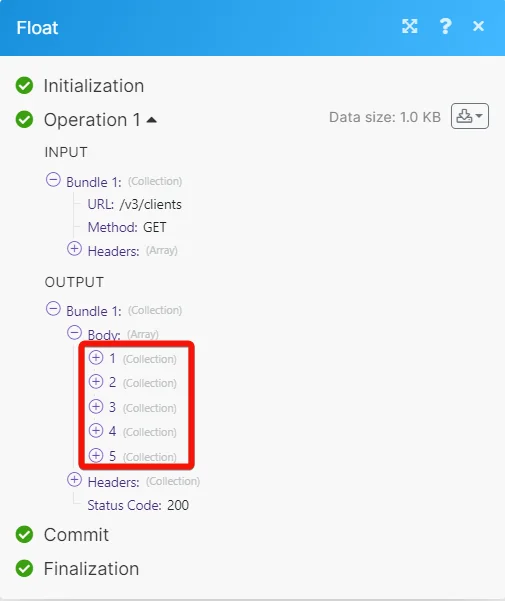
Example of Use – List Clients
The following API call returns all the clients from your Float account:
URL:
v3/clients
Method
GET
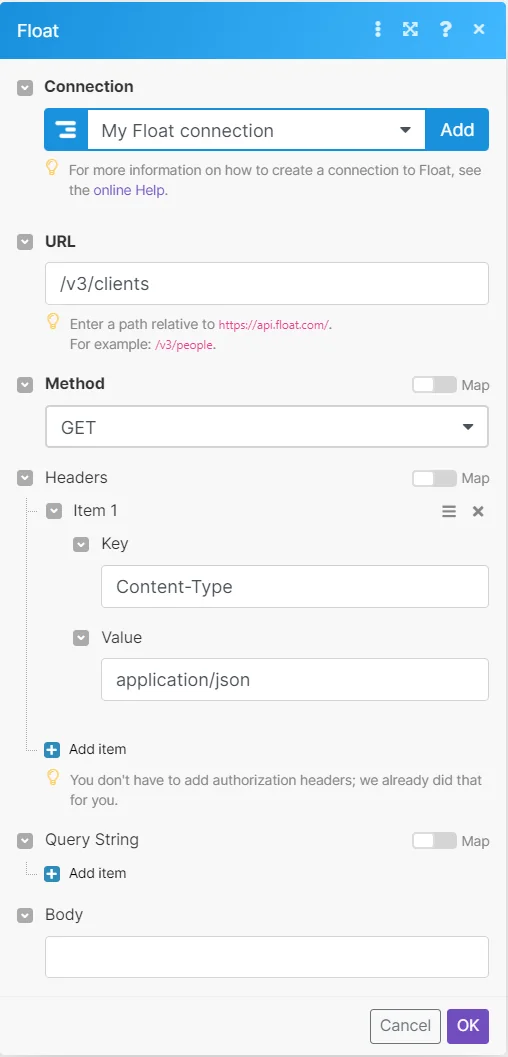
Matches of the search can be found in the module’s Output under Bundles > Body.
In our example, 5 clients were returned:
Legacy article, imported from the original Boost.space knowledge base (/knowledge-base/applications/business-operations-and-erps/float/).

