MuleSoft
With the MuleSoft modules in Boost.space Integrator you can trigger cloud hub APIs and call APIs.
To get started with MuleSoft, create an account
Connect MuleSoft to Boost.space Integrator
You need to obtain OAuth client credentials from your MuleSoft account and insert them in Boost.space Integrator .
To connect MuleSoft to Make:
-
Log in to your MuleSoft account.
-
Click your left menu > Access Management > Connected Apps > Create app.
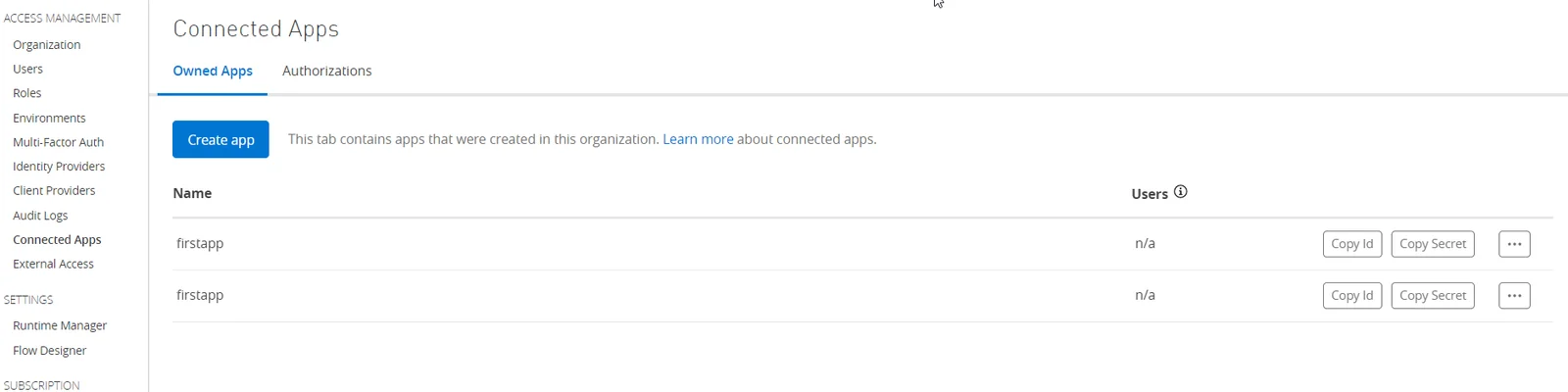
-
Enter the app details in the table below:
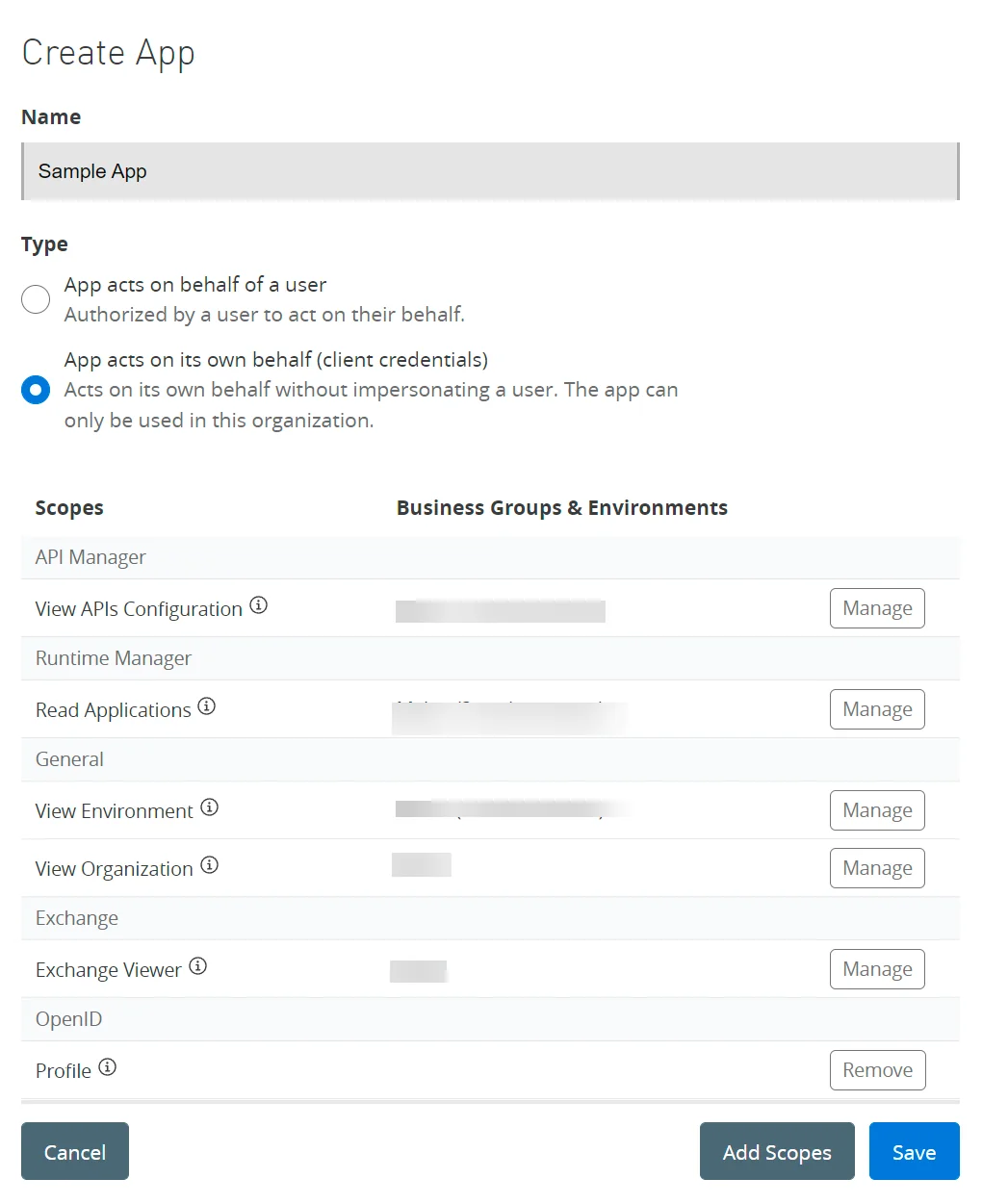
Name
App name.
Type
Select the connection type as App acts on its own behalf (client credentials).
Add Scopes
Add the following minimum scopes:
-
API Manager: View APIs Configuration
-
Runtime Manager: Read Applications
-
General: View Environment, View Organization
-
Exchange: Exchange Viewer
-
OpenID: Profile
-
-
Review the scopes and click Save.
-
Click Copy ID and Copy Secret to store the values in a safe place.
-
Log in to your Boost.space Integrator account and open the MuleSoft module’s Create a Connection dialog.
-
In the Connection name field, enter a name for the connection.
-
In the Client ID and Client Secret fields, enter the values obtained in Step 6 in the respective fields.
-
Click Save.
You have successfully connected the MuleSoft app and you can now build scenarios .
CloudHub
CloudHub is a fully managed, containerized integration-Platform-as-a-Service (iPaaS) where you can deploy APIs and integrations as lightweight containers in the cloud.

Trigger a CloudHub Action
Sends a request to MuleSoft to trigger a CloudHub action.
Connection
Establish a connection to your MuleSoft account.
MuleSoft Environment
Select the environment that contains the CloudHub applications you want to automate.
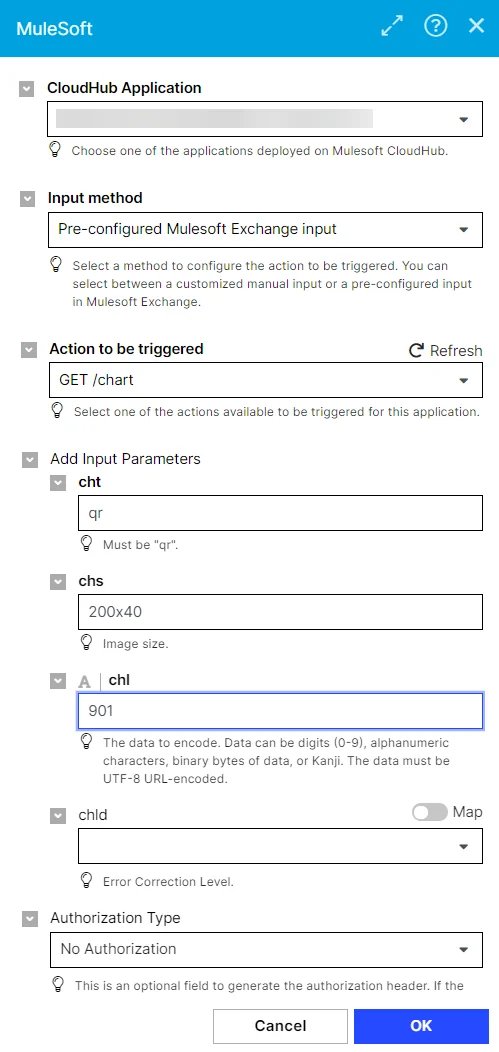
CloudHub Application
Select one of the applications deployed on the Mulesoft CloudHub.
Input method
Select a method to configure the action to be triggered. You can select between a customized manual input or a pre-configured input in the Mulesoft Exchange.
Action to be triggered
Select one of the actions available to be triggered for this application.
Add Input Parameters
Add the parameter details that auto-populate based on the option selected for the Action to be triggered field.
Choose Method
Select or map the HTTPS request method such as GET, POST, PATCH, DELETE, OPTIONS, and HEAD.
Specify endpoint
An endpoint relative to the application’s base URL. For example, /.
Add Input Headers
Add the key-value pair of headers. You can add multiple headers.
-
Input Header Key: Enter the key, so that Action Flow can add this item to the queue.
-
Input Header Value: Enter the value of the key. You can also select available variables from previous modules while clicking on the field.
Optional: Authorization Type
An optional field to generate the authorization header. This field appears when you select Input Method as the preconfigured Mulesoft exchange input.
If the desired authorization method is not listed, add the required headers or query strings manually.
-
No Authorization: No action is required.
-
API Key: Your Anypoint account API key.
For more information, see Anypoint API Manager.
-
**Bearer Token:**A bearer token for the Anypoint Platform. Your CLI session expires when the bearer token expires.
For more information, see How to generate your Authorization Bearer token for the Anypoint Platform.
-
Basic Authorization: Use your username and password to log into the CLI directly.
For information about logging in using SSO, see About Identity Management.
Other
You can call API endpoints using the following module.
Make an API Call
Performs an arbitrary authorized API Call.
Connection
Establish a connection to your MuleSoft account.
URL
Enter a path relative to https://anypoint.mulesoft.com. For example, /accounts/api/me.
Method
GET
to retrieve information for an entry.
POST
to create a new entry.
PUT
to update/replace an existing entry.
PATCH
to make a partial entry update.
DELETE
to delete an entry.
Headers
Enter the desired request headers. You don’t have to add authorization headers; we already did that for you.
Query String
Enter the request query string.
Body
Enter the body content for your API call.
Example of Use – Get Account Details
The following API call returns account details from your MuleSoft account:
URL: /accounts/api/me
Method: GET
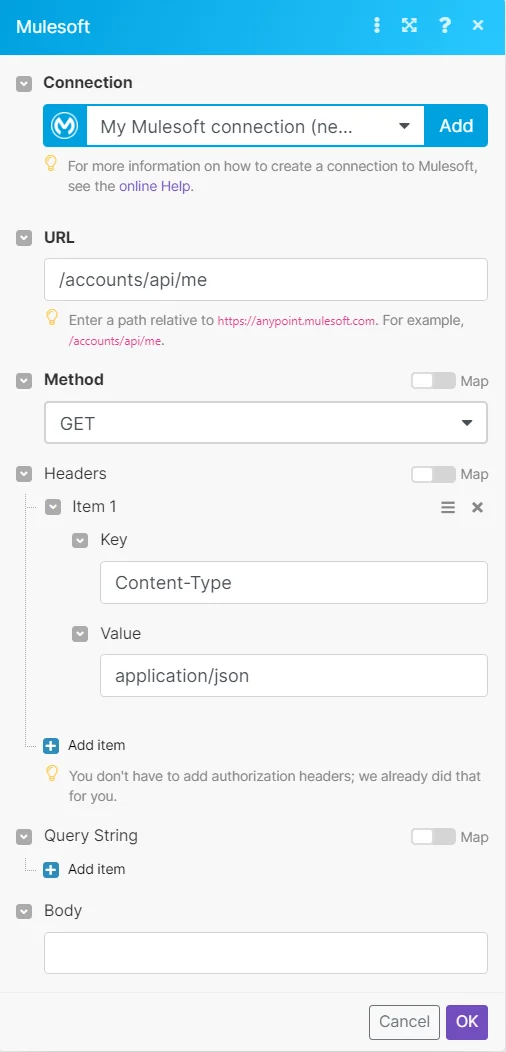
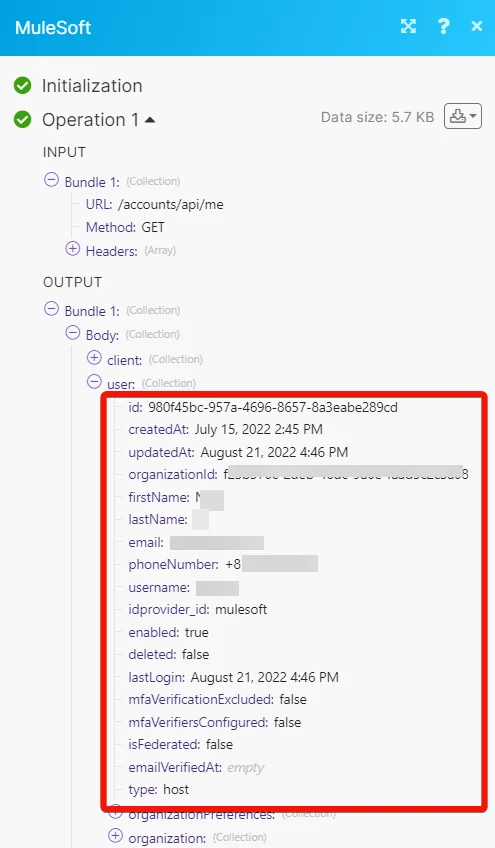
To see the results, look at the Output module under Bundle > Body.
In our example, the account details were returned:
Legacy article, imported from the original Boost.space knowledge base (/knowledge-base/applications/business-operations-and-erps/mulesoft/).

