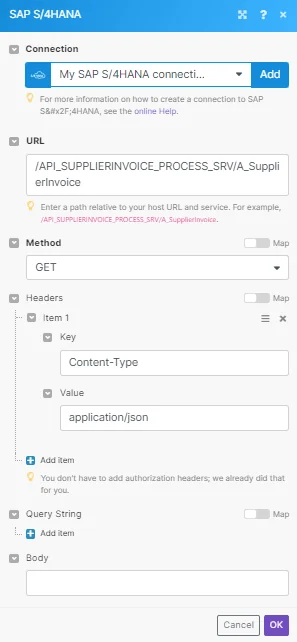
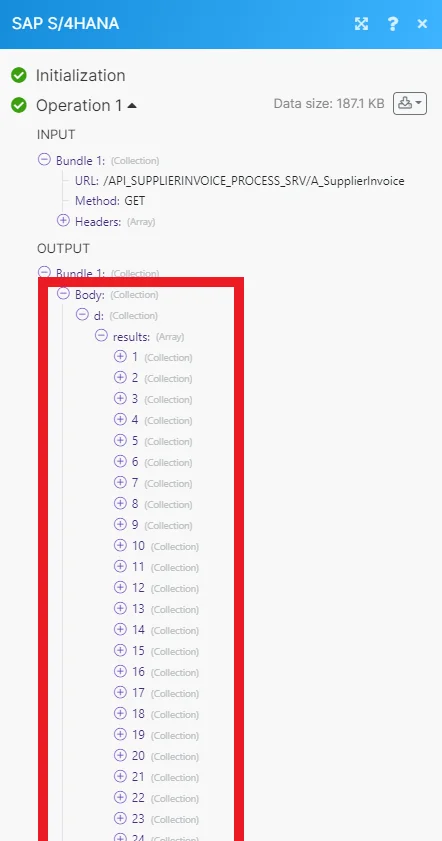
SAP S/4HANA Public Cloud (further on referred to as SAP S/4HANA) modules allow you to monitor, list, retrieve, and update all your invoices, orders, payments, business partners, and credit memos in your SAP S/4HANA account.
The module dialog fields displayed in bold (in the Boost.space Integrator scenario, not in this documentation article) are mandatory.
Connecting SAP S/4HANA to Boost.space Integrator
To connect your SAP S/4HANA account to Boost.space Integrator you need to create a communication system and user and obtain a Client ID, User Name, and Password from your SAP S/4HANA account.
Generate Connection Credentials
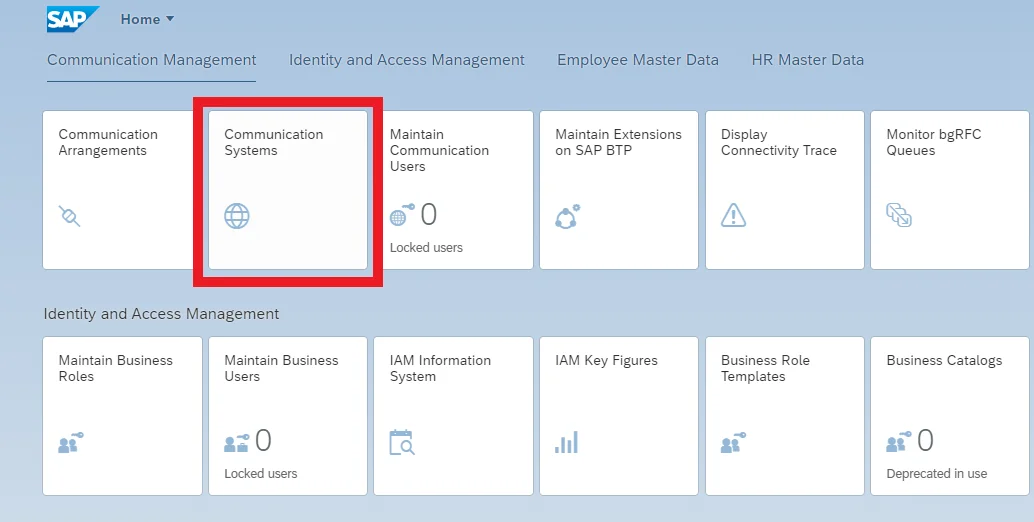
Access your SAP Fiori launchpad and go to the Communication Systems app.
Click New.
Enter a System ID.
The system name is generated automatically. However, you can change this name if you want to.
Click Create.
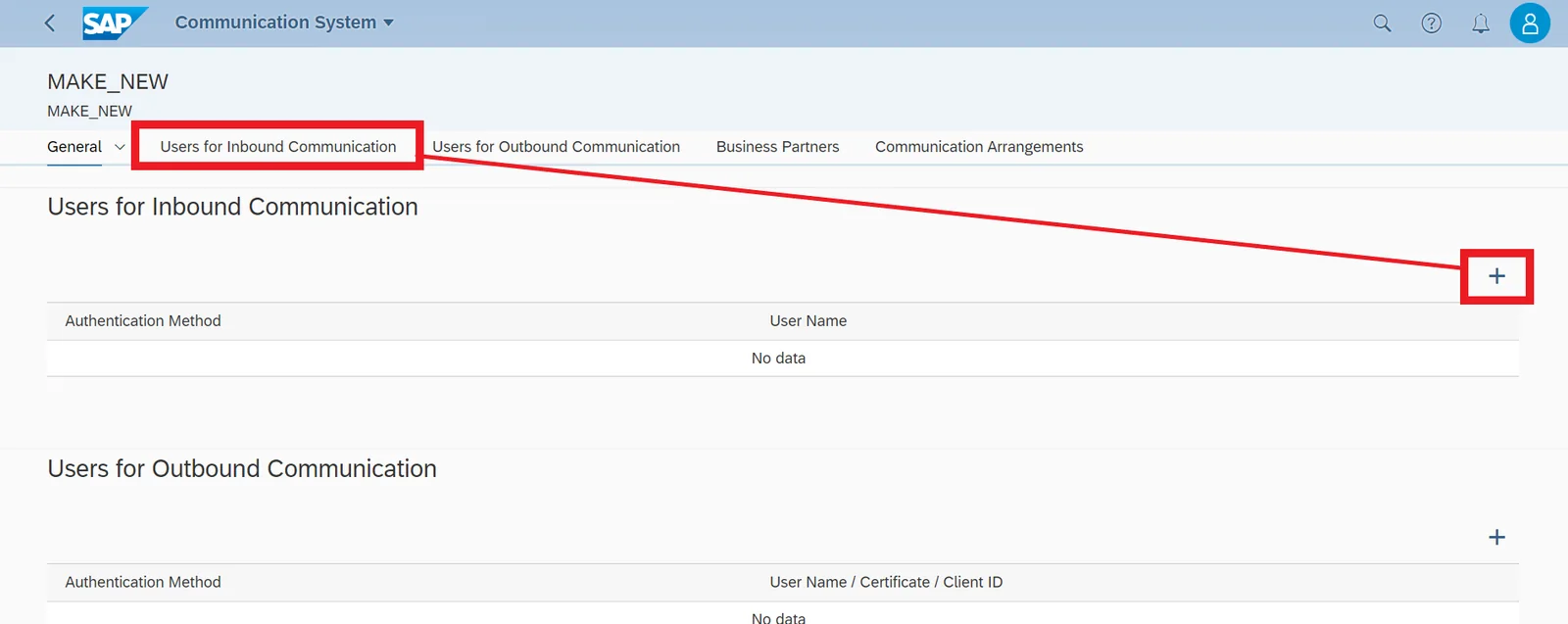
On the Communication System screen, enter a host name. Since this communication system is only used for inbound calls, no host name needs to be specified.
In the User for Inbound Communication section, click Add to create a new communication user.
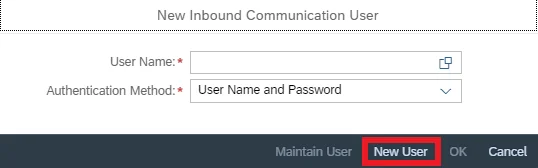
In the dialog box, click New User.
�NOTE�
Alternatively, you can create a communication user via the Maintain Communication Users app. If you have already created a user, enter the user in the User Name field.
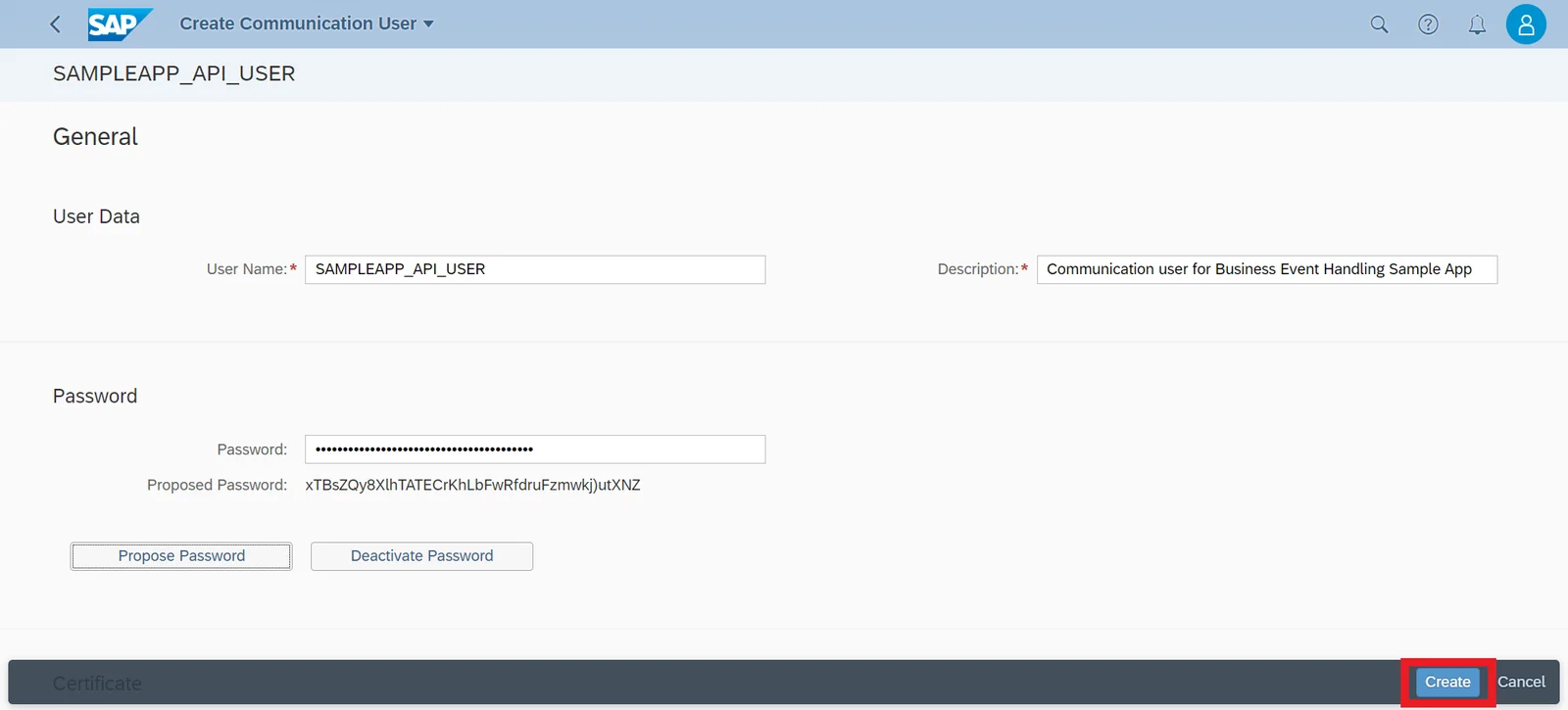
On the Create Communication User screen, enter a user name (for example, SAMPLEAPP_API_USER) and a description (for example, Communication user for Business Event Handling Sample App). Copy this username to your clipboard.
Click Propose Password or create one yourself. Copy this new password to your clipboard.
Click Create.
You redirect to the New Inbound Communication User dialog box. The authentication method is User Name and Password. Click OK.
Click Save.
Under Technical Data, copy the Port number to your clipboard. This is the Client ID needed to create a connection to Boost.space Integrator.
Establish a Connection to Boost.space Integrator
Go to your Boost.space Integrator scenario and select the SAP S/4HANA module you want to use.
Next to Connection, click Add.
Enter your Host URL. For example: https://my400271.s4hana.cloud.sap/
Enter your 3-digit Client ID. This is the Port number on your Communication System screen in SAP.
Enter your User Name and Password.
Enter the Service you are using. For example: API_BUSINESS_PARTNER.
You can browse all SAP S/4HANA ODATA v2 API here. This field is for connection validation only.
Optionally, you can select how long until your CSRF token expires.
Supplier Invoice
Watch Supplier Invoices
Triggers when a supplier invoice is created.
Connection
Establish a connection to your SAP S/4HANA account.
Expand
Select the type of invoices you want to watch for.
Limit
Enter the maximum number of invoices Boost.space Integrator returns during one scenario execution cycle.
Search Supplier Invoices
Retrieves a list of supplier invoices filtered by criteria.
Connection
Establish a connection to your SAP S/4HANA account.
Type of Filter
Select the type of filter you want to use. The Simple filter allows you to select filters from a list. You can also build your own Custom filter using the OData syntax.
Order By
Select how you want to order the results.
By a specific property
Ascending or descending
Expand
Select the type of invoices you want to search for.
Limit
Enter the maximum number of invoices Boost.space Integrator returns during one scenario execution cycle.
Enter the percentage of the maximum cash discount.
Cash Discount 1 Days
Enter the number of days of the maximum cash discount.
Cash Discount 2 Percent
Enter the percentage of the normal cash discount.
Cash Discount 2 Days
Enter the number of days of the normal cash discount.
Net Payment Days
Enter the net payment terms period.
Payment Blocking Reason
Enter the reason why the processing of a payment is blocked.
Accounting Document Type
Enter the document type of the supplier invoice.
BP Bank Account Internal ID
Enter the ID of the bank account.
Supplier Invoice Status
Enter the status of the supplier invoice.
Indirect Quoted Exchange Rate
Enter the rate at which one currency can be exchanged for another according to the indirect quotation method. Enter the data as follows:
1 Unit Currency (UC) = X Quoted Currency (QC)
Unit Currency = Document Currency
Quoted Currency = Local Currency
Direct Quoted Exchange Rate
Enter the rate at which one currency can be exchanged for another according to the direct quotation method. Enter the data as follows:
1 Unit Currency (UC) = X Quoted Currency (QC)
Unit Currency = Document Currency
Quoted Currency = Local Currency
State Central Bank Payment Reason
Enter the reason that payment is needed for the report to the state central bank.
Supplying Country
Enter the supplying country.
Payment Method
Enter the payment method.
Payment Method Supplement
Enter the payment method supplement.
Payment Reference
Enter the payment reference.
When an outgoing payment is made, the payment reference can be passed on to the relevant financial institute and from there to the payee.
When you are processing your account statement, you can use the payment reference to determine which items you have paid and then clear them.
Invoice Reference
Enter the document number of a referenced supplier invoice document. This field can only be filled for credit memos.
Invoice Reference Fiscal Year
Enter the fiscal year of a referenced supplier invoice document.
Fixed Cash Discount
Enter the fixed cash discount.
This iIndicates that the first or second cash discount term can be taken advantage of irrespective of whether the corresponding period has elapsed.
Unplanned Delivery Cost Tax Code
Enter the tax code used to post unplanned delivery costs.
Unplnd Deliv Cost Tax Jurisdiction
Enter the tax jurisdiction for determining tax rates for unplanned delivery costs.
Assignment Reference
Enter the number of the assignment reference.
Supplier Posting Line Item Text
Enter any text regarding the supplier posting line.
Tax Is Calculated Automatically
Select whether tax is to be calculated automatically.
Business Place
Enter the place of business.
For example, in Thailand, the business place is the basic organizational unit used for tax reporting and for assigning official document numbers.
Business Section Code
Enter the business section code. This is country or region dependant.
Business Area
Enter the area of business.
This is an organizational unit of financial accounting that represents a separate area of operations or responsibilities within an organization.
Supplier Invoice Is Credit Memo
Enter whether the document is an invoice or a credit memo:
t = redit memo
f = invoice
Payt Slip Wth Ref Subscriber
Valid only in country/region: CH (Switzerland)
Every supplier who participates in the special payment procedure of the Swiss Postal Service, receives a subscriber number.
Payt Slip Wth Ref Check Digit
Valid only in country/region: CH (Switzerland)
This field contains, for example, the check digit for the amount.
The rules for forming a check digit are set by the Swiss Postal Service.
Payt Slip Wth Ref Reference
Valid only in country/region: CH (Switzerland)
This parameter is used as a reference to the supplier invoice in payment transactions.
The check digit routine of the Swiss Postal Service is used for checking the field.
Tax Reporting Date
Enter the date on which the tax must be reported to the tax authority.
Tax Fulfillment Date
Enter the date on which the taxes on sales/purchases is due. The tax fulfillment date supplements the tax reporting date that specifies the date on which the tax must be reported to the tax authority. See the list of supported date examples.
Enter any reporting information about goods delivery within the European Union (EU).
Supplier VAT Registration
Enter the VAT registration number of the supplier.
Is EU Triangular Deal
Select whether the triangular deals within the EU.
Suplr Invc Debit Crdt Code Delivery
Enter the posting logic for delivery items (invoice/credit memo).
Suplr Invc Debit Crdt Code Returns
Enter the posting logic for return items (invoice/credit memo).
GST Partner
Enter the GST partner.
In India, this indicates the GST partner, that is, organizations or individuals with which a company maintains business relations for procurement and sale of goods and services. The system uses the GST partner to calculate GST (Goods and Services Tax).
GST Place Of Supply
Enter the GST place of supply.
In India, this specifies a two-character code that identifies the region where the goods and services are consumed. The system uses this code to calculate Goods and Services Tax (GST) at the time of invoice verification.
Invoice Reference Number
Enter the invoice reference number in India.
Jrnl Entry Cntry Specific Ref 1
Enter the country or region specific reference 1 in the invoice document.
Enter the reason you want to cancel the supplier invoice.
Purchase Order
Watch Purchase Orders
Triggers when a purchase order is created.
Connection
Establish a connection to your SAP S/4HANA account.
Expand
Select the type of purchase order you want to watch for.
Limit
Enter the maximum number of purchase orders Boost.space Integrator returns during one scenario execution cycle.
Search Purchase Orders
Retrieves a list of purchase orders filtered by criteria.
Connection
Establish a connection to your SAP S/4HANA account.
Type of Filter
Select the type of filter you want to use. The Simple filter allows you to select filters from a list. You can also build your own Custom filter using the OData syntax.
Order By
Select how you want to order the results.
By a specific property
Ascending or descending
Expand
Select the type of purchase order you want to search for.
Limit
Enter the maximum number of purchase orders Boost.space Integrator returns during one scenario execution cycle.
Create a Purchase Order
Creates a new purchase order.
Connection
Establish a connection to your SAP S/4HANA account.
Purchase Order
Enter the number of the purchase order you want to create.
Company Code
Enter the company code.
Purchase Order Type
Enter the type of purchase order you want to create.
Supplier
Enter the business partner who offers or provides materials or services for the purchase order.
Language
Enter the language.
Payment Terms
Enter the terms of the payment.
Cash Discount 1 Days
Enter the number of days of the maximum cash discount.
Cash Discount 2 Days
Enter the number of days of the normal cash discount.
Cash Discount 1 Percent
Enter the percentage of the maximum cash discount.
Enter the external quotation ID on the supplier’s side.
Supplier Resp Sales Person Name
Enter the responsible sales person at the supplier’s office.
Supplier Phone Number
Enter the supplier’s telephone number.
Supplying Supplier
Enter the supplying supplier.
Supplying Plant
Enter the supplying plant.
Incoterms Classification
Enter the Incoterms classification.
Correspnc External Reference
Enter the reference ID that is provided by the external party and that is used in correspondence.
Correspnc Internal Reference
Enter the reference ID that is provided by the internal party and that is used in correspondence.
Invoicing Party
Enter the account of the invoicing party.
Purchasing Completeness Status
Enter the completeness status of the purchase order.
Incoterms Version
Enter the Incoterms version.
Incoterms Location 1
Enter the first Incoterms location.
Incoterms Location 2
Enter the second Incoterms location.
Address City Name
Enter the city name.
Address Fax Number
Enter the fax number.
Address House Number
Enter the house number.
Address Name
Enter the address name.
Address Postal Code
Enter the postal code.
Address Street Name
Enter the street name.
Address Phone Number
Enter the phone number. Include the dialing code and number.
Address Region
Enter the region (state, province, county).
Address Country
Enter the country key.
Address Correspondence Language
Enter the correspondence language.
Delete a Purchase Order
Deletes all items of a purchase order that has been posted by the purchase order number.
Connection
Establish a connection to your SAP S/4HANA account.
Purchase Order
Enter the number of the purchase order you want to delete.
Search Purchase Order Items
Retrieves a list of items in a purchase order filtered by criteria.
Connection
Establish a connection to your SAP S/4HANA account.
Type of Filter
Select the type of filter you want to use. The Simple filter allows you to select filters from a list. You can also build your own Custom filter using the OData syntax.
Order By
Select how you want to order the results.
By a specific property
Ascending or descending
Expand
Select the type of purchase order item you want to search for.
Limit
Enter the maximum number of items Boost.space Integrator returns during one scenario execution cycle.
Add a Purchase Order Item
Adds an item to a purchase order by the purchase order number.
Select whether an unlimited overdelivery is allowed for the item.
Underdeliv Tolrtd Lmt Ratio In Pct
Enter the underdelivery tolerance limit.
Valuation Type
Enter the valuation type.
Is Completely Delivered
Select the indicator for status “Completely delivered”.
Is Finally Invoiced
Select the final invoice indicator.
Purchase Order Item Category
Enter the item category in the purchasing document.
Account Assignment Category
Enter the account assignment category.
Multiple Acct Assgmt Distribution
Enter the distribution indicator for multiple account assignment.
Partial Invoice Distribution
Enter how invoice amounts in partial invoices are to be distributed.
Goods Receipt Is Expected
Select whether a goods receipt is allowed and expected.
Goods Receipt Is Non Valuated
Select whether a goods receipt is non-valuated.
Invoice Is Expected
Select whether an invoice is allowed and expected.
Invoice Is Goods Receipt Based
Select whether the invoice verification is goods receipt-based.
Purchase Contract
Enter the number of the principal purchase agreement.
Purchase Contract Item
Enter the item number of the principal purchase agreement.
Customer
Enter the number of the customer for whom a material is to be delivered.
Subcontractor
Enter the supplier who is to receive delivery.
Supplier Is Subcontractor
Select whether the supplier is a subcontractor.
Item Net Weight
Enter the net weight on item level.
Item Weight Unit
Enter the unit of weight on item level.
Tax Jurisdiction
Enter the tax jurisdiction.
Pricing Date Control
Enter the price determination (Pricing) data control.
Item Volume
Enter the item volume.
Item Volume Unit
Enter the volume unit.
Supplier Confirmation Control Key
Enter the supplier confirmation control key.
Incoterms Classification
Enter the Incoterms classification.
Incoterms Transfer Location
Enter the Incoterms transfer location.
Evald Rcpt Settlmt Is Allowed
Select whether to include an evaluated receipt settlement (ERS).
Purchase Requisition
Enter the purchase requisition number.
Purchase Requisition Item
Enter the item number of purchase requisition.
Is Returns Item
Select whether or not the item is a returns item.
Requisitioner Name
Enter the name of requisitioner/requester.
Service Package
Enter the package number.
Earmarked Funds
Enter the document number for earmarked funds
Earmarked Funds Item
Enter the earmarked funds line item.
Incoterms Location 1
Enter the first Incoterms location.
Incoterms Location 2
Enter the second Incoterms location.
Material
Enter the material number.
International Article Number
Enter the international Article Number (EAN/UPC).
Manufacturer Material
Enter the material number corresponding to manufacturer part number.
Service Performer
Enter the service performer.
Product Type
Enter the product type group.
Expected Overall Limit Amount
Enter the expected value of overall limit.
Overall Limit Amount
Enter the overall limit amount.
Pur Contract For Overall Limit
Enter the purchase contract for enhanced limit.
Purchasing Parent Item
Enter any higher-level item in purchasing documents.
Reference Delivery Address ID
Enter the number of the delivery address.
Delivery Address Name
Enter the address name.
Delivery Address Name 2
Enter the second address name.
Delivery Address Street Name
Enter the street name.
Delivery Address House Number
Enter the house number.
Delivery Address City Name
Enter the city name.
Delivery Address Postal Code
Enter the postal code.
Delivery Address Region
Enter the region (state, province, county).
Delivery Address Country
Enter the country key.
Delivery Address District Name
Enter the district.
Down Payment Type
Enter the down payment indicator.
Down Payment Percentage Of Tot Amt
Enter the down payment percentage.
Down Payment Amount
Enter the down payment amount in document currency.
Down Payment Due Date
Enter the due date for the down payment.
Material Usage
Enter the usage of the material.
Material Origin
Enter the origin of the material.
CFOP Category
Enter the CFOP category od the material.
Is Produced In House
Select whether or not the item is produced in-house.
Consumption Tax Ctrl Code
Enter the Brazilian NCM tax code.
Purchase Order
Add an additional purchase order.
Account Assignment
Add an additional account assignment.
Purchase Order Item Note
Add an additional purchase order item note.
Purchase Order Pricing Element
Add an additional purchase order pricing element.
Schedule Line
Add an additional schedule line.
Delete a Purchase Order Item
Deletes an item in a purchase order by the purchase order number and item number.
Connection
Establish a connection to your SAP S/4HANA account.
Purchase Order
Enter the document number of the purchase order you want to delete an item from.
Purchase Order Item
Enter the number of the purchase order item you want to delete.
Sales Order
Watch Sales Orders
Triggers when a sales order is created or updated.
Connection
Establish a connection to your SAP S/4HANA account.
Expand
Select the type of sales order you want to watch for.
Limit
Enter the maximum number of sales orders Boost.space Integrator returns during one scenario execution cycle.
Search Sales Orders
Retrieves a list of sales orders filtered by criteria.
Connection
Establish a connection to your SAP S/4HANA account.
Type of Filter
Select the type of filter you want to use. The Simple filter allows you to select filters from a list. You can also build your own Custom filter using the OData syntax.
Order By
Select how you want to order the results.
By a specific property
Ascending or descending
Expand
Select the type of sales order you want to search for.
Limit
Enter the maximum number of sales orders Boost.space Integrator returns during one scenario execution cycle.
Create a Sales Order
Creates a new sales order.
Connection
Establish a connection to your SAP S/4HANA account.
Sales Order
Enter the number of the sales order you want to create.
Sales Order Type
Enter the type of sales order you want to create.
Sales Organization
Enter the organizational unit responsible for the sales order.
Distribution Channel
Enter the distribution channel. Typical examples of distribution channels are wholesale, retail, or direct sales.
Organization Division
Enter the organization division.
Sales Group
Enter the group of sales people responsible for the sales order.
Sales Office
Enter the sales office.
Sales District
Enter the sales district.
Sold To Party
Enter the customer who orders the goods or services. The sold-to party is contractually responsible for sales orders.
Purchase Order By Customer
Enter the customer reference number that the customer uses to uniquely identify a purchasing document (for example, a sales inquiry or a purchase order).
Purchase Order By Ship To Party
Enter the number used by the end customer for unique identification of the purchasing document (for example, an inquiry or a purchase).
Customer Purchase Order Type
Enter the way in which the sales order arrives from the customer, for example, by telephone or e-mail.
Customer Purchase Order Date
Enter the reference date that is shown on the customer’s purchase order. This date can be, for example, the date on which the customer created the purchase order. See the list of supported date examples.
Sales Order Date
Enter the date on which you want the sales order to become effective for sales management purposes. See the list of supported date examples.
Transaction Currency
Enter the currency that applies to the sales order.
SD Document Reason
Enter the reason for creating the sales order.
Pricing Date
Enter the date that determines date-related pricing elements, such as conditions and foreign exchange rate. See the list of supported date examples.
Enter the general shipping strategy for the delivery of goods from the supplier to the customer.
Complete Delivery Is Defined
Select whether to complete delivery defined for each sales order.
Shipping Type
Enter the shipping type (for example, by road or rail) that has been selected for the transportation of the goods for the shipment legs.
Header Billing Block Reason
Enter the reason if the entire sales order is blocked for billing.
Delivery Block Reason
Enter the reason if an entire sales order is blocked for delivery.
Delivery Date Type Rule
Enter any delivery date type rules.
Incoterms Classification
Enter the Incoterms classification. These are commonly used trading terms that comply with the standards established by the International Chamber of Commerce (ICC).
Incoterms Transfer Location
Enter any additional information for the primary Incoterm.
Incoterms Location 1
Enter the first Incoterms location.
Incoterms Location 2
Enter the second Incoterms location.
Incoterms Version
Enter the Incoterm edition.
Customer Price Group
Enter the group of customers who share the same pricing requirements.
Price List Type
Enter a price list or other condition type (for example, a surcharge or discount).
Customer Payment Terms
Enter the defining payment terms composed of cash discount percentages and payment periods.
Payment Method
Specify how an item is to be paid.
Fixed Value Date
Enter the date on which the terms of payment related to the sales order become effective. See the list of supported date examples.
Assignment Reference
Enter the number that is used to sort and display line items.
Reference SD Document
Specify the document to which the sales order refers (a preceding document, such as a sales quotation).
Enter the reference document number contains the document number with the business partner. This serves as a search criterion when displaying or changing documents.
Customer Account Assignment Group
Enter the account assignment group to which the system automatically posts the sales document.
Accounting Exchange Rate
Enter the exchange rate that the system applies when you create an invoice.
Customer Group
Enter a particular group of customers (for example, wholesale or retail) for the purpose of pricing or generating statistics.
Additional Customer Group 1
Specify a customer-defined group of customers.
You can define up to five different groups of customers, according to the needs of your organization.
Additional Customer Group 2
Specify a customer-defined group of customers.
Additional Customer Group 3
Specify a customer-defined group of customers.
Additional Customer Group 4
Specify a customer-defined group of customers.
Additional Customer Group 5
Specify a customer-defined group of customers.
Sls Doc Is Rlvt For Proof Of Deliv
Select whether to control proof of delivery (POD) processing.
Customer Tax Classification 1
Enter the alternative tax classification.
This indicates whether the system takes account of customer-specific taxes for pricing (such as value-added tax). The system copies the tax classification from the tax information stored in the customer master record of the goods recipient. During pricing, the system uses the tax classification and the country or region key (which identifies the customer location) to determine the relevant taxes. You can enter a different (alternative) tax classification in the order.
Customer Tax Classification 2
Enter an additional alternative tax classification.
Customer Tax Classification 3
Enter an additional alternative tax classification.
Customer Tax Classification 4
Enter an additional alternative tax classification.
Customer Tax Classification 5
Enter an additional alternative tax classification.
Customer Tax Classification 6
Enter an additional alternative tax classification.
Customer Tax Classification 7
Enter an additional alternative tax classification.
Customer Tax Classification 8
Enter an additional alternative tax classification.
Customer Tax Classification 9
Enter an additional alternative tax classification.
Tax Departure Country
Enter the tax departing country. For tax determination, the country or region of departure is used as the plant country or region.
VAT Registration Country
Enter the VAT registration country. For tax determination, the country or region of the ship-to party is used as the tax country or region of destination.
Enter a contract account. This identifies a contract account per client, that is, an account in which posting data for contracts or contract items are processed for which the same collection/payment agreements apply. Contract accounts are managed on an open item basis within contract accounts receivable and payable.
Additional Value Days
Specify the number of days between the billing date and the date on which the terms of payment for the sales document become effective.
Customer Purchase Order Suplmnt
Enter any additional information to help identify the customer’s sales document.
Services Rendered Date
Specify the date of services rendered that determines when the system calculates taxes (for example, sales tax) for the product. See the list of supported date examples.
Billing Plan
Add any additional billing plan details.
Item
Add any additional item details.
Partner
Add any additional partner details.
Payment Plan Item Details
Add any additional payment plan item details.
Preceding Proc Flow Doc
Add any additional preceding process flow document details.
Pricing Element
Add any additional pricing element details.
Related Object
Add any additional related object details.
Subsequent Proc Flow Doc
Add any additional subsequent process flow document details.
Text
Add any additional text details.
Get a Sales Order
Retrieves the details of a sales order by the sales order number.
Connection
Establish a connection to your SAP S/4HANA account.
Sales Order
Enter the number of the sales order you want to retrieve.
Expand
Select the type of sales order you want to retrieve.
Update a Sales Order
Updates a sales order by the sales order number.
Connection
Establish a connection to your SAP S/4HANA account.
Sales Order
Enter the number of the sales order you want to update.
Sales Order Type
Enter the type of sales order you want to update.
Sales Organization
Enter the organizational unit responsible for the sales order.
Distribution Channel
Enter the distribution channel. Typical examples of distribution channels are wholesale, retail, or direct sales.
Organization Division
Enter the organization division.
Sales Group
Enter the group of sales people responsible for the sales order.
Sales Office
Enter the sales office.
Sales District
Enter the sales district.
Sold To Party
Enter the customer who orders the goods or services. The sold-to party is contractually responsible for sales orders.
Purchase Order By Customer
Enter the customer reference number that the customer uses to uniquely identify a purchasing document (for example, a sales inquiry or a purchase order).
Purchase Order By Ship To Party
Enter the number used by the end customer for unique identification of the purchasing document (for example, an inquiry or a purchase).
Customer Purchase Order Type
Enter the way in which the sales order arrives from the customer, for example, by telephone or e-mail.
Customer Purchase Order Date
Enter the reference date that is shown on the customer’s purchase order. This date can be, for example, the date on which the customer created the purchase order. See the list of supported date examples.
Sales Order Date
Enter the date on which you want the sales order to become effective for sales management purposes. See the list of supported date examples.
Transaction Currency
Enter the currency that applies to the sales order.
SD Document Reason
Enter the reason for creating the sales order.
Pricing Date
Enter the date that determines date-related pricing elements, such as conditions and foreign exchange rate. See the list of supported date examples.
Enter the general shipping strategy for the delivery of goods from the supplier to the customer.
Complete Delivery Is Defined
Select whether to complete delivery defined for each sales order.
Shipping Type
Enter the shipping type (for example, by road or rail) that has been selected for the transportation of the goods for the shipment legs.
Header Billing Block Reason
Enter the reason if the entire sales order is blocked for billing.
Delivery Block Reason
Enter the reason if an entire sales order is blocked for delivery.
Delivery Date Type Rule
Enter any delivery date type rules.
Incoterms Classification
Enter the Incoterms classification. These are commonly used trading terms that comply with the standards established by the International Chamber of Commerce (ICC).
Incoterms Transfer Location
Enter any additional information for the primary Incoterm.
Incoterms Location 1
Enter the first Incoterms location.
Incoterms Location 2
Enter the second Incoterms location.
Incoterms Version
Enter the Incoterm edition.
Customer Price Group
Enter the group of customers who share the same pricing requirements.
Price List Type
Enter a price list or other condition type (for example, a surcharge or discount).
Customer Payment Terms
Enter the defining payment terms composed of cash discount percentages and payment periods.
Payment Method
Specify how an item is to be paid.
Fixed Value Date
Enter the date on which the terms of payment related to the sales order become effective. See the list of supported date examples.
Assignment Reference
Enter the number that is used to sort and display line items.
Reference SD Document
Specify the document to which the sales order refers (a preceding document, such as a sales quotation).
Enter the reference document number contains the document number with the business partner. This serves as a search criterion when displaying or changing documents.
Customer Account Assignment Group
Enter the account assignment group to which the system automatically posts the sales document.
Accounting Exchange Rate
Enter the exchange rate that the system applies when you create an invoice.
Customer Group
Enter a particular group of customers (for example, wholesale or retail) for the purpose of pricing or generating statistics.
Additional Customer Group 1
Specify a customer-defined group of customers.
You can define up to five different groups of customers, according to the needs of your organization.
Additional Customer Group 2
Specify a customer-defined group of customers.
Additional Customer Group 3
Specify a customer-defined group of customers.
Additional Customer Group 4
Specify a customer-defined group of customers.
Additional Customer Group 5
Specify a customer-defined group of customers.
Sls Doc Is Rlvt For Proof Of Deliv
Select whether to control proof of delivery (POD) processing.
Customer Tax Classification 1
Enter the alternative tax classification.
This indicates whether the system takes account of customer-specific taxes for pricing (such as value-added tax). The system copies the tax classification from the tax information stored in the customer master record of the goods recipient. During pricing, the system uses the tax classification and the country or region key (which identifies the customer location) to determine the relevant taxes. You can enter a different (alternative) tax classification in the order.
Customer Tax Classification 2
Enter an additional alternative tax classification.
Customer Tax Classification 3
Enter an additional alternative tax classification.
Customer Tax Classification 4
Enter an additional alternative tax classification.
Customer Tax Classification 5
Enter an additional alternative tax classification.
Customer Tax Classification 6
Enter an additional alternative tax classification.
Customer Tax Classification 7
Enter an additional alternative tax classification.
Customer Tax Classification 8
Enter an additional alternative tax classification.
Customer Tax Classification 9
Enter an additional alternative tax classification.
Tax Departure Country
Enter the tax departing country. For tax determination, the country or region of departure is used as the plant country or region.
VAT Registration Country
Enter the VAT registration country. For tax determination, the country or region of the ship-to party is used as the tax country or region of destination.
Enter a contract account. This identifies a contract account per client, that is, an account in which posting data for contracts or contract items are processed for which the same collection/payment agreements apply. Contract accounts are managed on an open item basis within contract accounts receivable and payable.
Additional Value Days
Specify the number of days between the billing date and the date on which the terms of payment for the sales document become effective.
Customer Purchase Order Suplmnt
Enter any additional information to help identify the customer’s sales document.
Services Rendered Date
Specify the date of services rendered that determines when the system calculates taxes (for example, sales tax) for the product. See the list of supported date examples.
Delete a Sales Order
Deletes all items of a sales order the has been posted by the sales order number.
Connection
Establish a connection to your SAP S/4HANA account.
Sales Order
Enter the number of the sales order you want to delete.
Release a Sales Order Approval Request
Releases an approval request of a sales order by the sales order number.
Connection
Establish a connection to your SAP S/4HANA account.
Sales Order
Enter the number of the sales order you want to release an approval request for.
Reject a Sales Order Approval Request
Rejects an approval request of a sales order by the sales order number.
Connection
Establish a connection to your SAP S/4HANA account.
Sales Order
Enter the number of the sales order you want to reject an approval request for.
Search Sales Order Items
Retrieves a list of items in a sales order filtered by criteria.
Connection
Establish a connection to your SAP S/4HANA account.
Type of Filter
Select the type of filter you want to use. The Simple filter allows you to select filters from a list. You can also build your own Custom filter using the OData syntax.
Order By
Select how you want to order the results.
By a specific property
Ascending or descending
Expand
Select the type of sales order item you want to search for.
Limit
Enter the maximum number of items Boost.space Integrator returns during one scenario execution cycle.
Add a Sales Order Item
Adds an item to a sales order by the sales order number.
Enter the material master record that the system uses as a reference for pricing purposes.
Billing Plan
Enter the billing plan number.
Requested Quantity
Enter the number or volume of materials specified in an item.
Requested Quantity Unit
Enter the unit in which the requested quantity is specified.
For the requested quantity units, you can use either the language-dependent unit code, the ISO code, the SAP code (the format found in the database without conversions).
Requested Quantity SAP Unit
Enter the unit in SAP code in which the requested quantity is specified.
Requested Quantity ISO Unit
Enter the unit in ISO code in which the requested quantity is specified.
Item Weight SAP Unit
Enter the SAP item unit referring to the gross weight or net weight of the material.
Item Weight ISO Unit
Enter the ISO item unit referring to the gross weight or net weight of the material.
Item Volume SAP Unit
Enter the SAP item volume.
Item Volume ISO Unit
Enter the ISO item volume.
Material Group
Enter the key that you use to group together several materials or services with the same attributes, and to assign them to a particular material group.
Enter a contract account. This identifies a contract account per client, that is, an account in which posting data for contracts or contract items are processed for which the same collection/payment agreements apply. Contract accounts are managed on an open item basis within contract accounts receivable and payable.
Additional Value Days
Specify the number of days between the billing date and the date on which the terms of payment for the sales document become effective.
Services Rendered Date
Specify the date of services rendered that determines when the system calculates taxes (for example, sales tax) for the product. See the list of supported date examples.
Batch
Enter the batch number.
Production Plant
Enter the plant key.
Storage Location
Enter the number of the storage location in which the material is stored.
A plant may contain one or more storage locations.
Shipping Type
Enter the shipping type (for example, by road or rail) that has been selected for the transportation of the goods for the shipment legs.
Shipping Point
Enter the physical location (for example, a warehouse or collection of loading ramps) from which you ship the item.
Delivery Priority
Enter the delivery priority assigned to an item.
Delivery Date Type Rule
Enter any delivery date type rules.
Incoterms Classification
Enter the Incoterms classification. These are commonly used trading terms that comply with the standards established by the International Chamber of Commerce (ICC).
Incoterms Transfer Location
Enter any additional information for the primary Incoterm.
Incoterms Location 1
Enter the first Incoterms location.
Incoterms Location 2
Enter the second Incoterms location.
Tax Amount
Enter the tax amount in document currency.
Product Tax Classification 1
Specify the first tax classification for the material.
Product Tax Classification 2
Specify an additional tax classification for the material.
Product Tax Classification 3
Specify an additional tax classification for the material.
Product Tax Classification 4
Specify an additional tax classification for the material.
Product Tax Classification 5
Specify an additional tax classification for the material.
Product Tax Classification 6
Specify an additional tax classification for the material.
Product Tax Classification 7
Specify an additional tax classification for the material.
Product Tax Classification 8
Specify an additional tax classification for the material.
Product Tax Classification 9
Specify an additional tax classification for the material.
Matl Account Assignment Group
Enter the account assignment group for the material is a group of materials with the same accounting requirements.
Cost Amount
Enter the cost amount in document currency.
Customer Payment Terms
Enter the defining payment terms composed of cash discount percentages and payment periods.
Fixed Value Date
Enter the date on which the terms of payment related to the sales order become effective. See the list of supported date examples.
Customer Group
Enter a particular group of customers (for example, wholesale or retail) for the purpose of pricing or generating statistics.
Sales Document Rjcn Reason
Enter the reason for rejecting a sales order.
Item Billing Block Reason
Give a reason if the item is blocked for billing.
Sls Doc Is Rlvt For Proof Of Deliv
Select whether to control proof of delivery (POD) processing.
WBS Element
Enter the key that identifies a WBS element (a structural element in a work breakdown structure representing the hierarchical organization of a project).
Profit Center
Enter a key which together with the controlling area uniquely identifies a profit center.
Accounting Exchange Rate
Enter the exchange rate that the system applies when you create an invoice.
Reference SD Document
Specify the document to which the sales order refers (a preceding document, such as a sales quotation).
Enter the material master record that the system uses as a reference for pricing purposes.
Billing Plan
Enter the billing plan number.
Requested Quantity
Enter the number or volume of materials specified in an item.
Requested Quantity Unit
Enter the unit in which the requested quantity is specified.
For the requested quantity units, you can use either the language-dependent unit code, the ISO code, the SAP code (the format found in the database without conversions).
Requested Quantity SAP Unit
Enter the unit in SAP code in which the requested quantity is specified.
Requested Quantity ISO Unit
Enter the unit in ISO code in which the requested quantity is specified.
Item Weight SAP Unit
Enter the SAP item unit referring to the gross weight or net weight of the material.
Item Weight ISO Unit
Enter the ISO item unit referring to the gross weight or net weight of the material.
Item Volume SAP Unit
Enter the SAP item volume.
Item Volume ISO Unit
Enter the ISO item volume.
Material Group
Enter the key that you use to group together several materials or services with the same attributes, and to assign them to a particular material group.
Enter a contract account. This identifies a contract account per client, that is, an account in which posting data for contracts or contract items are processed for which the same collection/payment agreements apply. Contract accounts are managed on an open item basis within contract accounts receivable and payable.
Additional Value Days
Specify the number of days between the billing date and the date on which the terms of payment for the sales document become effective.
Services Rendered Date
Specify the date of services rendered that determines when the system calculates taxes (for example, sales tax) for the product. See the list of supported date examples.
Batch
Enter the batch number.
Production Plant
Enter the plant key.
Storage Location
Enter the number of the storage location in which the material is stored.
A plant may contain one or more storage locations.
Shipping Type
Enter the shipping type (for example, by road or rail) that has been selected for the transportation of the goods for the shipment legs.
Shipping Point
Enter the physical location (for example, a warehouse or collection of loading ramps) from which you ship the item.
Delivery Priority
Enter the delivery priority assigned to an item.
Delivery Date Type Rule
Enter any delivery date type rules.
Incoterms Classification
Enter the Incoterms classification. These are commonly used trading terms that comply with the standards established by the International Chamber of Commerce (ICC).
Incoterms Transfer Location
Enter any additional information for the primary Incoterm.
Incoterms Location 1
Enter the first Incoterms location.
Incoterms Location 2
Enter the second Incoterms location.
Tax Amount
Enter the tax amount in document currency.
Product Tax Classification 1
Specify the first tax classification for the material.
Product Tax Classification 2
Specify an additional tax classification for the material.
Product Tax Classification 3
Specify an additional tax classification for the material.
Product Tax Classification 4
Specify an additional tax classification for the material.
Product Tax Classification 5
Specify an additional tax classification for the material.
Product Tax Classification 6
Specify an additional tax classification for the material.
Product Tax Classification 7
Specify an additional tax classification for the material.
Product Tax Classification 8
Specify an additional tax classification for the material.
Product Tax Classification 9
Specify an additional tax classification for the material.
Matl Account Assignment Group
Enter the account assignment group for the material is a group of materials with the same accounting requirements.
Cost Amount
Enter the cost amount in document currency.
Customer Payment Terms
Enter the defining payment terms composed of cash discount percentages and payment periods.
Fixed Value Date
Enter the date on which the terms of payment related to the sales order become effective. See the list of supported date examples.
Customer Group
Enter a particular group of customers (for example, wholesale or retail) for the purpose of pricing or generating statistics.
Sales Document Rjcn Reason
Enter the reason for rejecting a sales order.
Item Billing Block Reason
Give a reason if the item is blocked for billing.
Sls Doc Is Rlvt For Proof Of Deliv
Select whether to control proof of delivery (POD) processing.
WBS Element
Enter the key that identifies a WBS element (a structural element in a work breakdown structure representing the hierarchical organization of a project).
Profit Center
Enter a key which together with the controlling area uniquely identifies a profit center.
Accounting Exchange Rate
Enter the exchange rate that the system applies when you create an invoice.
Reference SD Document
Specify the document to which the sales order refers (a preceding document, such as a sales quotation).
Specify the number of the sales document item to which the sales order item refers.
Delete a Sales Order Item
Deletes an item in a sales order by the sales order number and item number.
Connection
Establish a connection to your SAP S/4HANA account.
Sales Order
Enter the document number of the sales order you want to delete an item from.
Sales Order Item
Enter the number of the sales order item you want to delete.
Payment Advice
Watch Payment Advices
Triggers when a payment advice is created.
Connection
Establish a connection to your SAP S/4HANA account.
Expand
Select the type of payment advice you want to watch for.
Limit
Enter the maximum number of results Boost.space Integrator returns during one scenario execution cycle.
Search Payment Advices
Retrieves a list of payment advices filtered by criteria.
Connection
Establish a connection to your SAP S/4HANA account.
Type of Filter
Select the type of filter you want to use. The Simple filter allows you to select filters from a list. You can also build your own Custom filter using the OData syntax.
Order By
Select how you want to order the results.
By a specific property
Ascending or descending
Expand
Select the type of payment advice you want to search for.
Limit
Enter the maximum number of results Boost.space Integrator returns during one scenario execution cycle.
Create a Payment Advice
Creates a new payment advice.
Connection
Establish a connection to your SAP S/4HANA account.
Company Code
Enter the company code.
Payment Advice Account Type
Enter the payment advice account type. Customer or supplier.
Establish a connection to your SAP S/4HANA account.
Company Code
Enter the company code.
Payment Advice Account Type
Enter the payment advice account type. Customer or supplier.
Payment Advice Account
Enter the ID number of the customer or supplier.
Payment Advice
Enter the ID number of the payment advice object.
Business Partner
Watch Business Partners
Triggers when a business partner is created or updated.
Connection
Establish a connection to your SAP S/4HANA account.
Expand
Select the type of business partner you want to watch for.
Limit
Enter the maximum number of business partners Boost.space Integrator returns during one scenario execution cycle.
Search Business Partners
Retrieves a list of business partners filtered by criteria.
Connection
Establish a connection to your SAP S/4HANA account.
Type of Filter
Select the type of filter you want to use. The Simple filter allows you to select filters from a list. You can also build your own Custom filter using the OData syntax.
Order By
Select how you want to order the results.
By a specific property
Ascending or descending
Expand
Select the type of business partner you want to search for.
Limit
Enter the maximum number of business partners Boost.space Integrator returns during one scenario execution cycle.
Create a Business Partner
Creates a new business partner.
Connection
Establish a connection to your SAP S/4HANA account.
Business Partner
Enter the business partner number.
Academic Title
Enter the academic title.
Authorization Group
Enter the authorization group.
Authorization groups are used to stipulate which business partners a user is allowed to process.
Business Partner Category
Enter the type of business partner (person/organization/group.
Business Partner Grouping
Enter the business partner classification.
Correspondence Language
Enter the desired language.
First Name
Enter the first name of the business partner.
Form Of Address
Enter the form of address.
Industry
Enter the industry sector.
International Location Number 1
Enter the first international location number.
International Location Number 2
Enter the second international location number.
Is Female
Select whether the business partner is female.
Is Male
Select whether the business partner is male.
Is Natural Person
Enter whether the business partner is a natural person.
Distinctions between natural and legal persons are for tax reporting.
Is Sex Unknown
Select whether the business partner’s sex is unknown.
Gender Code Name
Enter the gender code of the business partner.
Language
Enter the language for verbal communication with a business partner.
Last Name
Enter the last name of the business partner.
Legal Form
Enter the legal form of the organization.
Denotes certain legal norms that are of significance for the organization of a company.
Organization BP Name 1
Enter the first name of the business partner’s organization.
Organization BP Name 2
Enter the second name of the business partner’s organization.
Organization BP Name 3
Enter the third name of the business partner’s organization.
Organization BP Name 4
Enter the fourth name of the business partner’s organization.
If the business partner is blocked centrally, certain activities cannot be executed.
Business Partner Type
Enter the type of business partner.
Group Business Partner Name 1
Enter the first name for business partners in the group category.
Group Business Partner Name 2
Enter the second name for business partners in the group category.
International Location Number
Enter the international location number.
Middle Name
Enter the middle name of the business partner.
Name Country
Enter the country for the name format rule.
Name Format
Enter the name format.
Person Full Name
Enter the complete name of the person.
Is Marked For Archiving
Select whether the business partner is meant to be archived.
Business Partner ID By Ext System
Enter the business partner number in the external system.
Business Partner Print Format
Enter the print format.
Business Partner Occupation
Enter the occupation/group.
Bus Part Marital Status
Enter the marital status of the business partner.
Bus Part Nationality
Enter the nationality of the business partner.
Business Partner Birth Name
Enter the birth name.
Business Partner Supplement Name
Enter any supplementary names.
Natural Person Employer Name
Enter the name of the employer of a natural person.
Last Name Prefix
Enter any last name prefix.
Last Name Second Prefix
Enter any last name second prefix.
Initials
Enter the personal initials.
Trading Partner
Enter the company ID of the trading partner.
Credit Memo Request
Watch Credit Memo Requests
Triggers when a credit memo request is created.
Connection
Establish a connection to your SAP S/4HANA account.
Expand
Select the type of credit memo request you want to watch for.
Limit
Enter the maximum number of credit memo requests Boost.space Integrator returns during one scenario execution cycle.
Search Credit Memo Requests
Retrieves a list of credit memo requests filtered by criteria.
Connection
Establish a connection to your SAP S/4HANA account.
Type of Filter
Select the type of filter you want to use. The Simple filter allows you to select filters from a list. You can also build your own Custom filter using the OData syntax.
Order By
Select how you want to order the results.
By a specific property
Ascending or descending
Expand
Select the type of credit memo request you want to search for.
Limit
Enter the maximum number of credit memo requests Boost.space Integrator returns during one scenario execution cycle.
Get a Credit Memo Request
Retrieves the details of a credit memo request by its ID.
Connection
Establish a connection to your SAP S/4HANA account.
Credit Memo Request
Enter the ID number of the credit memo request your want to retrieve.
Expand
Select the type of credit memo request you want to retrieve.
Create a Credit Memo Request
Creates a new credit memo request.
Connection
Establish a connection to your SAP S/4HANA account.
Credit Memo Request
Enter the ID number of the credit memo request your want to create.
Credit Memo Request Type
Enter the type of credit memo request.
Sales Organization
Enter the sales organization.
Distribution Channel
Enter the distribution channel. Typical examples of distribution channels are wholesale, retail, or direct sales.
Organization Division
Enter the organization division.
Sales Group
Enter the group of sales people responsible for tyhe credit memo request.
Sales Office
Enter the sales office.
Sales District
Enter the sales district or region.
Sold To Party
Enter the customer who orders the goods or services.
Purchase Order By Customer
Enter the customer reference number that the customer uses to uniquely identify a purchasing document (for example, a sales inquiry or a purchase order).
Customer Purchase Order Type
Enter the way in which the sales order arrives from the customer, for example, by telephone or e-mail.
Customer Purchase Order Date
Enter the reference date that is shown on the customer’s purchase order. This date can be, for example, the date on which the customer created the purchase order.
Credit Memo Request Date
Enter the date on which you want the credit memo request to become effective for sales management purposes.
Transaction Currency
Enter the currency that applies to the credit memo request.
SD Document Reason
Enter the reason for creating the credit memo request.
Pricing Date
Enter the date that determines date-related pricing elements, such as conditions and foreign exchange rate.
Customer Tax Classification 1
Enter the alternative tax classification which indicates whether the system takes account of customer-specific taxes for pricing (such as value-added tax).
Customer Tax Classification 2
Enter an additional tax classification.
Customer Tax Classification 3
Enter an additional tax classification.
Customer Tax Classification 4
Enter an additional tax classification.
Customer Tax Classification 5
Enter an additional tax classification.
Customer Tax Classification 6
Enter an additional tax classification.
Customer Tax Classification 7
Enter an additional tax classification.
Customer Tax Classification 8
Enter an additional tax classification.
Customer Tax Classification 9
Enter an additional tax classification.
Customer Account Assignment Group
Enter the account assignment group to which the system automatically posts the sales document.
Header Billing Block Reason
Indicate if the entire sales document is blocked for billing.
Incoterms Classification
Enter any commonly used trading terms that comply with the standards established by the International Chamber of Commerce (ICC).
Incoterms Transfer Location
Entet the transfer location for the primary Incoterms.
Incoterms Location 1
Enter additional information for the primary Incoterm.
Incoterms Location 2
Enter any additional information for the Incoterms.
Incoterms Version
Enter the edition containing a list of international terms for transportation that is defined by the International Chamber of Commerce (ICC).
Customer Payment Terms
Enter the key for defining payment terms composed of cash discount percentages and payment periods.
Enter the date of services rendered that determines when the system calculates taxes (for example, sales tax) for the material. See the list of supported date examples.
Reference SD Document
Specify the document to which the credit memo request refers (a preceding document, such as a sales order).
Updates a credit memo request by the credit memo request number.
Connection
Establish a connection to your SAP S/4HANA account.
Credit Memo Request
Enter the ID number of the credit memo request your want to create.
Credit Memo Request Type
Enter the type of credit memo request.
Sales Organization
Enter the sales organization.
Distribution Channel
Enter the distribution channel. Typical examples of distribution channels are wholesale, retail, or direct sales.
Organization Division
Enter the organization division.
Sales Group
Enter the group of sales people responsible for tyhe credit memo request.
Sales Office
Enter the sales office.
Sales District
Enter the sales district or region.
Sold To Party
Enter the customer who orders the goods or services.
Purchase Order By Customer
Enter the customer reference number that the customer uses to uniquely identify a purchasing document (for example, a sales inquiry or a purchase order).
Customer Purchase Order Type
Enter the way in which the sales order arrives from the customer, for example, by telephone or e-mail.
Customer Purchase Order Date
Enter the reference date that is shown on the customer’s purchase order. This date can be, for example, the date on which the customer created the purchase order.
Credit Memo Request Date
Enter the date on which you want the credit memo request to become effective for sales management purposes.
Transaction Currency
Enter the currency that applies to the credit memo request.
SD Document Reason
Enter the reason for creating the credit memo request.
Pricing Date
Enter the date that determines date-related pricing elements, such as conditions and foreign exchange rate.
Customer Tax Classification 1
Enter the alternative tax classification which indicates whether the system takes account of customer-specific taxes for pricing (such as value-added tax).
Customer Tax Classification 2
Enter an additional tax classification.
Customer Tax Classification 3
Enter an additional tax classification.
Customer Tax Classification 4
Enter an additional tax classification.
Customer Tax Classification 5
Enter an additional tax classification.
Customer Tax Classification 6
Enter an additional tax classification.
Customer Tax Classification 7
Enter an additional tax classification.
Customer Tax Classification 8
Enter an additional tax classification.
Customer Tax Classification 9
Enter an additional tax classification.
Customer Account Assignment Group
Enter the account assignment group to which the system automatically posts the sales document.
Header Billing Block Reason
Indicate if the entire sales document is blocked for billing.
Incoterms Classification
Enter any commonly used trading terms that comply with the standards established by the International Chamber of Commerce (ICC).
Incoterms Transfer Location
Entet the transfer location for the primary Incoterms.
Incoterms Location 1
Enter additional information for the primary Incoterm.
Incoterms Location 2
Enter any additional information for the Incoterms.
Incoterms Version
Enter the edition containing a list of international terms for transportation that is defined by the International Chamber of Commerce (ICC).
Customer Payment Terms
Enter the key for defining payment terms composed of cash discount percentages and payment periods.
Enter the date of services rendered that determines when the system calculates taxes (for example, sales tax) for the material. See the list of supported date examples.
Reference SD Document
Specify the document to which the credit memo request refers (a preceding document, such as a sales order).
Select the type of filter you want to use. The Simple filter allows you to select filters from a list. You can also build your own Custom filter using the OData syntax.
Order By
Select how you want to order the results.
By a specific property
Ascending or descending
Limit
Enter the maximum number of entities Boost.space Integrator returns during one scenario execution cycle.
Create an Entity
Creates a new entity.
Connection
Establish a connection to your SAP S/4HANA account.
Service
Enter the desired service. For example, API_BUSINESS_PARTNER.