SAP ECC Agent
With SAP ECC Agent modules in Boost.space Integrator, you can manage the materials, purchase orders, purchase order items, purchase requisitions, purchase requisition items, sales orders, sales order items, deliveries, and outline agreements in your SAP Agent account.
To use the SAP ECC Agent modules, you must have SAP credentials and sufficient permissions for the SAP action you want to perform.
Additionally, you must do the following before you can connect the SAP ECC Agent app to Boost.space Integrator.
Set up On-prem Agent on Boost.space Integrator
Set up On-prem Agent on Boost.space Integrator
Your Boost.space Integrator subscription needs to include On-prem Agent (OPA) to use this app.
-
Log in to Boost.space Integrator.
-
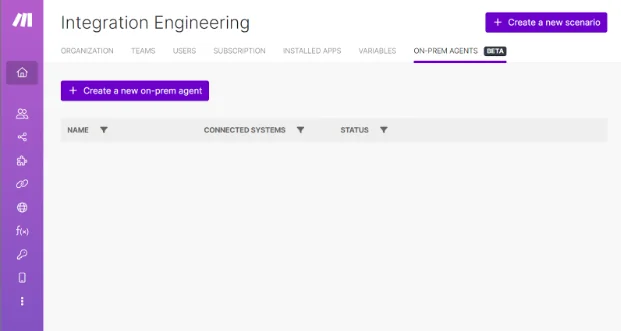
Click Organization in the left sidenav and choose the On-prem Agents tab.
-
Click + Create a new on-prem agent
-
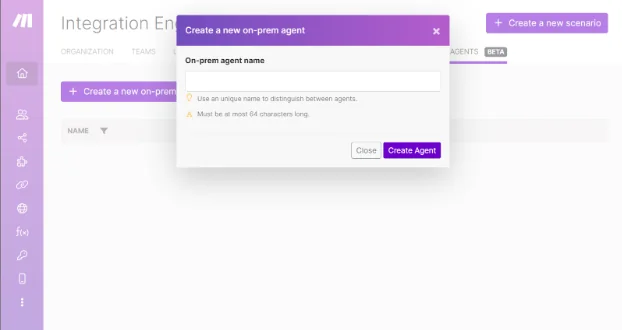
Enter a name for your On-prem agent and click Create Agent.
-
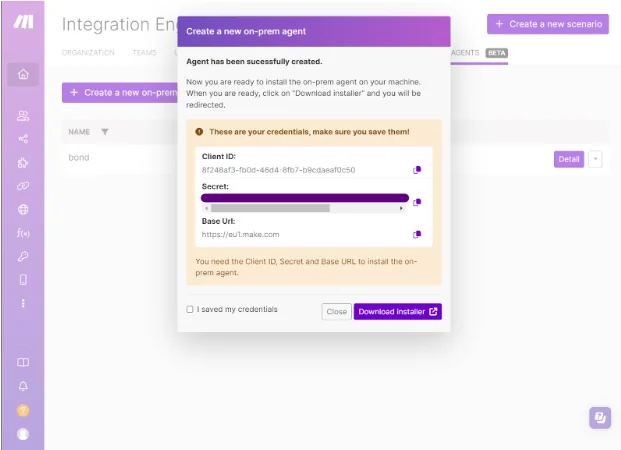
Store the Client ID, Client secret , and Base URL in a safe place. They will be used in a later step.
-
Check next to I saved my credentials and click Download Installer.
-
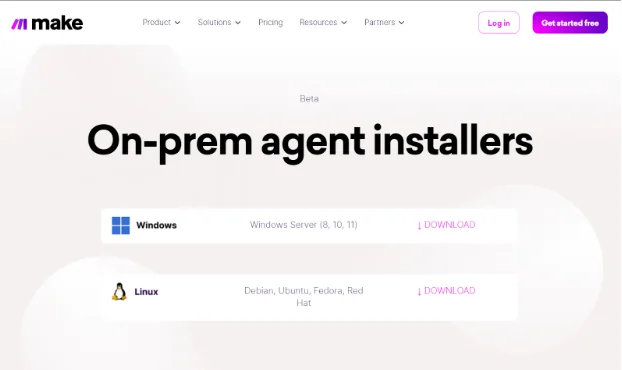
You will be redirected to the download page. Download the On-prem Agent client for your operating system. Choose Linux for macOS.
-
Set up On-prem Agent on your machine and then return to Boost.space Integrator.
-
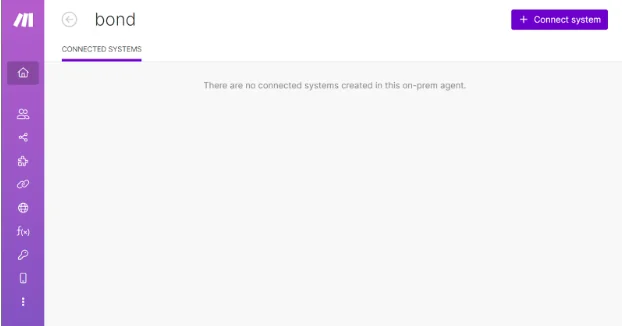
Click Detailon your newly created OPA in Boost.space Integrator.
-
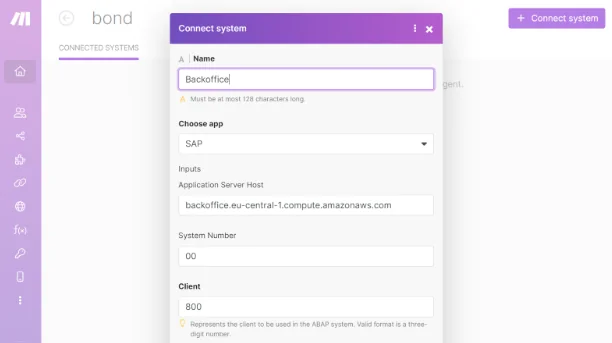
Click + Connected System. Input the connection information regarding your SAP instance.
For example:
Application Server Host
{host}.compute.amazonaws.com
System Number
00
Client
800
For more information about the On-prem Agent, please refer to Installing the On-prem Agent.
Set up On-prem Agent on your machine
Set up On-prem Agent on your machine
To complete this setup, you need to be an SAP Service user (S User) that is authorized to download software from SAP portals. Usually the SAP BASIS has this access. Also, your machine must be able to connect to your SAP ECC instance.
For Mac/Unix
-
Unarchive the Installer that you downloaded when setting up OPA on Boost.space Integrator.
-
Open
application-local.yml, replace theCHANGE_THISwith your credentials and ignore all other options. -
Download the JCO connector suitable for your operating system.
-
Unarchive it and copy only
libsapjco3.dylib / libsapjco3.soandsapjco3.jarto thejcofolder under the installation path. -
Use your preferred package manager or any other way to have the Java Runtime (at least version 11) installed. On macOS you can use Homebrew.
-
In the installation folder, run
java -jar agent.jar. Do not close the terminal.
For Windows
-
Install Java, if you haven’t installed.
-
Unarchive the Installer that you downloaded when setting up OPA on Boost.space Integrator.
-
Run the unarchived “Make_Agent_Installer.exe”.
-
Provide your client credentials (the Client ID, Client secret, and BASE URL) during installation.
-
Download the SAP Java Connector and choose your operating system. You need at least version 3.1.
-
Unarchive it and copy only
sapjco3.dllandsapjco3.jarto thejcofolder under the installation pathC:\Program Files\Make Agent. Stop the service in the task manager (Ctrl + Alt + Del) if you cannot overwrite existing files. The service name ismake-agent. -
Restart the machine. On-prem Agent should run as a service in the background on system startup. If not, check the
make-agentservice in task manager to see if its status is Running.
Connect SAP ECC Agent to Boost.space Integrator
To establish the connection in Boost.space Integrator:
-
Log in to your Boost.space Integrator account, add an SAP ECC Agent module to your scenario, and click Create a connection.
-
Optional: In the Connection name field, enter a name for the connection.
-
In the Connected System field, choose a connected system.
-
In the Username field, enter your SAP ECC username.
-
In the Password field, enter your SAP ECC password.
-
Click Save.
-
If prompted, authenticate your account and confirm access.
You have successfully established the connection. You can now edit your scenario and add more SAP ECC Agent modules. If your connection requires reauthorization at any point, follow the connection renewal steps here.
Build SAP ECC Agent Scenarios
After connecting the app, you can perform the following actions:
Material
Get Material Availability
Get Material Availability.
Connection
Establish a connection to your SAP Agent account.
Material Number
Enter the material number about which you want to get further details, e.g. M-777. This number can only be up to 18 characters long.
Plant
Enter the plant for which you want to check the material availability, e.g. 1000. This value can only be up to four characters long.
Material Unit
Enter the unit in which yo want to check the material availability, e.g. PC. This value can only be up to three characters long.
Custom Error Handling
Disables the default error handling. This field is intended for use by experienced users.
Change Material
Modifies an existing material’s data.
Connection
Establish a connection to your SAP Agent account.
Material Number
Enter the number of the material to be changed, e.g. P-112. This number can only be up to 18 characters long.
Field
Select the field to be changed.
Options displayed below will vary, based on the field selected to be changed.
Custom Error Handling
Disables the default error handling. This field is intended for use by experienced users.
Purchase Order
Change Purchase Order
Modifies a purchase order.
Connection
Establish a connection to your SAP account.
Purchase Order Number
Enter the number of the purchase order you want to change, e.g. 0000015523. This number can only be up to 10 characters long.
Fields
Select the fields to be changed.
Currency
Choose Yes or No.
New Currency
Enter the new currency key, e.g. EUR. This value can only be up to five characters long.
Header Text
Choose Yes or No.
New Header Text
Enter the new header text. This value can only be up to 132 characters long.
Payment Terms
Choose Yes or No.
New Payment Terms
Enter the new payment term key, e.g. 0001 for ‘payable immediately’. This value can only be up to four characters long.
Custom Error Handling
Disables the default error handling. This field is intended for use by experienced users.
Add Purchase Order Item
Adds an item to an existing purchase order.
Connection
Establish a connection to your SAP account.
Purchase Order Number
Enter the number of the purchase order you want to change, e.g. 0000015523. This number can only be up to 10 characters long.
Purchase Order Items
Purchase Order Item Number
Enter the number of the item you want to add, e.g. 00070. This value can only be up to five characters long.
Material Number
Enter the material number for the new item, e.g. CONTROLLER-02. This value can only be up to 18 characters long.
Plant
Enter the plant number for the new item, e.g. 1100. This value can only be up to four characters long.
Storage Location
Enter the storage location for the new item, e.g. 0001. This value can only be up to four characters long.
Quantity
Enter the quantity for the new item, e.g. 50. This value can only be up to 11 characters long.
Tax on Sales/Purchase Codes
Optional: Enter the tax code for the new item. This value can only be up to 2 characters long.
Item Category
Enter the item category for the new item, e.g. 0. This character must be only 1 character long.
Account Assignment Category
Optional: Enter the account assignment for the new item. This character must be only 1 character long.
Custom Error Handling
Disables the default error handling. This field is intended for use by experienced users.
Purchase Order Item
Change Purchase Order Item(s)
Modifies one or more existing purchase order items.
Connection
Establish a connection to your SAP Agent account.
Purchase Order Number
Enter the number of the purchase order you want to change, e.g. 0000015523. This number can only be up to 10 characters long.
Field
Select the field to be changed for one or several purchase order items at once.
Options displayed below will vary, based on the field selected to be changed.
Custom Error Handling
Disables the default error handling. This field is intended for use by experienced users.
Delete Purchase Order Item(s)
Deletes an existing purchase order item.
Connection
Establish a connection to your SAP Agent account.
Purchase Order Number
Enter the number of the purchase order for you which you want to delete one or several items, e.g. 0000015523. This number can only be up to 10 characters long.
Purchase Order Items
Purchase Order Item Number
Enter the number of the item you want to delete, e.g. 00070. This value can only be up to five characters long.
Custom Error Handling
Disables the default error handling. This field is intended for use by experienced users.
Revoke Purchase Order Item Deletion
Revokes the deletion of a purchase order item.
Connection
Establish a connection to your SAP Agent account.
Purchase Order Number
Enter the number of the purchase order for you which you want to revoke the deletion of one or several items, e.g. 0000015523. This number can only be up to 10 characters long.
Purchase Order Items
Purchase Order Item Number
Enter the number of the item for which you want to revoke the deletion, e.g. 00070. This value can only be up to five characters long.
Custom Error Handling
Disables the default error handling. This field is intended for use by experienced users.
Purchase Requisition
Create Purchase Requisition
Creates a purchase requisition.
Connection
Establish a connection to your SAP Agent account.
Purchase Requisition Type
Enter the order type for the purchase requisition, e.g. NB for standard purchase requisition. This value can only be up to four characters long.
Purchase Requisition Items
Purchase Requisition Item Number
Enter the purchase requisition item number. This value can only be up to five characters long.
Purchasing Group
Enter the requested purchasing group, e.g. 002. This value can only be up to three characters long.
Material Number
Enter the requested material number, e.g. M-777. This number can only be up to 18 characters long.
Plant
Enter the requested plant, e.g. 1000. This value can only be up to four characters long.
Purchase Requisition Quantity
Enter the requested quantity, e.g. 100. This value can only be up to eleven characters long.
Custom Error Handling
Disables the default error handling. This field is intended for use by experienced users.
Change Purchase Requisition
Modifies a purchase requisition.
Connection
Establish a connection to your SAP Agent account.
Purchase Requisition Number
Enter the number of the purchase requisition you want to change, e.g. 0005000100. This value can only be up to 10 characters long.
Fields
Select the fields to be changed.
Header Text
Choose Yes or No.
New Header Text
Enter the new header text. This value can only be up to 132 characters long.
Custom Error Handling
Disables the default error handling. This field is intended for use by experienced users.
Add Purchase Requisition Item
Adds an item to an existing purchase requisition.
Connection
Establish a connection to your SAP Agent account.
Purchase Requisition Number
Enter the number of the purchase requisition you want to add an item to, e.g. 0005000100. This value can only be up to 10 characters long.
Purchase Requisition Items
Purchase Requisition Item Number
Enter the purchase requisition item number. This value can only be up to five characters long.
Purchasing Group
Enter the requested purchasing group, e.g. 001. This value can only be up to three characters long.
Material Number
Enter the requested material number, e.g. M-777. This value can only be up to 18 characters long.
Plant
Enter the requested plant, e.g. 1000. This value can only be up to four characters long.
Purchase Requisition Quantity
Enter the requested quantity, e.g. 100. This value can only be up to 11 characters long.
Custom Error Handling
Disables the default error handling. This field is intended for use by experienced users.
Purchase Requisition Item
Change Purchase Requisition Item
Modifies one or more purchase requisition items.
Connection
Establish a connection to your SAP Agent account.
Purchase Requisition Number
Enter the number of the purchase requisition you want to change, e.g. 0005000100. This value can only be up to 10 characters long.
Field
Select the field to be changed for one or several purchase requisition items at once.
Options displayed below will vary, based on the field selected to be changed.
Custom Error Handling
Disables the default error handling. This field is intended for use by experienced users.
Delete Purchase Requisition Item
Deletes a purchase requisition item.
Connection
Establish a connection to your SAP Agent account.
Purchase Requisition Number
Enter the number of the purchase requisition for which you want to delete one or several item,, e.g. 0005000100. This value can only be up to 10 characters long.
Purchase Requisition Items
Purchase Requisition Item Number
Enter the item number to be deleted, e.g. 00100. This value can only be up to five characters long.
Custom Error Handling
Disables the default error handling. This field is intended for use by experienced users.
Revoke Purchase Requisition Item Deletion
Revokes the deletion of a purchase requisition item.
Connection
Establish a connection to your SAP Agent account.
Purchase Requisition Number
Enter the number of the purchase requisition for which you want to revoke the deletion of one or several items, e.g. 0005000100. This value can only be up to 10 characters long.
Purchase Requisition Items
Purchase Requisition Item Number
Enter the item number of the item for which you want to revoke the deletion, e.g. 00100. This value can only be up to five characters long.
Custom Error Handling
Disables the default error handling. This field is intended for use by experienced users.
Sales Order
Get Sales Order Detail
Retrieves sales order details
Connection
Establish a connection to your SAP Agent account.
Sales Order Number
Enter the number of the sales order for which you want to get all header and item details, e.g. 0000019082. This value can only be up to 10 characters long.
Custom Error Handling
Disables the default error handling. This field is intended for use by experienced users.
Create Sales Order
Creates a sales order.
Connection
Establish a connection to your SAP Agent account.
Sales Order Type
Enter the sales order type for the order to be created, e.g. OR for a standard order. This value can only be up to four characters long.
Sales Organization
Enter the sales organization for the order to be created, e.g. 1000. This value can only be up to four characters long.
Distribution Channel
Enter the distribution channel for the order to be created, e.g. 01 for general trade. This value can only be up to two characters long.
Division
Enter the division for the order to be created, e.g. 00. This value can only be up to two characters long.
Sold-to party
Enter the sold-to party for the order to be created, e.g. 000001000. This value can only be up to 10 characters long.
Ship-to party
Optional: Enter the ship-to party for the order to be created if the default value should not be derived from the sold-to party, e.g. 000001000. This value can only be up to 10 characters long.
Sales Order Items
Sales Order Item
Enter the item number for the item to be created. This value can only be up to six characters long.
Material Number
Enter the requested material number, e.g. M-777. This value can only be up to 18 characters long.
Quantity
Enter the requested quantity, e.g. 100. This value can only be up to 11 characters long.
Custom Error Handling
Disables the default error handling. This field is intended for use by experienced users.
Change Sales Order
Modifies a sales order.
Connection
Establish a connection to your SAP Agent account.
Sales Order Number
Enter the number of the sales order for which you want to perform changes, e.g. 0000019082. This value can only be up to 10 characters long.
Fields
Select the fields to be changed, choosing Yes or No for each.
-
Customer Purchase Order Number
-
Incoterms
-
Payment Terms
-
Order Reason
-
Complete Delivery Indicator
-
Requested Delivery Date
Custom Error Handling
Disables the default error handling. This field is intended for use by experienced users.
Set Sales Order Delivery Block
Sets a delivery block on a sales order.
Connection
Establish a connection to your SAP Agent account.
Sales Order Number
Enter the number of the sales order for which you want to set the delivery block, e.g. 0000019082. This value can only be up to 10 characters long.
New Delivery Block
Enter the new delivery block at header level for the sales order, e.g. 08 for Kanban Delivery. This value can only be up to two characters long.
Custom Error Handling
Disables the default error handling. This field is intended for use by experienced users.
Remove Sales Order Delivery Block
Removes a delivery block from a sales order.
Connection
Establish a connection to your SAP Agent account.
Sales Order Number
Enter the number of the sales order for which you want to remove the delivery block, e.g. 0000019082. This value can only be up to 10 characters long.
Custom Error Handling
Disables the default error handling. This field is intended for use by experienced users.
Set Billing Block
Sets a billing block on a sales order.
Connection
Establish a connection to your SAP Agent account.
Sales Order Number
Enter the number of the sales order for which you want to set the billing block, e.g. 0000019082. This value can only be up to 10 characters long.
Billing Block
Add the value for the billing block, e.g. 01 for Calculation missing. This value can only be up to two characters long.
Custom Error Handling
Disables the default error handling. This field is intended for use by experienced users.
Remove Billing Block
Removes a billing block from a sales order.
Connection
Establish a connection to your SAP Agent account.
Sales Order Number
Enter the number of the sales order for which you want to remove the billing block, e.g. 0000019082. This value can only be up to 10 characters long.
Custom Error Handling
Disables the default error handling. This field is intended for use by experienced users.
Sales Order Item
Change Sales Order Item(s)
Modifies one or more sales order items.
Connection
Establish a connection to your SAP Agent account.
Sales Order Number
Enter the number of the sales order for which you want to perform changes, e.g. 0000019082. This value can only be up to 10 characters long.
Field
Select the field to be changed for one or several sales order items at once.
Options displayed below will vary, based on the field selected to be changed.
Custom Error Handling
Disables the default error handling. This field is intended for use by experienced users.
Reject Sales Order Item(s)
Rejects a sales order item.
Connection
Establish a connection to your SAP Agent account.
Sales Order Number
Enter the number of the sales order for which you want to reject an item, e.g. 0000019082. This value can only be up to 10 characters long.
Sales Order Items
Sales Order Item Number
Add the item number of the item to be rejected, e.g. 0000010. This value can only be up to six characters long.
Rejection Reason
Add the rejection reason for the item, e.g. 02. This value can only be up to two characters.
Custom Error Handling
Disables the default error handling. This field is intended for use by experienced users.
Remove Sales Order Item Delivery Block
Removes a delivery block from sales order item schedule lines.
Connection
Establish a connection to your SAP Agent account.
Sales Order Number
Enter the number of the sales order for which you want to remove a sales order item delivery block, e.g. 0000019082. This value can only be up to 10 characters long.
Sales Order Items
Sales Order Item Number
Enter the number of the item for which you want to remove the delivery block, e.g. 000010. This value can only be up to six characters long. This block will be removed from the related schedule lines.
Schedule Line Number
Optional: If not specified, schedule line 0001 is used and all related schedule lines are blocked as well. If specified, the block is set on the specified schedule line (and all related lines). This value can only be up to four characters long.
Custom Error Handling
Disables the default error handling. This field is intended for use by experienced users.
Delivery
Post Goods Issue
Post goods issue on a delivery.
Connection
Establish a connection to your SAP Agent account.
Delivery Number
Enter the delivery number for which you want to post a goods issue, e.g. 0080018924. This value can only be up to 10 characters long.
Custom Error Handling
Disables the default error handling. This field is intended for use by experienced users.
Create Delivery From Sales Order items
Creates a delivery from Sales Order Items.
Connection
Establish a connection to your SAP Agent account.
Sales Order Number
Enter the sales order number for one or several items for which you want to create a delivery, e.g. 0000019082. This value can only be up to 10 characters long.
Items
Item Number
Enter the item number of the item to be included, e.g. 000010. This value can only be up to six characters long.
Actual Quantity Delivery (in Sales Units)
Optional: Enter the actual quantity to be added to the delivery, e.g. 10. If not specified, the delivery creation date is used to determine the delivery quantity from the schedule lines. This value can only be up to 11 characters long.
Sales Unit ISO
Optional: If the quantity is specified, the sales unit (ISO) must be specified, e.g. PCE. This value can only be up to three characters long.
Delivery Creation Date
Optional: enter the delivery creation data, which is typical today’s date, e.g. 20230914. If not specified, December 31, 9999 is used. The system checks the delivery selection date against each schedule line for each item. If either the material availability date or the transportation planning date falls on or before the delivery selection date, the system copies the item into the delivery.
Shipping Point/Receiving Point
Optional: Enter the shipping point, e.g. 3101. If not specified, the first shipping point that can be determined among the items is selected. This value can only be up to four characters long.
Custom Error Handling
Disables the default error handling. This field is intended for use by experienced users.
Remove Delivery Block
Removes a block on a delivery.
Connection
Establish a connection to your SAP Agent account.
Delivery Number
Enter the delivery number for which the block shall be removed, e.g. 0080018924. This value can only be up to 10 characters long.
Custom Error Handling
Disables the default error handling. This field is intended for use by experienced users.
Outline Agreement
Change Outline Agreement
Modifies an existing outline agreement.
Connection
Establish a connection to your SAP Agent account.
Outline Agreement Number
Enter the outline agreement number to be changed, e.g. 4800000039. This value can only be up to 10 characters long.
Fields
Select the fields to be changed.
Validity Date
Choose Yes or No.
New Validity Date
Enter the new validity date for the outline agreement, e.g. 2025-12-31. For more information about supported date formats, see the online help.
Custom Error Handling
Disables the default error handling. This field is intended for use by experienced users.
Generic
Make an RFC Call
Executes an arbitrary authorized RFC call.
Connection
Establish a connection to your SAP Agent account.
Remote Function Module
Enter the module for which you want to perform the API call. Based on the specified function, dynamic fields appear for you to fill and execute the action.
BAPI Transaction Handling
Define the required commit type (only relevant for the single BAPI call defined in this action). It will implicitly add a BAPI_TRANSACTION_COMMIT, either with our without waiting.
Custom Error Handling
Disables the default error handling. This field is intended for use by experienced users.
SAP Agent Tips & Tricks
How to apply padding to a value
Some modules’ fields don’t support padding, but you can create a custom function that will help you to apply padding to values in all available fields.
-
Log in to your Boost.space Integrator account.
-
In the left sidebar, click Functions > + Add a function.
-
In the Name field, enter addPaddingZeros.
You cannot edit the function name after saving it.
In the Description field, enter a function description.
Click Save.
In the Code tab, enter the following code:
function addPaddingZeros(number, length) { let numString = number.toString(); while (numString.length < length) { numString = '0' + numString; } return numString; }
Click Save.
You can see the custom function in the General functions tab when setting up a module field.
Legacy article, imported from the original Boost.space knowledge base (/knowledge-base/applications/business-operations-and-erps/sap-ecc-agent/).

