Beaconstac
The Beaconstac modules allow you to monitor, create, update, and retrieve the QR codes in your Beaconstac account.
Getting Started with Beaconstac
Prerequisites
- A Beaconstac account – create an account at beaconstac.com/.
The module dialog fields that are displayed in bold (in the Boost.space Integrator scenario, not in this documentation article) are mandatory!
Connecting Beaconstac to Boost.space Integrator
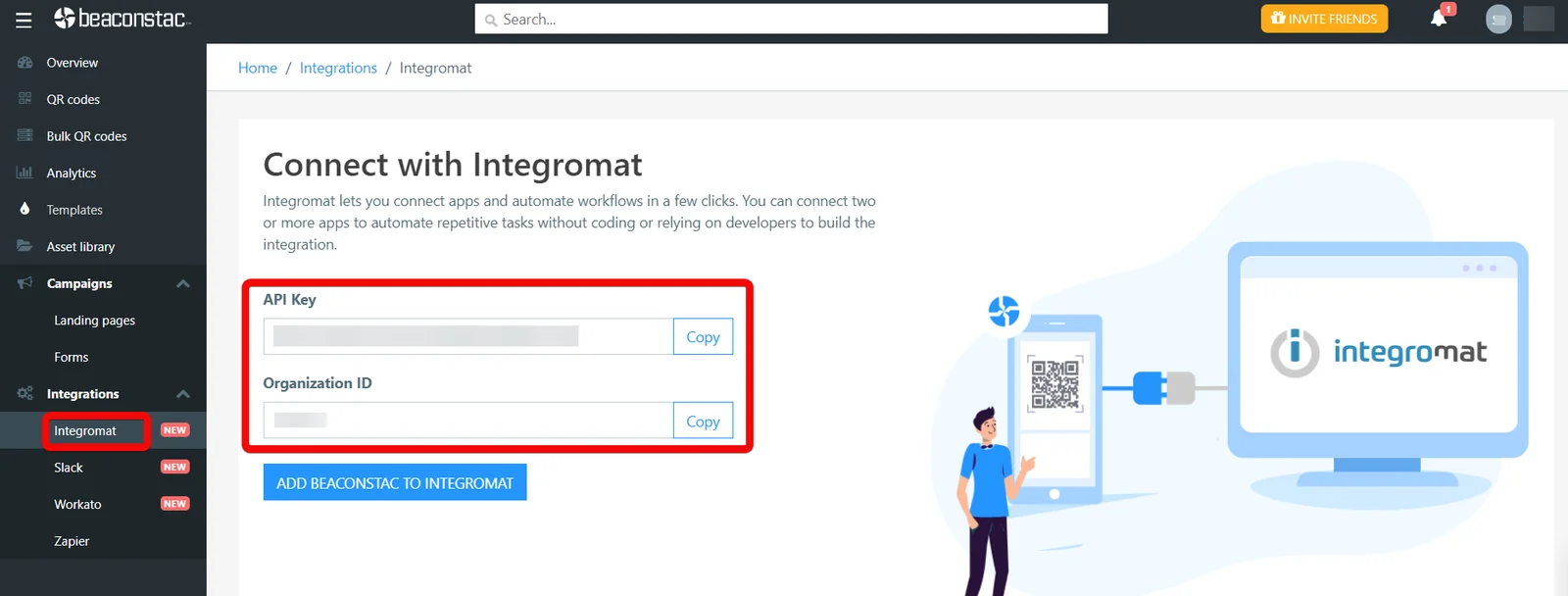
To connect your Beaconstac account to Boost.space Integrator you need to obtain the API Key, and Organization ID from your Beaconstac account and insert it in the Create a connection dialog in the Boost.space Integrator module.
1. Log in to the Beaconstac account.
2. From the left menu, click Integrations and copy the API key and Organization ID to your clipboard.
3. Log in to your Boost.space Integrator account, and add a module from the Beaconstac app into an Boost.space Integrator scenario.
4. Click Add next to the Connection field.

5. In the Connection name field, enter a name for the connection.
6. In the API Key and Organization ID fields, enter the values copied in step 2 in the respective fields, and click Continue.
The connection has been established.
Triggers
Watch Form Responses
Triggers when there is a new form response.
Boost.space Integrator automatically creates a webhook in Beconstac once you add an instant trigger to your scenario.
Webhook Name
Enter a name for the webhook.
Connection
Establish a connection to your Beaconstac account.
Select From
Select or map the form whose responses you want to watch.
Watch QR Code
Triggers when a QR code is created.
Boost.space Integrator automatically creates a webhook in Beconstac once you add an instant trigger to your scenario.
Webhook Name
Enter a name for the webhook.
Connection
Establish a connection to your Beaconstac account.
Watch QR Code Scan
Triggers when a QR code is scanned.
Boost.space Integrator automatically creates a webhook in Beconstac once you add an instant trigger to your scenario.
Webhook Name
Enter a name for the webhook.
Connection
Establish a connection to your Beaconstac account.
Actions
Create a Dynamic QR Code
Creates a new dynamic QR code in your Beaconstac account.
Connection
Establish a connection to your Beaconstac account.
QR Name
Enter (map) a QR name.
Campaign Type
Select or map the Campaign Type:
-
App Link
-
Form
-
Landing Page
-
PDF
-
Website
Fallback URL
Enter (map) the app’s fallback URL address.
Android URL
Enter (map) the app’s Android URL address to access it from an Android device.
iPhone URL
Enter (map) the app’s iPhone URL address to access it from an iPhone device.
iPad URL
Enter (map) the app’s iPad URL address to access it from an iPad device.
Select Form
Select or map the form for which you want to create the QR code.
Select Page
Select or map the landing page for which you want to create the QR code.
Enter PDF URL
Enter (map) the PDF URL address for which you want to create the QR code.
Website URL
Enter (map) the website URL address for which you want to create the QR code.
Location
Select the checkbox to provide the location of the QR code.
Design
Select or map the option to choose the design for QR code:
-
Enter Manually
-
Select From Template
Select Templates
Select or map the template you want to apply for the QR code.
Color
Select or map the color you want to apply for the QR code.
Margin
Enter (map) the margin you want to apply for the QR code. Enter a value between 1 and 100.
Background Image URL
Enter (map) the background image URL address for the QR code.
Logo Image URL
Enter (map) the logo image URL address for the QR code.
Google Analytics Code
Enter (map) the Google Analytics code for the QR code.
Google Conversion ID
Enter (map) the Google Conversion ID for the QR code.
Facebook Pixel ID
Enter (map) the Facebook Pixel ID for the QR code.
Organization
Enter (map) the organization applicable for the QR code.
Tags
Enter (map) the tags for the QR code separated by a comma.
Start Date
Enter (map) the start date of the QR code.
End Date
Enter (map) the end date of the QR code.
Age Gate
Enter (map) the age date details for the QR code.
Create a Static QR Code
Creates a new static QR code in your Beaconstac account.
Connection
Establish a connection to your Beaconstac account.
QR Name
Enter (map) a QR name.
Campaign Type
Select or map the Campaign Type:
-
App Link
-
Form
-
Landing Page
-
PDF
-
Website
Fallback URL
Enter (map) the app’s fallback URL address.
Android URL
Enter (map) the app’s Android URL address to access it from an Android device.
iPhone URL
Enter (map) the app’s iPhone URL address to access it from an iPhone device.
iPad URL
Enter (map) the app’s iPad URL address to access it from an iPad device.
Select Form
Select or map the form for which you want to create the QR code.
Select Page
Select or map the landing page for which you want to create the QR code.
Enter PDF URL
Enter (map) the PDF URL address for which you want to create the QR code.
Website URL
Enter (map) the website URL address for which you want to create the QR code.
Location
Select the checkbox to provide the location of the QR code.
Design
Select or map the option to choose the design for QR code:
-
Enter Manually
-
Select From Template
Select Templates
Select or map the template you want to apply for the QR code.
Color
Select or map the color you want to apply for the QR code.
Margin
Enter (map) the margin you want to apply for the QR code. Enter a value between 1 and 100.
Background Image URL
Enter (map) the background image URL address for the QR code.
Logo Image URL
Enter (map) the logo image URL address for the QR code.
Google Analytics Code
Enter (map) the Google Analytics code for the QR code.
Google Conversion ID
Enter (map) the Google Conversion ID for the QR code.
Facebook Pixel ID
Enter (map) the Facebook Pixel ID for the QR code.
Organization
Enter (map) the organization applicable for the QR code.
Tags
Enter (map) the tags for the QR code separated by a comma.
Start Date
Enter (map) the start date of the QR code.
Get QR Code
Returns the current ID’s QR code.
Connection
Establish a connection to your Beaconstac account.
QR Code ID
Enter (map) a QR Code ID whose details you want to retrieve.
Update a Dynamic QR Code
Updates a dynamic QR code in your Beaconstac account.
Connection
Establish a connection to your Beaconstac account.
QR Name
Enter (map) a QR name.
QR Code ID
Enter (map) the QR Code ID whose details you want to update.
Campaign Type
Select or map the Campaign Type:
-
App Link
-
Form
-
Landing Page
-
PDF
-
Website
Fallback URL
Enter (map) the app’s fallback URL address.
Android URL
Enter (map) the app’s Android URL address to access it from an Android device.
iPhone URL
Enter (map) the app’s iPhone URL address to access it from an iPhone device.
iPad URL
Enter (map) the app’s iPad URL address to access it from an iPad device.
Select Form
Select or map the form for which you want to create the QR code.
Select Page
Select or map the landing page for which you want to create the QR code.
Enter PDF URL
Enter (map) the PDF URL address for which you want to create the QR code.
Website URL
Enter (map) the website URL address for which you want to create the QR code.
Location
Select the checkbox to provide the location of the QR code.
Design
Select or map the option to choose the design for QR code:
-
Enter Manually
-
Select From Template
Select Templates
Select or map the template you want to apply for the QR code.
Color
Select or map the color you want to apply for the QR code.
Margin
Enter (map) the margin you want to apply for the QR code. Enter a value between 1 and 100.
Background Image URL
Enter (map) the background image URL address for the QR code.
Logo Image URL
Enter (map) the logo image URL address for the QR code.
Google Analytics Code
Enter (map) the Google Analytics code for the QR code.
Google Conversion ID
Enter (map) the Google Conversion ID for the QR code.
Facebook Pixel ID
Enter (map) the Facebook Pixel ID for the QR code.
Organization
Enter (map) the organization applicable for the QR code.
Tags
Enter (map) the tags for the QR code separated by a comma.
Start Date
Enter (map) the start date of the QR code.
End Date
Enter (map) the end date of the QR code.
Age Gate
Enter (map) the age date details for the QR code.
Upload a File
Uploads a file to your Beaconstac account.
Connection
Establish a connection to your Beaconstac account.
Type File URL
Enter (map) the URL address of the file you want to upload.
Make an API Call
Performs an arbitrary authorized API call.
Connection
Establish a connection to your Beaconstac account.
URL
Enter a path relative to https://beaconstac.mobstac.com/api/ For example: /2.0/qrcodes/
For the list of available endpoints, refer to the Beaconstac API Documentation.
Method
Select the HTTP method you want to use:
GET to retrieve information for an entry.
POST to create a new entry.
PUT to update/replace an existing entry.
PATCH to make a partial entry update.
DELETE to delete an entry.
Headers
Enter the desired request headers. You don’t have to add authorization headers; we already did that for you.
Query String
Enter the request query string.
Body
Enter the body content for your API call.
Example of Use – List QR Codes
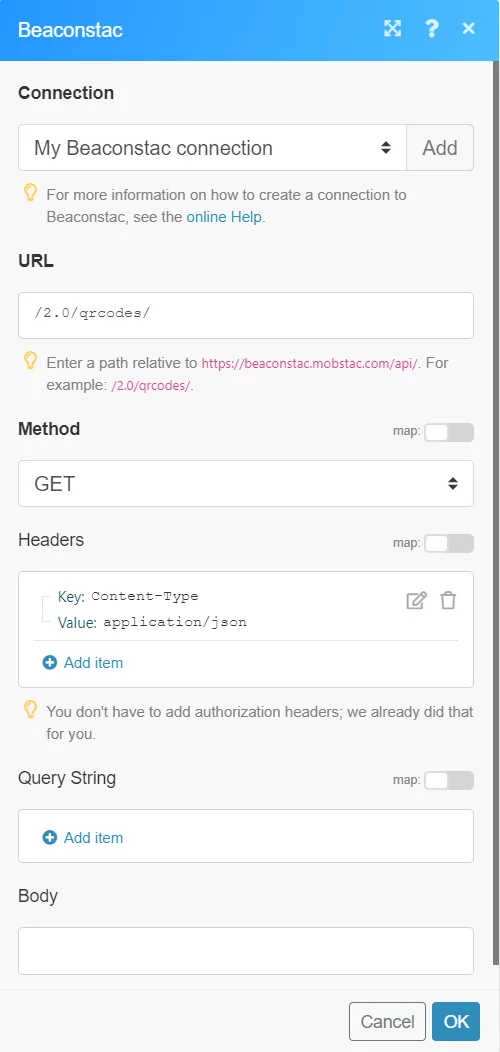
The following API call returns all the QR codes from your Beaconstac account:
URL: /2.0/qrcodes/
Method: GET
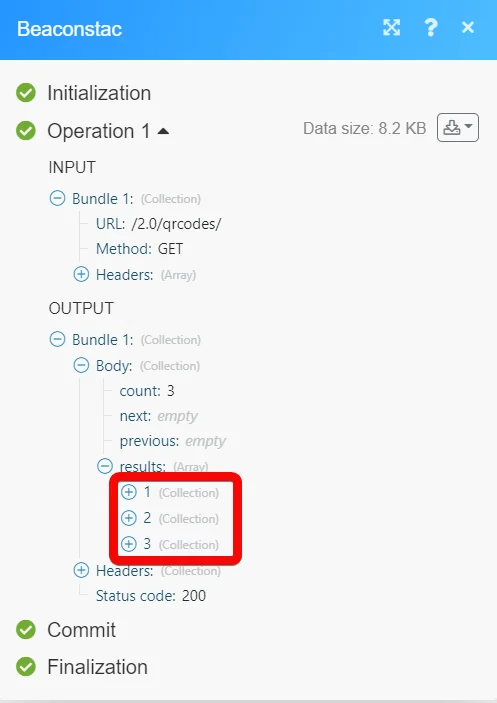
Matches of the search can be found in the module’s Output under Bundle > Body > results. In our example, 3 QR codes were returned:
Legacy article, imported from the original Boost.space knowledge base (/knowledge-base/applications/commerce/beaconstac/).

