Braintree
The Braintree modules allow you to watch, create, update, and delete the customers in your Braintree account.
Getting Started with Braintree
Prerequisites
- A Braintree account
In order to use Braintree with Boost.space Integrator, it is necessary to have a Braintree account. If you do not have one, you can create a Braintree Sandbox account at braintreepayments.com/sandbox.
The module dialog fields that are displayed in bold (in the Boost.space Integrator scenario, not in this documentation article) are mandatory!
Connecting Braintree to Boost.space Integrator
To connect your Braintree account to Boost.space Integrator you need to obtain the API Key from your Braintree account and insert it in the Create a connection dialog in the Boost.space Integrator module.
1. Log in to your Braintree account.
2. Click Your Profile Icon> _My Use_r > View Authorizations.
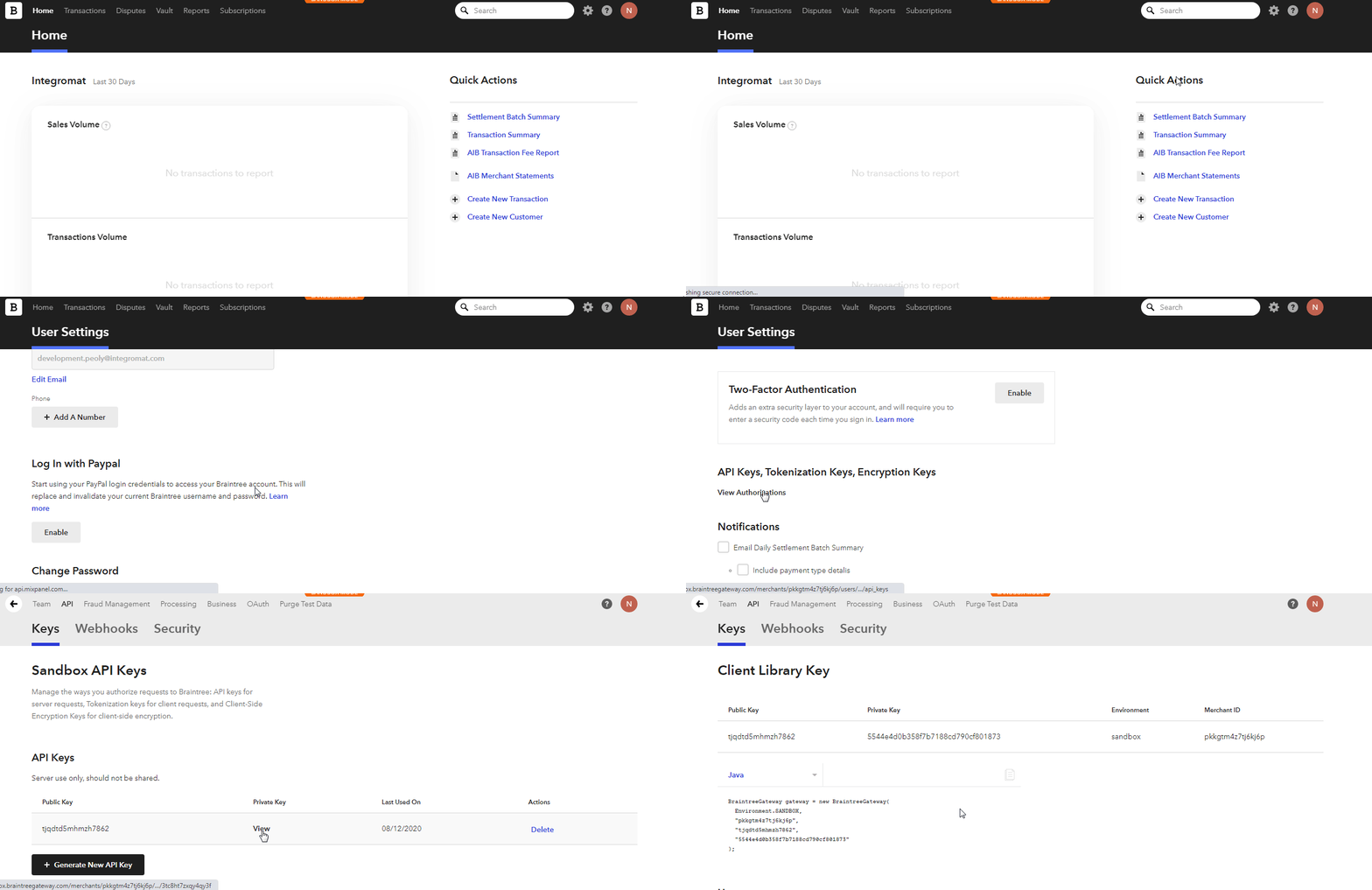
3. Copy the Public Key and Private Key to your clipboard.
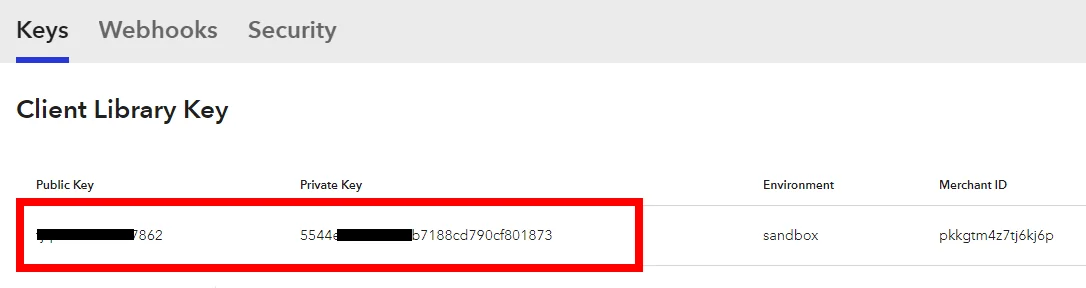
4. Go to Boost.space Integrator and open the Braintree module’s Create a connection dialog.

5. In the Connection name field, enter a name for the connection.
6. In the Environment field, select the required environment.
7. In the Public Key and Private Key fields, enter the public key and private key copied in step 3. Click Continue.
The connection has been established.
Transactions
Watch New Transactions
Watches for new transactions.
Connection
Establish a connection to your Braintree account.
Limit
Set the maximum number of new transactions Boost.space Integrator should return during one scenario execution cycle.
Get a Transaction
Retrieves a translation.
Connection
Establish a connection to your Braintree account.
Transaction ID
Select the Transaction ID whose details you want to retrieve.
Search Transactions
Searches for transactions.
Connection
Establish a connection to your Braintree account.
Transaction ID
Select the Transaction ID you want to search.
Status
Select the status of the transaction. For example, Failed.
Customer ID
Select the Customer ID whose transactions you want to search.
Payment Method Snapshot Type
Select the payment method snapshot type for searching only those transactions.
Source
Select the source type of the transactions.
Filter
Select the filter to search the transactions.
Limit
Set the maximum number of transactions Boost.space Integrator should return during one scenario execution cycle.
Customers
Watch New Customers
Watches for new customers.
Connection
Establish a connection to your Braintree account.
Limit
Set the maximum number of new customers Boost.space Integrator should return during one scenario execution cycle.
Get a Customer
Retrieves a customer.
Connection
Establish a connection to your Braintree account.
Customer ID
Select the Customer ID whose details you want to retrieve.
Search Customer
Searches for customers.
Connection
Establish a connection to your Braintree account.
Customer ID
Select the Customer ID whose details you are searching for.
Date of Creation
Select the date on which the customer account is created to search only those customers.
Filter
Select the filters to search only those customers based on the specified criteria.
Limit
Set the maximum number of new transactions Boost.space Integrator should return during one scenario execution cycle.
Create a Customer
Creates a new customer.
Connection
Establish a connection to your Braintree account.
Enter the email address of the customer.
First Name
Enter the first name of the customer.
Last Name
Enter the last name of the customer.
Company
Enter the company name to which the customer belongs.
Phone Number
Enter the phone number of the customer.
Update a Customer
Updates a customer.
Connection
Establish a connection to your Braintree account.
Customer ID
Select the Customer ID whose details you want to update.
Enter the email address of the customer.
First Name
Enter the first name of the customer.
Last Name
Enter the last name of the customer.
Company
Enter the company name to which the customer belongs to.
Phone Number
Enter the phone number of the customer.
Delete a Customer
Deletes a customer.
Connection
Establish a connection to your Braintree account.
Customer ID
Select the Customer ID you want to delete.
Others
Execute a GraphQL Query
Performs an arbitrary authorized GraphQL query.
Braintree uses GraphQL for Managing the APIs. See BraintreePayment GraphQL Documentation.
Connection
Establish a connection to your Braintree account.
Query
Enter the query in JSON format.
Variables Data
Select the variable data source type:
-
Forms
-
Collection
Variables
Add the variables:
Key
Enter the Key details in JSON format.
Value
Enter the key value in JSON format.
Example – Search Customers
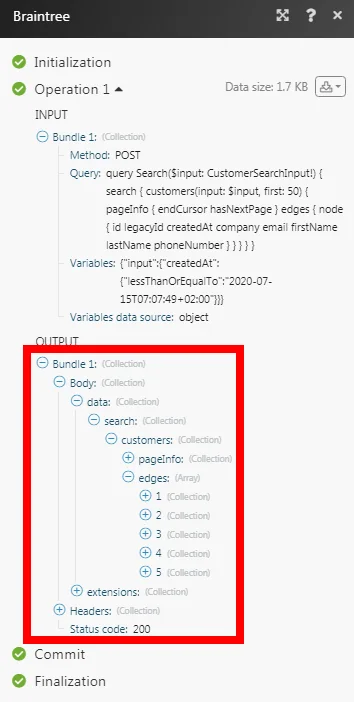
The following GraphQL query returns all the customers from your Braintree Payments account:
Method: POST
Query:
query Search($input: CustomerSearchInput!) { search { customers(input: $input, first: 50) { pageInfo { endCursor hasNextPage } edges { node { id legacyId createdAt company email firstName lastName phoneNumber } } } } }
Variables:
{"input": {"createdAt": {"lessThanOrEqualTo":"2020-07-15T07:07:49+02:00"}}}
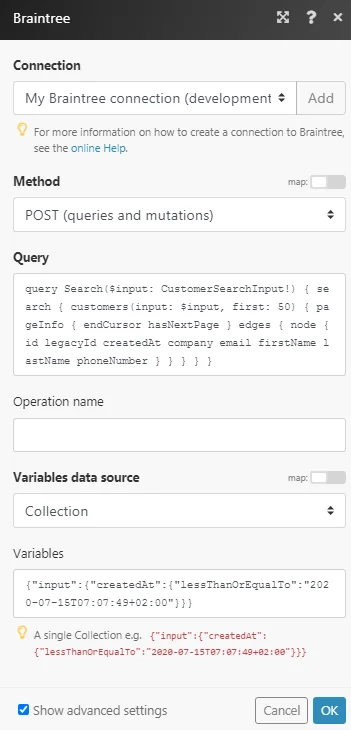
Matches of the search can be found in the module’s Output under Bundle > Body > data. In our example, 5 customers were returned:
Legacy article, imported from the original Boost.space knowledge base (/knowledge-base/applications/commerce/braintree/).

