ChargeOver
The ChargeOver modules allow you to monitor, create, update, send, retrieve, and delete the customers, subscriptions, transactions, and contacts in your ChargeOver account.
Getting Started with ChargeOver
Prerequisites
- A ChargeOver account
In order to use ChargeOver with Boost.space Integrator, it is necessary to have a ChargeOver account. If you do not have one, you can create a ChargeOver account at app.chargeover.com/signup.
The module dialog fields that are displayed in bold (in the Boost.space Integrator scenario, not in this documentation article) are mandatory!
Connecting ChargeOver to Boost.space Integrator
To connect your ChargeOver account to Boost.space Integrator you need to obtain the API Username and Password (Private Key) from your ChargeOver account and insert it in the Create
1. Log in to your ChargeOver account.
2. Click Settings > Developers > More Dev Tools > REST API.
3. Enable the REST APIs. Click Add New API Credentials.
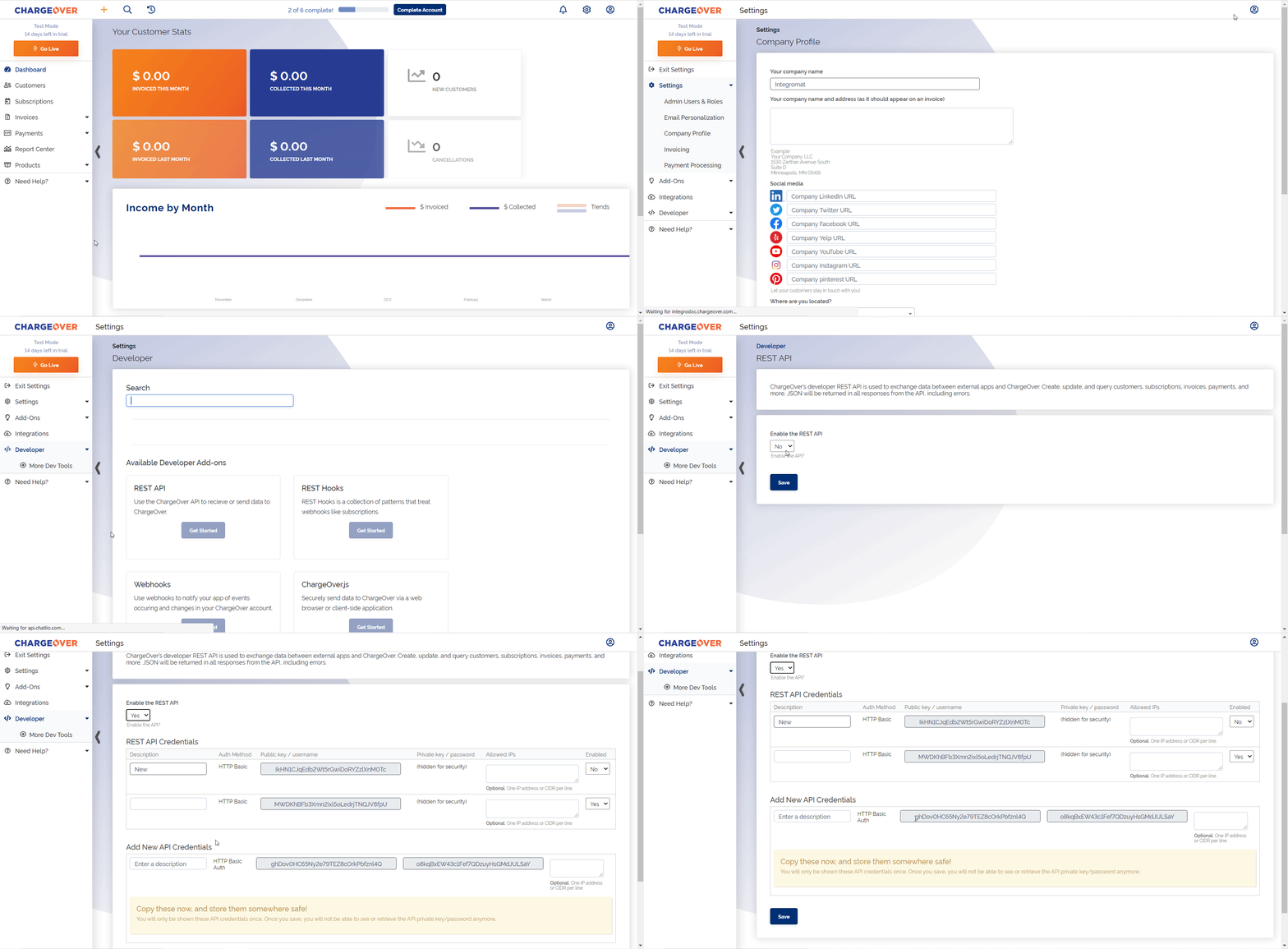
4. Copy the Username and Private Key to a safe place. Enter a name for the API Key and click Save. Enable the API against the API key to establish a connection.
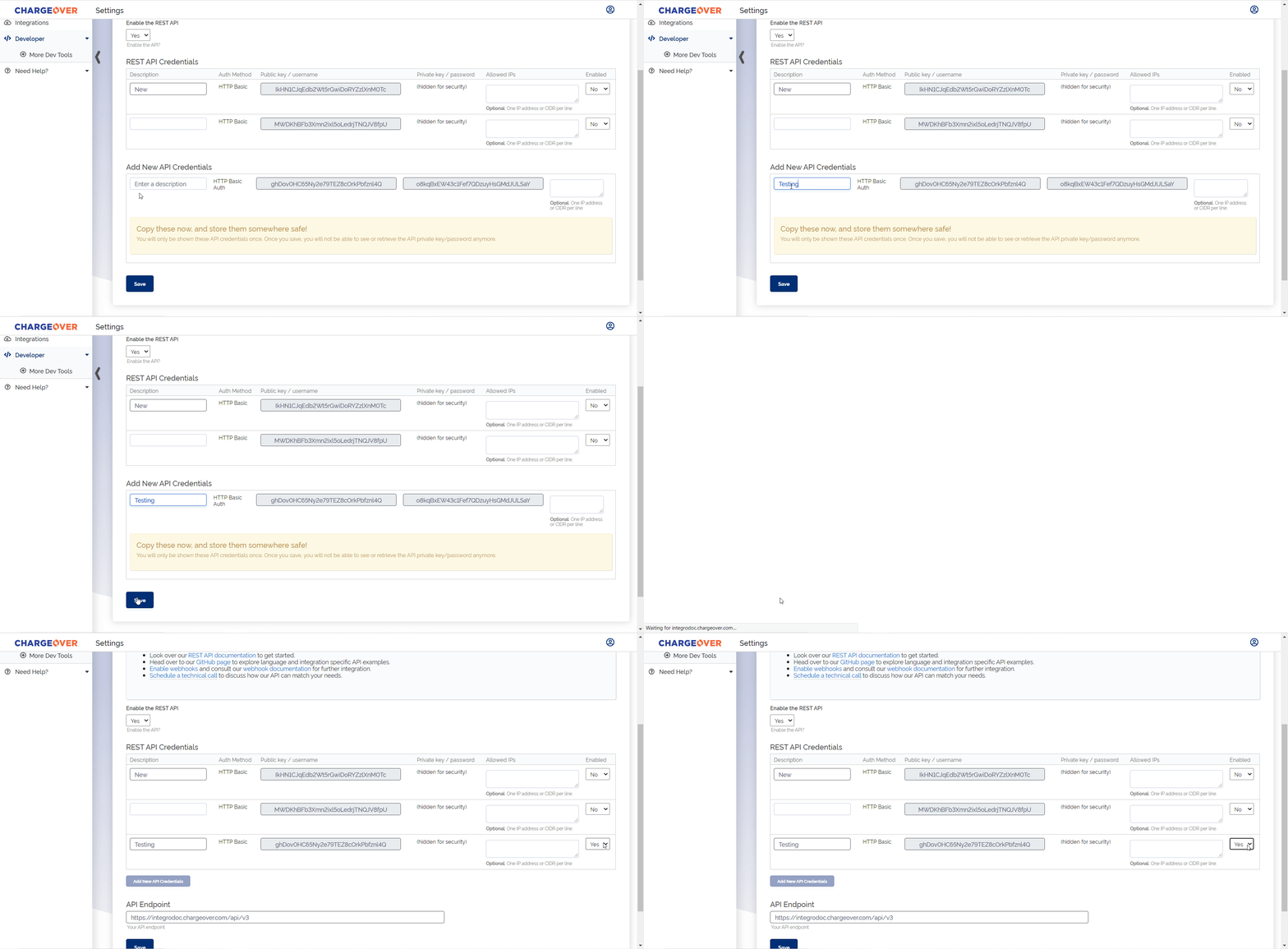
You can view the Private Key only once. Ensure to copy the Username and Private Key to a safe place.
5. Go to Boost.space Integrator and open the ChargeOver module’s Create a connection dialog.

6. In the Connection name field, enter a name for the connection.
7. In the Your Site Name field, enter your ChargeOver site name. For example, if your account’s URL address is https://www.xyz.chargeover.com then your site name is xyz.
8. In the Username and Password fields, enter the Username and private key copied in step 4. Click Continue.
The connection has been established.
Customers
Watch New Customers
Triggers when a new customer is created.
Webhook Name
Enter a name for the webhook.
Connection
Establish the connection to your ChargeOver account.
Watch Updated Customers
Triggers when a customer is updated.
Webhook Name
Enter a name for the webhook.
Connection
Establish the connection to your ChargeOver account.
Search Customers
Searches for customers or lists them all.
Connection
Establish the connection to your ChargeOver account.
Filter Rules
Add the filters to search the customer that matches the specified filters: Field Select the field you want to add as a filter. For example, Company. Condition Select the condition for the filter. For example, Equals. Value Enter the value that should match the filter. For example, company name.
Limit
Set the maximum number of customers Boost.space Integrator should return during one execution cycle.
Get a Customer
Gets an existing customer.
Connection
Establish the connection to your ChargeOver account.
Customer ID
Select or map the Customer ID whose details you want to retrieve.
Create a Customer
Creates a new customer.
Connection
Establish the connection to your ChargeOver account.
Company Name
Enter (map) the company name for which you are creating a customer.
Billing Address 1
Enter (map) the billing address of the customer. Enter the street name.
Billing Address 2
Enter (map) the street name.
Billing Address 3
Enter (map) the street name.
Billing Address City
Enter (map) the city name.
Billing Address State
Enter (map) the state name.
Billing Address Postal Code
Enter (map) the area postal code.
Billing Address Country
Enter (map) the country name.
Bill Note
Enter (map) any additional information about the customer.
Superuser Username
Enter (map) the username of the superuser.
Superuser Email
Enter (map) the superuser’s email address.
Superuser Name
Enter (map) the superuser’s name.
Superuser First Name
Enter (map) the superuser’s first name.
Superuser Last Name
Enter (map) the superuser’s last name.
Superuser Phone
Enter (map) the superuser’s phone number.
Custom Fields
Add the custom fields and their values.
Tags
Add the tags for the customer.
Parent Customer ID
Select or map the Parent Customer ID for this customer.
Superuser ID
Select or map the Superuser ID of the customer.
External Key
Enter (map) the external key of the customer in the external system.
Language ID
Select or map the Language ID applicable to the customer.
Currency ID
Select or map the Currency ID applicable to the customer.
Class ID
Select or map the Class ID of the customer. For example 4.
Admin ID
Select or map the Admin ID of the customer. For example, 10.
Campaign ID
Select or map the Campaign ID of the customer. For example, 1.
Campaign Details
Select or map the campaign details of the customer. For example, the new year offers.
Customer Type ID
Enter (map) the Customer Type ID.
No Taxes
Select whether you want to disable the taxes for the customer.
No Dunning
Select whether you want to disable dunning for the customer.
Shipping Address 1
Enter (map) the shipping address of the customer. Enter (map) the street name.
Shipping Address 2
Enter (map) the street name.
Shipping Address 3
Enter (map) the street name.
Shipping Address City
Enter (map) the city name.
Shipping Address State
Enter (map) the state name.
Shipping Address Postal Code
Enter (map) the area postal code.
Shipping Address Country
Enter (map) the country name.
Ship Note
Enter (map) any additional information about the shipping address of the customer.
Brand ID
Select or map the Brand ID of the customer.
Terms ID
Select or map Terms ID applicable to the customer.
Invoice Delivery
Select or map the option for invoice delivery of the customer. For example, print or email.
Dunning Delivery
Select or map the option for a reminder of the invoice for the customer. For example, print or email.
Tax ID
Enter (map) the Tax ID of the customer.
Update a Customer
Updates an existing customer.
Connection
Establish the connection to your ChargeOver account.
Customer ID
Select or map the Customer ID whose details you want to update.
Company Name
Enter (map) the company name for which you are creating a customer.
Billing Address 1
Enter (map) the billing address of the customer. Enter the street name.
Billing Address 2
Enter (map) the street name.
Billing Address 3
Enter (map) the street name.
Billing Address City
Enter (map) the city name.
Billing Address State
Enter (map) the state name.
Billing Address Postal Code
Enter (map) the area postal code.
Billing Address Country
Enter (map) the country name.
Bill Note
Enter (map) any additional information about the customer.
Superuser Username
Enter (map) the username of the superuser.
Superuser Email
Enter (map) the superuser’s email address.
Superuser Name
Enter (map) the superuser’s name.
Superuser First Name
Enter (map) the superuser’s first name.
Superuser Last Name
Enter (map) the superuser’s last name.
Superuser Phone
Enter (map) the superuser’s phone number.
Custom Fields
Add the custom fields and their values.
Tags
Add the tags for the customer.
Parent Customer ID
Select or map the Parent Customer ID for this customer.
Superuser ID
Select or map the Superuser ID of the customer.
External Key
Enter (map) the external key of the customer in the external system.
Language ID
Select or map the Language ID applicable to the customer.
Currency ID
Select or map the Currency ID applicable to the customer.
Class ID
Select or map the Class ID of the customer. For example 4.
Admin ID
Select or map the Admin ID of the customer. For example, 10.
Campaign ID
Select or map the Campaign ID of the customer. For example, 1.
Campaign Details
Select or map the campaign details of the customer. For example, the new year offers.
Customer Type ID
Enter (map) the Customer Type ID.
No Taxes
Select whether you want to disable the taxes for the customer.
No Dunning
Select whether you want to disable dunning for the customer.
Shipping Address 1
Enter (map) the shipping address of the customer. Enter (map) the street name.
Shipping Address 2
Enter (map) the street name.
Shipping Address 3
Enter (map) the street name.
Shipping Address City
Enter (map) the city name.
Shipping Address State
Enter (map) the state name.
Shipping Address Postal Code
Enter (map) the area postal code.
Shipping Address Country
Enter (map) the country name.
Ship Note
Enter (map) any additional information about the shipping address of the customer.
Brand ID
Select or map the Brand ID of the customer.
Terms ID
Select or map Terms ID applicable to the customer.
Invoice Delivery
Select or map the option for invoice delivery of the customer. For example, print or email.
Dunning Delivery
Select or map the option for a reminder of the invoice for the customer. For example, print or email.
Tax ID
Enter (map) the Tax ID of the customer.
Delete a Customer
Deletes a customer by identificator.
Connection
Establish the connection to your ChargeOver account.
Customer ID
Select or map the Customer ID you want to delete.
Subscriptions
Watch New Subscriptions
Triggers when a new subscription is created.
Webhook Name
Enter a name for the webhook.
Connection
Establish the connection to your ChargeOver account.
Watch Cancelled Subscriptions
Triggers when a subscription is canceled.
Webhook Name
Enter a name for the webhook.
Connection
Establish the connection to your ChargeOver account.
Get a Subscription
Gets an existing subscription.
Connection
Establish the connection to your ChargeOver account.
Subscription ID
Select or map the Subscription ID whose details you want to retrieve.
Create a Subscription
Creates a new subscription.
Connection
Establish the connection to your ChargeOver account.
Customer ID
Select or map the Customer ID whose subscription you want to create.
Class ID
Select or map the Class ID of the customer.
External Key
Enter (map) the External Key of the customer in the external system.
Nickname
Enter (map) the customer’s nickname.
Payment Method
Select or map the payment method for the customer.
Admin ID
Select or map the Admin ID of the customer.
Billing Address 1
Enter (map) the billing address of the customer. Enter the street name.
Billing Address 2
Enter (map) the street name.
Billing Address 3
Enter (map) the street name.
Billing Address City
Enter (map) the city name.
Billing Address State
Enter (map) the state name.
Billing Address Postal Code
Enter (map) the area postal code.
Billing Address Country
Enter (map) the country name.
Bill Note
Enter (map) the additional information about the customer subscription.
Shipping Address 1
Enter (map) the customer’s shipping address. Enter the street name.
Shipping Address 2
Enter (map) the street name.
Shipping Address 3
Enter (map) the street name.
Shipping Address City
Enter (map) the city name.
Shipping Address State
Enter (map) the state name.
Shipping Address Postal Code
Enter (map) the area postal code.
Shipping Address Country
Enter (map) the country name.
Ship Note
Enter (map) any additional information about the shipping address of the customer.
Hold Until
Enter (map) the date and time until which you want to hold the invoicing of the customer.
Terms ID
Select or map the Terms ID of the customer. For example, due on receipt.
Pay Cycle
Select or map the pay cycle of the customer. For example, Weekly.
Custom Fields
Add the custom fields and their values.
Line Items
Add the line items to the customer’s subscription:
External Key
Enter (map) the External Key of the item in the external system.
Item ID
Select or map the Item ID.
Admin ID
Select or map the Admin ID.
Nickname
Enter (map) the nickname for the item.
Description
Enter (map) teh details of the item.
Trial Recurs
Enter the number of trial recurrences applicable to the item.
Expire Recurs
Enter the number of recurrences after which invoices expire.
Line Quantity
Enter the number of line items.
Custom Fields
Add the custom field for the items and their values.
Addons
Enter (map) teh details of any addons available for the items.
Update a Subscription
Updates an existing subscription.
Connection
Establish the connection to your ChargeOver account.
Customer ID
Select or map the Customer ID whose subscription you want to create.
Class ID
Select or map the Class ID of the customer.
External Key
Enter (map) the External Key of the customer in the external system.
Nickname
Enter (map) the customer’s nickname.
Payment Method
Select or map the payment method for the customer.
Admin ID
Select or map the Admin ID of the customer.
Billing Address 1
Enter (map) the billing address of the customer. Enter the street name.
Billing Address 2
Enter (map) the street name.
Billing Address 3
Enter (map) the street name.
Billing Address City
Enter (map) the city name.
Billing Address State
Enter (map) the state name.
Billing Address Postal Code
Enter (map) the area postal code.
Billing Address Country
Enter (map) the country name.
Bill Note
Enter (map) the additional information about the customer subscription.
Shipping Address 1
Enter (map) the customer’s shipping address. Enter the street name.
Shipping Address 2
Enter (map) the street name.
Shipping Address 3
Enter (map) the street name.
Shipping Address City
Enter (map) the city name.
Shipping Address State
Enter (map) the state name.
Shipping Address Postal Code
Enter (map) the area postal code.
Shipping Address Country
Enter (map) the country name.
Ship Note
Enter (map) any additional information about the shipping address of the customer.
Hold Until
Enter (map) the date and time until which you want to hold the invoicing of the customer.
Terms ID
Select or map the Terms ID of the customer. For example, due on receipt.
Pay Cycle
Select or map the pay cycle of the customer. For example, Weekly.
Custom Fields
Add the custom fields and their values.
Line Items
Add the line items to the customer’s subscription:
External Key
Enter (map) the External Key of the item in the external system.
Item ID
Select or map the Item ID.
Admin ID
Select or map the Admin ID.
Nickname
Enter (map) the nickname for the item.
Description
Enter (map) teh details of the item.
Trial Recurs
Enter the number of trial recurrences applicable to the item.
Expire Recurs
Enter the number of recurrences after which invoices expire.
Line Quantity
Enter the number of line items.
Custom Fields
Add the custom field for the items and their values.
Addons
Enter (map) teh details of any addons available for the items.
Cancel a Subscription
Cancels an existing subscription.
Connection
Establish the connection to your ChargeOver account.
Subscription ID
Select or map the Subscription ID you want to cancel.
Comment
Enter (map) the reason for canceling the subscription.
Cancel Reason ID
Enter (map) the Cancel Reason ID for the subscription.
Transactions
Watch New Transactions
Triggers when a new transaction is created.
Webhook Name
Enter a name for the webhook.
Connection
Establish the connection to your ChargeOver account.
Watch Transaction Status
Triggers when a transaction status changes.
Webhook Name
Enter a name for the webhook.
Connection
Establish the connection to your ChargeOver account.
Contacts
Watch New Contacts
Triggers when a new contact is created.
Webhook Name
Enter a name for the webhook.
Connection
Establish the connection to your ChargeOver account.
Other
Make an API Call
Performs an arbitrary authorized API call.
Connection
Establish the connection to your ChargeOver account.
URL
Enter a path relative to https://www.your-workspace-name.chargeover.com/api. For example: /v3/customer.
For the list of available endpoints, refer to the ChargeOver API Documentation.
Method
Select the HTTP method you want to use:
GET to retrieve information for an entry.
POST to create a new entry.
PUT to update/replace an existing entry.
PATCH to make a partial entry update.
DELETE to delete an entry.
Headers
Enter the desired request headers. You don’t have to add authorization headers; we added those for you.
Query String
Enter the request query string.
Body
Enter the body content for your API call.
Example of Use – List Subscriptions
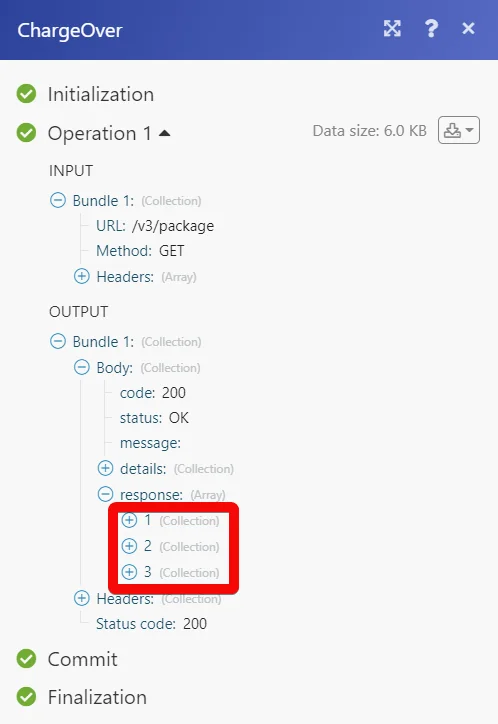
The following API call returns all the subscriptions in your ChargeOver account:
URL: /v3/package
Method: GET
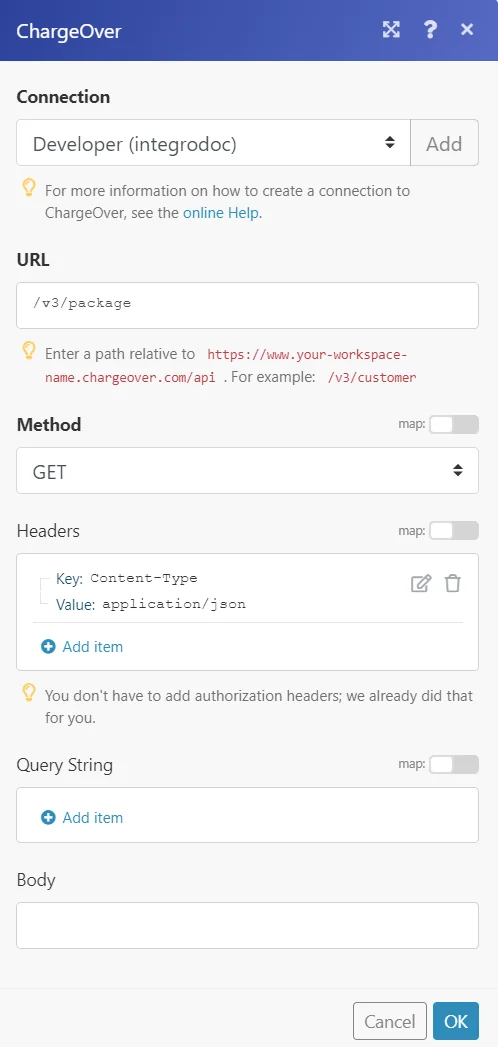
The result can be found in the module’s Output under Bundle > Body > response.
In our example, 3 subscriptions were returned.
Legacy article, imported from the original Boost.space knowledge base (/knowledge-base/applications/commerce/chargeover/).

