FreshBooks
The FreshBooks modules enable you to create, update and search clients, estimates, invoices, items, or services in your FreshBooks account.
Getting Started with FreshBooks
Prerequisites
- A FreshBooks account
In order to use FreshBooks with Boost.space Integrator, it is necessary to have a FreshBooks account. If you do not have one, you can create a FreshBooks account at www.freshbooks.com/signup.
The module dialog fields that are displayed in bold (in the Boost.space Integrator scenario, not in this documentation article) are mandatory!
Connecting FreshBooks to Boost.space Integrator
To connect your FreshBooks account to Boost.space Integrator follow the general instructions for Connecting to services.
After you click the Continue button, Boost.space Integrator will redirect you to the FreshBooks website where you will be prompted to grant Boost.space Integrator access to your account.
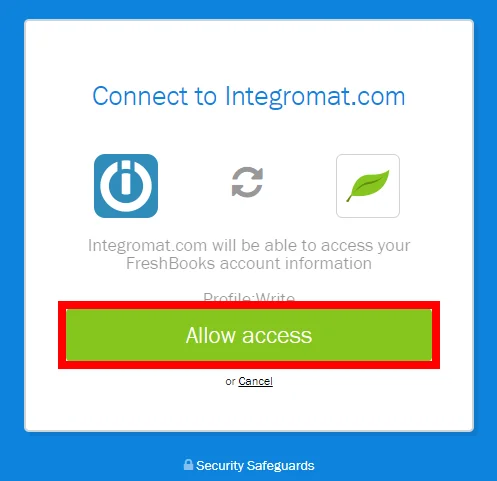
Confirm the dialog by clicking the Allow button.
Client
Create a Client
Creates a new client.
At least one field among First Name, Last Name, Email and Organization is required.
Connection
Establish a connection to your FreshBooks account.
Account ID
Select or map the ID of the account you want to create the client for.
First Name
Enter the client’s first name.
Last Name
Enter the client’s last name.
Prefers Email
Select the Yes option if the client prefers email over ground mail.
Mobile Phone
Enter the client’s mobile phone number.
Home Phone
Enter the client’s home phone number.
Enter the client’s email address.
Prefers Ground Mail
Select the Yes option if the client prefers ground mail over email.
Username
Enter the username used by client to log in.
Fax
Enter the client’s fax number.
Organization
Enter the name of the client’s business.
Company Industry
Enter the description of the industry the client is in.
VAT name
Enter the Value Added Tax name.
VAT number
Enter the Value Added Tax number.
Note
Enter notes kept by admin about the client.
Business Phone
Enter the business phone number.
Language
Enter the shortcode indicating the user’s language e.g. “en“
Status
Set the visibility state of the client.
Shipping Address
Enter the client’s shipping address details.
Billing Address
Enter the client’s billing address details.
Currency Code
Enter the 3-letter shortcode for preferred currency.
Update a Client
Updates client details.
Connection
Establish a connection to your FreshBooks account.
Account ID
Select or map the ID of the account you want to create the client for.
Client ID
Enter (map) or select the ID of the client whose details you want to update.
Please find the descriptions of the fields in the Create a Client section above.
Search a Client
Searches a client based on filter settings.
Connection
Establish a connection to your FreshBooks account.
Account ID
Select or map the ID of the account you want to search the client for.
Enter the exact email you are searching for.
Email like
Enter the part of the email address you want to search.
First Name
Enter the first name (or part) of the client’s first name.
Last Name
Enter the last name (or part) of the client’s first name.
Updated From
Enter a date greater than or equal to the update of the client in the YYYY-MM-DD format.
Updated Before
Enter a date less than or equal to the update of the client in the YYYY-MM-DD format.
User ID
Enter the user ID to filter search results by.
Status
Select the visibility state of the client.
Includes
Specify the information you want to include in the search result.
(source: https://www.freshbooks.com/api/clients)
Include
Description
outstanding_balance
Include client’s outstanding balance
credit_balance
Include client’s current balance of credit
draft_balance
Include balance of draft invoices for client
overdue_balance
Include overdue balance for client
grand_total_balance
Include grand total for client
last_activity
Include last activity time
late_reminders
Include information about late reminders
late_fee
Include information about late fees
Limit
Set the maximum number of clients Boost.space Integrator will return during one execution cycle.
Estimate
Create an Estimate
Creates a new estimate.
Connection
Establish a connection to your FreshBooks account.
Account ID
Select or map the ID of the account you want to create an estimate for.
Estimate Number
Enter the user-specified estimate number. The maximum length is 10 digits.
Customer ID
Enter the Client ID of an existing client you want to bill the estimate.
Create Date
Enter the Estimate date – the date when the estimate was created in the YYYY-MM-DD format. The current date is preset.
Discount Value
Enter the discount value. The value is in percents of the invoice subtotal.
PO number
Enter the Purchase Order number as a reference for the estimate.
Currency Code
Enter the three-letter currency code for the estimate. e.g. USD, EUR, GBP, CZK, etc.
Language
Enter the two-letter language code, e.g. en
Terms
Enter terms or conditions listed on the estimate.
Notes
Enter the notes bank transfer details that will be listed on the estimate.
Address
Enter the first line of the address on the estimate.
State
Select the visibility state.
Street
Enter the street address on the estimate.
Street2
Enter the second line of the street address on the estimate.
City
Enter the city of the address on the estimate.
Province
Enter the province of the address on the estimate.
Code
Enter the ZIP code of the address on the estimate.
Country
Enter the country of the address on the estimate.
Organization
Enter the name of the organization being estimated.
First Name
Enter the first name of client being estimated.
Last Name
Enter the last name of client being estimated.
VAT Name
Enter the Value Added Tax name if provided.
VAT Number
Enter the Value Added Tax number if provided.
Lines
Specify the line item details.
Search an Estimate
Searches an estimate based on filter settings.
Connection
Establish a connection to your FreshBooks account.
Account ID
Select or map the ID of the account you want to search the estimate for.
Client ID
Enter or select the client the searched estimates is billed to.
Estimate ID
Enter the estimate ID to filter results by.
Estimate number like
Enter the part of the estimate number to filter results by.
Estimate number
Enter the exact estimate number to filter results by.
Status
Select the estimate status you want to search.
Updated from
Enter the date greater than or equal to the update date of the estimate in the YYYY-MM-DD format.
Updated before
Enter the date less than or equal to the update of the estimate in the YYYY-MM-DD format.
PO number
Enter the Purchase Order number.
Item name
Enter the item name to filter results by.
Amount min
Enter the minimum amount to filter results by.
Amount max
Enter the maximum amount to filter results by.
Item description
Enter the item description to filter results by.
Limit
Set the maximum number of estimates Boost.space Integrator will return during one execution cycle.
Includes
Select the information you want to include in the result.
Invoice
Create an Invoice
Creates a new invoice.
Connection
Establish a connection to your FreshBooks account.
Account ID
Select or map the ID of the account you want to create an invoice for.
Enter the email.
Status
Select the status of the invoice.
Customer ID
Enter (map) or select the client you want to create the invoice for.
Create Date
Enter the invoice creation date. The current date is preset.
Lines
Type
Select whether the line is a normal or rebilling expense line.
Description
Enter the description for the invoice line item.
Expense ID
Required only when the type is set to rebilling. Enter the ID of the rebilling expense.
Tax Name 1
Enter the name for the first tax on the invoice line.
Tax Amount 1
Enter the first tax amount, in percentage, up to 3 decimal places.
Name
Enter the name for the invoice line item.
Item ID
Qty
Enter the quantity of the invoice line unit.
Tax Name 2
Enter the name for the second tax on the invoice line.
Tax Amount 2
Enter the second tax amount, in percentage, up to 3 decimal places.
Unit Cost
Specify the unit cost of the line item.
Amount – Enter the unit cost amount, to two decimal places
Code – Enter the three-letter currency code. E.g. USD, EUR, GBP, etc.
Invoice Number
Enter the user-defined and visible Invoice ID.
Generation Date
Enter the date in the YYYY-MM-DD format if the invoice was generated from the object. Otherwise, leave the field empty.
Discount Value
Enter the percent amount being discounted from the subtotal, decimal-string amount ranging from 0 to 100.
Discount Description
Enter the public note about the discount.
PO number
Enter the reference to the purchase order.
Currency Code
Enter the uppercase three-letter currency code for the invoice. E.g. USD, EUR, GBP, etc.
Language
Specify the language of the invoice. Enter the two letter code. E.g. en, de, es, …
Terms
Enter the terms and conditions listed on the invoice.
Notes
Enter the notes listed on the invoice.
Deposit amount
Enter the amount required as deposit, leave empty if none.
Deposit Percentage
Enter the percent of the invoice’s value required as a deposit.
Ground Mail
Select the Yes option if the invoice should be sent via ground mail.
Show attachment
Enable this option to render attachments on the invoice.
Visibility state
Select whether the invoice should be set as active or as deleted.
Address
Enter the first line of the address on the invoice.
State
Select the visibility state.
Street
Enter the street address on the invoice.
Street2
Enter the second line of the street address on the invoice.
City
Enter the city of the address on the invoice.
Province
Enter the province of the address on the invoice.
Code
Enter the ZIP code of the address on the invoice.
Country
Enter the country of the address on the invoice.
Organization
Enter the name of the organization being invoiced.
First Name
Enter the first name of the client being invoiced.
Last Name
Enter the last name of the client being invoiced.
VAT Name
Enter the Value Added Tax name if provided.
VAT Number
Enter the Value Added Tax number if provided.
Due Offset Days
Enter the number of days from creation that the invoice is due.
Search an Invoice
Returns invoices based on the filter settings.
Connection
Establish a connection to your FreshBooks account.
Account ID
Select or map the ID of the account you want to search the estimate for.
Enter the client’s email address.
Customer ID
Enter or select the client the searched invoice is billed to.
Invoice ID
Enter the Invoice ID to filter results by.
Updated from
Enter a date greater than or equal to the date the invoice was updated in the YYYY-MM-DD format.
Updated before
Enter a date less than or equal to the date the invoice was updated in the YYYY-MM-DD format.
Created from
Enter a create date greater than or equal to the create date of the invoice in the YYYY-MM-DD format.
Created before
Enter a create date less than or equal to create date of the invoice in the YYYY-MM-DD format.
Limit
Set the maximum number of invoices Boost.space Integrator will return during one execution cycle.
Includes
Select the information you want to include in the result.
Update an Invoice
Updates the existing invoice.
Connection
Establish a connection to your FreshBooks account.
Account ID
Select or map the ID of the account you want to update an invoice for.
Invoice ID
Enter (map) the ID of the invoice you want to update.
Please find the descriptions of the fields in the Create an Invoice section above.
Services and Items
Create a Service
Creates a service.
Connection
Establish a connection to your FreshBooks account.
Account ID
Select or map the ID of the account you want to create a service for.
Name
Enter the name of the service.
Description
Enter the description for the service.
Status
Set whether the service is active or not active.
Rate
Amount – Set the hourly amount charged for the service.
Currency – Specify the currency of the rate.
Tax 1
Enter or select the ID of the tax on the invoice.
Tax 2
Enter or select the ID of the tax on the invoice, if applicable.
Billable
Enable this option if the service is billable.
Create an Item
Creates an item.
Connection
Establish a connection to your FreshBooks account.
Account ID
Select or map the ID of the account you want to create an item for.
Item Name
Enter the descriptive name of the item.
Accounting System ID
Enter the unique ID of the business client it exists on.
Quantity
Set the decimal number to multiply the unit cost by.
SKU
Enter the ID for a specific item or product, used in inventory management.
Inventory
Enter the decimal count of inventory.
Unit Cost
Amount – Enter the amount paid on invoice, to two decimal places.
Currency – Enter the three-letter currency code. E.g. USD, EUR, GBP.
Status
Set the status of the item.
Tax 1
Enter the ID of the tax on the invoice.
Tax 2
Enter the ID of the second tax on the invoice, if applicable.
Description
Enter the description for the item.
Please find the descriptions of the fields in the Create an Item section above.
Update an Item
Updates an item.
Connection
Establish a connection to your FreshBooks account.
Account ID
Select or map the ID of the account you want to update an item for.
Item ID
Enter the ID of the item you want to update.
Update a Service
Updates a service.
Connection
Establish a connection to your FreshBooks account.
Account ID
Select or map the ID of the account you want to update an item for.
Name
Enter the name of the item you want to update.
Please find the descriptions of the fields in the Create a Service section above.
Search an Item
Searches for items.
Connection
Establish a connection to your FreshBooks account.
Account ID
Select or map the ID of the account where you want to search for an item.
Item ID
Enter the ID of the item you want to search.
SKU
Enter the exact SKU you want to search.
Description
Searches items by the description.
Unit cost min/max
Specify the unit cost range within the search that the results are filtered by.
Inventory min/max
Specify the number of items in the inventory range that the search results are filtered by.
Updated min/max
Specify the date range in the YYYY-MM-DD format that the search results are filtered by.
Quantity min/max
Specify the quantity range the search results are filtered by.
Limit
Set the maximum number of items Boost.space Integrator will return during one execution cycle.
Search a Service
Searches for services.
Connection
Establish a connection to your FreshBooks account.
Account ID
Select or map the ID of the account where you want to search for an item.
Service ID
Enter the ID of the service you want to search.
Billable
Enable this option if you want to include billable services in the search.
Project ID
Enter (map) the project that the service you search belongs to.
Rate min/max
Specify the rate range that the search results are filtered by.
Updated min/max
Specify the date range in the YYYY-MM-DD format that the search results are filtered by.
Limit
Set the maximum number of services Boost.space Integrator will return during one execution cycle.
Other
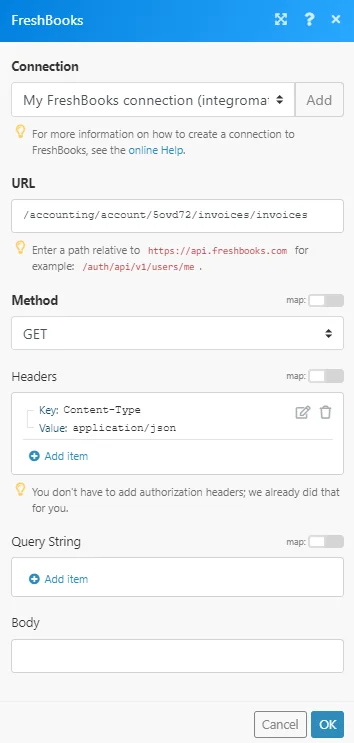
Make an API Call
Allows you to perform a custom API call.
Connection
Establish a connection to your FreshBooks account.
URL
Enter a path relative to https://api.freshbooks.com. E.g. /accounting/account/5ovd72/invoices/invoices
For the list of available endpoints, refer to the FreshBooks API Documentation.
Method
Select the HTTP method you want to use:
GET to retrieve information for an entry.
POST to create a new entry.
PUT to update/replace an existing entry.
PATCH to make a partial entry update.
DELETE to delete an entry.
Headers
Enter the desired request headers. You don’t have to add authorization headers; we already did that for you.
Query String
Enter the request query string.
Body
Enter the body content for your API call.
Example of Use – List Invoices
The following API call returns the first 10 files from the /Text files folder in your Dropbox account:
URL: /accounting/account/<account ID>/invoices/invoices. Replace the
Method: GET
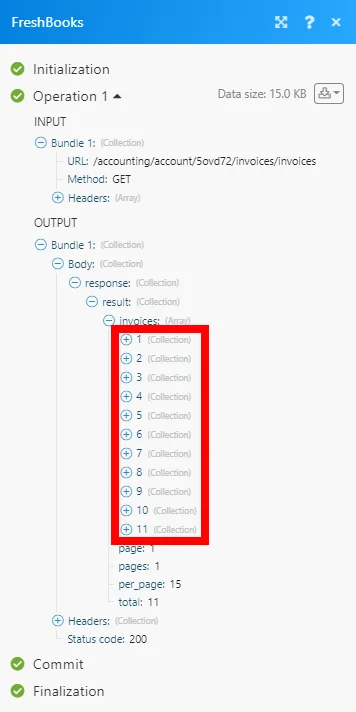
Matches of the search can be found in the module’s Output under Bundle > Body > response > invoices. In our example, 11 invoices were returned:
Legacy article, imported from the original Boost.space knowledge base (/knowledge-base/applications/commerce/freshbooks/).

