Omise
The Omise modules allow you to create, update, send, retrieve, list, and delete the balances, changes, customers, disputes, forex, refunds, and transfers in your Omise account.
Getting Started with Omise
Prerequisites
- An Omise account – create an account at omise.co/.
Connecting Omise to Boost.space Integrator
To connect your Omise account to Boost.space Integrator you need to obtain the Identifier, Key, and Website ID from your Omise account and insert it in the Create a connection dialog in the Boost.space Integrator module.
1. Log in to your Omise account.

2. From the Dashboard, in the API section, click Keys > Accept the terms > Show Keys.
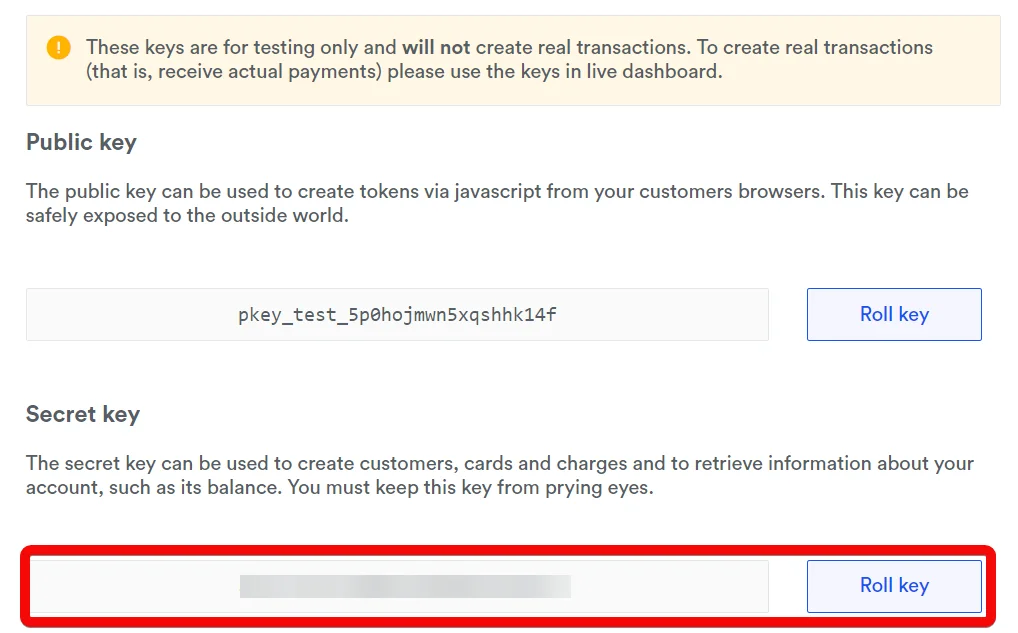
3. Copy the Secret Key to your clipboard.
4. Go to Boost.space Integrator and open the Omise module’s Create a connection dialog.
5. In the Connection name field, enter a name for the connection.
6. In the Secret Key field, enter the key copied in step 3, and click Continue.
Charges
Search Charges
Searches for changes or lists them all.
Connection
Establish a connection to your Omise account.
From
Enter (map) the date from which you want to list the charges that were created or updated on or after the specified date. See the list of supported date and time formats.
To
Enter (map) the date until which you want to list the charges that were created or updated on or before the specified date. See the list of supported date and time formats.
Order
Select or map the order in which you want to list the charges:
-
Chronological
-
Reverse Chronological
Limit
Set the maximum number of charges Boost.space Integrator should return during one execution cycle.
Get a Charge
Retrieves an existing charge.
Connection
Establish a connection to your Omise account.
Charge ID
Select or map the Charge ID whose details you want to retrieve.
Create a Charge
Creates a new charge.
Connection
Establish a connection to your Omise account.
Amount
Enter (map) the amount for charge in the smallest currency unit. If charging a source, the amount must match to the one specified in the source at its creation.
Currency
Select or map the currency in which you are creating the charge. For example, the Australian dollar.
Customer
A valid identifier for a customer that has at least one card already associated. By default, the default card of the customer will be used. Required if passing a card identifier in the card parameter. If passing a token identifier in the card parameter, this parameter must not be present.
Card Identifier
Card identifier. If a card identifier is passed, you must also pass the identifier of the customer who owns the card under the customer parameter.
Unused Token Identifier
Enter If a token identifier is passed, the customer parameter must not be present.
Return URI
URI to which customer is redirected after 3-D Secure card authorization or other redirect-based authorization. Required if an account is set to use 3-D Secure or any other redirect-based authorization for payment.
Source Type
Select or map the source type for the charge:
-
Source ID
-
Source Object
Source
Valid source identifier. Required if card and customer are not present.
Source Object
Add the source objects for the charge.
Description
Enter (map) the details of the charge. For example, the number of items, type of items, and date of delivery. Providing the charge details helps Omise to conduct better fraud analysis.
IP
Enter (map) the IP address of hte system from where you are adding the charge.
Capture
Select whether the charge is set to be automatically captured (paid). Valid only for credit and debit card charges.
Expires at
Enter (map) the date on which the charge expires. This field is applicable only for Konbini, Pay-easy, and Online Banking (Japanese) payment methods. See the list of supported date and time formats.
Metadata
Add the applicable key and their values for the charge.
Fixed Platform Fee
Enter (map) the platform fees for the charge.
Percentage Platform Fee
Enter (map) the platform fee as a percentage of the charge amount. Note: when setting your platform_fee, be sure to include all relevant local taxes applicable to you and your sub-merchant. For example, VAT, Withholding tax.
Zero Interest Installments
Select whether the merchant absorbs the interest for installment payments. Must match the value in the associated source.
Update a Charge
Updates an existing charge.
Connection
Establish a connection to your Omise account.
Charge ID
Select or map the Charge ID whose details you want to update.
Description
Enter (map) the details of the charge. For example, the number of items, type of items, and date of delivery. Providing the charge details helps Omise to conduct better fraud analysis.
Metadata
Add the applicable key and their values for the charge.
Reverse a Charge
Reverses an existing charge.
Connection
Establish a connection to your Omise account.
Charge ID
Select or map the Charge ID whose details you want to update.
Customers
Search Customers
Searches for customers or lists them all.
Connection
Establish a connection to your Omise account.
From
Enter (map) the date from which you want to list the customers that were created or updated on or after the specified date. See the list of supported date and time formats.
To
Enter (map) the date until which you want to list the customers that were created or updated on or before the specified date. See the list of supported date and time formats.
Order
Select or map the order in which you want to list the customers:
-
Chronological
-
Reverse Chronological
Limit
Set the maximum number of customers Boost.space Integrator should return during one execution cycle.
Get a Customer
Retrieves an existing customer.
Connection
Establish a connection to your Omise account.
Charge ID
Select or map the Customer ID whose details you want to retrieve.
Create a Customer
Creates a new customer.
Connection
Establish a connection to your Omise account.
Description
Enter (map) the details of the customer. Providing any additional details about the customer helps Omise better conduct fraud analysis.
Enter (map) the email address of the customer. Providing the customer’s email address helps Omise better conduct fraud analysis.
Unused Token Identifier
Enter an unused token identifier to add as a new card to the customer.
Metadata
Enter (map) the customer’s metadata key and its value.
Update a Customer
Updates an existing customer.
Connection
Establish a connection to your Omise account.
Customer ID
Enter (map) the Customer ID whose details you want to update.
Default Card
Select or map the card for creating the charges.
Description
Enter (map) the details of the customer. Providing any additional details about the customer helps Omise better conduct fraud analysis.
Enter (map) the email address of the customer. Providing the customer’s email address helps Omise better conduct fraud analysis.
Unused Token Identifier
Enter an unused token identifier to add as a new card to the customer.
Metadata
Enter (map) the customer’s metadata key and its value. For example, first name.
Delete a Customer
Deletes an existing customer.
Connection
Establish a connection to your Omise account.
Customer ID
Select or map the Customer ID whose details you want to retrieve.
Disputes
Search Disputes
Searches for disputes or lists or lists them all.
Connection
Establish a connection to your Omise account.
From
Enter (map) the date from which you want to list the disputes that were created or updated on or after the specified date. See the list of supported date and time formats.
To
Enter (map) the date until which you want to list the disputes that were created or updated on or before the specified date. See the list of supported date and time formats.
Order
Select or map the order in which you want to list the disputes:
-
Chronological
-
Reverse Chronological
Limit
Set the maximum number of disputes Boost.space Integrator should return during one execution cycle.
Search Open Disputes
Searches for open disputes or lists them all.
Connection
Establish a connection to your Omise account.
From
Enter (map) the date from which you want to list the open disputes that were created or updated on or after the specified date. See the list of supported date and time formats.
To
Enter (map) the date until which you want to list the open disputes that were created or updated on or before the specified date. See the list of supported date and time formats.
Order
Select or map the order in which you want to list the open disputes:
-
Chronological
-
Reverse Chronological
Limit
Set the maximum number of open disputes Boost.space Integrator should return during one execution cycle.
Get a Dispute
Retrieves an existing dispute.
Connection
Establish a connection to your Omise account.
Dispute ID
Select or map the Dispute ID whose details you want to retrieve.
Create a Dispute
Creates a new dispute.
Connection
Establish a connection to your Omise account.
Charge ID
Select or map the Charge ID for which you want to create the dispute.
Update a Dispute
Updates an existing dispute.
Connection
Establish a connection to your Omise account.
Dispute ID
Select or map the Dispute ID for whose details you want to update.
Message
Enter the reason to update the dispute.
Metadata
Enter (map) the customer’s metadata key and its value.
Close a Dispute
Closes an existing dispute. Works only in the test mode.
Connection
Establish a connection to your Omise account.
Dispute ID
Select or map the Dispute ID whose details you want to delete.
Accept a Dispute
Accepts an existing dispute.
Connection
Establish a connection to your Omise account.
Dispute ID
Select or map the Dispute ID you want to accept.
Refunds
Search Refunds
Searches for refunds or lists them all.
Connection
Establish a connection to your Omise account.
From
Enter (map) the date from which you want to list the refunds that were created or updated on or after the specified date. See the list of supported date and time formats.
To
Enter (map) the date until which you want to list the refunds that were created or updated on or before the specified date. See the list of supported date and time formats.
Order
Select or map the order in which you want to list the refunds:
-
Chronological
-
Reverse Chronological
Limit
Set the maximum number of refunds Boost.space Integrator should return during one execution cycle.
Get a Refund
Retrieves an existing refund.
Connection
Establish a connection to your Omise account.
Refund ID
Select or map the Refund ID whose details you want to retrieve.
Create a Refund
Creates a new refund.
Connection
Establish a connection to your Omise account.
Charge ID
Select or map the Charge ID for which you want to create a refund.
Amount
Enter (map) the refund amount.
Metadata
Add the applicable key and their values for the refund.
Void
Select whether you want to process the refund only as void, if possible. By default, if a refund is requested before charge settlement, it is processed as a void, otherwise, it is processed as a normal refund.
Transfers
Search Transfers
Searches for transfers or lists them all.
Connection
Establish a connection to your Omise account.
From
Enter (map) the date from which you want to list the transfers that were created or updated on or after the specified date. See the list of supported date and time formats.
To
Enter (map) the date until which you want to list the transfers that were created or updated on or before the specified date. See the list of supported date and time formats.
Order
Select or map the order in which you want to list the transfers:
-
Chronological
-
Reverse Chronological
Limit
Set the maximum number of transfers Boost.space Integrator should return during one execution cycle.
Get a Transfer
Retrieves an existing transfer.
Connection
Establish a connection to your Omise account.
Transfer ID
Select or map the Transfer ID you want to accept.
Create a Transfer
Creates a new transfer.
Connection
Establish a connection to your Omise account.
Amount
Enter (map) the amount you want to transfer.
Fail Fast
Select whether you want to avoid retrying the transfer if failed.
Metadata
Add the additional metadata key and their values.
Recipient
Select or map the recipient to which the transfer has been sent.
Update a Transfer
Updates an existing transfer.
Connection
Establish a connection to your Omise account.
Transfer ID
Select or map the Transfer ID you want to update.
Amount
Enter (map) the amount in the smallest currency unit that you want to transfer. Use the Balance API to ensure this value is less than or equal to the transferable (available) balance. By default, it shows the transferable balance amount.
Metadata
Add the additional metadata key and their values.
Delete a Transfer
Deletes an existing transfer.
Connection
Establish a connection to your Omise account.
Transfer ID
Select or map the Transfer ID you want to accept.
Forex
Get a Forex
Retrieves the current foreign exchange rate.
Connection
Establish a connection to your Omise account.
Forex
Select or map the currency for which you want to retrieve the forex details.
Balance
Get a Balance
Retrieves your account balance.
Connection
Establish a connection to your Omise account.
Events

Watch Events
Triggers when a new event has happened.
Webhook Name
Enter a name for the webhook.
Connection
Establish a connection to your Omise account.
See the Setting Up Omise Webhooks section to add webhooks in your Omise account.
Other
Make an API Call
Performs an arbitrary authorized API call.
Connection
Establish a connection to your Omise account.
URL
Enter a path relative to https://api.omise.co For example: /account
For the list of available endpoints, refer to the Omise API Documentation.
Method
Select the HTTP method you want to use:
GET to retrieve information for an entry.
POST to create a new entry.
PUT to update/replace an existing entry.
PATCH to make a partial entry update.
DELETE to delete an entry.
Headers
Enter the desired request headers. You don’t have to add authorization headers; we already did that for you.
Query String
Enter the request query string.
Body
Enter the body content for your API call.
Example of Use – List Transfers
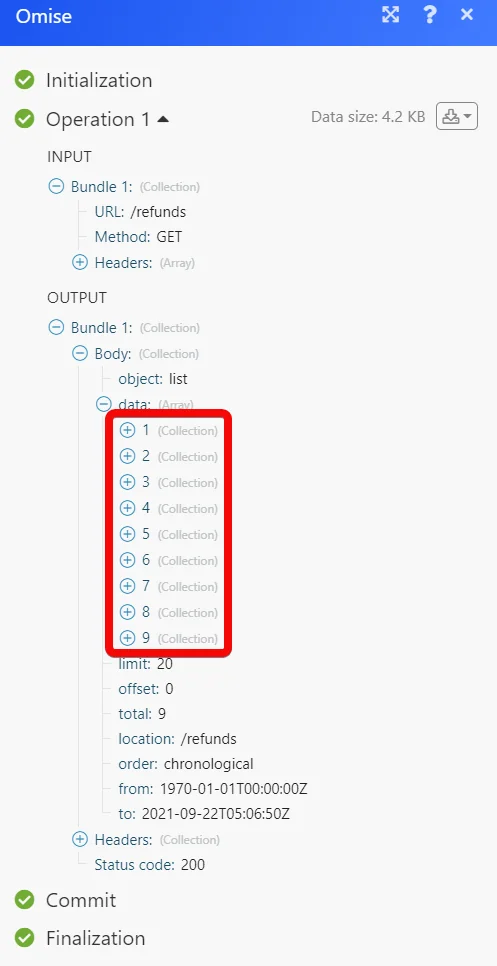
The following API call returns all the transfers from your Omise account:
URL: /transfers
Method :GET
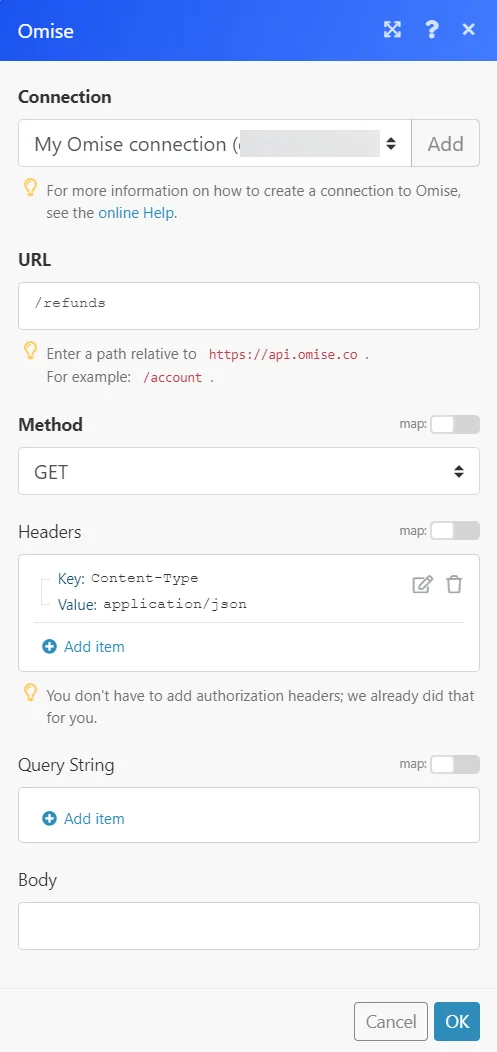
Matches of the search can be found in the module’s Output under Bundle > _Body > data._In our example, 9 transfers were returned:
Setting Up Omise Webhooks

1. Open Watch Events module, establish a connection, click Save and copy the URL address to your clipboard. Click OK and save the trigger.
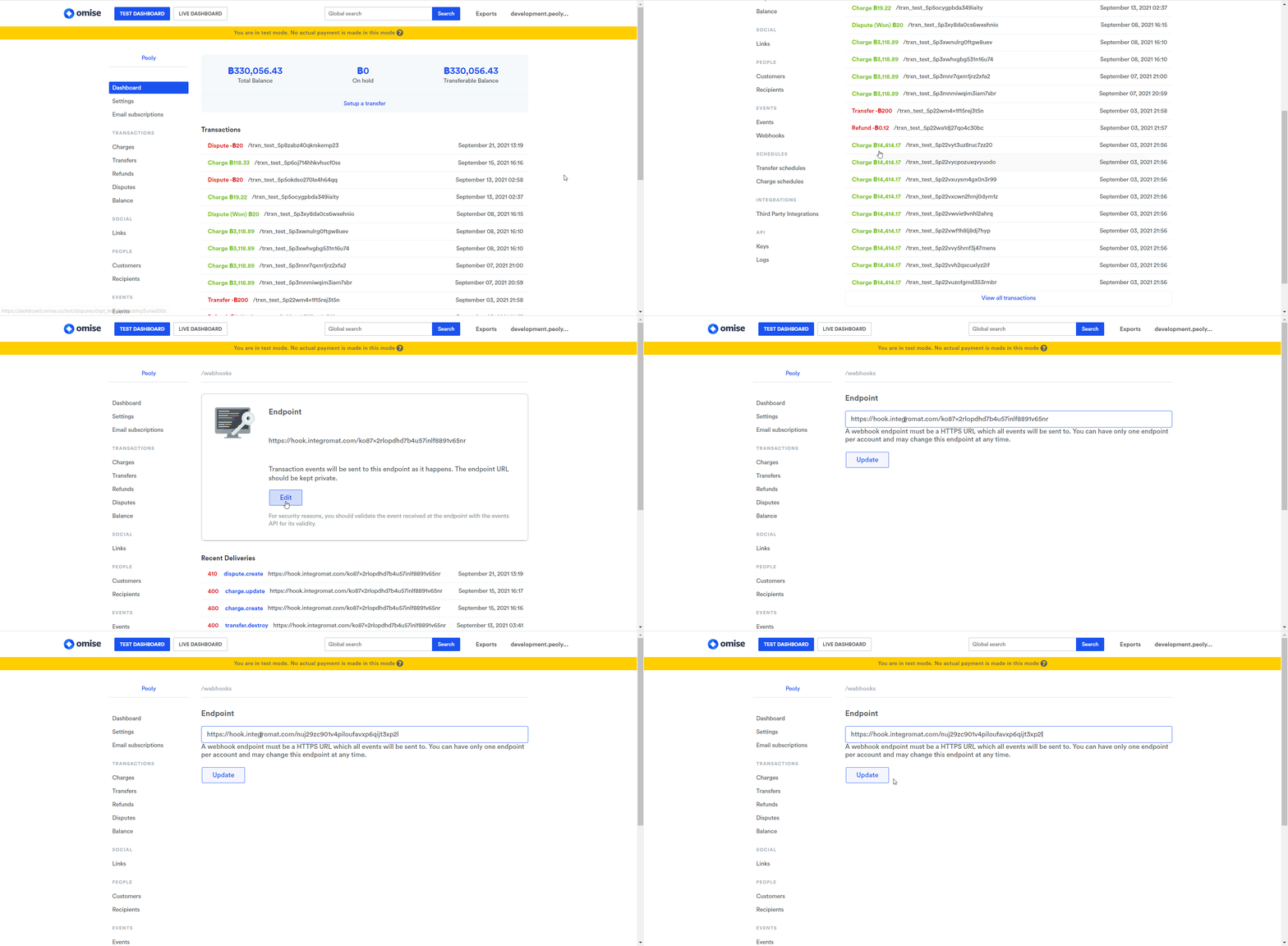
2. Log in to your Omise account.
3. From the left menu, click Webhooks > Edit.
4. In the Endpoint field, enter the URL address copied in step 1 and click Update.
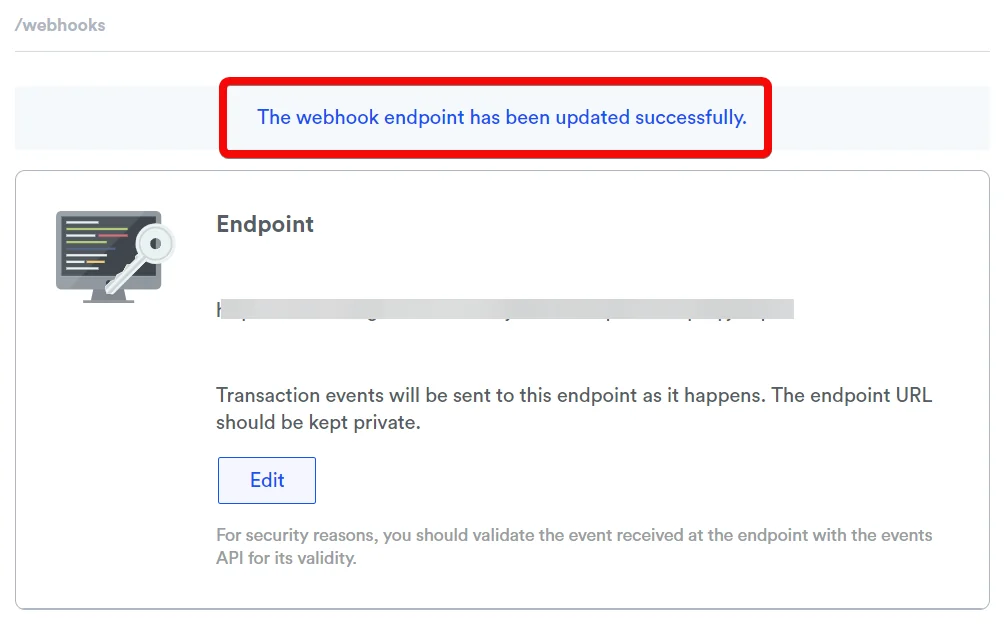
The webhook is updated successfully.
Go back to your Boost.space Integrator account and run the scenario to receive the triggers when an event occurs in your Omise account.
Legacy article, imported from the original Boost.space knowledge base (/knowledge-base/applications/commerce/omise/).

