QuickBooks
With QuickBooks modules in Boost.space Integrator, you can manage the invoices, bills, sales receipts, estimates, journal entries, payments, deposits, credit memos, customers, purchase orders, items, vendors, files, accounts, purchases, time activities, refund receipts, and events in your QuickBooks account.
To use the QuickBooks modules, you must have a QuickBooks account. You can create an account at QuickBooks.com.
Refer to the QuickBooks API documentation for a list of available endpoints.
Connect QuickBooks to Boost.space Integrator
To establish the connection in Boost.space Integrator:
-
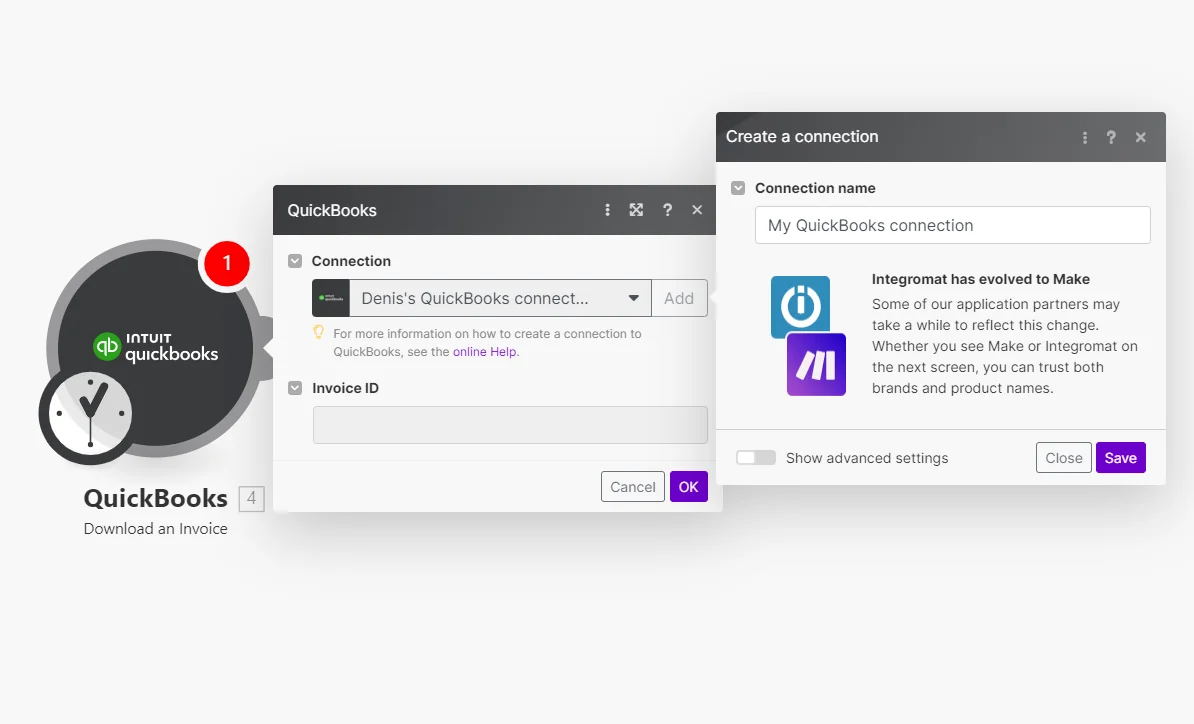
Log in to your Boost.space Integrator account, add a QuickBooks module to a scenario, and click Create a connection.
-
Optional: In the Connection name field, enter a name for the connection.
-
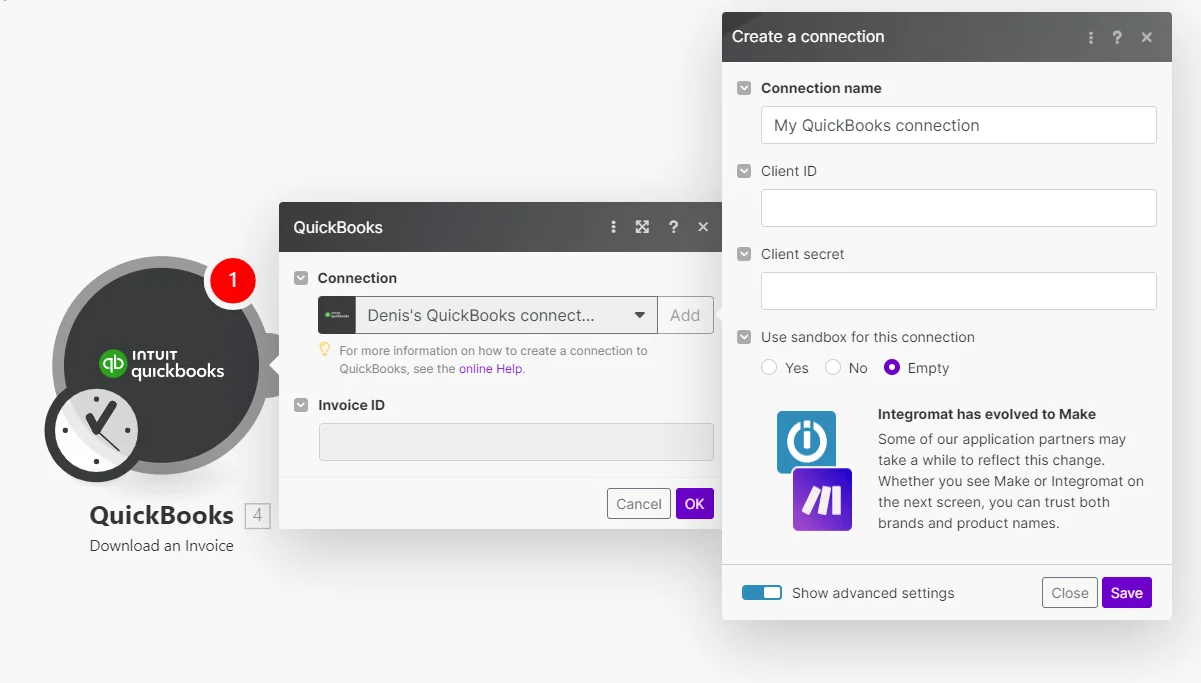
Optional: To connect with your own custom app, click Show Advanced Settings, enter the client credentials from your app, and select if you want to use Sandbox for connection.
-
Click Save.
-
If prompted, authenticate your account and confirm access.
You have successfully established the connection. You can now edit your scenario and add more QuickBooks modules. If your connection requires reauthorization at any point, follow the connection renewal steps here.
Create Custom App and Client Credentials in QuickBooks
To connect your own QuickBooks app to Boost.space Integrator, you must create a custom app in your QuickBooks developer account and select the relevant platform and scopes.
-
Log in to your QuickBooks developer account.
-
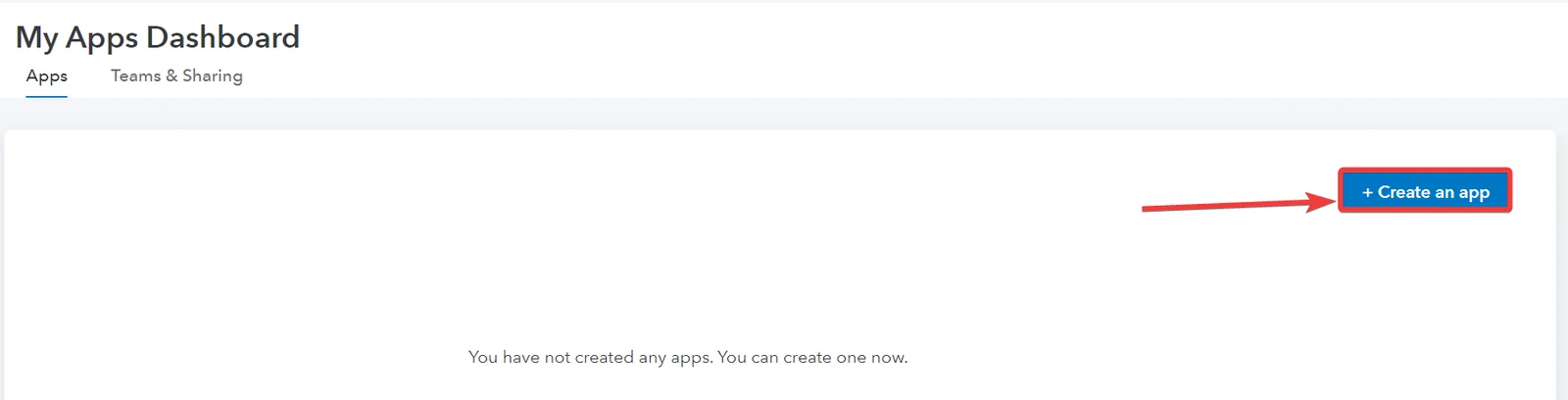
Click on the Dashboard tab.
-
Click Create an app.
-
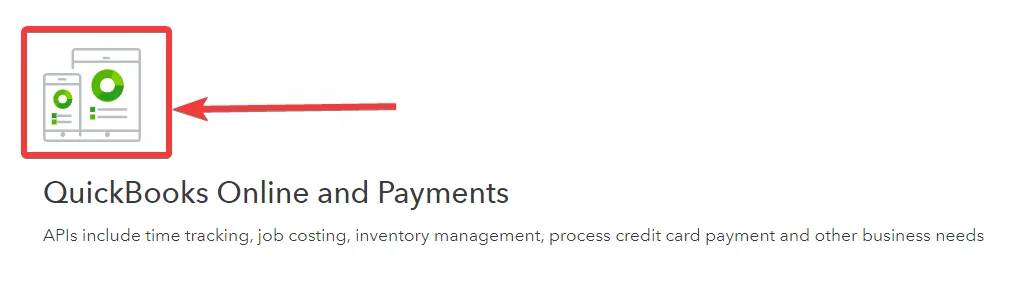
Select the Platform to create the app.
-
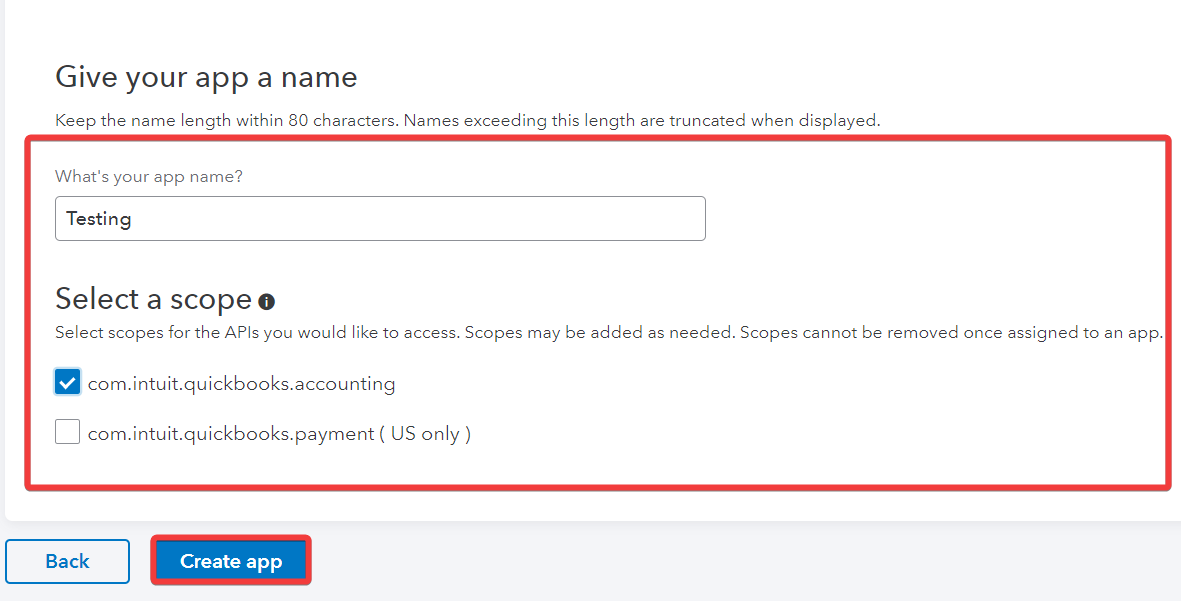
Enter a name for the app, select the scope, and click Create app.
-
Click on Keys & credentials under the Development Settings or Production Settings section in the sidebar, depending on your settings.
-
Scroll down to the Redirect URIs section, add the following links, and click Save.
Redirect URIs
https://integrator.boost.space/oauth/cb/quickbookshttps://www.integrator.boost.space/oauth/cb/quickbooks -
Copy your Client ID and Client Secret and save them in a safe place.
You now have the client credentials to connect to Boost.space Integrator.
Invoice
Create an Invoice
Creates a new invoice for the customer.
Connection
Establish a connection to your QuickBooks account.Connecting QuickBooks to Boost.space Integrator
For the field descriptions, see the QuickBooks Online Invoice API reference.
Update an Invoice
Updates an existing invoice.
Connection
Establish a connection to your QuickBooks account.Connecting QuickBooks to Boost.space Integrator
Invoice ID
Enter (map) the ID of the invoice whose details you want to update.
For the field descriptions, see the QuickBooks Online Invoice API reference.
Fields that are left empty will be omitted (not updated).
Delete an Invoice
Deletes an existing invoice.
You must unlink any linked transactions associated with the invoice object before deleting it.
Connection
Establish a connection to your QuickBooks account.Connecting QuickBooks to Boost.space Integrator
Invoice ID
Enter (map) the ID of the invoice you want to delete.
Get an Invoice
Retrieves invoice details.
Connection
Establish a connection to your QuickBooks account.Connecting QuickBooks to Boost.space Integrator
Invoice ID
Enter (map) the ID of the invoice you want to retrieve details about.
Search for Invoices
Performs a search for invoices based on the filter settings or a specified search query.
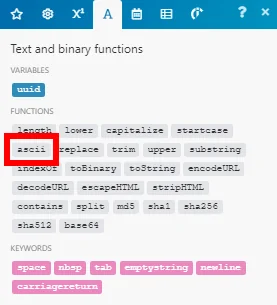
Diacritics are not supported.
Please use the ascii() function to remove the diacritics, if needed.
Connection
Establish a connection to your QuickBooks account.Connecting QuickBooks to Boost.space Integrator
Search by
Select whether to search by:
-
field
-
user-defined query
Filter
Select the invoice field, operator, and desired value you want to search invoices by.
Query
Specify your search query. The syntax is similar to SQL. For example, SELECT * FROM Customer WHERE Id = '123456'
Please see the Data queries documentation for more details.
Do not enter the maxresults directive. Boost.space Integrator will add it automatically for you.
Limit
Set the maximum number of results Boost.space Integrator will return during one execution cycle. Search by field option only.
Download an Invoice
Downloads an invoice in the PDF file.
Connection
Establish a connection to your QuickBooks account.Connecting QuickBooks to Boost.space Integrator
Invoice ID
Enter (map) the ID of the invoice you want to download.
Send an Invoice
Sends an invoice to the specified email address.
Connection
Establish a connection to your QuickBooks account.Connecting QuickBooks to Boost.space Integrator
Invoice ID
Enter (map) the ID of the invoice you want to send.
Send to
Enter the email you want to send the invoice.
Bill
You can create, update, delete, search, and retrieve bills using the following modules.
Create a Bill
Creates a new bill.
Connection
Establish a connection to your QuickBooks account.Connecting QuickBooks to Boost.space Integrator
For the field descriptions, see the QuickBooks Online Bill API reference.
Update a Bill
Updates an existing invoice.
Connection
Establish a connection to your QuickBooks account.Connecting QuickBooks to Boost.space Integrator
Bill ID
Enter (map) the ID of the bill you want to update.
For the field descriptions, see the QuickBooks Online Bill API reference.
Fields that are left empty will be omitted (not updated).
Delete a Bill
Deletes an existing bill.
You must unlink any linked transactions associated with the bill object before deleting it.
Connection
Establish a connection to your QuickBooks account.Connecting QuickBooks to Boost.space Integrator
Invoice ID
Enter (map) the ID of the bill you want to delete.
Get a Bill
Retrieves bill details.
Connection
Establish a connection to your QuickBooks account.Connecting QuickBooks to Boost.space Integrator
Invoice ID
Enter (map) the ID of the bill you want to retrieve details about.
Search for Bills
Performs a search for a bill based on the filter settings or a specified search query.
Connection
Establish a connection to your QuickBooks account.Connecting QuickBooks to Boost.space Integrator
Search by
Select whether to search by:
-
field
-
user-defined query
Filter
Select the bill field, operator, and desired value you want to search bills by.
Query
Specify your search query. The syntax is similar to SQL. For example, SELECT * FROM Customer WHERE Id = '123456'
Please see the Data queries documentation for more details.
Do not enter the maxresults directive. Boost.space Integrator will add it automatically for you.
Limit
Set the maximum number of results Boost.space Integrator will return during one execution cycle. For Search by field option only.
Sales Receipt
Create a Sales Receipt
Creates a sales receipt.
Connection
Establish a connection to your QuickBooks account.Connecting QuickBooks to Boost.space Integrator
For the field descriptions, see the QuickBooks Online Sales Receipt API reference.
Update a Sales Receipt
Updates an existing sales receipt.
Connection
Establish a connection to your QuickBooks account.Connecting QuickBooks to Boost.space Integrator
Sales Receipt ID
Enter (map) the ID of the sales receipt you want to update.
For the field descriptions, see the QuickBooks Online Sales Receipt API reference.
Get a Sales Receipt
Retrieves sales receipt details.
Connection
Establish a connection to your QuickBooks account.Connecting QuickBooks to Boost.space Integrator
Sales Receipt ID
Enter (map) the ID of the sales receipt you want to retrieve details about.
Search for Sales Receipts
Performs a search for sales receipts based on the filter settings or a specified search query.
Connection
Establish a connection to your QuickBooks account.Connecting QuickBooks to Boost.space Integrator
Search by
Select whether to search by:
-
field
-
user-defined query
Filter
Select the sales receipt field, operator, and desired value you want to search sales receipts by.
Query
Specify your search query. The syntax is similar to SQL. For example, SELECT * FROM Customer WHERE Id = '123456'
Please see the Data queries documentation for more details.
Do not enter the maxresults directive. Boost.space Integrator will add it automatically for you.
Limit
Set the maximum number of results Boost.space Integrator will return during one execution cycle. For Search by field option only.
Download a Sales Receipt
Downloads a sales receipt in the PDF file.
Connection
Establish a connection to your QuickBooks account.Connecting QuickBooks to Boost.space Integrator
Invoice ID
Enter (map) the ID of the sales receipt you want to download.
Send a Sales Receipt
Sends a sales receipt to the specified email address.
Connection
Establish a connection to your QuickBooks account.Connecting QuickBooks to Boost.space Integrator
Invoice ID
Enter (map) the ID of the sales receipt you want to send.
Send to
Enter the email you want to send the sales receipt.
Estimate
You can create, update, retrieve, send, download, delete, and search estimates using the following modules.
Create an Estimate
Creates a new estimate.
GlobalTax model if the model inclusive of tax, exclusive of taxes or not applicable
Connection
Establish a connection to your QuickBooks account.Connecting QuickBooks to Boost.space Integrator
For te field descriptions, see the QuickBooks Online Estimate API reference.
Update an Estimate
Updates an existing estimate.
Connection
Establish a connection to your QuickBooks account.Connecting QuickBooks to Boost.space Integrator
Estimate ID
Enter (map) the ID of the estimate whose details you want to update.
For the field descriptions, see the QuickBooks Online Estimate API reference.
Delete an Estimate
Deletes an estimate.
Connection
Establish a connection to your QuickBooks account.Connecting QuickBooks to Boost.space Integrator
Estimate ID
Enter (map) the ID of the estimate you want to delete.
Download an Estimate
Downloads an estimate in the PDF file.
Connection
Establish a connection to your QuickBooks account.Connecting QuickBooks to Boost.space Integrator
Estimate ID
Enter (map) the ID of the invoice you want to download.
Send an Estimate
Sends an estimate to the specified email address.
Connection
Establish a connection to your QuickBooks account.Connecting QuickBooks to Boost.space Integrator
Estimate ID
Enter (map) the ID of the estimate you want to send.
Send to
Enter the email you want send the estimate to.
Get an Estimate
Retrieves estimate details.
Connection
Establish a connection to your QuickBooks account.Connecting QuickBooks to Boost.space Integrator
Estimate ID
Enter (map) the ID of the estimate whose details you want to retrieve.
Search for Estimates
Performs a search for estimate based on the filter settings or a specified search query.
Connection
Establish a connection to your QuickBooks account.Connecting QuickBooks to Boost.space Integrator
Search by
Select whether to search by:
-
field
-
user-defined query
Filter
Select the estimate field, operator, and desired value you want to search estimates by.
Query
Specify your search query. The syntax is similar to SQL. For example, SELECT * FROM Customer WHERE Id = '123456'
Please see the Data queries documentation for more details.
Do not enter the maxresults directive. Boost.space Integrator will add it automatically for you.
Limit
Set the maximum number of results Boost.space Integrator will return during one execution cycle. For Search by field option only.
Journal Entry
Create a Journal Entry
Creates a journal entry.
Connection
Establish a connection to your QuickBooks account.Connecting QuickBooks to Boost.space Integrator
For the field descriptions, see the QuickBooks Online Journal Entry API reference.
Update a Journal Entry
Updates an existing journal entry.
Connection
Establish a connection to your QuickBooks account.Connecting QuickBooks to Boost.space Integrator
Journal entry ID
Enter (map) the ID of the journal entry you want to update.
For the field descriptions, see the QuickBooks Online Journal Entry API reference.
Delete a Journal Entry
Deletes a journal entry.
Connection
Establish a connection to your QuickBooks account.Connecting QuickBooks to Boost.space Integrator
Journal entry ID
Enter (map) the ID of the journal entry you want to delete.
Get a Journal Entry
Retrieves a journal entry.
Connection
Establish a connection to your QuickBooks account.Connecting QuickBooks to Boost.space Integrator
Journal entry ID
Enter (map) the ID of the journal entry whose details you want to retrieve.
Search for Journal Entries
Performs a search for journal entries based on the filter settings or a specified search query.
Connection
Establish a connection to your QuickBooks account.Connecting QuickBooks to Boost.space Integrator
Search by
Select whether to search by:
-
field
-
user-defined query
Filter
Select the journal entry field, operator, and desired value you want to search journal entries by.
Query
Specify your search query. The syntax is similar to SQL. For example, SELECT * FROM Customer WHERE Id = '123456'
Please see the Data queries documentation for more details.
Do not enter the maxresults directive. Boost.space Integrator will add it automatically for you.
Limit
Set the maximum number of results Boost.space Integrator will return during one execution cycle. For Search by field option only.
Payment
Create Payment
Creates a payment.
Connection
Establish a connection to your QuickBooks account.Connecting QuickBooks to Boost.space Integrator
For the field descriptions, see the QuickBooks online API reference.
Update a Payment
Updates an existing payment.
Connection
Establish a connection to your QuickBooks account.Connecting QuickBooks to Boost.space Integrator
Payment ID
Enter (map) the Payment ID whose details you want to update.
For the field descriptions, see the QuickBooks online Payment API reference.
Delete a Payment
Deletes a payment.
Connection
Establish a connection to your QuickBooks account.Connecting QuickBooks to Boost.space Integrator
Payment ID
Enter (map) the ID of the payment you want to delete.
Watch Payments
Triggers when a new payment is created.
Connection
Establish a connection to your QuickBooks account.Connecting QuickBooks to Boost.space Integrator
Watch Payments
Select the option to watch the payments:
-
By created time
-
By updated time
Search by
Select the option to search the payments you want to watch:
-
Query
-
Field
Query
Enter a word or phrase to watch the payments that match the specified query.
Field
Select the fields to filter the payments.
Limit
Set the maximum number of payments Boost.space Integrator will return during one execution cycle. The default value is 2.
Download a Payment
Downloads an payment in the PDF file.
Connection
Establish a connection to your QuickBooks account.Connecting QuickBooks to Boost.space Integrator
Payment ID
Enter (map) the ID of the payment you want to download.
Send a Payment
Sends an payment to the specified email address.
Connection
Establish a connection to your QuickBooks account.Connecting QuickBooks to Boost.space Integrator
Payment ID
Enter (map) the ID of the payment you want to send.
Send to
Enter the email you want send the payment to.
Get a Payment
Retrieves payment details.
Connection
Establish a connection to your QuickBooks account.Connecting QuickBooks to Boost.space Integrator
Payment ID
Enter (map) the ID of the payment you want to retrieve details about.
Search for Payments
Performs a search for payments based on the filter settings or a specified search query.
Connection
Establish a connection to your QuickBooks account.Connecting QuickBooks to Boost.space Integrator
Search by
Select whether to search by:
-
field
-
user-defined query
Filter
Select the payment field, operator and desired value you want to search payments by.
Query
Specify your search query. The syntax is similar to SQL. For example, SELECT * FROM Customer WHERE Id = '123456'
Please see the Data queries documentation for more details.
Do not enter the maxresults directive. Boost.space Integrator will add it automatically for you.
Limit
Set the maximum number of results Boost.space Integrator will return during one execution cycle. For Search by field option only.
Deposit
You can create, update, delete, retrieve, and search deposits using the following modules.
Create a Deposit
Creates a deposit
Connection
Establish a connection to your QuickBooks account.Connecting QuickBooks to Boost.space Integrator
For the field descriptions, see the QuickBooks Online Deposit API reference.
Update a Deposit
Updates an existing deposit.
Connection
Establish a connection to your QuickBooks account.Connecting QuickBooks to Boost.space Integrator
Deposit ID
Enter (map) the ID of the payment whose details you want to update.
For the field descriptions, see the QuickBooks Online Deposit API reference.
Delete a Deposit
Deletes a deposit.
Connection
Establish a connection to your QuickBooks account.Connecting QuickBooks to Boost.space Integrator
Deposit ID
Enter (map) the ID of the deposit you want to delete.
Get a Deposit
Retrieves deposit details.
Connection
Establish a connection to your QuickBooks account.Connecting QuickBooks to Boost.space Integrator
Deposit ID
Enter (map) the ID of the deposit you want to retrieve details about.
Search for Deposits
Performs a search for deposits based on the filter settings or a defined search query.
Connection
Establish a connection to your QuickBooks account.Connecting QuickBooks to Boost.space Integrator
Search by
Select whether to search by:
-
field
-
user-defined query
Filter
Select the deposit field, operator, and desired value you want to search deposits by.
Query
Specify your search query. The syntax is similar to SQL. For example, SELECT * FROM deposits.
Please see the Data queries documentation for more details.
Do not enter the maxresults directive. Boost.space Integrator will add it automatically for you.
Limit
Set the maximum number of results Boost.space Integrator will return during one execution cycle. For Search by field option only.
Credit Memo
A credit Memo is a financial transaction representing a refund or credit of payment or part of a payment for goods or services that have been sold.
You can create, update, delete, retrieve, and search credit memos using the following modules.
Create a Credit Memo
Creates a credit memo.
Connection
Establish a connection to your QuickBooks account.Connecting QuickBooks to Boost.space Integrator
For the field descriptions, see the QuickBooks Online Credit Memo API reference.
Update a Credit Memo
Updates an existing credit memo.
Connection
Establish a connection to your QuickBooks account.Connecting QuickBooks to Boost.space Integrator
Credit Memo ID
Enter (map) the ID of the Credit Memo whose details you want to update.
For the field descriptions, see the QuickBooks Online Credit Memo API reference.
Delete a Credit Memo
Deletes a credit memo.
Connection
Establish a connection to your QuickBooks account.Connecting QuickBooks to Boost.space Integrator
Credit Memo ID
Enter (map) the ID of the credit memo you want to delete.
Get a Credit Memo
Retrieves credit memo details.
Connection
Establish a connection to your QuickBooks account.Connecting QuickBooks to Boost.space Integrator
Credit Memo ID
Enter (map) the ID of the credit memo you want to retrieve details about.
Search for Credit Memos
Performs a search for credit memos based on the filter settings or a defined search query.
Connection
Establish a connection to your QuickBooks account.Connecting QuickBooks to Boost.space Integrator
Search by
Select the option to search the credit memos:
-
field
-
user-defined query
Filter
Select the credit memo field, operator, and desired value you want to search credit memos by.
Query
Specify your search query. The syntax is similar to SQL. For example:
SELECT * FROM Customer WHERE Id = '123456'
Please see the Data queries documentation for more details.
Do not enter the maxresults directive. Boost.space Integrator will add it automatically for you.
Limit
Set the maximum number of results Boost.space Integrator will return during one execution cycle. For Search by fieldoption only. The default value is 2.
Customers
You can create, update, retrieve, and search customers using the following modules.
Create a Customer
Creates a new customer.
Connection
Establish a connection to your QuickBooks account.Connecting QuickBooks to Boost.space Integrator
For the field descriptions, see the QuickBooks Online Customer API reference.
Update a Customer
Updates a customer.
Connection
Establish a connection to your QuickBooks account.Connecting QuickBooks to Boost.space Integrator
Customer ID
Enter (map) the ID of the customer you want to update.
For the field descriptions, see the QuickBooks Online Customer API reference.
Get a Customer
Retrieves customer details.
Connection
Establish a connection to your QuickBooks account.Connecting QuickBooks to Boost.space Integrator
Customer ID
Enter (map) the ID of the customer you want to retrieve details about.
Search for Customers
Performs a search for customers based on the filter settings or a defined search query.
Connection
Establish a connection to your QuickBooks account.Connecting QuickBooks to Boost.space Integrator
Search by
Select whether to search by:
-
field
-
user-defined query
Filter
Select the customer field, operator, and desired value you want to search customers by.
Query
Specify your search query. The syntax is similar to SQL. For example, SELECT * FROM Customer WHERE Id = '123456'
Please see the Data queries documentation for more details.
Do not enter the maxresults directive. Boost.space Integrator will add it automatically for you.
Limit
Set the maximum number of results Boost.space Integrator will return during one execution cycle. For Search by fieldoption only.
Purchase Orders
You can create, update, retrieve, search, and delete purchase orders using the following modules.
Create a Purchase Order
Creates purchase orders, the non-posting transaction representing a request to purchase goods or services from a third party.
Enter the private note about the transaction. This note will not appear on the transaction records by default.
Connection
Establish a connection to your QuickBooks account.Connecting QuickBooks to Boost.space Integrator
For the field descriptions, see the QuickBooks Online Purchase Order API reference.
Update a Purchase Order
Updates an existing purchase order.
Connection
Establish a connection to your QuickBooks account.Connecting QuickBooks to Boost.space Integrator
Purchase Order ID
Enter (map) the ID of the purchase you want to update.
For the field descriptions, see the QuickBooks Online Purchase Order API reference.
Get a Purchase Order
Retrieves purchase order details.
Connection
Establish a connection to your QuickBooks account.Connecting QuickBooks to Boost.space Integrator
Purchase Order ID
Enter (map) the ID of the purchase order you want to retrieve details about.
Search for Purchase Orders
Performs a search for purchase orders based on the filter settings or a defined search query.
Connection
Establish a connection to your QuickBooks account.Connecting QuickBooks to Boost.space Integrator
Search by
Select whether to search by:
-
field
-
user-defined query
Filter
Select the purchase order field, operator and desired value you want to search purchase orders by.
Query
Specify your search query. The syntax is similar to SQL. For example, SELECT * FROM Customer WHERE Id = '123456'
Please see the Data queries documentation for more details.
Do not enter the maxresults directive. Boost.space Integrator will add it automatically for you.
Limit
Set the maximum number of results Boost.space Integrator will return during one execution cycle. For Search by field option only.
Delete a Purchase Order
Deletes a purchase order
Connection
Establish a connection to your QuickBooks account.Connecting QuickBooks to Boost.space Integrator
Purchase Order ID
Enter (map) the ID of the purchase order you want to delete.
Item
Create an Item
Creates a new item.
Connection
Establish a connection to your QuickBooks account.Connecting QuickBooks to Boost.space Integrator
For the field descriptions, see the QuickBooks Online Item API reference.
Update an Item
Updates an item.
Connection
Establish a connection to your QuickBooks account.Connecting QuickBooks to Boost.space Integrator
Item ID
Enter (map) the ID of the item you want to update.
For the field descriptions, see the QuickBooks Online Item API reference.
Get an Item
Retrieves item details.
Connection
Establish a connection to your QuickBooks account.Connecting QuickBooks to Boost.space Integrator
Item ID
Enter (map) the ID of the item you want to retrieve details about.
Search for Items
Performs a search for items based on the filter settings or a defined search query.
Connection
Establish a connection to your QuickBooks account.Connecting QuickBooks to Boost.space Integrator
Search by
Select whether to search by:
-
field
-
user-defined query
Filter
Select the item field, operator and desired value you want to search items by.
Query
Specify your search query. The syntax is similar to SQL. For example SELECT * FROM Customer WHERE Id = '123456'
Please see the Data queries documentation for more details.
Do not enter the maxresults directive. Boost.space Integrator will add it automatically for you.
Limit
Set the maximum number of results Boost.space Integrator will return during one execution cycle. For Search by field option only.
Vendor
Create a Vendor
Creates a new vendor.
Connection
Establish a connection to your QuickBooks account.Connecting QuickBooks to Boost.space Integrator
For the field descriptions, see QuickBooks Online Vendor API reference.
Update a Vendor
Updates a vendor.
Connection
Establish a connection to your QuickBooks account.Connecting QuickBooks to Boost.space Integrator
Vendor ID
Enter (map) the ID of the vendor you want to update.
For the field descriptions, see the QuickBooks Online Vendor API reference.
Get a Vendor
Retrieves vendor details.
Connection
Establish a connection to your QuickBooks account.Connecting QuickBooks to Boost.space Integrator
Vendor ID
Enter (map) the ID of the customer you want to retrieve details about.
Search for Vendors
Performs a search for vendors based on the filter settings or a defined search query.
Connection
Establish a connection to your QuickBooks account.Connecting QuickBooks to Boost.space Integrator
Search by
Select whether to search by:
-
field
-
user-defined query
Filter
Select the vendor field, operator and desired value you want to search vendors by.
Query
Specify your search query. The syntax is similar to SQL. For example, SELECT * FROM Customer WHERE Id = '123456'.
Please see the Data queries documentation for more details.
Do not enter the maxresults directive. Boost.space Integrator will add it automatically for you.
Limit
Set the maximum number of results Boost.space Integrator will return during one execution cycle. For Search by field option only.
File
You can create, search, and delete the attachments, upload, and download files using the following modules.
Create a Text Attachment
Creates a note.
Connection
Establish a connection to your QuickBooks account.Connecting QuickBooks to Boost.space Integrator
Objects
Add transaction object to which this attachable file is to be linked.
-
Entity: Enter the name of the object. For example, invoice, bill, item, etc.
-
Entity ID: Enter the ID of the object.
Note
Enter the note for the attachment or standalone note.
Latitude
Enter the latitude from where the attachment was requested.
Longitude
Enter the longitude from where the attachment was requested.
Place name
Enter the place name from where the attachment was requested.
Tag
Enter the tag name for the requested attachment.
Upload a File
Uploads a file.
Connection
Establish a connection to your QuickBooks account.Connecting QuickBooks to Boost.space Integrator
Source file
Map the file you want to upload from the previous module (e.g. HTTP > Get a File or Dropbox > Get a file), or enter the file name and file data manually.
-
File name: Enter the file name.
-
Data: Enter or map the file data.
Entities
Add the transaction objects to which this attachable file is to be linked.
-
Entity: Enter the name of the object. For example, invoice, bill, item, etc.
-
Entity ID: Enter the ID of the object.
-
Include on Send: This field indicates whether or not the attachment is sent with the transaction when Save and Send button is clicked in the QuickBooks UI or when the Send endpoint (send email) is invoked for the object.
Download a File
Downloads a file attachment.
Connection
Establish a connection to your QuickBooks account.Connecting QuickBooks to Boost.space Integrator
Attachment ID
Enter the ID of the attachment you want to download.
Delete an Attachment
Deletes a file attachment.
Connection
Establish a connection to your QuickBooks account.Connecting QuickBooks to Boost.space Integrator
Attachment ID
Enter the ID of the attachment you want to delete.
Search for Attachments
Performs a search for attachments based on the filter settings or a defined search query.
Connection
Establish a connection to your QuickBooks account.Connecting QuickBooks to Boost.space Integrator
Search by
Select whether to search by:
-
field
-
user-defined query
Filter
Select the attachment field, operator and desired value you want to search attachments by.
Query
Specify your search query. The syntax is similar to SQL. For example, SELECT * FROM attachable
Please see the Data queries documentation for more details.
Do not enter the maxresults directive. Boost.space Integrator will add it automatically for you.
Limit
Set the maximum number of results Boost.space Integrator will return during one execution cycle. For Search by field option only.
Account
You can create, update, search, and retrieve accounts using the following modules.
Create an Account
Creates a new account.
Connection
Establish a connection to your QuickBooks account.Connecting QuickBooks to Boost.space Integrator
For the field descriptions, see the QuickBooks Online Account API reference.
Update an Account
Updates an account.
Connection
Establish a connection to your QuickBooks account.Connecting QuickBooks to Boost.space Integrator
Account ID
Enter (map) the ID of the account you want to update.
Please find the descriptions of the fields in the QuickBooks Online Account API reference.
Get an Account
Retrieves account details.
Connection
Establish a connection to your QuickBooks account.Connecting QuickBooks to Boost.space Integrator
Account ID
Enter (map) the ID of the account whose details you want to retrieve.
Search for Accounts
Performs a search for accounts based on the filter settings or a defined search query.
Connection
Establish a connection to your QuickBooks account.Connecting QuickBooks to Boost.space Integrator
Search by
Select whether to search by:
-
field
-
user-defined query
Filter
Select the account field, operator, and desired value you want to search items by.
Query
Specify your search query. The syntax is similar to SQL. For example, SELECT * FROM account.
Please see the Data queries documentation for more details.
Do not enter the maxresults directive. Boost.space Integrator will add it automatically for you.
Limit
Set the maximum number of results Boost.space Integrator will return during one execution cycle. For Search by field option only.
Purchase
Create a Purchase
Creates a purchase.
Connection
Establish a connection to your QuickBooks account.Connecting QuickBooks to Boost.space Integrator
For the field descriptions, see the QuickBooks Online Purchase API reference.
Update a Purchase
Updates an existing purchase.
Connection
Establish a connection to your QuickBooks account.Connecting QuickBooks to Boost.space Integrator
Purchase ID
Enter (map) the ID of the purchase you want to update.
Please find the descriptions of the fields in the QuickBooks Online Purchase API reference.
Fields that are left empty will be omitted (not updated).
Delete a Purchase
Deletes an existing purchase.
Connection
Establish a connection to your QuickBooks account.Connecting QuickBooks to Boost.space Integrator
Purchase ID
Enter (map) the ID of the purchase you want to delete.
Get a Purchase
Retrieves purchase details.
Connection
Establish a connection to your QuickBooks account.Connecting QuickBooks to Boost.space Integrator
Purchase ID
Enter (map) the ID of the purchase you want details you want to retrieve.
Search for Purchases
Performs a search for purchase based on the filter settings or a specified search query.
Connection
Establish a connection to your QuickBooks account.Connecting QuickBooks to Boost.space Integrator
Search by
Select whether to search by:
-
field
-
user-defined query
Filter
Select the purchase field, operator, and desired value you want to search purchases by.
Query
Specify your search query. The syntax is similar to SQL. For example, SELECT * FROM purchase.
Please see the Data queries documentation for more details.
Do not enter the maxresults directive. Boost.space Integrator will add it automatically for you.
Limit
Set the maximum number of results Boost.space Integrator will return during one execution cycle. For Search by field option only.
Time Activity
A record of time worked by a vendor or employee.
Create a Time Activity
Creates a time activity.
Connection
Establish a connection to your QuickBooks account.Connecting QuickBooks to Boost.space Integrator
Time Activity Type
Select a time activity type.
Vendor / Employee
Specify the vendor or employee whose time is being recorded.
Hours
Hours worked. Required if Start Time and End Time not specified.
Minutes
Minutes worked; valid values are 0 – 59. Required if Start Time and End Time not specified.
Start time
Time that work starts. Required if Hours and Minutes not specified. Local timezone: YYYY-MM-DDUTC: YYYY-MM-DDSpecific time zone: YYYY-MM-DD+/-HH:MM
End time
Time that work ends. Required if Hours and Minutes not specified. Local timezone: YYYY-MM-DDUTC: YYYY-MM-DDSpecific time zone: YYYY-MM-DD+/-HH:MM
Hourly Rate
Enter the hourly bill rate of the employee or vendor for this time activity.
Break Hours
Enter hours of break taken between start time and end time.
Break Minutes
Enter minutes of break taken between start time and end time. Valid values are 0 – 59.
Customer
Select the customer or job.
Update a Time Activity
Updates a time activity.
Connection
Establish a connection to your QuickBooks account.Connecting QuickBooks to Boost.space Integrator
Update Time Activity ID
Enter (map) the ID of the time activity you want to update.
Please find the descriptions of the fields in the Create a Time Activity section above.
Get an Time Activity
Retrieves time activity details.
Connection
Establish a connection to your QuickBooks account.Connecting QuickBooks to Boost.space Integrator
Time Activity ID
Enter (map) the ID of the time activity you want to retrieve details about.
Search for Time Activity
Performs a search for time activities based on the filter settings or a defined search query.
Connection
Establish a connection to your QuickBooks account.Connecting QuickBooks to Boost.space Integrator
Search by
Select whether to search by:
-
field
-
user-defined query
Filter
Select the time activity field, operator and desired value you want to search time activities by.
Query
Specify your search query. The syntax is similar to SQL. For example, SELECT * FROM timeactivity
Please see the Data queries documentation for more details.
Do not enter the maxresults directive. Boost.space Integrator will add it automatically for you.
Limit
Set the maximum number of results Boost.space Integrator will return during one execution cycle. For Search by field option only.
Refund Receipt
Create a Refund Receipt
Creates a refund receipt.
Connection
Establish a connection to your QuickBooks account.Connecting QuickBooks to Boost.space Integrator
For the field descriptions, see the QuickBooks Online Refund Receipt API reference.
Update a refund Receipt
Updates an existing refund receipt.
Connection
Establish a connection to your QuickBooks account.Connecting QuickBooks to Boost.space Integrator
refund Receipt ID
Enter (map) the ID of the refund receipt you want to update.
For the field descriptions, see QuickBooks Online Refund Receipt API reference.
Get a Refund Receipt
Retrieves refund receipt details.
Connection
Establish a connection to your QuickBooks account.Connecting QuickBooks to Boost.space Integrator
Refund Receipt ID
Enter (map) the ID of the refund receipt you want to retrieve details about.
Search for Refund Receipts
Performs a search for refund receipts based on the filter settings or a specified search query.
Connection
Establish a connection to your QuickBooks account.Connecting QuickBooks to Boost.space Integrator
Search by
Select whether to search by:
-
field
-
user-defined query
Filter
Select the refund receipt field, operator, and desired value you want to search refund receipts by.
Query
Specify your search query. The syntax is similar to SQL. For example, SELECT * FROM refundreceipt.
Please see the Data queries documentation for more details.
Do not enter the maxresults directive. Boost.space Integrator will add it automatically for you.
Limit
Set the maximum number of results Boost.space Integrator will return during one execution cycle. For Search by field option only.
Events
You can trigger events using the following module.
New Event
Triggers when an event in your QuickBooks account is performed.
Received webhooks contain Object ID, Object type, Operation, and Date. For example, when a new invoice is created, you will receive a webhook notification showing Invoice as the Object type and Create as Operation kind. If you wish to receive more information about a newly created invoice (or another object), you can use the Search for invoices action and get information about the invoice (object) by its ID.
Boost.space Integrator automatically creates a webhook in QuickBooks once you add an instant trigger to your scenario.
Webhook name
Enter the name for the webhook.
Connection
Establish a connection to your QuickBooks account.Connecting QuickBooks to Boost.space Integrator
QuickBooks webhooks are usually a bit delayed
The list of events that are supported by the New Event module:
Create
Update
Delete
Merge
Void
Emailed
Account
✓
✓
✓
✓
Bill
✓
✓
✓
Bill Payment
✓
✓
✓
✓
Budget
Class
CreditMemo
Currency
Customer
✓
✓
✓
✓
Department
Deposit
✓
✓
✓
Employee
Estimate
✓
✓
✓
Invoice
✓
✓
✓
✓
Item
✓
✓
✓
✓
JournalCode
JournalEntry
✓
✓
✓
Payment
✓
✓
✓
✓
PaymentMethod
Preferences
Purchase
✓
✓
✓
✓
PurchaseOrder
✓
✓
✓
✓
RefundReceipt
SalesReceipt
✓
✓
✓
✓
TaxAgency
Term
TimeActivity
Transfer
Vendor
✓
✓
✓
✓
VendorCredit
Other
You can call APIs and retrieve the company details using the following modules.
Get My Company
Retrieves details about your company.
Connection
Establish a connection to your QuickBooks account.
Make an API Call
Allows you to perform a custom API call.
For the list of available endpoints, refer to the QuickBooks Online API Documentation.
Connection
Establish a connection to your QuickBooks account.
URL
Enter a path relative to https://quickbooks.api.intuit.com/VERSION/company/YOUR-COMPANY/. For example, /preferences.
Method
Select the HTTP method you want to use:
-
GET
to retrieve information for an entry.
-
POST
to create a new entry.
-
PUT
to update/replace an existing entry.
-
PATCH
to make a partial entry update.
-
DELETE
to delete an entry.
Headers
Enter the desired request headers. You don’t have to add authorization headers; we already did that for you.
Query String
Enter the request query string.
Body
Enter the body content for your API call.
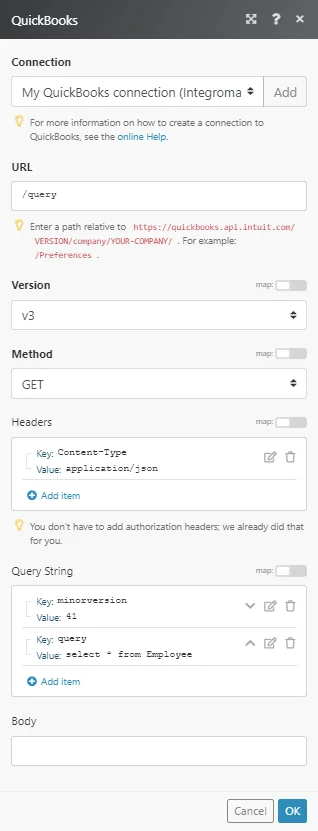
Example of Use – List Employees
The following API call returns all the employees from your QuickBooks Online account:
URL: query
Version: v3
Method: GET
Query String:
item 1 (predefined)
Key
minorversion
Value
41
item 2
Key
query
Value
select * from Employee
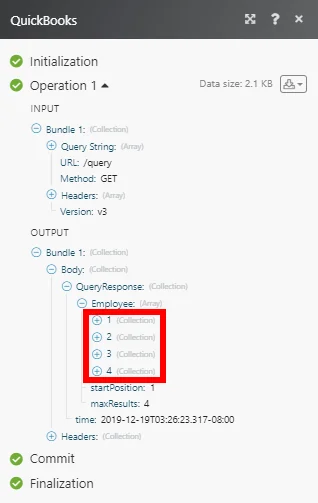
The search matches can be found in the module’s Output under Bundle > Body > QueryResponse > Employee.
In our example, 4 employees were returned:
Common Issues
New invoice number
There are 2 options to generate an invoice number:
1. Set variable or value in the Doc number field in the QuickBooks module interface:
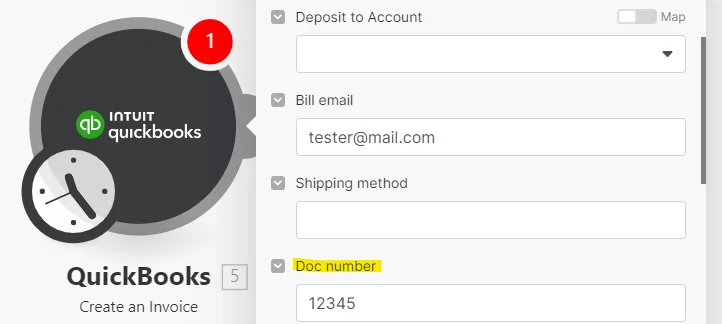
2. Automatically generate the invoice number as the number following the last created invoice in QuickBooks. To activate this option, you will need to disable the feature that allows you to edit invoice numbers under your QuickBooks settings. For this:
-
Click the gear icon.
-
Select Account and Settings.
-
Click Sales.
-
Under Sales form content, uncheck the checkbox next to Custom transaction numbers.
-
Click Save.
-
Click Done.
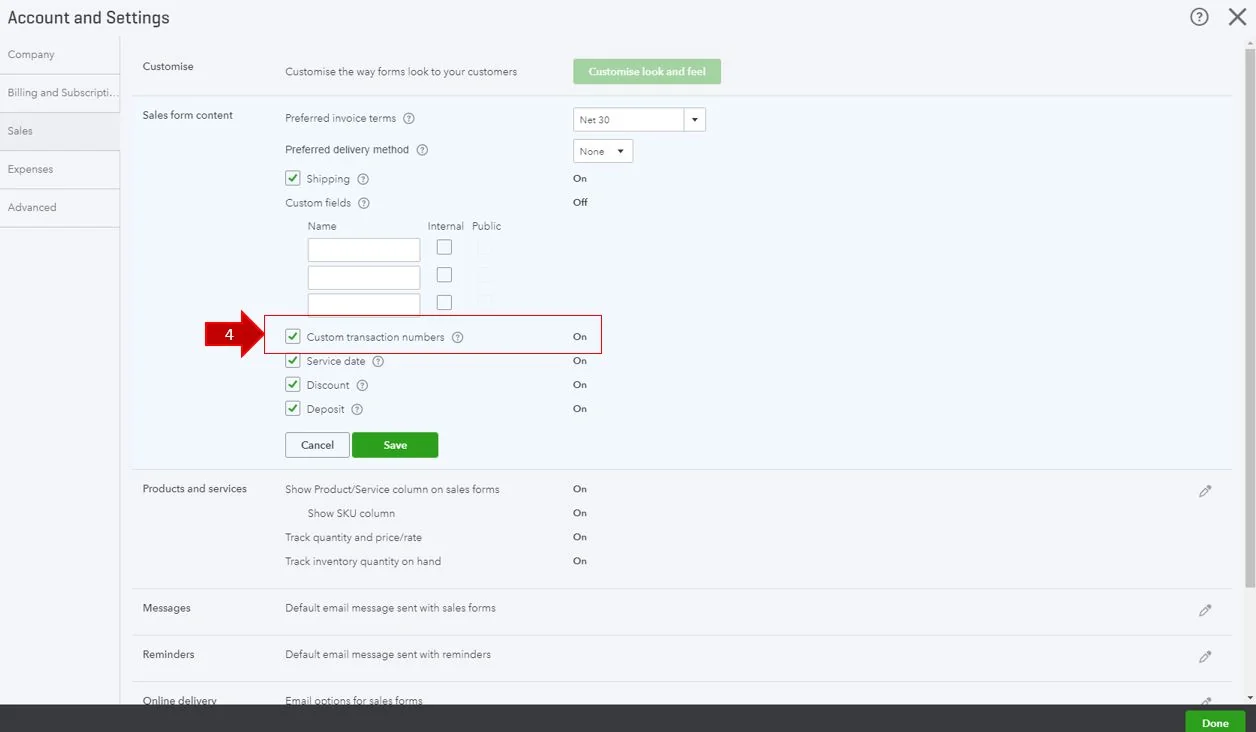
After this is set, the invoice number will be generated automatically in QuickBooks and you will no longer be able to customize your invoice numbers.
By default, it is set to on. So, an invoice generated without a doc number comes WITHOUT a number (the invoice number field is left empty).
Legacy article, imported from the original Boost.space knowledge base (/knowledge-base/applications/commerce/quickbooks/).

