SendOwl
The SendOwl modules allow you to watch, create, update, and delete the products, bundles, discounts, payments, and refunds in your SendOwl account.
Getting started with SendOwl
Prerequisites
- A SendOwl account
In order to use SendOwl with Boost.space Integrator, it is necessary to have a SendOwl account. If you do not have one, you can create a SendOwl account at sendowl.com/signup.
The module dialog fields that are displayed in bold (in the Boost.space Integrator scenario, not in this documentation article) are mandatory!
Connecting SendOwl to Boost.space Integrator
To connect your SendOwl account to Boost.space Integrator you need to obtain the API Key from your SendOwl account and insert it in the Create a connection dialog in the Boost.space Integrator module.
-
Log in to your SendOwl account.
-
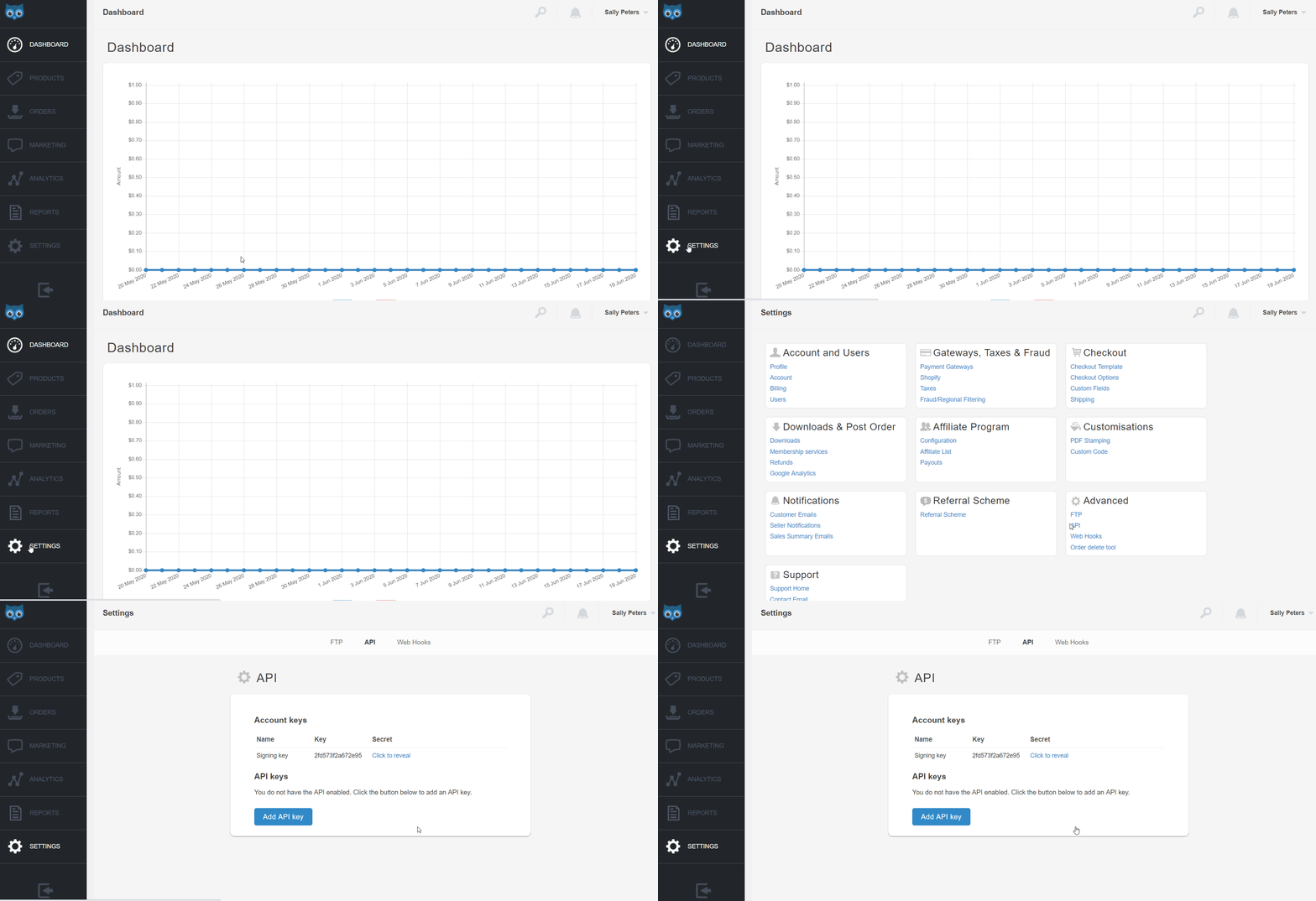
Click Settings > API.
-
Click Add API Key.
-
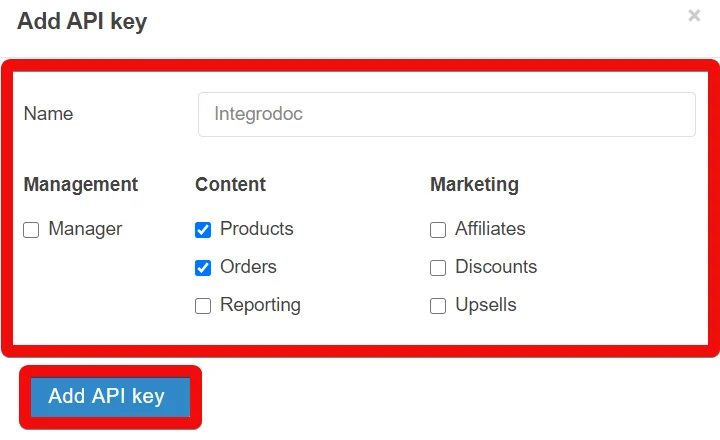
Enter a name for the API key, select the elements you want to access in your SendOwl account, and click Add API Key.
-
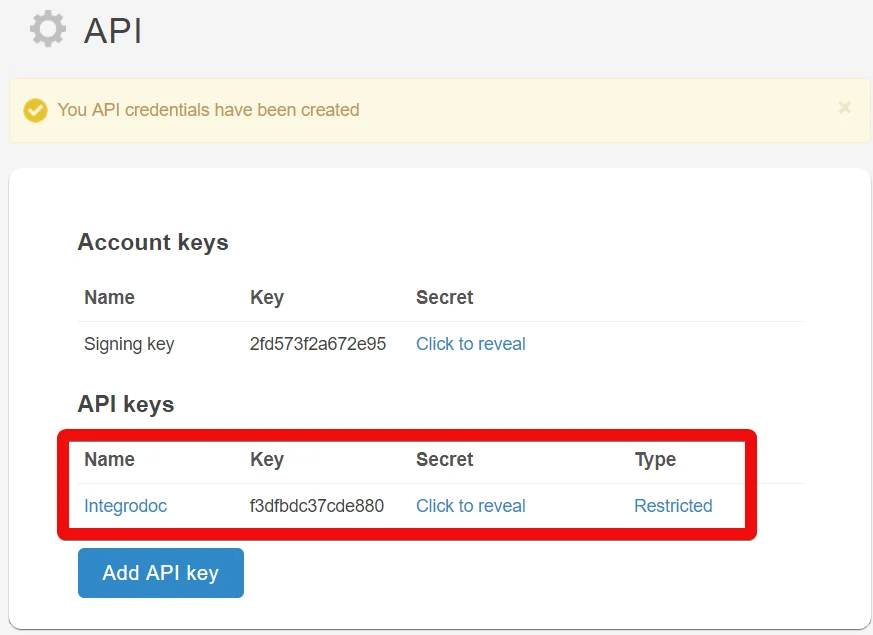
Copy the API Key and the API secret to your clipboard.
-

Go to Boost.space Integrator and open the SendOwl module’s Create a connection dialog.
-
In the Connection name field, enter a name for the connection.
-
In the API Key and API Secret fields, enter the API key and secret values copied in step 5 respectively.
The connection has been established.
Product
Create a Product
Creates a new product.
Connection
Establish a connection to your SendOwl account.
Name
Enter the name of the product.
Product Type
Select the product type:
-
Digital
-
Software
-
Redirect
-
Tangible
-
Service
-
Drip
Price
Enter the selling price of the product.
Self-hosted URL
Enter the URL address for downloading the software.
Sales Limit
Enter the number of products that can be sold.
License Type
Select the license type:
-
Generated
-
List
-
URL
License Fetch URL
Enter the URL address for the product license.
Shopify Variant ID
Enter the Variant ID of the Shopify item when using the SendOwl with Shopify.
Custom Field
If the custom field is enabled, then the values appear here.
Override Currency Code
Enter the currency code in which the product is being sold.
Price is Minimum
Select whether there is a minimum price for the product:
-
Yes
-
No
-
Not defined
Limit to Single Quantity in Cart
Select whether to limit a single quantity per sale:
-
Yes
-
No
-
Not defined
Affiliate Sellable
Select whether the product can be sold by affiliates:
-
Yes
-
No
-
Not defined
Download Folder
Enter the folder name where the product software is placed for downloading.
Commission Rate
Enter the commission rate for selling the product.
Weight
Enter the tangible product weight.
Get a Product
Returns a specified product.
Connection
Establish a connection to your SendOwl account.
Product
Select the product whose details you want to retrieve.
Update a Product
Updates a product by ID.
Connection
Establish a connection to your SendOwl account.
Product
Select the product you want to update.
Name
Enter the name of the product.
Product Type
Select the product type:
-
Digital
-
Software
-
Redirect
-
Tangible
-
Service
-
Drip
Price
Enter the selling price of the product.
Self-hosted URL
Enter the URL address for downloading the software.
Sales Limit
Enter the number of products that can be sold.
License Type
Select the license type:
-
Generated
-
List
-
URL
License Fetch URL
Enter the URL address for the product license.
Shopify Variant
Enter the Variant ID of the Shopify item when using the SendOwl with Shopify.
Custom Field
If the custom field is enabled, then the values appear here.
Override Currency Code
Enter the currency code in which the product is being sold.
Price is Minimum
Select whether there is a minimum price for the product:
-
Yes
-
No
-
Not defined
Limit to Single Quantity in Cart
Select whether to limit single quantity per sale:
-
Yes
-
No
-
Not defined
Affiliate Sellable
Select whether the product can be sold by affiliates:
-
Yes
-
No
-
Not defined
Download Folder
Enter the folder name where the product software is placed for downloading.
Commission Rate
Enter the commission rate for selling the product.
Weight
Enter the tangible product weight.
Delete a Product
Deletes a product by ID.
Connection
Establish a connection to your SendOwl account.
Product
Select the product you want to delete.
Bundle
Create a Bundle
Creates a new bundle.
Connection
Establish a connection to your SendOwl account.
Name Bundle
Enter the name of the bundle.
Price Bundle
Enter the selling price of the bundle.
Product IDs
Add the products for the bundle:
Value
Select the products to be added to the bundle.
Custom Field
If the custom field is enabled for the products, then the values appear here.
Shopify Variant ID
Enter the Variant ID of the Shopify item when using the SendOwl with Shopify.
Override Currency Code
Enter the currency code in which the product is being sold.
Limit to Single Quantity in Cart
Select whether to limit the single quantity per sale:
-
Yes
-
No
-
Not defined
Limit to Single quantity in cart
Select whether to limit a single quantity per sale:
-
Yes
-
No
-
Not defined
Affiliate Sellable
Select whether the product can be sold by affiliates:
-
Yes
-
No
-
Not defined
Commission Rate
Enter the commission rate for selling the Bundle. For example, 15%.
Get a Bundle
Returns a specified bundle by ID.
Connection
Establish a connection to your SendOwl account.
Bundle
Select the bundle whose details you want to retrieve.
Update a Bundle
Updates a bundle by ID.
Connection
Establish a connection to your SendOwl account.
Bundle
Select the bundle you want to update.
Name Bundle
Enter the name of the bundle.
Price Bundle
Enter the selling price of the bundle.
Product IDs
Add the products for the bundle:
Value
Select the products to be added to the bundle.
Custom Field
If the custom field is enabled for the products, then the values appear here.
Shopify Variant ID
Enter the Variant ID of the Shopify item when using the SendOwl with Shopify.
Override Currency Code
Enter the currency code in which the product is being sold.
Limit to single quantity in cart
Select whether to limit single quantity per sale:
-
Yes
-
No
-
Not defined
Limit to single quantity in cart
Select whether to limit single quantity per sale:
-
Yes
-
No
-
Not defined
Affiliate Sellable
Select whether the bundle can be sold by affiliates:
-
Yes
-
No
-
Not defined
Commission Rate
Enter the commission rate for selling the Bundle. For example, 15%.
Delete a Bundle
Deletes a bundle by ID.
Connection
Establish a connection to your SendOwl account.
Bundle
Select the bundle you want to delete.
Discount
Create a Discount
Creates a new discount.
Connection
Establish a connection to your SendOwl account.
Name
Enter the name of the discount.
Usage Limit
Enter the total number of time discount can be used.
Minimum Cart Value
Enter the minimum cart value to be eligible for the discount to be applied.
Fixed Discount
Enter the amount for the fixed discount. For example, 8.
Codes
Enter the discount code to use for availing of the discount.
Override Currency Code
Enter the currency code applicable for the discount. Use ISO 4217 standards.
Expires at
Enter the date and time when the discount expires or ends.
Percentage Discount
Enter the discount in percentage. For example, 5%.
Get a Discount
Returns a specified discount.
Connection
Establish a connection to your SendOwl account.
Discount
Select the discount whose details you want to retrieve.
Update a Discount
Updates a discount by ID.
Connection
Establish a connection to your SendOwl account.
Discount
Select the discount you want to update.
Name
Enter the name of the discount.
Usage Limit
Enter the total number of time discount can be used.
Minimum cart value
Enter the minimum cart value to be eligible for the discount to be applied.
Fixed Discount
Enter the amount for the fixed discount. For example, 8.
Codes
Enter the discount code to use for availing of the discount.
Override currency code
Enter the currency code applicable for the discount. Use ISO 4217 standards.
Expires at
Enter the date and time when the discount expires or ends.
Percentage Discount
Enter the discount in percentage. For example, 5%.
Delete a Discount
Deletes a discount by ID.
Connection
Establish a connection to your SendOwl account.
Discount
Select the discount you want to delete.
Other
Watch New Payment
Triggers when a new payment is made to order in SendOwl.
Webhook Name
Enter a name for the webhook.
Connection
Establish a connection to your SendOwl account.
See the Connecting to a SendOwl Webhook using Boost.space Integrator for adding the webhook in SendOwl.
Watch Order Completed
Triggers when an order has been completed.
Webhook Name
Enter a name for the webhook.
Connection
Establish a connection to your SendOwl account.
See the Connecting to a SendOwl Webhook using Boost.space Integrator for adding the webhook in SendOwl.
Watch New Subscription
Triggers when a subscription order reaches complete or canceled state in SendOwl.
Webhook Name
Enter a name for the webhook.
Connection
Establish a connection to your SendOwl account.
See the Connecting to a SendOwl Webhook using Boost.space Integrator for adding the webhook in SendOwl.
Watch New Refund
Triggers when a refund is issued.
Webhook Name
Enter a name for the webhook.
Connection
Establish a connection to your SendOwl account.
See the Connecting to a SendOwl Webhook using Boost.space Integrator for adding the webhook in SendOwl.
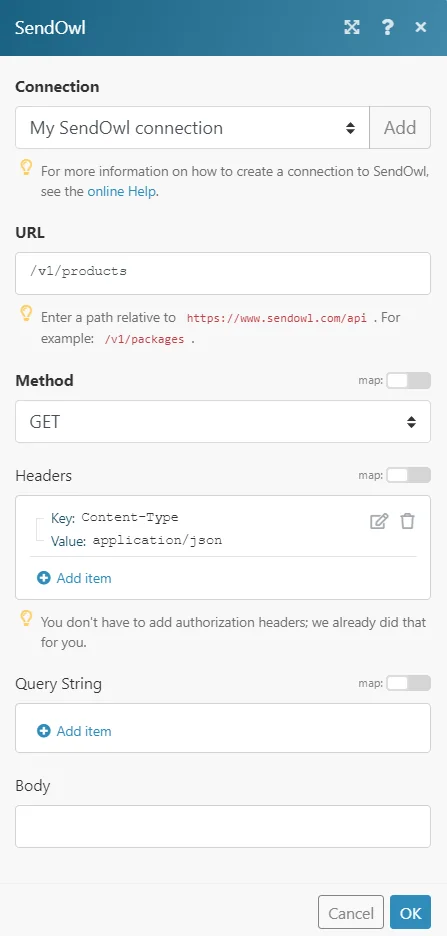
Make an API Call
Performs an arbitrary authorized API call.
Connection
Establish a connection to your SendOwl account.
URL
Enter a path relative to https://www.sendowl.com/api. For example: /v1/packages
For the list of available endpoints, refer to the SendOwl API Documentation.
Method
Select the HTTP method you want to use:
GET
to retrieve information for an entry.
POST
to create a new entry.
PUT
to update/replace an existing entry.
PATCH
to make a partial entry update.
DELETE
to delete an entry.
Headers
Enter the desired request headers. You don’t have to add authorization headers; we already did that for you.
Query String
Enter the request query string.
Body
Enter the body content for your API call.
Example of Use – List Products
The following API call returns all the products from your SendOwl account:
Get
/v1/products
Method
GET
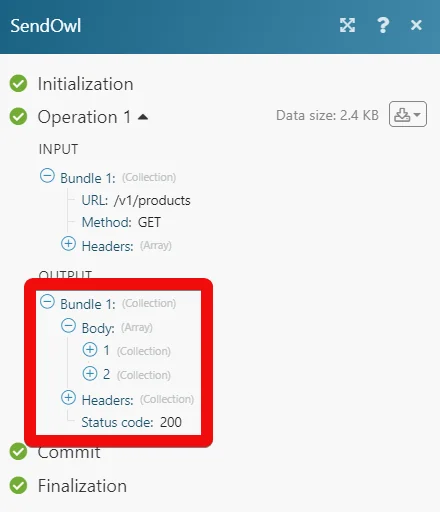
Matches of the search can be found in the module’s Output under Bundle > Body. In our example, 2 products were returned:
Connecting to a SendOwl Webhook using Boost.space Integrator
1. Open any Webhook module and enter the details as mentioned in the respective module description and click Save. Copy the link to your clipboard.
2. Login to your SendOwl account.
3. Click Settings > Web Hooks.
4. Click _Add a Web Hook_and the details and click Create.
Name
Enter a webhook name
State
Select whether the webhook is enabled:
-
Enabled
-
Disabled
URL
Enter the URL address copied in step 1.
Event
Select the events for which you want to receive the triggers.
Conditions
Select the conditions for which you want to receive the triggers.
The webhook is successfully added.
Legacy article, imported from the original Boost.space knowledge base (/knowledge-base/applications/commerce/sendowl/).

