ShipStation

The ShipStation modules allow you to create, update, list, and/or delete order events, shipment events, funds, tag to order, assign users to order, warehouses, carriers, customers, products, and stores in your ShipStation account.
Prerequisites
- A ShipStation account
In order to use ShipStation with Boost.space Integrator, it is necessary to have a ShipStation account. If you do not have one, you can create a ShipStation account at https://www.shipstation.com/signup/.
The module dialog fields that are displayed in bold (in the Boost.space Integrator scenario, not in this documentation article) are mandatory!
Connecting ShipStation to Boost.space Integrator
To connect your ShipStation account to Boost.space Integrator, you need to get your API Key and API Secret.
1. Log in to your ShipStation account.
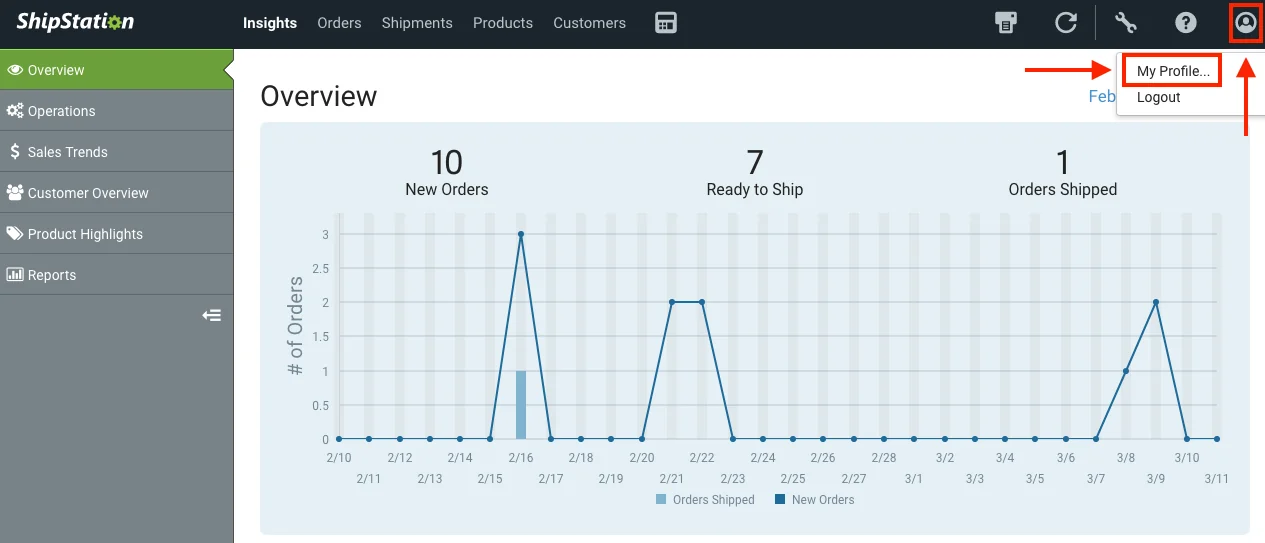
2. Click on the account icon in the top menu bar, and then choose My Profile… from the dropdown menu.
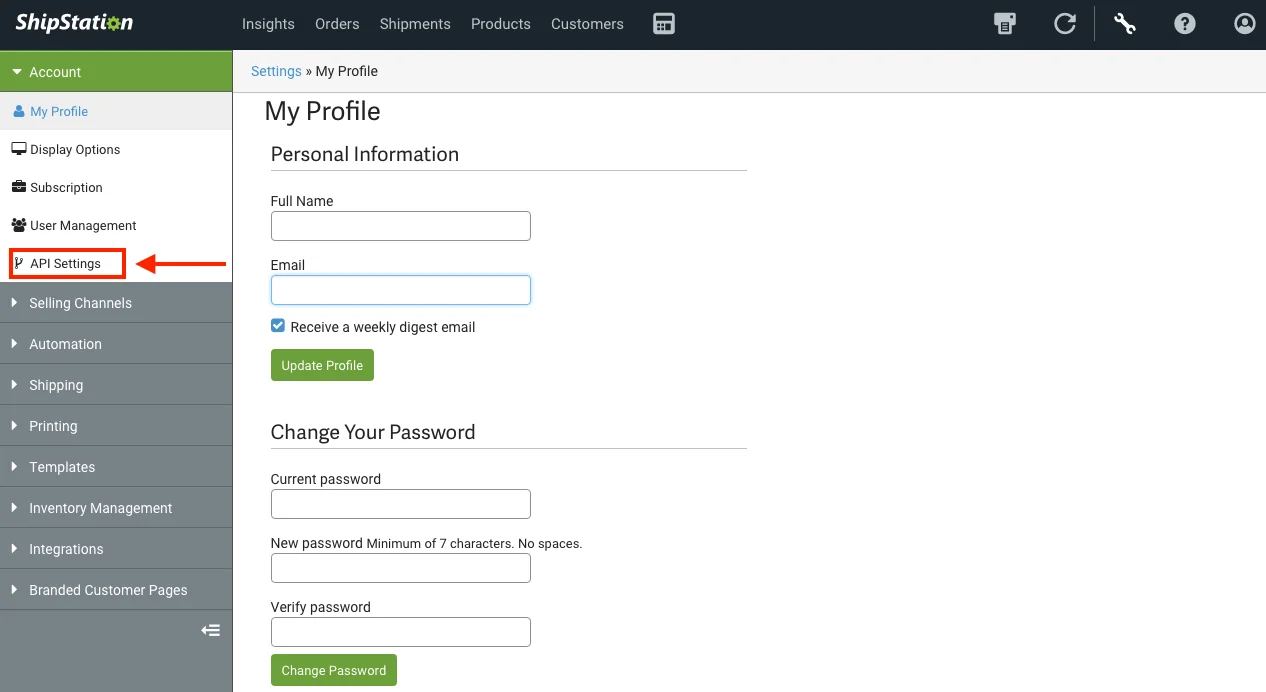
3. In the left side bar, click on API Settings.
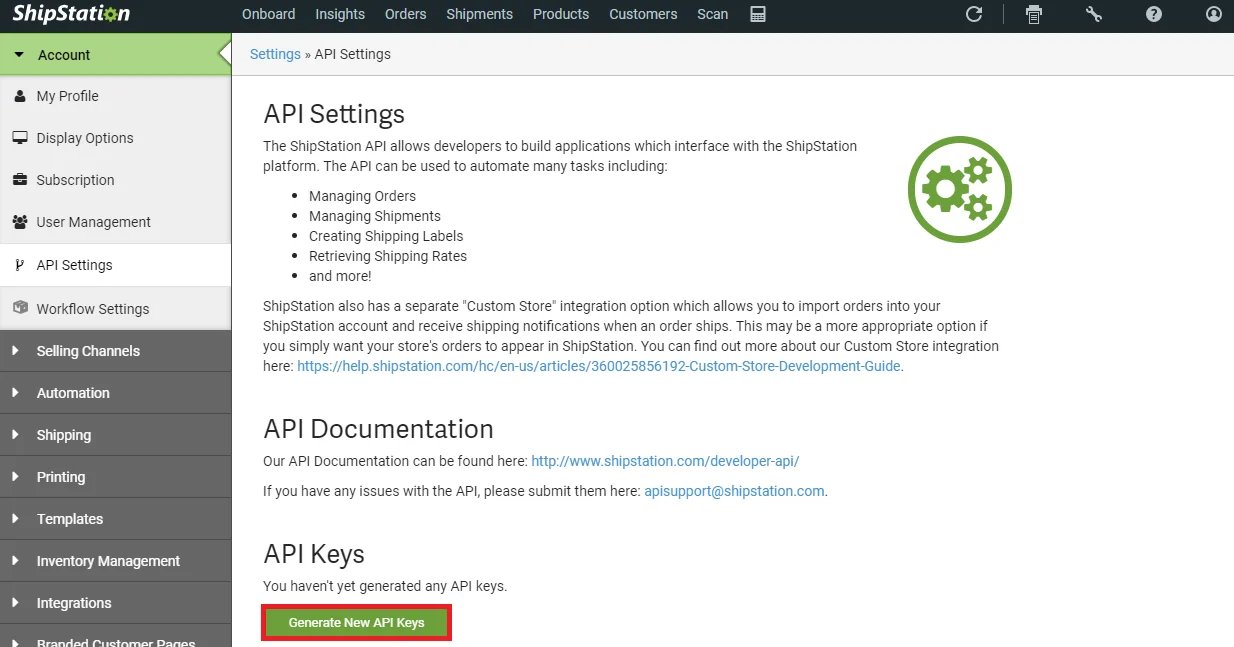
4. Click G_enerate New API Keys_ button to receive the API Key and API Secret or copy the API Key and API Secret from the API Keys section.
5. Go to Boost.space Integrator and open the ShipStation module’s Create a connection dialog.
6. Enter the API Key and API Secret you have copied in step 3 to the respective field.
7. Click the Continue button.
The connection has been established.
Triggers
Listen for Order Events
Receives notification about new and updated orders.
Webhook
Enter the webhook name.
Connection
Establish a connection to your ShipStation account.
Store ID
Select the Store ID whose order events you want to watch.
Listen for Order Events (with Item Info)
Receives notifications about new and updated orders (including detailed information about individual items that are part of the order).
Webhook
Enter the webhook name.
Connection
Establish a connection to your ShipStation account.
Store ID
Select the Store ID whose order events with item info you want to watch.
Listen for Shipment Events
Receives notifications about new shipments. The triggering event for ship notifications is the generation of a shipping label. Marking an order as shipped WILL NOT trigger this webhook.
Webhook
Enter the webhook name.
Connection
Establish a connection to your ShipStation account.
Store ID
Enter the Store ID whose shipment events you want to watch.
Listen for Shipment Events (With Item Info)
Receives notifications about new shipments, including detailed information about individual items that are part of the shipment. The triggering event for ship notifications is the generation of a shipping label. Marking an order as shipped WILL NOT trigger this webhook.
Webhook
Enter the webhook name.
Connection
Establish a connection to your ShipStation account.
Store ID
Enter the Store ID whose shipment events with item info you want to watch.
Actions
Add Funds
Adds funds to a carrier account using the payment information on file.
Connection
Establish a connection to your ShipStation account.
Carrier Code
Select the carrier code to whose account you want to add funds.
Amount
Enter the amount you want to add.
Add Tag to Order
Adds a tag to an order.
Connection
Establish a connection to your ShipStation account.
Order ID
Select the Order ID to which you want to add the tags.
Tag ID
Select the Tag ID to add to the order.
Assign User to Order
Assigns a user to an order.
Connection
Establish a connection to your ShipStation account.
Order IDs
Select the Order ID to which you want to assign the user.
User ID
Select the User ID to assign to the order.
Create Order
Creates a new order.
Connection
Establish a connection to your ShipStation account.
Order Number
Enter the order number.
Order Key
Enter the order key.
Order Date
Enter the date of the order.
Order Status
Select the status of the order:
-
Awaiting Payment
-
Awaiting Shipment
-
Shipped
-
On Hold
-
Canceled
Customer Username
Enter the customer name for whom you are creating this order.
Customer Email
Enter the email address of the customer.
Bill To Address Name
Enter the billing address name.
Bill To Address Company
Enter the name of the company name.
Bill To Address Street1
Enter the street name.
Bill To Address Street2
Enter the street name.
Bill To Address Street3
Enter the street name.
Bill To Address City
Enter the city name.
Bill To Address State
Enter the state name.
Bill To Address Postal Code
Enter the postal code of the place.
Bill To Address Country
Enter the country name.
Bill To Address Phone
Enter the phone number.
Ship To Address Name
Enter the shipping address.
Ship To Address Company
Enter the company name.
Ship To Address Street1
Enter the street name.
Ship To Address Street2
Enter the street name.
Ship To Address Street3
Enter the street name.
Ship To Address City
Enter the city name.
Ship To Address State
Enter the state name.
Ship To Address Postal Code
Enter the postal code of the place.
Ship To Address Country
Enter the country name.
Ship To Address Phone
Enter the phone number.
Ship To Address Is Residential
Select if this address is a residential address.
Order Items
Add Order Items:
-
Item Name
Enter the item name.
-
Line Item Key
Enter the item key.
-
Stock Keeping Unit (SKU)
Enter the SKU value.
-
Item Weight Value
Enter the weight of the item.
-
Item Weight Units
Enter the measuring unit of the item.
-
Item Weight Units Number
Enter the unit weighing number.
-
Item Quantity
Enter the number of items.
-
Item Unit Price
Enter the item price.
-
Item Tax Amount
Enter the tax price.
-
Item Shipping Amount
Enter the shipping charges.
-
Item Warehouse Location
Enter the items warehouse location name.
-
Product ID
Enter the Product ID.
-
Item Fulfillment SKU
Enter the items fulfillment SKU.
-
Item Adjustment
Select Yes if the item qualifies for adjustment:
-
Yes
-
No
-
Not defined
-
-
Item UPC
Enter the item Universal Product Code.
Amount Paid
Enter the amount paid for the order.
Payment Date
Enter the date on which the payment is made.
Ship By Date
Enter the date by which the shipment is to be made.
Ship Date
Enter the shipment date.
Tax Amount
Enter the amount of tax for the order.
Shipping Amount
Enter the shipping charges of the order.
Customer Notes
Enter the information about the customer.
Internal Notes
Enter any details you would like to mention about the order.
Is Gift
Select Yes if this order is a gift:
-
Yes
-
No
-
Not defined
Payment Method
Select the Payment method.
Carrier Code
Enter the carrier code of the order.
Service Code
Enter the service code of the order.
Package Code
Enter the package code of the order.
Weight Value
Enter the weight of the order.
Weight Units
Enter the measurement in which the order is weighed.
Package Length
Enter the length of the package.
Package Width
Enter the width of the package.
Package Height
Enter the height of the package.
Units
Select the units in which the package is measured:
-
Inches
-
Centimeters
Insurance Options Provider
Enter the name of the insurance option provider.
Should Insure Shipment
Select Yes if this order should be an insured shipment:
-
Yes
-
No
-
Not defined
Insured Value
Enter the amount insured for the order.
Intl Options Contents
Enter the details of international options. For example, Sample, Gift, Document, and so on.
Intl Options Non-Delivery
Select Yes if you want to enter the non-delivery options for this order:
-
Yes
-
No
-
Not defined
Intl Options Customs Items
Add Options Custom Items:
-
Intl Options Customs Item ID
Enter the custom items.
-
Intl Options Customs Item Description
Enter the details of the item.
-
Intl Options Customs Item Quantity
Enter the quantity of the custom items.
-
Intl Options Customs Item Value
Enter the amount of the item.
-
Intl Options Harmonized Tariff Code
Enter the Harmonized Commodity Code of the item.
-
Intl Options Country of Origin
Enter the country name where this item is originated.
Warehouse ID
Enter the Warehouse ID from where this order is shipped.
Is Non-Machinable
Select Yes if this order is non-machinable:
-
Yes
-
No
-
Not defined
Saturday Delivery
Select Yes if this order is delivered on Saturday:
-
Yes
-
No
-
Not defined
Contains Alcohol
Select Yes if this order contains alcohol:
-
Yes
-
No
-
Not defined
Store ID
Enter the Store ID associated with the order.
Custom Field 1
You can add any custom field related to this order.
Custom Field 2
You can add any custom field related to this order.
Custom Field 3
You can add any custom field related to this order.
Order Source
Enter the marketplace of the order.
Bill To Party
Enter the details of the secondary account of the customer for billing.
Bill To Account
Enter the account number of the secondary account.
Bill To Postal Code
Enter the address of the secondary account.
Bill To Country Code
Enter the country code of the secondary account.
Bill To My Other Account
Enter the details of the account to which you want to bill this order.
Create Warehouse
Creates a new warehouse (Ship From Location).
Connection
Establish a connection to your ShipStation account.
Warehouse Name
Name of the warehouse, ship from location.
Origin Address Name
Enter the origin address. The shipping rates are calculated based on this address.
Origin Address Company
Enter the company name.
Origin Address Street1
Enter the street address.
Origin Address Street2
Enter the street address.
Origin Address Street3
Enter the street address.
Origin Address City
Enter the city name.
Origin Address State
Enter the state name.
Origin Address Postal Code
Enter the postal code of the place.
Origin Address Country
Enter the country name.
Origin Address Phone
Enter the phone number.
Origin Address Is Residential
Select if this origin address is a residential address.
Different Return Address
Select if you want to enter a different return address of the shipment if it is undelivered.
Return Address Name
Enter the return address name.
Return Address Company
Enter the company name.
Return Address Street1
Enter the street address.
Return Address Street2
Enter the street address.
Return Address Street3
Enter the street address.
Return Address City
Enter the city name.
Return Address State
Enter the state name.
Return Address Postal Code
Enter the postal code of the place.
Return Address Country
Enter the country name.
Return Address Phone
Enter the phone number.
Return Address Is Residential
Select if this return address is a residential address.
Is Default
Select if this is your default Ship From Location.
Deactivate Store
Deactivates the specified store.
Connection
Establish a connection to your ShipStation account.
Store ID
Select the Store ID you want to deactivate.
Delete Order
Removes a selected order from ShipStation’s UI. This is a soft delete action so the order will still exist in the database, but will be set to inactive.
Connection
Establish a connection to your ShipStation account.
Order ID
Select the Order ID you want to delete.
Get Carrier
Gets a selected carrier’s details.
Connection
Establish a connection to your ShipStation account.
Carrier Code
Select the carrier Code whose carrier details you want to retrieve.
Get Customer
Gets a selected customer’s details.
Connection
Establish a connection to your ShipStation account.
Customer ID
Select the Customer ID whose details you want to retrieve.
Get Order
Retrieves a single order from the database.
Connection
Establish a connection to your ShipStation account.
Order ID
Select the Order ID whose details you want to retrieve.
Get Product
Gets a selected product details.
Connection
Establish a connection to your ShipStation account.
Product ID
Select the Product ID whose details you want to retrieve.
Get Store
Gets a selected store’s details.
Connection
Establish a connection to your ShipStation account.
Store ID
Select the Store ID whose details you want to retrieve.
Get Warehouse
Returns details for a selected warehouse (Ship From Location).
Connection
Establish a connection to your ShipStation account.
Warehouse ID
Select the Warehouse ID whose details you want to retrieve.
Mark an Order as Shipped
Marks an order as shipped without creating a label in ShipStation.
Connection
Establish a connection to your ShipStation account.
Order ID
Select the Order ID you want to mark as shipped.
Carrier Code
Select the carrier code of the order.
Ship Date
Enter the order ship date.
Tracking Number
Enter the tracking number of the order.
Notify Customer
Select if you want to notify the customer about the shipment.
Notify Sales Channel
Select if you want to notify the sales channel about the shipment.
Reactivate Store
Reactivates the specified store.
Connection
Establish a connection to your ShipStation account.
Store ID
Select the Store ID of the store you want to reactivate.
Refresh Store
Initiates a store refresh.
Connection
Establish a connection to your ShipStation account.
Store ID
Select the Store ID you want to refresh.
Refresh Date
Enter the date on which you want to refresh.
Remove Tag From Order
Removes a tag from the specified order.
Connection
Establish a connection to your ShipStation account.
Order ID
Select the Order ID from which you want to remove the tag.
Tag ID
Select the Tag ID which you want to remove from the order.
Unassign User from Order
Unassigns a user from an order.
Connection
Establish a connection to your ShipStation account.
Order IDs
Select the Orders from which you want to unassign a user from.
Update Order
Updates an existing order. Only orders in an open status in ShipStation (awaiting_payment, awaiting_shipment, and on_hold) can be updated through this method. This call DOES NOT support partial updates. The entire resource must be provided in the body of the request.
Connection
Establish a connection to your ShipStation account.
Order Key
Enter the order number.
Order Number
Enter the order key.
Order Date
Enter the date of the order.
Order Status
Select the status of the order:
-
Awaiting Payment
-
Awaiting Shipment
-
Shipped
-
On Hold
-
Canceled
Customer Username
Enter the customer name for whom you are creating this order.
Customer Email
Enter the email address of the customer.
Bill To Address Name
Enter the billing address name.
Bill To Address Company
Enter the name of the company name.
Bill To Address Street1
Enter the street name.
Bill To Address Street2
Enter the street name.
Bill To Address Street3
Enter the street name.
Bill To Address City
Enter the city name.
Bill To Address State
Enter the state name.
Bill To Address Postal Code
Enter the postal code of the place.
Bill To Address Country
Enter the country name.
Bill To Address Phone
Enter the phone number.
Ship To Address Name
Enter the shipping address.
Ship To Address Company
Enter the company name.
Ship To Address Street1
Enter the street name.
Ship To Address Street2
Enter the street name.
Ship To Address Street3
Enter the street name.
Ship To Address City
Enter the city name.
Ship To Address State
Enter the state name.
Ship To Address Postal Code
Enter the postal code of the place.
Ship To Address Country
Enter the country name.
Ship To Address Phone
Enter the phone number.
Ship To Address Is Residential
Select if this address is a residential address.
Order Items
Add Order Items:
-
Item Name
Enter the item name.
-
Line Item Key
Enter the item key.
-
Stock Keeping Unit (SKU)
Enter the SKU value.
-
Item Weight Value
Enter the weight of the item.
-
Item Weight Units
Enter the measuring unit of the item.
-
Item Weight Units Number
Enter the number of units.
-
Item Quantity
Enter the number of items.
-
Item Unit Price
Enter the item price.
-
Item Tax Amount
Enter the tax price.
-
Item Shipping Amount
Enter the shipping charges.
-
Item Warehouse Location
Enter the items warehouse location name.
-
Product ID
Enter the Product ID.
-
Item Fulfillment SKU
Enter the items fulfillment SKU.
-
Item Adjustment
Select Yes if the item qualifies for adjustment:
-
Yes
-
No
-
Not defined
-
-
Item UPC
Enter the item Universal Product Code.
Amount Paid
Enter the amount paid for the order.
Payment Date
Enter the date on which the payment is made.
Ship By Date
Enter the date by which the shipment is to be made.
Ship Date
Enter the shipment date.
Tax Amount
Enter the amount of tax for the order.
Shipping Amount
Enter the shipping charges of the order.
Customer Notes
Enter the information about the customer.
Internal Notes
Enter any details you would like to mention about the order.
Is Gift
Select Yes if this order is a gift:
-
Yes
-
No
-
Not defined
Payment Method
Select the Payment method.
Carrier Code
Enter the carrier code of the order.
Service Code
Enter the service code of the order.
Package Code
Enter the package code of the order.
Weight Value
Enter the weight of the order.
Weight Units
Enter the measurement in which the order is weighed.
Package Length
Enter the length of the package.
Package Width
Enter the width of the package.
Package Height
Enter the height of the package.
Units
Select the units in which the package is measured:
-
Inches
-
Centimeters
Insurance Options Provider
Enter the name of the insurance option provider.
Should Insure Shipment
Select Yes if this order should be insured:
-
Yes
-
No
-
Not defined
Insured Value
Enter the amount insured for the order.
Intl Options Contents
Enter the details of international options. For example, Sample, Gift, Document, and so on.
Intl Options Non-Delivery
Select Yes if you want to enter the non-delivery options for this order:
-
Yes
-
No
-
Not defined
Intl Options Customs Items
Add Options Custom Items:
-
Intl Options Customs Item ID
Enter the custom items.
-
Intl Options Customs Item Description
Enter the details of the item.
-
Intl Options Customs Item Quantity
Enter the quantity of the custom items.
-
Intl Options Customs Item Value
Enter the amount of the item.
-
Intl Options Harmonized Tariff Code
Enter the Harmonized Commodity Code of the item.
-
Intl Options Country of Origin
Enter the country name where this item is originated.
Warehouse ID
Enter the Warehouse ID from where this order is shipped.
Is Non-Machinable
Select Yes if this order is non-machinable:
-
Yes
-
No
-
Not defined
Saturday Delivery
Select Yes if this order is delivered on Saturday:
-
Yes
-
No
-
Not defined
Contains Alcohol
Select Yes if this order contains alcohol:
-
Yes
-
No
-
Not defined
Store ID
Enter the Store ID associated with the order.
Custom Field 1
You can add any custom field related to this order.
Custom Field 2
You can add any custom field related to this order.
Custom Field 3
You can add any custom field related to this order.
Order Source
Enter the marketplace of the order.
Bill To Party
Enter the details of the secondary account of the customer for billing.
Bill To Account
Enter the account number of the secondary account.
Bill To Postal Code
Enter the address of the secondary account.
Bill To Country Code
Enter the country code of the secondary account.
Bill To My Other Account
Enter the details of the account to which you want to bill this order.
Update Product
Updates an existing product. This call DOES NOT currently support partial updates the entire resource must be provided in the body of the request.
Connection
Establish a connection to your ShipStation account.
Product ID
Select the Product ID you want to update.
Product Name
Enter a new name for the product.
Store Aliases
Add items:
-
Store ID
Select the Store ID.
-
SKU Alias
Enter the SKU value.
Stock Keeping Unit (SKU)
Enter the SKU value of the product.
Product Price
Enter the product price.
Default Cost
Enter the default cost of the product.
Length
Enter the length of the product.
Width
Enter the width of the product.
Height
Enter the height of the product.
Weight in Ounces
Enter the weight of the product in ounces.
Internal Notes
Enter the information about the product.
Fulfillment SKU
Enter the value of the fulfillment SKU of the product.
Date Created
Enter the date in which you have created the product.
Date Modified
Enter the date on which the product is modified.
Is Active
Select if the product is active.
Category ID
Enter the category ID of the product.
Category Name
Enter the name of the category.
Product Type
Enter the product type.
Warehouse Location
Enter the warehouse location of the product.
Default Carrier Code
Enter the default carrier code of the product.
Default Service Code
Enter the default service code of the product.
Default Package Code
Enter the default package code of the product.
Default International Carrier Code
Enter the default international carrier code of the product.
Default International Service Code
Enter the default international carrier code of the product.
Default International Package Code
Enter the default international carrier code of the product.
Default Confirmation
Enter the default confirmation of the product.
Default International Confirmation
Enter the default international confirmation of the product.
Customs Description
Enter the details of the customs.
Customs Value
Enter the customs value of the product.
Customs Tariff Number
Enter the customs tariff number of the product.
Customs Country Code
Enter the customs country code.
No Customs
Select if the product has no customs.
Tags
Add the tags:
-
TagID
Select the Tag ID.
Update Store
Updates an existing, active store. Inactive stores cannot be modified via the API. This call DOES NOT currently support partial updates. The entire resource must be provided in the body of the request.
Connection
Establish a connection to your ShipStation account.
Store ID
Select the Store ID you want to update.
Store Name
Enter the store name.
Marketplace ID
Select the Marketplace ID of the store.
Store Email
Enter the email address of the store.
Integration URL
Enter the integration URL of the store.
Is Active
Select if the store is active.
Company Name
Enter the company name.
Store Phone Number
Enter the store phone number.
Store Public Email
Enter the store’s public email address.
Store Website URL
Enter the store website URL address.
Auto Refresh
Select if you want to set auto-refresh for the store.
Update Warehouse
Updates an existing warehouse (Ship From Location). This call DOES NOT currently support partial updates. The entire resource must be provided in the body of the request.
Connection
Establish a connection to your ShipStation account.
Warehouse ID
Select the Warehouse ID you want to update.
Warehouse Name
Enter a new name for the warehouse.
Origin Address Name
Enter the address of the warehouse. Shipping rates are calculated based on this address.
Origin Address Company
Enter the company name.
Origin Address Street1
Enter the address name.
Origin Address Street2
Enter the address name.
Origin Address Street3
Enter the address name.
Origin Address City
Enter the city name.
Origin Address State
Enter the state name.
Origin Address Postal Code
Enter the postal code.
Origin Address Country
Enter the country name.
Origin Address Phone
Enter the phone number.
Origin Address Is Residential
Select if this is a residential address.
Different Return Address
Select if you want to mention a different return address.
Return Address Name
Enter the return address name.
Return Address Company
Enter the company name.
Return Address Street1
Enter the street address.
Return Address Street2
Enter the street address.
Return Address Street3
Enter the street address.
Return Address City
Enter the city name.
Return Address State
Enter the state name.
Return Address Postal Code
Enter the postal code of the place.
Return Address Country
Enter the country name.
Return Address Phone
Enter the phone number.
Return Address Is Residential
Select if this return address is a residential address.
Is Default
Select if this is your default warehouse address.
Void Label
Voids the specified label by shipment ID.
Connection
Establish a connection to your ShipStation account.
Shipment ID
Select the Shipment ID whose label you want to void.
Searches
List Carriers
Lists all carriers.
Connection
Establish a connection to your ShipStation account.
Limit
The maximum number of carriers Boost.space Integrator should return during one scenario execution cycle.
List Customers
List all customers.
Connection
Establish a connection to your ShipStation account.
State Code
Enter the state code of the customer you want to list.
Country Code
Enter the country code of the customer you want to list.
Marketplace ID
Select the Marketplace ID of the customer you want to list.
Tag ID
Select the Tag ID of the customer you want to list.
Sort By
Select the option to sort the customers you want to list:
-
Customer Name
-
Date Created
-
Date Modified
Sort Direction
Select the order to sort the customers you want to list:
-
Ascending
-
Descending
Limit
The maximum number of customers Boost.space Integrator should return during one scenario execution cycle.
List Fulfillments
Obtains a list of fulfillments that match the specified criteria. Orders that have been marked as shipped either through the UI or the API will appear in the response as they are considered as fulfilled.
Connection
Establish a connection to your ShipStation account.
Fulfillment ID
Enter the Fulfillment ID you want to list.
Order ID
Enter the Order ID of the fulfillment you want to list.
Order Number
Enter the order number of the fulfillment you want to list.
Tracking Number
Enter the tracking number of the fulfillment you want to list.
Recipient Name
Enter the receipt name of the fulfillment you want to list.
Limit
The maximum number of fulfillments Boost.space Integrator should return during one scenario execution cycle.
Earliest Creation Date
Enter the start date to filter the fulfillments created on or after the specified date.
Latest Creation Date
Enter the end date to filter the fulfillments created on or before the specified date.
Earliest Shipping Date
Enter the start date to filter the fulfillments with the ship date on or after the specified date.
Latest Shipping Date
Enter the end date to filter the fulfillments with the ship date on or before the specified date.
Sort By
Select the option to sort the customers you want to list:
-
Date Created
-
Date Modified
Sort Direction
Select the order to sort the customers you want to list:
-
Ascending
-
Descending
List Marketplaces
Lists the marketplaces that can be integrated with ShipStation.
Connection
Establish a connection to your ShipStation account.
Limit
The maximum number of marketplaces Boost.space Integrator should return during one scenario execution cycle.
List Orders
List all orders for the specified criteria.
Connection
Establish a connection to your ShipStation account.
Customer Name
Enter the customer whose order you want to list.
Item Keyword
Enter the items to filter the orders
Order Number
Enter the order number of the order you want to list.
Order Status
Select the order status to filter the order you want to list:
-
Awaiting Payment
-
Awaiting Shipment
-
Pending fulfillment
-
Shipped
-
On Hold
-
Canceled
Store ID
Select the Store ID whose order you want to list.
Limit
The maximum number of orders Boost.space Integrator should return during one scenario execution cycle.
Earliest Creation Date
Enter the start date to filter the orders created from the specified date.
Latest Creation Date
Enter the end date to filter the orders created until the specified date.
Earliest Modification Date
Enter the start date to filter the orders that are modified from the specified date.
Latest Modification Date
Enter the end date to filter the orders that are modified until the specified date.
Earliest Order Date
Enter the order end date to filter the orders from the specified date.
Latest Order Date
Enter the order end date to filter the orders until the specified date.
Earliest Payment Date
Enter the payment start date to filter the orders from the specified date.
Latest Payment Date
Enter the payment end date to filter the orders until the specified date.
Sort By
Select the option to sort the orders you want to list:
-
Date Created
-
Date Modified
-
Date Ordered
Sort Direction
Select the order to sort the orders you want to list:
-
Ascending
-
Descending
List Packages
Retrieves a list of packages for the specified carrier.
Connection
Establish a connection to your ShipStation account.
Carrier code
Select the carrier code of the package you want to list.
Limit
The maximum number of packages Boost.space Integrator should return during one scenario execution cycle.
List Products
Lists all products.
Connection
Establish a connection to your ShipStation account.
Stock Keeping Unit (SKU)
Enter the SKU of the product you want to list.
Product Name
Enter the product name you want to list.
Category ID
Enter the Category ID of the products you want to list.
Product Type ID
Enter the Product Type ID of the products you want to list.
Tag ID
Enter the Tag ID of the products you want to list.
Limit
The maximum number of products Boost.space Integrator should return during one scenario execution cycle.
Start Date
Enter the start date to filter the products created from the specified date.
End Date
Enter the end date to filter the products created until the specified date.
Sort By
Select the option to sort the customers you want to list:
-
Stock Keeping Unit (SKU)
-
Date Created
-
Date Modified
Sort Direction
Select the order to sort the customers you want to list:
-
Ascending
-
Descending
Include Inactive Products
Select if you want to list the inactive products.
List Services
Retrieves the list of available shipping services provided by the specified carrier.
Connection
Establish a connection to your ShipStation account.
Carrier Code
Select the carrier code whose services you want to list.
Limit
The maximum number of services Boost.space Integrator should return during one scenario execution cycle.
List Shipments
Retrieves a list of shipments that match the specified criteria. Only valid shipments with labels generated in ShipStation will be returned in the response. Orders that have been marked as shipped either through the UI or the API will not appear as they are considered external shipments.
Connection
Establish a connection to your ShipStation account.
Recipient Name
Enter the recipient name whose shipment you want to list.
Recipient Country Code
Enter the country code whose shipments you want o list.
Order Number
Enter the order number of the shipment you want to list.
Order ID
Enter the Order ID of the shipment you want to list.
Carrier Code
Enter the carrier code of the shipment you want to list.
Service Code
Enter the service code of the shipment you want to list.
Tracking Number
Enter the tracking number of the shipment you want to list.
Include Shipment Items
Enter the order number of the shipment you want to list.
Limit
The maximum number of shipments Boost.space Integrator should return during one scenario execution cycle.
Earliest Creation Date
Enter the date to filter the shipments created on or after the specified date.
Latest Creation Date
Enter the date to filter the shipments created on or before the specified date.
Earliest Shipping Date
Enter the date to filter the shipments with the ship date on or after the specified date.
Latest Shipping Date
Enter the date to filter the shipments with the ship date on or before the specified date.
Earliest Void Date
Enter the date to filter the shipments voided on or after the specified date.
Latest Void Date
Enter the date to filter the shipments voided on or before the specified date.
Sort By
Select the option to sort the customers you want to list:
-
Date Created
-
Shipping Date
Sort Direction
Select the order to sort the shipments you want to list:
-
Ascending
-
Descending
List Stores
Retrieves the list of installed stores on the account.
Connection
Establish a connection to your ShipStation account.
Marketplace ID
Select the Marketplace ID of the store you want to list.
Include Inactive Stores
Select if you want to list the inactive stores.
Limit
The maximum number of stores Boost.space Integrator should return during one scenario execution cycle.
List Tags
List all tags defined for this account.
Connection
Establish a connection to your ShipStation account.
Limit
The maximum number of tags Boost.space Integrator should return during one scenario execution cycle.
List Users
List all users related to a connected account.
Connection
Establish a connection to your ShipStation account.
Limit
The maximum number of users Boost.space Integrator should return during one scenario execution cycle.
List Warehouses
List all warehouses (Ship From Locations).
Connection
Establish a connection to your ShipStation account.
Limit
The maximum number of warehouses Boost.space Integrator should return during one scenario execution cycle.
Legacy article, imported from the original Boost.space knowledge base (/knowledge-base/applications/commerce/shipstation/).

