Snipcart
With the Snipcart modules in Boost.space Integrator, you can add, update and delete the contact, tag, order, and subscription in your Snipcart account.
To get started with the Snipcart, create an account at snipcart.com.
The module dialog fields that are displayed in bold (in the Make scenario, not in this documentation article) are mandatory!
Connect Snipcart to Boost.space Integrator
To connect the Snipcart app with the Boost.space Integrator:
-
Log in to your Snipcart account.
-
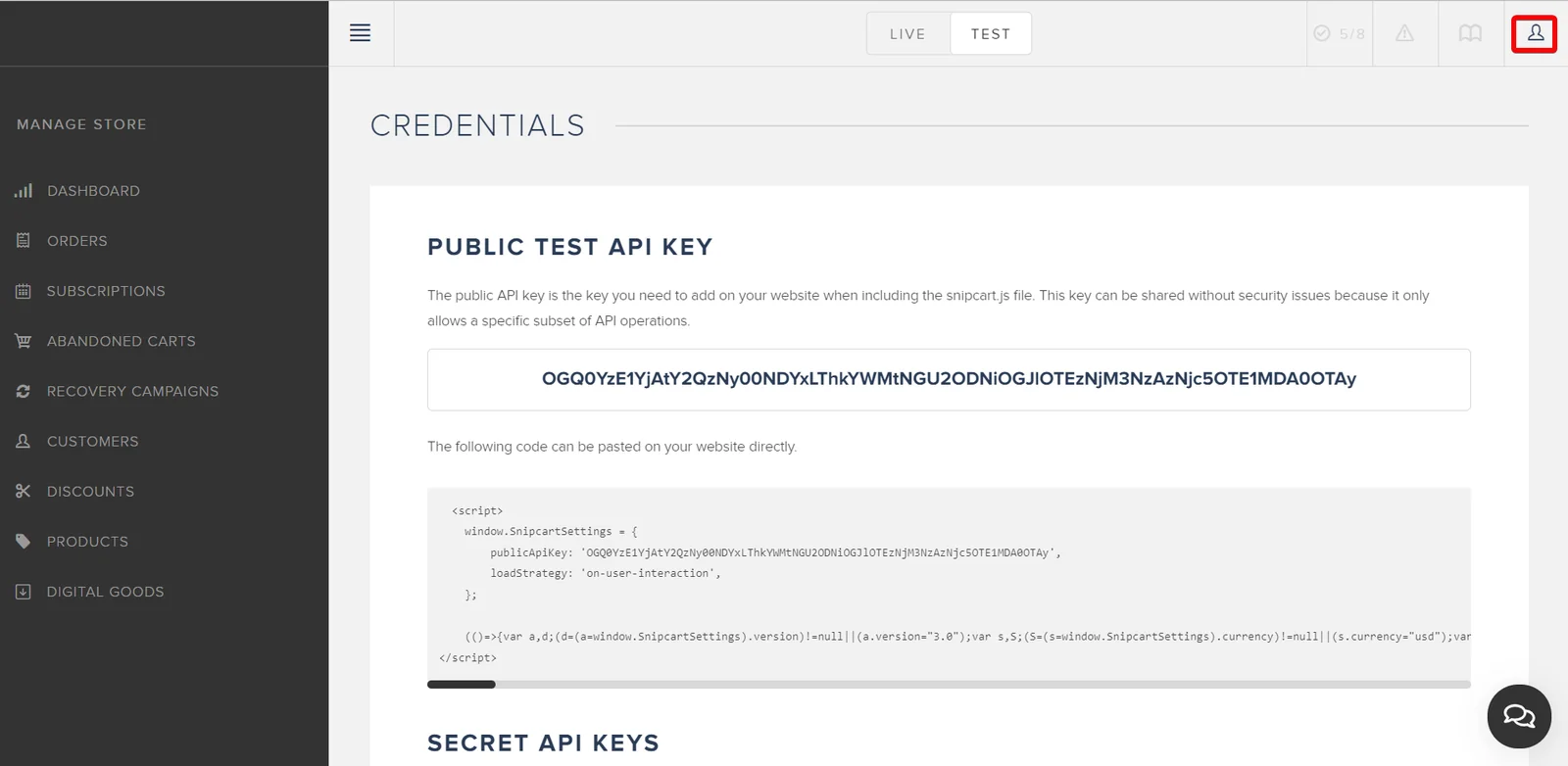
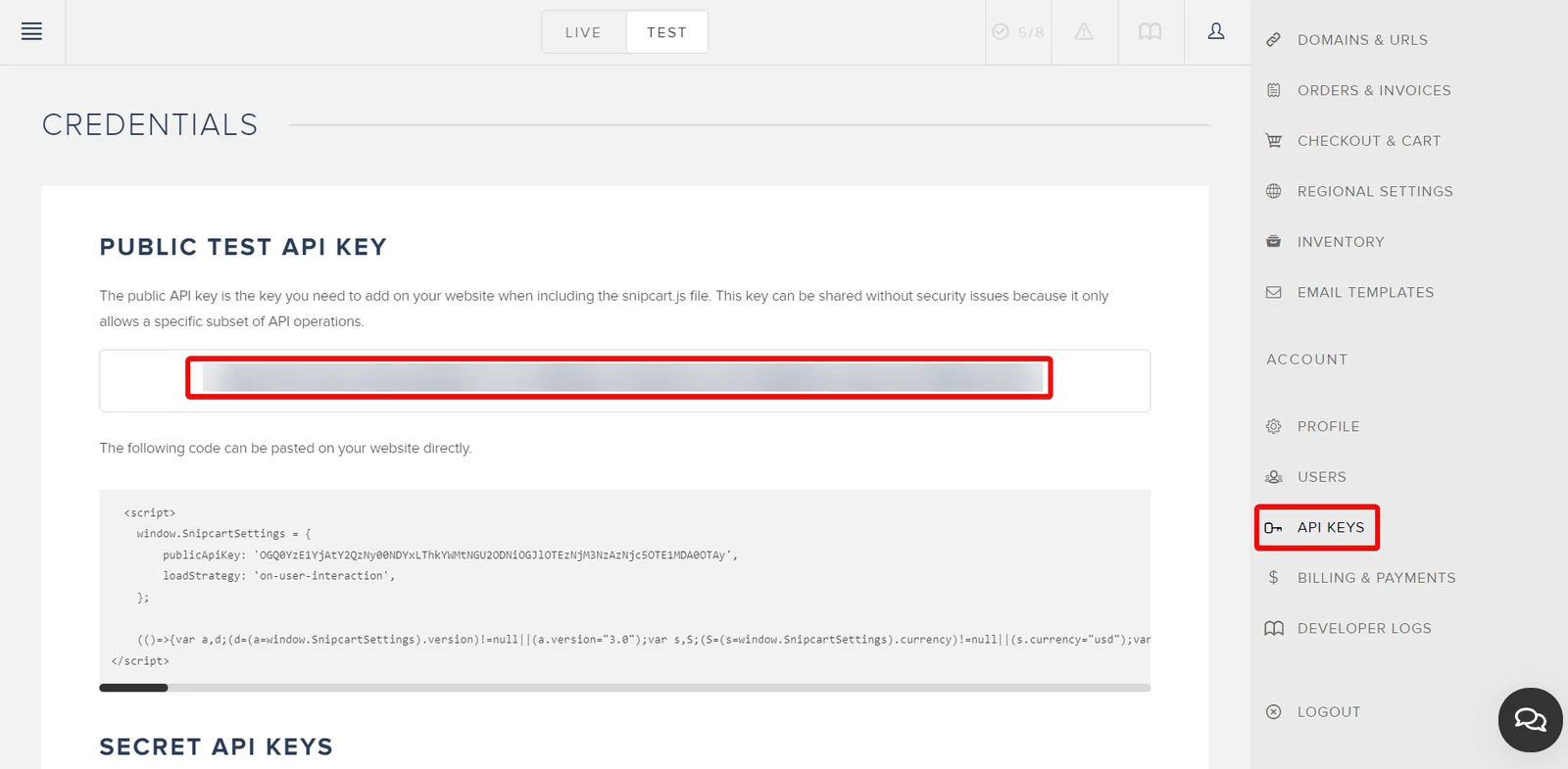
Click Profile > API Keys. Copy the API Key to a safe place.
-

Log in to your Boost.space Integrator and add a module from the Snipcart into a Boost.space Integrator scenario.
-
Click Add next to the Connection field.
-
In the Connection name field, enter a name for the connection.
-
In the API Key field, enter the details copied in step 2 and click Save.
You have successfully connected the Snipcart app with Boost.space Integrator and can now build scenarios.
Actions
You can retrieve customer details, abandon carts, orders, products, refunds, update order details, create notifications, and call APIs using the following modules.
Get an Abandoned Cart
Retrieves an abandoned cart by its ID.
Connection
Establish a connection to your Snipcart application.
Abandoned Cart Token
Select or map an email address or enter the cart’s token whose abandoned cart details you want to retrieve.
Get a Customer
Retrieves a customer by ID.
Connection
Establish a connection to your Snipcart application.
Customer ID
Select or map a Customer ID whose details you want to retrieve.
Create a Notification
Creates a new notification for the specified order.
Connection
Establish a connection to your Snipcart application.
Order Token
Select or map the order token for which you want to create a notification.
Type
Select the notification type:
-
Comment
-
Invoice
-
Order Shipped
-
Order Status Changed
-
Tracking Number
Delivery Method
Select the delivery method for the notification:
-
Email
-
None
Message
Enter (map) the notification message. This field is optional but required for comment and tracking.
Get an Order
Retrieves an order by its ID.
Connection
Establish a connection to your Snipcart application.
Order Token
Select or map the order token whose details you want to retreive.
Update an Order
Updates the status (required) and other parameters of the selected order.
Connection
Establish a connection to your Snipcart application.
Order Token
Select or map the invoice number of the order or enter the order’s Token whose details you want to update.
Status
Select the order status. For example, processed.
Payment Status
Select or map the order payment status. For example, paid.
Tracking number
Enter (map) the order tracking number.
Tracking URL
Enter (map) order tracking URL address where the customers will be able to track their order.
Custom Metadata
Enter (map) the custom metadata parameters:
Key
Enter (map) a custom key. For example, order delivery address.
Value
Enter (map) a custom value. For example, address.
Type
Select the type of parameter:
-
Empty
-
Text
-
Number
-
Boolean
Get a Product
Retrieves a product by its ID.
Connection
Establish a connection to your Snipcart application.
Product ID
Select or map a Product ID whose details you want to retrieve.
Create a New Refund
Creates a new refund for the specified order.
Connection
Establish a connection to your Snipcart application.
Order Token
Select or map an order token for which you want to create a new refund.
Amount
Enter (map) refund amount rounded up to two decimal points.
Comment
Enter (map) the comment for the new refund.
Send Comment
Select whether to include the comment in the email to the customer.
Get a Refund
Retrieves the specified refund information.
Connection
Establish a connection to your Snipcart application.
Select or enter manually
Select or enter manually the fields to retrieve refund details.
Order Token
Select or map the order token whose refund details you want to retrieve.
Refund ID
Select or map the Refund ID whose details you want to retrieve.
Make an API Call
Performs an arbitrary authorized API call.
Connection
Establish a connection to your Snipcart application.
URL
Enter a path relative to https://app.snipcart.com/api. For example, /orders.
For the list of available endpoints, refer to the Snipcart API Documentation.
Method
GET
to retrieve information for an entry.
POST
to create a new entry.
PUT
to update/replace an existing entry.
PATCH
to make a partial entry update.
DELETE
to delete an entry.
Headers
Enter the desired request headers. You don’t have to add authorization headers; we already did that for you.
Query String
Enter the request query string.
Body
Enter the body content for your API call.
Example of Use – List Customer
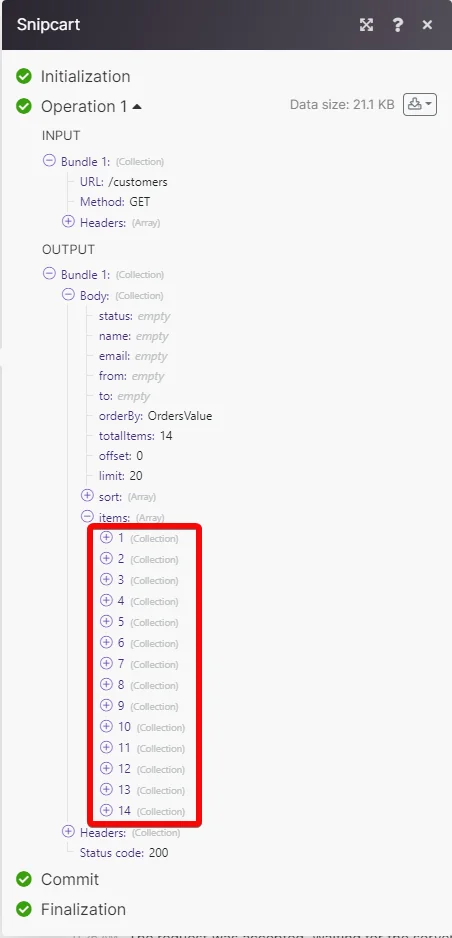
The following API call returns the list of customers from your Snipcart account:
URL:
/customers
Method:
GET
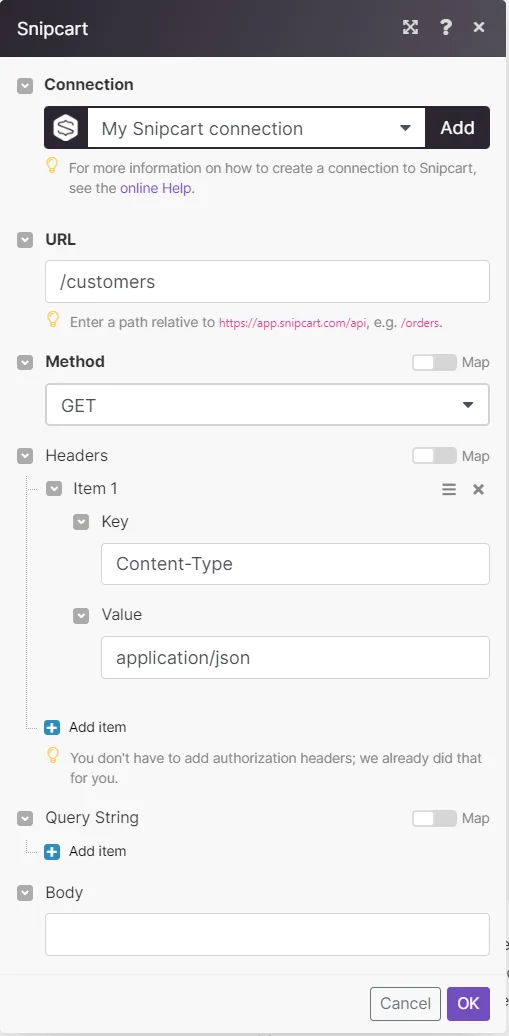
Matches of the search can be found in the module’s Output under Bundles > Body > items.
In our example,14 customers were returned:
Watch Events

Triggers when order is completed, order status changes, payment status changes, order tracking number changes, the order is refunded, or when a new notification is created.
Webhook Name
Enter (map) a name for the webhook.
Setting Up Snipcart Webhooks
-
Open the Watch Events module, enter a name for the webhook, click Save and copy the URL address to your clipboard.
-
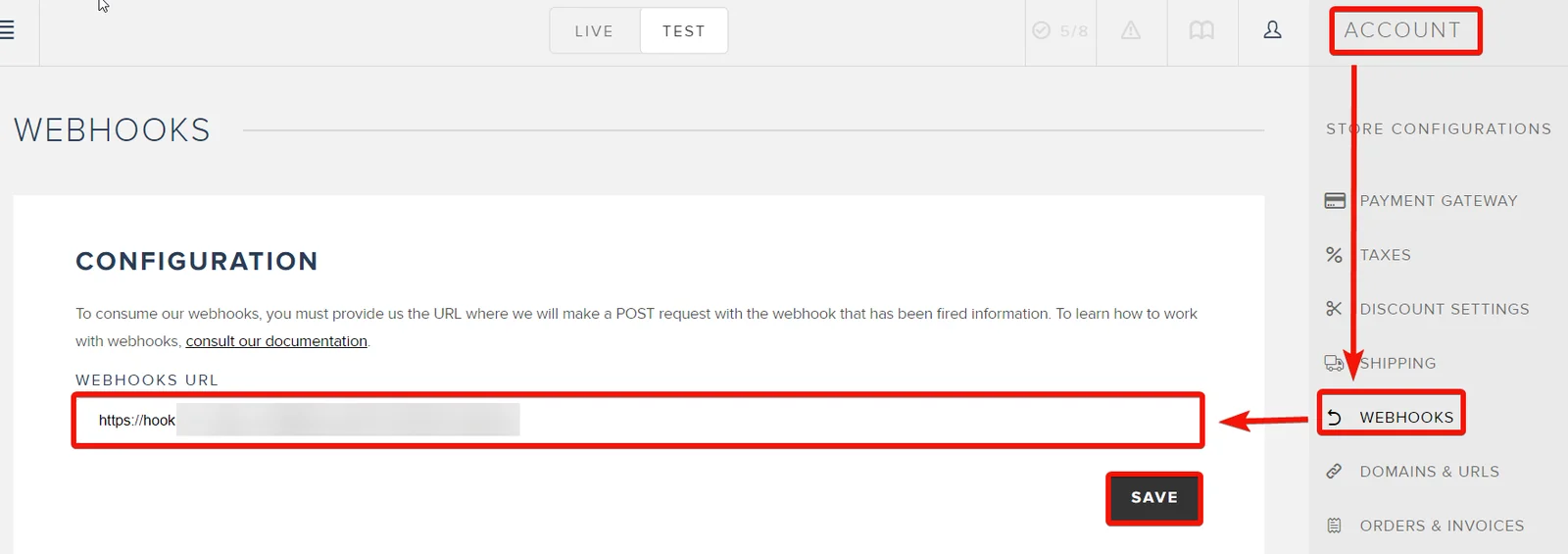
Log in to your Snipcart account, and click the Account icon > Webhooks.
-
In the Webhook URL field, enter the webhook URL address copied in step 1 and click Save,
Searches
You can list the abandoned carts, customers, domains, notifications, orders, products, and refunds using the following modules.
List Abandoned Carts
Retrieves abandoned carts by your specifications.
Connection
Establish a connection to your Snipcart application.
Time Range
Select a time range to list the abandoned carts within the specified time range:
-
Anytime
-
Less Than 4 Hours
-
Less Than A Day
-
Less Than A Week
-
Less Than A Month
Minimal Value
Enter (map) a minimum amount the abandoned carts with a total amount under this value won’t be returned.
Enter (map) the email address to list the abandoned carts that match the specified email address.
Product ID
Select or map a Product ID whose abandoned carts you want to list.
Limit
Set the maximum number of abandoned carts Boost.space Integrator should return during one execution cycle. The default value is 10.
List Customers
Retrieves all customers.
Connection
Establish a connection to your Snipcart application.
Status
Select the status of the customers you want to list:
-
Confirmed
-
Unconfirmed
Enter (map) the email address of the customer you want to list.
Name
Enter (map) the name of the customer you want to list.
From Date
Enter (map) a date to list the customers that were created on or after the specified date. See the list of supported date and time formats.
To Date
Enter (map) a date to list the customers that were created on or before the specified date. See the list of supported date and time formats.
Limit
Set the maximum number of customers Boost.space Integrator should return during one execution cycle. The default value is 10.
List Customer’s Orders
Retrieves all orders of specified customers.
Connection
Establish a connection to your Snipcart application.
Customer ID
Select or map a Customer ID whose orders you want to list.
Limit
Set the maximum number of customer’s orders Boost.space Integrator should return during one execution cycle. The default value is 10.
List Domains
Retrieves all domains.
Connection
Establish a connection to your Snipcart application.
Limit
Set the maximum number of domains Boost.space Integrator should return during one execution cycle. The default value is 10.
List Notifications
Retrieves all notifications of the specified order.
Connection
Establish a connection to your Snipcart application.
Order Token
Select or map the order token whose notifications you want to list. Alternatively, you can also select the Invoice Number to list the notifications.
Limit
Set the maximum number of notifications Boost.space Integrator should return during one execution cycle. The default value is 10.
List Orders
Retrieves orders by your specifications.
Connection
Establish a connection to your Snipcart application.
Status
Select or map the order status to list the order that matches the specified status:
-
In Progress
-
Processed
-
Disputed
-
Shipped
-
Delivered
-
Pending
-
Cancelled
Invoice Number
Enter (map) an invoice number of the order you want to list.
Product ID
Select or map a Product ID to list the associated orders.
Placed By
Enter (map) the name of the person whose orders you want to list.
From Date
Enter (map) a date to list the orders that were created on or after the specified date. See the list of supported date and time formats.
To Date
Enter (map) a date to list the orders that were created on or before the specified date. See the list of supported date and time formats.
Is Recurring Order
Select whether you want to list the recurring orders.
Limit
Set the maximum number of orders Boost.space Integrator should return during one execution cycle. The default value is 10.
List Products
Retrieves products by your specifications.
Connection
Establish a connection to your Snipcart application.
User Defined ID
Select or map a User Defined ID whose products you want to list.
From Date
Enter (map) the date to list the products that were created on or after the specified date. See the list of supported date and time formats.
To Date
Enter (map) the date to list the products that were created on or before the specified date. See the list of supported date and time formats.
Order By
Select or map the option to sort the products:
-
Number of Sales
-
Total Sales Value
-
Creation Date
Limit
Set the maximum number of products Boost.space Integrator should return during one execution cycle. The default value is 10.
List Refunds
Retrieves all refunds o the specified order.
Connection
Establish a connection to your Snipcart application.
Order Token
Select or map the order token whose refunds you want to list. Alternatively, you can also select the Invoice Number.
Limit
Set the maximum number of refunds Boost.space Integrator should return during one execution cycle. The default value is 10.
Legacy article, imported from the original Boost.space knowledge base (/knowledge-base/applications/commerce/snipcart/).

