Syncro
The Syncro modules allow you to monitor, create, update, list, and delete the customers, tickets, and leads in your Syncro account.
Getting Started with Syncro
Prerequisites
- A Syncro account
In order to use Syncro with Boost.space Integrator, it is necessary to have a Syncro account. If you do not have one, you can create a Syncro account at syncromsp.com.
The module dialog fields that are displayed in bold (in the Boost.space Integrator scenario, not in this documentation article) are mandatory!
Connecting Syncro to Boost.space Integrator
To connect your Syncro account to Boost.space Integrator you need to obtain the Access Token from your Syncro account and insert it in the Create a connection dialog in the Boost.space Integrator module.
1. Log in to your Syncro account.
2. Click Your Profile Icon > Settings > API Tokens > New Token > Custom Permissions.
3. Enter a name for the token, select permissions, and click Create API Token.
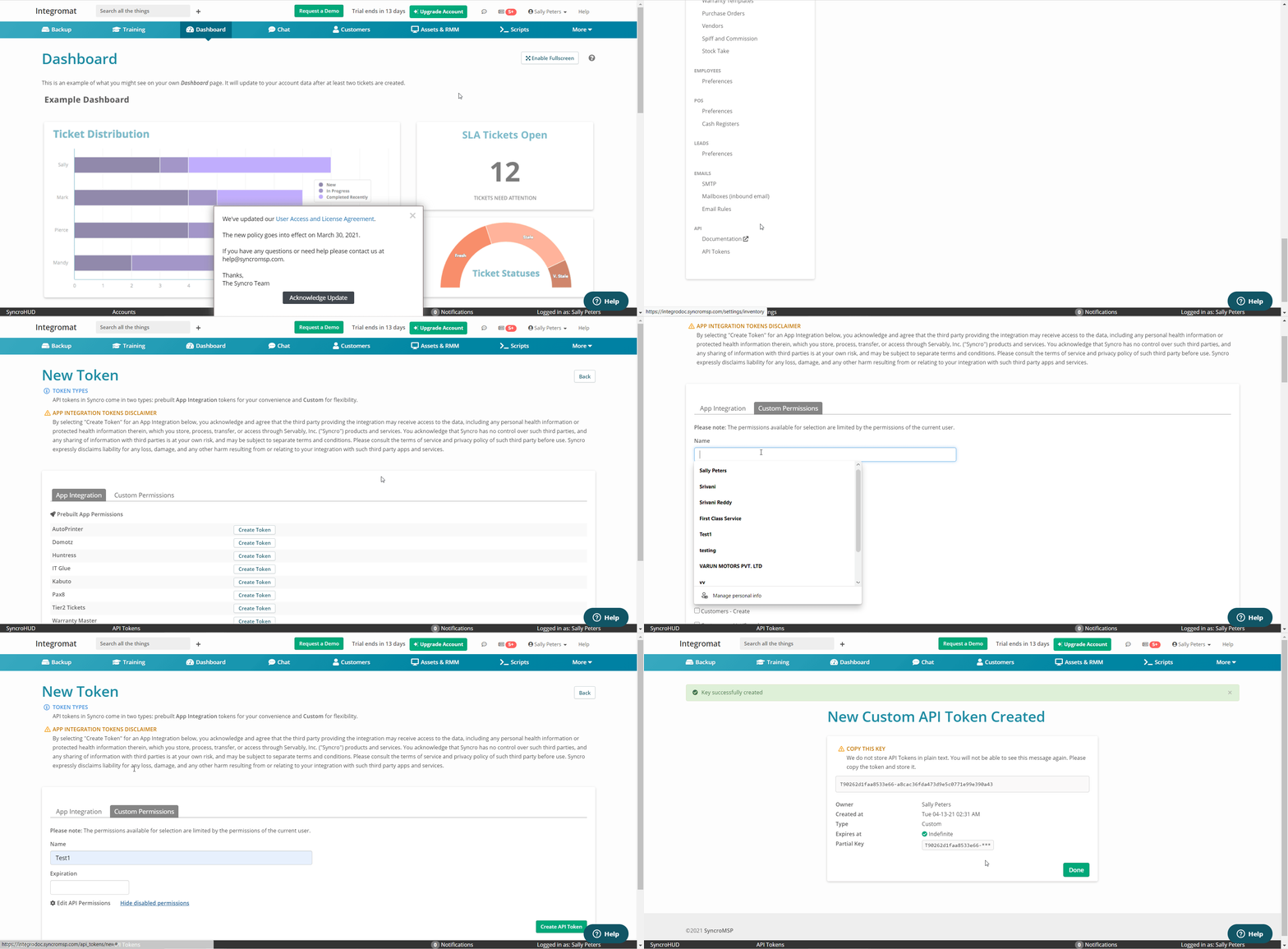
4. Copy the API token to your clipboard and store it in a safe place.
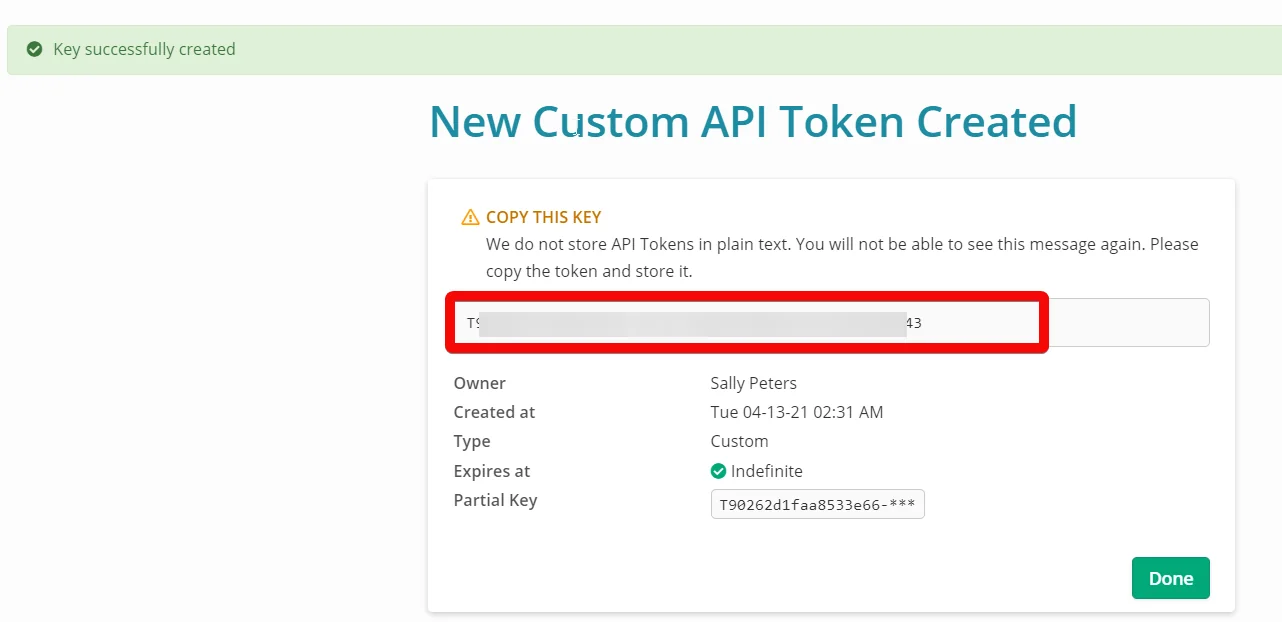
5. Go to Boost.space Integrator and open the Syncro module’s Create a connection dialog.

6. In the Connection name field, enter a name for the connection.
7. In the Domain Name field, enter your Syncro account’s URL address domain name. For example, if your account’s URL is https://www.xyz.syncromsp.com, then the domain is xyz.
8. In the Access Token field, enter the token copied in step 4, and click Continue.
The connection has been established,
Customers
See Setting Up Syncro Webhooks to add webhooks to your Syncro account.
Watch New Customer
Triggers when a new customer has been created.
Connection
Establish a connection to your Syncro account.
Search Customer
Searches for customers or lists them all.
Connection
Establish a connection to your Syncro account.
Sort Field
Select or map the field to sort the customers. For example, first name.
Sort Order
Select or map the order in which you want to sort the customers. For example, Ascending.
Search Query
Enter (map) the keyword or phrase to search the customers that match the query.
First Name
Enter (map) the customer’s first name to search for the customers that match the name.
Last Name
Enter (map) the customer’s last name to search for the customers that match the name.
Business Name
Enter (map) the business name to search for the customers that match the name.
Customer ID
Select or map the Customer ID to search for the customer that matches the specified ID.
Exclude ID
Select or map the Exclude ID to search for the customer that matches the specified ID.
Enter (map) the email address to search the customers with the specified email address.
Include Disabled
Select whether you want to return the list of customers that includes disabled customers.
Limit
Set the maximum number of customers Boost.space Integrator should return during one execution cycle.
Get a Customer
Retrieves a single customer specified by ID.
Connection
Establish a connection to your Syncro account.
Customer ID
Select or map the Customer ID whose details you want to retrieve.
Create a Customer
Creates a new customer.
Connection
Establish a connection to your Syncro account.
Business Name
Enter (map) the customer’s business name.
First Name
Enter (map) the customer’s first name.
Last Name
Enter (map) the customer’s last name.
Enter (map) the customer’s email address.
Phone
Enter (map) the customer’s contact phone number.
Mobile
Enter (map) the customer’s contact mobile number.
Address
Enter (map) the customer’s or company’s street name.
Address2
Enter (map) the customer’s or company’s street name.
City
Enter (map) the customer’s or company’s city name.
State
Enter (map) the customer’s or company’s state name.
ZIP
Enter (map) the customer’s or company’s area ZIP code.
Notes
Enter (map) any additional information about the customer.
Get SMS
Select whether you want to enable the SMS for the customer.
Opt Out
Select whether the customer has an opt-out of marketing emails.
No Email
Select whether the customer has an email address.
Get Billing
Select whether you want to get billing information about the customer.
Get Marketing
Select whether you want to get marketing information about the customer.
Get Reports
Select whether you retrieve reports for the customer.
Reference Customer ID
Enter (map) the Customer Reference ID of the customer.
Referred By
Enter (map) the referrer’s name or ID who referred Syncro to the customer.
Tax Rate ID
Enter (map) the customer’s Tax Rate ID.
Notification Emails
Add the email addresses to whom to notify about the invoices.
Invoice CC Emails
Add the email address to add in the CC field of the notification email about the invoice.
Invoice Term ID
Enter (map) the customer’s Invoice Term ID.
Properties
Add the customer properties key and their values. For example, the customer's date of birth.
Update a Customer
Updates a customer as specified by ID.
Connection
Establish a connection to your Syncro account.
Customer ID
Select or map the Customer ID whose details you want to update.
Business Name
Enter (map) the customer’s business name.
First Name
Enter (map) the customer’s first name.
Last Name
Enter (map) the customer’s last name.
Enter (map) the customer’s email address.
Phone
Enter (map) the customer’s contact phone number.
Mobile
Enter (map) the customer’s contact mobile number.
Address
Enter (map) the customer’s or company’s street name.
Address2
Enter (map) the customer’s or company’s street name.
City
Enter (map) the customer’s or company’s city name.
State
Enter (map) the customer’s or company’s state name.
ZIP
Enter (map) the customer’s or company’s area ZIP code.
Notes
Enter (map) any additional information about the customer.
Get SMS
Select whether you want to enable the SMS for the customer.
Opt Out
Select whether the customer has an opt-out of marketing emails.
No Email
Select whether the customer has an email address.
Get Billing
Select whether the customer will receive emails about the billing information.
Get Marketing
Select whether the customer will receive the marketing information.
Get Reports
Select whether the customer will receive the email about their reports.
Reference Customer ID
Enter (map) the Customer Reference ID of the customer.
Referred By
Enter (map) the referrer’s name or ID who referred Syncro to the customer.
Tax Rate ID
Enter (map) the customer’s Tax Rate ID.
Notification Emails
Add the email addresses to whom to notify about the invoices.
Invoice CC Emails
Add the email address to add in the CC field of the notification email about the invoice.
Invoice Term ID
Enter (map) the customer’s Invoice Term ID.
Properties
Add the customer properties key and their values. For example, the customer's date of birth.
Delete a Customer
Deletes a customer specified by ID.
Connection
Establish a connection to your Syncro account.
Customer ID
Select or map the Customer ID you want to delete.
Tickets
See Setting Up Syncro Webhooks to add webhooks in your Syncro account.
Watch Ticket
Triggers when a ticket has been created, updated, or resolved.
Connection
Establish a connection to your Syncro account.
Search Tickets
Searches for tickets or lists them all.
Connection
Establish a connection to your Syncro account.
Customer ID
Select or map the Customer ID whose tickets you want to search.
Contact ID
Select or map the Contact ID whose tickets you want to search.
Number
Enter (map) the ticket number you want to search.
Resolve After
Enter (map) the date to list the tickets that were resolved on or after the specified date.
Since Updated At
Enter (map) the date to list the tickets that were updated on the specified date.
Status
Enter (map) the status of the ticket to search for the tickets that match the specified status. For example, In Progress.
Search Query
Enter (map) the keyword or phrase to search the tickets that match the query.
Enter (map) the customer’s email address whose tickets you want to search.
User ID
Select or map the User ID whose tickets you want to search.
Mine
Select whether you search the tickets that were assigned or created by you.
Ticket Search ID
Select or map the Ticket ID whose details you want to search.
Limit
Set the maximum number of tickets Boost.space Integrator should return during one execution cycle.
Get a Ticket
Retrieves a single ticket specified by ID.
Connection
Establish a connection to your Syncro account.
Create a Ticket
Creates a new ticket.
Connection
Establish a connection to your Syncro account.
Customer ID
Select or map the Customer ID whose ticket you are creating.
Subject
Enter (map) the subject line of the ticket.
Number
Enter (map) the ticket number.
Due Date
Enter (map) the date by which the ticket must be resolved.
Start At
Enter (map) the date on which the work on the ticket starts.
End At
Enter (map) the date on which the work on the ticket ends.
Ticket Type ID
Enter (map) the Ticket Type ID. For example, Regular maintenance.
Location ID
Enter (map) the ticket’s Location ID. For example, Online.
Problem Type
Enter (map) the problem type of the ticket. For example, bug.
Status
Enter (map) the ticket status. For example, In review.
User ID
Select or map the User ID to whom the ticket is assigned.
Properties
Add the ticket property key and its value. For example, device.
Asset IDs
Add the required Asset IDs for the ticket. For example, software.
Signature Name
Enter (map) the applicable signature name for the ticket.
Signature Data
Enter (map) the signature data.
SLA ID
Enter (map) the SLA ID applicable to the ticket. For example, high.
Contact ID
Select or map the Contact ID for the ticket.
Priority
Enter (map) the priority of the ticket. For example, urgent.
Outtake Form Data
Enter (map) the effort details of the ticket.
Outtake From Date
Enter (map) the date of the outtake efforts.
Outtake From Name
Enter (map) the name of the outtake.
Comments Attributes
Add the comments for the ticket:
Subject
Enter (map) the subject line of the comment for the ticket.
Body
Enter (map) the comment text.
Hidden
Select whether you hide the comments from the members.
SMS Body
Enter (map) the message box text to notify the members.
Do not Email
Select whether you do not want to email the comment notification to the members.
Tech
Enter (map) the developer name who has posted the comment.
Update a Ticket
Updates a ticket specified by ID.
Connection
Establish a connection to your Syncro account.
Ticket ID
Select or map the Ticket ID whose details you want to update.
Customer ID
Select or map the Customer ID to whom the ticket belongs to.
Subject
Enter (map) the subject line of the ticket.
Number
Enter (map) the ticket number.
Due Date
Enter (map) the date by which the ticket must be resolved.
Start At
Enter (map) the date on which the work on the ticket starts.
End At
Enter (map) the date on which the work on the ticket ends.
Ticket Type ID
Enter (map) the Ticket Type ID. For example, Regular maintenance.
Location ID
Enter (map) the ticket’s Location ID. For example, Online.
Problem Type
Enter (map) the problem type of the ticket. For example, bug.
Status
Enter (map) the ticket status. For example, In review.
User ID
Select or map the User ID to whom the ticket is assigned.
Properties
Add the ticket property key and its value. For example, device.
Asset IDs
Add the required Asset IDs for the ticket. For example, software.
Signature Name
Enter (map) the applicable signature name for the ticket.
Signature Data
Enter (map) the signature data.
SLA ID
Enter (map) the SLA ID applicable to the ticket. For example, high.
Contact ID
Select or map the Contact ID for the ticket.
Priority
Enter (map) the priority of the ticket. For example, urgent.
Outtake from Data
Enter (map) the effort details of the ticket.
Outtake from Date
Enter (map) the date of the outtake efforts.
Outtake from Name
Enter (map) the name of the outtake.
Comments Attribute
Add the comments for the ticket:
Subject
Enter (map) the subject line of the comment for the ticket.
Body
Enter (map) the comment text.
Hidden
Select whether you hide the comments from the members.
SMS Body
Enter (map) the message box text to notify the members.
Do Not Email
Select whether you do not want to email the comment notification to the members.
Tech
Enter (map) the developer name who has posted the comment.
Delete a Ticket
Deletes a ticket specified by ID.
Connection
Establish a connection to your Syncro account.
Ticket ID
Select or map the Ticket ID you want to delete.
Leads
Search Leads
Searches for leads or lists them all.
Connection
Establish a connection to your Syncro account.
Statuses List
Select or map the status of the leads you want to search.
Search Query
Enter (map) the keyword or phrase to search the leads that match the query.
Users
Select or map the users whose associated leads you want to search.
Mailbox IDs
Enter (map) comma-separated Mailbox IDs to search the leads associated with the specified IDs.
Has Ticket
Select whether the lead has any existing tickets.
Limit
Set the maximum number of leads Boost.space Integrator should return during one execution cycle.
Get a Lead
Retrieves a single lead specified by ID.
Connection
Establish a connection to your Syncro account.
Lead ID
Select or map the Lead ID whose details you want to retrieve.
Create a Lead
Creates a new lead.
Connection
Establish a connection to your Syncro account.
Address
Enter (map) the address of the lead.
Business Name
Enter (map) the lead’s business name.
City
Enter (map) the lead’s city name.
ZIP
Enter (map) the lead’s postal code.
Converted
Select whether the lead is converted to a customer.
Message Read
Select whether the lead can read the messages.
Disabled
Select whether the lead is disabled.
Enter (map) the lead’s email address.
First Name
Enter (map) the lead’s first name.
Last Name
Enter (map) the lead’s last name.
Mobile
Enter (map) the lead’s mobile number.
Phone
Enter (map) the lead’s phone number.
State
Enter (map) the lead’s state or province name.
Ticket Description
Enter (map) the lead’s ticket details.
Ticket Problem Type
Enter (map) the lead’s ticket problem type. For example, bug.
Ticket Subject
Enter (map) the lead’s ticket subject line.
Location ID
Enter (map) the lead’s Location ID.
From Check-In
Select whether lead can check-ín.
Customer ID
Select or map the lead’s Customer ID.
Ticket ID
Select or map the lead’s Ticket ID.
Hidden Notes
Enter (map) the note text about the lead which is shared internally.
Contact ID
Select or map the Contact ID of the lead.
Appointment Name
Enter (map) the lead’s appointment name.
Status
Select or map the lead’s opportunity. For example, Won.
User ID
Select or map the User ID assigned to the lead.
Ticket Type ID
Enter (map) the Ticket Type ID of the lead.
Mailbox ID
Enter (map) the lead’s Mailbox ID.
Opportunity Start Date
Enter (map) the date when the opportunity with the lead has started.
Opportunity Amount Dollars
Enter (map) the amount you will earn from this opportunity.
Likelihood
Enter (map) the amount of likelihood that lead will be closed successfully.
Properties
Add the lead’s property key and its value. For example, lead's address.
Ticket Properties
Add the lead’s ticket properties. For example, ticket number.
Customer Purchase ID
Enter (map) the Customer Purchase ID related to the lead.
Signature Date
Enter (map) the lead’s signature date.
Signature Name
Enter (map) the name that appears on the lead’s signature.
Signature Data
Enter (map) the lead’s signature data.
Appointment Type ID
Enter (map) the lead’s Appointment Type ID.
Update a Lead
Updates a lead specified by ID.
Connection
Establish a connection to your Syncro account.
Lead ID
Select or map the Lead ID whose details you want to update.
Address
Enter (map) the address of the lead.
Business Name
Enter (map) the lead’s business name.
City
Enter (map) the lead’s city name.
ZIP
Enter (map) the lead’s area postal code.
Converted
Select whether the lead is converted to a customer.
Message Read
Select whether the lead can read the messages.
Disabled
Select whether the lead is disabled.
Enter (map) the lead’s email address.
First Name
Enter (map) the lead’s first name.
Last Name
Enter (map) the lead’s last name.
Mobile
Enter (map) the lead’s mobile number.
Phone
Enter (map) the lead’s phone number.
State
Enter (map) the lead’s state or province name.
Ticket Description
Enter (map) the lead’s ticket details.
Ticket Problem Type
Enter (map) the lead’s ticket problem type. For example, bug.
Ticket Subject
Enter (map) the lead’s ticket subject line.
Location ID
Enter (map) the lead’s Location ID.
From Check-In
Select whether lead can check-ín.
Customer ID
Select or map the lead’s Customer ID.
Ticket ID
Select or map the lead’s Ticket ID.
Hidden Notes
Enter (map) the note text about the lead which is shared internally.
Contact ID
Select or map the Contact ID of the lead.
Appointment Time
Enter (map) the lead’s appointment name.
Status
Select or map the lead’s opportunity. For example, Won.
User ID
Select or map the User ID assigned to the lead.
Ticket Type ID
Enter (map) the Ticket Type ID of the lead.
Mailbox ID
Enter (map) the lead’s Mailbox ID.
Opportunity Start Date
Enter (map) the date when the opportunity with the lead has started.
Opportunity Amount Dollars
Enter (map) the amount you will earn from this opportunity.
Likelihood
Enter (map) the amount of likelihood that lead will be closed successfully.
Properties
Add the lead’s property key and its value. For example, lead's address.
Ticket Properties
Add the lead’s ticket properties. For example, ticket number.
Customer Purchase ID
Enter (map) the Customer Purchase ID related to the lead.
Signature Date
Enter (map) the lead’s signature date.
Signature Name
Enter (map) the name that appears on the lead’s signature.
Signature Data
Enter (map) the lead’s signature data.
Appointment Type ID
Enter (map) the lead’s Appointment Type ID.
Invoices and Payments
See Setting Up Syncro Webhooks to add webhooks in your Syncro account.
Watch New Invoice
Triggers when a new invoice has been added.
Connection
Establish a connection to your Syncro account.
Watch New Payment
Triggers when a new payment has been added.
Connection
Establish a connection to your Syncro account.
RMM
See Setting Up Syncro Webhooks to add webhooks in your Syncro account.
Watch New RMM Alert
Triggers when a new RMM alert has been added.
Connection
Establish a connection to your Syncro account.
Other
Make an API Call
Performs an arbitrary authorized API call.
Connection
Establish a connection to your Syncro account.
URL
Enter a path relative to https://gigrove.com/api/request For example: /v1/orders
For the list of available endpoints, refer to the Syncro API Documentation.
Method
Select the HTTP method you want to use:
GET to retrieve information for an entry**.**
POST to create a new entry.
PUT to update/replace an existing entry.
PATCH to make a partial entry update.
DELETE to delete an entry.
Headers
Enter the desired request headers. You don’t have to add authorization headers; we already did that for you.
Query String
Enter the request query string.
Body
Enter the body content for your API call.
Example of Use – Get Customers
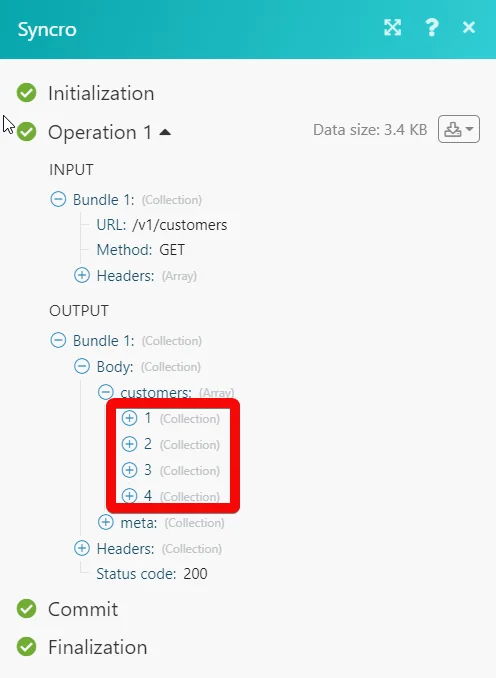
The following API call returns all the customers from your Syncro account:
URL: /v1/customers
Method: GET
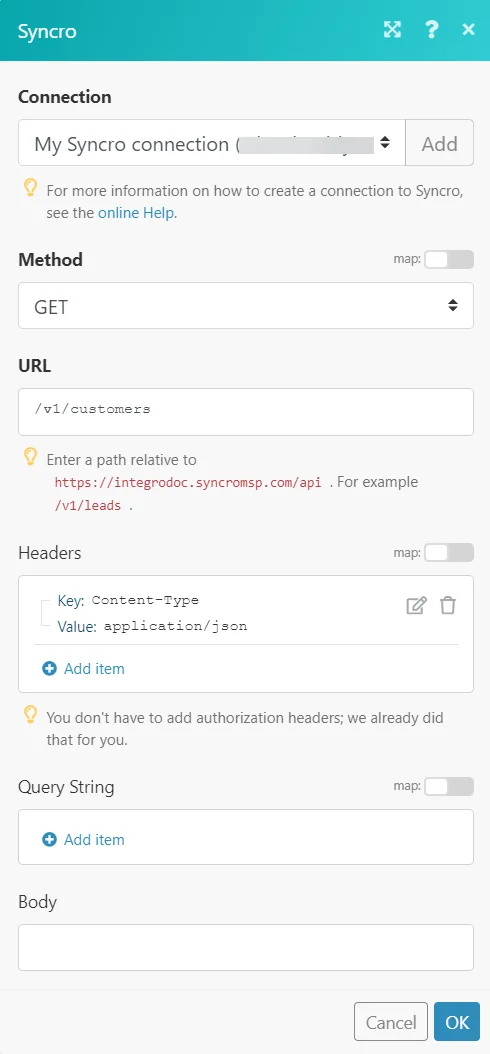
Matches of the search can be found in the module’s Output under Bundle > Body > customers.
In our example, 4 customers were returned:
Setting Up Syncro Webhooks
1. Open any Watch module, enter a name for the webhook, and click Save. Copy the URL address to your clipboard and save the trigger.

2. Log in to your Syncro account. Click Your Account Name > Settings > Notifications Center > New Notification Set.
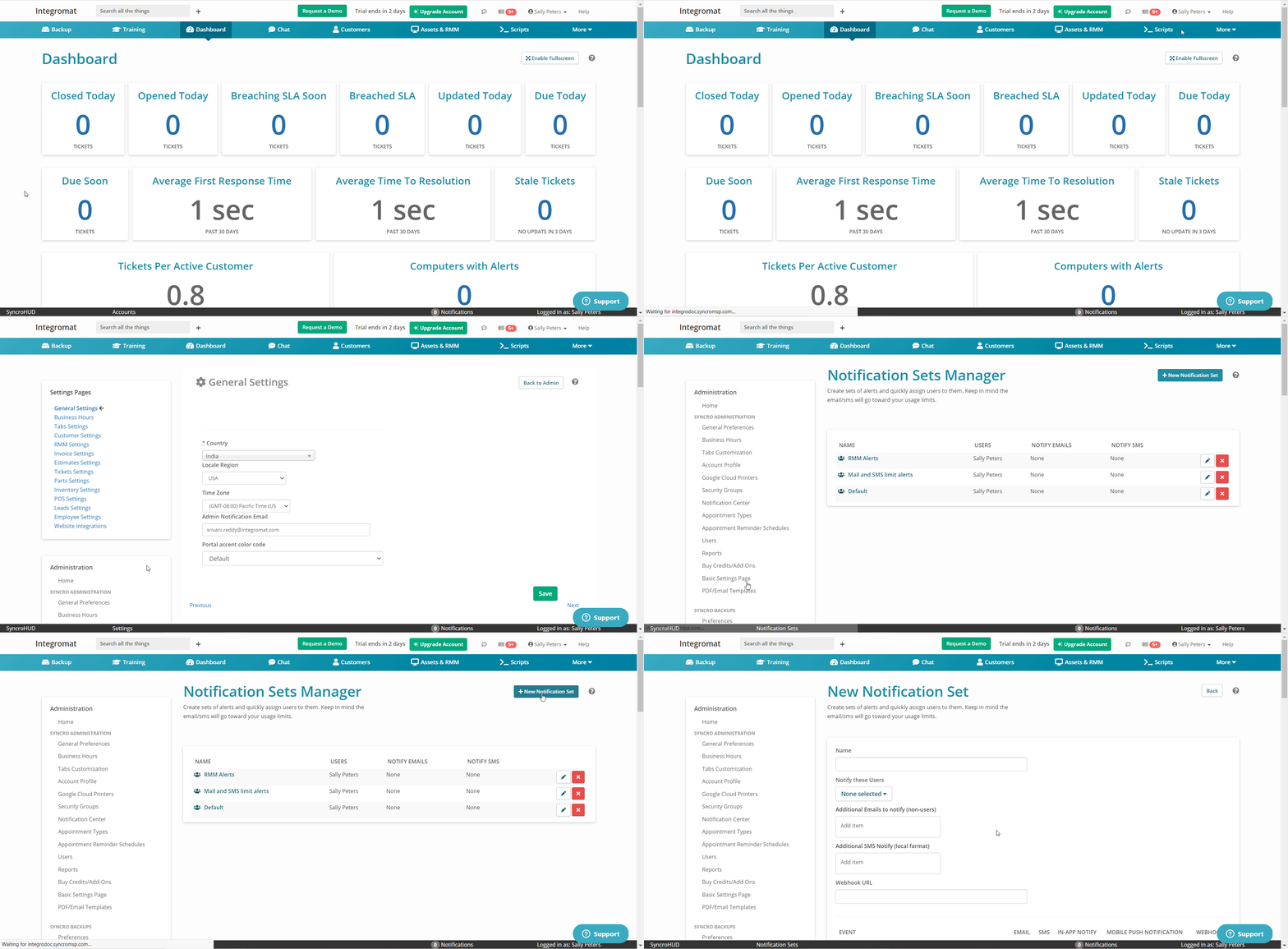
3. Enter a name for the webhook, select the users to notify about the event, in the Webhook URL field, enter the URL address copied in step 1, and select the events for which you want to receive the notifications.
4. Click Create Notification Set.
The webhook is successfully created. You will receive notifications when a new customer is created.
Legacy article, imported from the original Boost.space knowledge base (/knowledge-base/applications/commerce/syncro/).

