Wave
The Wave modules allow you to create, add, remove, retrieve, and list the leads, sequence, tags, subscriptions, and events in your Wave account.
Getting Started with Wave
Prerequisites
- A Wave account
In order to use Wave with Boost.space Integrator, it is necessary to have a Wave account. If you do not have one, you can create a Wave account at my.waveapps.com/register.
The module dialog fields that are displayed in bold (in the Boost.space Integrator scenario, not in this documentation article) are mandatory!
Connecting Wave to Boost.space Integrator
You can connect wave to Boost.space Integrator in two ways:
- Connecting Wave to Boost.space Integrator Using OAuth (recommended)
- Connecting to Wave through Wave Dev Key
Connecting Wave to Boost.space Integrator Using OAuth

1. Go to Boost.space Integrator and open the Wave module’s Create a connection dialog, in the Connection Type, select Wave OAuth 2.0, and click Continue.
2. Confirm the access by clicking the Allow Access.
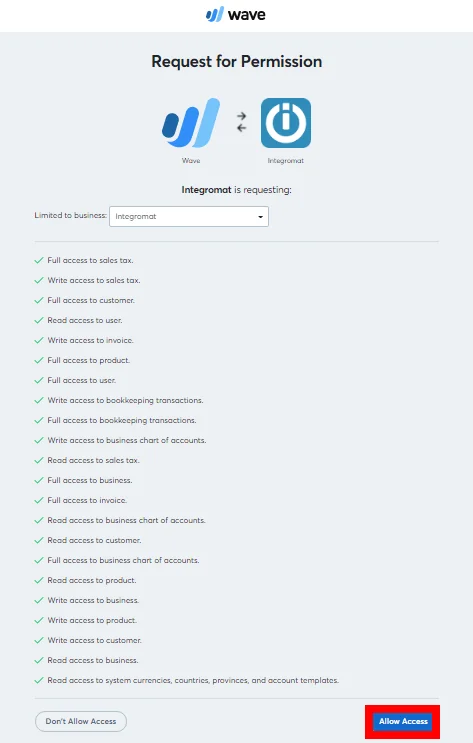
The connection has been established.
Connecting to Wave through Wave Dev Key
To connect your Wave account to Boost.space Integrator you need to obtain the Access Token from your Wave account and insert it in the Create a connection dialog in the Boost.space Integrator module.

1. Go to the Wave Developer website and create an Application.
2. Click the_Application Name_ > Create Token. Copy the token to your clipboard.
3. Go to Boost.space Integrator and open the Wave module’s Create a connection dialog.

4. In the Connection name field, enter a name for the connection.
5. In the Access Token field, enter the token copied in step 3 and click Continue.
The connection has been established.
Customers
List Customers
List customers from the Wave account.
Connection
Establish a connection to your Wave account.
Business ID
Select the Business ID whose customer details you want to retrieve.
Get a Customer
Returns details about a particular customer by ID.
Connection
Establish a connection to your Wave account.
Business ID
Select the Business ID whose customer details you want to retrieve.
Customer ID
Select the Customer ID whose details you want to retrieve.
Get a Customer by Email
Returns a customer by email.
Connection
Establish a connection to your Wave account.
Business ID
Select the Business ID whose customer details you want to retrieve.
Email Address
Select the email address whose details you want to retrieve.
Create a Customer
Creates a new customer.
Connection
Establish a connection to your Wave account.
Business ID
Select the Business ID whose customer details you want to create.
Email Address
Enter the email address of the customer.
Client’s Name
Enter the client’s name of the customer.
First Name
Enter the first name of the customer.
Last Name
Enter the last name of the customer.
Mobile
Enter the mobile number of the customer.
Internal Notes
Enter the information about the customer you want to notify the members internally.
Phone
Enter the phone number of the customer.
Fax
Enter the fax number of the customer.
Toll-Free
Enter any toll-free number of the customer if available.
Website
Enter the website address of the customer.
Address 1
Enter the street address of the customer.
Address 2
Enter the street address of the customer.
City
Enter the city name of the customer.
State/Province
Enter the state province code of the customer. For example, US-CA for California.
Country
Enter the two-character country name of the customer. For example, US for the USA.
Zip/Postal Code
Enter the are postal code of the customer.
Name
Enter the shipping address name of the customer.
Address 1
Enter the street address of the customer.
Address 2
Enter the street address of the customer.
City
Enter the city name of the customer.
State/Province
Enter the state province code of the customer. For example, US-CA for California.
Country
Enter the two-character country name of the customer. For example, US for the USA.
Zip/Postal Code
Enter the are postal code of the customer.
Delivery Instructions for handling
Enter any special instructions to be followed when delivering to the customer.
Currency
Enter the currency codes applicable to the customer based on ISO 4217. For example, USD, CAD, EUR
Update a Customer
Updates existing customers.
Connection
Establish a connection to your Wave account.
Business ID
Select the Business ID whose customer details you want to update.
Customer ID
Select the customer whose details you want to update.
Email Address
Enter the email address of the customer.
Client’s Name
Enter the client’s name of the customer.
First Name
Enter the first name of the customer.
Last Name
Enter the last name of the customer.
Mobile
Enter the mobile number of the customer.
Internal Notes
Enter the information about the customer you want to notify the members internally.
Phone
Enter the phone number of the customer.
Fax
Enter the fax number of the customer.
Toll-Free
Enter any toll-free number of the customer if available.
Website
Enter the website address of the customer.
Address 1
Enter the street address of the customer.
Address 2
Enter the street address of the customer.
City
Enter the city name of the customer.
State/Province
Enter the state province code of the customer. For example, US-CA for California.
Country
Enter the two-character country name of the customer. For example, US for the USA.
Zip/Postal Code
Enter the are postal code of the customer.
Name
Enter the shipping address name of the customer.
Address 1
Enter the street address of the customer.
Address 2
Enter the street address of the customer.
City
Enter the city name of the customer.
State/Province
Enter the state province code of the customer. For example, US-CA for California.
Country
Enter the two-character country name of the customer. For example, US for the USA.
Zip/Postal Code
Enter the are postal code of the customer.
Delivery Instructions for handling
Enter any special instructions to be followed when delivering to the customer.
Currency
Enter the currency codes applicable to the customer based on ISO 4217. For example, USD, CAD, EUR
Delete a Customer
Deletes a customer.
Connection
Establish a connection to your Wave account.
Business ID
Select the Business ID whose customer details you want to delete.
Customer ID
Select the customer whose details you want to delete.
Invoice
Create an Invoice
Creates an invoice.
Connection
Establish a connection to your Wave account.
Business ID
Select the Business ID whose customer invoice you want to create.
Customer ID
Select the customer whose invoice you want to create.
Status
Select the status of the invoice:
- The invoice is still a draft
- The invoice is was saved
Currency
Enter the currency codes applicable to the customer based on ISO 4217. For example, USD, CAD, EUR. If no currency code is provided, the business default currency is applied.
Title
Enter a name for the invoice. If no details are provided, the business’s default invoice title is used.
Subhead
Enter the invoice subheading text. If no details are provided, the business’s default invoice subheading is used.
Invoice Number
Enter the invoice number. If no details are provided, the system finds the largest invoice number and will add 1 to it.
Items
Add the items for the invoice.
Description
Enter the details of the item.
Quantity
Enter the number of items.
Unit Price
Enter the per-unit price of the item.
Amount
Enter the amount of the item.
Sales Tax ID
Select the Sales Tax ID applicable for the item.
Product ID
Select the Product ID for the item.
PO Number
Enter the purchase order number of the invoice.
Invoice Date
Enter the date when the invoice is issued.
Due Date
Enter the date by when the payment of the invoice is due.
Memo
Enter the invoice notes.
Footer
Enter the text that will appear in the footer of the invoice.
Disable Credit Card Payments
Select whether you want to disable the credit card payments for the invoice:
- Yes
- No
- Not defined
Disable Bank Payments
Select whether you want to disable the bank payments for the invoice:
- Yes
- No
- Not defined
Item Title
Enter the label for the item column to list the line items.
Unit Title
Enter the label for the unit column to list the units of the line items.
Amount Title
Enter the label for the amount column to enter the amount of the line items.
Price Title
Enter the label for the price column to enter the price of the line items.
Hide Name
Select whether you want to hide the product’s item name in the invoice:
- Yes
- No
- Not defined
Hide Description
Select whether you want to hide the product’s item’s description in the invoice:
- Yes
- No
- Not defined
Hide Amount
Select whether you want to hide the product’s item’s amount in the invoice:
- Yes
- No
- Not defined
Hide Price
Select whether you want to hide the product’s item’s price in the invoice:
- Yes
- No
- Not defined
Hide Unit
Select whether you want to hide the product’s item’s units in the invoice:
- Yes
- No
- Not defined
Send an Invoice
Sends an invoice.
Connection
Establish a connection to your Wave account.
Invoice ID
Enter (map) the Invoice ID which you want to send through email.
To
Enter the email address to which you want to send the invoice.
Subject
Enter the subject line of the email.
Message
Enter the message text of the email.
Attach PDF
Select whether you want to attach the invoice PDF to the email:
- Yes
- No
- Not defined
Approve an Invoice
Approve an invoice by ID.
Connection
Establish a connection to your Wave account.
Business ID
Select the Business ID whose customer’s invoice you want to approve.
Invoice ID
Select the Invoice ID you want to approve.
List Invoices
Lists invoices.
Connection
Establish a connection to your Wave account.
Limit
Set the maximum number of invoices Boost.space Integrator should return during one scenario execution cycle.
Business ID
Select the Business ID of the customer’s invoices you want to list.
Sort Order
Select the order in which you want to list the invoices:
- Ascending by the amount due
- Descending by the amount due
- Ascending by the amount paid
- Descending by the amount paid
- Ascending by the creation time
- Descending by the creation time
- Ascending by the customer’s name
- Descending by the customer’s name
- Ascending by the due date
- Descending by the due date
- Ascending by the invoice date
- Descending by the invoice date
- Ascending by the invoice number
- Descending by the invoice number
- Ascending by the modified date
- Descending by the modified date
- Ascending by status
- Descending by status
- Ascending by the total amount
- Descending by the total amount
Status
Select the status of the invoice you want to list:
- The invoice is still a draft
- The invoice is due
- The invoice is paid
- The invoice is partially paid
- The invoice is overdue
- The invoice is saved
- The invoice is sent
- The invoice is unpaid
- The invoice was viewed
Watch Invoices
Returns invoices since the last check.
Connection
Establish a connection to your Wave account.
Limit
Set the maximum number of invoices Boost.space Integrator should return during one scenario execution cycle.
Business ID
Select the Business ID whose customer’s invoices you want to watch.
Sort Order
Select the order in which you want to watch the invoices:
- Ascending by the amount due
- Descending by the amount due
- Ascending by the amount paid
- Descending by the amount paid
- Ascending by the creation time
- Descending by the creation time
- Ascending by the customer’s name
- Descending by the customer’s name
- Ascending by the due date
- Descending by the due date
- Ascending by the invoice date
- Descending by the invoice date
- Ascending by the invoice number
- Descending by the invoice number
- Ascending by the modified date
- Descending by the modified date
- Ascending by status
- Descending by status
- Ascending by the total amount
- Descending by the total amount
Status
Select the status of the invoice you want to watch:
- The invoice is still a draft
- The invoice is due
- The invoice is paid
- The invoice is partially paid
- The invoice is overdue
- The invoice is saved
- The invoice is sent
- The invoice is unpaid
- The invoice was viewed
Products
Create a Product/Service
Creates a new product or service.
Connection
Establish a connection to your Wave account.
Business ID
Select the Business ID for which you want to create the new product or service.
Income Account ID
Select the Income Account ID which you want to associate with the product or service.
Expense Account ID
Select the Expense Account ID which you want to associate with the product or service.
Default Sales Tax IDs
Select the Default Sales Tax IDs which you want to associate with the product or service.
Name
Enter the name of the product or service.
Unit Price
Enter the per-unit price of the product or service.
Description
Enter the details of the product or service.
List Products
Lists products.
Connection
Establish a connection to your Wave account.
Limit
Set the maximum number of products Boost.space Integrator should return during one scenario execution cycle.
Business ID
Select the Business ID whose products you want to list.
Sort Order
Select the order in which you want to list the products:
- Ascending by the creation time
- Descending by the creation time
- Ascending by the modified time
- Descending by the modified time
- Ascending by name
- Descending by name
Is Sold
Select whether you want to list the sold products:
- Yes
- No
- Not defined
Is Bought
Select whether you want to list the products that are bought:
- Yes
- No
- Not defined
Is Archived
Select whether you want to list the archived products:
- Yes
- No
- Not defined
Modified After
Enter the date to list the product that is modified on or after the specified date.
Modified Before
Enter the date to list the product that is modified on or before the specified date.
Update a product/Service
Updates a product or service.
Connection
Establish a connection to your Wave account.
Business ID
Select the Business ID for which you want to update the product or service.
Income Account ID
Select the Income Account ID which you want to associate with the product or service.
Expense Account ID
Select the Expense Account ID which you want to associate with the product or service.
Default Sales Tax IDs
Select the Default Sales Tax IDs which you want to associate with the product or service.
Name
Enter the name of the product or service.
Unit Price
Enter the per-unit price of the product or service.
Description
Enter the details of the product or service.
Other
Execute a GraphQL Query
Performs an arbitrary authorized GraphQL query.
Connection
Establish a connection to your Wave account.
Method
Select the method of the API call you want to use. Wave supports both methods:
- GET
- POST
Query
Enter the desired GraphQL query. See the Wave API documentation for examples and available queries.
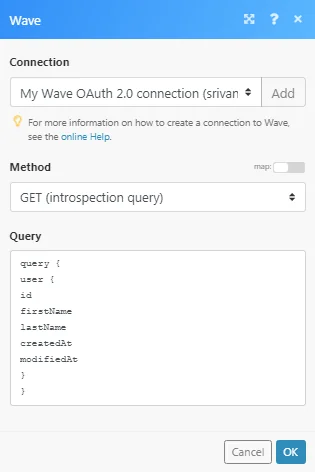
Example – Get User
The following example returns the user details from your Wave account.
Method: GET
Query:
query{ user { id firstName lastName defaultEmail createdAt modifiedAt } }
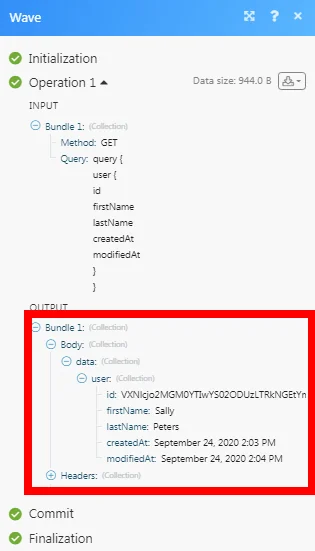
Matches of the search can be found in the module’s Output under Bundle > Body. In our example, the user details were returned:
Create a Transaction
Creates a transaction.
Connection
Establish a connection to your Wave account.
Business ID
Select the Business ID whose transaction you want to create.
External ID
Enter the External ID of the transaction.
Date
Enter the date of the transaction.
Description
Enter the details of the transaction.
Notes
Enter any additional information about the transaction.
Account ID
Select the Account ID applicable to the transaction.
Amount
Enter the transaction amount.
Direction
Select the transaction direction:
- Deposit
- Transaction
Line Items
Add the line items:
Account ID
Select the Account ID associated with the line items.
Amount
Enter the amount to be paid for the items.
Balance
Enter the balance amount to be paid by the customer.
Customer ID
Select the Customer ID to whom items were ordered.
Description
Enter the item details.
Taxes
Add the taxes for the items:
Sales Tax ID:
Select the Sales Tax ID applicable for the item. For example, VAT.
Amount:
Enter the amount of tax.
Create an Account
Creates a new account.
Connection
Establish a connection to your Wave account.
Business ID
Select the Business ID whose account you are creating.
Subtype
Select the account subtype.
Currency
Enter the three-digit currency code applicable to the account.
Name
Enter a name for the account.
Description
Enter the details of the account.
Display ID
Enter the Display ID that appears on the account.
Create a Sales Tax
Create an income/expense.
Connection
Establish a connection to your Wave account.
Business ID
Select the Business ID whose sales tax you are creating.
Name
Enter a name for the sales tax.
Abbreviation
Enter the full name of the tax. For example, Value Added Tax for VAT.
Rate
Enter the tax percentage for the sales tax.
Create an Income / Expense
Creates an income or expense.
Connection
Establish a connection to your Wave account.
Business ID
Select the Business ID whose sales tax you are creating.
Type
Select the income or expense type:
- Income
- Expense
Category
Select the category. For example, Sales.
Cash Account
Select the cash account type for the income or expense.
Amount
Enter the amount of expense or income.
Date
Enter the date of expense or income received.
Description
Enter the details of expense or income.
Customer ID
Select the Customer ID whose expense or income details you are creating.
Taxes
Add the taxes for the items:
Sales Tax ID
Select the Sales Tax ID applicable for the item. For example, VAT.
Amount
Enter the amount of tax.
External ID
Enter the External ID of the expense or income.
Notes
Enter any additional information about the expense or income you would like to share.
Legacy article, imported from the original Boost.space knowledge base (/knowledge-base/applications/commerce/wave/).

