Chatwork
The Chatwork modules enable you to monitor events and manage room’s tasks, contacts and rooms in your Chatwork account.
Getting Started with Chatwork
Prerequisites
- A Chatwork account
In order to use Chatwork with Boost.space Integrator, it is necessary to have a Chatwork account. If you do not have one, you can create a Chatwork account at chatwork.com.
The module dialog fields that are displayed in bold (in the Boost.space Integrator scenario, not in this documentation article) are mandatory!
Connecting Chatwork to Boost.space Integrator
-
Go to Boost.space Integrator and open the Chatwork module’s Create a connection dialog.
-
Enter a name for the connection to the Connection name field and click Continue.

After you click the Continue button, Boost.space Integrator will redirect you to the Chatwork website where you will be prompted to grant Boost.space Integrator access to your account.
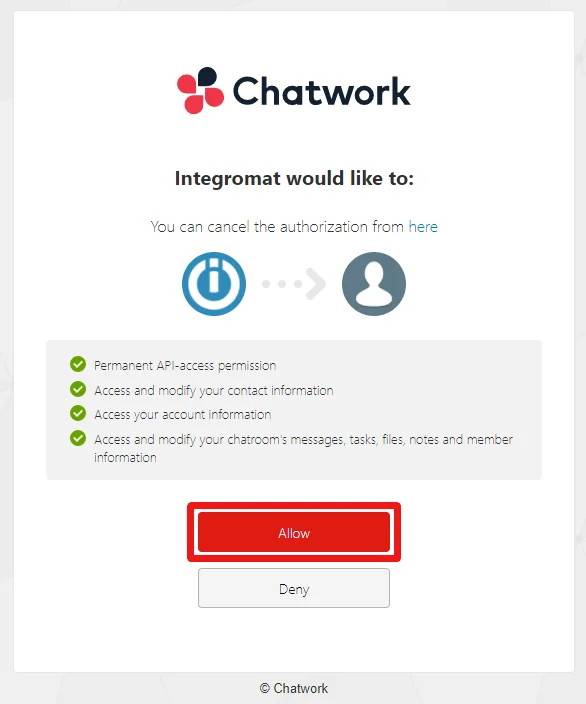
Confirm the dialog by clicking the Allow button.
Messages
List a Room’s Messages
Retrieves all messages in a specified room.
Connection
Establish a connection to your Chatwork account.
Room ID
Select or enter (map) the ID of the room you want to list messages from.
Limit
Set the maximum number of messages Boost.space Integrator will return during one execution cycle.
Get a Room’s Message
Retrieves message details.
Connection
Establish a connection to your Chatwork account.
Room ID
Select or enter (map) the ID of the room that contains the message you want to retrieve.
Message ID
Select or enter (map) the ID of the message you want to retrieve details for.
Create a Room Message
Creates a message in a specified room.
Connection
Establish a connection to your Chatwork account.
Room ID
Select or enter (map) the ID of the room you want to post a message to.
Message Body
Enter the message content.
Set the Message Status
Set the message you post as unread or read.
Tasks
List a Room’s Tasks
Retrieves all tasks associated with a specified chat room.
Connection
Establish a connection to your Chatwork account.
Room ID
Select or enter (map) the ID of the room you want to retrieve tasks for.
Filter by Task Assignee Account ID
Select or enter (map) the account ID of the person responsible for completing the task.
Filter by Task Assigner Account ID
Select or enter (map) the account ID of the person who assigned the task.
Status
Select the status to filter returned tasks by.
Limit
Set the maximum number of tasks Boost.space Integrator will return during one execution cycle.
List My Tasks
Retrieves all tasks of an authenticated user.
Connection
Establish a connection to your Chatwork account.
Filter by Task Assigner Account ID
Select or enter (map) the account ID of the person who assigned the task.
Status
Select the status to filter returned tasks by.
Limit
Set the maximum number of tasks Boost.space Integrator will return during one execution cycle.
Get a Room’s Task
Retrieve task details.
Connection
Establish a connection to your Chatwork account.
Room ID
Select or enter (map) the ID of the room that contains the task you want to retrieve details for.
Task ID
Select or enter (map) the task ID of the task you want to retrieve details for.
Create a Room Task
Creates a new task in a specified room.
Connection
Establish a connection to your Chatwork account.
Room ID
Select or enter (map) the ID of the room you want to create a task at.
Task Description
Enter the task content.
Task Assignees
Select or enter (map) the account ID of the person/people responsible for completing the task.
Task Due Date
Enter the date and time when the task is due. The list of supported date and time formats.
Files
List a Room’s Files
Returns a list of the files in a specified room.
Connection
Establish a connection to your Chatwork account.
Room ID
Select or enter (map) the ID of the room you want to retrieve files from.
Filter by Uploader Account ID
Select or enter (map) the account ID of the person who uploaded the file.
Limit
Set the maximum number of files Boost.space Integrator will return during one execution cycle.
Get a Room’s File
Retrieves file details.
Connection
Establish a connection to your Chatwork account.
Room ID
Select or enter (map) the ID of the room that contains the file you want to retrieve details for.
File ID
Select or enter (map) the file ID of the file you want to retrieve details for.
Create Download URL
Select the Yes option to also return the download link in the module’s output. Will be active for 30 seconds.
Contacts
List Contacts
Retrieves all contacts in your account.
Connection
Establish a connection to your Chatwork account.
Limit
Set the maximum number of contacts Boost.space Integrator will return during one execution cycle.
List my Contact Approval Requests
Retrieves all contact approval requests.
Connection
Establish a connection to your Chatwork account.
Limit
Set the maximum number of approval requests Boost.space Integrator will return during one execution cycle.
Approve a Contact Approval Request
Approves a contact approval request.
Connection
Establish a connection to your Chatwork account.
Request ID
Select or enter (map) the ID of the request you want to approve.
Decline a Contact Approval Request
Declines a contact approval request.
Connection
Establish a connection to your Chatwork account.
Request ID
Select or enter (map) the ID of the request you want to decline.
Rooms
List rooms
Retrieves all rooms in your account.
Connection
Establish a connection to your Chatwork account.
Limit
Set the maximum number of rooms Boost.space Integrator will return during one execution cycle.
Get a Room
Retrieves room details.
Connection
Establish a connection to your Chatwork account.
Room ID
Select or enter (map) the ID of the room that you want to retrieve details for.
Create a Groupchat
Creates a new group chat.
Connection
Establish a connection to your Chatwork account.
Group Chat Name
Enter the title of the group chat.
Member Admin IDs
Specify group chat administrators.
Member Member IDs
Specify who will be given member permission for the group chat.
Member Read-Only IDs
Specify who will be given read-only permission for the group chat.
Group chat Description
Enter the description of the group chat.
Icon Preset
Select the type of group chat icon.
Update a Groupchat
Updates an existing group chat.
Connection
Establish a connection to your Chatwork account.
Room ID
Select or enter (map) the room ID of the group chat you want to update.
Group Chat Name
Enter the title of the group chat.
Group chat Description
Enter the description of the group chat.
Icon Preset
Select the type of group chat icon.
Delete or Leave Groupchat
Deletes or leaves a group chat.
Connection
Establish a connection to your Chatwork account.
Leave or Delete
Select whether you want to leave or delete the group chat.
Room ID
Select or enter (map) the ID of the room that you want to delete/leave.
List a Room’s Members
Retrieves all members of a specified room.
Connection
Establish a connection to your Chatwork account.
Room ID
Select or enter (map) the ID of the room that you want to retrieve members from.
Limit
Set the maximum number of members Boost.space Integrator will return during one execution cycle.
Update a Groupchat’s Members
Updates associated members of a group chat.
Connection
Establish a connection to your Chatwork account.
Room ID
Select or enter (map) the ID of the room you want to update members at.
Member Admin IDs
Specify group chat administrators.
Member Member IDs
Specify who will be given member permission for the group chat.
Member Read-Only IDs
Specify who will be given read-only permission for the group chat.
Other
Watch Events
Triggers when a message is created or updated, or when you are mentioned in the room.
The webhook URL needs to be generated in Boost.space Integrator and then added to Chatwork’s integrations settings.
-

Add the Watch Events module to your Boost.space Integrator scenario.
-
Generate and copy the webhook URL.
-
Log in to your Chatwork account.
-
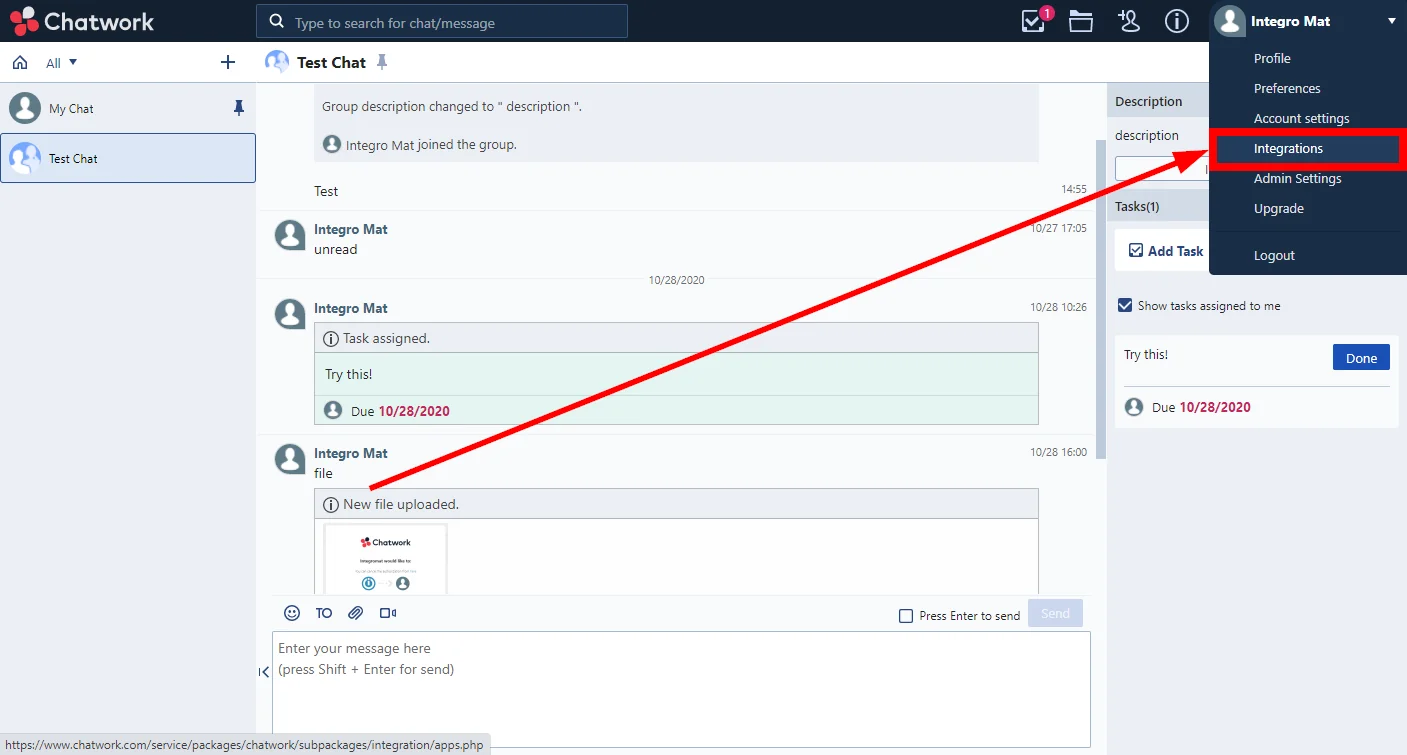
Click on your account name in the top-right corner and select Integrations.
-
Go to Webhook > Create New.
-
Fill the fields as follows:
Webhook name
Enter the name for the webhook.
Webhook URL
Enter the webhook URL you have copied in step 2 (above).
Event
Select the event that will trigger the Watch Events module.
-
Click Create.
Now, every time the event occurs, the Watch Event module in your Boost.space Integrator scenario is triggered.
To create a webhook secured with the token, follow these steps:
-
Click on your account name in the top-right corner and select Integrations > Webhook > Create New.
-
Fill in the parameters and use a random URL for the Webhook URL parameter; it does not matter right now. Click Create. At the bottom of the page you should see a Token. For example “Token”: “IYS2YvleWo+qvttWyHNFDDa9rWw7x/dbWnYrAYKFUHc=” ->Copy it.
-
Go to the Boost.space Integrator -> Create a webhook with the Token parameter being the value you copied above (IYS2YvleWo+qvttWyHNFDDa9rWw7x/dbWnYrAYKFUHc=). Once the webhook is created, copy the Webhook URL Boost.space Integrator provides.
-
Go back to Chatwork > Integrations > Webhook. Find the webhook you have created and hit Edit. Paste the webhook URL the Boost.space Integrator module provided into the Webhook URL field -> Save -> Done!
Make an API Call
Allows you to perform a custom API call.
Connection
Establish a connection to your Chatwork account.
URL
Enter a path relative to https://api.chatwork.com. For example: /v2/rooms.
For the list of available endpoints, refer to the Chatwork API Documentation (PDF).
Method
Select the HTTP method you want to use:
GET
to retrieve information for an entry.
POST
to create a new entry.
PUT
to update/replace an existing entry.
PATCH
to make a partial entry update.
DELETE
to delete an entry.
Headers
Enter the desired request headers. You don’t have to add authorization headers; we already did that for you.
Query String
Enter the request query string.
Body
Enter the body content for your API call.
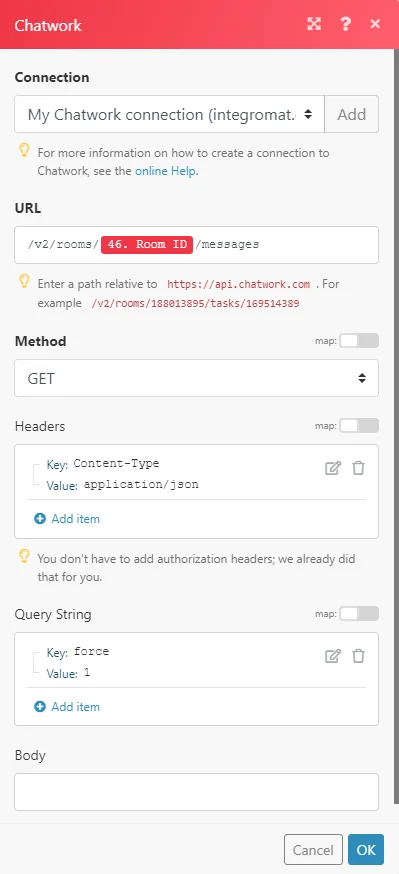
Example of Use – List Messages
The following API call returns all messages in the specified room in your Chatwork account:
URL:
/v2/rooms/{room_id}/messages/
Method:
GET
Query String:
Key:force
Value: 1
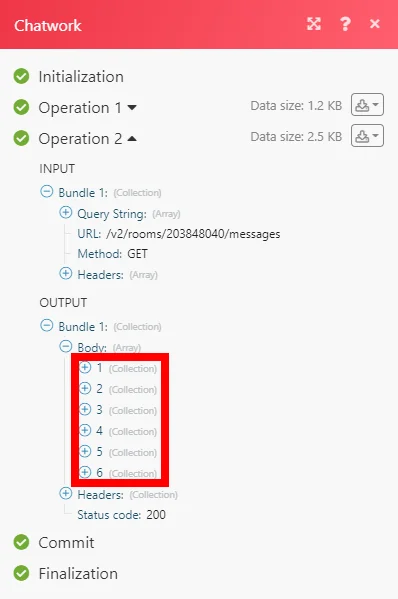
The result can be found in the module’s Output under Bundle > Body.
In our example, 6 messages were returned:
Legacy article, imported from the original Boost.space knowledge base (/knowledge-base/applications/communication/chatwork/).

