Crisp
The Crisp modules allow you to monitor, create, update, send, retrieve, and list the conversations, people, visitors, and websites in your Crisp account.
Getting Started with Crisp
Prerequisites
- A Crisp account
In order to use Crisp with Boost.space Integrator, it is necessary to have a Crisp account. If you do not have one, you can create a Crisp account at app.crisp.chat/initiate/signup.
The module dialog fields that are displayed in bold (in the Boost.space Integrator scenario, not in this documentation article) are mandatory!
Connecting Crisp to Boost.space Integrator
To connect your Crisp account to Boost.space Integrator you need to obtain the Identifier, Key, and Website ID from your Crisp account and insert it in the Create a connection dialog in the Boost.space Integrator module.
-
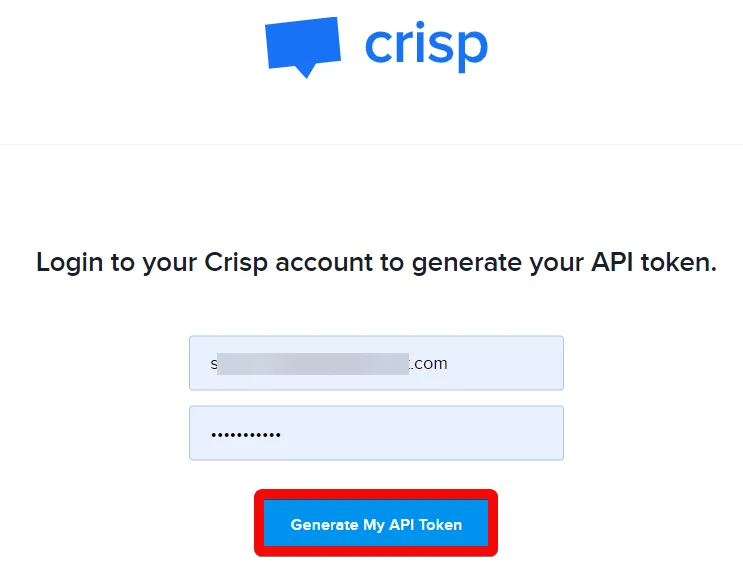
Go to the Token Generation website and log in to your Crisp account credentials.
-
Click Generate My API Token.
-
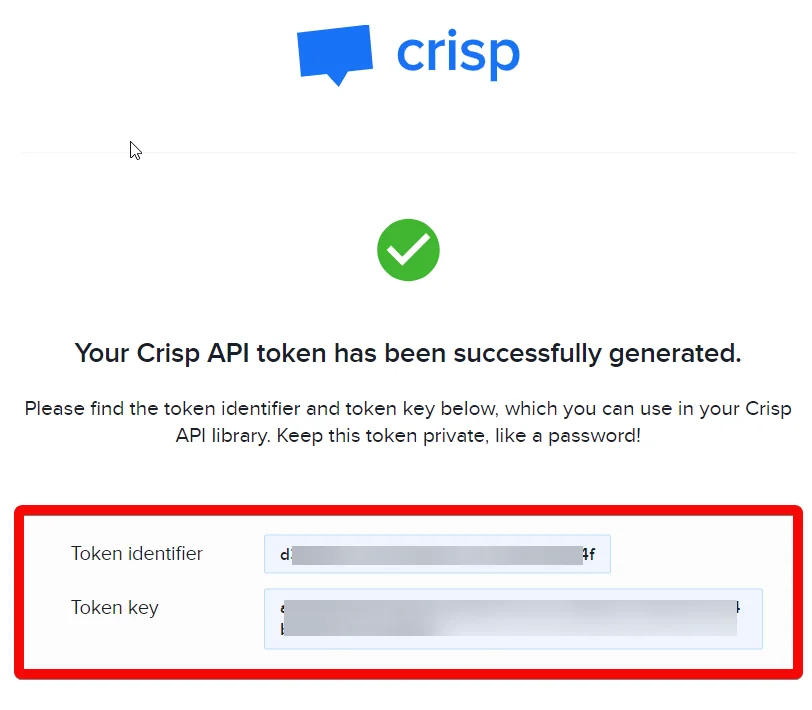
Copy the Identifier and Key details to a safe place.
-

Go to Boost.space Integrator and open the Crisp module’s Create a connection dialog.
-
In the_Identifier_ and Key fields, enter the token details copied in step 2 respectively.
-

In the Website ID field, enter your website ID for which you want to establish the connection. You can find website ID at Settings > Website Settings > Select the Website > Setup Instructions.
-
Click Continue.
The connection has been established.
Conversations
Create a Conversation
Creates a new conversation.
Connection
Establish a connection to your Crisp account.
Search for Conversation
Search previous Crisp conversations using a search query (an email, username, or word)
Connection
Establish a connection to your Crisp account.
Search Query
Enter a keyword or a phrase to search the conversation that matches the specified query.
Search Type
Select or map the search type for the conversations:
-
Text
-
Segment
-
Filter
Include Empty
Select whether you want to search the empty conversations.
Filter Unread
Select whether you want to search only the conversations that were not read.
Filter Resolved
Select whether you want to search only the conversations that were resolved.
Filter Not Resolved
Select whether to search the conversations that are not resolved.
Filter Mention
Select whether to search the conversations that mention the current user.
Filter Assigned
Select whether to search the conversations that were assigned to the current user.
Filter Unassigned
Select whether to search the conversations that were not assigned to any user.
Filter Date Start
Enter the date to search the conversations from the specified date.
Filter Date End
Enter the date to search the conversations until the specified date.
Order By Date Created
Enter the date to search the conversations that were created on the specified date.
Order By Date Updated
Enter the date to search the conversations that were updated on the specified date.
Limit
Set the maximum number of conversations Boost.space Integrator should return during one execution cycle.
Remove a Conversation
Remove a conversation on the website.
Connection
Establish a connection to your Crisp account.
Session ID
Enter (map) the conversation’s Session ID you want to remove.
List Messages in Conversation
Resolves messages in an existing conversation. Returns the last batch of messages if there are many messages in the conversation.
Connection
Establish a connection to your Crisp account.
Session ID
Enter (map) the conversation whose messages you want to list.
Before
Enter (map) the date to list the messages that were created on or before the specified date.
Limit
Set the maximum number of messages Boost.space Integrator should return during one execution cycle.
Send a Message in Conversation
Sends a message in an existing conversation.
Connection
Establish a connection to your Crisp account.
Session ID
Enter (map) the conversation Session ID in which you want to send the message.
Message Type
Select or map the message type and enter the files. For example, Text.
Content
Enter the message text.
Message Sender
Select or map the sender to send the message:
-
User
-
Operator
Message Origin
Select or map the option to send the message:
-
Chat
-
Email
-
URN
Mentioned User Identifier
Add the users to whom you want to send the message.
Unique Message Fingerprint
Enter (map) the unique message identifier. This is used to avoid duplicates when using the API as per the real-time sockets.
Type
Select or map the user type who is sending the message:
-
Website
-
Participant
Nickname
Enter the user’s nickname.
Avatar
Enter the user’s profile image URL address.
Type
Select the message type. For example, HTML.
Content
Enter (map) the message data type.
Translated
Select whether you want to auto-translate the message to the recipient’s choice.
Get a Message in Conversation
Resolves an existing message in an existing conversation.
Connection
Establish a connection to your Crisp account.
Session ID
Enter (map) the Session ID whose message details you want to retrieve.
Message Fingerprint
Enter (map) the unique message identifier. This is used to avoid duplicates when using the API as per the real-time sockets.
Update a Message in Conversation
Edits an existing message in an existing conversation.
Connection
Establish a connection to your Crisp account.
Session ID
Enter (map) the Session ID whose message details you want to retrieve.
Message Fingerprint
Enter (map) the unique message identifier. This is used to avoid duplicates when using the API as per the real-time sockets.
Message Type
Select or map the message type and enter the details for the dynamic fields:
-
Text
-
Note
-
File
-
Animation
-
Audio
-
Picker
-
Field
-
Event
People
Create a People Profile
Adds a new people profile.
Connection
Establish a connection to your Crisp account.
Enter the people’s profile’s email address.
Full Name
Enter the user’s full name.
Avatar URL
Enter (map) the user’s profile image URL address.
Gender
Select or map the gender of the user.
Phone Number
Enter (map) the user’s phone number.
User Address
Enter (map) the user’s address.
User Website
Enter (map) the user details.
Timezone
Enter (map) the user’s timezone.
Profiles
Add the profiles:
Profile Type
Enter (map) the user profile type. For example, Facebook.
Handle
Enter (map) the handle for the user profile.
Profile URL
Enter (map) profile URL address. For example, the user's Facebook link.
Company Name
Enter (map) the user’s company name.
Company Domain Name
Enter (map) the user’s company domain name.
User Title
Enter (map) the user title. For example, CTO.
User Role
Enter (map) the user’s role. For example, Software Engineer.
User Seniority
Enter (map) the user’s seniority in the company. For example, lead.
Country Code
Enter (map) the two-character country code where the user is located. For example, US.
Region Code
Enter (map) the region code where the user is located. For example, Riga.
City Name
Enter (map) the city name where the user is located. For example, Riga.
Latitude
Enter (map) the user’s location latitude details.
Longitude
Enter (map) the user’s location longitude details.
Locales
Enter (map) the two-character locales preferred language code. For example, "en" for English.
Company Name
Enter (map) the user’s company name.
Company Legal Name
Enter (map) the user’s company’s legal name.
Company Domain Name
Enter (map) the user’s company domain name.
Company Website URL
Enter (map) the user’s company’s website URL address.
Company Description
Enter (map) the user’s company description details.
Company Timezone Offset
Enter (map) the user’s company timezone offset.
Company Phones
Enter (map) the user’s company phone numbers.
Company Emails
Enter (map) the user’s company’s contact email addresses.
Country Code
Enter (map) the two-character country code where the user’s company is located. For example, US.
Region Code
Enter (map) the region code where the user’s company is located. For example, Riga.
City Name
Enter (map) the city name where the user’s company is located. For example, Riga.
Latitude
Enter (map) the user’s company’s location latitude details.
Longitude
Enter (map) the user’s company’s location longitude details.
Number of Employees
Enter (map) the number of employees in the company.
Market Capitalization
Enter (map) the company’s market capitalization cap.
Money Raised
Enter (map) the amount company raised in the form of investment.
Annual Recurring Revenue
Enter (map) the company’s annual recurring revenue.
Tags
Add the tags for the user.
Segments
Add the segments for the user. For example, poweruser.
Private Notepad
Enter (map) the private notepad details of the user.
Update a People Profile
Updates people profile, and save only changed fields on the previous profile revision.
Connection
Establish a connection to your Crisp account.
People ID
Select or map the People ID whose details you want to update.
Enter the people’s profile’s email address.
Full Name
Enter the user’s full name.
Avatar URL
Enter (map) the user’s profile image URL address.
Gender
Select or map the gender of the user.
Phone Number
Enter (map) the user’s phone number.
User Address
Enter (map) the user’s address.
User Website
Enter (map) the user details.
Timezone
Enter (map) the user’s timezone.
Profiles
Add the profiles:
Profile Type
Enter (map) the user profile type. For example, Facebook.
Handle
Enter (map) the handle for the user profile.
Profile URL
Enter (map) profile URL address. For example, the user's Facebook link.
Company Name
Enter (map) the user’s company name.
Company Domain Name
Enter (map) the user’s company domain name.
User Title
Enter (map) the user title. For example, CTO.
User Role
Enter (map) the user’s role. For example, Software Engineer.
User Seniority
Enter (map) the user’s seniority in the company. For example, lead.
Country Code
Enter (map) the two-character country code where the user is located. For example, US.
Region Code
Enter (map) the region code where the user is located. For example, Riga.
City Name
Enter (map) the city name where the user is located. For example, Riga.
Latitude
Enter (map) the user’s location latitude details.
Longitude
Enter (map) the user’s location longitude details.
Locales
Enter (map) the two-character locales preferred language code. For example, "en" for English.
Company Name
Enter (map) the user’s company name.
Company Legal Name
Enter (map) the user’s company’s legal name.
Company Domain Name
Enter (map) the user’s company domain name.
Company Website URL
Enter (map) the user’s company’s website URL address.
Company Description
Enter (map) the user’s company description details.
Company Timezone Offset
Enter (map) the user’s company timezone offset.
Company Phones
Enter (map) the user’s company phone numbers.
Company Emails
Enter (map) the user’s company’s contact email addresses.
Country Code
Enter (map) the two-character country code where the user’s company is located. For example, US.
Region Code
Enter (map) the region code where the user’s company is located. For example, Riga.
City Name
Enter (map) the city name where the user’s company is located. For example, Riga.
Latitude
Enter (map) the user’s company’s location latitude details.
Longitude
Enter (map) the user’s company’s location longitude details.
Number of Employees
Enter (map) the number of employees in the company.
Market Capitalization
Enter (map) the company’s market capitalization cap.
Money Raised
Enter (map) the amount company raised in the form of investment.
Annual Recurring Revenue
Enter (map) the company’s annual recurring revenue.
Tags
Add the tags for the user.
Segments
Add the segments for the user. For example, poweruser.
Private Notepad
Enter (map) the private notepad details of the user.
Delete a People Profile
Removes people’s profiles on the website.
Connection
Establish a connection to your Crisp account.
People ID
Select or map the People ID you want to delete.
List People Profiles
Lists people profiles for the website.
Connection
Establish a connection to your Crisp account.
Sort Order
Select or map the order in which you want to sort the profiles.
Search Text
Enter the text or keyword to search the profiles that match the specified query.
Filter From
Enter (map) the date to list the profiles that were created from the specified date.
Filter Until
Enter (map) the date to list the profiles that were created until the specified date.
Limit
Set the maximum number of people profiles Boost.space Integrator should return during one execution cycle.
Visitors
Get Visitors Count
Counts visitors currently on the website.
Connection
Establish a connection to your Crisp account.
List Visitors
Lists visitors currently on the website.
Connection
Establish a connection to your Crisp account.
Limit
Set the maximum number of visitors Boost.space Integrator should return during one execution cycle.
Website
Check if Website Exists
Checks if a given website exists (by domain)
Connection
Establish a connection to your Crisp account.
Domain
Enter (map) the domain which you want to check if it exists.
Get a Website
Resolves existing website information.
Connection
Establish a connection to your Crisp account.
Create a Website
Creates a new website.
Connection
Establish a connection to your Crisp account.
Website
Enter the website name.
Domain
Enter the website domain name. for example, integromat.com
Delete a Website
Deletes an existing website.
Connection
Establish a connection to your Crisp account.
Password
Enter your Crisp account password to delete the website.
Other
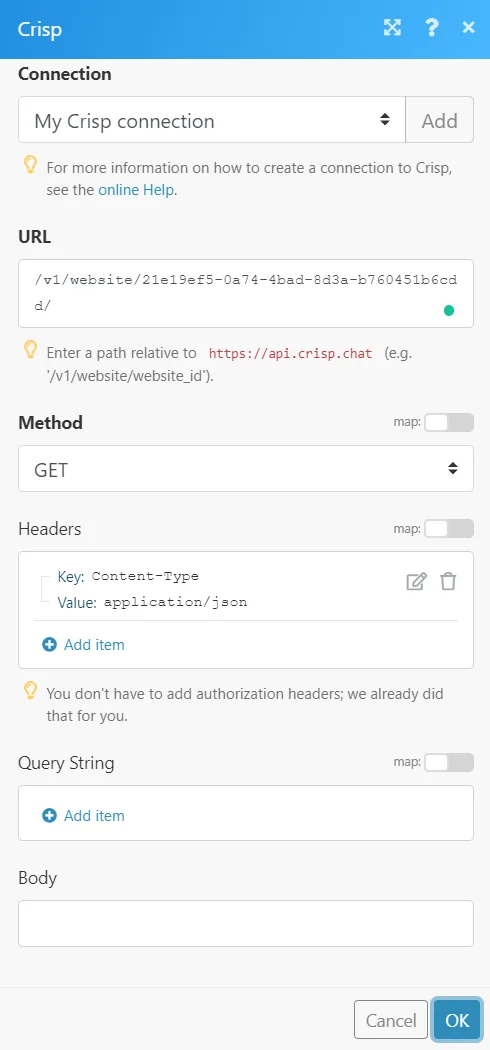
Make an API Call
Performs an arbitrary authorized API call.
Connection
Establish a connection to your Crisp account.
URL
Enter a path relative to https://api.crisp.chat For example: /v1/website/{website_id}
For the list of available endpoints, refer to the Crisp API Documentation.
Method
Select the HTTP method you want to use:
GET
to retrieve information for an entry.
POST
to create a new entry.
PUTto update/replace an existing entry.
PATCH
to make a partial entry update.
DELETE
to delete an entry.
Headers
Enter the desired request headers. You don’t have to add authorization headers; we already did that for you.
Query String
Enter the request query string.
Body
Enter the body content for your API call.
Example of Use – List Conversations
The following API call returns all the conversations from your Crisp account:
URL:
/v1/website/{website_id}/conversations
Method:
GET
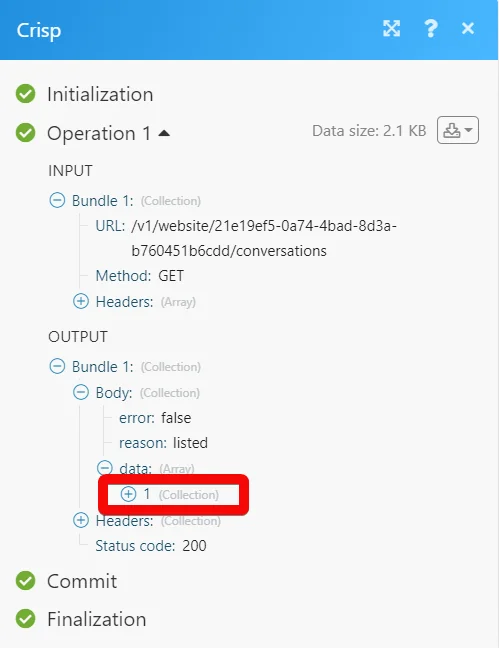
Matches of the search can be found in the module’s Output under Bundle > Body > data.
In our example, 1 conversation was returned:
Legacy article, imported from the original Boost.space knowledge base (/knowledge-base/applications/communication/crisp/).

