IQDial
Getting Started with IQDial
The IQDial modules allow you to add, retrieve contacts, and create a contact file in your IQDial account.
Prerequisites
- An IQDial account
In order to use IQDial with Boost.space Integrator, it is necessary to have an IQDial account. If you do not have one, you can create an IQDial account at https://new.iqdial.com/register.
The module dialog fields that are displayed in bold (in the Boost.space Integrator scenario, not in this documentation article) are mandatory!
Connecting IQDial to Boost.space Integrator
To connect your IQDial account to Boost.space Integrator you need to obtain the API Token from your IQDial account and insert it in the Create a connection dialog in the Boost.space Integrator module.
1. Log in to your IQDial account and open your Dashboard.
2. Click your Profile Icon > My Account.
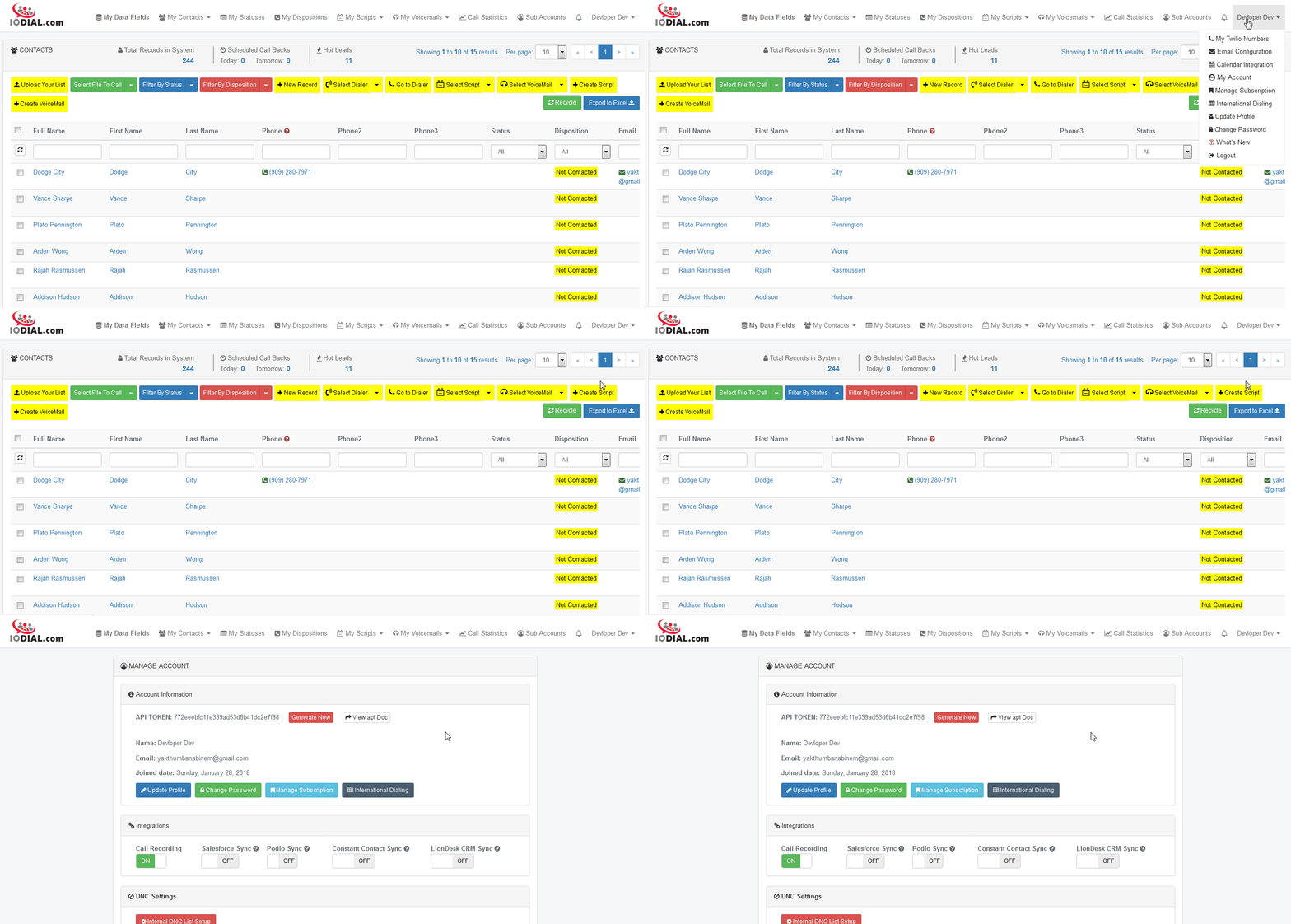
3. Copy the API Token or click Generate New to create a new API Token_._
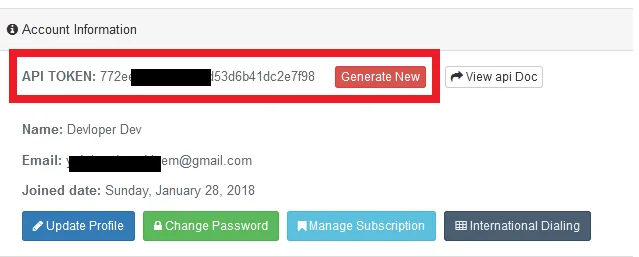

4. Go to Boost.space Integrator and open the IQDial module’s Create a connection dialog.
5. In the Connection name field, enter a name for the connection.
6. In the API Token field, enter the API Token copied in step 3.
7. Click Continue.
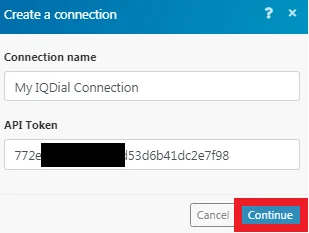
The connection has been established.
Actions
Add a New Contact
Add a new contact to an IQDial contact file.
Connection
Establish a connection to your IQDial account.
Name (Name of the contact file)
Enter a name for the contact file you want to add.
Create Contact File
Creates a contact file.
Connection
Establish a connection to your IQDial account.
Contact File (Contact file you want to add contacts to)
Enter a name for the contact file you want to add.
Append Missing Phone
When selected, fins the missing phone numbers of the contact.
Append Missing Email
When selected, fins the missing email address of the contact.
Status
Select the status of the contact:
-
Not Contacted
-
Dialed No Answer
-
Contacted
-
Yes – Hot lead
-
VM: Left Voicemail
-
VM: No Message
-
Call Today
First Name
Enter the first name of the contact.
Last Name
Enter the last name of the contact.
Phone
Enter the phone number of the contact.
Total Rooms
Enter the number of rooms in the property.
Lost Sold Date
Enter the date when the property was last sold.
Skype
Enter the Skype ID of the contact.
Link
Add a link to the contact profile or the property.
Enter the email address of the contact.
Property Address
Enter the street address of the property.
Property City
Enter the city name.
Property State
Enter the state name.
Property Zip
Enter the property zipcode.
Mailing Address
Enter the street name of the contact mailing address.
Mailing City
Enter the city name.
Mailing State
Enter the state name.
Mailing Zip
Enter the zipcode of the mailing address.
Assessed Value
Enter the assessed value of the property.
Year Built
Enter the year in which the property was built.
Bedrooms
Enter the number of bedrooms the property has.
Land Type
Enter the property land type.
Sq. ft
Enter the property Sq. ft area.
Lot Sq. ft
The total area of Sq. ft of the property if it is a multiple storey building.
Searches
Get Contact
Get contacts of specific contact file.
Connection
Establish a connection to your IQDial account.
Contact File
Select the contact file whose contact information you want to retrieve.
Status
Select the status of the contact:
-
Not Contacted
-
Dialed No Answer
-
Contacted
-
Yes – Hot lead
-
VM: Left Voicemail
-
VM: No Message
-
Call Today
Legacy article, imported from the original Boost.space knowledge base (/knowledge-base/applications/communication/iqdial/).

