ManyChat
The Manychat modules enable you to monitor new data, send messages, or flows and manage tags, custom fields, or retrieve subscriber’s info in your Manychat account.
Getting Started with Manychat
Prerequisites
- A Manychat Pro account
In order to use Manychat with Boost.space Integrator, it is necessary to have a Manychat account. If you do not have one, you can create a Manychat account at manychat.com.
The module dialog fields that are displayed in bold (in the Boost.space Integrator scenario, not in this documentation article) are mandatory!
Connecting Manychat to Boost.space Integrator
To connect your Manychat account to Boost.space Integrator you need to obtain the API Token.
You need to have a ManyChat PRO account to generate the API Token and connect Manychat to Boost.space Integrator.
1. Log in to your Manychat account.

2. Go to Settings > API.
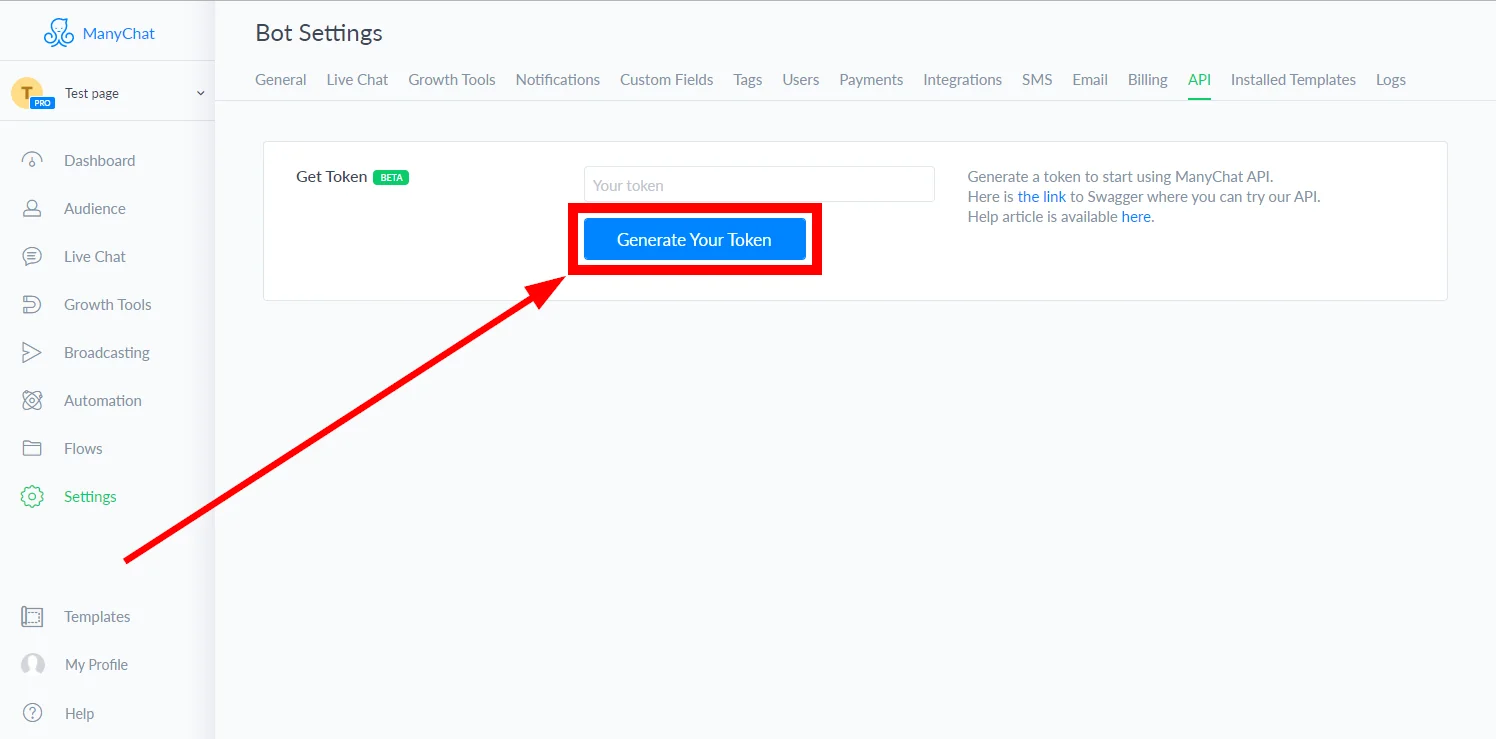
3. Click the Generate Your Token button.

4. Copy the provided token.
5. Go to Boost.space Integrator and open the ManyChat module’s Create a connection dialog.
6. Enter the API Token you have copied in step 4 to the respective field and click the Continue button to establish the connection.
Triggers
Watch Incoming Data
Triggers when a ManyChat action is performed and returns subscriber’s details. Add this module as the first module in your scenario.
Webhook name
Enter a name for the webhook.
Connection
Establish a connection to your ManyChat account.
To trigger the Watch Incoming Data module you need to add an action to your ManyChat’s flow.
-
Log in to your ManyChat account.
-
Go to Flows and open the flow where you want to add the action that triggers the Watch Incoming Data module.
-

Add the Button or Quick reply. Click the +Add Button button and enter the Button Title.
-

Scroll down and click the +Action button.
-
Select the Trigger Boost.space Integrator option.
-
Click to the field below the TriggerBoost.space Integrator action and select the webhook that should be triggered when a user clicks the button.

Now, when a user clicks the button, the Watch Incoming Data module in Boost.space Integrator is triggered.
Actions
Get Subscriber’s info
Retrieves a subscriber’s details.
Connection
Establish a connection to your ManyChat account.
Subscriber ID
Enter (map) the Subscriber ID.
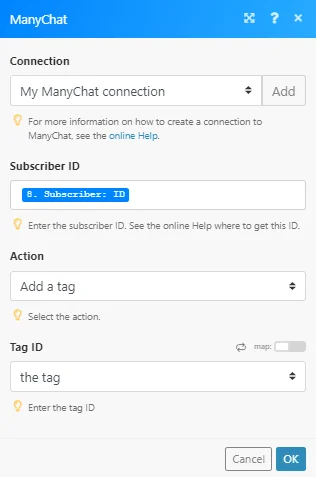
Manage Tags
Enables you to add or remove a tag from the subscriber.
Connection
Establish a connection to your ManyChat account.
Subscriber ID
Enter (map) the Subscriber ID.
Action
Select whether you want to add or remove a tag.
Tag ID
Select or map the tag you want to add or remove.
Perform an Action
Performs one or more actions for the subscriber.
Connection
Establish a connection to your ManyChat account.
Subscriber ID
Enter (map) the Subscriber ID.
Actions
Add one or more actions you want to perform.
The custom field or tag must already exist in your ManyChat account.
Send a Flow
Sends a flow to the subscriber.
Connection
Establish a connection to your ManyChat account.
Subscriber ID
Enter (map) the subscriber ID to whom you want to send the flow.
Flow ID
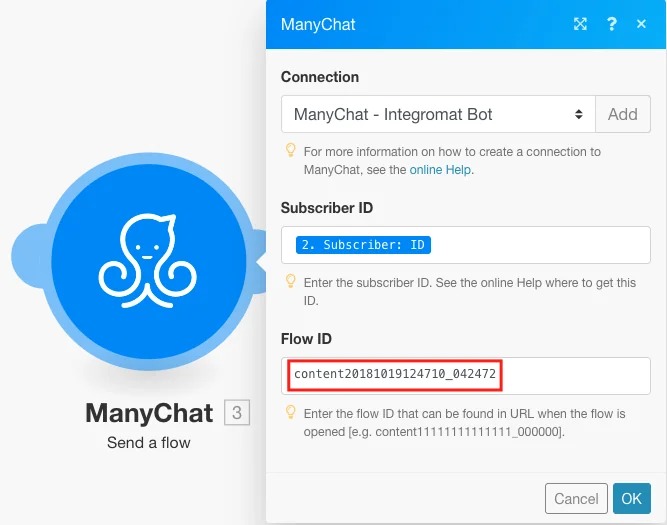
Enter the flow ID of the flow you want to send to the subscriber.
To use the Send a flowmodule, you need to get the unique ID of the flow you would like to send as shown below:
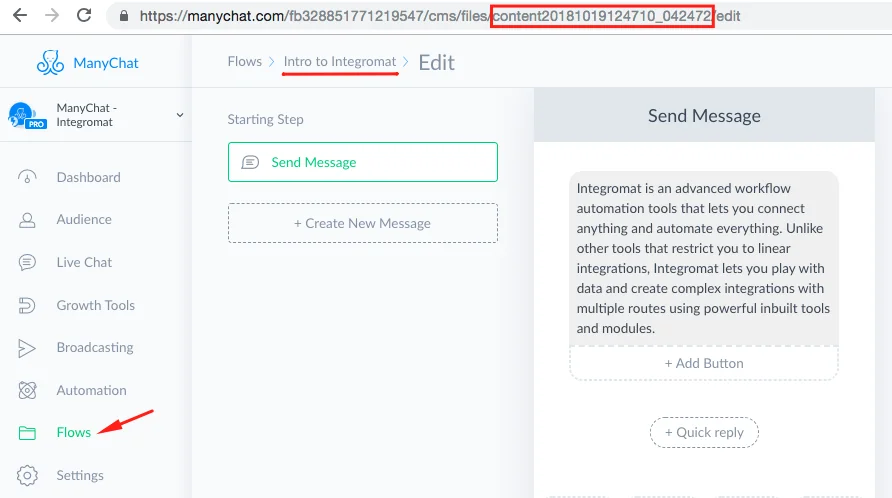
To get the Flow ID, go to Flows in your ManyChat account, select the flow and copy the ID from the page URL as shown below:
Send Messages
Enables you to send a batch of messages.
Connection
Establish a connection to your ManyChat account.
Subscriber ID
Enter (map) the Subscriber ID you want to send messages to.
Message Tag
Select one of the message tags. This is required from January 15th, 2020.
Messages
Add one or more messages. Required. Select the type of message to be sent to the subscriber and fill the corresponding fields.
Quick Replies
Add one or more quick replies.
Send a Text
Sends a text message to the subscriber.
Connection
Establish a connection to your ManyChat account.
Subscriber ID
Enter (map) the subscriber ID you want to send a message to.
Message Tag
Select one of the message tags. This is required from January 15th, 2020.
Text
Enter the text content of the message.
Buttons
Add one or more buttons to the message.
Quick Replies
Add one or more quick replies.
Send a Text with a File
Sends a text message with the file to the subscriber.
Connection
Establish a connection to your ManyChat account.
Subscriber ID
Enter (map) the Subscriber ID you want to send the message to.
Message Tag
Select one of the message tags. This is required from January 15th, 2020.
Text
Enter the text content of the message.
File URL
Enter the URL of the file you want to attach to the message.
File Type
Select the file type of the file attached to the message.
Quick Replies
Add one or more quick replies.
Send a Text with an Image
Sends a text message with the image to the subscriber.
Connection
Establish a connection to your ManyChat account.
Subscriber ID
Enter (map) the Subscriber ID you want to send the message to.
Message Tag
Select one of the message tags. This is required from January 15th, 2020.
Text
Enter the text content of the message.
Image URL
Enter the URL of the image you want to attach to the message.
Buttons
Add one or more buttons to the message.
Quick Replies
Add one or more quick replies.
Set a Custom Field
Sets the value of the custom field for the subscriber.
Connection
Establish a connection to your ManyChat account.
Subscriber ID
Enter (map) the Subscriber ID you want to set the custom field for.
Field ID
Select or map the custom field you want to add the value to.
Field Value
Enter the value for the custom field.
Find Subscribers by a Custom Field
Returns subscribers by a custom field.
The module works with the Text and Number custom field types only.
Connection
Establish a connection to your ManyChat account.
Field ID
Select or map the custom field you want to search the subscriber by.
Field Value
Enter the value for the custom field you want to the subscriber by.
Limit
Set the maximum number of subscribers Boost.space Integrator will return during one execution cycle.
Legacy article, imported from the original Boost.space knowledge base (/knowledge-base/applications/communication/manychat/).

