Myphoner
The Myphoner modules allow you to create, watch, search and modify your leads and lists in your Myphoner account.
Getting Started with Myphoner
Prerequisites
- A Myphoner account
In order to use Myphoner with Boost.space Integrator, you must have a Myphoner account. If you do not have one, you can create one at myphoner.com.
The module dialog fields that are displayed in bold (in the Boost.space Integrator scenario, not in this documentation article) are mandatory.
Connecting Myphoner to Boost.space Integrator
To connect your Myphoner account to Boost.space Integrator you need your subdomain and an API key.
-
Log in to your Myphoner account.
-
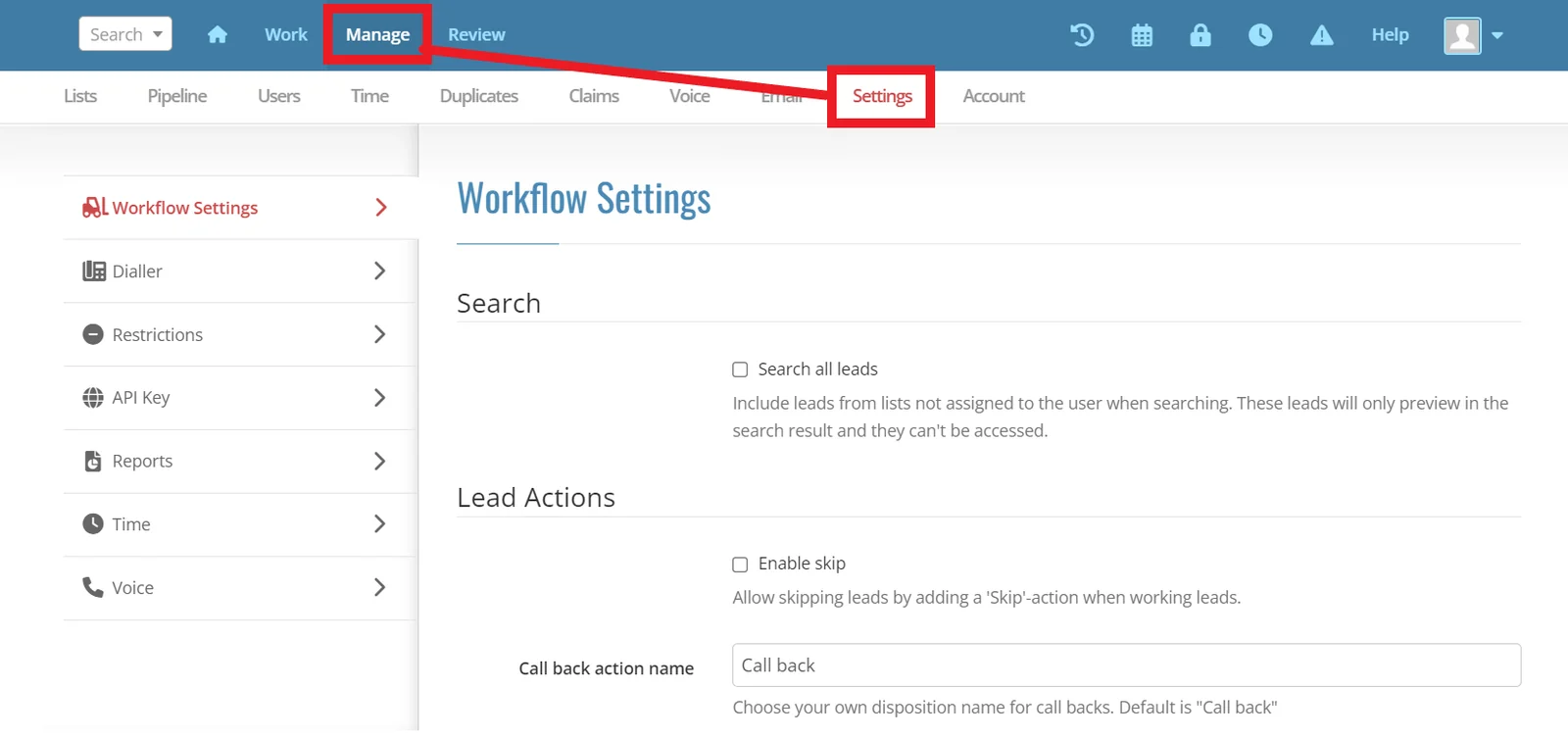
Click Manage, then click Settings.
-
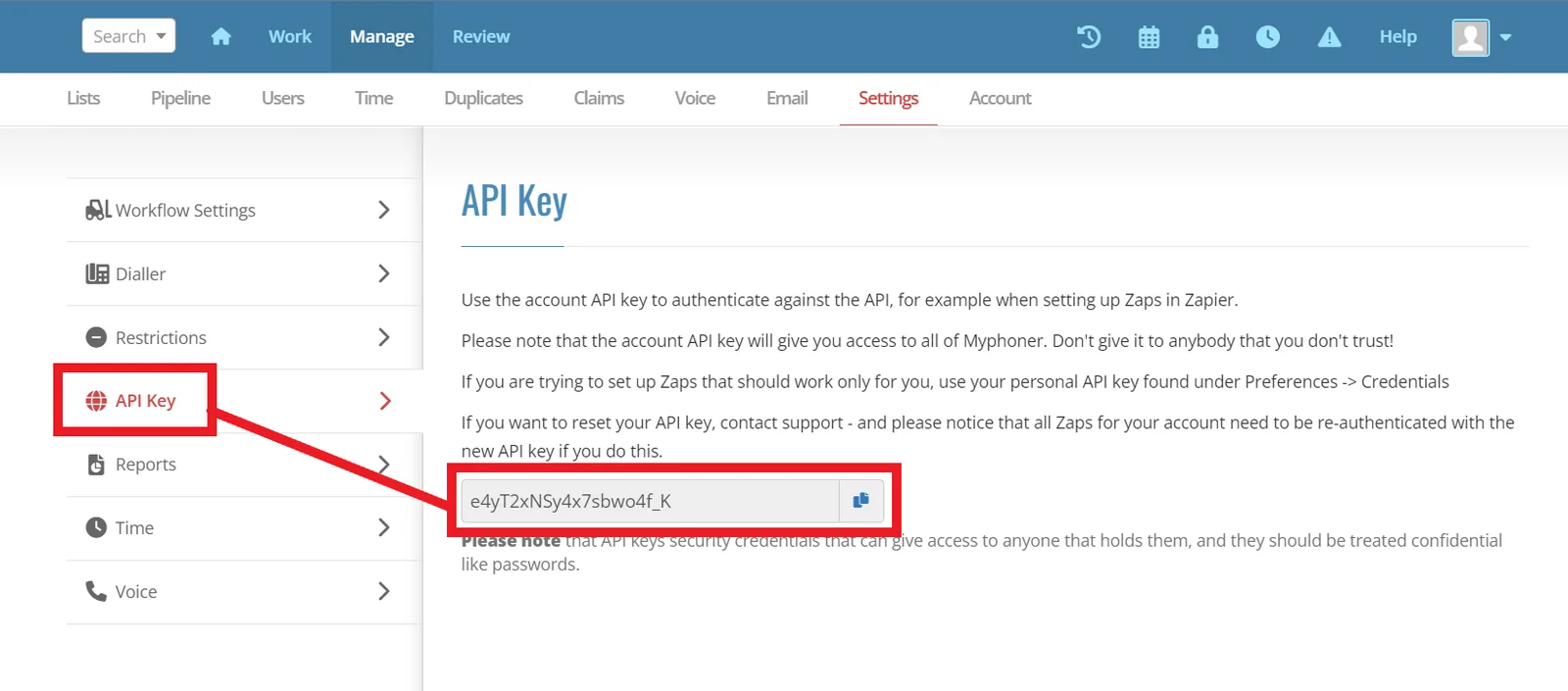
Click API Key, then copy your API key to your clipboard.
-
Copy the subdomain of your Myphoner account URL address. This is the first part of the URL. For example, if the URL is
make.myphoner.com, copymake. -
In your Boost.space Integrator scenario, choose the Myphoner module you want to use.
-
Next to Connection, click Add.
-
Choose a name for your connection.
-
Enter the subdomain and API key in their respective fields, then click Save.
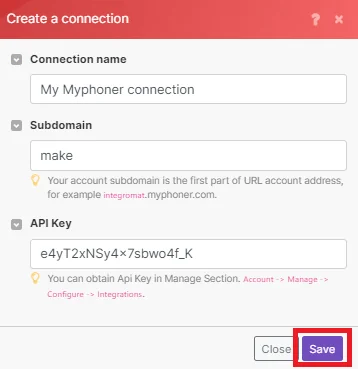
You have now successfully established the connection.
Leads
Find Leads by Fields
Find leads by one or more fields.
Connection
Establish a connection to your Myphoner account.
Select or Enter Manually
Select or map the List ID of the list you want to search for leads from.
Search Criteria
Enter any search criteria to find a lead by.
-
Name
-
Value
If you supply the same field multiple times, Boost.space Integrator only uses the last one in the request.
Match All
Select whether you want the results to match all fields or just some.
Limit
Enter the maximum number of leads Boost.space Integrator returns during one scenario execution cycle.
Search Leads by a Query
Searches for leads by a query.
Connection
Establish a connection to your Myphoner account.
Query
Map a query string to search leads by. All lead data including activity logs will be searched.
List IDs
Select the IDs of the lists to select leads from.
Limit
Enter the maximum number of leads Boost.space Integrator returns during one scenario execution cycle.
View Leads in a List
Retrieves leads from an existing list.
Connection
Establish a connection to your Myphoner account.
List ID
Select or map the ID of the list you want to retrieve leads from.
Order
Select how you want to to sort the items by.
-
Last Updated First
-
Last Created First
By default Boost.space Integrator returns leads by creation date in descending order.
Limit
Enter the maximum number of leads Boost.space Integrator returns during one scenario execution cycle.
Get a Lead
Retrieves an existing lead.
Connection
Establish a connection to your Myphoner account.
Select or Enter manually
Choose how you want to retrieve your lead.
Select
Select the List ID of the list you want to retrieve your lead from, then select the lead.
Enter manually
Map the Lead ID of the lead you want to retrieve.
Create a New Lead
Creates a new lead.
Connection
Establish a connection to your Myphoner account.
Select or Enter manually
Select or map the List ID of the list you want to create your lead in.
Lead Data
Map any lead data in the fields that auto-populate based on your selection.
The names of these fields should match those in the Fields section of your list in your Myphoner account.
Update a Lead
Updates an existing lead.
Connection
Establish a connection to your Myphoner account.
Select or Enter manually
- Select
List ID
Select the ID of the list containing the lead you want to update.
Lead ID
Select the ID of the lead you want to update.
Lead Data
Enter any lead data you want to update in the fields that auto-populate based on your selection.
The names of these fields should match those in the Fields section of your list in your Myphoner account.
- Enter Manually
Lead ID
Map the ID of the lead you want to update.
Lead Data
Add any lead data information you want to update.
The names of these fields should match those in the Fields section of your list in your Myphoner account.
Migrate / Move a Lead
Migrates or moves a lead between lists.
Connection
Establish a connection to your Myphoner account.
List ID
Select or map the ID of the list you want to select your lead from.
Lead ID
Select or map the ID of the lead you want to migrate or move.
To List ID
Select or map the ID of the list you want to move your lead to.
Give Back Leads
Choose whether to release the lead if it is claimed, or leave it as is.
Delegate / Claim a Lead
Delegates or claims an existing lead to another user.
Connection
Establish a connection to your Myphoner account.
Select or Enter manually
- Select
List ID
Select the ID of the list containing the lead you want to delegate or claim.
Lead ID
Select the ID of the lead you want to delegate or claim.
- Enter Manually
Lead ID
Map the ID of the lead you want to delegate or claim.
Delegate to
Map the email or account ID of the user that should hold the claim of the lead.
Mark a Lead for a Call Back
Marks a lead for a call back.
Connection
Establish a connection to your Myphoner account.
Select or Enter manually
- Select
List ID
Select the ID of the list containing the lead you want to mark for a call back.
Lead ID
Select the ID of the lead you want to mark for a call back.
- Enter Manually
Lead ID
Map the ID of the lead you want to mark for a call back.
Category
Select or map the category of the call back event.
Call Back in
Map how many minutes until the scheduled call back.
Scheduled for
Map the date and time of call back. See list of supported date and time formats.
This takes precedence over Call Back in.
Comment
Enter any text as a comment on the event.
Mark a Lead as a Loser
Marks an existing lead as a loser.
Connection
Establish a connection to your Myphoner account.
Select or Enter manually
- Select
List ID
Select the ID of the list containing the lead you want to mark as a loser.
Lead ID
Select the ID of the lead you want to mark as a loser.
- Manually Enter
Lead ID
Select the ID of the lead you want to mark as a loser.
Category
Select or map the category of the loser event.
Call Back in
Map how many minutes until the scheduled call back.
Scheduled for
Map the date and time of call back. See list of supported date and time formats.
This takes precedence over Call Back in.
Comment
Enter any text as a comment on the event.
Mark a Lead as a Winner
Marks an existing lead as a winner.
Connection
Establish a connection to your Myphoner account.
Select or Enter manually
- Select
List ID
Select the ID of the list containing the lead you want to mark as a winner.
Lead ID
Select the ID of the lead you want to mark as a winner.
- Enter Manually
Lead ID
Select the ID of the lead you want to mark as a winner.
Category
Select or map the category of the winner event.
Call Back in
Map how many minutes until the scheduled call back.
Scheduled for
Map the date and time of call back. See list of supported date and time formats.
This takes precedence over Call Back in.
Comment
Enter any text as a comment on the event.
Archive a Lead
Archives an existing lead.
Connection
Establish a connection to your Myphoner account.
Select or Enter manually
- Select
List ID
Select the ID of the list containing the lead you want to archive.
Lead ID
Select the ID of the lead you want to archive.
- Enter Manually
Lead ID
Select the ID of the lead you want to archive.
Category
Select or map the category of the archive event.
Call Back in
Map how many minutes until the scheduled call back.
Scheduled for
Map the date and time of call back. See list of supported date and time formats.
This takes precedence over Call Back in.
Comment
Enter any text as a comment on the event.
Lists
Search Lists
Retrieves all existing lists on the current account.
Connection
Establish a connection to your Myphoner account.
Locked on Defaults
Select whether to only return lists that are guaranteed to have the Myphoner default fields defined.
Limit
Enter the maximum number of lists Boost.space Integrator returns during one scenario execution cycle.
Get a List
Retrieves an existing list.
Connection
Establish a connection to your Myphoner account.
List ID
Select the ID of the list you want to retrieve.
Create a list
Creates a new list.
Connection
Establish a connection to your Myphoner account.
List Name
Enter a name for your new list.
Description
Enter a text description of your new list.
Categories
Enter any additional category information for your list
-
Call Back
-
Winner
-
Loser
-
Archive
-
Skip
Column Attributes
Add any additional parameters for fields in the new list.
-
Label
-
Original Name
-
Kind
User IDs
Add the IDs of any agents that should have access to the new list.
Duplicates Match On
Enter a custom field to use when detecting duplicates.
List Settings
Choose additional settings for your new list.
-
Prepend Phone
-
Inline Identifiers
-
Show Avatars
-
Lock on Defaults
-
Queue New Before Call Backs
-
Queue New Before Due
-
Duplicates Match On Phone
-
Duplicates Match On Email
Triggers
Boost.space Integrator automatically creates a webhook in MyPhoner once you add an instant trigger to your scenario.
Watch Archived Lead
Watches for a new archived lead.
Select a webhook or create a new one
Webhook name
Enter a name for your webhook.
Connection
Establish a connection to your Myphoner account.
List ID
Select the ID of the list you want to watch for an archived lead.
Watch Call Back Lead
Watches for a new call back lead.
Select a webhook or create a new one
Webhook name
Enter a name for your webhook.
Connection
Establish a connection to your Myphoner account.
List ID
Select the ID of the list you want to watch for a lost lead.
Watch Lost Lead
Watches for a lost lead.
Select a webhook or create a new one
Webhook name
Enter a name for your webhook.
Connection
Establish a connection to your Myphoner account.
List ID
Select the ID of the list you want to watch a lead for a call back.
Watch Winner Lead
Watches for a new winner lead.
Select a webhook or create a new one
Webhook name
Enter a name for your webhook.
Connection
Establish a connection to your Myphoner account.
List ID
Select the ID of the list you want to watch for a winner lead.
API
Make an API Call
Performs an arbitrary authorized API call.
Connection
Establish a connection to your Myphoner account.
URL
Enter a path relative to https://make.myphoner.com/api/. For example, /v2/lists
For the list of available endpoints, refer to the Myphoner API Documentation.
Method
Select the HTTP method you want to use:
GET to retrieve information for an entry.
POST to create a new entry.
PUT to update/replace an existing entry.
PATCH to make a partial entry update.
DELETE to delete an entry.
Query String
Enter the request query string.
Body
Enter the body content for your API call.
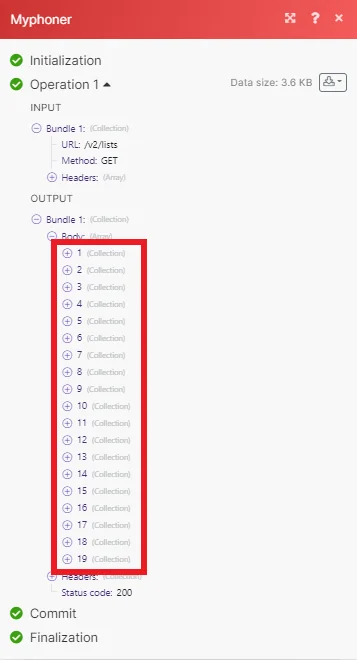
Example of Use – List all Lists
The following API call returns a list of all the lists in your Myphoner account:
URL: /v2/lists
Method: GET
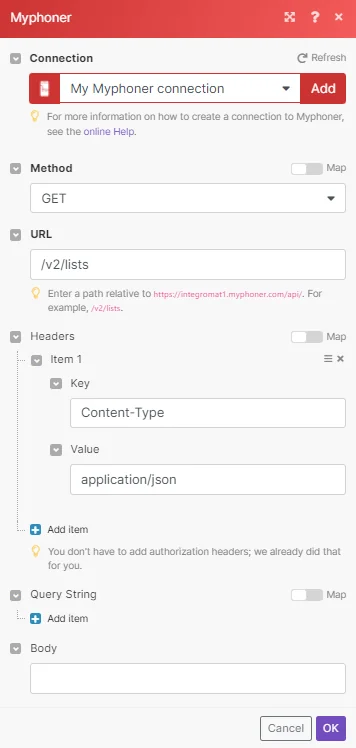
The result can be found in the module’s Output under Bundle > Body. Our example returned 19 results:
Legacy article, imported from the original Boost.space knowledge base (/knowledge-base/applications/communication/myphoner/).

