Slack
Any references to third-party products or services do not constitute Boost.space Product Documentation nor do they create any contractual obligations. This material is for informational purposes only and is subject to change without notice.
Boost.space does not warrant the availability, accuracy, reliability, completeness, or usefulness of any information regarding the subject of third-party services or systems.
With Slack modules in Boost.space Integrator, you can create, update, delete, retrieve, watch, and/or search for messages, files, channels, reactions, users, reminders, and/or statuses.
To get started with Slack, create an account at slack.com/getting-started.
Refer to the Slack API documentation for the list of available endpoints.
Slack Terminology
Private Channel
formerly Group
Direct Message
formerly IM
Channel
Referred to as Conversation in the API documentation and Channel in the Slack application
Connect Slack to Boost.space Integrator
To establish the connection:
-
Log in to your Boost.space Integrator account, add a Slack module to your scenario, and click Create a connection.Note: If you add a module with an
instanttag, click Create a webhook, then Create a connection. -
Depending on the module you add, you may be prompted to choose the Connection type: Slack (user) or Slack (bot). If not, continue to step 4.
Slack Watch modules only function with Userconnections at this time. If you would like to create a webhook with an interactive bot, you must use the Custom Webhook module.
- Optional: In the Connection name field, enter a name for the connection.
- Optional: Click Show Advanced settings and enter your custom app client credentials or add additional scopes.To create client credentials, see the Create Custom App and Client Credentials in Slack section.
- Click Save.
- If prompted, authenticate your account. If your account has multiple Slack workspaces, select the relevant workspace in the top-right corner and grant access to Boost.space Integrator.
You have successfully established the connection. You can now edit your scenario and add more Slack modules. If your connection requires reauthorization at any point, follow the connection renewal steps here.
Note: Some modules may require additional permissions extension. If so, you will be asked to authorize the required permissions.
Create Custom App and Client Credentials in Slack
To create a custom app and client credentials:
-
Log in to your Slack account and go to the Your Apps page.
-
Click Create New App.
-
Select From scratch.
-
Enter a name for your app, select a workspace, and click Create App. This brings you to the Basic Information page of your new app.
-
Scroll down to the App Credentials section. Copy your Client ID and store it in a safe place.
-
In the Client Secret field, click Show, copy your secret, and store it in a safe place.
-
In the left sidebar, click OAuth & Permissions.
-
Scroll down to the Redirect URLs section, click Add New Redirect URL, enter the redirect URL listed below for User and/or Bot, and click Add > Save URLs.
Connection Type
Redirect URL
User
https://integrator.boost.space/oauth/cb/slack2Bot
https://integrator.boost.space/oauth/cb/slack3 -
In the Scopes section, add Bot Token Scopes or User Token Scopes. You can add scopes for both types to one custom app.
-
Click Add an OAuth Scope and select scopes in the dropdown menu. Repeat this for all desired scopes.For a list of required scopes for each module, see the Scopes list below.
Note: If you change permission scopes in your Slack app after creation, you will be prompted in the Slack My Apps pages to reinstall your app.
You now have the client credentials to connect to Boost.space Integrator.
Messages
You can watch public and private channel messages, watch direct and multiparty direct messages, watch scheduled messages, search for messages, list scheduled messages, retrieve private and public channel messages, list replies, create, update, schedule, and delete a message using the following modules.
Watch Public Channel Messages
Triggers when a new message is added to a public channel.
Connection
Establish a connection to your Slack user account.
Input Method
Select the input method:
- Select from a list
- Search by the name
Public Channel
Select or map a public channel whose messages you want to watch.
Public Channel
Enter (map) a public channel name whose messages you want to watch.
Limit
Set the maximum number of public channel messages Boost.space Integrator will return during one execution cycle. The default value is 2.
Watch Private Channel Messages
Triggers when a new message is added to a private channel.
Connection
Establish a connection to your Slack user account.
Input Method
Select the input method:
- Select from a list
- Search by the name
Private Channel
Select or map a private channel whose messages you want to watch.
Private Channel
Enter (map) a private channel name whose messages you want to watch.
Limit
Set the maximum number of private channel messages Boost.space Integrator will return during one execution cycle. The default value is 2.
Watch Direct Messages
Triggers when a new direct message is added to a direct message channel.
Connection
Establish a connection to your Slack user account.
Input Method
Select the input method:
- Select from a list
- Search by the name
Direct message
Select or map a direct message you want to watch.
Direct message
Enter (map) a direct message channel name whose messages you want to watch. Alternatively, you can search for a direct message channel.
Name
Enter (map) a name to search for a multiparty direct message.
Exclude Archived
Select whether to exclude the archived channels.
Limit
Set the maximum number of direct messages Boost.space Integrator will return during one execution cycle. The default value is 2.
Watch Multiparty Direct Messages
Triggers when a new message is added to a multiparty direct message channel.
Connection
Establish a connection to your Slack user account.
Input Method
Select the input method:
- Select from a list
- Search by the name
Direct message to multiple people
Select or map a multiple direct message channel whose messages you want to watch.
Direct message to multiple people
Enter (map) a multiple direct message name whose messages you want to watch. Alternatively, you can search for a direct message channel.
Name
Enter (map) a name to search for a direct message.
Exclude Archived
Select whether to exclude the archived channels.
Limit
Set the maximum number of multiparty direct messages Boost.space Integrator name will return during one execution cycle. The default value is 2.
Search for Message
Returns messages matching a search query.
Connection
Establish a connection to your Slack account.
Query
Enter the search term you want to search the workspace for. See Search in Slack for a list of Search modifiers.
Limit
Set the maximum number of messages Boost.space Integrator will return during one execution cycle. The default value is 2.
Sort by
Select a parameter to sort:
- Score
- Timestamp
Direction
Select the sorting direction:
- Ascending
- Descending
Get a Private Channel Message
Returns a message with a given ID from a specified private channel.
Connection
Establish a connection to your Slack account.
Input Method
Select the input method:
- Select from a list
- Search by the name
Private Channel
Select or map a private channel whose messages you want to retrieve.
Private Channel
Enter (map) a private channel name whose messages you want to retrieve. Alternatively, you can search for a public channel.
Name
Enter (map) the channel name to search.
Exclude Archived
Select whether to exclude the archived channels.
Message ID (timestamp)
Enter (map) a Message ID of a message to retrieve.
Get a Public Channel Message
Returns a message with a given ID from a specified public channel.
Connection
Establish a connection to your Slack account.
Input Method
Select the input method:
- Select from a list
- Select from a list
Public Channel
Select or map a public channel whose messages you want to retrieve.
Public Channel
Enter (map) a public channel name whose messages you want to retrieve. Alternatively, you can search for a public channel.
Name
Enter (map) the channel name to search.
Exclude Archived
Select whether to exclude the archived channels.
Message ID (timestamp)
Enter (map) a Message ID of a message to retrieve.
List Replies
Retrieves a thread messages posted to a conversation.
Connection
Establish a connection to your Slack account.
Channel type
Select the channel type:
- Public channel
- Private channel
- Direct message
- Direct message to multiple people
Public channel
Select or map a public channel whose message you want to create.
Private channel
Select or map a private channel whose message you want to create.
Direct message
Select or map a user whose message you want to create.
Direct message to multiple
Select or map a direct message to multiple people and list the replies.
Parent message ID (timestamp)
Enter (map) a Parent message ID of a message whose replies you want to list.
Limit
Set the maximum number of replies Boost.space Integrator will return during one execution cycle. The default value is 2.
Create a Message
Creates a new message.
Connection
Establish a connection to your Slack account.
Enter a channel ID or name
Select the input method:
- Enter manually
- Select from the list
Channel ID or name
Enter (map) a Channel ID or name whose message you want to create.
You must specify a public channel, private channel, or a direct message channel. You can either pass the channel’s name (#general) or encoded ID (C0123BE12L).
Channel type
Select the channel type:
- Public channel
- Private channel
- Direct message
- Direct message to multiple people
Public channel
Select or map a public channel whose message you want to create.
Private channel
Select or map a private channel whose message you want to create.
Direct message
Select or map a direct message channel whose message you want to create.
Direct message to multiple people
Select or map a multiple direct message channel whose message you want to create.
Text
Enter (map) the text content of the message you want to create.
For detailed information about text formatting, please refer to the Slack documentation.
Blocks
Enter (map) the blocks to be combined with messages to create visually rich and compellingly interactive messages.
For detailed information about text formatting, please refer to the Slack documentation.
Thread message ID (timestamp)
Enter (map) another message’s time stamp value to make this message a reply. Avoid using a reply’s time stamp value; use its parent instead.
Reply broadcast
Select whether they should be made visible to everyone in the channel or conversation.
Used in conjunction with the Thread message ID.
Link names
Names and channels will not be linkified in the @username or #channel format unless you enable this option. For more information, refer to the formatting spec.
Parse message text
Select whether to parse the message text.
Defines how messages are treated.
Use markdown
Disable Slack markup parsing by selecting the No option.
Unfurl primarily text-based content
Enable this option to enable the unfurling of primarily text-based content. For detailed information about unfurling in Slack, refer to the Unfurling links in the messages article.
Unfurl media content
Disable this option to disable the unfurling of media content. For detailed information about unfurling in Slack, please refer to the Unfurling links in the messages article.
Icon emoji
Enter (map) an emoji to use as the icon for this message. Overrides Icon URL.
This field only has an effect when using a Bot connection.
Icon url
Enter (map) an Icon URL to an image to use as the icon for this message.
This field only has an effect when using a Bot connection.
User name
Enter (map) a User name to create a message.
If not specified, the default bot name will be used. This field only has an effect when using a Bot connection.
Update a Message
Updates a message.
Connection
Establish a connection to your Slack account.
Enter a channel ID or name
Select the input method:
- Enter manually
- Select from the list
Channel ID or name
Enter (map) an updated Channel ID or name whose message you want to create.
You must specify a public channel, private channel, or a direct message. You can either pass the channel’s name (#general) or encoded ID (C0123BE12L).
Channel type
Select the channel type:
- Public channel
- Private channel
- Direct message
- Direct message to multiple people
Public channel
Select or map a public channel whose message you want to create.
Private channel
Select or map a private channel whose message you want to create.
Direct message
Select or map a direct message whose message you want to create.
Direct message to multiple people
Select or map a multiple direct message whose message you want to create.
Timestamp (Message ID)
Enter (map) the message’s time stamp value or the Message ID to whose text you want to update.
Text
Enter (map) the text content of the message you want to create.
For detailed information about text formatting, please refer to the Slack documentation.
Blocks
Enter (map) the blocks to be combined with messages to create visually rich and compellingly interactive messages.
For detailed information about text formatting, please refer to the Slack documentation.
Link names
Names and channels will not be linkified in the @username or #channel format unless you enable this option. For more information, refer to the formatting spec.
Parse message text
Select whether to parse the message text.
Defines how messages are treated.
Delete a Message
Removes a message.
Connection
Establish a connection to your Slack account.
Channel ID
Enter (map) a Channel ID of a channel whose messages you want to delete.
Message ID (timestamp)
Enter (map) a Message ID of a message to delete.
Files
You can watch, list, retrieve, download, upload, create and delete files using the following modules.
Watch Files
Triggers when a new file is added.
Connection
Establish a connection to your Slack user account.
Type
Select the file type for which you want to watch:
- Posts
- Snippets
- Google docs
- Images
- Zips
- Pdfs
Channel type
Select the channel from which you want to filter the files.
- Public channel
- Private channel
- Direct message
- Direct message to multiple people
Public channel
Select or map a public channel to watch the files.
Private channel
Select or map a private channel to watch the files.
User
Select or map a user to watch the files.
Direct message to multiple people
Select or map a direct message to multiple people and watch the files.
Created by
Filter files to those created by the selected user.
Limit
Set the maximum number of files Boost.space Integrator will return during one execution cycle. The default value is 2.
List Files
Returns a list of files within a team.
Connection
Establish a connection to your Slack account.
Type
Select the file type you want to retrieve:
- Posts
- Snippets
- docs
- Images
- Zips
- Pdfs
Channel type
Select the channel from which to filter the files:
- Public channel
- Private channel
- Direct message
- Direct message to multiple people
Public channel
Select or map a public channel to list the files.
Private channel
Select or map a private channel to list the files.
User
Select or map a user to list the files.
Direct message to multiple people
Select or map direct message to multiple people and list the files.
Created by
Filter files created by the selected user.
Date from
Set the start date from when you want to list the files.
Date to
Set the end date until when you want to list the files.
Limit
Set the maximum number of files Boost.space Integrator will return during one execution cycle. The default value is 2.
Get a File
Returns details about a file.
Connection
Establish a connection to your Slack account.
File ID
Enter (map) the ID of the file you want to retrieve details about.
Download a File
Downloads a file.
Connection
Establish a connection to your Slack account.
URL private download
Enter (map) the URL Private download value from the Get a File module.
Upload a File
Creates or uploads a file.
Connection
Establish a connection to your Slack account.
Channels
Enter (map) the channel’s details:
Channel type
Select the channel where you want to upload the file:
- Public channel
- Private channel
- Direct message
- Direct message to multiple people
Public channel
Select or map a public channel to upload a file.
Private channel
Select or map a private channel to upload a file.
User
Select or map a user to upload a file.
Direct message to multiple people
Select or map a direct message to multiple people and upload a file.
File
Enter (map) a file details:
File name
Enter (map) the file name.
Data
Enter (map) the file data.
Title
Enter (map) the title of the file.
Thread ID (timestamp)
Enter (map) the Thread ID to upload the file as a reply.
Initial comment
Enter (map) the message text introducing the file in the specified channel.
Create a Text File
Creates a text file.
Connection
Establish a connection to your Slack account.
Channels
Enter (map) the channel’s details:
Channel type
Select the channel where you want to upload the file:
- Public channel
- Private channel
- Direct message
- Direct message to multiple people
Public channel
Select or map a public channel to create a file.
Private channel
Select or map a private channel to create a file.
User
Select or map a user to create a file.
Direct message to multiple people
Select or map a direct message to multiple people and create a file.
File
Enter (map) a file details:
File name
Enter (map) the file name.
Content
Enter (map) the file data.
Title
Enter (map) the title of the file.
Thread ID (timestamp)
Enter (map) the Thread ID to create the file as a reply.
Initial comment
Enter (map) the message text introducing the file in the specified channel.
Delete a File
Deletes a file.
Connection
Establish a connection to your Slack account.
File ID
Enter (map) the ID of the file you want to delete.
Channels
You can list, retrieve, list members, set the topic, set the purpose, join a channel, leave a channel, create, archive, and unarchive a channel using this module.
List Channels
Returns a list of channels in a workspace.
Connection
Establish a connection to your Slack account.
Exclude archived
Select whether to exclude archived channels in the results.
Type
Select the type of channels you want to retrieve.
- Public channel
- Private channel
- Direct message channel
- Direct message to multiple people
Limit
Set the maximum number of channels Boost.space Integrator will return during one execution cycle. The default value is 2.
Next Cursor
Set the cursor parameter equal to the next_cursor value you received on the last request to retrieve the next portion of the collection. For information see the cursor based pagination.
Get a Channel
Returns details about a channel.
Connection
Establish a connection to your Slack account.
Channel ID
Enter (map) the channel ID of the channel you want to retrieve.
List Members in a Channel
Returns users in the selected Channel.
Connection
Establish a connection to your Slack account.
Channel type
Select the channel type:
- Public channel
- Private channel
Public channel
Select or map a public channel whose members you want to list.
Private channel
Select or map a private channel whose members you want to list.
Limit
Set the maximum number of members Boost.space Integrator will return during one execution cycle. The default value is 2.
Set the Topic of a Channel
Changes the topic of a channel.
Connection
Establish a connection to your Slack account.
Channel type
Select the channel type:
- Public channel
- Private channel
- Direct message
- Direct message to multiple people
Input Method
Select the input method:
- Select from a list
- Search by the name
Public Channel
Select or map a public channel whose topic you want to set.
Private Channel
Select or map a private channel whose topic you want to set.
Direct message
Select or map a direct message whose topic you want to set.
Direct message to people
Select or map a direct message to multiple people whose topic you want to set.
Public Channel
Enter (map) a public channel whose topic you want to set. Alternatively, you can search a channel:
Name
Enter (map) a name to search.
Exclude Archived
Select whether to exclude the archived channels.
Private Channel
Enter (map) a public channel whose topic you want to set. Alternatively, you can search a channel:
Name
Enter (map) a name to search.
Exclude Archived
Select whether to exclude the archived channels.
Direct message
Enter (map) a public channel whose topic you want to set. Alternatively, you can search a channel:
Name
Enter (map) a name to search.
Exclude Archived
Select whether to exclude the archived channels.
Direct message to multiple people
Enter (map) a public channel whose topic you want to set. Alternatively, you can search a channel:
Name
Enter (map) a name to search.
Exclude Archived
Select whether to exclude the archived channels.
Topic
Enter (map) the topic name for the channel. Does not support formatting or linkification. For example, Apply topically for best effects.
Set the Purpose of a Channel
Changes the purpose of a channel.
Connection
Establish a connection to your Slack account.
Channel type
Select the channel type:
- Public channel
- Private channel
- Direct message
- Direct message to multiple people
Input Method
Select the input method:
- Select from a list
- Search by the name
Public Channel
Select or map a public channel whose purpose you want to set.
Private Channel
Select or map a private channel whose purpose you want to set.
Direct Message
Select or map a direct message whose purpose you want to set.
Direct message to multiple people
Select or map a direct message to multiple people whose purpose you want to set.
Public Channel
Enter (map) a public channel whose purpose you want to set. Alternatively, you can search a channel:
Name
Enter (map) a name to search.
Exclude Archived
Select whether to exclude the archived channels.
Private Channel
Enter (map) a public channel whose purpose you want to set. Alternatively, you can search a channel:
Name
Enter (map) a name to search.
Exclude Archived
Select whether to exclude the archived channels.
Direct message
Enter (map) a public channel whose purpose you want to set. Alternatively, you can search a channel:
Name
Enter (map) a name to search.
Exclude Archived
Select whether to exclude the archived channels.
Direct message to multiple people
Enter (map) a public channel whose purpose you want to set. Alternatively, you can search a channel:
Name
Enter (map) a name to search.
Exclude Archived
Select whether to exclude the archived channels.
Purpose
Enter (map) the new special purpose for the channel. For example, My More Special Purpose.
Join a Channel
Joins to an existing channel.
Connection
Establish a connection to your Slack account.
Channel ID
Enter (map) the Channel ID of a channel you want to join.
Leave a Channel
Leaves a channel.
Connection
Establish a connection to your Slack account.
Channel ID
Enter (map) the Channel ID of a channel you want to leave.
Create a Channel
Creates a channel.
Connection
Establish a connection to your Slack account.
Name
Enter (map) the name of the public or private channel to create.
Is private
Select whether the channel is private.
Archive a Channel
Archives a channel.
Connection
Establish a connection to your Slack account.
Channel ID
Enter (map) the channel ID of the channel you want to archive.
Unarchive a Channel
Unarchives a channel.
Connection
Establish a connection to your Slack account.
Channel ID
Enter (map) the channel ID of the channel you want to unarchive.
Reactions
You can list, add, and remove a reaction using the following modules.
List Reactions
Returns reactions a user made.
Connection
Establish a connection to your Slack account.
User
Select or map a user whose reactions you want to list.
Limit
Set the maximum number of reactions Boost.space Integrator should return during one execution cycle. The default value is 2.
Add a Reaction
Adds a reaction to an item.
Connection
Establish a connection to your Slack account.
Channel type
Select the channel type:
- Public channel
- Private channel
- Direct message
- Direct message to multiple people
Public channel
Select or map a public channel to whose message you want to add a reaction. For example, C1234567890.
Private channel
Select or map a private channel to whose message you want to add a reaction. For example, C1234567894.
User
Select or map a user to whose message you want to add a reaction.
Direct message to multiple people
Select or map a direct message to multiple people to whose message you want to add a reaction.
Message ID (timestamp)
Enter (map) the Message ID or a timestamp of the message to add a reaction. For example, 1234567890.123456.
Reaction (emoji) name
Enter (map) the Reaction (emoji) name. For example, thumbsup.
Remove a Reaction
Removes a reaction.
Connection
Establish a connection to your Slack account.
Channel type
Select the channel type:
- Public channel
- Private channel
- Direct message
- Direct message to multiple people
Public channel
Select or map a public channel to whose message you want to remove a reaction. For example, C1234567890.
Private channel
Select or map a private channel to whose message you want to remove a reaction. For example, C12345678904.
User
Select or map a user to whose message you want to remove a reaction.
Direct message to multiple people
Select or map a direct message to multiple people to whose message you want to remove a reaction.
Message ID (timestamp)
Enter (map) the Message ID or a timestamp of the message to add a reaction. For example, 1234567890.123456.
Reaction (emoji) name
Enter (map) the Reaction (emoji) name. For example, thumbsup.
Stars
You can add and remove stars using the following modules.
Add a Star
Adds a star to a channel, message, file, or a file comment.
Connection
Establish a connection to your Slack account.
Add a star to
Select whether you want to add a star to a channel, file, or file comment.
Channel/File ID/File comment ID
Enter respective IDs. You can star a message by selecting a Channel and entering the message timestamp.
Remove a Star
Removes a star from the channel, message, file, or a file comment.
Connection
Establish a connection to your Slack account.
Add a star to
Select whether you want to remove the star from a channel, file, or file comment.
Channel/File ID/File comment ID
Enter respective IDs of the objects you want to remove the star from. You can remove a star from the message by selecting a Channel and entering the message timestamp.
Saved Items
You can save an item and remove the saved item using the following modules.
Save an Item
Adds an item to saved items.
Connection
Establish a connection to your Slack account.
Message ID (timestamp)
Enter (map) a Message ID of a message whose item you want to save.
File ID
Enter (map) a File ID of a file to save.
Remove Saved Item
Removes a saved item.
Connection
Establish a connection to your Slack account.
Message ID (timestamp)
Enter (map) a Message ID of a message whose item you want to remove.
File ID
Enter (map) a File ID of a file to remove.
Pins
You can pin and unpin a message using the following modules.
Pin a Message
Pins a message to a channel.
Connection
Establish a connection to your Slack account.
Channel type
Select the channel type:
- Public channel
- Private channel
- Direct message
- Direct message to multiple people
Public channel
Select or map a public channel whose message you want to pin.
Private channel
Select or map a private channel whose message you want to pin.
User
Select or map a user whose message you want to pin.
Direct message to multiple people
Select or map a direct message to multiple people you want to pin.
Message ID (timestamp)
Enter (map) the timestamp of the message to pin. For example, 1234567890.123456.
Unpin a Message
Unpins a message from a channel.
Connection
Establish a connection to your Slack account.
Channel type
Select the channel type:
- Public channel
- Private channel
- Direct message
- Direct message to multiple people
Public channel
Select or map a public channel whose message you want to unpin.
Private channel
Select or map a private channel whose message you want to unpin.
User
Select or map a user whose message you want to unpin.
Direct message to multiple people
Select or map a direct message to multiple people you want to unpin.
Message ID (timestamp)
Enter (map) the timestamp of the message to unpin. For example, 1234567890.123456.
Users
You can watch, search, list, retrieve, invite and kick a user using the following modules.
Watch Users
Triggers when a new user is added or an existing user has changed. Only emit the latest change since the last scenario run.
Connection
Establish a connection to your Slack user account.
Limit
Set the maximum number of users Boost.space Integrator will return during one execution cycle. The default value is 2.
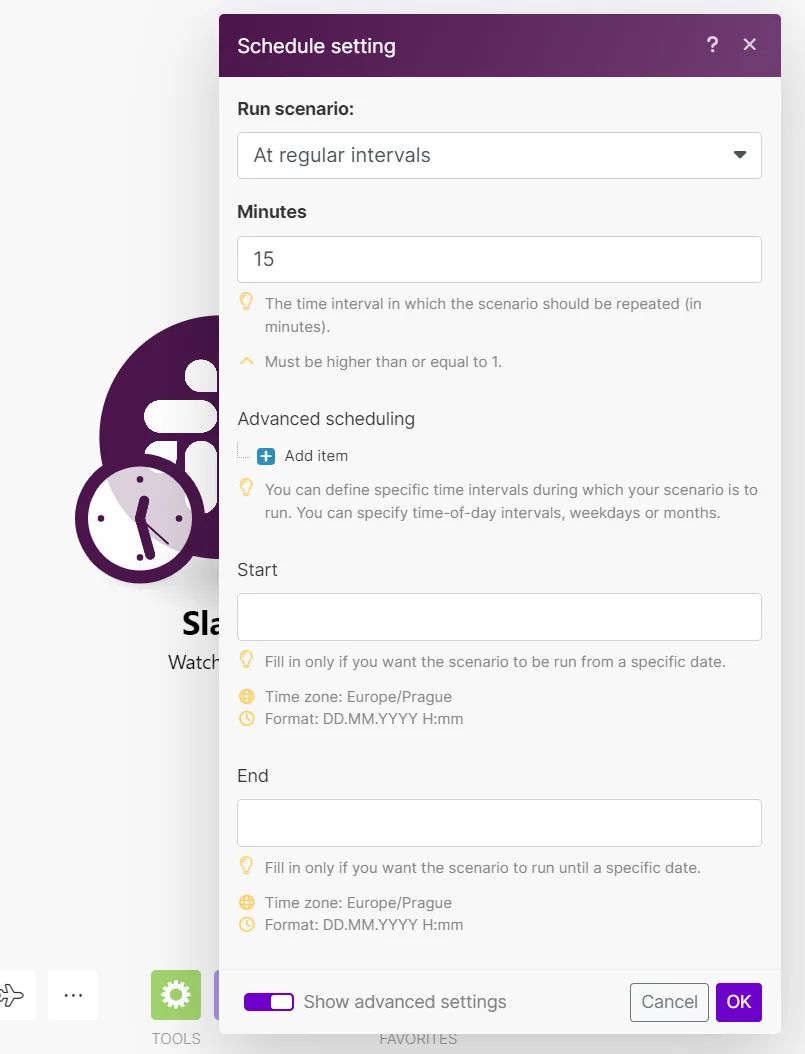
When setting the schedule to run your Watch Slack Users scenario, the Advanced Scheduling option to choose a Start Date is restricted to Slack users with a premium account.
Search for User
Retrieves a single user by looking them up by their registered email address.
Connection
Establish a connection to your Slack account.
Enter the email address of the user you want to search for.
List Users
Returns a list of all users in a workspace.
Connection
Establish a connection to your Slack account.
Limit
Set the maximum number of users Boost.space Integrator will return during one cycle. The default value is 2.
Get a User
Returns details about a member to a workspace.
Connection
Establish a connection to your Slack account.
User ID
Enter (map) the User ID of the user you want to retrieve information about.
Invite Users
Invites 1-30 users to a public or private channel.
Connection
Establish a connection to your Slack account.
Channel type
Select the channel type:
- Public channel
- Private channel
Public channel
Select or map a public channel to add the users.
Private channel
Select or map a private channel to add the users.
Users
Select the users you want to add to the channel.
Kick a User
Removes a user from a channel.
Connection
Establish a connection to your Slack account.
Channel type
Select the channel type:
- Public channel
- Private channel
Public channel
Select or map a public channel whose user you want to remove.
Private channel
Select or map a private channel whose user you want to remove.
Users
Select the user you want to remove from the channel.
Reminders
You can list, retrieve, create, complete, and delete a reminder using the following modules.
List Reminders
Lists all reminders created by or for a given user.
Connection
Establish a connection to your Slack account.
Limit
Set the maximum number of reminders Boost.space Integrator will return during one execution cycle. The default value is 2.
Get a Reminder
Returns details about a reminder.
Connection
Establish a connection to your Slack account.
Reminder ID
Enter (map) the ID of the reminder you want to retrieve information about. For example, Rm12345678.
Create a Reminder
Creates a reminder.
Connection
Establish a connection to your Slack account.
Text
Enter (map) the content to appear in the reminder.
Time
Enter (map) the time when this reminder should happen. Enter the Unix timestamp (up to five years from now), the number of seconds until the reminder (if within 24 hours), or a natural language description. For example, in 15 minutes every Thursday.
User
Select or map the user you want to create a reminder for.
Complete a Reminder
Completes a reminder.
Connection
Establish a connection to your Slack account.
Reminder ID
Enter (map) the ID of the reminder you want to mark as complete. For example, Rm12345678.
Delete a Reminder
Removes a reminder.
Connection
Establish a connection to your Slack account.
Reminder ID
Enter (map) the ID of the reminder you want to delete. For example, Rm12345678.
Events
You can watch new events using the following module.
New Event
Triggers when a new message or other events are created.
Webhook name
Enter (map) a name for the webhook.
Event type
Select the event type:
- New channel message
- New private channel message
- New IM message
- New MP IM message
- New reaction
- New file
Connection
Establish a connection to your Slack account.
Channel
Select or map a channel whose event you want to watch.
Profile
You can set a status in events using the following module.
Set a Status
Update a user’s current status.
Connection
Establish a connection to your Slack account.
Status text
Enter (map) the status text. You can enter up to 100 characters.
Status emoji
Enter (map) the status emojis enabled for the slack team. For example, :train:. The list of possible emojis can be found in the Slack Emoji Cheat Sheet.
Status expiration
Enter (map) the Unix Timestamp of when the status will expire.
Providing 0 or omitting this field results in a custom status that will not expire.
Other
Make an API Call
Performs an arbitrary authorized API call.
Connection
Establish a connection to your Slack account.
URL
Enter a path relative to https://slack.com/api/. For example: /list.conversations
For the list of available endpoints, refer to the Slack API documentation.
Method
GET
to retrieve information for an entry.
POST
to create a new entry.
PUT
to update/replace an existing entry.
PATCH
to make a partial entry update.
DELETE
to delete an entry.
Headers
Enter the desired request headers. You don’t have to add authorization headers; we already did that for you.
Query String
Enter the request query string.
Body
Enter the body content for your API call.
Example of Use – List Subaccounts
The following API call returns the subaccounts from your Slack account:
URL:
/1.0/subaccounts/list
Method:
GET
Matches of the search can be found in the module’s Output under Bundles > Body. In our example, 4 subaccounts were returned:
Scopes
Add a Reaction
channels
Add a Star
stars
Archive a Channel
channels
Complete a Reminder
reminders
Create a Channel
users
Create a Message
chat
Create a Reminder
reminders
Create a Text File
files
Create a Text File (Deprecated)
files
Delete a File
files
Delete a Message
chat
Delete a Reminder
reminders
Disable Do Not Disturb Mode
dnd
Disable Snooze Mode
dnd
Download a File
files
Enable Do Not Disturb Mode
dnd
Get a Channel
channels
Get a File
files
Get a Private Channel Message
groups
Get a Private Channel Message v2
groups
Get a Public Channel Message
channels
Get a Reminder
reminders
Get a User
users
Get a User’s Do Not Disturb Status
dnd
Get My Info
identity.basic
Invite a User to Workspace
admin.users
Invite Users
channels
Join a Channel
channels
Kick a User
channels
Leave a Channel
channels
List Channels
channels
List Files
files
List Members in a Channel
channels
List Reactions
reactions
List Reminders
reminders
List Replies
channels
List Saved Items
stars
List Scheduled Messages
channels
List Users
users
New Event
channels
Open a Conversation
im
Pin a Message
pins
Remove a Reaction
channels
Remove a Star
stars
Remove Saved Item
stars
Save an Item
stars
Schedule a Message
chat
Search for Message
search
Search for User
users
Set a Status
users.profile
Set the Purpose of a Channel
channels
Set the Topic of a Channel
channels
Unarchive a Channel
channels
Unpin a Message
pins
Update a Message
chat
Upload a File
files
Upload a File (Deprecated)
files
Watch Direct Messages
im
Watch Files
files
Watch Multiparty Direct Messages
mpim
Watch Private Channel Messages
groups
Watch Private Channel Messages v2
groups
Watch Public Channel Messages
channels
Watch Saved Items
stars
Watch Scheduled Messages
channels
Watch Starred Messages
stars
Watch Users
users
Legacy article, imported from the original Boost.space knowledge base (/knowledge-base/applications/communication/slack/).

