SMSC
The SMSC modules allow you to create, update, list, search, and delete the contacts, senders, SMSes, statistics, and account balance from your SMSC account.
Getting Started with SMSC
Prerequisites
- An SMSC account – create an account at smsc.ru/.
The module dialog fields that are displayed in bold (in the Boost.space Integrator scenario, not in this documentation article) are mandatory!
Connecting SMSC to Boost.space Integrator
-
Log in to your Boost.space Integrator account, add a module from the SMSC app into an Boost.space Integrator scenario.
-

Click Add next to the Connection field.
-
In the Connection name field, enter a name for the connection.
-
In the Login and Password fields enter your SMSC account credentials and click Continue.
The connection has been established.
Contacts
Search Contacts
Searches for contacts or lists them all.
Connection
Establish a connection to your SMSC account.
FIO
Enter (map) full name to search the contacts to list the contacts that match the specified name. You can enter any of the initials like last name, first name, and/or patronymic.
Search
Enter (map) the contact name or phone number to search the contacts.
After ID
Select or map the contact identifier from which the list of contacts should be returned.
Limit
Set the maximum number of contacts Boost.space Integrator should return during one execution cycle. The default value is 10.
Create a Contact
Creates a new contact.
Connection
Establish a connection to your SMSC account.
Phones
Enter (map) the list of phone numbers separated by any separator or a phone number. Must be at least 8 characters long.
Name
Enter (map) the contact’s name.
Group IDs
Select or map the Group IDs to which the contact belongs.
Last Name
Enter (map) the contact’s last name.
First Name
Enter (map) the contact’s first name.
Middle Name
Enter (map) the contact’s middle name.
Contact ID
Enter (map) the Contact ID assigned by the client.
Birthday
Enter (map) the contact’s date of birth. See the list of supported date and time formats.
Comments
Enter (map) the comments for the contact.
Tags
Enter (map) the tags for the contact.
Other Phone Numbers
Enter (map) the additional phone numbers of the contact. The SMS will not be sent to these additional phone numbers.
Update a Contact
Updates an existing contact.
Connection
Establish a connection to your SMSC account.
Contact Phone
Select or map the contact’s phone number whose details you want to update.
New Phone
Enter (map) a new phone number. Must be at least 8 characters long.
Name
Enter (map) the contact’s name.
Group IDs
Select or map the Group IDs to which the contact belongs.
Last Name
Enter (map) the contact’s last name.
First Name
Enter (map) the contact’s first name.
Middle Name
Enter (map) the contact’s middle name.
Contact ID
Enter (map) the Contact ID assigned by the client.
Birthday
Enter (map) the contact’s date of birth. See the list of supported date and time formats.
Comments
Enter (map) the comments for the contact.
Tags
Enter (map) the tags for the contact.
Other Phone Numbers
Enter (map) the additional phone numbers of the contact. The SMS will not be sent to these additional phone numbers.
Delete a Contact
Deletes an existing contact.
Connection
Establish a connection to your SMSC account.
Contact Phone
Select or map the contact you want to delete.
Senders
List Senders
Retrieves all senders.
Connection
Establish a connection to your SMSC account.
All
Select or map the option to list the senders.
Operators
Select or map the operators to list the senders.
From Date
Enter (map) the date to list the senders whose status has been changed for any of the operators on or after the specified date. When this parameter is specified, the names are sorted in descending order of the date of the name status change.
Limit
Set the maximum number of senders Boost.space Integrator should return during one execution cycle. The default value is 10.
Create a Sender
Creates a new sender.
Connection
Establish a connection to your SMSC account.
Sender
Enter (map) the sender’s name.
Comment
Enter (map) the message used to create the sender’s name.
Region
Select or map the region of the sender. For example, Name settings for Ukraine. When you select the region, additional fields related to the region auto-populates which are required to be filled. For more information, see the SMSC Developer documentation.
Select whether you want to add the sender’s email address.
Name
Enter (map) the email address owner’s name.
Site
Enter (map) the address of the site from which the codes will come to confirm the digital names of the senders. This parameter must have been previously added and activated as Sender ID. If not specified, messages will be sent on behalf of the sender by default.
Site Name
Enter (map) the site address specified in the text of the message with the confirmation code.
User
Enter (map) the login of the subclient to which the specified command applies.
Operators
Select whether you want to add the status code of the sender’s name from the operator.
Doc Info
Enter (map) the document file details which are transferred in the request body when creating or changing the sender’s name. Specify a description for the transferred file in this field.
Charset
Select or map the charset of the sender. For example, Windows-1251, UTF-8, KOl8-R.
Update a Sender
Updates an existing sender.
Connection
Establish a connection to your SMSC account.
Sender
Select or map the sender whose details you want to update.
Comment
Enter (map) the message used to create the sender’s name.
Region
Select or map the region of the sender. For example, Name settings for Ukraine. When you select the region, additional fields related to the region auto-populates which are required to be filled. For more information, see the SMSC Developer documentation.
Select whether to add the sender’s email address.
Name
Enter (map) the email address owner’s name.
Site
Enter (map) the address of the site from which the codes will come to confirm the digital names of the senders. This parameter must have been previously added and activated as Sender ID. If not specified, messages will be sent on behalf of the sender by default.
Site Name
Enter (map) the site address specified in the text of the message with the confirmation code.
User
Enter (map) the login of the subclient to which the specified command applies.
Operators
Select whether you want to add the status code of the sender’s name from the operator.
Doc Info
Enter (map) the document file details which is transferred in the request body when creating or changing the sender’s name. Specify a description for the transferred file in this field.
Charset
Select or map the charset of the sender. For example, Windows-1251, UTF-8, KOl8-R.
Delete a Sender
Deletes an existing sender.
Connection
Establish a connection to your SMSC account.
Type
Select or map the option to delete the sender:
-
Sender ID
-
Sender Name
Sender ID
Select or map the Sender ID you want to delete.
Sender Name
Select or map the sender’s name you want to delete.
Generate a Sender Verification Code
Generates a sender verification code.
Connection
Establish a connection to your SMSC account.
Sender
Select or map the sender for whom you want to generate the verification code.
Check a Sender Verification Code
Checks a sender verification code.
Connection
Establish a connection to your SMSC account.
Sender
Select or map the sender for whom you want to check the verification code.
Code
Enter (map) the verification code to check.
SMSES
Search Outgoing Messages
Searches for outgoing messages or lists them all.
Connection
Establish a connection to your SMSC account.
Start
Enter (map) the date to search the outgoing messages on or after the specified date.
End
Enter (map) the date to search the outgoing messages on or before the specified date.
Format
Select the format to search the outgoing messages:
-
SMS Request
-
Email Message Request
Phone
Enter (map) the number or a comma-separated list of phone numbers for which you want to get the history of sent SMS messages.
Enter (map) the email address or a comma-separated list of email addresses for which you want to get the history of sent SMS messages.
Limit
Set the maximum number of outgoing messages Boost.space Integrator should return during one execution cycle. The default value is 10.
Search Incoming Messages
Searches for incoming messages or lists them all.
Connection
Establish a connection to your SMSC account.
Hour
Enter (map) the hours for which you want to request incoming messages. The maximum number of hours is 168 or 7 days.
After ID
Enter (map) the ID of the message from which to return incoming messages, excluding the After ID itself.
To Phone
Enter (map) the client’s phone number to which incoming messages were received.
Limit
Set the maximum number of incoming messages Boost.space Integrator should return during one execution cycle. The default value is 10.
Check an SMS Status
Checks an SMS status.
Connection
Establish a connection to your SMSC account.
Phone
Enter (map) the phone number or a list of numbers separated by a comma for requesting the statuses of several SMS. For multiple requests, the numbers in the list must be listed in the order corresponding to the message IDs. To preserve the multi-request format, when requesting the status of a single message, include a comma after the phone number. This description is also valid for e-mail messages.
SMS ID
Enter (map) the Message ID or a comma-separated list of IDs when requesting the statuses of multiple messages. To preserve the multi-query format, when querying the status of a single message, include a comma after the message ID.
All
Select or map the option to check the messages:
-
Get message status in the regular format
-
Get full information about the sent message
-
Add information about the country, operator, region of the subscriber to the message information
Charset
Select or map the encoding of the transmitted message:
-
Windows – 1251
-
UTF – 8
-
KOI8-R
Send an SMS
Sends a new SMS.
Connection
Establish a connection to your SMSC account.
SMS Body Type
Select the SMS body type:
-
Text
-
List
List
Enter (map) a list of phone numbers and their corresponding messages, separated by a colon or semicolon, and presented as:phone:message
Phones
Enter (map) a phone number or phone number separated by a comma in the international format to which you want to send the message.
Message
Enter (map) the message text. The maximum allowed number of characters is 1000.
SMS ID
Enter (map) the identification number of the message. If not specified, it will be assigned automatically. Not necessarily unique.
Sender
Enter (map) the sender’s name that displays on the recipient’s phone.
Translit
Select or map the transliteration option for the message:
-
Do not transliterate
-
Translate in the form of ‘translit’
-
Translate in the form of ‘mpaHc/lum’
Tiny URL
Select whether to shorten the URL address in the message.
Time Format
Select or map the time format of sending the message to the subscriber:
-
Date
-
Time range
-
Timestamp
-
Time Shift
Date
Enter (map) the date on which you want to send the message.
Time Range
Enter (map) the time range between which you want to send the message in the h1-h2 format.
Timestamp
Enter (map) the time when the SMS is sent to the subscriber in the following formats:
-
DDMMYYhhmm or DD.MM.YY hh: mm.
-
h1-h2. Specifies the time range in hours. If the current time is less than h1, then the SMS message will be sent to the subscriber when h1 time comes, if the current time falls in the range from h1 to h2, the message will be sent immediately, in other cases the sending will be performed the next day when the h1 time is reached. This feature, for example, is useful in order to prevent subscribers from receiving SMS messages at night.
-
0ts, where ts is a timestamp, the time in seconds elapsed since 1 January 1970.
-
+m. Specifies the relative offset of the time from the current time in minutes. The + character must be encoded as %2B in the HTTP request.
If time = 0 or a time has already passed, the message will be sent immediately.
Time Shift
Enter (map) the timeshift in +m format that sets the relative offset from the current time in minutes.
Timezone
Enter (map) the time zone in which the time parameter is specified.
Period
Enter (map) the period during which the newsletter should be sent. Enter a value between 0.1 and 720 hours.
Freq
Enter (map) the interval or frequency with which you want to send SMS-mailing to the next group of numbers. Enter a value between 1 and 1440.
Flash
Select the type of message:
-
Regular Message
-
Flash Message
Bin
Select the binary message flag:
-
Regular Message
-
Binary Message
-
Binary Message represented as Hexdecicmal string
Push
Select whether to send an internet link in your SMS message.
HLR
Select whether your SMS message contains information about a number from the operator’s base without sending a real SMS.
Ping
Select whether your SMS message contains ping information.
MMS
Select whether you want to send a regular SMS or a message with an MMS message attribute.
Select whether you want to send a regular SMS or an email message.
SOC
Select whether you want to send a regular SMS or a SOC message to the users of the social networks. For example, Odnoklassniki, VKontakte or users of Mail.Ru Agent .
Viber
Select whether you want to send a regular message or a Viber message.
File URL
Enter (map) the file URL address in the message.
Call
Select whether you want to send a regular SMS or a voice message.
Voice
Select or map the option if you are sending a voice message:
-
Male voice
-
Male alternative voice
-
Female voice
-
Female alternative voice
Parameters
Enter (map) the comma-separated list of parameters for a voice message in the following format:
-
w – waiting time for the subscriber to pick up the handset after the start of the call in seconds
-
i – repeat interval
-
n – total number of dialing attempts
Subject
Enter (map) the subject of the MMS or e-mail message.
Charset
Select or map the encoding of the transmitted message:
-
Windows – 1251
-
UTF – 8
-
KOI8-R
Cost
Select or map the cost option applicable to the message.
Valid
Enter (map) the lifetime validity of the SMS message. It is the time during which the operator will try to deliver the message to the subscriber. Ranges from 1 to 24 hours. It is also possible to transmit time in thehh:mmformat in the range from 00:01 to 24:00.
Max SMS
Enter (map) the maximum number of SMSes that a long message can be split into.
Img Code
Enter (map) the value of the alphanumeric code entered with the captcha when using the anti-spam checker. This field must be used in conjunction with the userip parameter.
User IP
Enter (map) the user’s IP address for which the limit is on the maximum number of messages per day will apply. This is set in your account settings in the Limit and Restrictions section.
Err
Select whether to add a list of erroneous numbers to the server response.
OP
Select whether to add information on each number to the server response.
Referral to Partner
Enter (map) the client as a referral to a specific partner ID for the current request.
Delete an SMS
Deletes an existing SMS.
Connection
Establish a connection to your SMSC account.
Phone
Enter (map) the phone number or a list of numbers separated by a comma whose messages you want to delete.
SMS ID
Enter (map) the Message ID or a comma-separated list of IDs you want to delete.
Statistics
List Statistics
Retrieves statistics of sent messages.
Connection
Establish a connection to your SMSC account.
Start
Enter (map) the date to list the statistics on or after the specified date. See the list of supported date and time formats.
End
Enter (map) the date to list the statistics on or before the specified date. If not specified, data from the start date is returned. See the list of supported date and time formats.
Limit
Set the maximum number of statistic items Boost.space Integrator should return during one execution cycle. The default value is 10.
Accounts
Get an Account Balance
Retrieves an account balance.
Connection
Establish a connection to your SMSC account.
Add Currency
Select whether you want to include the currency details in the result.
Other
Make an API Call
Performs an arbitrary authorized API Call.
Connection
Establish a connection to your SMSC account.
URL
Enter a path relative to https://smrc.ru/sys/For example, phones.php.
For the list of available endpoints, refer to the SMSC API Documentation.
Method
Select the HTTP method you want to use:
GET
to retrieve information for an entry.
POST
to create a new entry.
PUT
to update/replace an existing entry.
PATCH
to make a partial entry update.
DELETE
to delete an entry.
Headers
Enter the desired request headers. You don’t have to add authorization headers; we already did that for you.
Query String
Enter the request query string.
Body
Enter the body content for your API call.
Example of Use – List Contacts
The following API call returns all the contacts from your SMSC account:
URL:
phones.php
Method:
GET
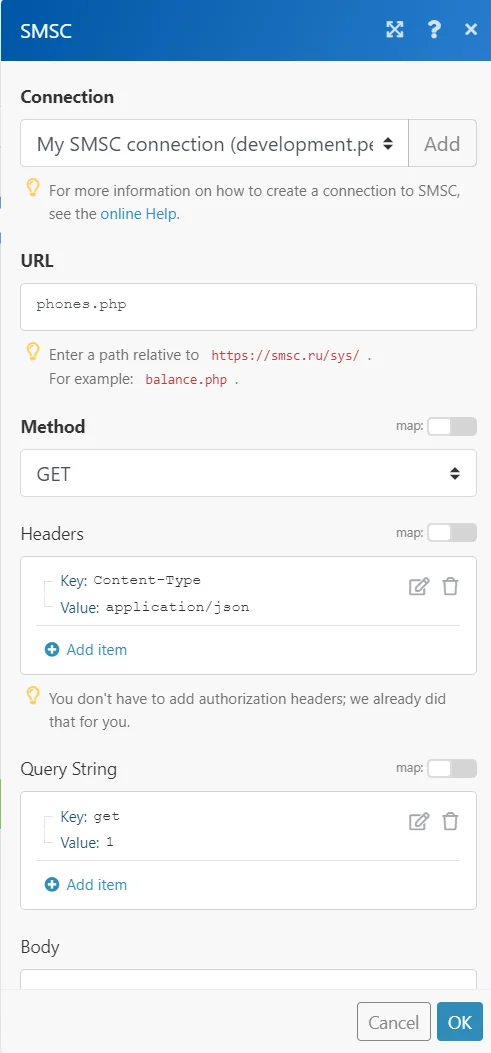
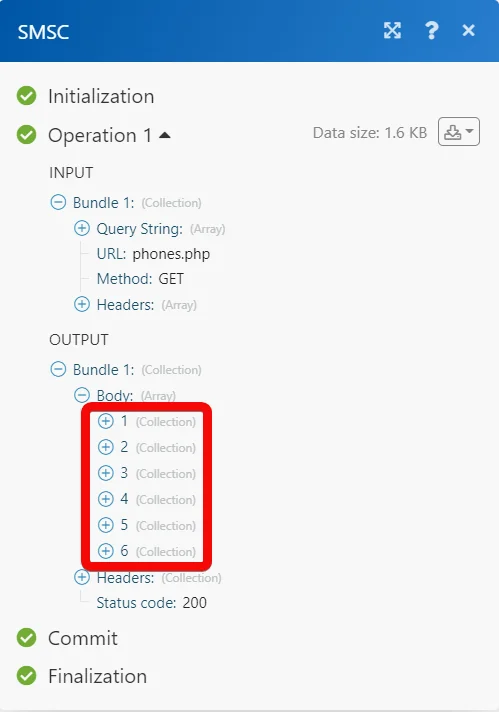
Matches of the search can be found in the module’s Output under Bundle > Body.
In our example, 6 contacts were returned:
Legacy article, imported from the original Boost.space knowledge base (/knowledge-base/applications/communication/smsc/).

