Cliengo
The Cliengo modules allow you to monitor, create, update, send, retrieve, and list the fulfillment, and orders in your Cliengo account.
Getting Started with Cliengo
Prerequisites
- A Cliengo account – create an account at cliengo.com/.
The module dialog fields that are displayed in bold (in the Boost.space Integrator scenario, not in this documentation article) are mandatory!
Connecting Cliengo to Boost.space Integrator
To connect your Cleingo account toBoost.space Integrator you need to obtain the API Key from your Cleingo account and insert it in the Create a connection dialog in the Boost.space Integrator module.
1. Log in to your Cliengo account.
2. Click Chatbots > Integrations > API > Generate API Key.
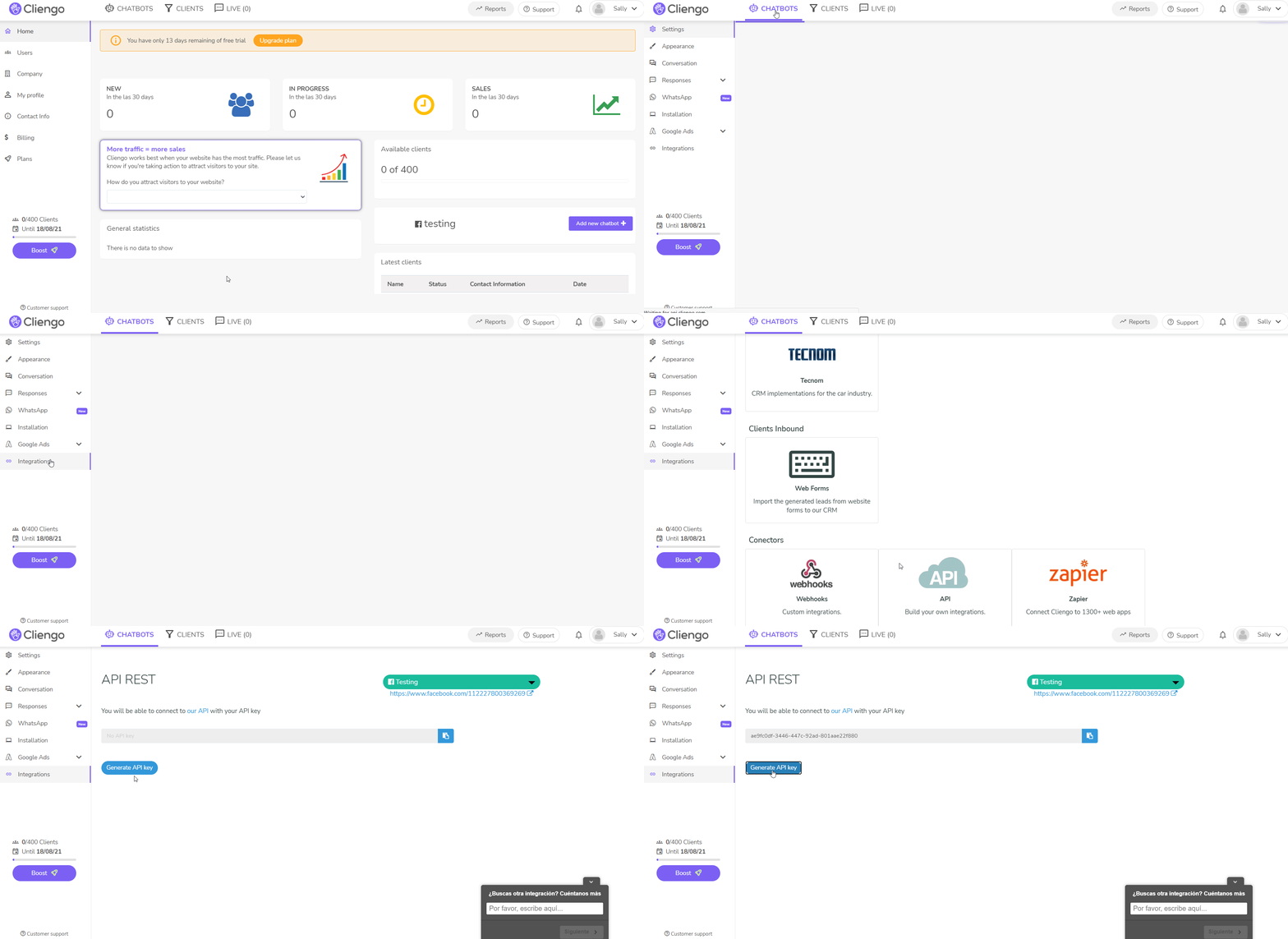
3. Copy the API Key to your clipboard.
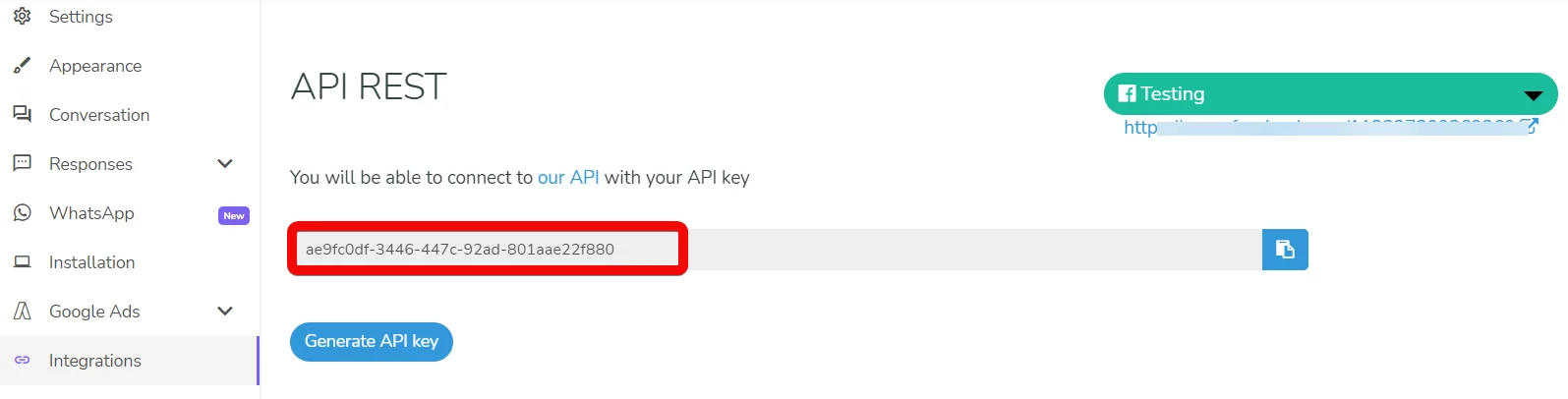
4. Go to Boost.space Integrator and open the Cliengo module’s Create a connection dialog.

5. In the Connection name field, enter a name for the connection.
6. In the API Key field, enter the API key copied in step 3, and click Continue.
The connection has been established.
Contacts
Watch New Contacts
Triggers when a new contact has been added.
Connection
Establish a connection to your Cliengo account.
Limit
Set the maximum number of new contacts Boost.space Integrator should return during one execution cycle.
Watch Updated Contacts
Triggers when a contact has been updated or created.
Connection
Establish a connection to your Cliengo account.
Limit
Set the maximum number of updated contacts Boost.space Integrator should return during one execution cycle.
List Contacts
Returns a list of contacts.
Connection
Establish a connection to your Cliengo account.
Query
Enter (map) a phrase or name to list the contact that matches the specified query.
Assigned To
Select or map the User ID to list the contact that was assigned to the user.
Website ID
Select or map the Website ID whose contacts you want to list.
Status
Select or map the status of the contact you want to list:
-
New
-
Active
-
Long Term
-
Client
Since
Enter (map) the date to list the contacts created on or after the specified date.
Until
Enter (map) the date to list the contacts created on or before the specified date.
Last Updated Date
Enter (map) the date to list the contacts that were last updated on the specified date.
Limit
Set the maximum number of updated contacts Boost.space Integrator should return during one execution cycle.
Get a Contact
Returns a specified contact.
Connection
Establish a connection to your Cliengo account.
Contact ID
Select or map the Contact ID whose details you want to retrieve.
Create a contact
Creates a new contact.
Connection
Establish a connection to your Cliengo account.
Website ID
Select or map the Contact ID whose details you want to retrieve
Name
Enter (map) the contact name.
Enter (map) the contact’s email address. For example, john@somedomain.com
Phone
Enter (map) the contact’s phone number. For example, +54 11 9999-9999
Last Name
Enter (map) the contact’s last name.
Street Address
Enter (map) the contact’s street name.
Street Number
Enter (map) the contact’s street number.
Floor
Enter (map) the contact’s residence building floor number.
Apartment Number
Enter (map) the contact’s residence apartment number.
ZIP Code
Enter (map) the contact’s area zip code.
City
Enter (map) the contact’s city name.
State
Enter (map) the contact’s state name.
Country
Enter (map) the contact’s country name.
Nationality
Enter (map) the contact’s nationality. For example, Argentinian.
Organization Name
Enter (map) the organization name with which the contact is associated.
International Phone Number
Enter (map) the contact’s phone number in the international format.
Gender
Select or map the contact’s gender.
Age
Enter (map) the contact’s age.
National Identity Number
Enter (map) the national identity number.
IP
Enter (map) the contact’s IP address.
Conversion URL
Enter (map) the URL address related to the contact.
Landing URL
Enter (map) the landing URL address related to the contact.
Message
Enter (map) the default contact’s message. For example, Hi, I am John.
External Status
Enter (map) the contact’s external status.
Assigned To
Select or map the User ID to whom the contact is assigned.
Status
Select or map the contact status:
-
New
-
Active
-
Long Term
-
Client
Custom Fields
Add the contact’s custom fields and their values.
Referral URL
Enter (map) the contact’s referral URL address.
Referrer
Enter (map) the name of the member who has referred the contact.
UTM Source
Enter the UTM source URL parameter.
UTM Medium
Enter the UTM medium URL parameter.
UTM Campaign
Enter the UTM campaign URL parameter.
GCLID
Enter (map) the GCLID details.
UTM Content
Enter the UTM content URL parameter.
UTM Term
Enter the UTM term URL parameter.
UTM AdGroup
Enter the UTM AdGroup details.
Update a Contact
Updates a specified contact.
Connection
Establish a connection to your Cliengo account.
Contact ID
Select or map the Contact ID whose details you want to update.
Name
Enter (map) a new name for the contact.
Enter (map) the email address of the contact.
Phone
Enter (map) the contact’s phone number.
Status
Enter (map) the contact’s status:
-
New
-
Active
-
Long Term
-
Client
Substatus
Enter (map) any sub status of the user.
Rating
Enter (map) the rating for the contact.
Assigned To
Select or map the User ID to whom the contact is assigned.
Due Date
Enter (map) the contact’s due date.
Note
Enter (map) any additional information about the contact which you want to share
Schedule Status To
Select or map the status to which you want to schedule the contact’s status.
Schedule Date
Enter (map) the date to which you want to schedule the contact.
Sell Price
Enter (map) the price paid by the contact for the subscription.
Sell Subscription
Select or map the subscription applicable to the contact.
Cancel Reason
Enter (map) the reason provided by the contact for canceling the subscription. For example, Distribution.
Extra Parameters
Add any additional parameter keys and their values.
Delete a Contact
Deletes a specified contact.
Connection
Establish a connection to your Cliengo account.
Contact ID
Select or map the Contact ID you want to delete.
Other
Make an API Call
Performs an arbitrary authorized API call.
Connection
Establish a connection to your Cliengo account.
URL
Enter a path relative to https://api.cliengo.com For example: /0.1/contacts
For the list of available endpoints, refer to the Cliengo API Documentation.
Method
Select the HTTP method you want to use:
GET to retrieve information for an entry.
POST to create a new entry.
PUT to update/replace an existing entry.
PATCH to make a partial entry update.
DELETE to delete an entry.
Headers
Enter the desired request headers. You don’t have to add authorization headers; we already did that for you.
Query String
Enter the request query string.
Body
Enter the body content for your API call.
Example of Use – List Contacts
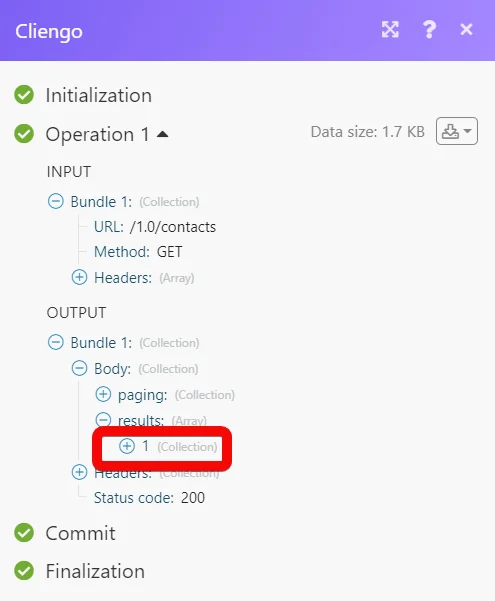
The following API call returns all the contacts from your Cliengo account:
URL: /1.0/contacts
Method: GET
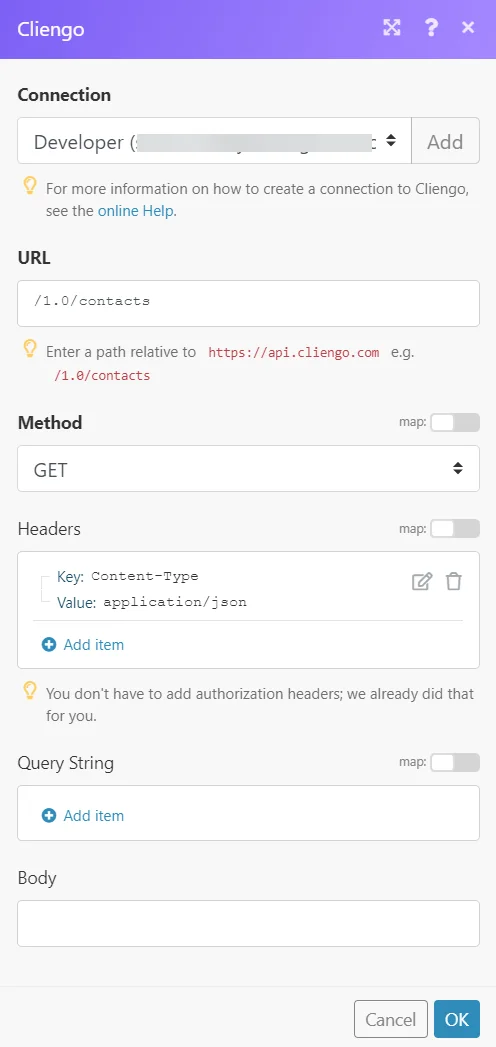
Matches of the search can be found in the module’s Output under Bundle > Body > results. In our example, 1 contact was returned:
Legacy article, imported from the original Boost.space knowledge base (/knowledge-base/applications/crm-and-sales-tools/cliengo/).

