LionDesk
Getting Started with LionDesk
The LionDesk modules allow you to list, retrieve, create, update, or delete contacts, contact addresses, contact hotness, contact sources, custom fields, events, tags, campaigns, and leads in your LionDesk account.
Prerequisites
- A LionDesk account
In order to use LionDesk with Boost.space Integrator, it is necessary to have a LionDesk account. If you do not have one, you can create a LionDesk account at www.liondesk.com/freetrial.
The module dialog fields that are displayed in bold (in the Boost.space Integrator scenario, not in this documentation article) are mandatory!
Connecting LionDesk to Boost.space Integrator
To connect your LionDesk account to Boost.space Integrator follow the general instructions for Connecting to services.
After you click the Continue button, Boost.space Integrator will redirect you to the LionDesk website where you will be prompted to grant Boost.space Integrator access to your account.
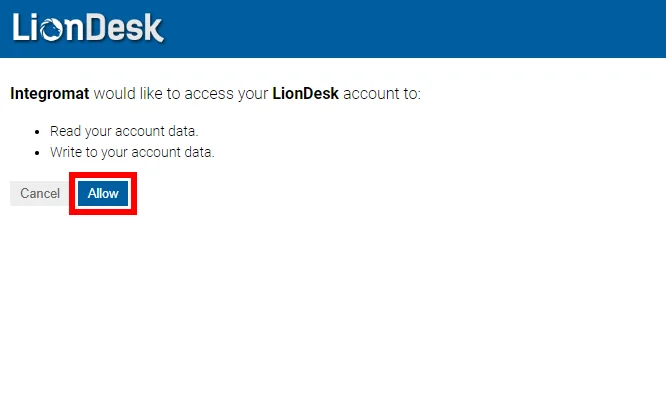
Confirm the dialog by clicking the Allow button.
Contacts
List Contacts
Retrieves all contacts based on filter settings.
Connection
Establish a connection to your LionDesk account.Connecting LionDesk to Boost.space Integrator
Limit
Set the maximum number of results Boost.space Integrator will return during one execution cycle.
Sorting Field
Select the field you want to sort the result by.
Order
Select whether to sort result in the ascending or descending order.
Filter: Before Date
Select whether you want to enter creation or modification date.
Order
Select whether to include entered date to the filter.
Before Date
Enter the date before that the contact has been created. Enter the date in the ISO8601 format. The list of supported date and time formats.
Filter: After Date
Select whether you want to enter creation or modification date.
Order
Select whether to include entered date to the filter.
After Date
Enter the date after that the contact has been created. Enter the date in the ISO8601 format. The list of supported date and time formats.
Filter: Fields
Add fields and their values you want to filter the result by.
Get Contact
Retrieves contact details.
Connection
Establish a connection to your LionDesk account.
Contact ID
Map or select the contact you want to retrieve details about.
Delete Contact
Deletes a contact.
Connection
Establish a connection to your LionDesk account.
Contact ID
Map or select the contact you want to delete.
Create Contact
Creates a new contact
Connection
Establish a connection to your LionDesk account.
Assigned User ID
Enter (map) the assigned user ID.
Assigned user must belong to one of your teams/groups. For more details about teams please refer to the LionDesk Help
If the wrong ID is entered, then an error is returned and no contact is created.
First Name
Enter the contact’s first name.
Last Name
Enter the contact’s last name.
Enter the email address of the new contact.
When an already existing email address is entered then an error is returned and no contact is created.
Secondary Email
Enter the contact’s secondary email address.
Mobile Phone
Enter the contact’s mobile phone number.
Home Phone
Enter the contact’s home phone number.
Office Phone
Enter the contact’s office phone number.
Fax
Enter the contact’s fax number.
Company
Enter the company of the contact.
Birthday
Enter to contact’s birthday in the DD/MM/YYYY format.
Anniversary
Enter the purchase/sale anniversary of the contact in the DD/MM/YYYY format.
Spouse Name
Enter the contact’s spouse name.
Spouse Email
Enter the contact’s spouse email.
Spouse Phone
Enter the contact’s spouse phone.
Spouse Birthday
Enter the contact’s spouse birthday in the DD/MM/YYYY format.
Tags
Select the desired tags for the customer. If you want to create a new tag, switch the map button and enter the name for the new tag.
Status
Select the current status of the contact.
Created At
Enter the date and time at which the contact was created. The list of supported date and time formats.
Modified At
Enter the date and time at which the contact was last edited. The list of supported date and time formats.
Hotness ID
Select the contact hotness level from the menu.
Source ID
Select the lead source from the menu.
Update Contact
Updates contact.
Connection
Establish a connection to your LionDesk account.
Contact ID
Select the contact or map the contact ID of the contact you want to update.
Please find the descriptions of the fields in the Create Contact section above.
Contact Addresses
List Contact Addresses
Retrieves all addresses of the contact.
Connection
Establish a connection to your LionDesk account.
Limit
Set the maximum number of addresses Boost.space Integrator will return during one execution cycle.
Get Contact Address
Retrieves address details of specified contact.
Connection
Establish a connection to your LionDesk account.
Contact ID
Map or select the contact you want to retrieve the address for.
Address ID
Map or select the address you want to retrieve details about.
Delete Contact Address
Deletes a contact address.
Connection
Establish a connection to your LionDesk account.
Contact ID
Map or select the contact whose address you want to delete.
Address ID
Map or select the address you want to delete.
Create Contact Address
Creates an address for a specified contact.
Connection
Establish a connection to your LionDesk account.
Contact ID
Map or select the contact you want to create an address for.
City
Enter the contact’s city.
State
Enter the contact’s state.
Street Address 1
The first line of the street address.
Street Address 2
The second line of the street address.
Type
Select the type of the contact’s address.
ZIP
Enter the ZIP code.
Update Contact Address
Edits the address of specified contact.
Connection
Establish a connection to your LionDesk account.
Contact ID
Map or select the contact you want to whose address you want to update.
Please find the descriptions of the fields in the Create Contact Address section above.
Contact Hotness
List Hotnesses
Returns all hotnesses.
Connection
Establish a connection to your LionDesk account.
Limit
Set the maximum number of hotnesses Boost.space Integrator will return during one execution cycle.
Sorting Field
Select whether you want to sort results by the user who created the hotness or by the rank.
Order
Select whether to sort the result by the descending or ascending order.
Get Hotness
Retrieves hotness level details.
Connection
Establish a connection to your LionDesk account.
Hotness ID
Map or select a hotness you want to retrieve details about.
Delete Hotness
Removes specified level of hotness.
Connection
Establish a connection to your LionDesk account.
Hotness ID
Map or select the hotness you want to delete.
Create Hotness
Creates a new level of hotness.
Connection
Establish a connection to your LionDesk account.
Hotness Name
Enter the name for the new hotness level.
Hotness Rank
Enter the rank number of the hotness level. The rank is the order of the hotness when displayed in lists. Rank of 0 will be at the top of the list.
Hotness Color
Enter the Hex code of the color for the hotness level. E.g. #F3411B.
Update Hotness
Edits the hotness level.
Connection
Establish a connection to your LionDesk account.
Hotness ID
Map or select the hotness you want to update.
Please find the descriptions of the fields in the Create Hotness section above.
Create/Update/Delete Contact Hotness
Creates, updates, or deletes hotness from the specified contact.
Connection
Establish a connection to your LionDesk account.
Contact ID

Select or map the contact you want to create, update, or delete the hotness for.
Hotness ID
Select or map the hotness level you want to create or update. Delete the hotness by switching to the mapping mode and entering 0 to the field.
Contact Source
List Sources
Retrieves all lead source.
Connection
Establish a connection to your LionDesk account.
Limit
Set the maximum number of sources Boost.space Integrator will return during one execution cycle.
Get Source
Retrieves source details.
Connection
Establish a connection to your LionDesk account.
Source ID
Map or select a source you want to retrieve details about.
Delete Source
Deletes a source.
Connection
Establish a connection to your LionDesk account.
Source ID
Map or select a source you want to delete.
Create Source
Creates a new source
Connection
Establish a connection to your LionDesk account.
Name
Enter a name for the new source.
Update Source
Changes the name of a source.
Connection
Establish a connection to your LionDesk account.
Source ID
Select or map the source you want to rename.
Name
Enter a new name of the source.
Create/Update/Delete Source
Creates, updates, or deletes source from the specified contact.
Connection
Establish a connection to your LionDesk account.
Contact ID
Select or map the contact you want to create, update, or delete the source for.
Source ID
Select or map the source you want to create or update. Delete the hotness by switching to the mapping mode and entering 0 to the field.
Custom Fields
List Custom Fields
Retrieves all custom fields.
Connection
Establish a connection to your LionDesk account.
Limit
Set the maximum number of custom fields Boost.space Integrator will return during one execution cycle.
Get Custom Field
Retrieves custom field details.
Connection
Establish a connection to your LionDesk account.
Custom Field ID
Map or select a custom field you want to retrieve details about.
Delete Custom Field
Deletes a custom field.
Connection
Establish a connection to your LionDesk account.
Custom Field ID
Map or select a custom field you want to delete.
Create Custom Field
Creates a new custom field.
Connection
Establish a connection to your LionDesk account.
Custom Field Name
Enter a name for the new custom field.
Custom Field Data Type
Select whether the custom field is text, number, date, or dollar amount type.
Custom Field Rank
Enter the rank number. Determines the order of the fields when displayed. The lower the number, the higher in the list. Defaults to 99999.
Update Custom Field
Edit a custom field.
Connection
Establish a connection to your LionDesk account.
Custom Field ID
Select or map the custom field you want to update.
Please find the descriptions of the fields in the Create Custom Field section above.
Create/Update/Delete Custom Value
Adds, changes, or deletes a value of the custom field.
Connection
Establish a connection to your LionDesk account.
Contact ID
Select the contact whose custom field value you want to change.
Custom Values
Add a desired custom field value.
Custom Field ID – Select the custom field that you want to add value to.
Value – Enter the desired value. The value must correspond to the custom field type. If the field is left empty, then the value of the custom field will be deleted.
Events
List Events
Returns all events based on filter settings.
Connection
Establish a connection to your LionDesk account.
Limit
Set the maximum number of events Boost.space Integrator will return during one execution cycle.
Sorting Field
Select the field you want to sort the result by.
Order
Select whether to sort result in the ascending or descending order.
Filter: Before Date
Select whether you want to enter creation or modification date.
Order
Select whether to include entered date to the filter.
Before Date
Enter the date before that the event has been created. Enter the date in the ISO8601 format. The list of supported date and time formats.
Filter: After Date
Select whether you want to enter creation or modification date.
Order
Select whether to include entered date to the filter.
After Date
Enter the date after that the event has been created/modified. Enter the date in the ISO8601 format. The list of supported date and time formats.
Filter: Fields
Add fields and their values you want to filter the result by.
Get Event
Retrieves event details.
Connection
Establish a connection to your LionDesk account.
Event ID
Map or select an event you want to retrieve details about.
Delete Event
Deletes an event.
Connection
Establish a connection to your LionDesk account.
Event ID
Map or select an event you want to delete.
Create Event
Creates a new contact event (formerly Activity).
Connection
Establish a connection to your LionDesk account.
Contact ID
Select or map the contact you want to assign an event to.
Type
Enter the type of event. See the list of predefined events. You can enter a custom event.
The custom event can be read only via API, e.g LionDesk > Get Event module.
The LionDesk UI can currently only display a predefined set of types.
Description
Enter the event related description.
Site Domain
Enter the domain from which the request is received.
Created At
Enter the date and time when the event was created at. The list of supported date and time formats.
Modified At
Enter the date and time when the event was last modified. The list of supported date and time formats.
Update Event
Updates an existing event description.
Connection
Establish a connection to your LionDesk account.
Event ID
Select or map the event you want to update.
Description
Enter a new description of the event.
Tags
List Tags
Retrieves all tags based on filter settings.
Connection
Establish a connection to your LionDesk account.
Limit
Set the maximum number of tags Boost.space Integrator will return during one execution cycle.
Sorting Field
Select the Content option to allow define the sorting order.
Order
Select whether to sort tags in descending or ascending order.
Filter: Fields
Here you can add filters to filter tags by.
Get Tag
Retrieves tag details.
Connection
Establish a connection to your LionDesk account.
Tag ID
Map or select a tag you want to retrieve details about.
Delete Tag
Deletes a tag.
Connection
Establish a connection to your LionDesk account.
Tag ID
Map or select a tag you want to delete.
Create Tag
Creates a tag.
Connection
Establish a connection to your LionDesk account.
Tag ID
Enter the name for a new tag.
Update Tag
Allows you to change the tag name.
Connection
Establish a connection to your LionDesk account.
Tag ID
Map or select the tag you want to update.
Tag Name
Enter the new name for the tag.
Campaigns
List Campaigns
Returns all campaigns based on filter settings.
Connection
Establish a connection to your LionDesk account.
Limit
Set the maximum number of campaigns Boost.space Integrator will return during one execution cycle.
Sorting Field
Select the field that you want to sort the result by.
Order
Select whether to sort result in the ascending or descending order.
Filter: Before Date
Select whether you want to enter creation or modification date.
Order
Select whether to include entered date to the filter.
Before Date
Enter the date before that the campaign has been created. Enter the date in the ISO8601 format. The list of supported date and time formats.
Filter: After Date
Select whether you want to enter creation or modification date.
Order
Select whether to include entered date to the filter.
After Date
Enter the date after that the campaign has been created/modified. Enter the date in the ISO8601 format. The list of supported date and time formats.
Filter: Fields
Add fields and their values you want to filter the result by.
Get Campaign
Retrieves campaign details.
Connection
Establish a connection to your LionDesk account.
Campaign ID
Map or select a campaign you want to retrieve details about.
Delete Campaign
Deletes a campaign.
Connection
Establish a connection to your LionDesk account.
Campaign ID
Map or select a campaign you want to delete.
Create Campaign
Creates a new campaign.
Connection
Establish a connection to your LionDesk account.
Name
Enter the name for the new campaign.
Broker Sharing On?
Select the Yes option if the broker would like the campaign to be viewable by sub-accounts. Otherwise, select the_No_ option.
Update Campaign
Updates campaign information.
Connection
Establish a connection to your LionDesk account.
Campaign ID
Map or select a campaign you want to update.
Please find the descriptions of the fields in the Create Campaign section above.
Campaign Contact
Create Campaign Contact
Adds a contact to the campaign.
Connection
Establish a connection to your LionDesk account.
Campaign ID
Select or map the campaign you want to add a contact to.
Contact ID
Map or select the contact you want to assign to the campaign.
Leads
List Leads
Retrieves all leads based on filter settings.
Connection
Establish a connection to your LionDesk account.
Limit
Set the maximum number of leads Boost.space Integrator will return during one execution cycle.
Sorting Field
Select the field that you want to sort the result by.
Order
Select whether to sort result in the ascending or descending order.
Filter: Before Date
Select whether you want to enter creation, modification, or claim date.
Order
Select whether to include entered date to the filter.
Before Date
Enter the date before that the lead has been created/modified/claimed. Enter the date in the ISO8601 format. The list of supported date and time formats.
Filter: After Date
Select whether you want to enter creation, modification, or claim date.
Order
Select whether to include entered date to the filter.
After Date
Enter the date after that the lead has been created/modified/claimed. Enter the date in the ISO8601 format. The list of supported date and time formats.
Filter: Fields
Add fields and their values you want to filter the result by.
Get Lead
Retrieves lead details.
Connection
Establish a connection to your LionDesk account.
Lead ID
Map or select a lead you want to retrieve details about.
Create Lead
Creates a new lead.
Connection
Establish a connection to your LionDesk account.
Contact ID
Select the contact you want to create the lead for.
Source ID
Select or map the lead source.
Claimed Via
Select the method how the lead was claimed.
Text Body
Enter the text content of the body.
HTML Body
Enter the body where the HTML formatting can be used.
MLS ID
Enter the MLS number of the property if coming from an MLS.
Listing Status
Enter the status of the listing associated with the lead.
Listing Price
Enter the price of the listing associated with the lead.
Street Address
Enter the address associated with the lead.
City
Enter the lead’s city.
State
Enter the state associated with the lead.
Zipcode
Enter the lead’s ZIP code.
Type
Enter the lead type. E.g. Buyer.
Lead Source
List Lead Sources
Returns all lead sources.
Connection
Establish a connection to your LionDesk account.
Limit
Set the maximum number of lead sources Boost.space Integrator will return during one execution cycle.
Filter: Fields
You can filter result by lead source ID or by the name.
Get Lead Source
Retrieves lead source details.
Connection
Establish a connection to your LionDesk account.
Lead Source ID
Map or select a lead source you want to retrieve details about.
Other
Make an API Call
Allows you to perform a custom API call.
Connection
Establish a connection to your LionDesk account.
URL
Enter a path relative to https://api-v2.liondesk.com/. E.g. contacts.
For the list of available endpoints, refer to the LionDesk Developer Center.
Method
Select the HTTP method you want to use:
GET to retrieve information for an entry.
POST to create a new entry.
PUT to update/replace an existing entry.
PATCH to make a partial entry update.
DELETE to delete an entry.
Headers
Enter the desired request headers. You don’t have to add authorization headers; we already did that for you.
Query String
Enter the request query string.
Body
Enter the body content for your API call.
Example of Use – List Contacts
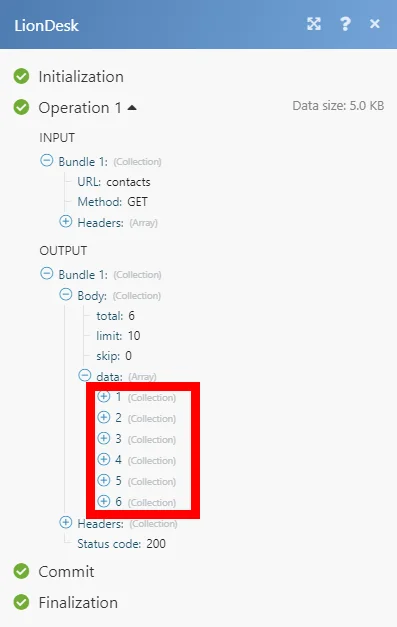
The following API call returns all contacts:
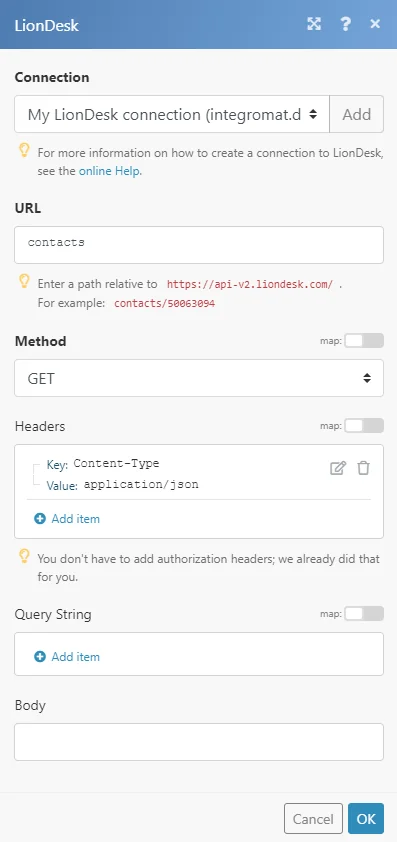
Matches of the search can be found in the module’s Output under Bundle > Body > data. In our example, 6 contacts were returned:
Legacy article, imported from the original Boost.space knowledge base (/knowledge-base/applications/crm-and-sales-tools/liondesk/).

