noCRM.io
The noCRM.io modules allow you to watch, create, update, list, retrieve, and delete the leads, prospecting lists, and prospects in your noCRM.io account.
Getting Started with noCRM.io
Prerequisites
- A noCRM.io account
In order to use noCRM.io with Boost.space Integrator, it is necessary to have a noCRM.io account. If you do not have one, you can create a noCRM.io account at register.nocrm.io.
The module dialog fields that are displayed in bold (in the Boost.space Integrator scenario, not in this documentation article) are mandatory!
Connecting noCRM.io to Boost.space Integrator
To connect your noCRM.io account to Boost.space Integrator you need to obtain the API Key from your noCRM.io account and insert it in the Create a connection dialog in the Boost.space Integrator module.
1. Log in to your noCRM.io account.
2. Click Settings > Admin Panel > Activities > _Webhooks and AP_I > API Keys > Create an API Key. Enter the name of the API and description, click Save. Copy the API key to your clipboard.
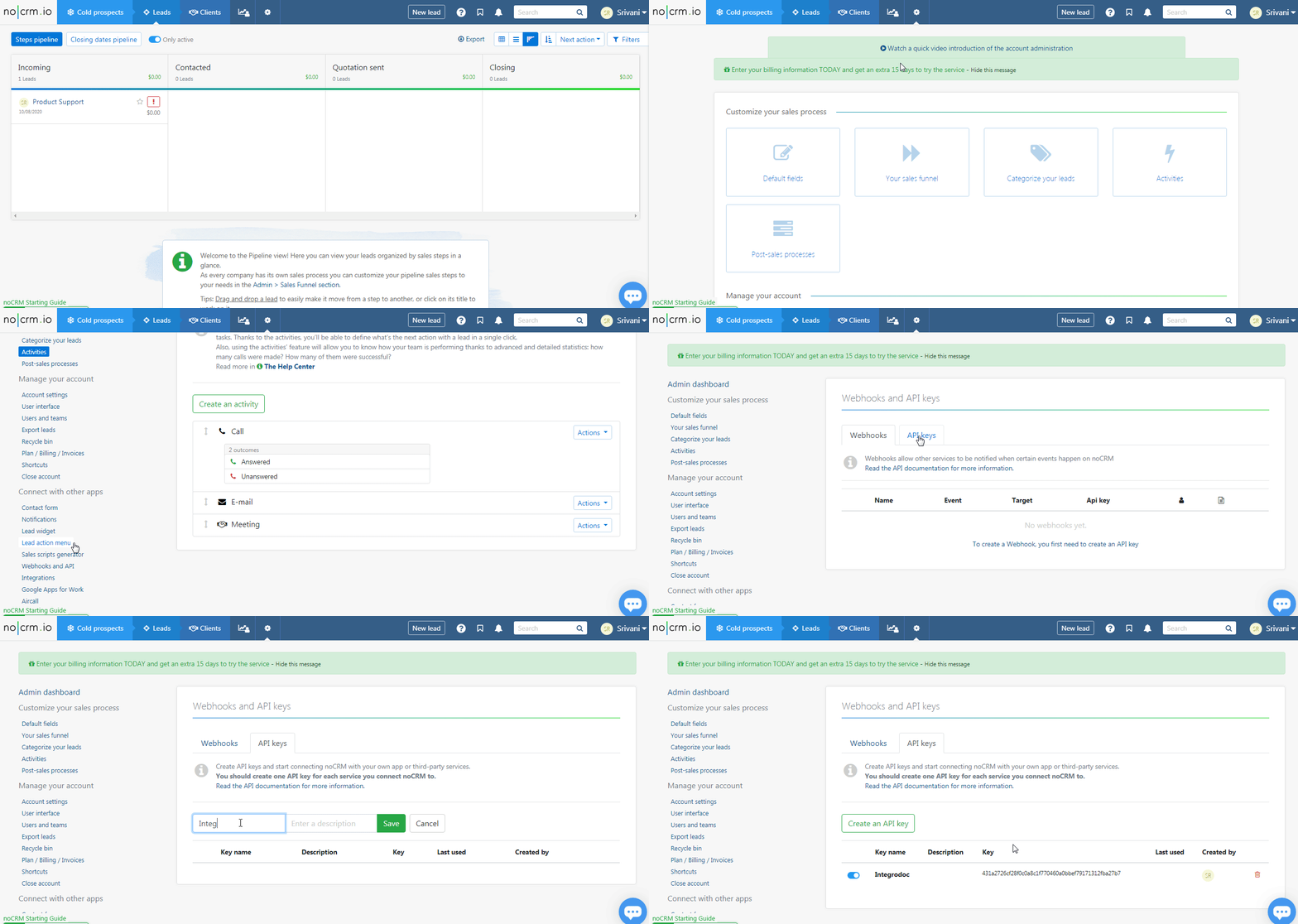
3. Go to Boost.space Integrator and open the noCRM.io module’s Create a connection dialog.
4. In the Connection name field, enter a name for the connection.
5. In the Subdomain field, enter your account domain name. For example, if your account’s URL address is https://xyz.nocrm.io/ then your subdomain is xyz.
6. In the API Key field, enter the API key copied in step 2, and click Continue.
The connection has been established.
Leads
Watch Lead Created
Triggers when a new lead is created.
You do not have to add the webhooks in the noCRM.io as it is automatically done for you once you add and save an instant trigger module to your scenario.
Webhook Name
Enter a name for the webhook.
Connection
Establish a connection to your noCRM.io account.
Watch Lead Step Changed
Triggers when a step of a lead is changed. This trigger only works for the Expert edition.
You do not have to add the webhooks in the noCRM.io as it is automatically done for you once you add and save an instant trigger module to your scenario.
Webhook Name
Enter a name for the webhook.
Connection
Establish a connection to your noCRM.io account.
Watch Lead Assigned
Triggers when a lead is assigned or re-assigned to someone. This trigger only works for Expert edition.
You do not have to add the webhooks in the noCRM.io as it is automatically done for you once you add and save an instant trigger module to your scenario.
Webhook Name
Enter a name for the webhook.
Connection
Establish a connection to your noCRM.io account.
Watch Lead Content/Description Changed
Triggers when the content (description) of a lead is updated. This trigger only works for the Expert edition.
You do not have to add the webhooks in the noCRM.io as it is automatically done for you once you add and save an instant trigger module to your scenario.
Webhook Name
Enter a name for the webhook.
Connection
Establish a connection to your noCRM.io account.
Watch Lead Deleted
Triggers when a lead is deleted. This trigger only works for the Expert edition.
You do not have to add the webhooks in the noCRM.io as it is automatically done for you once you add and save an instant trigger module to your scenario.
Webhook Name
Enter a name for the webhook.
Connection
Establish a connection to your noCRM.io account.
Watch Task Status Changed
Triggers when a specific status of the task is changed. This trigger only works for the Expert edition.
You do not have to add the webhooks in the noCRM.io as it is automatically done for you once you add and save an instant trigger module to your scenario.
Webhook Name
Enter a name for the webhook.
Connection
Establish a connection to your noCRM.io account.
Watch Unassigned Lead Created
Triggers when a lead is created unassigned. This trigger only works for the Expert edition.
You do not have to add the webhooks in the noCRM.io as it is automatically done for you once you add and save an instant trigger module to your scenario.
Webhook Name
Enter a name for the webhook.
Connection
Establish a connection to your noCRM.io account.
Watch Task Status Changed
Triggers when a specific status of the task is changed. This trigger only works for the Expert edition.
You do not have to add the webhooks in the noCRM.io as it is automatically done for you once you add and save an instant trigger module to your scenario.
Webhook Name
Enter a name for the webhook.
Connection
Establish a connection to your noCRM.io account.
Watch Lead (Manual Trigger)
Triggers when someone clicks on the lead Actions menu for a manual fire. This trigger only works for the Expert edition.
You do not have to add the webhooks in the noCRM.io as it is automatically done for you once you add and save an instant trigger module to your scenario.
Webhook Name
Enter a name for the webhook.
Connection
Establish a connection to your noCRM.io account.

Get a Lead
Gets a lead specified by ID.
Connection
Establish a connection to your noCRM.io account.
Lead ID
Select the Lead ID whose details you want to retrieve.
Create a Lead
Creates a new lead.
Connection
Establish a connection to your noCRM.io account.
Title
Enter the name of the lead. For example, XYZ corporation.
Description
Enter the details of the lead. For example, the contact details of the company.
User ID
Select the User ID to whom you want to assign the lead.
Tags
Add the tags for the lead.
Created at
Enter the date when the lead is being created.
Update a Lead
Updates a lead by specified by ID.
Connection
Establish a connection to your noCRM.io account.
Lead ID
Select the Lead ID whose details you want to update.
Title
Enter the name of the lead. For example, XYZ corporation.
Description
Enter the details of the lead. For example, the contact details of the company.
Status
Select the status of the lead:
-
Todo
-
Stand By
-
Won
-
Lost
-
Canceled
Amount
Enter the amount of deal expected from the lead.
Probability
Enter the probability of the lead. The probability cannot be set if there is no amount mentioned.
Starred
Select whether this lead should be starred.
Step
Select the step at which the lead is in:
-
Incoming
-
Contacted
-
Quotation Sent
-
Closing
User ID
Select the User ID to whom you want to assign the lead.
Tags
Add the tags for the lead.
Created at
Enter the date when the lead is being created.
Estimated Closing Date
Enter the date when the lead is expected to be closed.
Delete a Lead
Deletes a lead specified by ID.
Connection
Establish a connection to your noCRM.io account.
Lead ID
Select the Lead ID you want to delete.
Update a Title of a Lead
Updates a title of a lead specified by ID.
Connection
Establish a connection to your noCRM.io account.
Lead ID
Select the Lead ID whose title you want to update.
Title
Enter a new name for the lead.
Update a Step of a Lead
Updates a step of a lead specified by ID.
Connection
Establish a connection to your noCRM.io account.
Lead ID
Select the Lead ID whose steps you want to update.
Step
Select a new step for the lead.
Add Tags on a Lead
Adds new tags on a lead specified by ID. This action only works for the Expert edition.
Connection
Establish a connection to your noCRM.io account.
Lead ID
Select the Lead ID to which you want to add the tags.
Tags
Select a new step for the lead.
Update an Estimated Closing Date on a Lead
Gets an estimated closing date on a lead specified by ID.
Connection
Establish a connection to your noCRM.io account.
Lead ID
Select the Lead ID whose estimated closing date you want to update.
Estimated Closing Date
Enter a new estimated closing date of the lead.
Update an Amount and a Probability of a Lead
Sets an amount and a probability of a lead specified by ID.
Connection
Establish a connection to your noCRM.io account.
Lead ID
Select the Lead ID whose amount and probability you want to update.
Amount
Enter the new amount of the lead.
Probability
Enter the new probability of the lead.
Update a Status of a Lead
Updates the status of a lead specified by ID.
Connection
Establish a connection to your noCRM.io account.
Lead ID
Select the Lead ID whose status you want to update.
Status
Select the status of the lead:
-
Todo
-
Stand By
-
Won
-
Lost
-
Canceled
Create a Comment on a Lead
Creates a comment on a lead specified by ID. This action only works for the Expert edition.
Connection
Establish a connection to your noCRM.io account.
Lead ID
Select the Lead ID to which you want to add the comment.
Content
Enter the comment text.
User ID
Select the User ID who is adding the comment.
Add an attachment to the comment?
Select whether you want to add an attachment to the comment.
File Name
Enter the attachment file name. For example, inovice.xml.
File Data
Enter (map) the file data.
Activity ID
Select the Activity ID of the comment:
-
Call
-
Answered
-
Unanswered
-
E-mail
-
Meeting
Add an Attachment on a Lead
Adds an attachment on a lead.
Connection
Establish a connection to your noCRM.io account.
Lead ID
Select the Lead ID to which you want to add the attachment.
File Name
Enter the attachment file name. For example, inovice.xml
File Data
Enter (map) the file data.
Search Leads
Searches lead by provided queries.
Connection
Establish a connection to your noCRM.io account.
Direction
Select the direction in which you want to sort the leads:
-
Ascendant
-
Descendant
Order By
Select the order in which you want to list the searched leads:
-
ID
-
Creation Date
-
Last Update
-
Next Action
-
Sale Step
-
Amount
-
Probability
-
Alphabetically
-
Probalized Amount
Status
Select the status to search the lead with the specified status.
Step
Select the steps to search the lead with the specified steps.
User ID
Select the User ID to search the leads assigned to the specified user.
Enter the email address of the lead whom you want to search.
Field Key
Enter the field name provided the lead’s description which has been set as a key to detecting duplicates. It has to be used with the Field Value parameter. This parameter is only available for Expert accounts.
Field Value
Enter the field value corresponding to the Field Key parameter. This returns the leads containing this value in the Field Key. It has to be used with the Field Key parameter. This parameter is only available for Expert accounts.
Tags
Add the tags to search only the lead with the specified tags.
Updated After
Enter the date to search the leads that are created or updated on or after the specified date.
Start Date
Enter the date to search the leads that are created or updated on or after the specified date.
End Date
Enter the date to search the leads that are created or updated on or before the specified date.
Date Range Type
Select the option for the date range to list the orders:
-
Creation
-
Update
-
Next Action
-
Closed
Include Unassigned
Select to include the unassigned leads.
Limit
Set the maximum number of leads Boost.space Integrator should return during one scenario execution cycle.
Log an Activity
Logs an activity on a lead specified by ID. This action only works for the Expert edition.
Connection
Establish a connection to your noCRM.io account.
Lead ID
Select the Lead ID whose activity you want to log.
Content
Enter the activity details.
User ID
Select the User ID to whom the activity belongs to.
Activity ID
Select the activity ID:
-
Call
-
Answered
-
Unanswered
-
E-mail
-
Meeting
Prospecting Lists
Search Prospecting Lists
Searches a prospecting list.
Connection
Establish a connection to your noCRM.io account.
Title
Enter the name of the prospecting list you want to search.
Direction
Select the direction in which you want to sort the prospects:
-
Ascendant
-
Descendant
Limit
Set the maximum number of prospecting lists Boost.space Integrator should return during one scenario execution cycle.
Get a Prospecting List
Gets a prospecting list specified by ID.
Connection
Establish a connection to your noCRM.io account.
Prospecting List
Select the Prospecting List ID whose details you want to retrieve.
Prospects
Watch Prospect Created
Triggers when a prospect is created in a prospect list. This trigger only works for the Expert edition.
You do not have to add the webhooks in the noCRM.io as it is automatically done for you once you add and save an instant trigger module to your scenario.
Webhook Name
Enter a name for the webhook.
Connection
Establish a connection to your noCRM.io account.
Get a Prospect in a Prospecting List
Gets a specific row on a prospecting list specified by ID.
Connection
Establish a connection to your noCRM.io account.
Spreadsheet ID
Select the Spreadsheet ID of the prospecting list whose prospect details you want to retrieve.
Row ID
Select the Row ID of the prospect whose details you want to retrieve.
Add a Prospect to a Prospecting List
Creates a row on a prospecting list specified by ID. This action only works for the Expert edition.
Connection
Establish a connection to your noCRM.io account.
Spreadsheet ID
Select the Spreadsheet ID of the prospecting list to which you want to add the prospect.
Lead’s Name
Enter the name of the lead. For example, the company name.
First Name
Enter the first name of the contact person of the lead.
Last Name
Enter the last name of the lead.
Enter the contact email address of the lead.
Phone
Enter the phone number of the lead.
Update a Prospect in a Prospecting List
Updates a specific row on a prospecting list specified by ID.
Connection
Establish a connection to your noCRM.io account.
Spreadsheet ID
Select the Spreadsheet ID of the prospecting list whose prospect’s details you want to update.
Row ID
Select the Row ID of the prospect whose details you want to update.
Lead’s Name
Enter the name of the lead. For example, the company name.
First Name
Enter the first name of the contact person of the lead.
Last Name
Enter the last name of the lead.
Enter the contact email address of the lead.
Phone
Enter the phone number of the lead.
Delete a Prospect in a Prospecting List
Deletes a specific row on a prospecting list specified by ID.
Connection
Establish a connection to your noCRM.io account.
Spreadsheet ID
Select the Spreadsheet ID of the prospecting list whose prospect you want to delete.
Row ID
Select the Row ID of the prospect you want to delete.
Legacy article, imported from the original Boost.space knowledge base (/knowledge-base/applications/crm-and-sales-tools/nocrm-io/).

