Pipedrive Resellers Portal
The Pipedrive Resellers Portal modules enable you to create, update, retrieve, delete, suspend, or restore subscriptions or manage users in your Pipedrive Resellers Portal.
Getting Started with Pipedrive Resellers Portal
Prerequisites
- A Pipedrive Partner account — you can create one at partners.pipedrive.com.
The module dialog fields that are displayed in bold (in the Boost.space Integrator scenario, not in this documentation article) are mandatory!
Connecting Pipedrive Resellers Portal to Boost.space Integrator
To connect your Pipedrive Resellers Portal account to Boost.space Integrator, you need to retrieve the API Key from the Subscription settings in your Pipedrive Partners portal.
-
Log in to Pipedrive Resellers Portal.
-
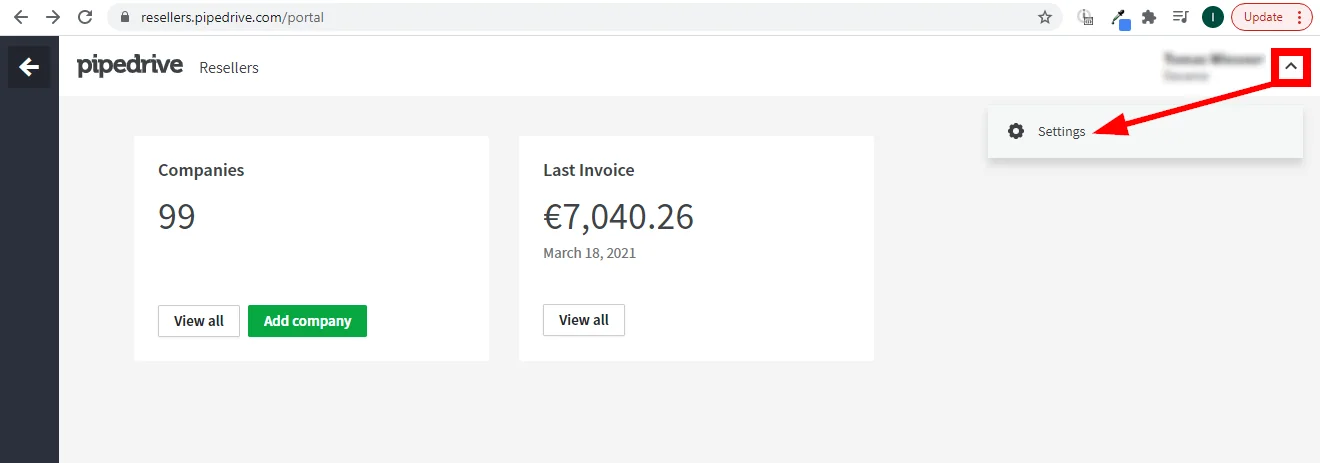
Navigate to Settings.
-
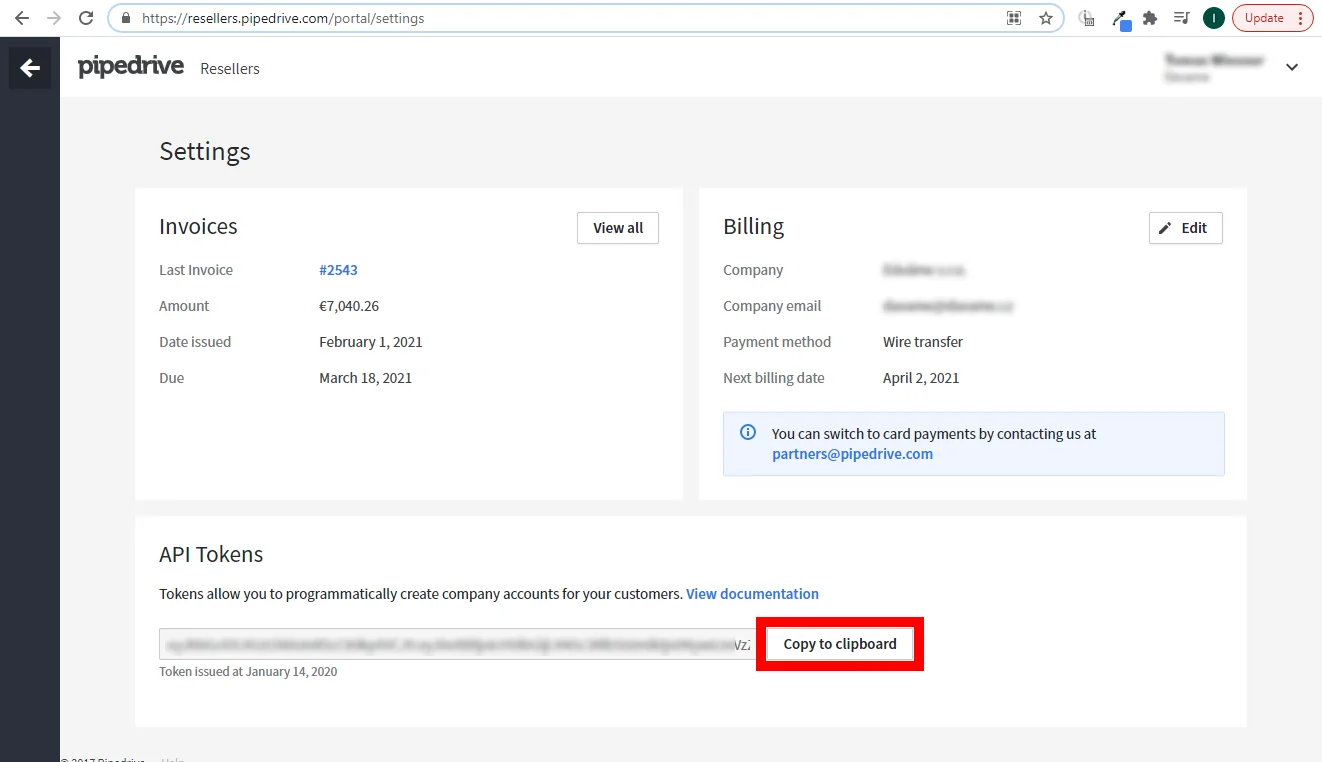
Copy the provided API Token to the clipboard.
-
Log in to your Boost.space Integrator account, add any Pipedrive Resellers Portal module to your scenario, and click Create a connection.
-
Optional: In the Connection name field, enter a name for your connection.
-
In the API Key field, enter the details copied in Step 3 and click Save.
The connection has been established. You can proceed with setting up the module.
Subscriptions
List Subscriptions
Retrieves the list of existing subscriptions.
Connection
Establish a connection to your Pipedrive Resellers account.
Limit
Set the maximum number of subscriptions Boost.space Integrator will return during one execution cycle.
Get a Subscription
Retrieves subscription details.
Connection
Establish a connection to your Pipedrive Resellers account.
Subscription ID
Enter (map) the ID of the subscription or select the subscription you want to retrieve details for.
Create a Subscription
Creates a new subscription.
Connection
Establish a connection to your Pipedrive Resellers account.
Primary User
Set the first user that will be automatically invited to the newly created account.
Enter the email address of the user.
Full Name
Enter the user’s first and last name.
Company
Add company related information.
Country
Enter the two-letter country code.
Name
Enter the name of the company.
Order
Set specifics of the purchased subscription.
Seats
Enter the number of seats.
Subscription Plan
Select the Subscription plan (or a plan in the Plan ID field below).
Plan ID
Select the plan (or a Subscription plan in the Subscription Plan field above).
User Self Management
-
Disabled – Your customer cannot add users or seats.
-
Partial – Partial seat management allows your customer to add/remove users within their account settings but doesn’t allow them to change the number of seats.
-
Full – Customer with full seat management can add both users and seats, but removal of seats is not allowed.
Packages
Enable desired addons for the subscription.
With Trial Period
Select the Yes option to set this subscription as a TRIAL.
Update a Subscription
Updates an existing subscription.
Connection
Establish a connection to your Pipedrive Resellers account.
Subscription ID
Enter (map) the ID of the subscription or select the subscription you want to update.
Please find the descriptions of the fields in the Create a Subscription section above.
Delete a Subscription
Deletes a subscription.
Connection
Establish a connection to your Pipedrive Resellers account.
Subscription ID
Enter (map) the ID of the subscription or select the subscription you want to delete.
Suspend a Subscription
Suspends a subscription.
Connection
Establish a connection to your Pipedrive Resellers account.
Subscription ID
Enter (map) the ID of the subscription or select the subscription you want to suspend.
Restore a Subscription
Restores an existing subscription.
Connection
Establish a connection to your Pipedrive Resellers account.
Subscription ID
Enter (map) the ID of the subscription or select the subscription you want to restore.
Subscription Users
Update a Subscription User
Updates user details of the subscription user.
Connection
Establish a connection to your Pipedrive Resellers account.
Subscription ID
Enter (map) the ID of the subscription or select the subscription you want to update a user for.
User ID
Enter (map) the ID of the user or select the user you want to update.
Enter the user’s email address.
Full Name
Enter the user’s full name.
Add a User to a Subscription
Adds a user to a company/subscription.
Connection
Establish a connection to your Pipedrive Resellers account.
Subscription ID
Enter (map) the ID of the subscription or select the subscription to where you want to add a user.
Enter the user’s email address.
Full Name
Enter the user’s full name.
Remove a User from a Subscription
Removes a user from the company/subscription. Users in Pipedrive are unique so the user will not be deleted. The same user can be added to a new account.
Connection
Establish a connection to your Pipedrive Resellers account.
Subscription ID
Enter (map) the ID of the subscription or select the subscription where you want to remove a user from.
User ID
Enter (map) the ID of the user or select the user you want to remove from the company/subscription.
Other
Get Available Plans and Packages
Retrieves general information on available plans and packages.
Connection
Establish a connection to your Pipedrive Resellers account.
Subscription ID
Enter (map) the ID of the subscription or select the subscription you want to retrieve available plans and packages for.
Make an API Call
Allows you to perform a custom API call.
Connection
Establish a connection to your Pipedrive Resellers account.
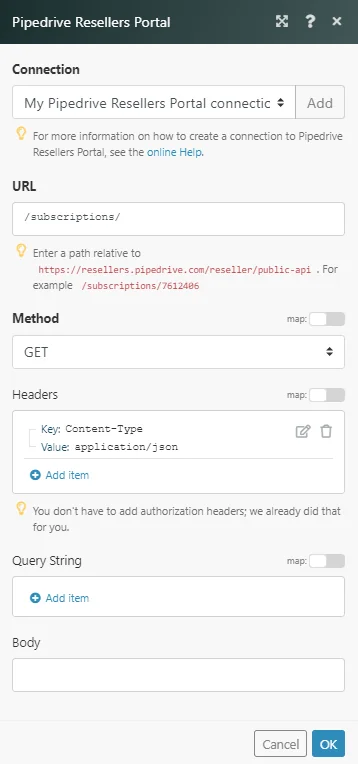
URL
Enter a path relative to https://resellers.pipedrive.com/reseller/public-api.
For example /subscriptions/
For the list of available endpoints, refer to the Pipedrive Company Subscriptions Management v1 API Documentation.
Method
Select the HTTP method you want to use:
GET
to retrieve information for an entry.
POST
to create a new entry.
PUT
to update/replace an existing entry.
PATCH
to make a partial entry update.
DELETE
to delete an entry.
Headers
Enter the desired request headers. You don’t have to add authorization headers; we added those for you.
Query String
Enter the request query string.
Body
Enter the body content for your API call.
Example of Use – List Subscriptions
The following API call returns all subscriptions in your Pipedrive Resellers Portal account:
URL:
/subscriptions
Method:
GET
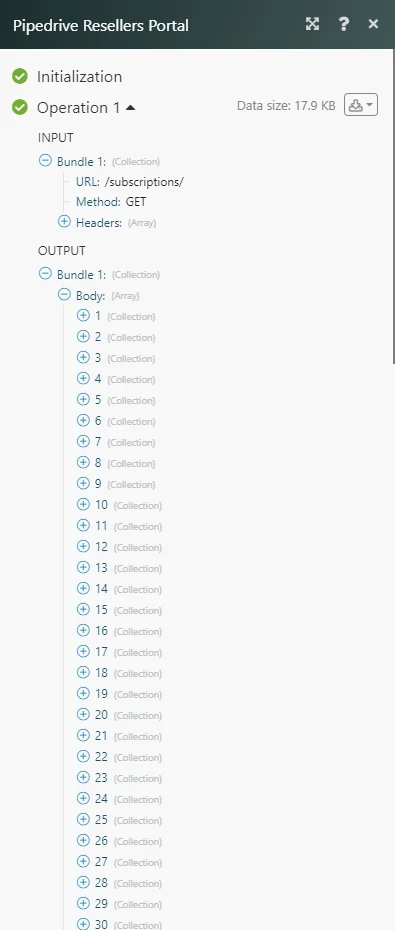
The result can be found in the module’s Output under Bundle > Body.
Legacy article, imported from the original Boost.space knowledge base (/knowledge-base/applications/crm-and-sales-tools/pipedrive-resellers/).

