PHP Point of Sale
The PHP Point of Sale modules allows you to monitor, create, update, retrieve, and delete the customers, employees, suppliers, expenses, sales, and receivings in your PHP Point of Sale account.
Getting Started with PHP Point of Sale
Prerequisites
- A PHP Point of Sale account
In order to use PHP Point of Sale with Boost.space Integrator, it is necessary to have a PHP Point of Sale account. If you do not have one, you can create a PHP Point of Sale account at phppointofsale.com.
The module dialog fields that are displayed in bold (in the Boost.space Integrator scenario, not in this documentation article) are mandatory!
Connecting PHP Point of Sale to Boost.space Integrator
To connect your PHP Point of Sale account to Boost.space Integrator you need to obtain the API Key from your PHP Point of Sale account and insert it in the Create a connection dialog in the Boost.space Integrator module.
-
Log in to your PHP Point of Sale account.
-
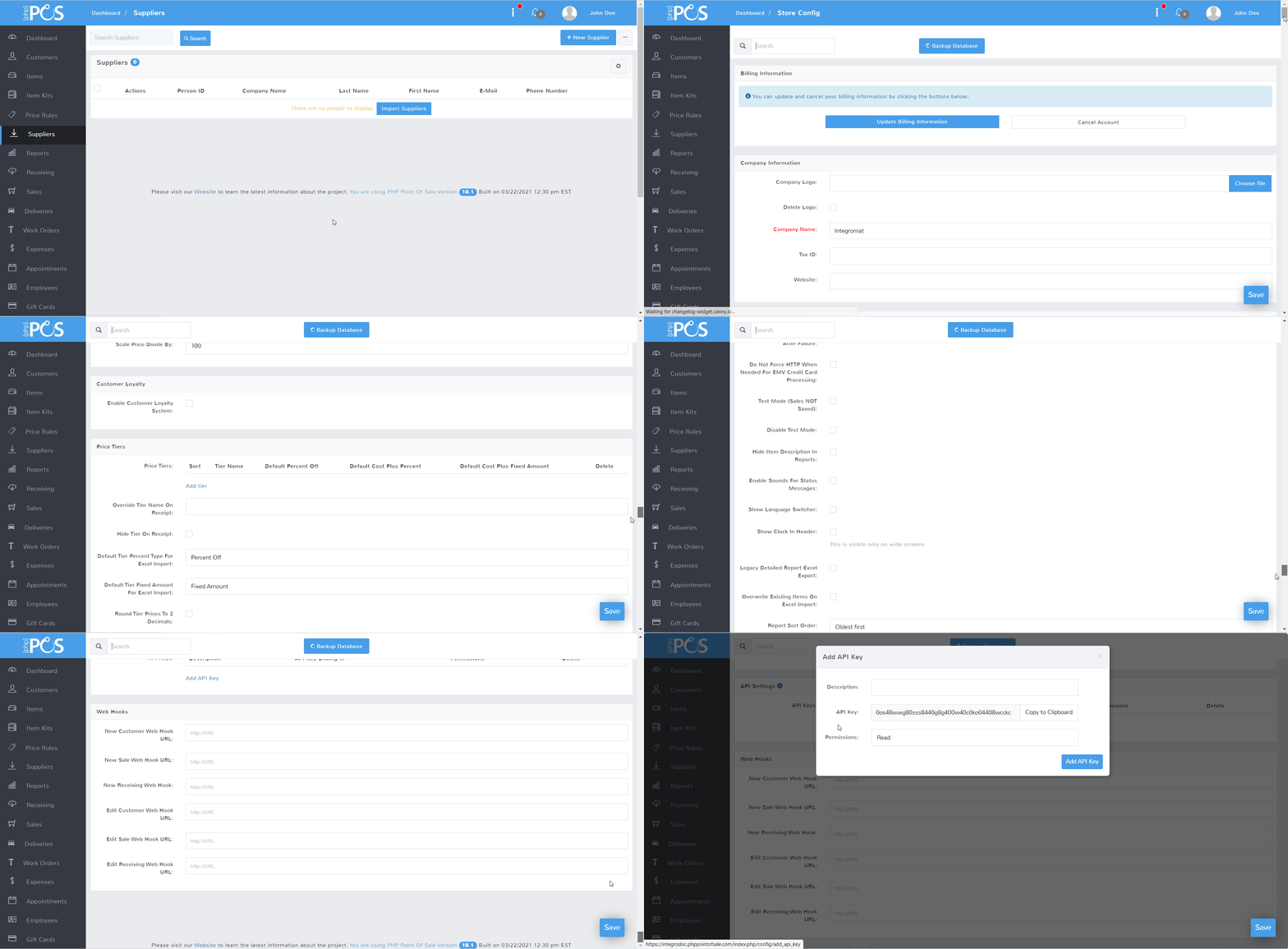
Click Your Account Profile Icon > Settings. Navigate to the _API Settings_section and click Add API Key.
-
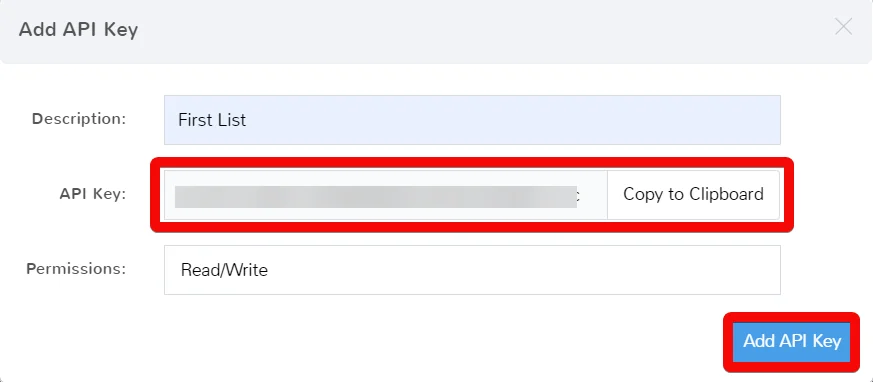
Enter the details of the API Key, select permissions, and copy the API Key to your clipboard. Click Add API Key.
-

Go to Boost.space Integrator and open the PHP Point of Sale module’s Create a connection dialog.
-
In the Connection name field, enter a name for the connection.
-
In the API Key field, enter the API key details copied in step 3.
-
In the Domain field, enter your PHP Point of Sale account domain name. For example, if your account login URL address is
https://demo.phppointofsale.comthen your domain is thedemo. -
Click Continue.
The connection has been established.
Customers
Watch Customers
Triggers when a new customer has been added.
Connection
Establish a connection to your PHP Point of Sale account.
Limit
Set the maximum number of customers Boost.space Integrator should return during one execution cycle.
Search Customers
Searches for customers or lists them all.
Connection
Establish a connection to your PHP Point of Sale account.
Location ID
Select or map the Location ID to search the customer based on the specified location.
Search Field
Select or map the Field ID to search the customer based on the specified location. For example, First Name.
Search
Enter a word to search the customers that match the specified query.
Sort Column
Select or map the option in which you want to sort the customers. For example, First Name.
Sort Direction
Select or map the direction in which you want to list the searched customers:
-
Ascending
-
Descending
Limit
Set the maximum number of customers Boost.space Integrator should return during one execution cycle.
Get a Customer
Retrieves a single customer by ID.
Connection
Establish a connection to your PHP Point of Sale account.
Person ID
Select or map the Person ID whose details you want to retrieve.
Create a Customer
Creates a new customer.
Connection
Establish a connection to your PHP Point of Sale account.
First Name
Enter (map) the customer’s first name.
Last Name
Enter (map) the customer’s last name.
Enter (map) the customer’s email address.
Phone Number
Enter (map) the customer’s phone number.
Address 1
Enter (map) the customer’s street name.
Address 2
Enter (map) the customer’s street name.
City
Enter (map) the customer’s city name.
State
Enter (map) the customer’s state name.
ZIP
Enter (map) the customer’s area ZIP code.
Country
Enter (map) the customer’s country name.
Comments
Enter any additional information about the customer.
Custom Fields
Add the custom fields and their values.
Company Name
Enter the customer’s company name.
Tier ID
Enter (map) the Tier ID applicable to the customer.
Account Number
Enter (map) the customer’s account number.
Taxable
Select whether the customer is taxable.
Tax Certificate
Enter (map) the tax certificate details of the customer.
Internal Notes
Enter the customer information which you want to share internally.
Override Default Tax
Select whether you want to override the customer’s default tax method.
Tax Class ID
Enter (map) the ID of the tax group from your account settings.
Balance
Enter (map) the customer’s available balance amount in the account.
Credit Limit
Enter (map) the credit limit of the customer.
Points
Enter (map) the available rewards or loyalty points of the customer.
Disable Loyalty
Select whether you want to disable the loyalty points for the customer.
Location ID
Select or map the Location ID of the customer.
Customer Info Popup
Enter the text that appears in the customer’s information pop screen.
Auto Email Receipt
Select whether you want to send the auto email the customer receipts.
Always SMS Receipt
Select whether you want to always send the customer receipt as SMS.
Skip Webhook
Select whether you want to skip webhooks for the customer.
Image URL
Enter (map) the URL address to the customer profile image.
Update a Customer
Updates a customer-specified by ID.
Connection
Establish a connection to your PHP Point of Sale account.
Person ID
Select or map the Person ID whose details you want to update.
First Name
Enter (map) the customer’s first name.
Last Name
Enter (map) the customer’s last name.
Enter (map) the customer’s email address.
Phone Number
Enter (map) the customer’s phone number.
Address 1
Enter (map) the customer’s street name.
Address 2
Enter (map) the customer’s street name.
City
Enter (map) the customer’s city name.
State
Enter (map) the customer’s state name.
ZIP
Enter (map) the customer’s area ZIP code.
Country
Enter (map) the customer’s country name.
Comments
Enter any additional information about the customer.
Custom Fields
Add the custom fields and their values.
Company Name
Enter the customer’s company name.
Tier ID
Enter (map) the Tier ID applicable to the customer.
Account Number
Enter (map) the customer’s account number.
Taxable
Select whether the customer is taxable.
Tax Certificate
Enter (map) the tax certificate details of the customer.
Internal Notes
Enter the customer information which you want to share internally.
Override Default Tax
Select whether you want to override the customer’s default tax method.
Tax Class ID
Enter (map) the ID of the tax group from your account settings.
Balance
Enter (map) the customer’s available balance amount in the account.
Credit Limit
Enter (map) the credit limit of the customer.
Points
Enter (map) the available rewards or loyalty points of the customer.
Disable Loyalty
Select whether you want to disable the loyalty points for the customer.
Location ID
Select or map the Location ID of the customer.
Customer Info Popup
Enter the text that appears in the customer’s information pop screen.
Auto Email Receipt
Select whether you want to send the auto email the customer receipts.
Always SMS Receipt
Select whether you want to always send the customer receipt as SMS.
Skip Webhook
Select whether you want to skip webhooks for the customer.
Image URL
Enter (map) the URL address to the customer profile image.
Delete a Customer
Deletes a customer.
Connection
Establish a connection to your PHP Point of Sale account.
Person ID
Select or map the Person ID you want to delete.
Employees
Search Employees
Searches for employees or lists them all.
Connection
Establish a connection to your PHP Point of Sale account.
Location ID
Select or map the Location ID to search the employees that match the specified location.
Search Field
Select or map the field to search for the employees that match the specified field.
Search
Enter a word to search for the employees that match the specified query.
Sort Column
Select or map the option to sort the employees. For example, First Name.
Sort Direction
Select or map the direction in which you want to list the searched employees:
-
Ascending
-
Descending
Limit
Set the maximum number of employees Boost.space Integrator should return during one execution cycle.
Get an Employee
Retrieves a single employee by ID.
Connection
Establish a connection to your PHP Point of Sale account.
Employee ID
Select or map the Employee ID whose details you want to retrieve.
Create an Employee
Creates a new employee.
Connection
Establish a connection to your PHP Point of Sale account.
User Name
Enter the employee’s username.
Enter the employee’s email address.
First Name
Enter the employee’s first name.
Last Name
Enter the employee’s last name.
Phone Number
Enter the employee’s phone number.
Address 1
Enter the employee’s address. Enter the street name.
Address 2
Enter the street name.
City
Enter the city name.
State
Enter the state name.
ZIP
Enter the employee’s area zip code.
Country
Enter the country name.
Comments
Enter the additional information about the employee.
Custom Fields
Add the custom fields for the employee and their values.
Password
Enter the employee’s account login password.
Inactive
Select whether the employee is inactive.
Reason Inactive
Enter (map) the reason for inactive.
Hire Date
Enter the date on which the employee was hired. See the list of supported date and time formats.
Employee Number
Enter (map) the employee number.
Birthday
Enter the employee’s date of birth. See the list of supported date and time formats.
Login Start Time
Enter the employee’s shift login start time.
Login End Time
Enter the employee’s shift end time.
Termination Date
Enter the date on which the employee was terminated. See the list of supported date and time formats.
Force Password Change
Select whether you want the employee to change the password on their next login.
Always Require Password
Select whether you want the employee to always provide a password for entering or modifying information in the system.
Not Required to Clock in
Select whether the employee does not require to clock in their shift.
Commission Percent
Enter the commission percent applicable for the employee.
Commission Percent Type
Select or map the employee commission percent type:
-
Selling price
-
Profit
Hourly Pay Rate
Enter or map the hourly pay rate of the employee.
Default Register ID
Select or map the Default Register ID of the employee.
Language
Select or map the language applicable to the employee.
Locations
Select or map the location access for the employee.
Dark Mode
Select whether the employee has access in dark mode.
Image URL
Enter (map) the URL address to the employee profile image.
Appointments
Select the employee permissions for the appointments. For example, Add.
Customers
Select the employee permissions for the customers. For example, Add and update.
Deliveries
Select the employee permissions for the deliveries. For example, Add and update.
Employees
Select the employee permissions for the employees. For example, Add and update.
Expenses
Select the employee permissions for the expenses. For example, Delete expenses.
Giftcards
Select the employee permissions for the gift cards. For example, Delete gift cards.
Item Kits
Select the employee permissions for the item kits. For example, Add and Update.
Items
Select the employee permissions for the items. For example, Manage categories.
Locations
Select the employee permissions for the locations:
-
Add Update
-
Delete
-
Search
Messages
Select the employee permissions for sending the messages.
Price Rules
Select the employee permissions for the price rules. For example, Delete rules.
Receivings
Select the employee permissions for the receiving. For example, Delete taxes.
Reports
Select the employee permissions for the reports. For example, View deliveries.
Sales
Select the employee permissions for the sales. For example,Discounts.
Suppliers
Select the employee permissions for the suppliers:
-
Add Update
-
Delete
-
Edit Store Account Balance
-
Excel Export
-
Search
Update an Employee
Updates an employee specified by ID.
Connection
Establish a connection to your PHP Point of Sale account.
Employee ID
Select or map the Employee ID whose details you want to update.
User Name
Enter the employee’s username.
Enter the employee’s email address.
First Name
Enter the employee’s first name.
Last Name
Enter the employee’s last name.
Phone Number
Enter the employee’s phone number.
Address 1
Enter the employee’s address. Enter the street name.
Address 2
Enter the street name.
City
Enter the city name.
State
Enter the state name.
ZIP
Enter the employee’s area zip code.
Country
Enter the country name.
Comments
Enter the additional information about the employee.
Custom Fields
Add the custom fields for the employee and their values.
Password
Enter the employee’s account login password.
Inactive
Select whether the employee is inactive.
Reason Inactive
Enter (map) the reason for inactive.
Hire Date
Enter the date on which the employee was hired. See the list of supported date and time formats.
Employee Number
Enter (map) the employee number.
Birthday
Enter the employee’s date of birth. See the list of supported date and time formats.
Login Start Time
Enter the employee’s shift login start time.
Login End Time
Enter the employee’s shift end time.
Termination Date
Enter the date on which the employee was terminated. See the list of supported date and time formats.
Force Password Change
Select whether you want the employee to change the password on their next login.
Always Require Password
Select whether you want the employee to always provide a password for entering or modifying information in the system.
Not Required to Clock in
Select whether the employee does not require to clock in their shift.
Commission Percent
Enter the commission percent applicable for the employee.
Commission Percent Type
Select or map the employee commission percent type:
-
Selling price
-
Profit
Hourly Pay Rate
Enter or map the hourly pay rate of the employee.
Default Register ID
Select or map the Default Register ID of the employee.
Language
Select or map the language applicable to the employee.
Locations
Select or map the location access for the employee.
Dark Mode
Select whether the employee has access in dark mode.
Image URL
Enter (map) the URL address to the employee profile image.
Appointments
Select the employee permissions for the appointments. For example, Add.
Customers
Select the employee permissions for the customers. For example, Add and update.
Deliveries
Select the employee permissions for the deliveries. For example, Add and update.
Employees
Select the employee permissions for the employees. For example, Add and update.
Expenses
Select the employee permissions for the expenses. For example, Delete expenses.
Giftcards
Select the employee permissions for the gift cards. For example, Delete gift cards.
Item Kits
Select the employee permissions for the item kits. For example, Add and Update.
Items
Select the employee permissions for the items. For example, Manage categories.
Locations
Select the employee permissions for the locations:
-
Add Update
-
Delete
-
Search
Messages
Select the employee permissions for sending the messages.
Price Rules
Select the employee permissions for the price rules. For example, Delete rules.
Receivings
Select the employee permissions for the receiving. For example, Delete taxes.
Reports
Select the employee permissions for the reports. For example, View deliveries.
Sales
Select the employee permissions for the sales. For example, Give discounts.
Suppliers
Select the employee permissions for the suppliers:
-
Add Update
-
Delete
-
Edit Store Account Balance
-
Excel Export
-
Search
Delete an Employee
Deletes an employee specified by ID.
Connection
Establish a connection to your PHP Point of Sale account.
Employee ID
Select or map the Employee ID you want to delete.
Suppliers
Watch Suppliers
Triggers when a new supplier has been added.
Connection
Establish a connection to your PHP Point of Sale account.
Limit
Set the maximum number of suppliers Boost.space Integrator should return during one execution cycle.
Search Suppliers
Searches for suppliers or lists them all.
Connection
Establish a connection to your PHP Point of Sale account.
Search Field
Select or map the Field ID to search the supplier based on the specified location. For example, First Name.
Search
Enter a word to search the suppliers that match the specified query.
Sort Column
Select or map the option in which you want to sort the suppliers. For example, First Name.
Sort Direction
Select or map the direction in which you want to list the searched suppliers:
-
Ascending
-
Descending
Limit
Set the maximum number of suppliers Boost.space Integrator should return during one execution cycle.
Get a Supplier
Retrieves a single supplier by ID.
Connection
Establish a connection to your PHP Point of Sale account.
Supplier ID
Select or map the Supplier ID whose details you want to retrieve.
Create a Supplier
Creates a new supplier.
Connection
Establish a connection to your PHP Point of Sale account.
First Name
Enter (map) the supplier’s first name.
Company Name
Enter (map) the supplier’s company name.
Last Name
Enter (map) the supplier’s last name.
Enter (map) the supplier’s email address.
Phone Number
Enter (map) the supplier’s phone number.
Address 1
Enter (map) the supplier’s street name.
Address 2
Enter (map) the supplier’s street name.
City
Enter (map) the supplier’s city name.
State
Enter (map) the supplier’s state name.
ZIP
Enter (map) the supplier’s area ZIP code.
Country
Enter (map) the supplier’s country name.
Comments
Enter any additional information about the supplier.
Custom Fields
Add the custom fields and their values.
Account Number
Enter (map) the supplier’s account number.
Override Default Tax
Select whether you want to override the default tax settings of the supplier.
Tax Class ID
Enter (map) the supplier’s tax Class ID.
Balance
Enter (map) the supplier’s balance information.
Image URL
Enter (map) the URL address of the supplier’s profile image.
Update a Supplier
Updates a supplier specified by ID.
Connection
Establish a connection to your PHP Point of Sale account.
Supplier ID
Select or map the Supplier ID whose details you want to update.
First Name
Enter (map) the supplier’s first name.
Company Name
Enter (map) the supplier’s company name.
Last Name
Enter (map) the supplier’s last name.
Enter (map) the supplier’s email address.
Phone Number
Enter (map) the supplier’s phone number.
Address 1
Enter (map) the supplier’s street name.
Address 2
Enter (map) the supplier’s street name.
City
Enter (map) the supplier’s city name.
State
Enter (map) the supplier’s state name.
ZIP
Enter (map) the supplier’s area ZIP code.
Country
Enter (map) the supplier’s country name.
Comments
Enter any additional information about the supplier.
Custom Fields
Add the custom fields and their values.
Account Number
Enter (map) the supplier’s account number.
Override Default Tax
Select whether you want to override the default tax settings of the supplier.
Tax Class ID
Enter (map) the supplier’s tax Class ID.
Balance
Enter (map) the supplier’s balance information.
Image URL
Enter (map) the URL address of the supplier’s profile image.
Delete a Supplier
Deletes a supplier specified by ID.
Connection
Establish a connection to your PHP Point of Sale account.
Supplier ID
Select or map the Supplier ID you want to delete.
Expenses
Search Expenses
Searches for expenses or lists them all.
Connection
Establish a connection to your PHP Point of Sale account.
Location ID
Select or map the Location ID to search the expense based on the specified location.
Search
Enter a word to search the expenses that match the specified query.
Sort Column
Select or map the option in which you want to sort the expenses. For example, First Name.
Sort Direction
Select or map the direction in which you want to list the searched expenses:
-
Ascending
-
Descending
Limit
Set the maximum number of expenses Boost.space Integrator should return during one execution cycle.
Get an Expense
Retrieves a single expense by ID.
Connection
Establish a connection to your PHP Point of Sale account.
Expense ID
Select or map the Expense ID whose details you want to retrieve.
Create an Expense
Creates a new expense.
Connection
Establish a connection to your PHP Point of Sale account.
Location ID
Select or map the Location ID to search the expense based on the specified location.
Category ID
Select or map the expense Category ID. For example, 1.
Expense Type
Enter (map) the expense type. For example, utilities.
Expense Description
Enter (map) the details of the expense.
Expense Reason
Enter (map) the reasons for the expense.
Expense Date
Enter (map) the date on which the expense was made. See the list of supported date and time formats.
Expense Amount
Enter (map) the amount of the expense.
Expense Tax
Enter (map) the tax applicable to the expense.
Expense Note
Enter (map) the additional information about the expense.
Employee ID
Select or map the Employee ID associated with the expense.
Approved Employee ID
Select or map the Employee ID who has approved the expense.
Expense Payment Type
Select or map the expense payment method:
-
Cash
-
Check
-
Gift Card
-
Debit Card
-
Credit Card
-
Store Account
-
Points
Update an Expense
Updates an expense specified by ID.
Connection
Establish a connection to your PHP Point of Sale account.
Expense ID
Select or map the Expense ID whose details you want to update.
Location ID
Select or map the Location ID to search the expense based on the specified location.
Category ID
Select or map the expense Category ID. For example, 1.
Expense Type
Enter (map) the expense type. For example, utilities.
Expense Description
Enter (map) the details of the expense.
Expense Reason
Enter (map) the reasons for the expense.
Expense Date
Enter (map) the date on which the expense was made. See the list of supported date and time formats.
Expense Amount
Enter (map) the amount of the expense.
Expense Tax
Enter (map) the tax applicable to the expense.
Expense Note
Enter (map) the additional information about the expense.
Employee ID
Select or map the Employee ID associated with the expense.
Approved Employee ID
Select or map the Employee ID who has approved the expense.
Expense Payment Type
Select or map the expense payment method:
-
Cash
-
Check
-
Gift Card
-
Debit Card
-
Credit Card
-
Store Account
-
Points
Delete an Expense
Deletes an expense specified y ID.
Connection
Establish a connection to your PHP Point of Sale account.
Expense ID
Select or map the Expense ID you want to delete.
Receivings
Watch Receivings
Triggers when a new receiving has been added.
Connection
Establish a connection to your PHP Point of Sale account.
Limit
Set the maximum number of receivings Boost.space Integrator should return during one execution cycle.
Sales
Watch Sales
Triggers when a new sale has been added.
Connection
Establish a connection to your PHP Point of Sale account.
Limit
Set the maximum number of sales Boost.space Integrator should return during one execution cycle.
Other
Make an API Call
Performs an arbitrary authorized API call.
Connection
Establish a connection to your PHP Point of Sale account.
URL
Enter a path relative to https://integrodoc.phppointofsale.com/index.php/api. For example: /v1/customers.
For the list of available endpoints, refer to the PHP Point of Sale API Documentation.
Method
Select the HTTP method you want to use:
GET
to retrieve information for an entry**.**
POST
to create a new entry.
PUT
to update/replace an existing entry.
PATCH
to make a partial entry update.
DELETE
to delete an entry.
Headers
Enter the desired request headers. You don’t have to add authorization headers; we’ve already done that for you.
Query String
Enter the request query string.
Body
Enter the body content for your API call.
Example of Use – List Suppliers
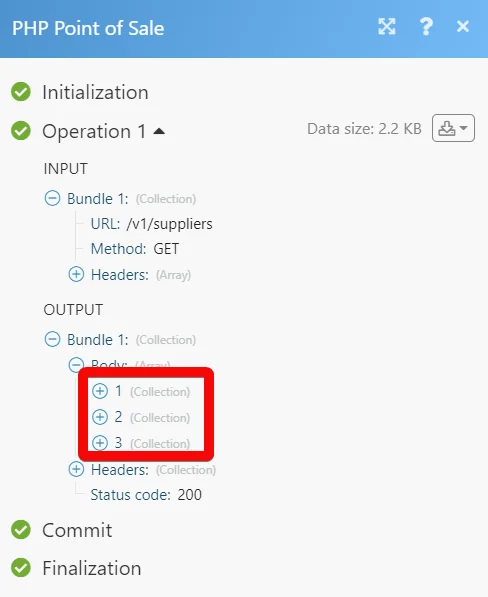
The following API call returns all the suppliers from your PHP Point of Sale account:
URL:
/v1/suppliers
Method:
GET
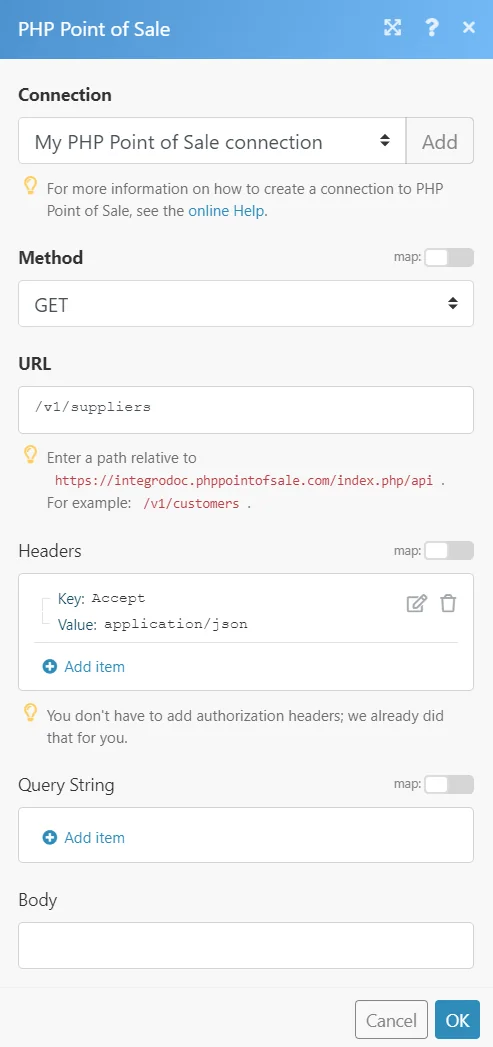
Matches of the search can be found in the module’s Output under Bundle > Body.
In our example, 3 suppliers were returned:
Legacy article, imported from the original Boost.space knowledge base (/knowledge-base/applications/crm-and-sales-tools/php-point-of-sale/).

