Wealthbox
The Wealthbox modules allow you to search, list, retrieve, create, update, and delete the contacts, events, opportunities, projects, tasks, workflows, comments, and custom fields in your Wealthbox account.
Getting Started with Wealthbox
Prerequisites
- A Wealthbox account
In order to use Wealthbox with Boost.space Integrator, it is necessary to have a Wealthbox account. If you do not have one, you can create a Wealthbox account at wealthbox.com.
The module dialog fields that are displayed in bold (in the Boost.space Integrator scenario, not in this documentation article) are mandatory!
Connecting Wealthbox to Boost.space Integrator
To connect your Wealthbox account to Boost.space Integrator you need to obtain the Access Token from your Wealthbox account and insert it in the Create a connection dialog in the Boost.space Integrator module.
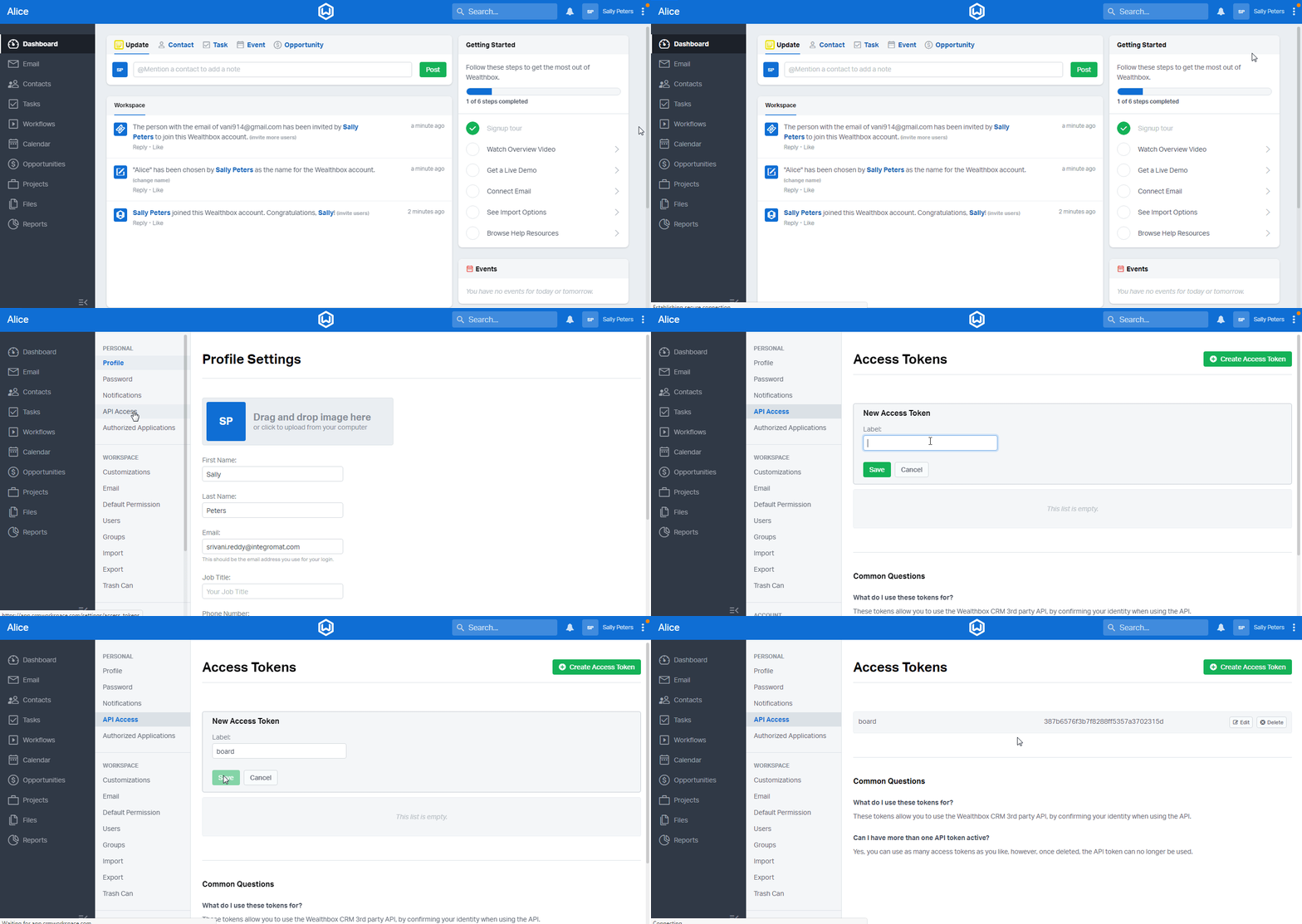
1. Log in to your Wealthbox account.
2. Click the three dots icon (
3. Enter a name for the access token and click Save.
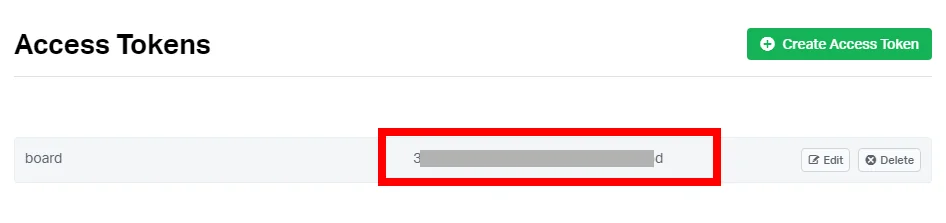
4. Copy the Access Token to your clipboard.
5. Go to Boost.space Integrator and open the Wealthbox module’s Create a connection dialog.

6. In the Connection name field, enter a name for the connection.
7. In the Access Token field, enter the access token copied in step 4, and click Continue.
The connection has been established,
Contacts
Search Contacts
Searches for contacts or retrieves them all.
Connection
Establish a connection to your Wealthbox account.
Contact ID
Select the Contact ID whose details you want to list.
Contact Type
Select the contact type to search the contacts of the specified type.
Name
Enter the contact’s name whose details you want to search.
Enter the contact’s email address whose details you want to search.
Phone
Enter the contact’s phone number whose details you want to search.
Active
Select whether to list only active contacts.
Tags
Add the tags to search the contacts only with the specified tags.
Household Title
Select the household name to search only the contacts with the specified name. For example, Spouse.
Type
Select the contact type to search only the contacts with the specified type.
Order
Select the order to sort the contacts:
-
Ascending
-
Descending
-
Recent
-
Created
-
Updated
Limit
Set the maximum number of contacts Boost.space Integrator should return during one scenario execution cycle.
Get a Contact
Retrieves a specific contact using its unique identifier.
Connection
Establish a connection to your Wealthbox account.
Contact ID
Select the Contact ID whose details you want to retrieve.
Create a contact
Creates a new contact.
Connection
Establish a connection to your Wealthbox account.
Type
Select the type of contact you want to create.
First Name
Enter the contact’s first name.
Last Name
Enter the contact’s last name.
Middle Name
Enter the contact’s middle name.
Prefix
Enter the contact’s preferred prefix. For example, Mr.
Suffix
Enter the details contact’s suffix if available.
Nickname
Enter the contact’s nickname.
Marital Status
Select the contact’s marital status:
-
Married
-
Single
-
Divorced
-
Widowed
-
Life Partner
-
Separated
-
Unknown
Job Title
Enter the contact’s job position name.
Company Name
Enter the company name in which the contact works.
Name
Select the household name of the contact.
Title
Select the relationship with the contact. For example, Sibling.
Email Address
Add the contact’s email address:
Address
Enter the contact’s email address.
Principal
Select whether this is the contact’s principal email address.
Kind
Select the email address type. For example, work.
Destroy ‘false’
Select whether or not to destroy the email address being updated.
Phone Numbers
Add the contact’s phone numbers:
Number
Enter the contact’s phone number.
Principal
Select if this is the contact’s primary phone number.
Extension
Enter the contact’s extension number.
Kind
Select the phone number type. For example, work.
Destroy false
Select whether to delete the phone number when a new number is updated.
Websites
Add the contact’s websites:
Address
Enter the contact’s website URL address.
Principal
Select whether this is the contact’s primary website address.
Kind
Select the website type. For example, Facebook.
Destroy ‘false’
Select whether to delete the website when a new number is updated.
Tags
Add the tags for the contact.
Background Information
Enter the details of the contact.
LinkedIn URL
Enter the contact’s LinkedIn URL address.
Twitter Name
Enter the contact’s Twitter URL address.
Street Addresses
Add the street name where the contact resides:
Street Line 1
Enter the street name.
Street Line 2
Enter the street name.
City
Enter the city name.
State
Enter the state name.
ZIP Code
Enter the area zip code.
Country
Enter the country name.
Principal
Select whether this is the primary address of the contact.
Kind
Select the address type. For example, home.
Destroy ‘false’
Select whether or not to destroy the address being updated.
Assigned To
Select the User ID to whom the contact is assigned.
Referred By
Select the user who has referred the contact.
Contact Source
Select the source from where you received the contact details. For example, conference.
Contact Type
Select the contact type. For example, vendor.
Status
Select the contact status:
-
Active
-
Inactive
Gender
Select the contact gender:
-
Male
-
Female
-
Unknown
Birth Date
Enter the contact’s date of birth. See the list of supported date and time formats.
Anniversary
Enter the contact’s wedding anniversary. See the list of supported date and time formats.
Client Since
Enter the date from when the contact is a client. See the list of supported date and time formats.
Date of Death
Enter the contact’s date of death. Enter the contact’s wedding anniversary. See the list of supported date and time formats.
Attorney
Select the User ID of the contact acting as the contact’s attorney.
CPA
Select the User ID of the contact acting as the contact’s accountant.
Doctor
Select the User ID who is acting as the contact’s doctor.
Insurance
Select the User ID who is acting as the contact’s insurance agent.
Business Manager
Select the User ID who is acting as the contact’s business manager.
Family Officer
Select the User ID who is acting as the contact’s family officer.
Assistant
Select the User ID who is acting as the contact’s assistant.
Other
Select the User ID who is acting as the contact’s other.
Important Information
Enter any other important information about the contact.
Personal Interests
Enter the contact’s interests or hobbies.
Investment Objective
Select the contact’s investment goal. For example, income.
Time Horizon
Select the contact’s opted time range. For example, short term.
Risk Tolerance
Select the contact’s risk tolerance option. For example, low.
Mutual Fund Experience
Enter the details of the contact’s mutual fund experience.
Stocks and Bonds Experience
Enter the details of the contact’s stocks and bonds experience.
Partnerships Experience
Enter the details of the contact’s business partnership experience.
Other Investing Experience
Enter the details of the contact’s investment experience.
Gross Annual Income
Enter the contact’s gross annual income details.
Assets
Enter the contact’s asset details.
Non Liquid Assets
Enter the contact’s non-liquid asset details.
Liabilities
Enter the contact’s liabilities details.
Adjusted Gross Income
Enter the contact’s adjusted gross annual income details.
Estimated Taxes
Enter the contact’s estimated tax amount.
Confirmed by Tax Return
Select whether the contact’s tax returns are confirmed.
Tax Year
Enter the year for which the contact’s tax returns are filed.
Tax Bracket
Enter the contact’s applicable tax bracket.
Birth Place
Enter the contact’s birthplace name.
Maiden Name
Enter the contact’s maiden name.
Passport Number
Enter the contact’s passport number.
Green Card Number
Enter the contact’s green card number.
Number
Enter the contact’s driving license number.
State
Enter the state in which the driving license is issued.
Issued Date
Enter the date when the driving license is issued. See the list of supported date and time formats.
Expires Date
Enter the driving license expiry date. See the list of supported date and time formats.
Retirement Date
Enter the contact’s retirement date. See the list of supported date and time formats.
Signed Fee Agreement Date
Enter the date when the contact has signed the fee agreement. See the list of supported date and time formats.
Signed Ips Agreement Date
Enter the date when the contact has signed the IPS agreement. See the list of supported date and time formats.
Last Adv Offering Date
Enter the date when the contact has last offered the advance amount. See the list of supported date and time formats.
Last Crs Offering Date
Enter the date when the contact has last offered the CRS. See the list of supported date and time formats.
Last Privacy Offering Date
Enter the date when the contact has last offered privacy. See the list of supported date and time formats.
Custom Fields
Add any additional custom fields by entering the field name and its value.
Visible to
Select the option for contact visibility:
-
Everyone
-
Only me
Update a Contact
Updates a specific contact using its unique identifier.
Connection
Establish a connection to your Wealthbox account.
Type
Select the contact type whose details you want to update.
Contact ID
Select the Contact ID whose details you want to update.
Update the details as provided in the Create a contact module.
Delete a Contact
Deletes a specific contact using its unique identifier.
Connection
Establish a connection to your Wealthbox account.
Contact ID
Select the Contact ID you want to delete.
Tasks
Search Tasks
Searches for tasks or fetches all of the tasks that are accessible by the user.
Connection
Establish a connection to your Wealthbox account.
Resource Type
Select the resource type to search the task based on the specified resource. For example, contact.
Contact ID
Select the Contact ID whose tasks you want to search.
Opportunity ID
Select the Opportunity ID whose tasks you want to search.
Assigned To
Select the user whose assigned tasks you want to search.
Created By
Select the user whose created tasks you want to search.
Completed
Select whether the task is completed.
Limit
Set the maximum number of tasks Boost.space Integrator should return during one scenario execution cycle.
Get a Task
Retrieves a specific task using its unique identifier.
Connection
Establish a connection to your Wealthbox account.
Task ID
Select the Task ID whose details you want to retrieve.
Create a Task
Creates a new task.
Connection
Establish a connection to your Wealthbox account.
Task ID
Select the Task ID whose details you want to update.
Name
Enter the task name.
Due Date
Enter the date by when the task must be completed. See the list of supported date and time formats.
Description
Enter the details of the task.
Assigned To
Select the user to whom the task is assigned.
Complete
Select whether the task is completed.
Category
Select the category to which the task belongs to.
Linked To
Add the items linked to the task:
Type
Select the item type. For example, contact.
Contact ID
Select the Contact ID.
Name
Enter the item name.
Priority
Select the task priority:
-
Low
-
Medium
-
High
Visible To
Select the option for who can view the task:
-
Everyone
-
Only Me
Repeats
Select whether this is a repeated task.
Update a Task
Updates an existing task with new properties.
Connection
Establish a connection to your Wealthbox account.
Name
Enter the task name.
Due Date
Enter the date by when the task must be completed. See the list of supported date and time formats.
Description
Enter the details of the task.
Assigned To
Select the user to whom the task is assigned.
Complete
Select whether the task is completed.
Category
Select the category to which the task belongs to.
Linked To
Add the items linked to the task:
Type
Select the item type. For example, contact.
Contact ID
Select the Contact ID.
Name
Enter the item name.
Priority
Select the task priority:
-
Low
-
Medium
-
High
Visible To
Select the option for who can view the task:
-
Everyone
-
Only Me
Repeats
Select whether this is a repeated task.
Delete a Task
Deletes an existing task from your account (workspace).
Connection
Establish a connection to your Wealthbox account.
Task ID
Select the Task ID you want to delete.
Workflows
Search Workflows
Searches for workflows or fetches all of the workflows that are accessible by the user.
Connection
Establish a connection to your Wealthbox account.
Resource Type
Select the workflow type:
-
Contact
-
Opportunity
Status
Select the workflow status:
-
Active
-
Completed
-
Scheduled
Limit
Set the maximum number of workflows Boost.space Integrator should return during one scenario execution cycle.
List Workflow Templates
Fetches all of the workflow templates that are accessible by the user.
Connection
Establish a connection to your Wealthbox account.
Limit
Set the maximum number of workflow templates Boost.space Integrator should return during one scenario execution cycle.
Get a Workflow
Retrieves a specific workflow using its unique identifier.
Connection
Establish a connection to your Wealthbox account.
Workflow ID
Select the Workflow ID whose details you want to retrieve.
Create a Workflow
Creates a new workflow.
Connection
Establish a connection to your Wealthbox account.
Workflow Template
Select the template for the workflow.
Type
Select the option to associate the workflow. For example, contact.
Contact ID
Select the Contact ID you want to associate with the workflow.
Opportunity ID
Select the Opportunity ID you want to associate with the workflow.
Project ID
Select the project ID you want to associate with the workflow.
Name
Enter a name for the workflow.
Label
Enter a label for the workflow.
Visible To
Select the option for workflow visibility:
-
Everyone
-
Only me
Starts At
Enter the date when the workflow starts. See the list of supported date and time formats.
Update a Workflow
Updates an existing workflow with new properties.
Connection
Establish a connection to your Wealthbox account.
Workflow ID
Select the Workflow whose details you want to update.
Workflow Template
Select the template for the workflow.
Type
Select the option to associate the workflow. For example, contact.
Contact ID
Select the Contact ID you want to associate with the workflow.
Opportunity ID
Select the Opportunity ID you want to associate with the workflow.
Project ID
Select the project ID you want to associate with the workflow.
Name
Enter a name for the workflow.
Label
Enter a label for the workflow.
Visible To
Select the option for workflow visibility:
-
Everyone
-
Only me
Starts At
Enter the date when the workflow starts. See the list of supported date and time formats.
Complete a Workflow Step
Completes a workflow step.
Connection
Establish a connection to your Wealthbox account.
Workflow ID
Select the Workflow ID whose step you want to mark as completed.
Complete
Select whether you want to mark the step as complete.
Due Date
Enter the date when the step is due to be completed. See the list of supported date and time formats.
When selecting an outcome with the Restart Step action, this indicates the due date for the restarted step.
Revert a Workflow Step
Reverts a workflow step.
Connection
Establish a connection to your Wealthbox account.
Workflow ID
Select the Workflow ID whose step you want to revert back.
Revert
Select the checkbox to completely revert the status of the workflow step.
Events
Search Events
Searches for events or fetches all of the events that are accessible by the user.
Connection
Establish a connection to your Wealthbox account.
Resource Type
Select the resource type whose events you want to search.
Contact ID
Select the Contact ID whose events you want to search.
Opportunity ID
Select the Opportunity ID whose events you want to search.
Limit
Set the maximum number of events Boost.space Integrator should return during one scenario execution cycle.
Get an Event
Retrieves a specific event using its unique identifier.
Connection
Establish a connection to your Wealthbox account.
Event ID
Select the Event ID whose details you want to retrieve.
Create an Event
Creates a new event.
Connection
Establish a connection to your Wealthbox account.
Title
Enter a name for the event.
Starts At
Enter the date and time when the event starts. See the list of supported date and time formats.
Ends At
Enter the date and time when the event ends. See the list of supported date and time formats.
Linked To
Add the items associated with the event by selecting the item type and its name.
Repeats
Select whether this is a repeating event.
Event Category
Select the event category. For example, conference.
All Day
Select whether this is an all-day event.
Location
Enter the event location address.
Description
Add the details of the event.
State
Select the event status. For example, confirmed.
Visible To
Select the option for the event visibility:
-
Everyone
-
Only Me
Email Invitees
Select whether to send email invitations to the invitees.
Invitees
Add the invitees for the event.
Update an Event
Updates an existing event with new properties.
Connection
Establish a connection to your Wealthbox account.
Event ID
Select the Event ID whose details you want to update.
Title
Enter a name for the event.
Starts At
Enter the date and time when the event starts. See the list of supported date and time formats.
Ends At
Enter the date and time when the event ends. See the list of supported date and time formats.
Linked To
Add the items associated with the event by selecting the item type and its name.
Repeats
Select whether this is a repeating event.
Event Category
Select the event category. For example, conference.
All Day
Select whether this is an all-day event.
Location
Enter the event location address.
Description
Add the details of the event.
State
Select the event status. For example, confirmed.
Visible To
Select the option for the event visibility:
-
Everyone
-
Only Me
Email Invitees
Select whether to send email invitations to the invitees.
Invitees
Add the invitees to the event.
Delete an Event
Deletes an existing event from your account (workspace).
Connection
Establish a connection to your Wealthbox account.
Event ID
Select the Event ID you want to delete.
Notes
Search Notes
Searches for notes or fetches all of the notes that are accessible by the user.
Connection
Establish a connection to your Wealthbox account.
Resource Type
Select the resource type whose notes you want to search.
Contact ID
Select the Contact ID whose notes you want to search.
Opportunity ID
Select the Opportunity ID whose notes you want to search.
Limit
Set the maximum number of notes Boost.space Integrator should return during one scenario execution cycle.
Get a Note
Retrieves a specific note using its unique identifier.
Connection
Establish a connection to your Wealthbox account.
Note ID
Select the Note ID whose details you want to retrieve.
Create a Note
Creates a new note.
Connection
Establish a connection to your Wealthbox account.
Content
Enter a note text.
Linked To
Add the items associated with the note by selecting the item type and its name.
Visible To
Select the option for the event visibility:
-
Everyone
-
Only Me
Tags
Add the tags for the note.
Update a Note
Updates an existing note with new properties.
Connection
Establish a connection to your Wealthbox account.
Note ID
Select the Note ID whose details you want to update.
Content
Enter a note text.
Linked To
Add the items associated with the note by selecting the item type and its name.
Visible To
Select the option for the event visibility:
-
Everyone
-
Only Me
Tags
Add the tags for the note.
Projects
List Projects
Fetches all of the projects that are accessible by the user.
Connection
Establish a connection to your Wealthbox account.
Limit
Set the maximum number of projects Boost.space Integrator should return during one scenario execution cycle.
Get a Project
Retrieves a specific project using its unique identifier.
Connection
Establish a connection to your Wealthbox account.
Project ID
Select the Project ID whose details you want to retrieve.
Create a Project
Creates a new project.
Connection
Establish a connection to your Wealthbox account.
Name
Enter a name for the project.
Description
Enter the details of the project.
Organizer
Select the user who is responsible for organizing the project.
Visible To
Select the option for project visibility:
-
Everyone
-
Only Me
Custom Fields
Add the custom field IDs and their values for the project.
Update a Project
Updates an existing project with new properties.
Connection
Establish a connection to your Wealthbox account.
Project ID
Select the Project ID whose details you want to update.
Name
Enter a name for the project.
Description
Enter the details of the project.
Organizer
Select the user who is responsible for organizing the project.
Visible To
Select the option for project visibility:
-
Everyone
-
Only Me
Custom Fields
Add the custom field IDs and their values for the project.
Delete a Project
Deletes an existing project from your account (workspace).
Connection
Establish a connection to your Wealthbox account.
Project ID
Select the Project ID you want to delete.
Opportunities
Search Opportunities
Searches for opportunities or fetches all of the opportunities that are accessible by the user.
Connection
Establish a connection to your Wealthbox account.
Resource Type
Select the resource type whose opportunities you want to search.
Contact ID
Select the Contact ID whose opportunities you want to search.
Opportunity ID
Select the Opportunity ID whose opportunities you want to search.
Order
Select the order in which you want to list the opportunities:
-
Asc
-
Desc
-
Recent
-
Created
Limit
Set the maximum number of opportunities Boost.space Integrator should return during one scenario execution cycle.
Get an Opportunity
Retrieves a specific opportunity using its unique identifier.
Connection
Establish a connection to your Wealthbox account.
Opportunity ID
Select the Opportunity ID whose details you want to retrieve.
Create an Opportunity
Creates a new opportunity.
Connection
Establish a connection to your Wealthbox account.
Name
Enter a name for the opportunity.
Target Close
Enter the date and time the opportunity is expected to close.
Probability
Enter the percentage that the opportunity is expected to close.
Stage
Select the opportunity status. For example, In review.
Description
Enter the opportunity details.
Manager
Enter the name of the person designated as a manager for this opportunity.
Amounts
Add the amount associated with the opportunity:
Amount
Enter the amount.
Currency
Select the currency symbol applicable to the opportunity.
Kind
Select the amount type. For example, Fee.
Links To
Add the items associated with the opportunity by selecting the item type and its name.
Visible To
Select the option for opportunity visibility:
-
Everyone
-
Only Me
Custom Fields
Add the custom field IDs and their values for the opportunity.
Update an Opportunity
Updates an existing opportunity with new properties.
Connection
Establish a connection to your Wealthbox account.
Opportunity ID
Select the Opportunity ID whose details you want to update.
Name
Enter a name for the opportunity.
Target Close
Enter the date and time the opportunity is expected to close.
Probability
Enter the percentage that the opportunity is expected to close.
Stage
Select the opportunity status. For example, In Review.
Description
Enter the opportunity details.
Manager
Enter the name of the person designated as a manager for this opportunity.
Amounts
Add the amount associated with the opportunity:
Amount
Enter the amount.
Currency
Select the currency symbol applicable to the opportunity.
Kind
Select the amount type. For example, Fee.
Links To
Add the items associated with the opportunity by selecting the item type and its name.
Visible To
Select the option for opportunity visibility:
-
Everyone
-
Only Me
Custom Fields
Add the custom field IDs and their values for the opportunity.
Delete an Opportunity
Deletes an existing opportunity from your account (workspace).
Connection
Establish a connection to your Wealthbox account.
Opportunity ID
Select the Opportunity ID you want to delete.
Households
Add a Member to a Household
Adds a member to the household.
Connection
Establish a connection to your Wealthbox account.
Household ID
Select the Household ID to which you want to add the member.
Contact ID
Select the Contact ID of the member you want to add.
Title
Select the applicable title of the member. For example, Parent.
Delete a Member From a Household
Removes a member from a household.
Connection
Establish a connection to your Wealthbox account.
Household ID
Select the Household ID from which you want to remove the member.
Member ID
Select the Member ID you want to remove.
Custom Fields
List Custom Fields
Fetches every customer field in the authenticated user’s account (workspace).
Connection
Establish a connection to your Wealthbox account.
Document Type
Select the document type whose custom field you want to list. For example, task.
Limit
Set the maximum number of custom fields Boost.space Integrator should return during one scenario execution cycle.
Customizable Category Members
List Members of a Customizable Category
Fetches every instance of the specified category name which are owned by the account (workspace) of the user authenticated with the API.
Connection
Establish a connection to your Wealthbox account.
Type
Select the category whose members you want to list. For example, financial account types.
Limit
Set the maximum number of members Boost.space Integrator should return during one scenario execution cycle.
Comments
Search Comments
Searches for comments or fetches all of the comments that are accessible by the user.
Connection
Establish a connection to your Wealthbox account.
Resource Type
Select the resource whose comments you want to search.
Opportunity ID
Select the Opportunity ID whose comments you want to search.
Workflow ID
Select the Workflow ID whose comments you want to search.
Step ID
Select the Step ID whose comments you want to search.
Task ID
Select the Task ID whose comments you want to search.
Limit
Set the maximum number of comments Boost.space Integrator should return during one scenario execution cycle.
Other
Make an API Call
Performs an arbitrary authorized API call.
Connection
Establish a connection to your Wealthbox account.
URL
Enter a path relative to https://api.crmworkspace.com/. For example: /v1/tasks
For the list of available endpoints, refer to the Wealthbox API Documentation.
Method
Select the HTTP method you want to use:
GET to retrieve information for an entry.
POST to create a new entry.
PUT to update/replace an existing entry.
PATCH to make a partial entry update.
DELETE to delete an entry.
Headers
Enter the desired request headers. You don’t have to add authorization headers; we already did that for you.
Query String
Enter the request query string.
Body
Enter the body content for your API call.
Example of Use – List Projects
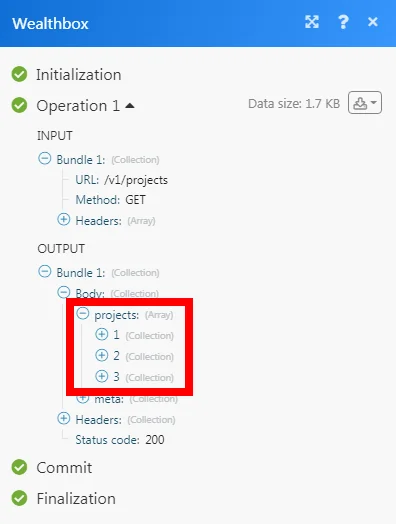
The following API call returns all the projects from your Wealthbox account:
URL: /v1/projects
Method: GET
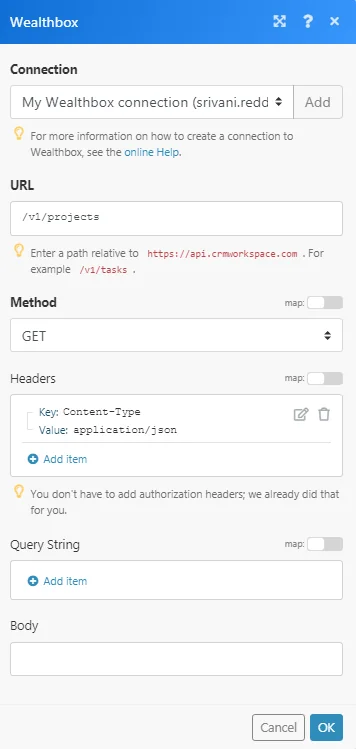
Matches of the search can be found in the module’s Output under Bundle > Body > projects. In our example, 3 projects were returned:
Legacy article, imported from the original Boost.space knowledge base (/knowledge-base/applications/crm-and-sales-tools/wealthbox/).

