Zendesk Sunshine
The Zendesk Sunshine modules enable you to work with profiles, object records, relationship records, object types, or relationship types in your Zendesk Sunshine account.
Getting Started with Zendesk Sunshine
Prerequisites
- A Zendesk account (Support Enterprise or Support Suite Enterprise plan with a Sunshine plan)
In order to use Zendesk Sunshine with Boost.space Integrator, it is necessary to have a Zendesk Sunshine account. If you do not have one, you can create a Zendesk Sunshine account at www.zendesk.com/register.
The module dialog fields that are displayed in bold (in the Boost.space Integrator scenario, not in this documentation article) are mandatory!
Connecting Zendesk Sunshine to Boost.space Integrator
To set up the connection between Boost.space Integrator and Zendesk, create an OAuth Client in Zendesk. Here is a step-by-step guide:
-
Sign in to your Zendesk account.
-
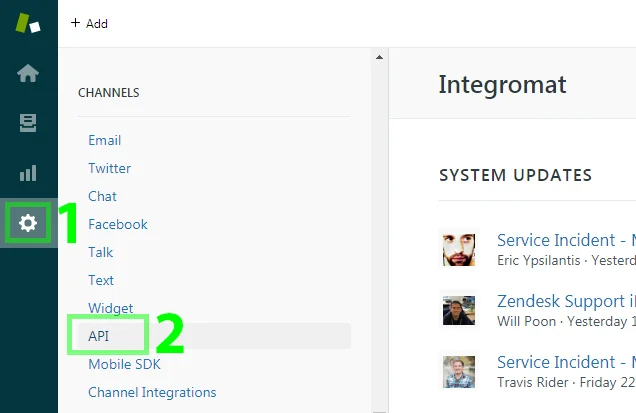
Click on the cogwheel icon at the bottom of the left menu panel.
-
Scroll down to the CHANNELS section, and click on the API link:
-
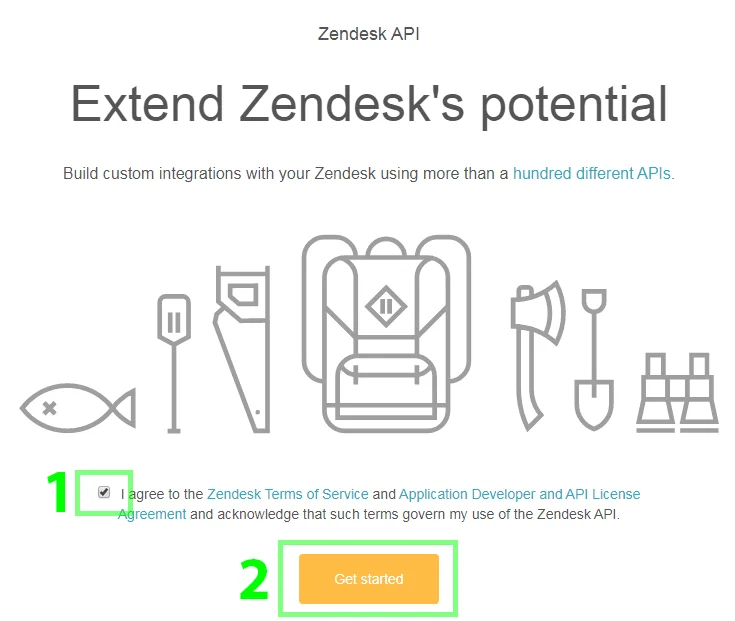
If a consent screen shows up, tick the I agree to the… checkbox, and click on the Get started button:
-
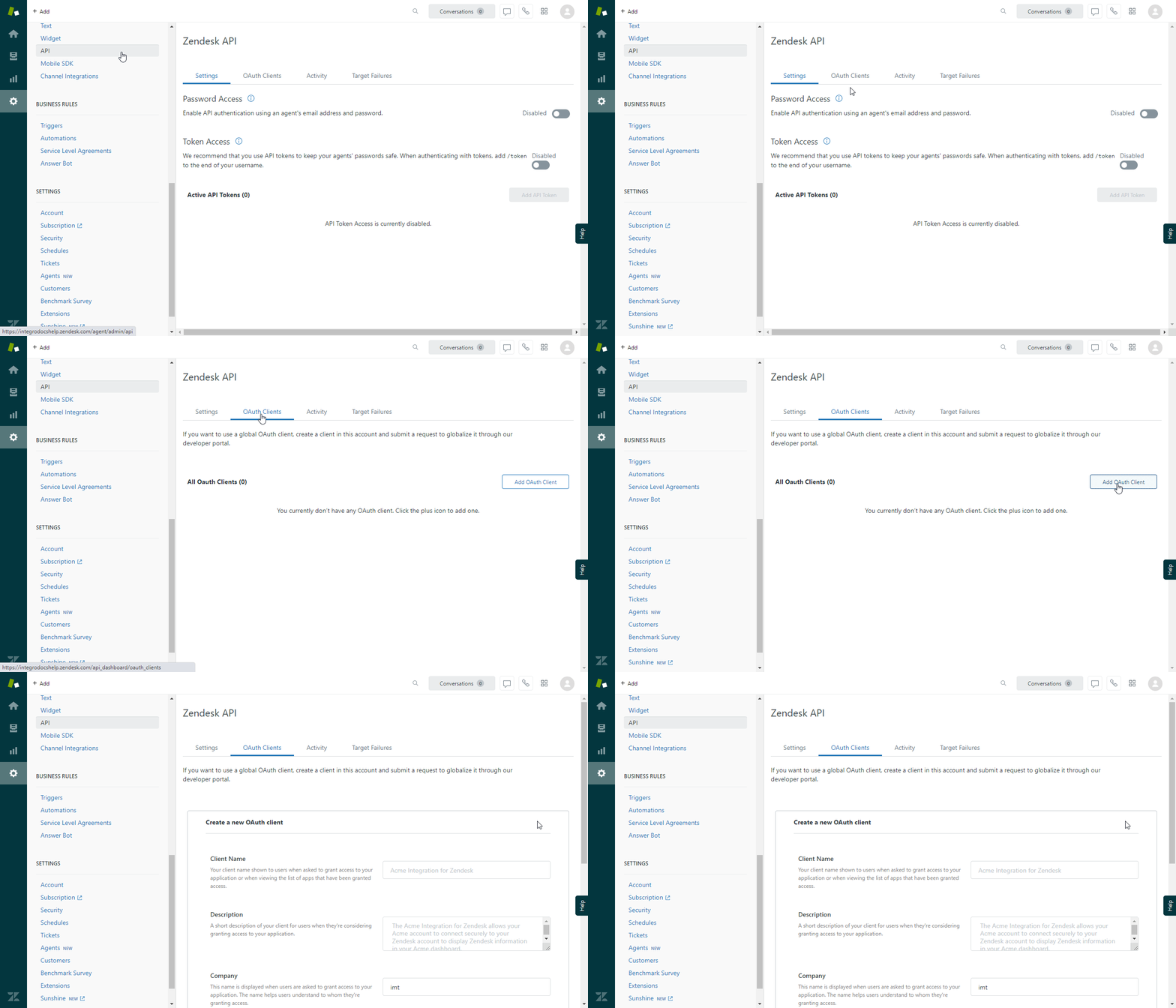
Switch to the OAuth Clients tab, and start the creation of the new OAuth Client by clicking on the button with the plus sign:
-
Fill the form as follows:
Client Name
e.g.,
Boost.space IntegratorUnique Identifier
This field is auto-populated, but you may change it if you want.
Redirect URLs
https://integrator.boost.space/oauth/cb/zendesk/Do not forget to enter the URL with the last slash (
/), otherwise, you will be unable to establish a connection. -
Click on the Save button in the right bottom corner.
-
Confirm the Please store the secret that will appear dialog.
-
The app will be created and its properties will be shown. DO NOT CLOSE THE PAGE. The values shown will be needed to set up your Zendesk connection in Boost.space Integrator.
-
In Boost.space Integrator, insert a Zendesk module in your scenario, and click on the Add button next to the Connection field.
-
Fill in the Create a connection form as follows:
Domain
Your Zendesk domain that appears in your browser’s address bar before
.zendesk.com. If the full domain name is e.g.,integromat.zendesk.com, then type in justintegromat.Unique Identifier
Copy and paste the content of the Unique Identifier field from the page shown in step 9.
Secret
Copy and paste the content of the Secret field from the page shown in step 9.
See Connecting to services for further details on connection setup.
-
Click on the Continue button.
-
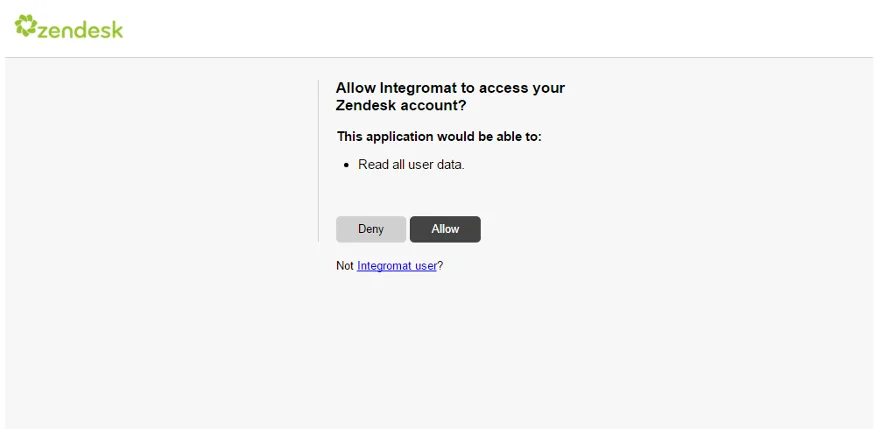
Boost.space Integrator will then show a popup window where you will be prompted to grant Boost.space Integrator access to your Zendesk account:
-
Here, allow access by clicking the Allow button, and the popup window will close.
The connection has been successfully created, and you can now continue configuring your Zendesk Sunshine module.
Events
List a User’s or Profile’s Events
Returns events for a given Sunshine profile or a Zendesk user.
Connection
Establish a connection to your Zendesk account.
Select User or Profile
Select a user or profile you want to retrieve events for.
Zendesk User ID
User ID
Enter or map the ID of the Zendesk user.
Profile ID
User ID
Enter or map the ID of the Zendesk user you want to specify the Sunshine profile for (below).
Profile ID
Enter or map the ID of the Sunshine profile.
Profile Identifier
Profile Source
Enter the application or system associated with the profile.
Profile Type
The profile type.
Identifier Type
Enter or map the identifier type, e.g., external_id, or phone_number_._
Identifier Value
Enter or map the value of the Sunshine profile.
Filter by Event Creation Date (from)
Only include events with an event creation date later or equal to the submitted start time. Please see the list of supported date and time formats.
Filter by Event Creation Date (To)
Only include events with an event creation date before or equal to the submitted end time. Please see the list of supported date and time formats.
Filter by Event Source
Enter a source to include only events of the specified source.
Filter by Event Type
Enter a type to include only events of the specified type for an event source specified above.
Limit
Set the maximum number of events Boost.space Integrator will return during one execution cycle.
Track a Profile Event
Stores an event against the specified profile or user.
Connection
Establish a connection to your Zendesk account.
Source
Enter the application that sent the event – ‘zendesk’ is a protected source name for Zendesk standard events. Any attempts to use this source when creating an event will result in an error.
Type
Enter the event name you want to store.
Description
Enter the event description.
Properties
Specify details of the event as name-value pairs.
Link Event To
Select whether to link an event to a profile or user.
Profile ID
User ID
Enter or map the ID of the Zendesk user you want to specify the Sunshine profile for (below).
Profile ID
Enter or map the ID of the Sunshine profile.
Zendesk User ID and Profile Identifier
User ID
Enter or map the ID of the Zendesk user.
Profile Source
Enter the application or system associated with the profile.
Profile Type
Enter the profile type
Identifier Type
Enter or map the identifier type, e.g., external_id, or phone_number_._
Identifier Value
Enter or map the value of the type above.
New Profile
Enter values to create a new profile.
Profiles
List a Zendesk User’s Profiles
Retrieves profiles of a specified Zendesk user.
Connection
Establish a connection to your Zendesk account.
User ID
Map the ID or select the user you want to retrieve the profile for.
Limit
Set the maximum number of profiles Boost.space Integrator will return during one execution cycle.
Get a Profile
Retrieves profile details.
Connection
Establish a connection to your Zendesk account.
Properties
Specify details of the event as name-value pairs.
Profile ID or Identifier
Select whether to specify a profile by ID or by identifier.
Profile ID
User ID
Enter or map the ID of the Zendesk user you want to specify the Sunshine profile for (below).
Profile ID
Enter or map the ID of the Sunshine profile.
Profile Identifier
Profile Source
The application or system associated with the profile.
Profile Type
Enter the profile type.
Identifier Type
Enter or map the identifier type, e.g., external_id, or phone_number_._
Zendesk Sunshine automatically tries to associate a profile to a Zendesk user if the used identifier type is one of the following: email, external_id, phone_number, facebook, twitter.
Identifier Value
Enter or map the value of the type (above).
Create or Update Profile
Creates or updates a Profile.
The profile is overwritten (updated) when the provided profile source, profile type, identifier type, and identifier value match an existing profile.
Connection
Establish a connection to your Zendesk account.
Profile Source
Enter the application or system associated with the profile.
Profile Type
Enter the profile type.
Identifier Type
Enter the identifier type, e.g., external_id, or phone_number_._
Zendesk Sunshine automatically tries to associate a profile to a Zendesk user if the used identifier type is one of the following: email, external_id, phone_number, facebook, twitter.
Identifier Value
Enter the value of the type (above).
User ID
Select or map the user to attach the profile to a Zendesk user explicitly. Otherwise, Zendesk will attempt to automatically associate the profile to a Zendesk user. For more information, see Profile Creation and Profile Association.
Name
Enter the person’s name for the profile. If you do not submit a name, and Zendesk fails to associate the submitted profile to an existing Zendesk user, then the name of the resulting profile and Zendesk user will default to sunshine_user.
Attributes
Add the details about the profile as key-value pairs.
Additional Profile Identifiers
Add profile identifiers as type-value pairs.
Update a Profile
Performs a partial update or overwrites an existing profile.
Connection
Establish a connection to your Zendesk account.
Profile ID or Identifier
Select whether to specify a profile that you want to update by the Profile ID or by identifier.
Profile ID
User ID
Enter or map the ID of the Zendesk user you want to specify the Sunshine profile for (below).
Profile ID
Enter or map the ID of the Sunshine profile.
Profile Identifier
Profile Source
The application or system associated with the profile.
Profile Type
Enter the profile type.
Identifier Type
Enter or map the identifier type, e.g., external_id, or phone_number_._
Zendesk Sunshine automatically tries to associate a profile to a Zendesk user if the used identifier type is one of the following: email, external_id, phone_number, facebook, twitter.
Identifier Value
Enter or map the value of the type (above).
Overwrite
Enable this option to overwrite the profile. Otherwise (when the checkbox is left unchecked), the partial update will be performed – the module changes some, but not all, properties of a profile.
Name
Enter the person’s name for the profile. If you do not submit a name, and Zendesk fails to associate the submitted profile to an existing Zendesk user, then the name of the resulting profile and Zendesk user will default to sunshine_user.
Attributes
Add the details about the profile as key-value pairs.
Additional Profile Identifiers
Add profile identifiers as type-value pairs.
Delete a Profile
Deletes a specified profile.
Connection
Establish a connection to your Zendesk account.
User ID
Enter or map the ID of the Zendesk user you want to specify the Sunshine profile for (below).
Profile ID
Enter or map the ID of the Sunshine profile.
Object Records
List Object Records
Returns object records of the object type.
Connection
Establish a connection to your Zendesk account.
Object Type Key
Select or map the object type key you want to retrieve object records for.
Order
Sorts by Created At field. Select whether the module output should be sorted in ascending or descending order.
Limit
Set the maximum number of object records Boost.space Integrator will return during one execution cycle.
Get an Object Record
Retrieves object record details.
Connection
Establish a connection to your Zendesk account.
Object Type Key
Select or map the object type key that contains the object record you want to retrieve details for.
Object Record ID
Select or map the ID of the object record you want to retrieve details for.
Create an Object Record
Creates an object record.
Connection
Establish a connection to your Zendesk account.
Object Type Key
Select or map the object type key you want to create a record for.
Attributes
Enter value(s) for the record’s attributes.
Optional Additional Attributes
Add additional attributes as key-value pairs.
Some object types will not allow adding attributes that were not predefined.
External ID
Enter a unique, case-insensitive identifier for the object record, usually from another system.
Update an Object Record
Updates the attributes object of the specified object record.
Connection
Establish a connection to your Zendesk account.
Object Type Key
Select or map the object type key that contains an object record you want to update.
Object Record ID
Select or map the record where you want to update attributes at.
Attributes
Enter value(s) for the record’s attributes you want to update.
Optional Additional Attributes
Add additional attributes as key-value pairs.
Some object types will not allow adding attributes that were not predefined.
Update an Object Record by External ID
Updates the attributes object of the specified object record by an external ID.
Connection
Establish a connection to your Zendesk account.
Object Type Key
Select or map the object type key that contains an object record you want to update.
Object Record External ID
Select or map the record’s external ID to specify the object record by.
Attributes
Enter value(s) for the record’s attributes you want to update.
Optional Additional Attributes
Add additional attributes as key-value pairs.
Some object types will not allow adding attributes that were not predefined.
Delete an Object Record
Deletes an object record.
Connection
Establish a connection to your Zendesk account.
Object Type Key
Select or map the object type key that contains the object record you want to delete.
Object Record ID
Enter (map) the ID of the object record you want to delete.
Delete an Object Record by External ID
Deletes object record by an external ID.
Connection
Establish a connection to your Zendesk account.
Object Type Key
Select or map the object type key that contains the object record you want to delete.
Object Record External ID
Enter (map) the record’s external ID to specify the object record you want to delete by.
List Related Object Records
Returns all the object records that the specified object record has relationship records with for the specified relationship type.
Connection
Establish a connection to your Zendesk account.
Object Type Key
Select or map the object type key you want to retrieve related objects for.
Object Record ID
Enter (map) the record’s ID to specify the object record you want to retrieve related objects for.
Relation Type Key
Select the relationship type by the relation type key.
Limit
Set the maximum number of related object records Boost.space Integrator will return during one execution cycle.
List Related Relationship Records
Returns all the relationship records of the specified object type.
Connection
Establish a connection to your Zendesk account.
Object Type Key
Select or map the object type key you want to retrieve related objects for.
Relation Type Key
Select the relationship type by the relation type key.
Limit
Set the maximum number of related relationship records Boost.space Integrator will return during one execution cycle.
Relationship Records
List Relationship Records
Returns all the relationship records of the specified relationship type.
Connection
Establish a connection to your Zendesk account.
Relation Type Key
Select or map the relationship type you want to retrieve relationship records for.
Limit
Set the maximum number of relationship records Boost.space Integrator will return during one execution cycle.
Get a Relationship Record
Retrieves relationship record details.
Connection
Establish a connection to your Zendesk account.
Object Type Key
Select or map the object type key that contains the relationship record you want to retrieve details for.
Relationship Record ID
Enter (map) the ID of the relationship record you want to retrieve details for.
Create a Relationship Record
Creates a new relationship record between two object records based on a relationship type.
Connection
Establish a connection to your Zendesk account.
Relationship Type Key
Select or map the relationship type to create a new relationship record by.
Object Records
Select or map object records you want to create a relationship record between.
Delete a Relationship Record
Deletes a relationship record.
Connection
Establish a connection to your Zendesk account.
Object Type Key
Select or map the object type key that contains the object record you want to delete.
Relationship Record ID
Enter (map) the relationship record’s ID to specify the record you want to delete.
Object Types
List Object Types
Retrieves object types in your account.
Connection
Establish a connection to your Zendesk account.
Limit
Set the maximum number of object types Boost.space Integrator will return during one execution cycle.
Get an Object Type
Retrieves object type details.
Connection
Establish a connection to your Zendesk account.
Object Type Key
Enter (map) or select the object type you want to retrieve details about.
Create an Object Type
Creates a new object type.
Connection
Establish a connection to your Zendesk account.
Object Type Key
Specify a unique identifier for the object type. The key must be between 2 and 32 characters long. Examples: “product“, “cell_phone“, and “2019-car“.
Allow Additional Properties
Disabling this option will limit object records of this object type to only having the properties predefined below.Enable this option to allow additional properties (not defined below) to be added during the creation of an object record.
Properties
Property Name
Enter a friendly public name. * is not allowed and _ should not be used as a prefix.
Property required?
Enable this option to set the property as required.
Property Title
Enter a short description of the object type.
Property Description
Enter a longer explanation about the purpose of the data.
Property Type
Select one or more property types to validate data when creating or updating a record of that object type. The API only creates or updates a record if the value provided for the property matches the declared data type.
The type can be one or more of the following:
-
“string” – a Unicode string
-
“number” – an arbitrary-precision, base-10 decimal number value
-
“object” – an unordered set of properties
-
“array” – an ordered list of values
-
“boolean” – a “true” or “false” value
-
null
[String Property] Minimum Length
Enter the minimum length of the property if the property type selected above is a string.
[String Property] Maximum Length
Enter the maximum length of the property if the property type selected above is a string.
[String Property] Regular Expression
Enter the regular expression to validate the string against, only if the property type selected above is a string.
[String Property] Options
Add options to restrict the property value to a small set of possible values. For example, you might want the value of a “status” property to be one of “planned“, “started“, or “done“.
[Number/Integer Property] Minimum Value
Enter the minimum value of the property if the property type selected above is number.
[Number/Integer Property] Maximum Value
Enter the maximum value of the property if the property type selected above is number.
Update an Object Type
Updates properties of an existing object type.
Connection
Establish a connection to your Zendesk account.
Object Type Key
Select or map the object type key you want to update.
Please find the descriptions of the Properties fields in the Create an Object Type section above.
Delete an Object Type
Deletes an object type.
Connection
Establish a connection to your Zendesk account.
Object Type Key
Enter (map) or select the object type key you want to delete.
Relationship Types
List Relationship Types
Retrieves all relationship types in your account.
Connection
Establish a connection to your Zendesk account.
Limit
Set the maximum number of relationship types Boost.space Integrator will return during one execution cycle.
Get a Relationship Type
Retrieves relationship type details.
Connection
Establish a connection to your Zendesk account.
Relation Type Key
Select or map the relation type key you want to retrieve details for.
Create a Relationship Type
Creates a new relationship type.
Connection
Establish a connection to your Zendesk account.
Key
Enter a user-defined unique identifier. Must be between 2 and 32 characters long.
Source
Enter the key of an object type to define the relationship between two object records.
The source must be one of the following:
-
the key of an object type, or
-
a Zendesk object type such as “zen
” or “zen ”.
Target
Enter the key of a different object type to define the relationship between two object records.
Delete a Relationship Type
Deletes a relationship type.
Connection
Establish a connection to your Zendesk account.
Relationship Type Key
Select or map the relationship type you want to delete.
Make an API Call
Allows you to perform a custom API call.
Connection
Establish a connection to your Zendesk account.
URL
Enter a path relative to https://{yourdomain}.zendesk.com.For example: /api/sunshine/objects/types/.
For the list of available endpoints, refer to the Zendesk Sunshine API Documentation.
Method
Select the HTTP method you want to use:
GETto retrieve information for an entry.
POSTto create a new entry.
PUTto update/replace an existing entry.
PATCHto make a partial entry update.
DELETEto delete an entry.
Headers
Enter the desired request headers. You don’t need to add authorization headers; we’ve already done this for you.
Query String
Enter the request query string.
Body
Enter the body content for your API call.
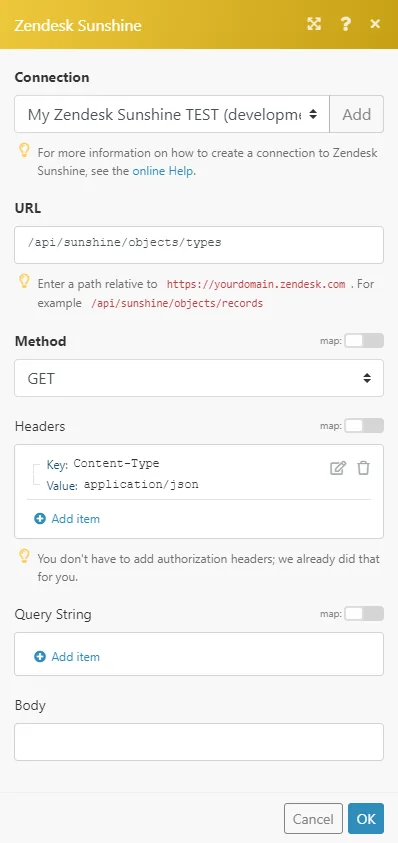
Example of Use – List Object Types
The following API call returns all object types in your Zendesk Sunshine:
URL:/api/sunshine/objects/types
Method:GET
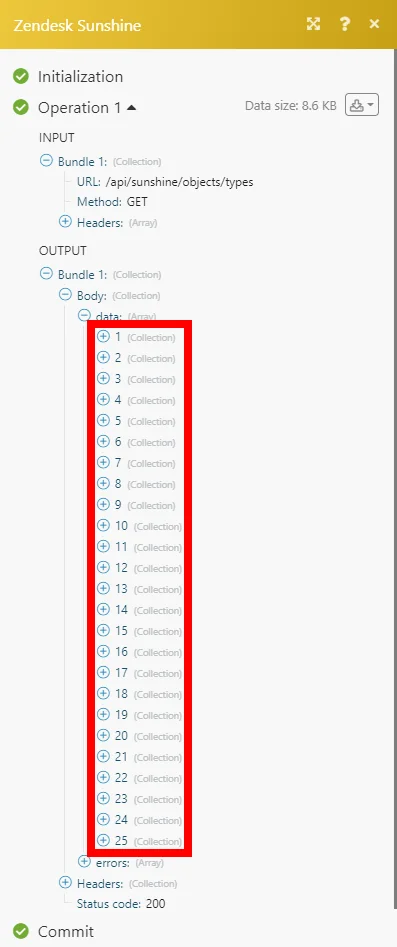
The result can be found in the module’s Output under Bundle > _Body > data._In our example, 25 object types were returned:
Updating Custom Object Types
As of June 7th, 2021, the properties of object types can only contain a type, description, and a title.
Previously there were other fields allowed, such as pattern (regex), minLength, maxLength, enum, minimum and maximum.Furthermore, the type no longer supports multiple types. Every property is limited to having one type.The Object property type is no longer supported, and the Array property type now requires you to select the type of the array elements (string, boolean, integer, number) and can be created only through the API (Boost.space Integrator).Changing your object type does not affect your old object records (that might not match the new object type schema).
We have added two modules made just for updating object types purposes:
-
Validate your Object Types – to validate the schema of your object types.
-
Update Object Type Alternative – to find out which object types you need to update.
First, you need to use the Validate your Object Types module to check all your object types to determine whether they contain deprecated object type schema. After that, update all object types with the old schema to the new schema using the Update Object Type Alternative module.Both modules are for one-time use only.
If you make changes to your object types, then you need to update all modules in your scenario where you create or update object records of the object type that has been changed.
Validate your Object Types
Run this module to find out what object types need to be updated.
1. Create a scenario.2. Add the Validate your Object Types module, and run it.Every bundle will contain the object type that needs to be adjusted with an array of error messages telling you what needs to be changed. See error messages descriptions below.
Error Messages From Validate your Object Types module:
additionalProperties cannot be set to true
Example of the returned message:
{"object_type_key": "The_key1","message": ["data.schema instance value ([\"boolean\"]) not found in enum (possible values: [\"boolean\",\"integer\",\"number\",\"string\",\"array\"])","additionalProperties cannot be set to true"]}
The schema contains the additionalProperties property, and the value for that property is set to true.
To fix this:1. Select the desired object type in the Object Type Key field of the Update Object Type Alternative module.2. Verify that every field is set up as you want, and the required properties are still checked as required.3. Run the module to set additionalProperties as false.
data.schema instance value ([“boolean”]) not found in enum (possible values: [“boolean”,”integer”,”number”,”string”,”array”])
data.schema instance value ([“string”]) not found in enum (possible values: [“boolean”,”integer”,”number”,”string”,”array”])
data.schema instance value ([“string”,”object”]) not found in enum (possible values: [“boolean”,”integer”,”number”,”string”,”array”])…..data.schema instance value ([xxxxxxxxxxxxx]) not found in enum (possible values: [“boolean”,”integer”,”number”,”string”,”array”])
…
Previously you were able to send “type”: “string” or “type”: [“string”] to Zendesk to make the type of the property “string”. Now you can only send “string”.To fix this:1. Select the desired object type in the Object Type Key field of the Update Object Type Alternative module.2. Check that every field is set up as you want, and the required properties are still checked as required.3. Run the Update Object Type Alternative module.
The schema for an object type cannot be empty.
The properties element of a schema cannot be empty.
The schema is empty or the schema’s properties property is empty.
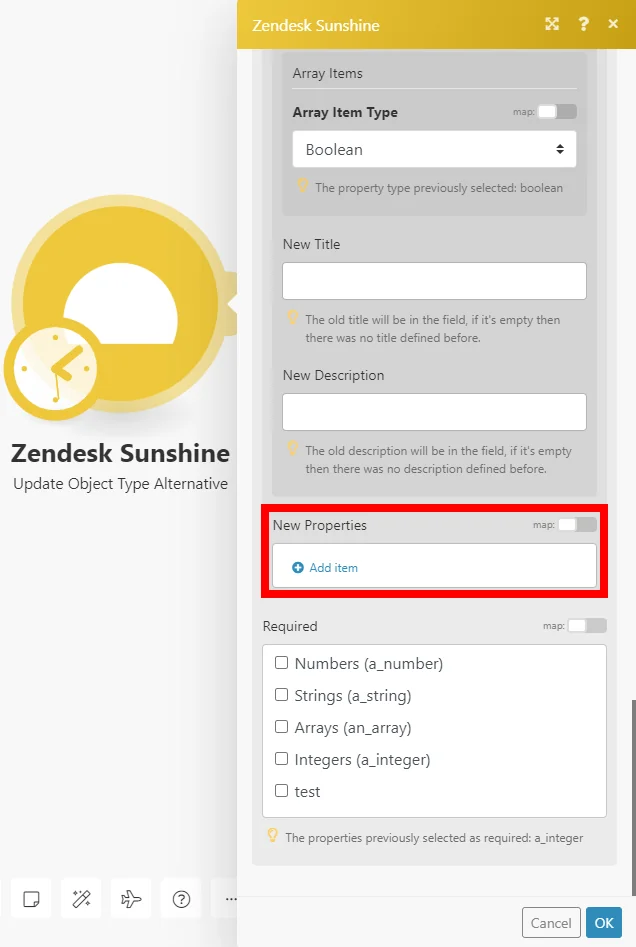
You have to add a property to this object type using the Update Object Type Alternative module. Use the New Properties field.
data.schema object has missing required properties ([“type”])
The schema defines a property but does not specify a type for the property. One of the properties of your object type does not have a selected type. Use the Update Object Type Alternative module to find the property without a type, and assign it a type. Check that every field is set up as you want, and the required properties are still checked as required before running the module.
data.schema object instance has properties which are not allowed by the schema: [“pattern”]
data.schema object instance has properties which are not allowed by the schema: [“maximum”,”minimum”]
data.schema object instance has properties which are not allowed by the schema: [“maxLength”,”minLength”]
data.schema object instance has properties which are not allowed by the schema: [“enum”]
The schema contains properties that are not allowed (“pattern” (regex), “minLength”, “maxLength”, “enum”,”minimum” or “maximum”).
1. Select the desired object type in the Object Type Key field of the Update Object Type Alternative module.2. Check that every field is set up as you want, and the required properties are still checked as required.3. Run the Update Object Type Alternative module.
Unwanted properties have been removed from the schema.
Update Object Type Alternative
Updates desired object types according to the new schema policy. Use the Update Object Type Alternative module first to find object type keys that contain deprecated properties.
Connection
Establish a connection to your Zendesk Sunshine account.
Object Type Key
Select the object type whose properties you want to update.
Properties
Specify the new properties of the object type.
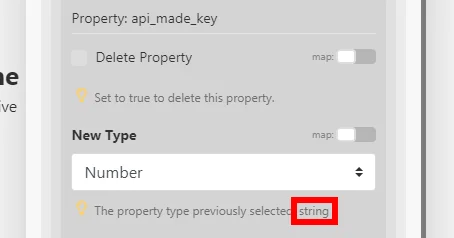
The previous property type is displayed in the description under the field.
New Properties
Add the new properties to the object type.
Required
Select properties that you want to set as required.
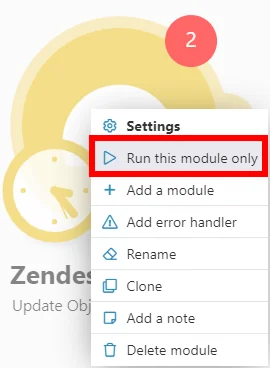
Run the Update Object Type Alternative module using the Run this module only function (open the menu by right clicking the module).
Legacy article, imported from the original Boost.space knowledge base (/knowledge-base/applications/crm-and-sales-tools/zendesk-sunshine/).

