Zoho CRM
With Zoho CRM modules in Boost.space Integrator, you can list modules and fields, manage users, objects, related records, tags, and attachments, upsert leads, and upload photos in your Zoho CRM account.
To use the Zoho CRM modules, you must have a Zoho CRM account. You can create an account at zoho.com.
Refer to the Zoho CRM API documentation for a list of available endpoints.
Connect Zoho CRM to Boost.space Integrator
If you have more then one connection created to your Zoho CRM account, the Zoho CRM modules will not work.
To establish the connection:
-
Log in to your Boost.space Integrator account, add a Zoho CRM module to your scenario, and click Create a connection.
-
Optional: In the Connection name field, enter a name for the connection.
-
In the Domain field, select the applicable domain for your account.
-
Optional: Click Show Advanced Settings and enter your custom app client credentials or manually add scopes. You must have a Zoho developer account to create custom apps. For more information, refer to the Zoho CRM Register your Application guide.
If requested, use the following Redirect URI when creating your custom app:
https://integrator.boost.space/oauth/cb/zohocrm2. -
Click Save.
-
If prompted, authenticate your account and confirm access.
You have successfully established the connection. You can now edit your scenario and add more Zoho CRM modules. If your connection requires reauthorization at any point, follow the connection renewal steps here.
Build Zoho CRM Scenarios
Modules
List Modules
Lists all available modules.
Fields
List Fields
Lists all available fields for module.
Users
Add Users
Adds a new user.
For field descriptions, see the Zoho CRM User API reference.
Search Users
Searches for users or lists them all.
For field descriptions, see the Zoho CRM User API reference
Delete a User
Deletes an existing user.
For field descriptions, see the Zoho CRM User API reference
Objects
Watch Objects
Retrieves information about a newly created or updated object.
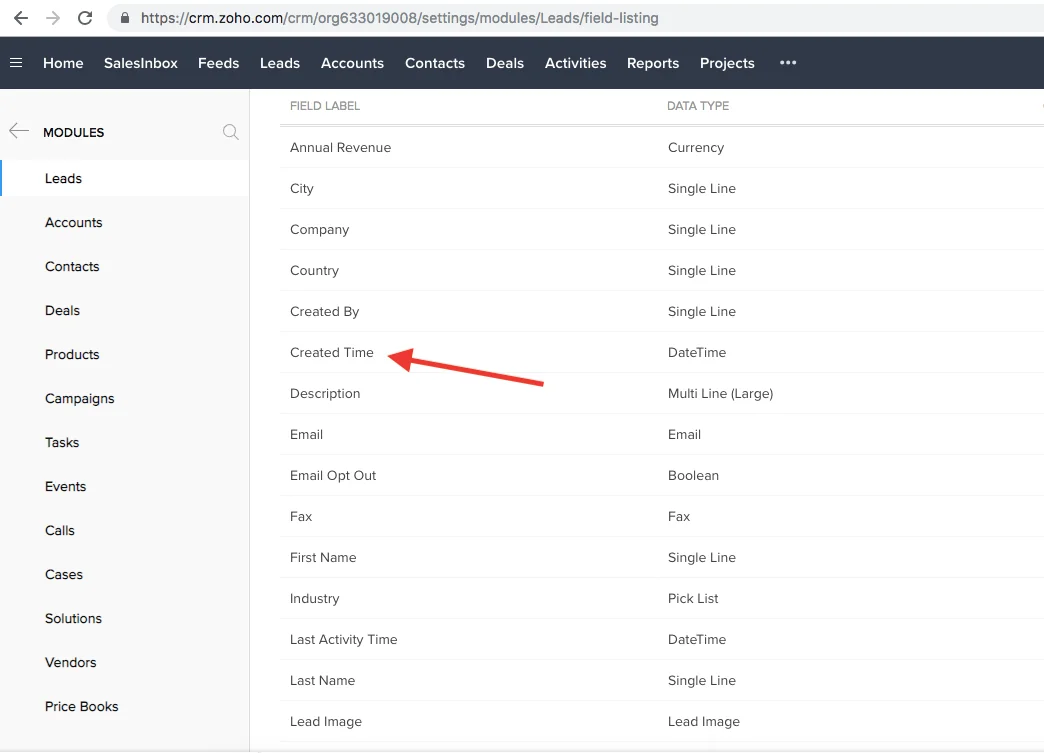
If the error Cannot read property '__itemId' is returned, it means that the fields Created time and/or Updated time have been removed before. You must add them again to your modules. Go to Setup – Customization – Modules and Fields – //ModuleType// and Add a field Created_time and Updated_time.
Connection
Establish a connection to your Zoho CRM account.Connect Zoho CRM to Boost.space Integrator
Module
Zoho CRM has standard modules such as Leads, Accounts, Contacts, Deals, Forecasts, Activities, etc. Select the type of module you want to watch for changes and the fields.
By default, the field returns to 50 fields in the response, depending on the number of fields that are in the object. If the object has more than 50 fields, you can select the fields you need in the response. The limit is 47 fields, since the Object ID, Created Time, and Modified Time fields are mandatory for this module to work. This is a limitation of the Zoho CRM API.
Sort by
Select whether you want to sort retrieved objects by the created or modified time.
Limit
Set the maximum number of objects Boost.space Integrator will return during one execution cycle.
Create an Object
Creates a new object.
For Modules Fields reference, see help.zoho.com/portal/kb/articles/standard-modules-fields.
Delete an Object
Deletes an existing object by its ID and object.
Get an Object
Returns info about an object.
Update an Object
Updates an existing object.
Please find the fields’ descriptions in the Create Object section above.
List Objects
List all available objects.
Search Objects
Searches for objects.
Leads
Upsert a Lead
Upserts a lead.
For the field descriptions, see the Zoho CRM API reference.
Related Records
Update a Related Record
Updates a related record.
For the field descriptions, see the Zoho CRM API reference.
List Related Record
Lists related records data.
For the field descriptions, see the Zoho CRM API reference.
Delete a Related Record
Deletes a related record.
For the field descriptions, see the Zoho CRM API reference.
Tags
Add a Tag to a Record
Adds an existing or a new tag to a record.
For the field descriptions, see Zoho CRM API Tag reference.
Remove a Tag from a Record
Removes a tag from an existing record.
For the field descriptions, see Zoho CRM API Tag reference.
Create a Tag
Create a new tag.
For the field descriptions, see Zoho CRM API Tag reference.
Update a Tag
Updates an existing tag.
For the field descriptions, see Zoho CRM API Tag reference.
Search Tags
Searches for tags or lists them all.
For the field descriptions, see Zoho CRM API Tag reference.
Delete a Tag
Deletes an existing tag.
For the field descriptions, see Zoho CRM API Tag reference.
Attachments
Upload an Attachment
Uploads an attachment to a record.
Download an Attachment
Downloads an attachment of an object.
For the field descriptions, see the Zoho CRM API reference.
Photos
Upload a Photo
Uploads a new photo.
Make an API Call
Step by step guide to call APIs
-
Insert the Zoho CRM > Make an API call module in your scenario.
-
Find the API endpoint you would like to call in the Zoho CRM API documentation, section “REST API” in the left side menu – e.g. Get users.
-
Check out the endpoint’s required scopes in the Scope section:
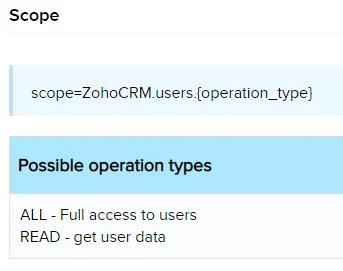
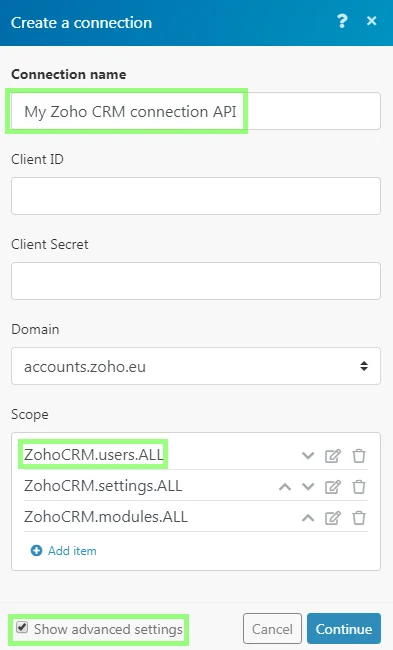
If the endpoint requires different scope(s) from these two:
ZohoCRM.settings.ALLZohoCRM.modules.ALLthen create a new connection and add all the required scope(s) in the Scope field:
-
Configure the module’s configuration to call the Get Users endpoint:
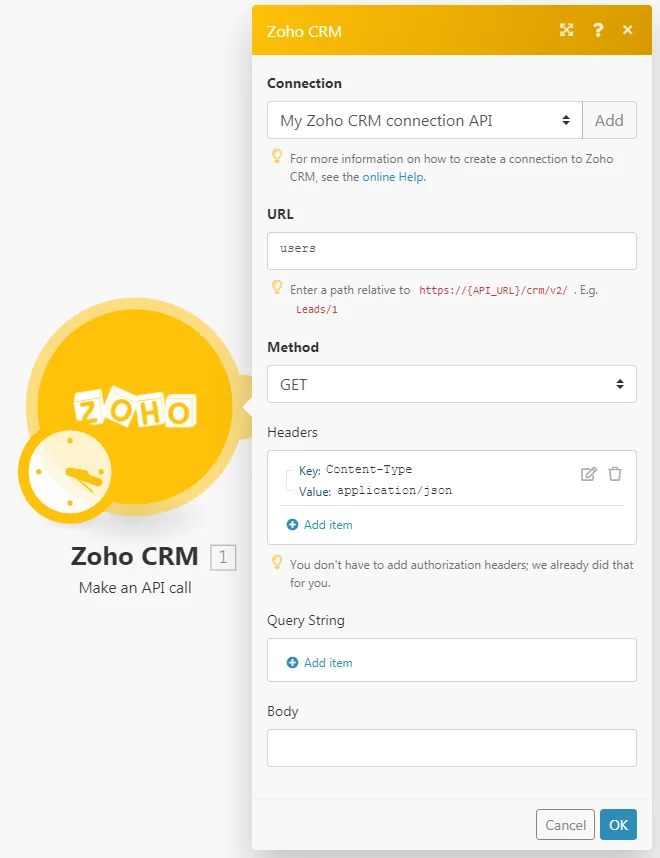
URL
users
Method
GET
-
Execute the scenario.
-
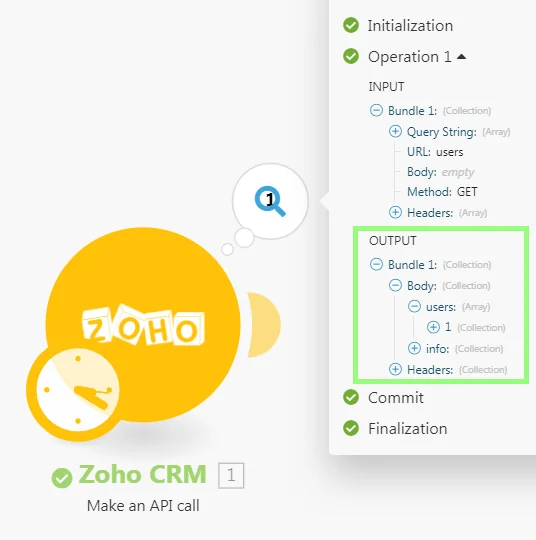
Click the bubble above the module to verify the module’s output:
Troubleshooting
How To Remove the Boost.space Integrator App Token from your Zoho Account
- Log into your Zoho Accounts dashboard.
- In the left sidebar, click on Sessions > Connected Apps.
- Hover over the app you would like to disconnect and click on Revoke Access > Yes, Proceed.
You have successfully removed the Boost.space Integrator app.
Error AUTHENTICATION_FAILURE
Zoho CRM does not allow for creating additional accounts in the “offline” mode. If you receive the AUTHENTICATION_FAILURE error when creating accounts, you must delete old accounts and create a new custom app client in a Zoho CRM developer account.
-
Remove the Boost.space Integrator app following the instructions listed in the section above.
-
Log in to or create a developer account in the Zoho Developer Console.
-
Create a new custom app client as detailed in the Zoho CRM Register your Application guide.
Use the following Redirect URI:
https://integrator.boost.space/oauth/cb/zohocrm2. -
Establish a connection in Boost.space Integrator using your Client ID and Client Secret from the custom app client created in Step 3.
Legacy article, imported from the original Boost.space knowledge base (/knowledge-base/applications/crm-and-sales-tools/zohocrm/).

