Zendesk
With Zendesk modules in Boost.space Integrator you can watch, create, update, list, retrieve, and delete the articles, comments, forum posts, groups, organizations, tickets, and users in your Zendesk account.
To use the Zendesk modules, you must have a Zendesk account. You can create an account at zendesk.com/register.
Refer to the Zendesk API documentation for a list of available endpoints.
Connect Zendesk to Boost.space Integrator
To establish the connection, you must:
- Create a custom application in Zendesk to obtain your Unique Identifier and Secret.
- Establish the connection in Boost.space Integrator.
Create a custom application in Zendesk
To create a Zendesk custom application and retrieve your client credentials:
1. Log in to your Zendesk account.
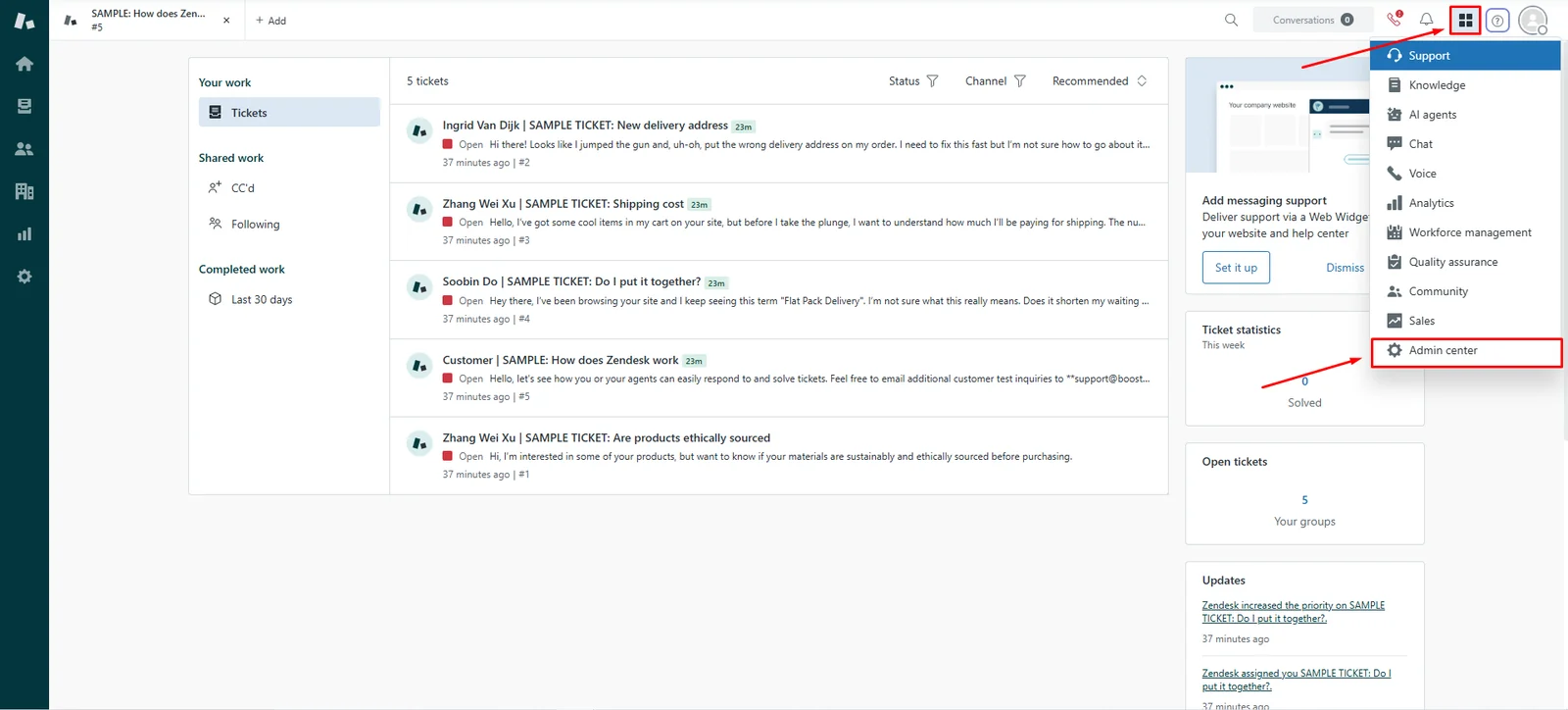
2. Click the four-square icon in the right corner menu and open Admin center.
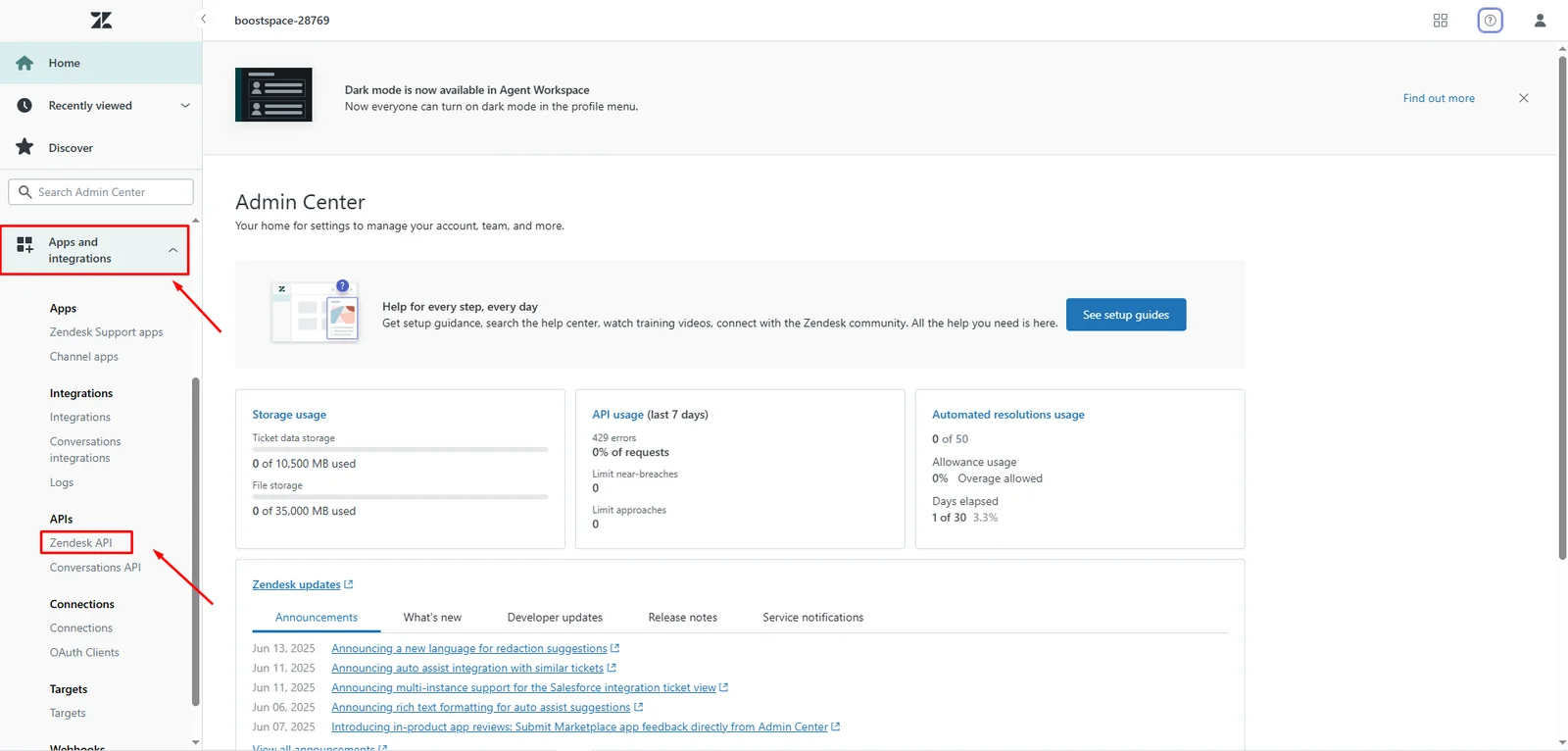
3. In the left navigation menu, click Apps and integrations > APIs > Zendesk API.
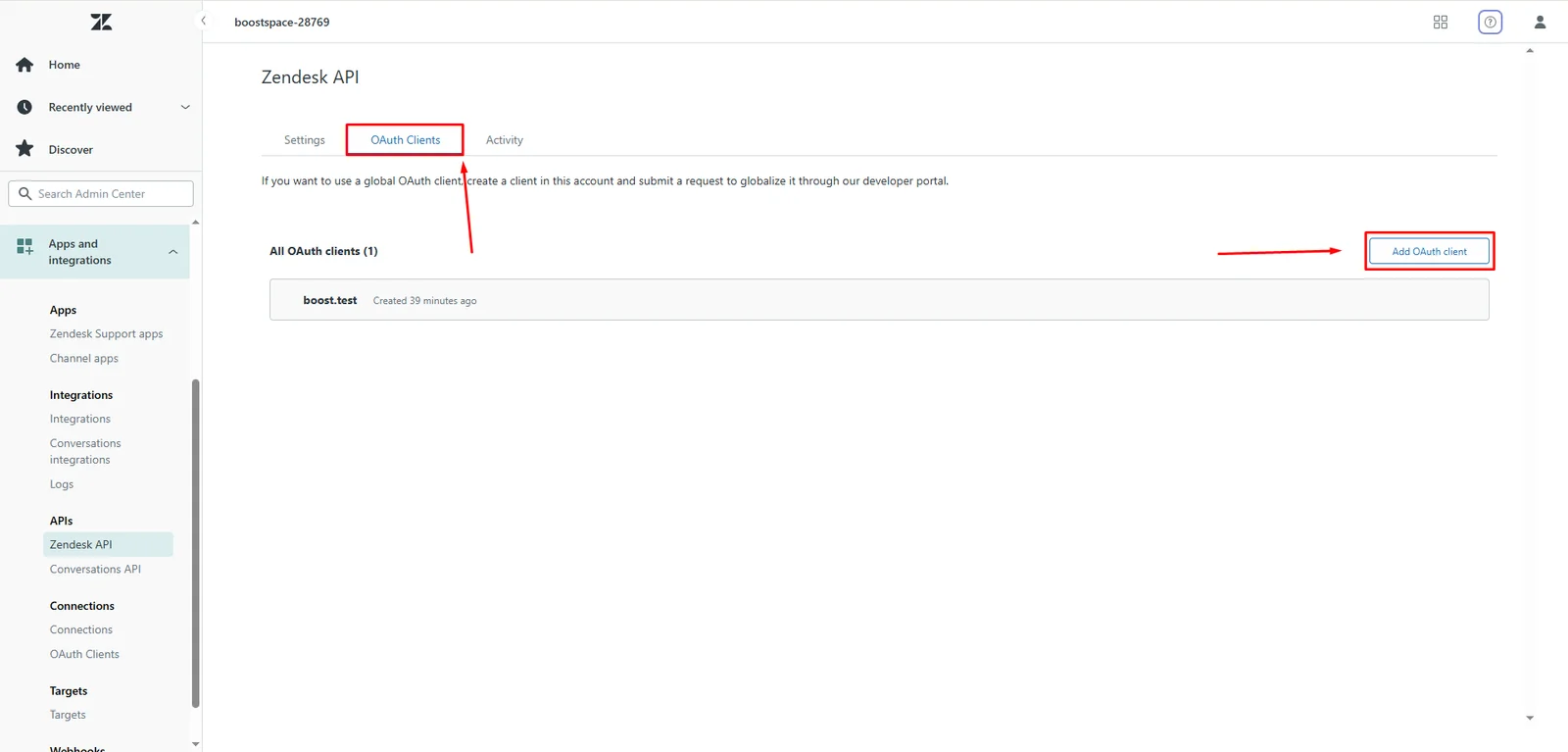
4. Go to OAuth Clients and click Add OAuth Clients.
5. For Client name, enter a name. For example, we used Boost.space.test.
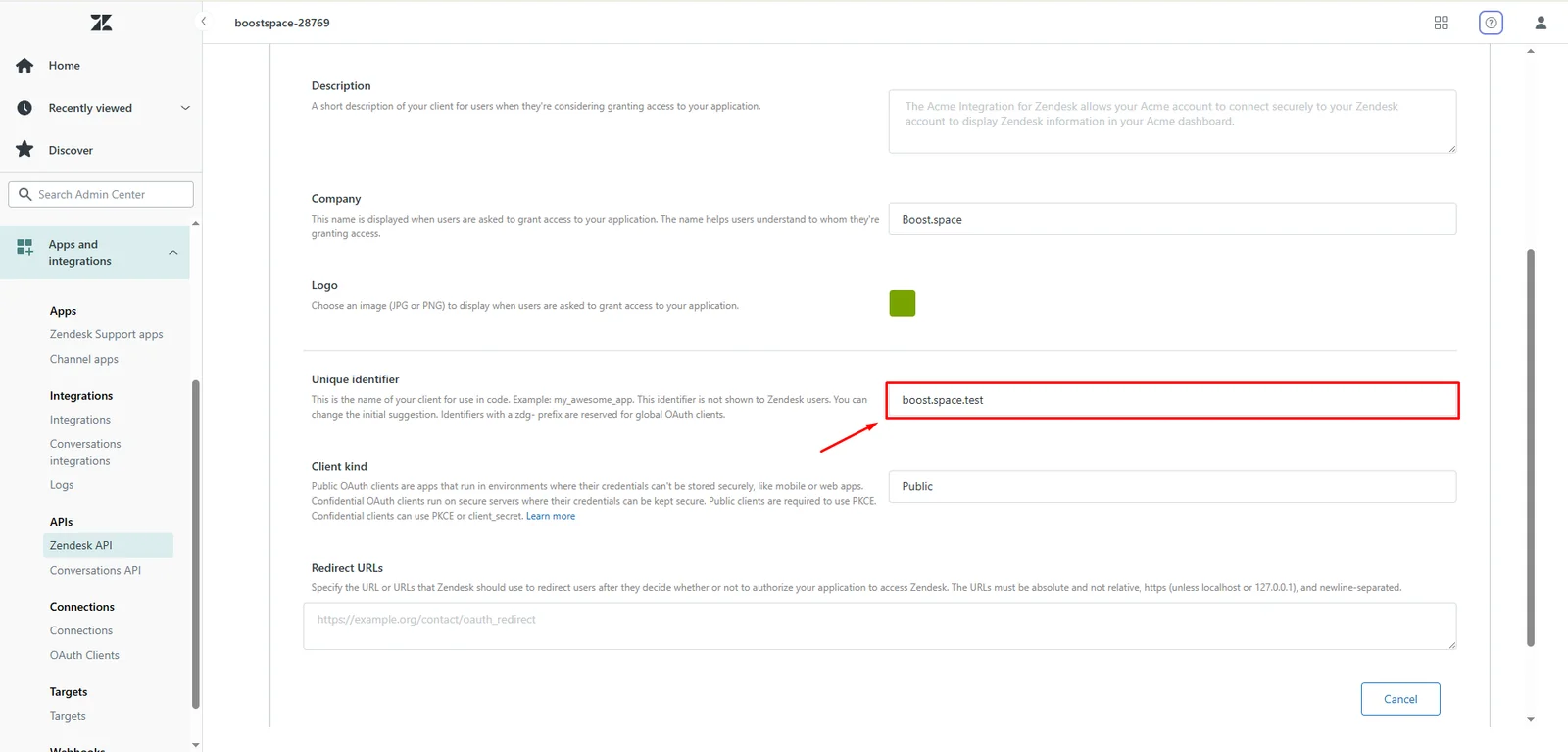
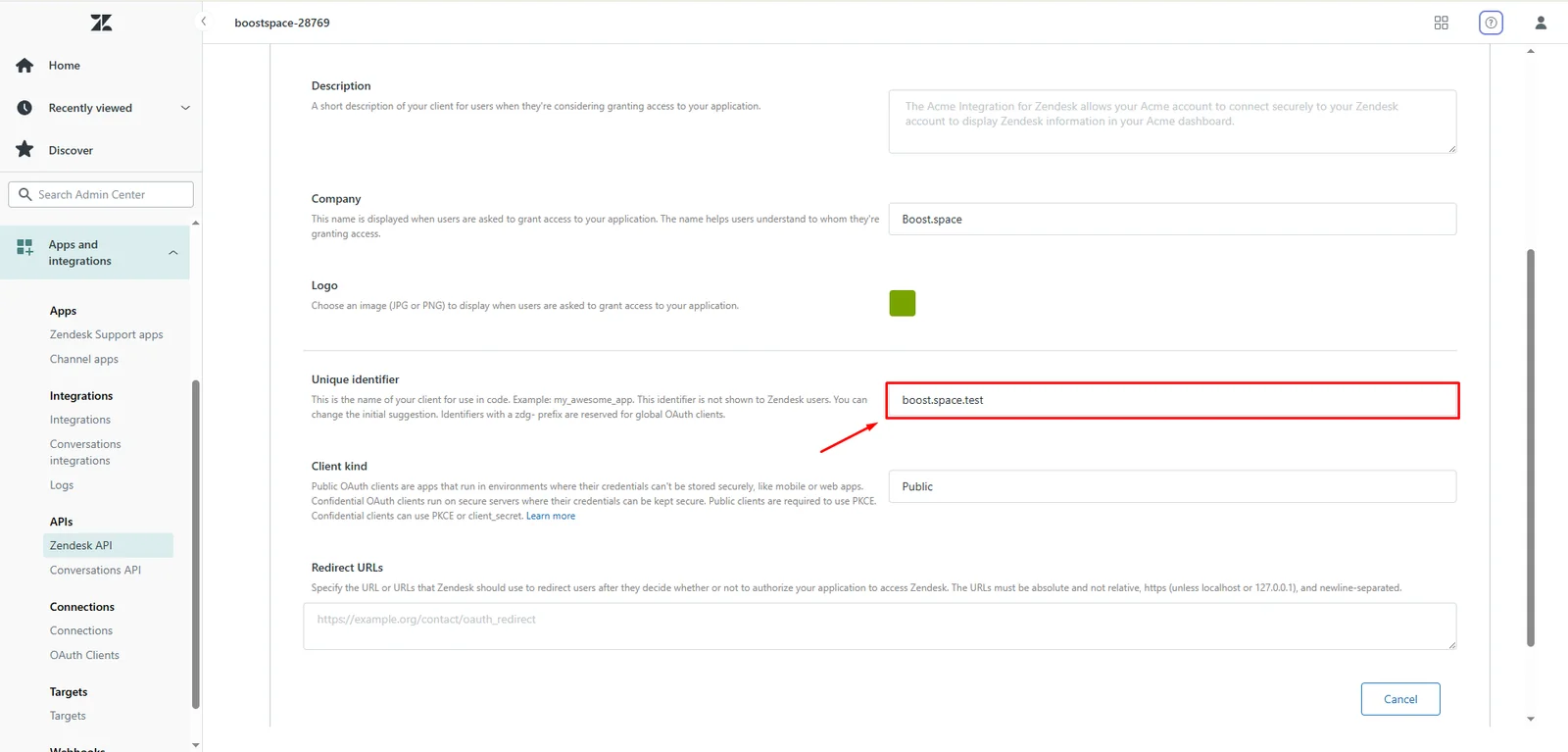
6. For Unique identifier, you can use the default suggestion or you can change it. Copy the Unique Identifier value and store it in a safe place.
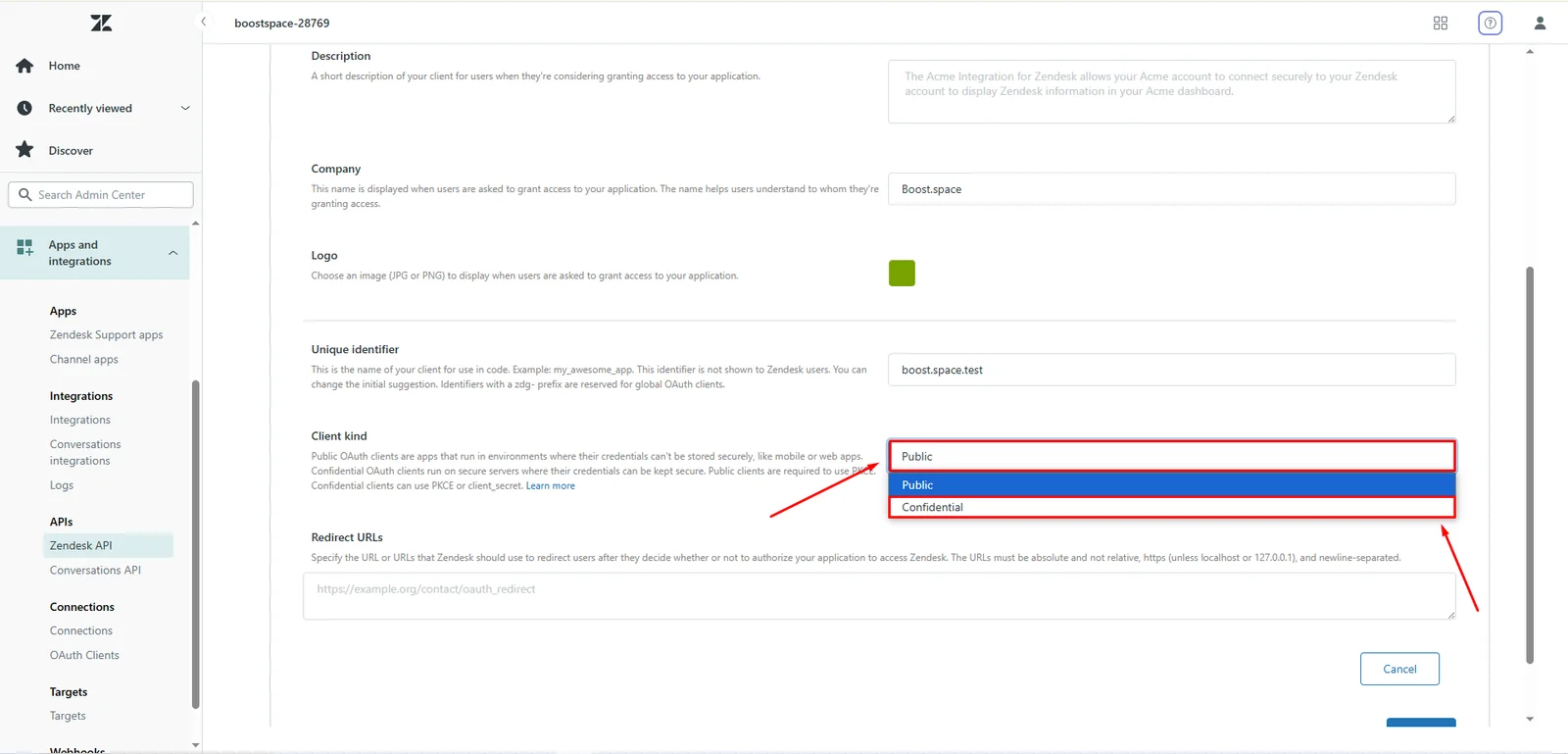
7. For Client Kind, select Confidential.
8. For Redirect URLs, enter the following: https://integrator.boost.space/oauth/cb/zendesk/
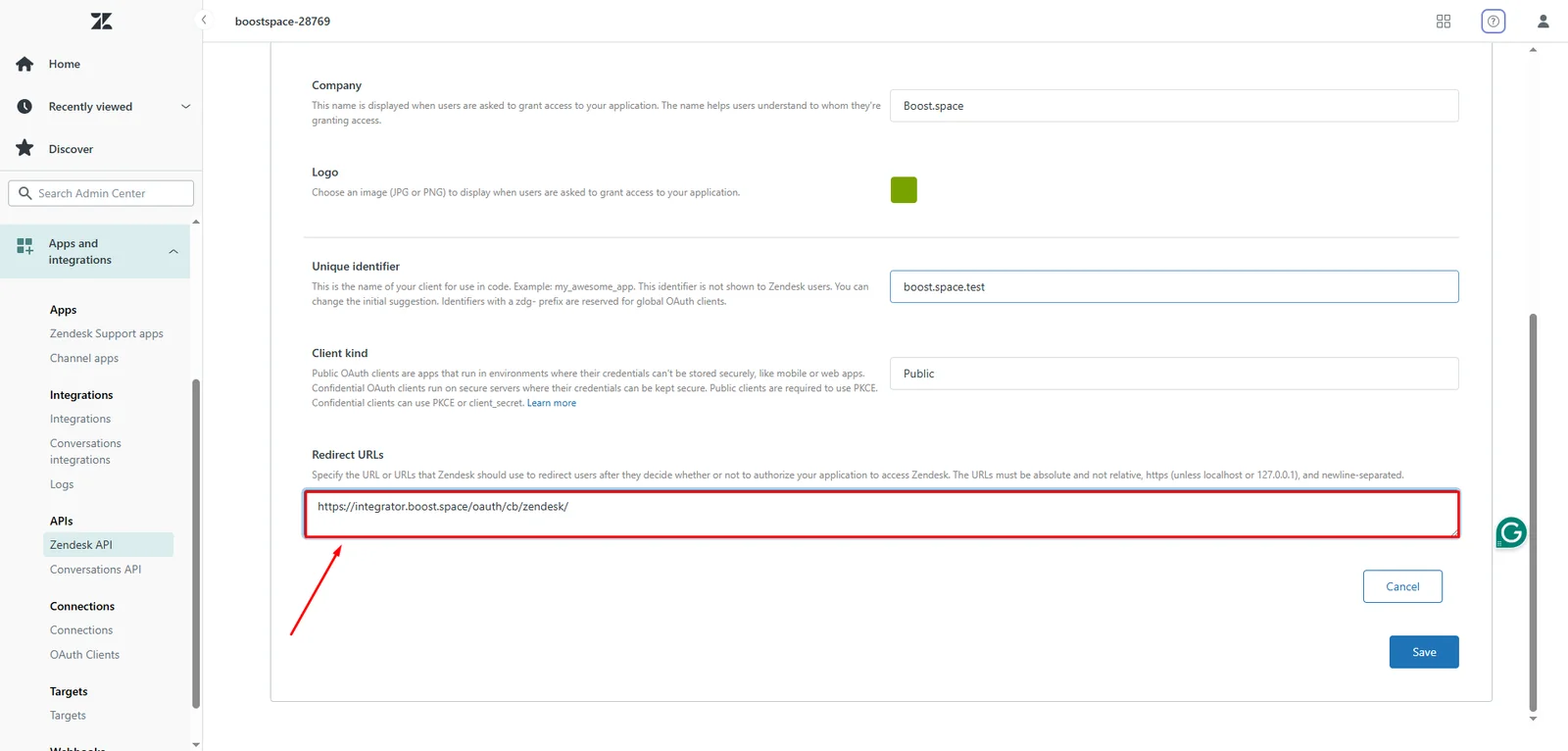
9. Click Save.
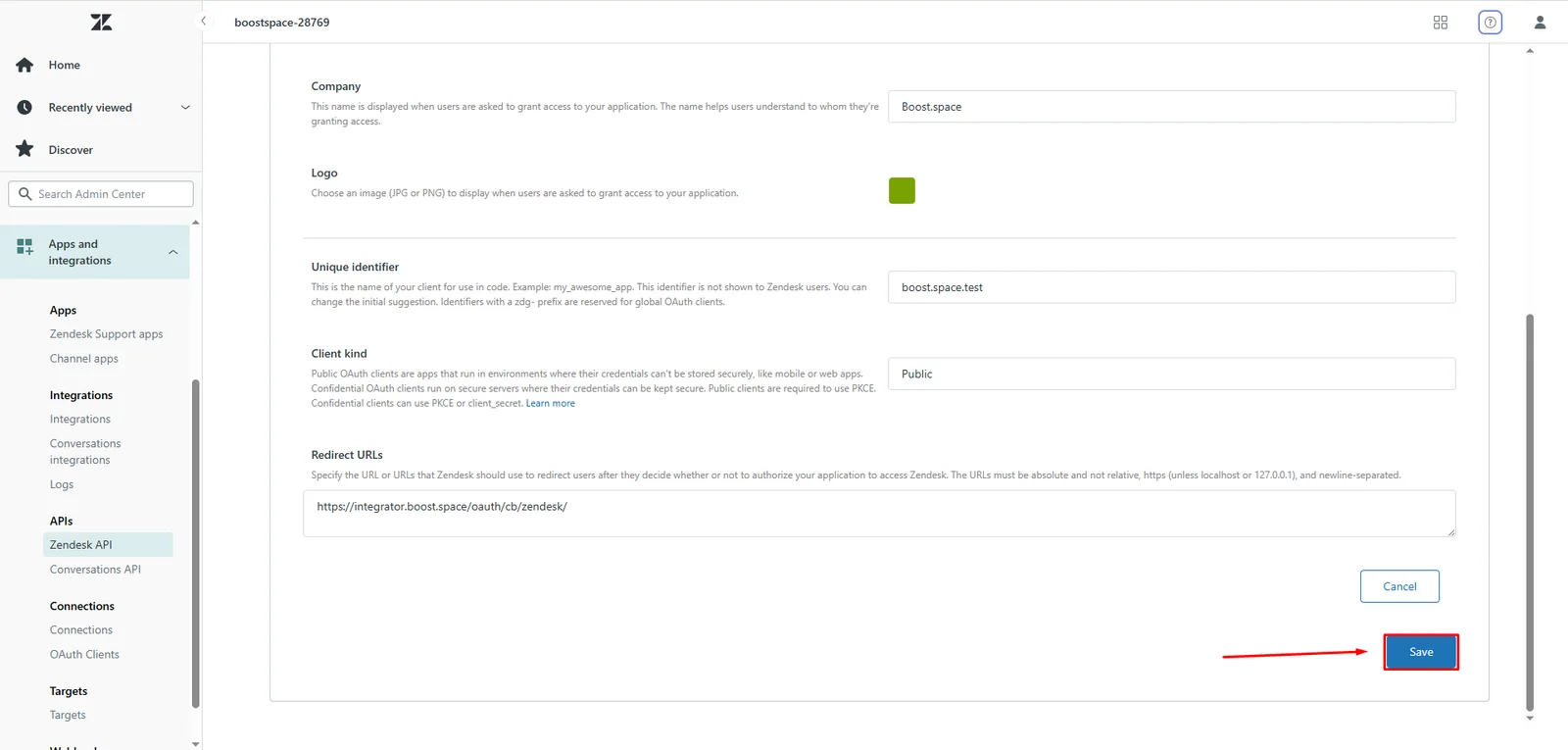
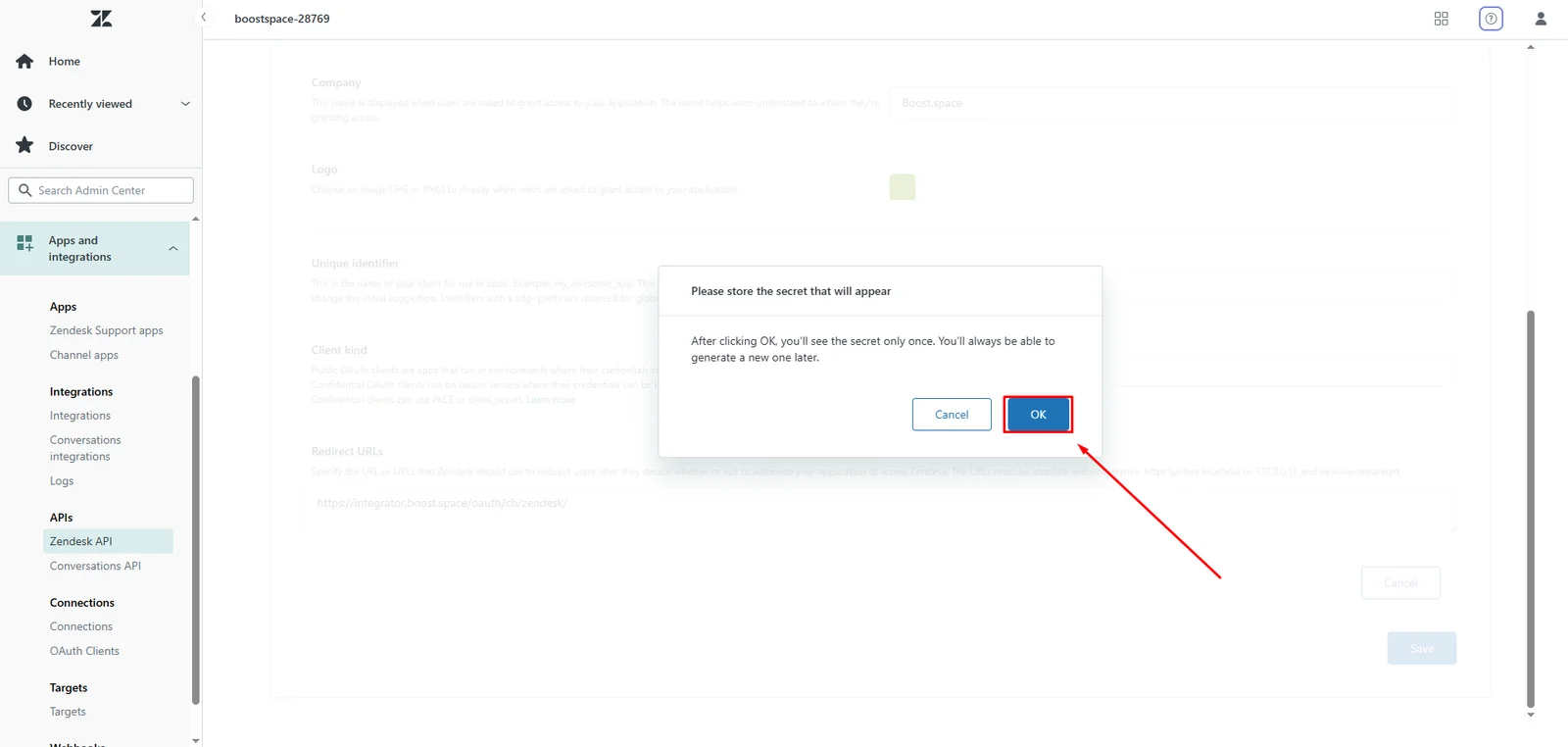
10. A dialog box will open, advising you that the Secret value will only be shown once. Click OK.
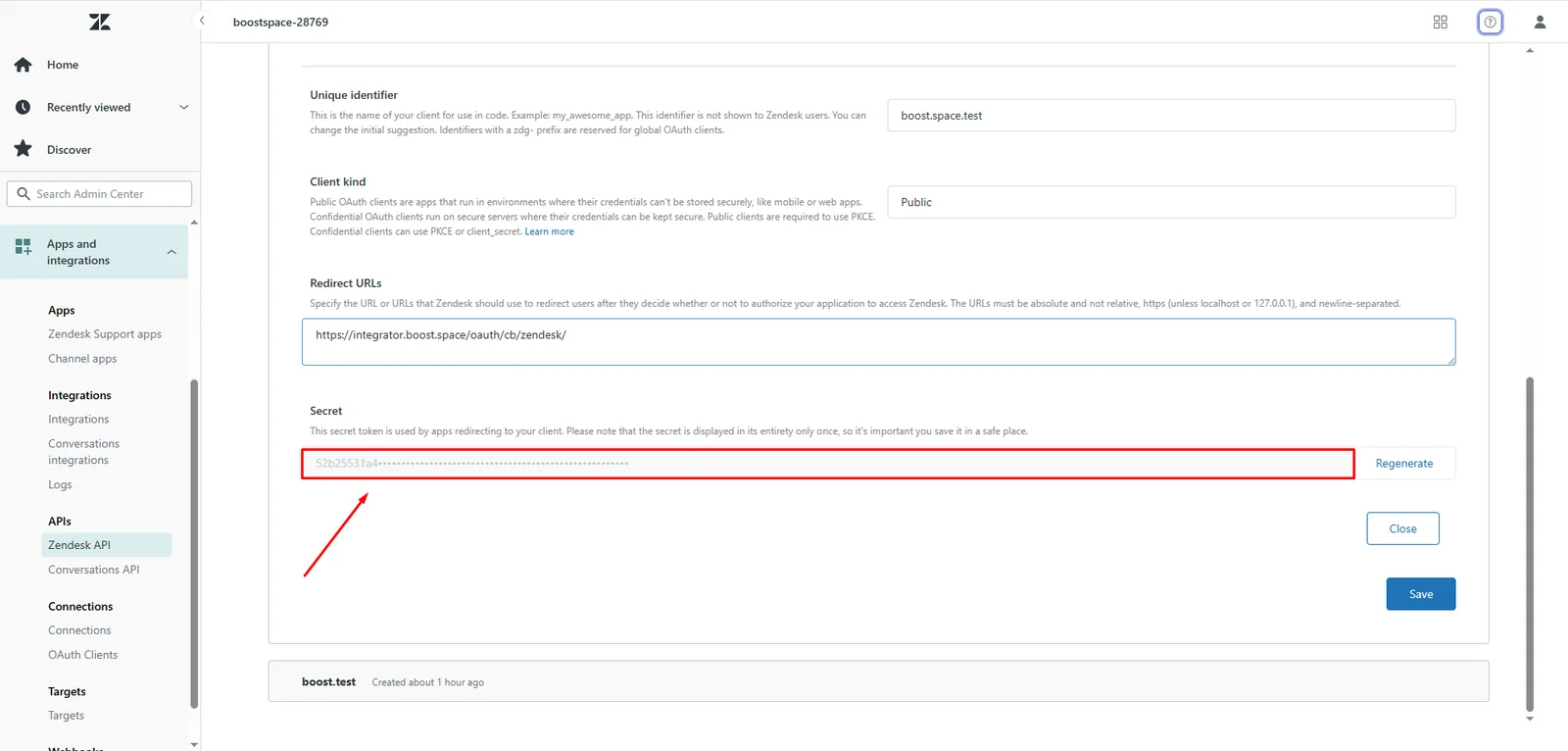
11. Copy the Secret value and store it in a safe place.
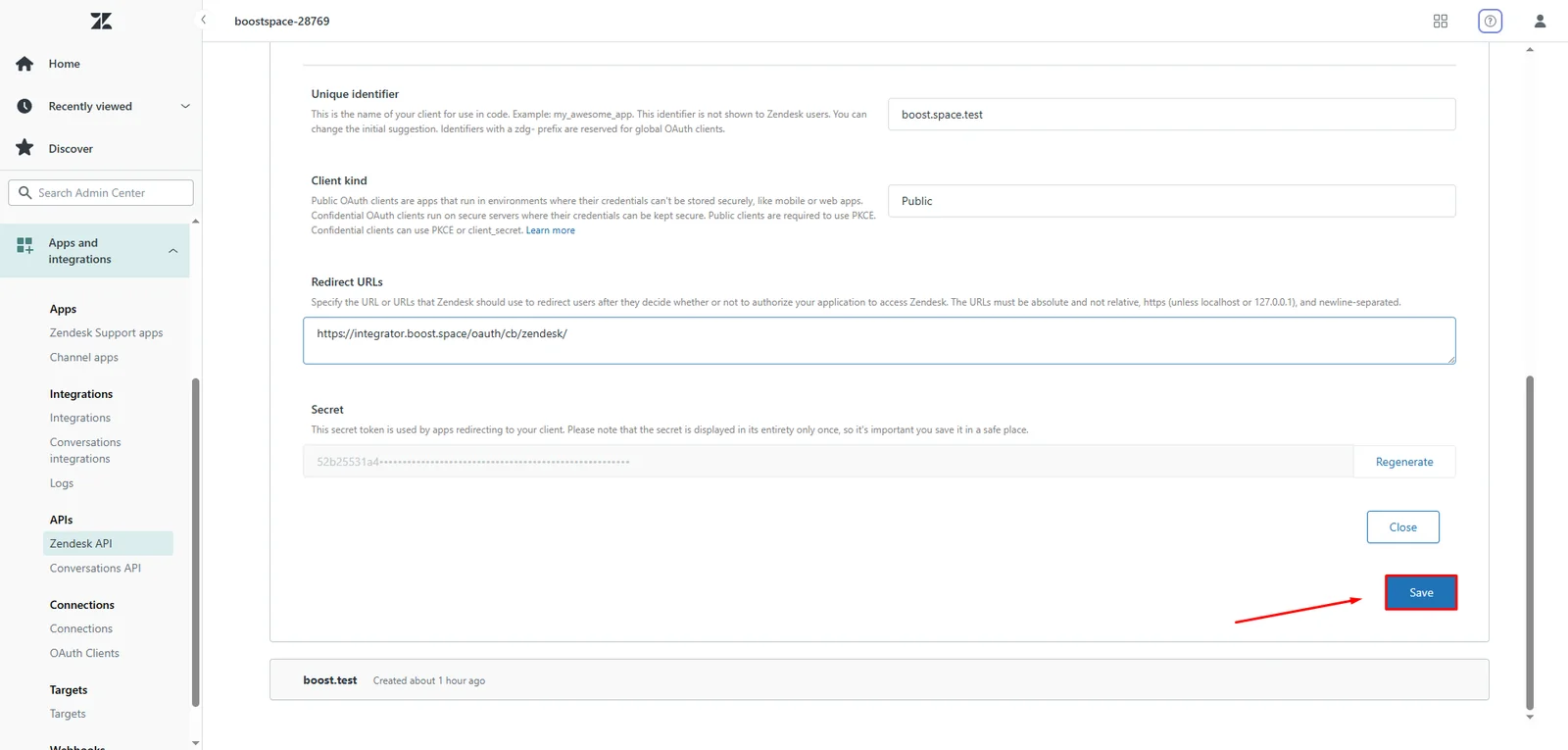
12. Click Save.
You will use these values in the Unique Identifier and Secret fields in Boost.space Integrator.
Establish the connection with Zendesk in Boost.space Integrator
To establish the connection in Boost.space Integrator:
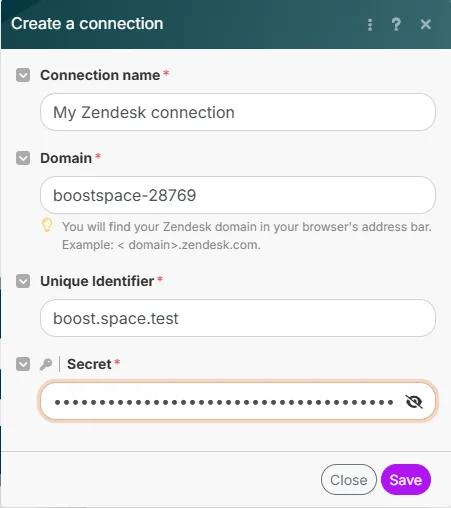
- Log in to your Boost.space Integrator account, add a Zendesk module to your scenario, and click Create a connection.
- Optional: In the Connection name field, enter a name for the connection.
- In theDomain field, enter your Zendesk domain. You can find your Zendesk domain in your browser’s address bar. Example: domain.zendesk.com.
- In theUnique Identifier field, enter the Unique Identifier value copied above.
- In the Secret field, enter the Secret value copied above.
- Click Save.
7. If prompted, authenticate your account and confirm access.
You have successfully established the connection. You can now edit your scenario and add more Zendesk modules. If your connection requires reauthorization at any point, follow the connection renewal steps here.
Set up Zendesk Webhooks
This app uses webhooks to trigger a scenario when an event occurs instantly. All webhook modules have an instant tag next to their name.
To set up a webhook, follow these steps:
- Add a Zendesk
instantmodule to your scenario and click Create a webhook. - Optional: Enter a name for the webhook in the Webhook name field.
- Select the corresponding connection for the webhook in the Connection field.
- Click Save > Copy address to clipboard. You will use this link to set up your webhook in your Zendesk account.
- Log in to your Zendesk account.
- Click Apps and integrations > Webhooks.
- Click Create webhook.
- Choose Trigger or automation and click Next.
- Enter a name for your webhook.
- Enter the Endpoint URL that was copied from Boost.space Integrator.
- Choose your Request method, Request format, and Authentication type and click Create webhook.
- Next, you will need to select a trigger or automation in the Admin Center. Click Add trigger and enter a name.
- Choose a Category.
- Set the conditions that are necessary for the trigger to run.
- Under Actions, select Notify by > active webhook and then choose your new webhook that you just created. Click Create.
- Return to the Webhooks page and click Finish setup.
Zendesk will now send data to Boost.space Integrator through the webhook when the selected event occurs.
Triggers
Watch Tickets
Triggers when a new ticket is created.
Required Permissions: read
Connection
Establish a connection to your Zendesk account.
Watch
Select the option for the tickets you want to watch:
- Only new tickets
- All changes
Search By
Select or map the option to search the tickets:
- User Defined Query
- Filter
Filtering
Enter (map) the query to search for the tickets that match the specified query. For more information on setting up a filter, see the Zendesk documentation. The type:ticket is automatically added to the query.
Filter
Select or map the field and its value to search for the tickets that match the specified filters.
Limit
Set the maximum number of tickets Boost.space Integrator should return during one scenario execution cycle.
Watch Tickets in a View
Checks whether new tickets were created in a view.
Required Permissions: read
Connection
Establish a connection to your Zendesk account.
View ID
Select or map the View ID in which you want to watch the tickets.
Watch
Select or map the option to search the tickets:
- User Defined Query
- Filter
Status
Select or map the status of the ticket you want to watch:
- New
- Open
- Pending
- Hold
- Solved
- Closed
Limit
Set the maximum number of tickets Boost.space Integrator should return during one scenario execution cycle.
Watch Ticket Activity
Checks whether there are new audits (activity) on a ticket.
Required Permissions: read
Connection
Establish a connection to your Zendesk account.
Ticket ID
Enter the Ticket ID whose activities you want to watch.
Limit
Set the maximum number of tickets Boost.space Integrator should return during one scenario execution cycle.
List Tickets
Retrieves all tickets (except for archived or soft-deleted tickets).
Required Permissions: read
Connection
Establish a connection to your Zendesk account.
Sort By
Select or map the option to sort the tickets you are searching for:
- Date of the last update
- Created at
- Priority
- Status
- Ticket type
Sort Order
Select or map the order to list the tickets:
- Ascending
- Descending
Filter by User or Organization
Select or map the option to filter the tickets:
- User
- Organization
User
Select or map the user whose tickets you want to list.
Filter
Select or map the option to list the specific tickets of the user:
- Requested Tickets
- CC’d Tickets
- Assigned Tickets
Filter by Organization
Select or map the organization whose tickets you want to list.
Limit
Set the maximum number of tickets Boost.space Integrator should return during one scenario execution cycle.
Search Tickets
Returns tickets that match specified criteria.
Required Permissions: read
Connection
Establish a connection to your Zendesk account.
Search By
Select or map the option to search the tickets:
- User Defined Query
- Filter
Filtering
Enter (map) the query to search the tickets that match the specified query. For more information on setting up a filter, see the Zendesk documentation. The type:ticket is automatically added to the query.
Filter
Select or map the field and its value to search the tickets that match the specified filters.
Sort by
Select or map the option to sort the tickets you are searching for:
- Date of the last update
- Created at
- Priority
- Status
- Ticket type
Sort order
Select or map the order to list the tickets:
- Ascending
- Descending
Limit
Set the maximum number of tickets Boost.space Integrator should return during one scenario execution cycle.
List Soft Deleted Tickets
Retrieves tickets that were soft deleted.
Required Permissions: read
Connection
Establish a connection to your Zendesk account.
Sort By
Select or map the option to sort the deleted tickets:
- Date of the last update
- Created at
- Priority
- Status
- Ticket type
Sort Order
Select or map the order to the deleted tickets:
- Ascending
- Descending
Limit
Set the maximum number of tickets Boost.space Integrator should return during one scenario execution cycle.
Get a Ticket
Retrieves a ticket.
Required Permissions: read
Connection
Establish a connection to your Zendesk account.
Ticket ID or Ticket External ID
Select or map the option to choose the ticket whose details you want to retrieve:
- Ticket ID
- Ticket External ID
Ticket ID
Select or map the Ticket ID whose details you want to retrieve.
Ticket External ID
Select or map the Ticket External ID whose details you want to retrieve.
Creates a Ticket
Creates a ticket.
Required Permissions: read, write
Connection
Establish a connection to your Zendesk account.
Subject
Enter the subject line of the ticket.
Comment Type
Select the comment type of the ticket:
- HTML
- Plain text
Comment
Enter (map) the comment text either in HTML Body or plain text format.
Public Comment
Select the checkbox if this is a public comment. By default, the comment is an internal note; if you check this box, it becomes a public comment. The email CC field only works if public comment is sent.
Author ID
Select or map the Author ID who is entering the comment.
Uploads
Add the upload token to upload the attachments.
Closed Ticket ID
Select or map the Closed Ticket ID of a closed ticket for which you create a follow-up ticket.
Type
Select or map the ticket type:
- Problem
- Incident
Priority
Select the priority of the ticket:
- Urgent
- High
- Normal
- Low
Status
Select the status of the ticket:
- New
- Open
- Pending
- Hold
- Solved
- Closed
Requester ID
Enter the Requester ID who raised the support ticket.
Submitter ID
Enter the submitter ID who submitted the ticket. The submitter becomes the author of the first comment on the ticket if no author ID is provided.
Assignee ID
Enter the Assignee ID to whom the ticket is assigned.
Group ID
Enter the Group ID to which the ticket is assigned.
Recipient
Enter (map) the original recipient e-mail address of the ticket.
Collaborators
Select the collaborators of the ticket. This field allows the selection of multiple user IDs for collaborators. However, this field can be used more flexibly (adding users through email or even on-the-fly creation of users). For more information, see the Zendesk Documentation.
Followers
Add the User ID and email address of the users whom you want to add as followers for the ticket.
Email CCs
Add the User ID and email address of the users you want to add to the CC field of the email you want to send regarding the ticket.
Ticket Form ID
Select or map the Ticket Form ID option from the list.
Macro IDs
Select or map the Macro ID for the ticket. For example, customers not responding.
Tags
Enter the tags to filter the ticket when searching.
Brand ID
Select or map the Brand ID of the ticket. For example, company name.
Metadata
Enter (map) the ticket metadata in JSON format. For more information, see the Zendesk Documentation.
External ID
Enter an External ID to associate the Zendesk ticket with the local records.
Problem ID
Enter the Problem ID linked to the incident if the ticket type is selected as an incident.
Custom Fields
Add the custom fields and their values. For example, ticket due date.
Update a Ticket
Updates a ticket. The update allows for adding a new comment too.
Required Permissions: read, write
Connection
Establish a connection to your Zendesk account.
Ticket ID
Select or map the Ticket ID whose details you want to update.
Comment Type
Select the comment type of the ticket:
- HTML
- Plain text
Comment
Enter (map) the comment text either in HTML Body or plain text format.
Public Comment
Select the checkbox if this is a public comment. By default, the comment is an internal note; if you check this box, it becomes a public comment. The email CC field only works if public comment is sent.
Author ID
Select or map the Author ID who is entering the comment.
Uploads
Add the upload token to upload the attachments.
Closed Ticket ID
Select or map the Closed Ticket ID of a closed ticket for which you create a follow-up ticket.
Type
Select or map the ticket type:
- Problem
- Incident
Priority
Select the priority of the ticket:
- Urgent
- High
- Normal
- Low
Status
Select the status of the ticket:
- New
- Open
- Pending
- Hold
- Solved
- Closed
Requester ID
Enter the Requester ID who raised the support ticket.
Submitter ID
Enter the submitter ID who submitted the ticket. The submitter becomes the author of the first comment on the ticket if no author ID is provided.
Assignee ID
Enter the Assignee ID to whom the ticket is assigned.
Group ID
Enter the Group ID to which the ticket is assigned.
Recipient
Enter (map) the original recipient e-mail address of the ticket.
Collaborators
Select the collaborators of the ticket. This field allows the selection of multiple user IDs for collaborators. However, this field can be used more flexibly (adding users through email or even on-the-fly creation of users). For more information, see the Zendesk Documentation.
Followers
Add the User ID and email address of the users you want to add as followers for the ticket.
Email CCs
Add the User ID and email address of the users you want to add to the CC field of the email you want to send regarding the ticket.
Ticket Form ID
Select or map the Ticket Form ID option from the list.
Macro IDs
Select or map the Macro ID for the ticket. For example, customers are not responding.
Tags
Enter the tags to filter the ticket when searching.
Brand ID
Select or map the Brand ID of the ticket. For example, company name.
Metadata
Enter (map) the ticket metadata in JSON format. For more information, see the Zendesk Documentation.
External ID
Enter an External ID to associate the Zendesk ticket with the local records.
Problem ID
Enter the Problem ID linked to the incident if the ticket type is selected as an incident.
Custom Fields
Add the custom fields and their values. For example, ticket due date.
Merge Tickets
Merges tickets into a single ticket.
Required Permissions: read, write
Connection
Establish a connection to your Zendesk account.
Ticket ID
Enter the target Ticket ID to which you want to merge a ticket.
Ticket IDs
Add the source Ticket ID which you want to merge.
Target Comment
Enter the comment for merging the source ticket.
Target Comment Public
Select whether the in-target ticket’s comment is public or private.
Source Comment
Enter the comment for merging with the target ticket.
Source Comment Public
Select whether the in-source comments are public.
Soft Delete a Ticket
Soft deletes a ticket.
Required Permissions: read, write
Connection
Establish a connection to your Zendesk account.
Ticket ID
Enter the Ticket ID you want to delete.
Permanently Deletes a Ticket
Deletes a ticket permanently.
Required Permissions: read, write
Establish a connection to your Zendesk account.
Connection
Establish a connection to your Zendesk account.
Soft Delete or Soft + Hard Delete
Select or map the option using which you want to delete the ticket:
- Soft + Permanent Delete
- Permanent Delete
Note: To delete a ticket permanently, you first need to soft delete the ticket.
Ticket ID
Enter the Ticket ID you want to delete.
Upload Attachments
Uploads attachments for future use in a ticket.
Required Permissions: read, write
Connection
Establish a connection to your Zendesk account.
Attachments
Add the attachment details: File Name Enter (map) the file name. Data Enter (map) the file data.
Ticket Comments
Watch a Ticket’s Comments
Checks whether new comments were made on a specified ticket.
Required Permissions: read
Connection
Establish a connection to your Zendesk account.
Limit
Enter the maximum number of comments Boost.space Integrator should return during one scenario execution cycle.
List Ticket’s Comments
Lists the Comments were made on a specified ticket.
Required Permissions: read
Connection
Establish a connection to your Zendesk account.
Ticket ID
Select or map a Ticket ID whose comments you want to list.
Limit
Enter the maximum number of comments Boost.space Integrator should return during one scenario execution cycle.
Create a Ticket Comment
Creates a ticket comment.
Required Permissions: read, write
Connection
Establish a connection to your Zendesk account.
Ticket ID
Enter the Ticket ID to which you want to add a comment.
Comment
Add the comment details:
Plain Body
Enter the comment text in plain body format.
HTML Body
Enter the comment text in HTML body format.
Public Comment
Select whether the comment is public. By default, this is an internal note; if you check this box, it becomes a public comment. **Note:**The email CC field only works if a public comment is sent.
Author ID
Enter (map) the Author ID who is commenting.
Uploads
Add the uploads: Enter upload tokens from the module Upload attachments .
Ticket Custom Field Options
List Ticket Custom Field Options
List the options of a ticket custom field.
Required Permissions: read
Connection
Establish a connection to your Zendesk account.
Custom Field ID
Select or map the Custom Field ID whose options you want to list:
- Multi-Select Test
- Dropdown Test
Limit
Set the maximum number of field options Boost.space Integrator should return during one execution cycle.
Create or Update a Ticket Field Option
Creates or updates a drop-down ticket field option.
Required Permissions: read, write
Connection
Establish a connection to your Zendesk account.
Custom Field ID
Select or map the Custom Field ID whose options you want to list:
- Multi-Select Test
- Dropdown Test
Create or Update
Select or map the option whether you want to create or update the ticket.
Option ID
Select or map the Option ID whose details you want to update.
Option Name
Enter (map) the option name. For example, Ticket ID.
Option Value
Enter (map) the option value. For example, ID value.
Remove a Ticket Field Option
Removes a drop-down ticket field option.
Required Permissions: read, write
Connection
Establish a connection to your Zendesk account.
Custom Field ID
Select or map the Custom Field ID whose option you want to delete:
- Multi-Select Test
- Dropdown Test
Option ID
Select or map the Option ID you want to delete.
Organizations
Watch Organizations
Checks whether new organizations were created.
Required Permissions: read
Connection
Establish a connection to your Zendesk account.
Watch
Select the option for the organizations you want to watch:
- Only new organizations
- All changes
Filtering
Add the filtering query to watch the organizations based on the specified query. For detailed information on setting up a filter, see the Zendesk documentation. The type:organization is automatically added to the query.
Limit
Set the maximum number of organizations Boost.space Integrator should return during one scenario execution cycle.
List Organization
Retrieves all organizations.
Required Permissions: read
Connection
Establish a connection to your Zendesk account.
Filter by User or Organization Name
Select the option for the organizations you want to watch:
- Users
- Organization Name
Filter by User ID
Select or map the User ID whose organizations you want to list.
Filter by Organization Name
Enter (map) the name to list the organizations that match the specified name.
Limit
Set the maximum number of organizations Boost.space Integrator should return during one scenario execution cycle.
Search Organizations
Searches for an organization that matches the specified criteria.
Required Permissions: read
Connection
Establish a connection to your Zendesk account.
Sort By
Select or map the option to sort the organizations:
- Created Date
- Updated Date
Sort Order
Select or map the order in which you want to arrange the search results. For example, Ascending.
Filtering
Enter (map) the filtering query to search the organizations that match the query. For detailed information on setting up a filter, see the Zendesk documentation. The type:organization is automatically added to the query.
Limit
Set the maximum number of organizations Boost.space Integrator should return during one scenario execution cycle.
Get an Organization
Retrieves an organization.
Required Permissions: read
Connection
Establish a connection to your Zendesk account.
Organization ID or Organization External ID
Select or map the option to retrieve the details of the organization:
- Organization ID
- Organization External ID
Organization ID
Select or map the Organization ID whose details you want to retrieve.
Organization External ID
Select or map the Organization External ID whose details you want to retrieve.
Create or Update an Organization
Creates a new organization.
Required Permissions: read, write
Connection
Establish a connection to your Zendesk account.
Create or Create/Update
Select or map the option for the action you want to perform:
- Create Only
- Create or update if an organization exists
Organization Name
Enter (map) the organization name. The organization name is required for creating organizations and not for updating them. This field can be updated if combined with an existing organization ID or an existing external organization ID and must always be unique.
Organization ID
Select or map the Organization ID.
External Organization ID
Enter (map) the External Organization ID to identify the organization in the external systems.
Domain Names
Add the domain names for the organization. For example, Boost.space Integrator.
Details
Enter (map) any information about the organization.
Notes
Enter any additional information you would like to mention about the organization.
Group ID
Select the Group ID associated with the organization. New tickets from users in this organization are automatically put in this group. For example, support.
Shared Tickets
Select whether the organization has shared tickets. End users in this organization can see each other’s tickets.
Shared Comments
Select whether the organization has shared comments. End users in this organization can see each other’s comments on tickets.
Tags
Select or map the tags for the organization.
Organizational Fields
Add any additional fields about the organization. For example, date.
Update an Organization
Updates an existing organization.
Required Permissions: read, write
Connection
Establish a connection to your Zendesk account.
Organization ID
Select or map the Organization ID whose details you want to update.
Organization Name
Enter (map) the organization name. The organization name is required for creating organizations and not for updating them. This field can be updated if combined with an existing organization ID or an existing external organization ID and must always be unique.
External Organization ID
Enter (map) the External Organization ID to identify the organization in the external systems.
Domain Names
Add the domain names for the organization. For example, Boost.space Integrator.
Details
Enter (map) any information about the organization.
Notes
Enter any additional information you would like to mention about the organization.
Group ID
Select the Group ID associated with the organization. New tickets from users in this organization are automatically put in this group. For example, support.
Shared Tickets
Select whether the organization has shared tickets. End users in this organization can see each other’s tickets.
Shared Comments
Select whether the organization has shared comments. End users in this organization can see each other’s comments on tickets.
Tags
Select or map the tags for the organization.
Organizational Fields
Add any additional fields about the organization. For example, date.
Delete an Organization
Deletes an organization.
Required Permissions: read, write
Connection
Establish a connection to your Zendesk account.
Organization ID or Organization External ID
Select or map the option through which you want to delete the organization.
Organization ID
Select or map the Organization ID you want to delete.
Organization External ID
Select or map the Organization External ID you want to delete.
Groups
Watch Groups
Checks whether new groups were created.
Required Permissions: read
Connection
Establish a connection to your Zendesk account.
Watch
Select the option for the groups you want to watch:
- Only New Organizations
- All Organizations
Filtering
Enter (map) the query to watch the groups that match the specified query. For detailed information on setting up a filter, see the Zendesk documentation. The type:group is automatically added to the query.
Limit
Enter the maximum number of groups Boost.space Integrator should return during one scenario execution cycle.
List Groups
Retrieves all groups.
Required Permissions: read
Connection
Establish a connection to your Zendesk account.
Filters
Select or map the option to list the groups:
- User
- Assignable Groups Only
Filter by User ID
Select or map the User ID whose groups you want to list.
Limit
Set the maximum number of groups Boost.space Integrator should return during one execution cycle.
Get a Group
Retrieves a group.
Required Permissions: read
Connection
Establish a connection to your Zendesk account.
Group ID
Select or map the Group ID whose details you want to retrieve.
Create a Group
Creates group.
Required Permissions: write
Connection
Establish a connection to your Zendesk account.
Name
Enter (map) a name for the group.
Description
Enter (map) the details of the group.
Update a Group
Updates an existing group.
Required Permissions: read, write
Connection
Establish a connection to your Zendesk account.
Group ID
Select or map the Group ID whose details you want to update.
Name
Enter (map) a new name for the group.
Description
Enter (map) the details of the group.
Delete a Group
Deletes a group.
Required Permissions: read, write
Connection
Establish a connection to your Zendesk account.
Group ID
Select or map the Group ID you want to delete.
Users
Watch Users
Checks whether new users were created.
Required Permissions: read
Connection
Establish a connection to your Zendesk account.
Watch
Select the option for the users you want to watch:
- Only New Users
- All Users
Filtering
Enter (map) the query to watch the users that match the specified query. For more information on setting up a filter, see the Zendesk documentation. The type:user is automatically added to the query.
Limit
Set the maximum number of users Boost.space Integrator should return during one scenario execution cycle.
List Users
Retrieves all users, a group’s, or an organization’s users.
Required Permissions: read
Connection
Establish a connection to your Zendesk account.
Filter by Group ID or Organization ID
Select or map the option to search the users:
- Organization ID
- Group ID
Organization ID
Select or map the Organization ID whose users you want to list.
Group ID
Select or map the Group ID whose users you want to list.
Filter by Default Role ID
Select or map the Default Role ID of the users you want to list.
Filter by Custom Role ID
Select or map the Custom Role ID of the users you want to list.
Limit
Set the maximum number of users Boost.space Integrator should return during one execution cycle.
Search Users
Searches for a user that matches specified criteria.
Required Permissions: read
Connection
Establish a connection to your Zendesk account.
Sort By
Select or map the option to sort the users:
- Created Date
- Updated Date
Sort Order
Select or map the order in which you want to list the users. For example, Ascending.
Filtering
Enter (map) the query to filter the users that match the specified query. For more information on setting up a filter, see the Zendesk documentation. The type:user is automatically added to the query.
Limit
Select the user role you are creating:
- Agent
- Administrator
- End User
If you do not select a role for the user, the new user is assigned the role of the end-user.
Get a User
Get an existing user.
Required Permissions: read
Connection
Establish a connection to your Zendesk account.
User ID or User External ID
Select or map the option to retrieve the users:
- User ID
- User External ID
User ID
Select or map the User ID whose details you want to retrieve.
User External ID
Select or map the User External ID whose details you want to retrieve.
Get User Related Information
Returns related information about the user specified by the given user ID. For example, the number of assigned tickets.
Required Permissions: read
Connection
Establish a connection to your Zendesk account.
User ID
Enter the User ID whose details you want to retrieve.
Create or Update a User
Creates a user.
Required Permissions: read, write
Connection
Establish a connection to your Zendesk account.
Create or Create/update
Select or map the option to create or update a user:
- Create Only
- Create or Update if a user already exists
User ID
Select the User ID whose details you want to update.
Name
Enter the name of the user.
Enter the email address of the user.
External ID
Enter (map) the External ID of the user to identify in external systems.
Role
Select the user role you are creating:
- Admin
- Agent
- End User
Ticket Registration
Select or map the ticket access for the user:
- Organization
- Requested
Verified
Select whether you want to send a verification mail to the user.
Organization ID
Select or map the Organization ID to which the user belongs.
Details
Enter (map) any additional information you want to store about the user. For example, address.
Phone
Enter the user’s phone number.
Locale
Enter (map) the BCP-47 compliant tag for the locale.
Locale ID
Enter (map) the locale ID of the user. This field is applicable if the locale is not available.
Suspended
Select whether the user is suspended.
Tags
Select or map the tags for the user.
Time zone
Enter (map) the time zone for the user. For more information on a valid time zone, click here.
User fields
Add the user fields. For example, the user's birthday.
Update a User
Updates a user.
Required Permissions: read, write
Connection
Establish a connection to your Zendesk account.
User ID
Select the User ID whose details you want to update.
Name
Enter (map) the name of the user.
Enter (map) a new email address of the user. This will not update the primary email but will add a secondary email.
Role
Select the user role you are creating:
- Agent
- Admin
- End User
If you do not select a role for the user, the new user is assigned the role of the end-user.
External ID
Enter (map) the External ID which you can link to Zendesk tickets to local records.
Alias
Enter (map) the alias name for the user.
Verified
Select whether you want to send a verification email to the user.
Organization ID
Select or map the Organization ID to which the user belongs.
Details
Enter (map) the details of the user.
Notes
Enter any additional information you would like to mention about the user.
Phone
Enter (map) the phone number of the user.
External ID
Enter (map) the External ID of the user to identify in external systems.
Locale
Enter (map) a BCP-47 compliant tag for the locale.
Locale ID
Enter (map) the language ID of the user.
Suspended
Select whether the user is suspended.
Tag
Enter (map) the tags to filter the user when searching.
Ticket Restriction
Select the access for tickets of the user:
- Organization
- Groups
- Assigned
- Requested
- Null
Time Zone
Enter (map) the time zone applicable to the user. For more information on a valid time zone, click here.
User fields
Add the user fields. For example, the user's birthday.
Delete a User
Deletes a user.
Required Permissions: read, write
Connection
Establish a connection to your Zendesk account.
User ID or User External ID
Select or map the option through which you want to delete the user:
- User ID
- User External ID
User ID
Select or map the User ID you want to delete.
User External ID
Select or map the User External ID you want to delete.
Other Triggers
Watch Events
Watches specific events configured by the user through Zendesk triggers or automation.
Webhook Name
Enter a name for the webhook.
See the Set Up Zendesk Webhooks section to add a webhook in your Zendesk account.
Watch Articles
Checks whether new articles were created.
Required Permissions: read
Connection
Establish a connection to your Zendesk account.
Watch
Select the option for the articles you want to watch:
- Only New Articles
- All Articles
Limit
Set the maximum number of results Boost.space Integrator should return during one execution cycle.
Watch Article Comments
Checks whether new comments were added to an article.
Required Permissions: read
Connection
Establish a connection to your Zendesk account.
Article ID
Select or map the Article ID whose comments you want to watch.
Limit
Set the maximum number of article comments Boost.space Integrator should return during one execution cycle.
Watch Forum Posts
Checks whether new forum posts were created.
Required Permissions: read
Connection
Establish a connection to your Zendesk account.
Filter by User or Topic
Select or map the option for the forum posts you want to watch:
- User
- Topic
Filter by User
Select or map the user whose forum posts you want to watch.
Filter by Topic
Select or map the option for which topic you want to watch:
- General Discussion
- Feature Requests
Watch
Select or map the option for the forum posts you want to watch:
- Only New Forum Posts
- All Forum Posts
Limit
Set the maximum number of forum posts Boost.space Integrator should return during one execution cycle.
Watch Forum Post Comments
Checks whether new comments were added to a forum post.
Required Permissions: read
Connection
Establish a connection to your Zendesk account.
Filter by User or Post
Select or map the option for the forum post comments you want to watch:
- User
- Post
Filter by User
Select or map the user whose forum posts comments you want to watch.
Filter by Post
Select or map the post whose forum posts comments you want to watch.
Limit
Set the maximum number of forum post comments Boost.space Integrator should return during one execution cycle.
Watch Views
Checks whether new views were created.
Required Permissions: read
Connection
Establish a connection to your Zendesk account.
Watch
Select the option for the views you want to watch:
- Only New Views
- All Views
Limit
Set the maximum number of views Boost.space Integrator should return during one execution cycle.
Other
Add, Replace, or Remove Tags
Adds tags or replaces existing ticket, user, or organization tags.
Required Permissions: read, write
Connection
Establish a connection to your Zendesk account.
Add, Replace or Remove
Select or map the action you want to perform:
- Add
- Replace
- Remove
User or Organization or Ticket
Select or map the option that you want to add, replace, or remove the tags:
- User
- Organization
- Ticket
User ID
Select or map the user ID whose tags you want to add, replace, or remove.
Organization ID
Select or map the organization ID whose tags you want to add, replace, or remove.
Ticket ID
Select or map the ticket ID whose tags you want to add, replace, or remove.
Tags
Select or map the tags you want to add, replace, or remove.
Search Anything
Retrieves any kind of object making your query.
Required Permissions: read
Connection
Establish a connection to your Zendesk account.
Filtering
Enter (map) the query for filtering the results you want to search. For more information on setting up a query, see the Zendesk documentation.
Sort By
Select or map the option to sort the search results:
- Created Date
- Updated Date
- Priority
- Status
- Ticket Type
Sort Order
Select or map the order in which you want to arrange the search results:
- Ascending
- Descending
Limit
Set the maximum number of results Boost.space Integrator should return during one execution cycle.
Make an API Call
Performs an arbitrary authorized API Call.
Required Permissions: read, write
Connection
Establish a connection to your Zendesk account.
URL
Enter a path relative to https://your.url.zendesk.com. For example: /api/v2/users/{user.id}.json
For the list of available endpoints, refer to the Zendesk API Documentation.
Method
Select the HTTP method you want to use:
- GET – to retrieve information for an entry.
- POST – to create a new entry.
- PUT – to update/replace an existing entry.
- PATCH – to make a partial entry update.
- DELETE – to delete an entry.
Headers
Enter the desired request headers. You don’t have to add authorization headers; we already did that for you.
Query String
Enter the request query string.
Body
Enter the body content for your API call.
Legacy article, imported from the original Boost.space knowledge base (/knowledge-base/applications/customer-support/zendesk/).

