Knack
With the Knack modules in Boost.space Integrator, you can watch new events and records, create, update, search, retrieve, and delete records, and upload new files or images.
To get started with Knack, create an account at knack.com.
Connect Knack to Boost.space Integrator
To connect Knack app, you need to obtain the Application ID and API Key from your Knack account and insert them into your Boost.space Integrator scenario.
-
Log in to your Knack account and navigate to the Settings > Apps.
-
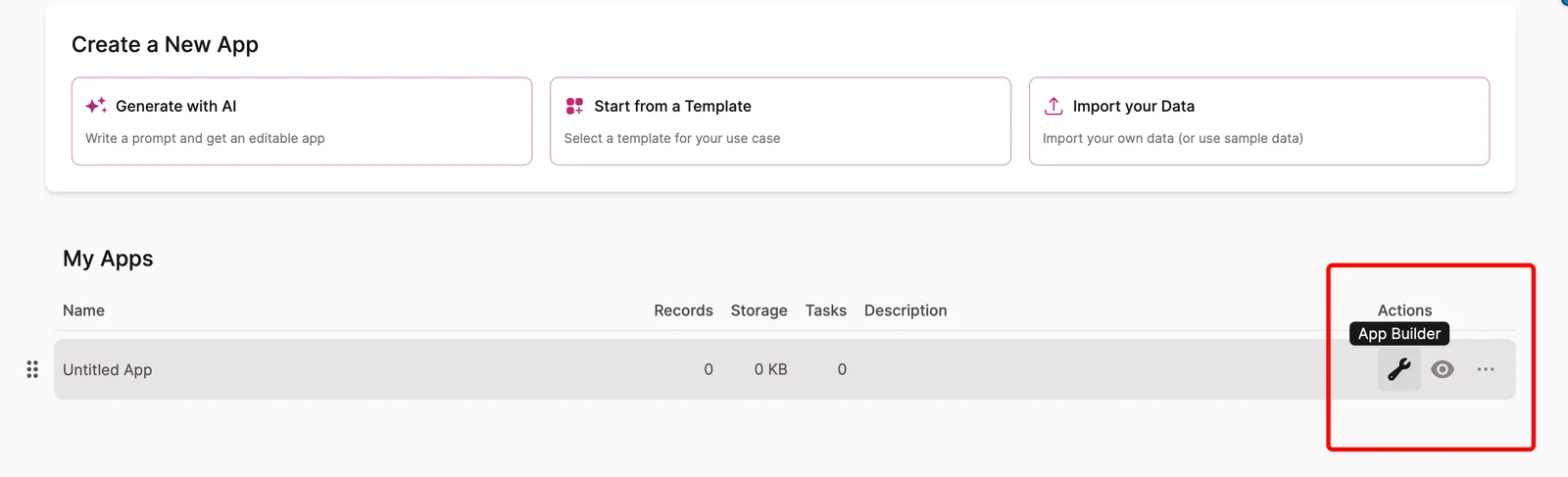
In the My Apps section, click App Builder next to your app.
-
Click Settings > API & Code . Copy the Application ID and API key to a safe place.
-
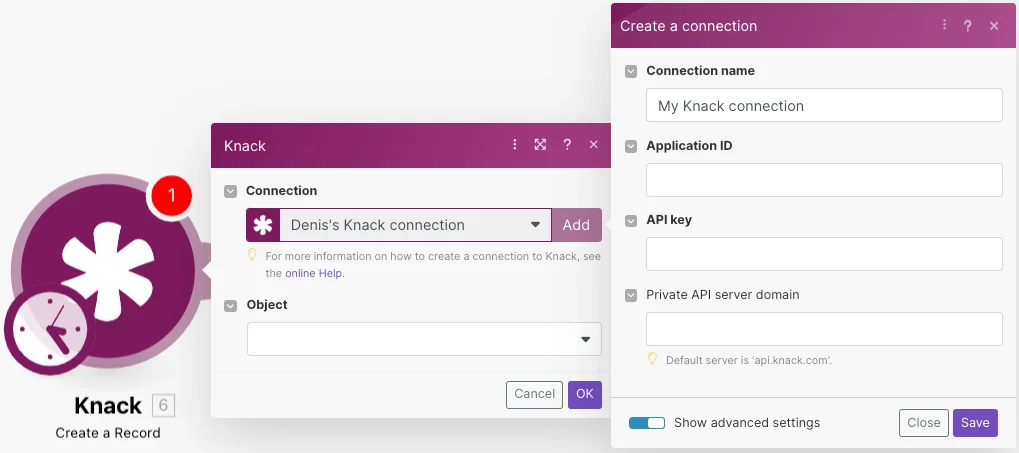
In your Boost.space Integrator account, insert a Knack module in your scenario and click the Add button next to the Connection field.
-
Optional: In the Connection name field, enter a name for the connection.
-
In the Application IDand API Key fields, enter the details copied in Step 3. In the Private API server domain field, enter the private Knack server domain if needed and click Save.
You have successfully established the connection. You can now edit your scenario and add more Knack modules. If your connection needs reauthorization at any point, follow the connection renewal steps here.
Triggers
New Event
Triggers when a new record is created, updated, or deleted and forms submitted.
Webhook name
Enter the name of the webhook.
Connection
Establish a connection to your Knack account.
Object
Select the object you want to watch.
Event
Select the event that triggers the module.
The trigger Knack > New event triggers only when records are created/updated/deleted in your Knack app, not in the Knack builder.
If the URL in your web browser starts with https://builder.knack.com/ then you are using the Knack builder, not your Knack app.
To enter your Knack app, click on the “view live app” button in the top right corner:

Links to update and/or edit the record must be created.
To create the links, follow the Using Actions Links guide.
Watch Records
Triggers when a new record is added.
Connection
Establish a connection to your Knack account.
Object
Select the object you want to watch.
Auto increment field
Select the Auto Increment field.
Every object that you want Boost.space Integrator to watch must have at least one field of Auto Increment type. The Auto Increment field contains a sequence number assigned to the record. The value for the first record is 1, and it increments by 1 for each new record.
Boost.space Integrator will not correctly import records that do not include this field.
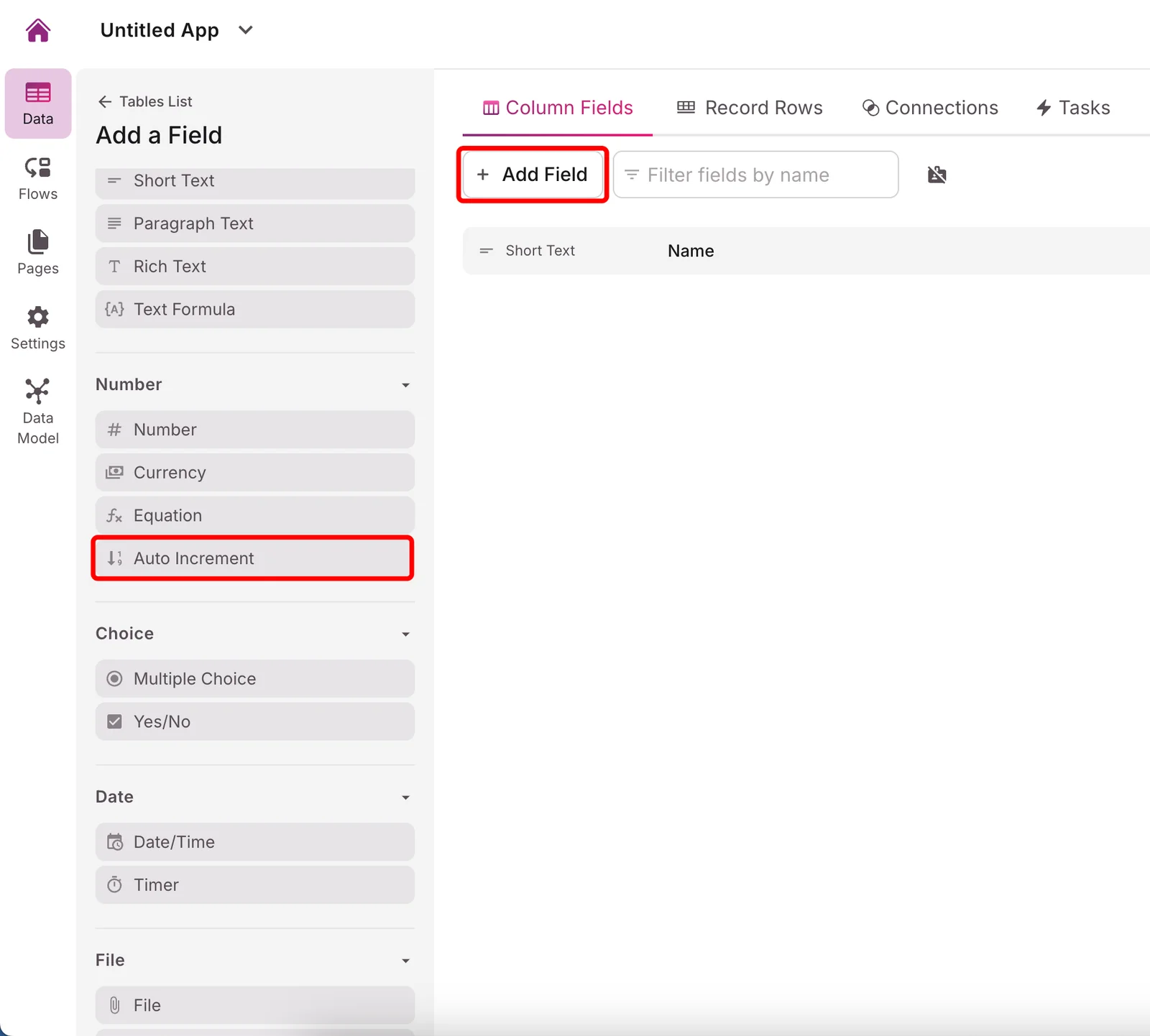
The option Since specific ID in the Choose where to start dialog must contain the Auto Increment value, e.g. 1. Do not use the Record ID!
Limit
The maximum number of records Boost.space Integrator will work with during one execution cycle.
Returned data
Select the format type of the returned data.
formatted and raw
The returned data is formatted and raw:
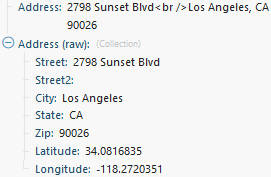
only formatted
The returned data is formatted into one line:

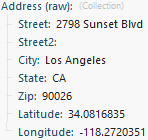
only raw
The data is returned in the raw format, as an object:
Actions
Create a Record
Creates a new record.
Boost.space Integrator allows the adding of records to all types of object fields, except for these types: Timer and Signature.
Connection
Establish a connection to your Knack account.
Object
Select the object where you want to create the record.
Field names
Enter the values you want to add to the new record.
Delete a Record
Deletes a record specified by its ID.
Connection
Establish a connection to your Knack account.
Object
Select the object you want to delete.
Record ID
Enter the ID of the record you want to delete. It can be retrieved, for example, using the Search for Records module.
Get a Record
Returns details about a record specified by its ID.
Connection
Establish a connection to your Knack account.
Object
Select the object that contains the desired record.
Record ID
Enter the record ID. It can be retrieved, for example, using the Search for Records module.
Returned data
Select the format type of the returned data.
formatted and raw
The returned data is formatted and raw:
only formatted
The returned data is formatted into one line:
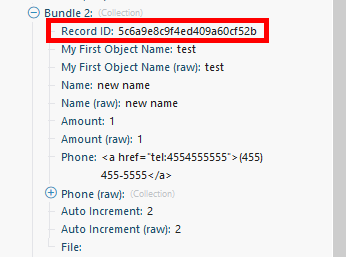
only raw
The data is returned in raw format, as an object:
Update a Record
Updates a record specified by its ID.
Connection
Establish a connection to your Knack account.
Object
Select the object that contains the record you want to update.
Record ID
Enter the ID of the record you want to update. The ID can be retrieved, for example, using the Search for Records module.
Field names
Enter the desired value to the field(s) you want to update.
Upload a File
Uploads a file or image.
Connection
Establish a connection to your Knack account.
File name
Enter or map the file name.
Data
Enter (map) the file data. You can use, for example, the Dropbox > Get a file module.
Make an API Call
Performs an arbitrary authorized API call.
Connection
Establish a connection to your Knack account.
URL
Enter a path relative to https://api.knack.com (or custom domain). For example, /v1/objects.
Method
GET
to retrieve information for an entry.
POST
to create a new entry.
PUT
to update/replace an existing entry.
PATCH
to make a partial entry update.
DELETE
to delete an entry.
Headers
Enter the desired request headers. You don’t have to add authorization headers; we already did that for you.
Query String
Enter the request query string.
Body
Enter the body content for your API call.
Example of use – Search Tasks
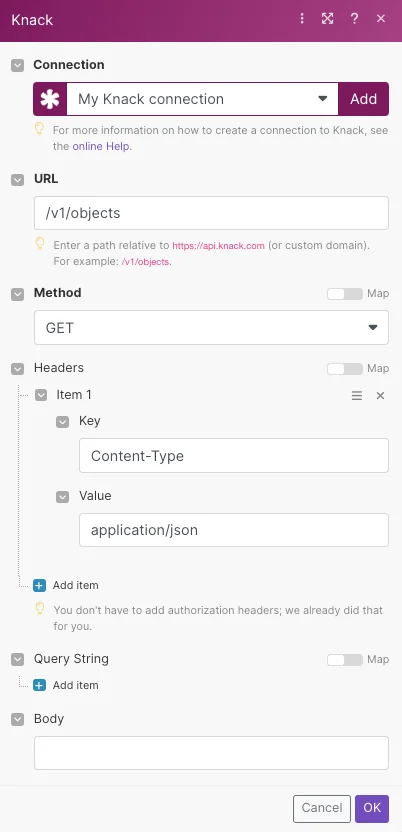
The following API call returns all tasks from your account.
URL: /v1/objects
Method: GET
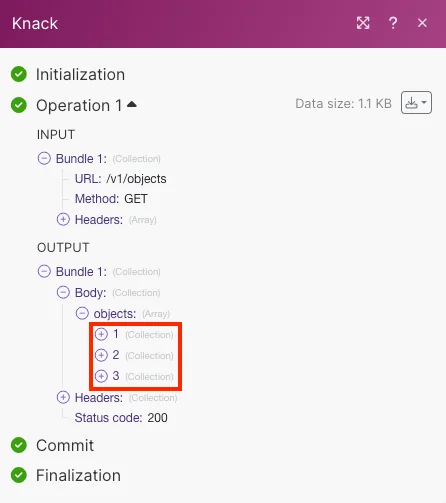
Matches of the search can be found in the module’s Output under Bundle > Body > objects.
In our example, 3 objects were returned:
Searches
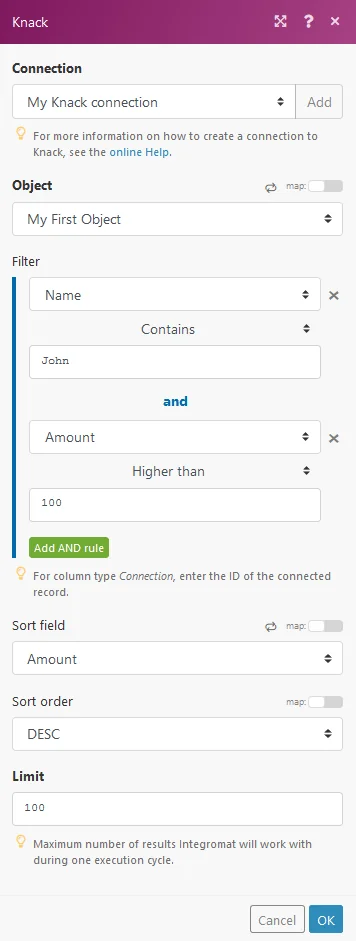
Search for Records
Searches for a record.
This module retrieves information about records. The result can be filtered.
Connection
Establish a connection to your ActiveCampaign account.Connecting ActiveCampaign to Boost.space Integrator
Object
Select the object with the records you want to retrieve.
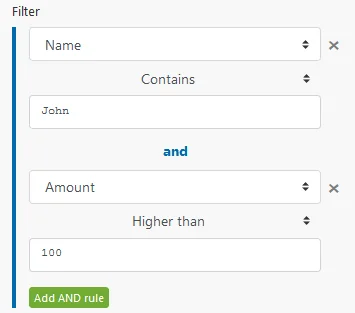
Filter
Specify the filter settings.
E.g. The following example returns a record where the name is John and the amount is higher than 100.
Sort field
Select the field you want to sort the result by.
Sort order
Select the sort order.
ASC – ascending.
DESC – descending.
Limit
Set the maximum number of records Boost.space Integrator will return during one execution cycle.
Returned data
Select the format type of the returned data.
formatted and raw
The returned data is formatted and raw:
only formatted
The returned data is formatted into one line:
only raw
The data is returned in raw format, as an object:
Private Knack Servers
Boost.space Integrator will make connections to your database from its IP addresses. Ensure you allow list the IP addresses to allow conections to your Knack servers.
See also
- Blog post, Triggering Boost.space Integrator from Ninox by Julian Kirkness at Online Database Expert
Legacy article, imported from the original Boost.space knowledge base (/knowledge-base/applications/database/knack/).

