Ninox
Getting Started with Ninox
The Ninox modules allow you to monitor, list, retrieve, lookup, create, update, or delete records and files as well as list teams, databases, and tables in your Ninox account.
Prerequisites
- A Ninox account
In order to use Ninox with Boost.space Integrator, it is necessary to have a Ninox account. If you do not have one, you can create a Ninox account at ninoxdb.de/en/sign-up.
The module dialog fields that are displayed in bold (in the Boost.space Integrator scenario, not in this documentation article) are mandatory!
Connect Ninox to Boost.space Integrator
To connect your Ninox account to Boost.space Integrator you need to obtain an API Key from your Ninox account.
-
Log in to your Ninox account.
-

Click on the clog-wheel in the top-right corner and select the Zapier Integrations option from the menu.
-
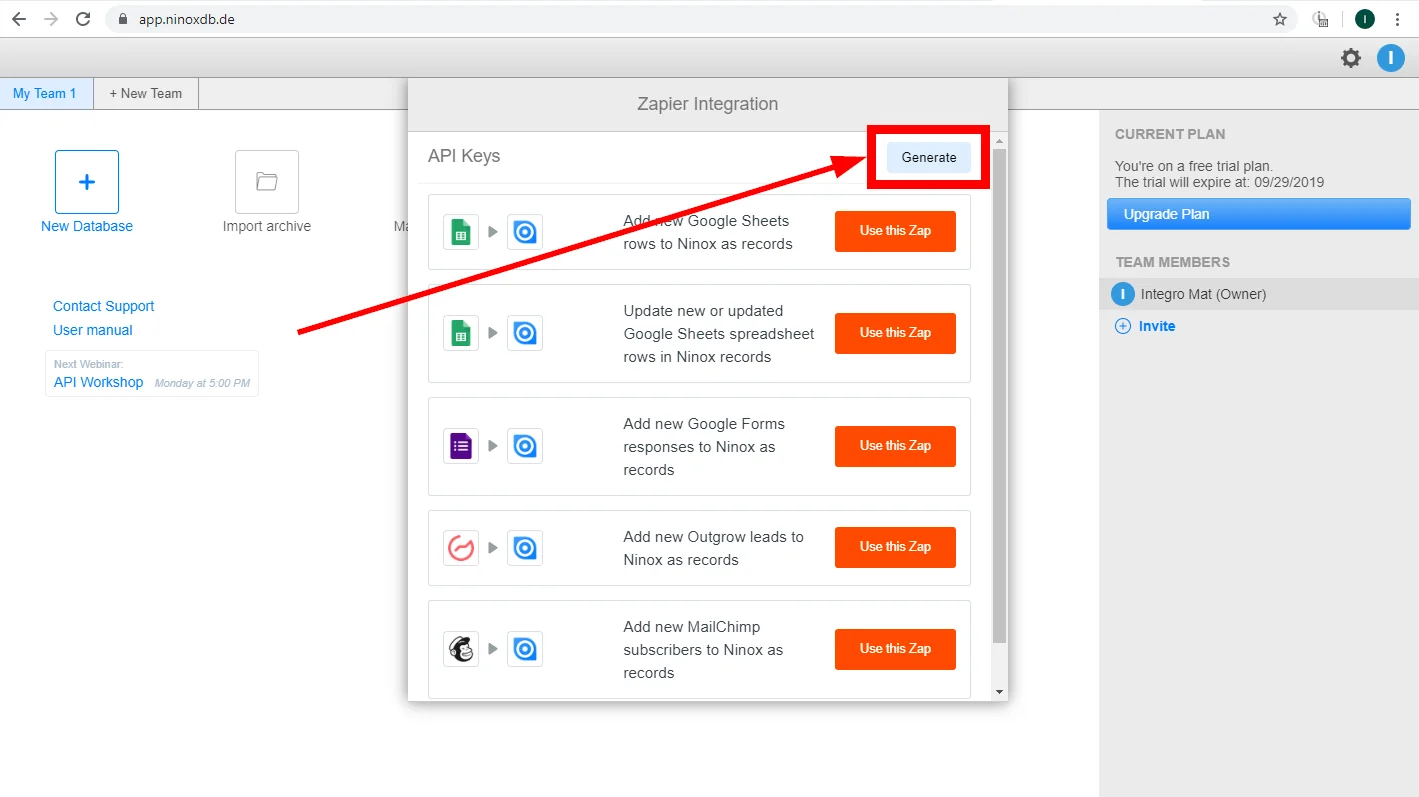
Click the Generate button to generate the API Key.
-
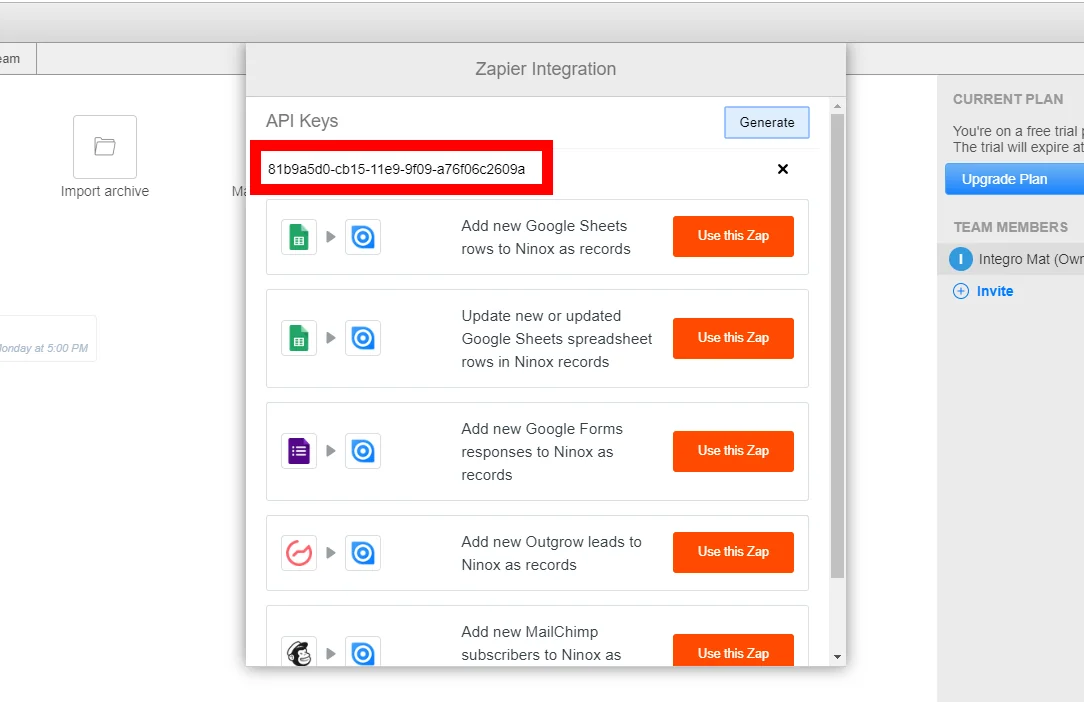
Copy the provided API Key to your clipboard.
-
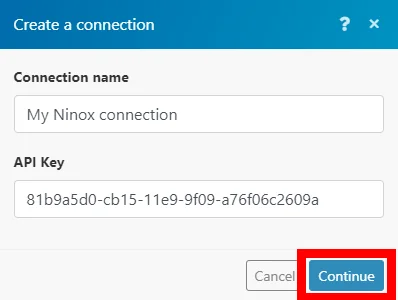
Go to Boost.space Integrator and open the Ninox module’s Create a connection dialog.
-
Enter the API Key you have generated in step 4 and click the Continue button to establish the connection.
Records
Ninox’s data loading times may result in timeouts. It is the Ninox’s servers issue.
List Database Table Records
Retrieves all records from a specified table.
Connection
Establish a connection to your Ninox account.
Team
Select or map the team of the database that the table belongs to.
Database
Select or map the database that contains the table you want to retrieve records from.
Table
Select or map the table you want to retrieve records from.
Limit
Set the Maximum number of results Boost.space Integrator will return during one execution cycle.
Get Record
Retrieves record details.
Connection
Establish a connection to your Ninox account.
Team
Select or map the team of the database with the table that contains the record you want to retrieve details about.
Database
Select or map the database that contains the table you want to retrieve the record from.
Table
Select or map the table you want to retrieve the record from.
Record
Select or map the record you want to retrieve details about.
Look Up Record
Searches for a record based on the entered information.
Connection
Establish a connection to your Ninox account.
Team
Select or map the team the database belongs to.
Database
Select or map the database that contains the table you want to search for the record.
Table
Select or map the table you want to search for the record.
Record fields
Enter values to the record fields you want to search the record by. The fields are dynamically read from the table you have selected above.
The module always returns one record even if there are multiple matches. It might not always work for every field. The “multi” type of field is not supported very well. Ninox’s API does not give options that can be selected. As a result, Boost.space Integrator cannot generate a list of multi-choices.
Create Record
Creates a new record in a specified table.
Connection
Establish a connection to your Ninox account.
Team
Select or map the team the database belongs to.
Database
Select or map the database that contains the table you want to create a new record in.
Table
Select or map the table you want to create a new record in.
Record fields
Enter desired values to the record fields. Displayed fields are automatically loaded from the selected table.
Delete Record
Deletes a record from the table.
Connection
Establish a connection to your Ninox account.
Team
Select or map the team of the database that contains the record you want to delete.
Database
Select or map the database that contains the table you want to delete a record from.
Table
Select or map the table you want to delete a record from.
Record
Map the record ID of the record you want to delete.
Update Record
Allows you to update record fields.
Connection
Establish a connection to your Ninox account.
Team
Select or map the team of the database that contains the record you want to delete.
Database
Select or map the database that contains the table you want to delete a record from.
Table
Select or map the table you want to delete a record from.
Record
Map the record ID of the record you want to delete.
Record fields
Enter the new value to the fields you want to update.
Files
List Files from Record
Retrieves files’ details from a specified record.
Connection
Establish a connection to your Ninox account.
Team
Select or map the team of the database that contains the record you want to retrieve files from.
Database
Select or map the database that contains the table with the record you want to retrieve files from.
Table
Select or map the table that contains the record you want to retrieve files from.
Record
Select or map the record you want to retrieve file details from.
Limit
Set the Maximum number of files Boost.space Integrator will return during one execution cycle.
Download File from Record
Downloads file data from a specified record.
Connection
Establish a connection to your Ninox account.
Team
Select or map the team of the database that contains the record you want to download the file from.
Database
Select or map the database that contains the table with the record you want to download the file from.
Table
Select or map the table that contains the record you want to download the file from.
Record
Select or map the record you want to download the file from.
File
Select or map the file you want to download from the record. The downloaded file can be, for example, uploaded to your Dropbox folder mapping the file to the Dropbox > Upload a file.
Delete File from Record
Removes a file from a specified record.
Connection
Establish a connection to your Ninox account.
Team
Select or map the team of the database that contains the record you want to delete the file from.
Database
Select or map the database that contains the table with the record you want to delete the file from.
Table
Select or map the table that contains the record you want to delete the file from.
Record
Select or map the record you want to delete the file from.
File
Select or map the file you want to delete from the record.
Upload File to a Record
Uploads a file to a record.
Connection
Establish a connection to your Ninox account.
Team
Select or map the team of the database that contains the record you want to upload the file to.
Database
Select or map the database that contains the table with the record you want to upload the file to.
Table
Select or map the table that contains the record you want to upload the file to.
Record
Select or map the record you want to upload the file to.
Source file
Map the file you want to upload from the previous module (e.g. Dropbox > Get a file), or enter the file name and file data manually.
Account
List Teams
Retrieves all teams from your account.
Connection
Establish a connection to your Ninox account.
Limit
Set the Maximum number of teams Boost.space Integrator will return during one execution cycle.
List Databases
Returns all team’s databases.
Connection
Establish a connection to your Ninox account.
Team
Select or map the team you want to list databases for.
Limit
Set the Maximum number of databases Boost.space Integrator will return during one execution cycle.
List Database Tables
Returns all tables from the database.
Connection
Establish a connection to your Ninox account.
Team
Select or map the team you want to list database tables for.
Database
Select or map the database you want to list tables from.
Limit
Set the Maximum number of tables Boost.space Integrator will return during one execution cycle.
Other
Make an API Call
Allows you to perform a custom API call.
Connection
Establish a connection to your Ninox account.
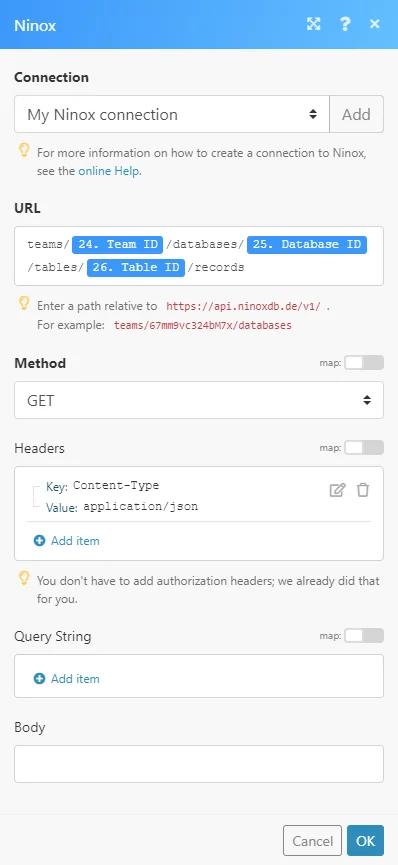
URL
Enter a path relative to https://api.ninoxdb.de/v1/,
e.g. /teams/67mm9vc324bM7x/databases/nk5xt24oixj4/tables/A/records.
For the list of available endpoints, refer to the Ninox REST API Documentation.
Method
Select the HTTP method you want to use:
GET
to retrieve information for an entry.
POST
to create a new entry.
PUT
to update/replace an existing entry.
PATCH
to make a partial entry update.
DELETE
to delete an entry.
Headers
Enter the desired request headers. You don’t have to add authorization headers; we already did that for you.
Query string
Enter the request query string.
Body
Enter the body content for your API call.
Example of Use – List Records
The following API call returns all records from the table in the specified database and from the specified team:
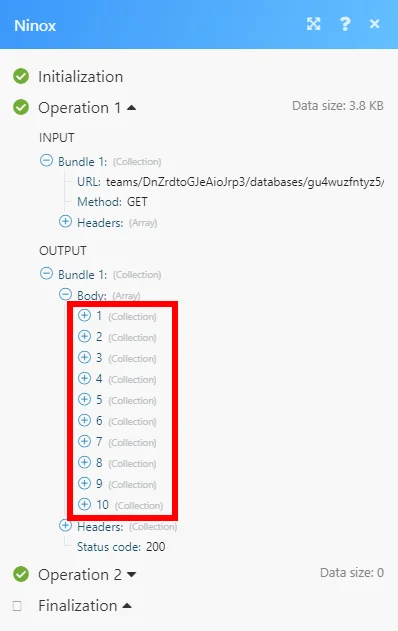
Matches of the search can be found in the module’s Output under Bundle > Body.
In our example, 10 records were returned:
Watch Record Events
Triggers when a record is created or updated.
Follow these steps to set up the trigger:
-

Open the table you want to watch for created and/or updated records.
-

Click on the cog-wheel above the table and select the Edit fields… option.
-
Now you can see the Trigger on create and Trigger after update fields. Click on one of the fields.
-
Switch from Visual view to Text view.
-
Paste the following code to the field:
let webhookURL := "https://paste-your-webhook-url.here";let data := {//data i want to send};let response := http("POST", webhookURL, {"Content-Type": "application/json"}, data); -

Go to Boost.space Integrator and add the Watch Record Events module to your scenario.
-
Copy the provided webhook address.
-
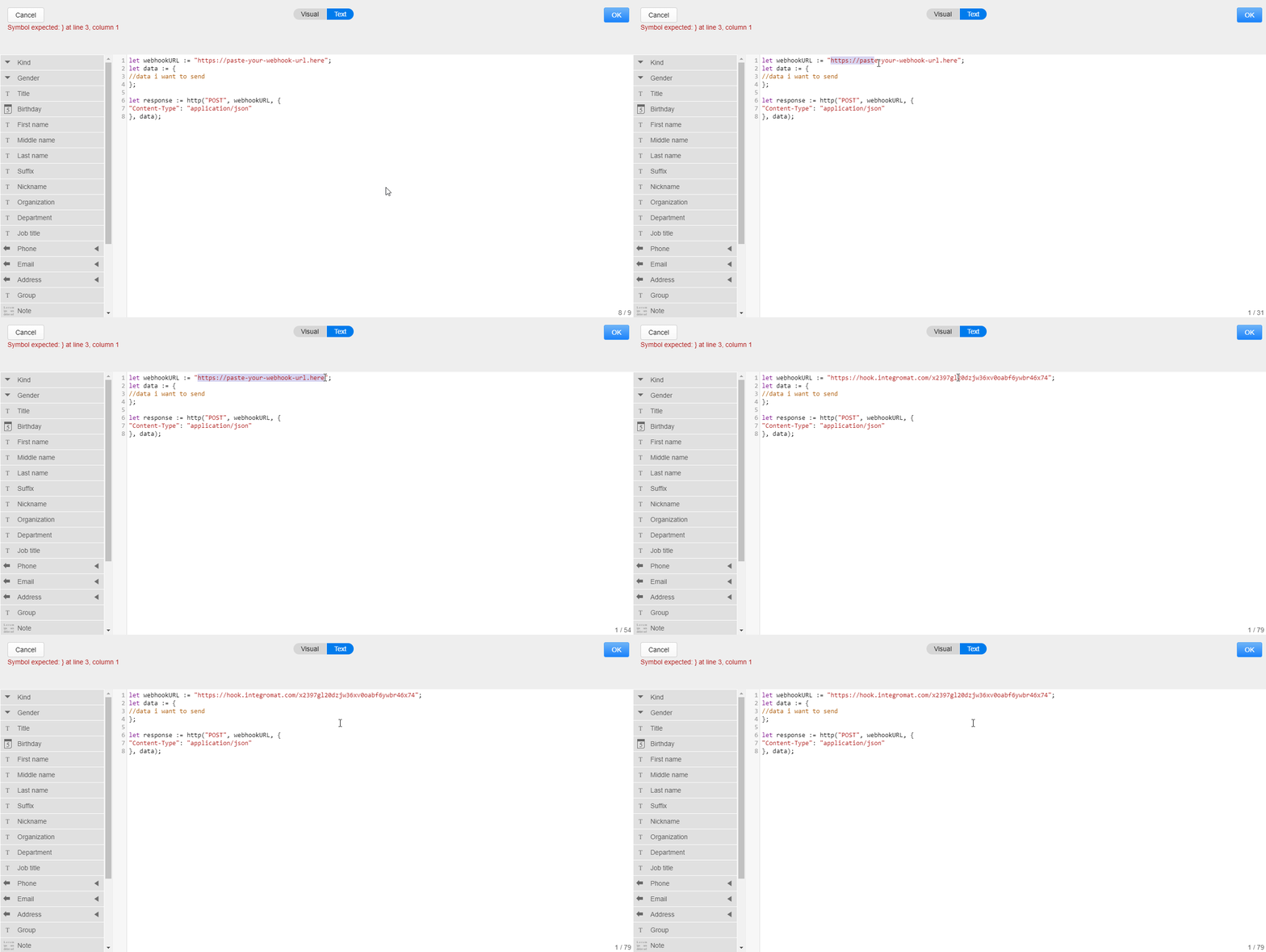
Go back to the Ninox trigger settings and replace the _https://paste-your-webhook-url.here_with the copied webhook address.
-

Enter the data you want to send to the Boost.space Integrator module (select variables from the menu on the left) and click the OK button.
Legacy article, imported from the original Boost.space knowledge base (/knowledge-base/applications/database/ninox/).

