Wasabi
Getting Started with Wasabi
The Boost.space Integrator Wasabi modules let you perform operations on your S3 buckets.
Prerequisites:
Connecting Wasabi to Boost.space Integrator
To connect Wasabi to Boost.space Integrator you must connect your Wasabi account to Boost.space Integrator. To do so, you’ll need to create an Access Key and a Secret Key first.
Connect Wasabi to Boost.space Integrator
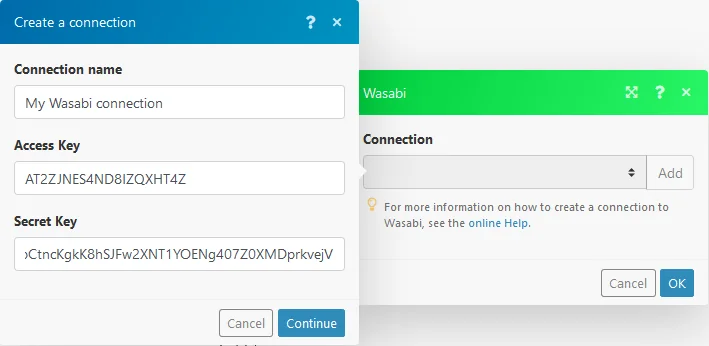
To connect to Wasabi, you need to obtain an access key and secret key from your Wasabi account and insert them into the Wasabi module’s, create a connection dialog.
-
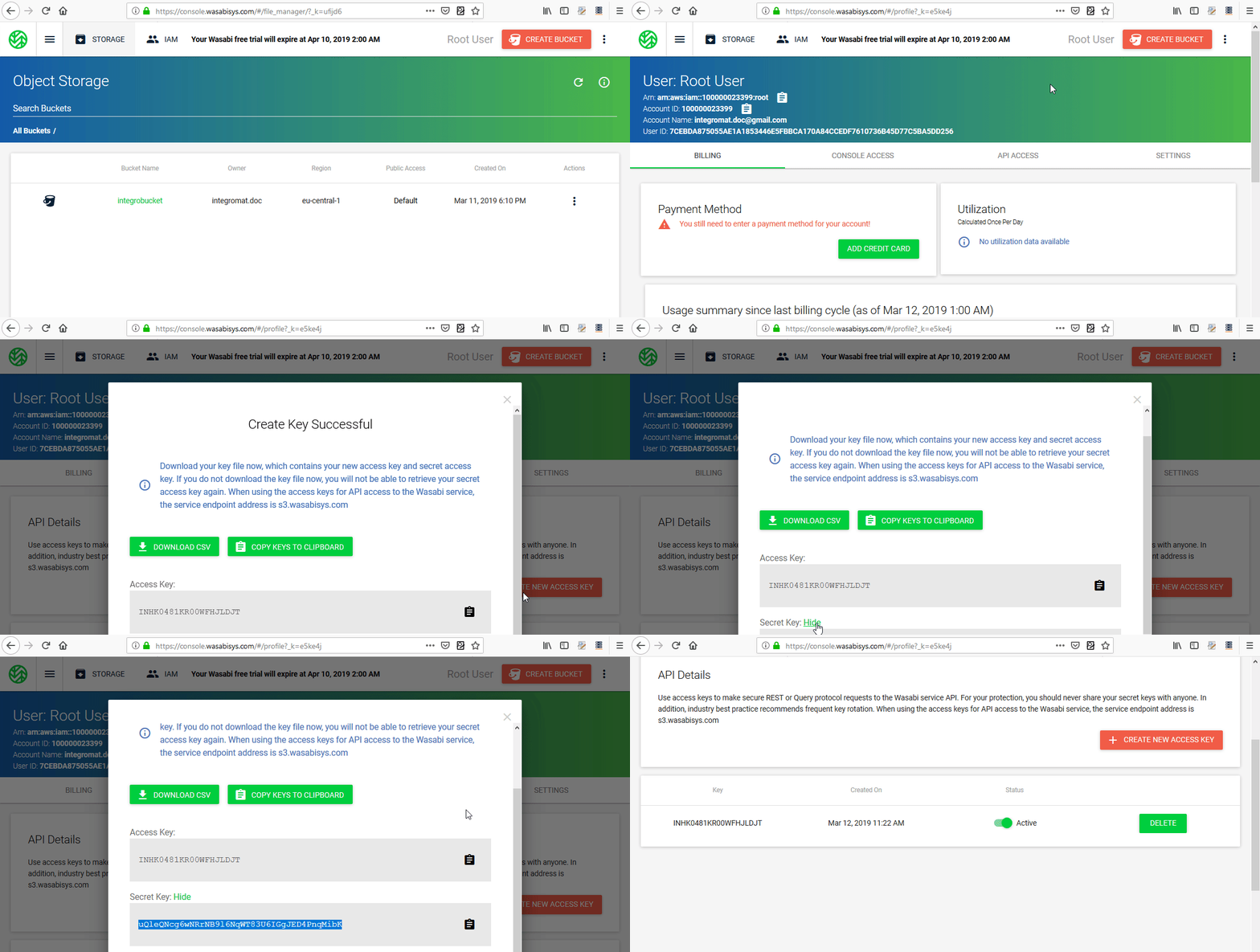
Log in to your Wasabi account.
-
Open My Profile.
-
Go to the API ACCESS tab.
-
Click the CREATE NEW ACCESS KEY button.

-
Copy the Access Key and the Secret Key.
The only chance to copy your Secret Key is right now. After closing this dialog, the Secret Key will no longer be visible.
Actions
Module dialog fields that are displayed in bold (in the Boost.space Integrator scenario, not in this documentation article) are mandatory!
Create a Bucket
Creates a new bucket.
Connection
Establish a connection to your Wasabi account.
Name
Enter the name of the new bucket.
Region
Select the location of your data storage.
Get File
Retrieves a file from the bucket.
Connection
Establish a connection to your Wasabi account.
Region
Select the location of your data storage.
Bucket
Select the bucket where the file is stored.
Path
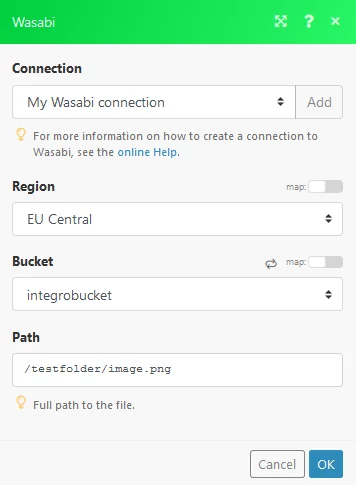
Enter the path to the file including the file name.

Upload File
Uploads the specified file to the bucket folder.
Connection
Establish a connection to your Wasabi account.
Region
Select the location of your data storage.
Bucket
Select the bucket you want to upload a file to.
Folder
Enter the path to the file including the file name.
Source file
Enter (map) the file name and file data of the file you want to upload.
Headers
Add a request header if needed.
Custom API Call
Useful information about Wasabi custom API call can be found in the Wasabi API Guide.
As the Wasabi service is comparable to AWS S3, the AWS S3 API documentation can be also helpful when creating a custom API call.
Connection
Establish a connection to your Wasabi account.
Region
Select the location of your data storage.
URL
Enter a path relative to https://s3.<selected-region>.wasabisys.com/.
Headers
Select one of the HTTP methods you want to use in your API call.
Source file
Enter (map) the file name and file data of the file you want to upload.
Headers
Add a HTTP request header if needed.
Query String
Add desired query strings, such as parameters, or form fields.
Body
Enter the API call body content.
Searches
List Files
Connection
Establish a connection to your Wasabi account.
Region
Select the location of your data storage.
Bucket
Select the bucket you want to list files from.
Prefix
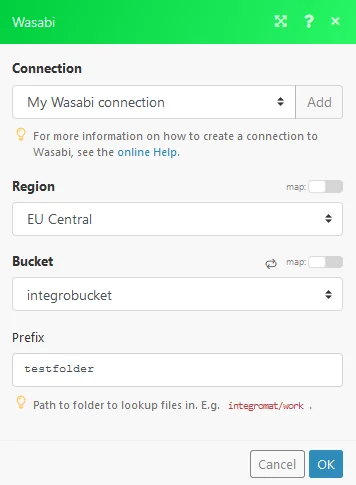
Enter the path to the folder you want to list files from. E.g. Boost.space Integrator/work.

Legacy article, imported from the original Boost.space knowledge base (/knowledge-base/applications/database/wasabi/).