Canvas LMS
The Canvas LMS modules allow you to create, update, retrieve, list, and delete the courses, assignments, and submissions in your Canvas LMS account.
Getting Started with Canvas LMS
Prerequisites
- A Canvas LMS account – create an account at instructure.com/en-au/canvas/try-canvas.
The module dialog fields that are displayed in bold (in the Boost.space Integrator scenario, not in this documentation article) are mandatory!
Connect Canvas LMS to Boost.space Integrator
To connect your Canvas LMS account to Boost.space Integrator you need to obtain the Access Token from your Canvas LMS account and insert it in the Create a connection dialog in the Boost.space Integrator module.
-
Log in to your Canvas LMS account.
-
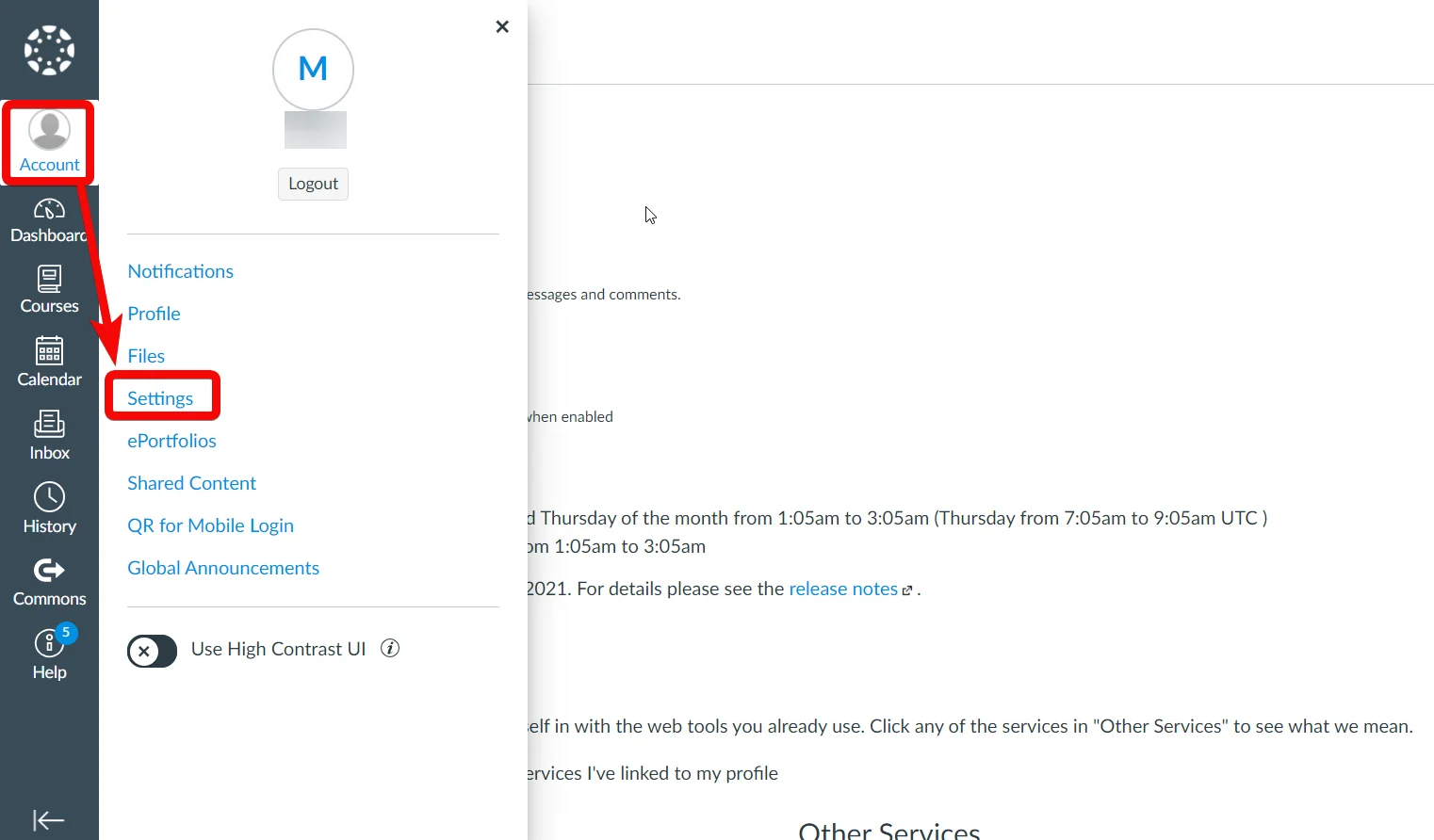
Click Account_> Settings_.
-
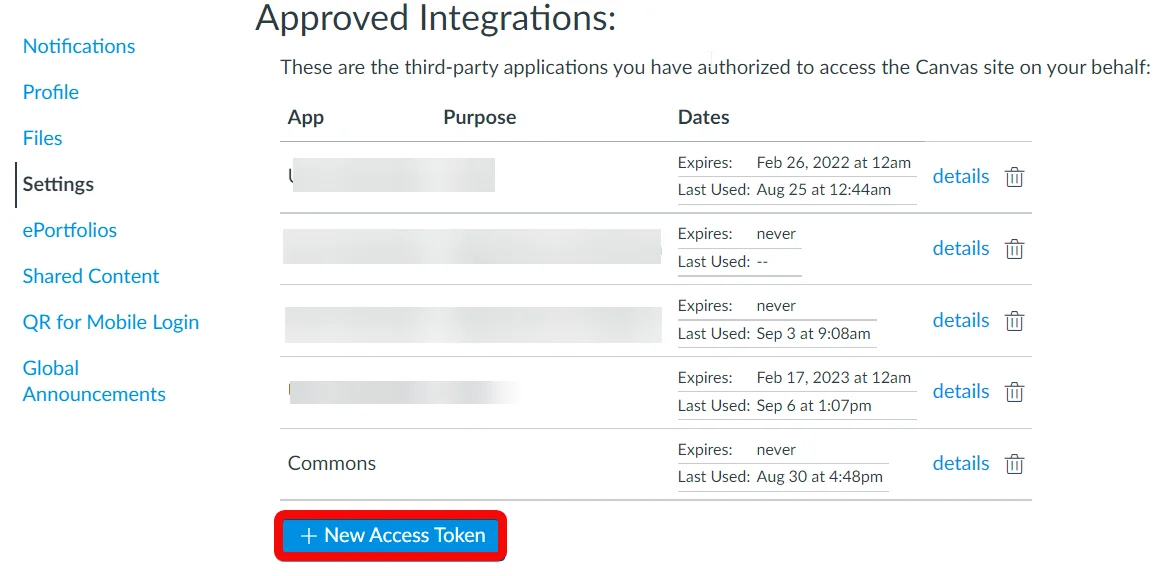
Click New Access Token.
-
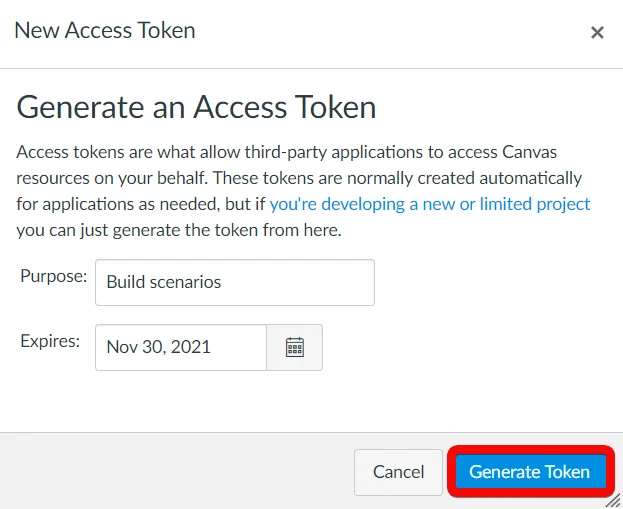
Enter the purpose of the token, select the expiry date for the token, and then click Generate Token.
-
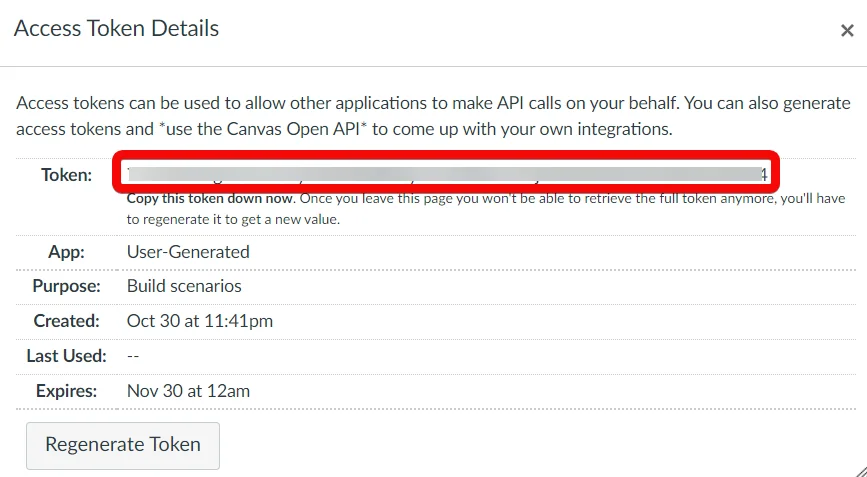
Copy the token to a safe place.
-
Log in to your Boost.space Integrator account, add a module from the Canvas LMS app into an Boost.space Integrator scenario.
-

Click Add next to the Connection field.
-
In the _Connection name_field, enter a name for the connection.
-
In the Canvas Instance Domain field, enter your domain details. For example,
<institution>.instructure.comorowndomainname.com. You can install Canvas on your own domain or choose an instance name on theinstructure.comdomain. -
In the Access Token field, enter the token copied in step 5, and click Continue.
The connection has been established.
Courses
Search Own Courses
Searches for own courses.
Connection
Establish a connection to your Canvas LMS account.
Enrollment Type
Select or map the enrollment type to search only the specified enrollment courses. For example, Teacher.
Enrollment State
Select or map the enrollment status to search only the courses with the specified status. For example, active.
Exclude Blueprint Courses
Select whether you want to exclude the courses that are configured as blueprint courses.
Course State
Select or map the status of the course which you want to search. For example, Completed. By default, the search returns the course with the status, available” for students and observers, and anything except, deleted, for all other enrollment types.
Additional Information to Retrieve
Select or map the additional information options whose information you want to retrieve in the search results.
Search User Courses
Searches for courses of a given user ID.
Connection
Establish a connection to your Canvas LMS account.
User ID
Enter (map) the user ID whose courses you want to search.Note: To view the course list for a user other than yourself, you must be either an observer of that user or an administrator.
Enrollment State
Select or map the enrollment status of the course you want to search:
-
Active
-
Invited or Pending
-
Completed
Course State
Select or map the status of the courses you want to search. For example, Completed. By default, the search returns the course with the status, available” for students and observers, and anything except, deleted, for all other enrollment types.
Additional Information
Select or map additional information you want to retrieve about each course.
Only return homeroom courses
Select whether you want to search only the homeroom courses.
Limit
Set the maximum number of courses Boost.space Integrator should return during one execution cycle.
Get a Course
Retrieves an existing course.
Connection
Establish a connection to your Canvas LMS account.
Course ID
Select or map the course ID whose details you want to retrieve.
Create a Course
Creates a new course.
Connection
Establish a connection to your Canvas LMS account.
Account ID
Select or map the Account ID through which you want to create the course. The default value is self.Note: You must be teacher or observer to create courses for other accounts.
Name
Enter (map) the name of the course.
Course Code
Enter (map) the course code information.
Start At
Enter (map) the start date of the course.
End At
Enter (map) the end date of the course.
Time Zone
Select or map the time zone applicable for the course.
License
Select or map the applicable license for the course.
Public Description
Enter (map) the description of the course that is publicly visible.
Term ID
Select or map the unique Term ID where you want to create the course.
SIS Course ID
Enter (map) the SIS Course ID for the course.
Integration ID
Enter (map) the Integration ID for the course.
Default View
Select or map the type of page that users will see when they first visit the course. For example, Recent Activity Dashboard_._
Grading Standard ID
Select or map the grading Standard ID to be set for the course. If no value is provided for this argument the current grading standard will be un-set from this course.
Grade Passback Setting
Select or map the grade passback setting for the course. For example, Nightly Sync.
Course Format
Select or map the course format:
-
On-Campus
-
Online
-
Blended
Syllabus Body
Enter (map) the syllabus of the course you want to create.
Course Settings
Add the course settings information:
Restrict user enrollments
Select the checkbox if you want to restrict user enrollments to the start and end dates of the course.
Make Course Public
Select whether you want to make the course public to both authenticated and unauthenticated users.
Public Only to Authenticated Users
Select whether you want to make the course public only to authenticated users.
Public Syllabus
Select whether you want to make the course syllabus public.
Public Syllabus to Auth
Select whether you want to make the course syllabus public for authenticated users.
Allow Student Wiki Edits
Select whether you want to allow the students to modify the course wiki.
Allow Wiki Comments
Select whether you want to allow the course members to make comments on wiki pages.
Allow Students Forum Attachments
Select whether you want to allow the students to attach files in forum posts.
Open Enrollment
Select whether you want to make the course an open enrollment course.
Self Enrollment
Select whether you want to make the course a self-enrollment course.
Hide Final Grades
Select whether you want to hide the totals in the student grades summary.
Apply Assignment Group Weights
Select whether you want to add assignment weightage to the final grade.
Offer
Select whether you want to offer the course to the students immediately.
Enroll Me
Select whether you want to enroll yourself as the teacher for the course.
Enable SIS Reactivation
Select whether you want to re-activate a deleted course with a matching SIS Course ID if required.
Delete a Course
Deletes an existing course.
Connection
Establish a connection to your Canvas LMS account.
Course ID
Select or map the Course ID you want to delete.
Delete or Conclude
Select whether to delete or conclude the course.
Update a Course
Updates an existing course.
Connection
Establish a connection to your Canvas LMS account.
Account ID
Select or map the Account ID through which you want to update the course. The default value is self.Note: You must be teacher or observer to update the courses for other accounts.
Course Image ID
Enter (map) the Image ID from course files or provide an image URL in the Course Image URL field.
Course Color
Enter (map) color to be associated with the course in hex code format. For example, #ff5733 .
Course Image URL
Enter (map) the image URL address to be associated with the course.
Course Account ID
Enter (map) the Course Account ID to which you want to move the course.
Name
Enter (map) a new name for the course.
Course Code
Enter (map) the course code information.
Start At
Enter (map) the start date of the course.
End At
Enter (map) the end date of the course.
Time Zone
Select or map the time zone for the course.
License
Select or map the applicable license for the course.
Public Description
Enter (map) the description of the course that is publicly visible.
Term ID
Select or map the unique Term ID where you want to create the course.
SIS Course ID
Enter (map) the SIS Course ID for the course.
Integration ID
Enter (map) the Integration ID for the course.
Course Event
Select or map the action you want to take for the course:
-
Claim
-
Offer
-
Conclude
-
Delete
-
Undelete
Default View
Select or map the type of page that users will see when they first visit the course. For example, Recent Activity Dashboard_._
Grading Standard ID
Select or map the grading Standard ID to be set for the course. If no value is provided for this argument the current grading standard will be un-set from this course.
Grade Passback Setting
Select or map the grade passback setting for the course. For example, Nightly Sync.
Course Format
Select or map the format of the course:
-
On-Campus
-
Online
Sync Enrollments From Homeroom
Enter (map) the details to sync the enrollments from the homeroom that is set in Homeroom Course ID.
Homeroom Course ID
Enter (map) the homeroom course ID to be used with sync enrollments from homeroom.
Course Settings
Add the course settings information:
Restrict user enrollments
Select the checkbox if you want to restrict the user enrollments to the start and end dates of the course.
Syllabus Course Summary
Select whether you want to display the course summary on the syllabus page. The course summary consists of the course’s assignments and calendar events.
Remove Image
Select whether you want to remove the course image URL and Course Image ID.
Make Course Public
Select whether you want to make the course public to both authenticated and unauthenticated users.
Public Only to Authenticated Users
Select whether you want to make the course public only to authenticated users.
Public Syllabus
Select whether you want to make the course syllabus public.
Public Syllabus to Auth
Select whether you want to make the course syllabus public for authenticated users.
Allow Student Wiki Edits
Select whether you want to allow the students to modify the course wiki.
Allow Wiki Comments
Select whether you want to allow the course members to make comments on wiki pages.
Allow Students Forum Attachments
Select whether you want to allow the students to attach files in forum posts.
Open Enrollment
Select whether you want to make the course an open enrollment course.
Self Enrollment
Select whether you want to make the course a self-enrollment course.
Hide Final Grades
Select whether you want to hide the totals in the student grades summary.
Apply Assignment Group Weights
Select whether you want to add assignment weightage to the final grade.
Offer
Select whether you want to offer the course to the students immediately.
Enroll Me
Select whether you want to enroll yourself as the teacher for the course.
Enable SIS Reactivation
Select whether you want to re-activate a deleted course with a matching SIS Course ID if required.
Set Course as Blueprint
Select whether you want to set the course as a blueprint course.
Homeroom Course
Select whether you want to set the course as a homeroom course.
Set as Template
Select whether you want to enable or disable the course as a template that can be selected by an account.
Assignments
Search Assignments
Searches for assignments.
Connection
Establish a connection to your Canvas LMS account.
Course ID
Select or map the course ID for which assignments you want to search.
Retrieve Additional Parameters
Select or map the additional assignment parameters you want to retrieve.
Search Term
Enter (map) the partial title of the assignments to search only the assignments that match the specified title.
Override Assignment Dates
Select whether you want to override the dates of the assignment for each assignment that matches the search.
Needs Grading Count by Section
Select whether you want the grading count for each section of the assignment. By default, this is set to false.
Return only assignments posted to SIS
Select whether you want to retrieve only assignments that are posted to SIS.
Order By
Select or map the order for retrieving the assignments:
-
Position
-
Name
-
Due At
Limit
Set the maximum number of assignments Boost.space Integrator should return during one execution cycle.
Get an Assignments
Retrieves an existing assignment.
Connection
Establish a connection to your Canvas LMS account.
Course ID
Select or map the Course ID whose assignment details you want to retrieve.
Assignment ID
Select or map the Assignment ID whose details you want to retrieve.
Create an Assignment
Creates an assignment.
Connection
Establish a connection to your Canvas LMS account.
Course ID
Select or map the course ID for which you want to create an assignment.
Name
Enter (map) the name of the assignment.
Due At
Enter (map) the date and time at which the assignment is due for submission.For example**, s**elect the due date based on the time zone.Note: The due date must be between the lock dates.
Lock At
Enter (map) the lock date at which you want to lock the assignment.Note: The lock date must be after the due date.
Unlock At
Enter (map) the date and time at which you want to unlock the assignment.Note: The unlock date must be before the due date.
Description
Enter (map) the details of the assignment in HTML format.
Group ID
Select or map the Group ID to which you want to add the assignment. For example, a_ssignments, essays._By default, the assignment will be added to the top assignment group in the course.
Assignment Group Category ID
Select or map the Assignment Group Category ID for the assignment.
Grade Group Students Individually
Enter (map) whether you want to grade the students individually for the assignment. As a teacher, you can manually assign scores to each member of the group.
Position
Enter (map) the position of the assignment in the group when displaying the assignment lists.
Submission Types
Select the submission type for the assignment:
-
Online Quiz
-
None
-
On Paper
-
Discussion Topic
-
External Tool
Supported Types
Select or map the supported formats for the assignment. For example, online URL address.
Annotable Attachment ID
Select or map the annotable Attachment ID of the assignment.
Allowed Extensions
Add the supported file extensions for the assignment.
Integration Data
Enter (map) the data used for SIS integrations. This field requires an admin-level token with the Manage SIS permission.
Integration ID
Enter (map) the unique third-party Integration ID for the assignment.
Points Possible
Enter (map) the maximum points allowed for the assignment.
Grading Type
Select the grading type for the assignment:
-
Pass/Fail
-
Percent
-
Letter Grade
-
GPA Scale
-
Points
-
Not Graded
Grading Standard ID
Select or map the Grading Standard ID to be set for the assignment.Note: If no value is provided for this argument the current Grading Standard will be un-set from this course. This will update the grading type for the course to Letter Grade unless it is already GPA Scale.
Grader Count
Enter (map) the maximum number of provisional graders who may issue grades for this assignment. Enter a value between 1 and 10.Note: Must be a positive value, and must beSet to 1 if the course has fewer than two active instructors.Otherwise, the maximum value is the number of active instructors in the course minus one, or 10 if the course has more than 11 active instructors.
Final Grader ID
Select or map the final Grader ID responsible for choosing final grades for this assignment. Only relevant for moderated assignments.
Allowed Attempts
Enter (map) the number of submission attempts allowed for this assignment.Note: Set this value to -1 for unlimited attempts.
Assignment Settings
Add the assignment settings information:
Turnitin Enabled
Select whether you want the assignment to be uploaded through the Turnitin plugin.Note: This requires the Turnitin plugin to be enabled for a course.
VeriCite Enabled
Select whether you want the assignment to be uploaded through the VeriCite plugin.Note: This requires the VeriCite plugin to be enabled for a course.
Peer Reviews
Select whether you want to have peer reviews for the assignment submitted.
Notify on Update
Select whether you want to notify the students when there is an update on the assignment created.
Publish Assignment
Select whether you want to publish the assignment created.Note: Unpublished assignments are not visible to students.
Omit From Final Grade
Select whether to omit this assignment from the final grades of the students.
Quiz LTI
Select if the assignment created requires quizzes 2 LTI tool.
Moderated Grading
Select if the assignment created is moderated or not.
Grader Comments Visible to Graders
Select whether the provisional graders’ comments are visible to other provisional graders for the assignment created.Note: Only for moderated assignments.
Graders Anonymous to Graders
Select whether the provisional graders’ are hidden from other provisional graders for the assignment created.
Graders Names are Visible to Final Grader
Select whether the provisional graders’ names are visible to the final grader for the assignment created.Note: Only for moderated assignments.
Anonymous Grading
Select whether the assignment is graded anonymously for the assignment created.Note: If selected Yes, graders cannot see student identities.
Update an Assignment
Updates an existing assignment.
Connection
Establish a connection to your Canvas LMS account.
Course ID
Select or map the Course ID whose assignment details you want to update.
Assignment ID
Select or map the assignment ID you want to update.
Name
Enter (map) a new name for the assignment.
Due At
Enter (map) the date and time at which the assignment is due for submission.For example**, s**elect the due date based on the time zone.Note: The due date must be between the lock dates.
Lock At
Enter (map) the lock date at which you want to lock the assignment.Note: The lock date must be after the due date.
Unlock At
Enter (map) the date and time at which you want to unlock the assignment.Note: The unlock date must be before the due date.
Description
Enter (map) the details of the assignment in HTML format.
Position
Enter (map) the position of the assignment in the group when displaying assignment lists.
Submission Types
Select the submission type for the assignment:
-
Online Quiz
-
None
-
On Paper
-
Discussion Topic
-
External Tool
Group ID
Select or map the Group ID to which you want to add the assignment. For example, a_ssignments, essays._By default, the assignment will be added to the top assignment group in the course.
Allowed Attempts
Enter (map) the number of submission attempts allowed for this assignment.Note: You can set this to -1 for unlimited attempts.
SIS Assignment ID
Enter (map) the SIS Assignment ID for the assignment.
Integration Data
Enter (map) the data used for SIS integrations. This field requires an admin-level token with the Manage SIS permission.
Grading Standard ID
Select or map the Grading Standard ID to be set for the assignment.Note: If no value is provided for this argument the current Grading Standard will be un-set from this course. This will update the grading type for the course to Letter Grade unless it is already GPA Scale.
Grader Count
Enter (map) the maximum number of provisional graders who may issue grades for this assignment. Enter a value between 1 and 10.Note: Must be a positive value, and must beSet to 1 if the course has fewer than two active instructors.Otherwise, the maximum value is the number of active instructors in the course minus one, or 10 if the course has more than 11 active instructors.
Final Grader ID
Select or map the final Grader ID responsible for choosing final grades for this assignment. Only relevant for moderated assignments.
Integration ID
Enter (map) the unique third-party Integration ID for the assignment.
Assignment Group Category ID
Select or map the Assignment Group Category ID for the assignment.
Points Possible
Enter (map) the maximum points allowed for the assignment.
Grading Type
Select the grading type for the assignment:
-
Pass/Fail
-
Percent
-
Letter Grade
-
GPA Scale
-
Points
-
Not Graded
Assignment Settings
Add the assignment settings information:
Turnitin Enabled
Select whether you want the assignment to be uploaded through the Turnitin plugin.Note: This requires the Turnitin plugin to be enabled for a course.
VeriCite Enabled
Select whether you want the assignment to be uploaded through the VeriCite plugin.Note: This requires the VeriCite plugin to be enabled for a course.
Peer Reviews
Select whether you want to have peer reviews for the assignment submitted.
Notify on Update
Select whether you want to notify the students when there is an update on the assignment created.
Publish Assignment
Select whether you want to publish the assignment created.Note: Unpublished assignments are not visible to students.
Omit From Final Grade
Select whether to omit this assignment from the final grades of the students.
Quiz LTI
Select if the assignment created requires quizzes 2 LTI tool.
Moderated Grading
Select if the assignment created is moderated or not.
Grader Comments Visible to Graders
Select whether the provisional graders’ comments are visible to other provisional graders for the assignment created.Note: Only for moderated assignments.
Graders Anonymous to Graders
Select whether the provisional graders’ are hidden from other provisional graders for the assignment created.
Graders Names are Visible to Final Grader
Select whether the provisional graders’ names are visible to the final grader for the assignment created.Note: Only for moderated assignments.
Anonymous Grading
Select whether the assignment is graded anonymously for the assignment created.Note: If selected Yes, graders cannot see student identities.
Delete an Assignment
Deletes an existing assignment.
Connection
Establish a connection to your Canvas LMS account.
Course ID
Select or map the Course ID whose assignment you want to delete.
Assignment ID
Select or map the Assignment ID you want to delete.
Submissions
Get a Submission
Retrieves an existing submission from the user.
Connection
Establish a connection to your Canvas LMS account.
Course ID
Select or map the Course ID whose submissions you want to retrieve.
User ID
Select or map the User ID whose submissions you want to retrieve.
Include Additional Information
Select or map the additional information parameters you want to include in the result.
Create a Submission
Creates a submission.
Connection
Establish a connection to your Canvas LMS account.
Course ID
Select or map the Course ID whose assignment submission you want to create.
Assignment ID
Select or map the Assignment ID for which you want to create a submission.
Comment
Enter (map) a message for the submission.
User ID
Enter (map) the User ID on whose behalf you are creating the submission.
Submitted At
Enter (map) the date and time when the submission is being created.
Submission Type
Select or map the submission type for the assignment. For example, Online Entry.
Submission URL
Enter (map) the assignment submission as a URL address. The URL scheme must be http or https, no ftp or other URL schemes are allowed.
Upload a File to Submission
Uploads a new file to submission.
Connection
Establish a connection to your Canvas LMS account.
Course ID
Select or map the Course ID for whose submission you want to upload a file.
Assignment ID
Select or map the Assignment ID to which you want to upload a file to the submission.
Source File
Add the file information:
File Name
Enter (map) a name for the file. including the file extension. For example, image.png.
File Data
Enter (map) the file data.
File Size
Enter (map) the file size in bytes.
On Duplication Action
Select or map the option to perform if there a duplicate file exists in the assignment submission:
-
Overwrite
-
Rename
Mark a Submission as Read
Marks an existing submission as read.
Connection
Establish a connection to your Canvas LMS account.
Course ID
Select or map the Course ID whose assignment submissions you want to mark as read.
Assignment ID
Select or map the Assignment ID whose submission you want to mark as read.
User ID
Select or map the User ID whose submission you want to mark as read.
Mark a Submission as Unread
Marks an existing submission as unread.
Connection
Establish a connection to your Canvas LMS account.
Course ID
Select or map the Course ID whose assignment submissions you want to mark as unread.
Assignment ID
Select or map the Assignment ID whose submission you want to mark as unread.
User ID
Select or map the User ID whose submission you want to mark as unread.
API
Make an API Call
Performs an arbitrary authorized API Call.
Connection
Establish a connection to your Canvas LMS account.
URL
Enter a path relative to https://canvas.instructure.com/api For example: /v1/courses
For the list of available endpoints, refer to the Canvas LMS API Documentation.
Method
Select the HTTP method you want to use:
GET
to retrieve information for an entry**.**
POST
to create a new entry.
PUT
to update/replace an existing entry.
PATCH
to make a partial entry update.
DELETE
to delete an entry.
Headers
Enter the desired request headers. You don’t have to add authorization headers; we already did that for you.
Query String
Enter the request query string.
Body
Enter the body content for your API call.
Example of Use – List Courses
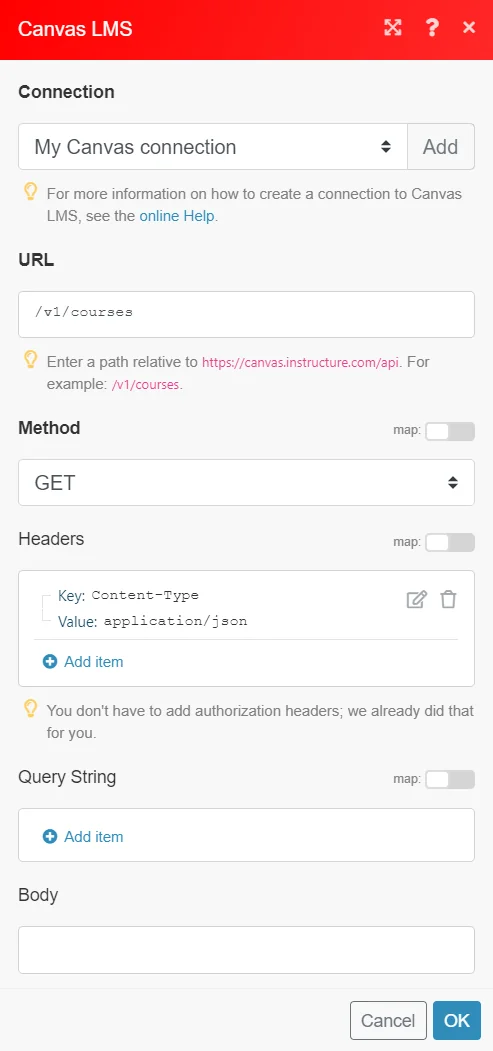
The following API call returns all the courses from your Canvas LMS account:
URL:
/v1/courses
Method:
GET
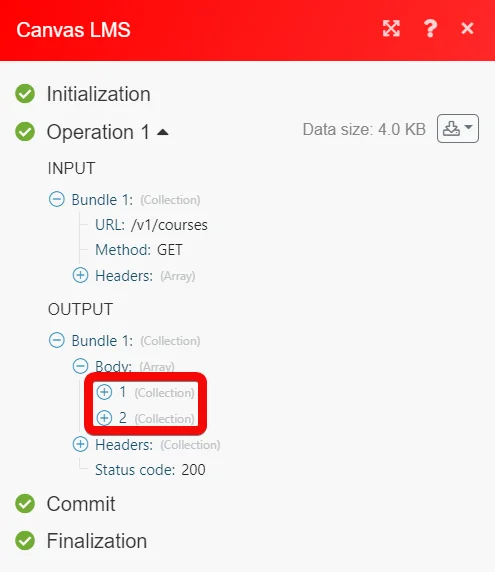
Matches of the search can be found in the module’s Output under Bundle > Body.
In our example, 2 courses were returned:
Legacy article, imported from the original Boost.space knowledge base (/knowledge-base/applications/education/canvas-lms/).

