DocuSign
With DocuSign modules in Boost.space Integrator, you can monitor and retrieve envelope status, search and retrieve envelopes, or download and send a document to sign in your DocuSign account.
To use DocuSign modules, you must have a DocuSign account. You can create an account at go.docusign.com/o/trial.
Refer to the DocuSign API documentation for a list of available endpoints.
Connect DocuSign to Boost.space Integrator
To make the connection in Boost.space Integrator:
-
Log in to your Boost.space Integrator account, add a DocuSign module to your scenario, and click Create a connection.
Note: If you add a module with an
instanttag, click Create a webhook, then Create a connection. -
Optional: In the Connection name field, enter a name for the connection.
-
Optional: Click Show advanced settings and enter your custom app client credentials.
-
Click Save.
-
If prompted, authenticate your account and confirm access.
You have successfully established the connection. You can now edit your scenario and add more DocuSign modules. If your connection requires reauthorization at any point, follow the connection renewal steps here.
Create a custom application in Boost.space Integrator
To create the DocuSign custom application and retrieve your client credentials:
- Log in to your DocuSign account.
- In the upper right, click Settings.
- In the left menu, under Integrations, click Apps and Keys.
- Click ADD APP AND INTEGRATION KEY.
- Under App Name, click CREATE APP.
- Under General Info, copy the Integration Key and store it in a safe place.
- Under Authentication, click +ADD SECRET KEY and store it in a safe place.
- Under Additional settings, for Redirect URIs, add
https://integrator.boost.space/oauth/cb/docusign - Click Save.
You will use these values in the <Integration Key (Client ID) > and <Client Secret > fields in Boost.space Integrator.
Envelope
Watch Events
Triggers when an envelope changes its status.
This is available only for Business Pro DocuSign eSignature pricing plan and higher.
The webhook URL needs to be generated in Boost.space Integrator and then added to DocuSign’s integrations settings.
-

Add the Watch Events module to your Boost.space Integrator scenario.
-
Generate and copy the webhook URL.
-

Log in to your DocuSign account.
-
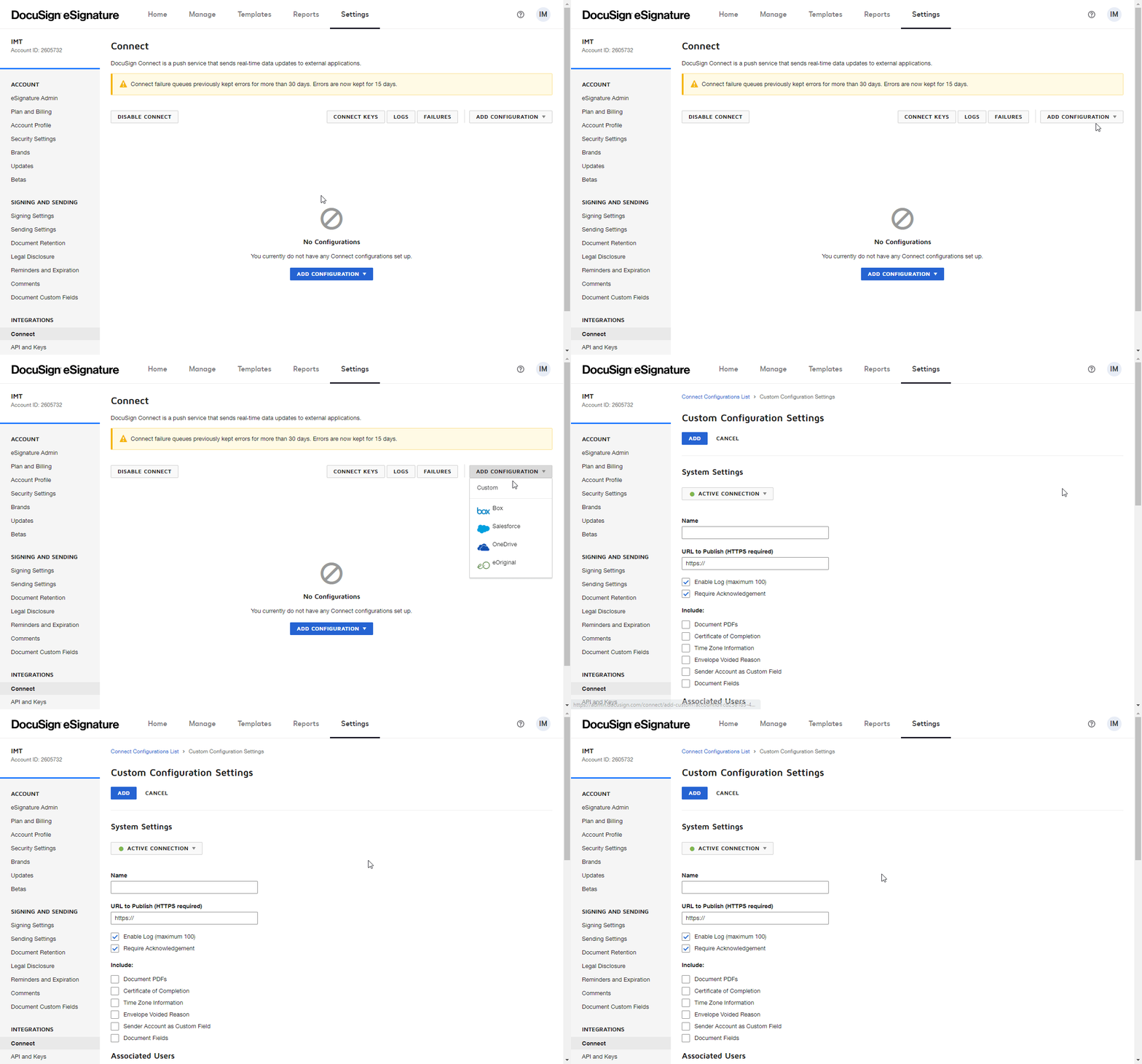
Go to Settings > Connect.
-
Click Add Configuration, and select Custom.
-
Fill in the fields as follows:
Name
Enter the name of the webhook.
URL to Publish
Enter the webhook URL you have copied in step 2 above.
Include
Select the information that you want to include in the webhook.
Trigger Events
Select events that will trigger the webhook and the Watch Events module in your Boost.space Integrator scenario.
-
Click the Add button (
 ) to save and close the dialog.
Now, every time the specified events occur in your DocuSign account, the Watch Events module in your Boost.space Integrator scenario is triggered.
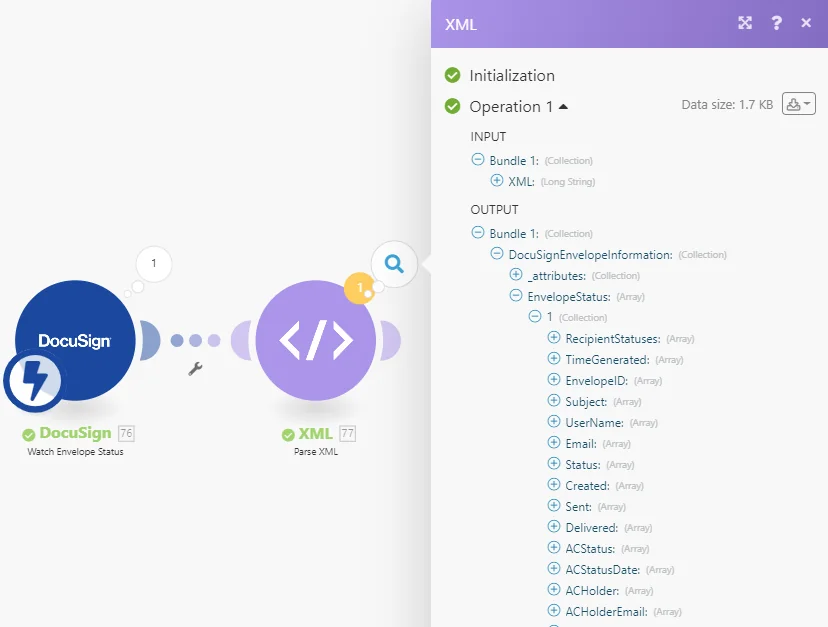
The module returns the data in the XML format. To further process the returned data, please add the XML>Parse XML module after the Watch Events module.
Search Envelopes
Searches for envelopes by the filter settings.
Connection
Establish a connection to your DocuSign module.
Account
Select the account you want to search for envelopes.
From Date
Enter the date and time to start looking for status changes.
To Date
Enter the date and time to stop looking for status changes.
Envelope IDs
Add the envelope IDs to filter returned envelopes by.
Transaction IDs
Add the envelope transaction IDs to filter returned envelopes by. Transaction IDs are only valid for seven days.
Status
Select the envelope statuses you want to be included in the result.
From To Status
Select the envelope status that you are checking for. For example, if you select Changed, the module returns a list of envelopes that changed status during the From date to To date time period.
Search
Enter the search term you want to use to filter the list of returned envelopes.
Order
Select whether you want to return envelopes in ascending or descending order.
Order By
Select the property you want to sort returned envelopes by.
Limit
Set the maximum number of envelopes Boost.space Integrator will return during one execution cycle.
User Filter
Returns envelopes where the authenticated user is the recipient, the sender, or the recipient only.
Include in Response
Select additional information to return about the envelopes.
Custom Fields: The custom fields associated with the envelope.Documents: The documents associated with the envelope.Attachments: The attachments associated with the envelope.Extensions: Information about the email settings associated with the envelope.Folders: The folders where the envelope exists.Recipients: The recipients associated with the envelope.Powerform: The PowerForms associated with the envelope.Payment tabs: The payment tabs associated with the envelope.
Get an Envelope Status
Retrieves envelope details.
Connection
Establish a connection to your DocuSign module.
Account
Select the account that contains the envelope you want to retrieve details about.
Envelope ID
Enter (map) the ID of the envelope you want to retrieve details about.
Include in Response
Select additional information to return about the envelopes.
Custom Fields: The custom fields associated with the envelope.Documents: The documents associated with the envelope.Attachments: The attachments associated with the envelope.Extensions: Information about the email settings associated with the envelope.Folders: The folders where the envelope exists.Recipients: The recipients associated with the envelope.Powerform: The PowerForms associated with the envelope.Tabs: The tabs associated with the envelope.Payment tabs: The payment tabs associated with the envelope.
Download a Document
Downloads a specified document from the envelope.
Connection
Establish a connection to your DocuSign module.
Account
Select the account you want to download a document from.
Envelope ID
Enter (map) the ID or select the envelope that contains the document you want to download.
Document ID
Enter (map) the ID or select the document you want to download.
Certificate
Select the No option to exclude the envelope signing certificate from the download.
Documents by User ID
When the Yes option is selected, it allows the recipients to get documents by their user ID. For example, if a user is included in two different routing orders with different visibilities, using this option returns all of the documents from both routings.
Encrypt
When enabled, the PDF bytes returned in response are encrypted for all the key managers configured on your DocuSign account.
Show Changes
When set to Yes, any changed fields for the returned PDF are highlighted in yellow, and optional signatures or initials are outlined in red.
Watermark
When set to Yes, the account has the watermark feature enabled, and the envelope is not complete, the watermark for the account is then added to the PDF documents. This option can remove the watermark.
Language
Select the language of the Certificate of Completion in the output.
Get Envelope Form Data
Downloads the envelope and field data from any in progress, completed, or canceled envelope that you sent or that is shared with you.
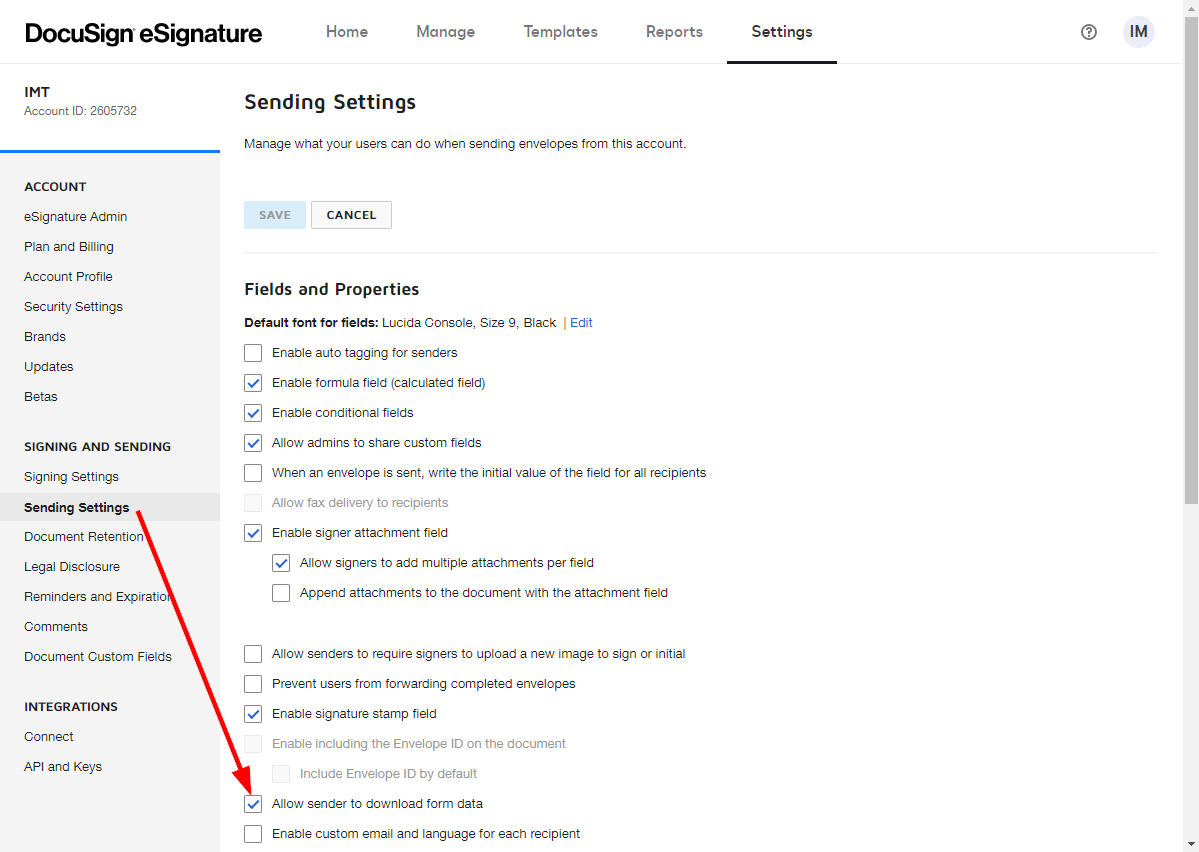
To use this module, go to DocuSign Settings > Sending Settings and enable the Allow sender to download form data option. Otherwise, the [400] This User lacks sufficient permissions error will be returned.
Connection
Establish a connection to your DocuSign module.
Account
Select the account that contains the envelope you want to retrieve the form data from.
Envelope ID
Enter (map) the ID of the envelope you want to retrieve the form data from.
Send a Document to Sign
Sends a document to signers.
Connection
Establish a connection to your DocuSign module.
Account
Select the account that contains the envelope with the document you want to send in order to be signed.
Draft
Enable this option to save the envelope as a draft. If disabled, the envelope will be sent to recipients.
Signers
Add the signers you want to send the document to.
Enter the recipient’s email address. The system sends notifications about the documents to be signed to this address.
Name
Enter the full legal name of the recipient. Maximum Length: 100 characters.
Recipient ID
Enter the ID you want to assign to the recipient.
Recipient ID is a local reference that senders use to map recipients to other objects, such as specific document tabs. Within an envelope, each Recipient ID must be unique, but there is no uniqueness requirement across envelopes. For example, many envelopes assign the first recipient a Recipient ID of 1.
Add Access Code
Enable this option, and enter the code.
If you enter a value, the recipient must enter the value as the access code to view and sign the envelope.
Maximum Length: 50 characters, and it must conform to the account’s access code format setting.
If blank, but the signer Access Code property is set in the envelope, then that value is used.
If blank, and the signer Access Code property is not set, then the access code is not required.
Note
Enter a note that is sent to the recipient in the signing email. This note is unique to this recipient. In the user interface, it appears near the upper left corner of the document on the signing screen. Maximum Length: 1000 characters.
Subject
Enter the subject of the email used to send the envelope.
Message
Enter the content of the email blurb.
Documents
Add documents you want to send.
Source File
Map the file you want to upload from the previous module (e.g., HTTP > Get a File or Google Drive > Download a File), or enter the file name and file data manually.
Document ID
Specify a numeric ID that must be unique within the envelope.
Send a Document From Template to Sign
Creates and sends an envelope from a template.
Connection
Establish a connection to your DocuSign module.
Account
Select the account that contains the envelope with the document template you want to send in order to be signed.
Template
Enter (map) or select the template you want to send a document from.
Draft
Enable this option to save the envelope as a draft. If disabled, the envelope will be sent to recipients.
Subject
Enter the subject of the email used to send the envelope.
Message
Enter the content of the email blurb.
Template Recipients
Add the signers of the document.
Enter the recipient’s email address. The system sends notifications about the documents to be signed to this address.
Name
Enter the full legal name of the recipient. Maximum Length: 100 characters.
Role Name
Enter the role of the signer. For more details about templates please refer to the DocuSign’s Templates article.
Other
Make an API Call
Allows you to perform a custom API call.
Connection
Establish a connection to your DocuSign module.
Account
Select the account you want to make an API call for.
URL
Enter a path relative to https://<server>.docusign.net/restapi.If you use {accountId} in the path, it will be replaced with the account ID from the selected account automatically.
For example: /v1/org.
For the list of available endpoints, refer to the DocuSign API Reference.
Method
Select the HTTP method you want to use:
GET
to retrieve information for an entry.
POST
to create a new entry.
PUT
to update/replace an existing entry.
PATCH
to make a partial entry update.
DELETE
to delete an entry.
Headers
Enter the desired request headers. You don’t have to add authorization headers; we’ve already done that for you.
Query String
Enter the request query string.
Body
Enter the body content for your API call.
Example of Use – List Envelopes
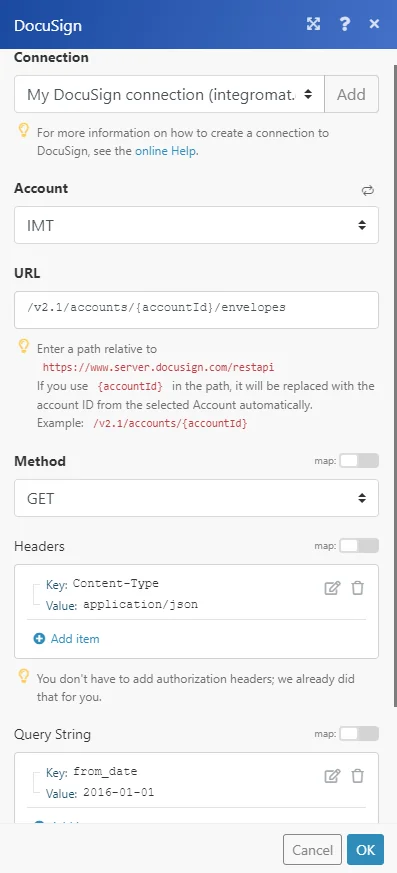
The following API call returns envelopes from the specified date in your DocuSign account:
URL:
/v2.1/accounts/{accountId}/envelopes/
Method:
GET
Query String:
Key: from_date
Value: YYYY-MM-DD Specifies when the request begins checking for status changes for envelopes in the account.
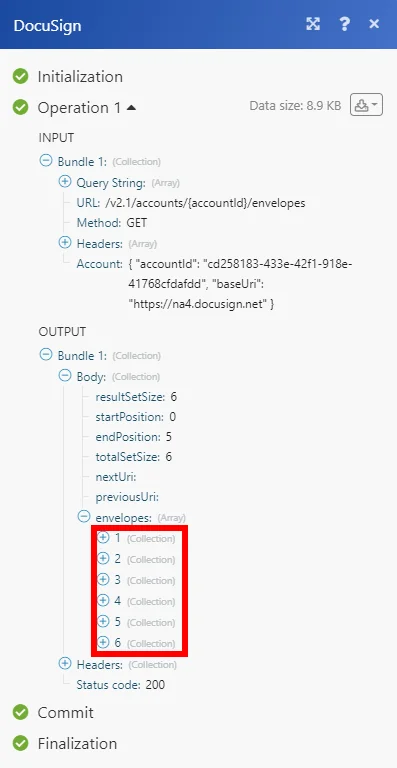
The result can be found in the module’s Output under Bundle > Body > envelopes.
In our example, 6 envelopes were returned:
Legacy article, imported from the original Boost.space knowledge base (/knowledge-base/applications/file-and-document-management/docusign/).

