EasyCSV
The EasyCSV modules allow you to watch data imports and upload data to a CSV file in your EasyCSV account.
Getting Started with EasyCSV
Prerequisites
- An EasyCSV account
In order to use EasyCSV with Boost.space Integrator, it is necessary to have an EasyCSV account. If you do not have one, you can create an EasyCSV account at easycsv.io/signup.
The module dialog fields that are displayed in bold (in the Boost.space Integrator scenario, not in this documentation article) are mandatory!
Connect EasyCSV to Boost.space Integrator
To connect your EasyCSV account to Boost.space Integrator you need to obtain the EasyCSV Webhook URL and API Key from your EasyCSV account and insert it in the Create a connection dialog in the Boost.space Integrator module.
-
Log in to your EasyCSV account.
-
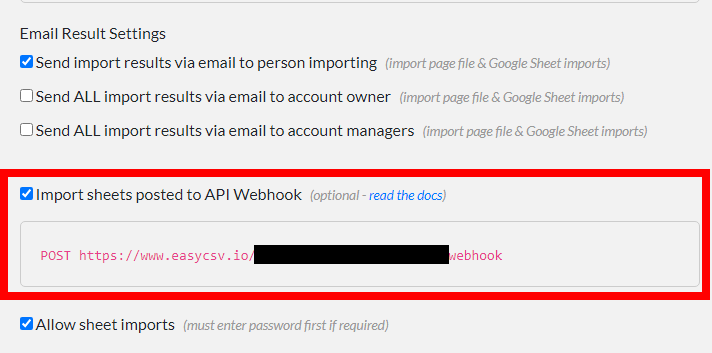
Click Sheets > Import Sheet Details. Enter the sheet details and click Save. Copy the Import Sheet posted to API Webhook URL address.
-
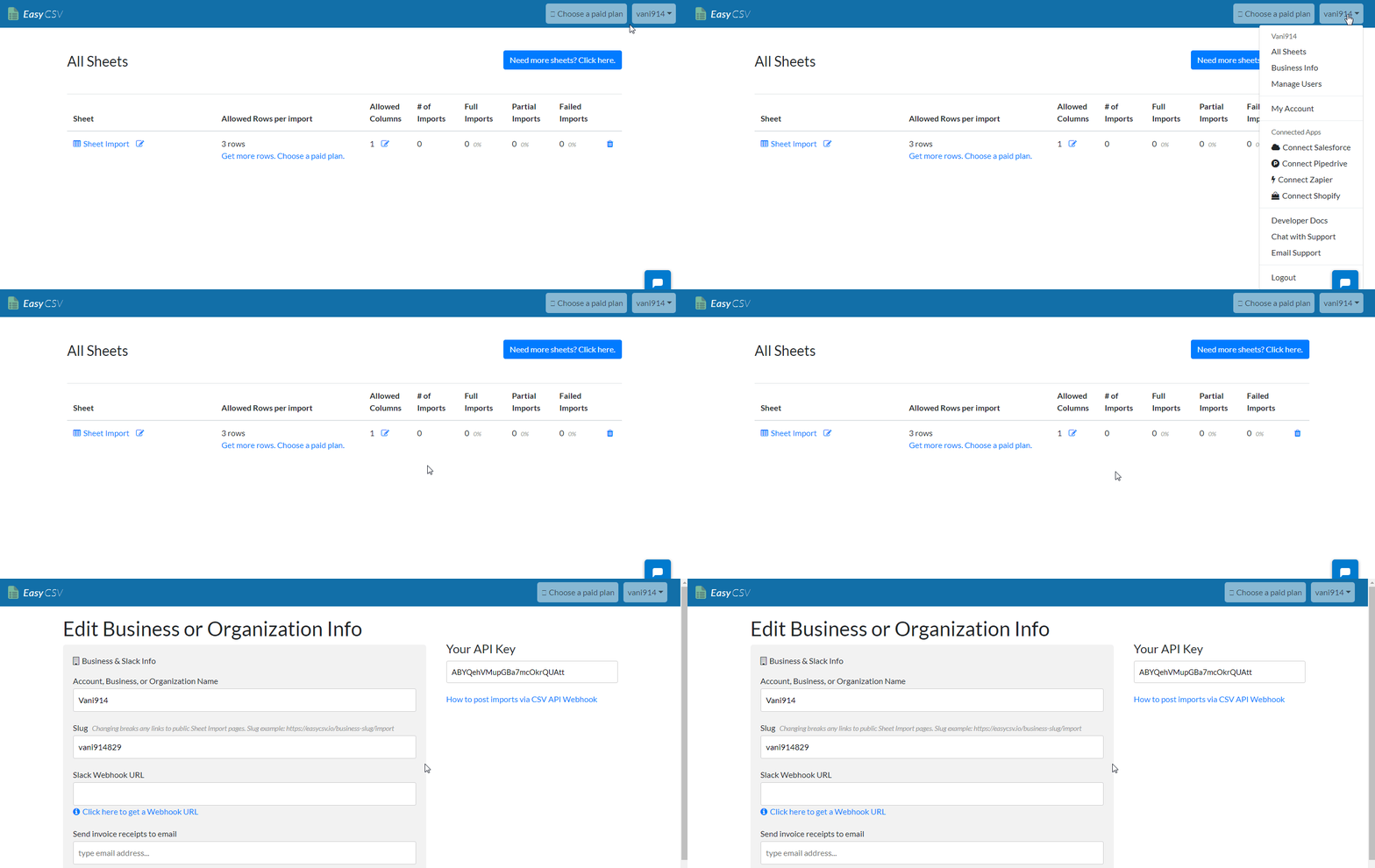
Open any board, click Your Username > Business Info.
-
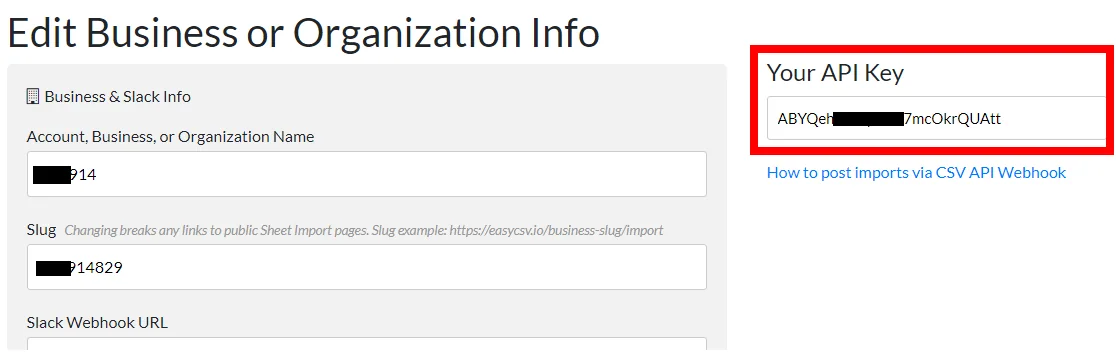
Copy the API Key to your clipboard.
-

Go to Boost.space Integrator and open the EasyCSV module’s Create a connection dialog.
-
In the C_onnection name_ field, enter a name for the connection.
-
In the EasyCSV Webhook URL field, enter the URL address copied in step 2.
-
In the API Key field, enter the API key copied in step 4. Click Continue.
The connection has been established.
Triggers

Watch New Data Import
Triggers when a new import is sent to the Boost.space Integrator Webhook URL.
Webhook Name
Enter a name for the webhook.
Connection
Establish a connection to your EasyCSV account.
-
Open the Webhook module, enter a name for the webhook, establish a connection, and click Save. Copy the address to your clipboard.
-
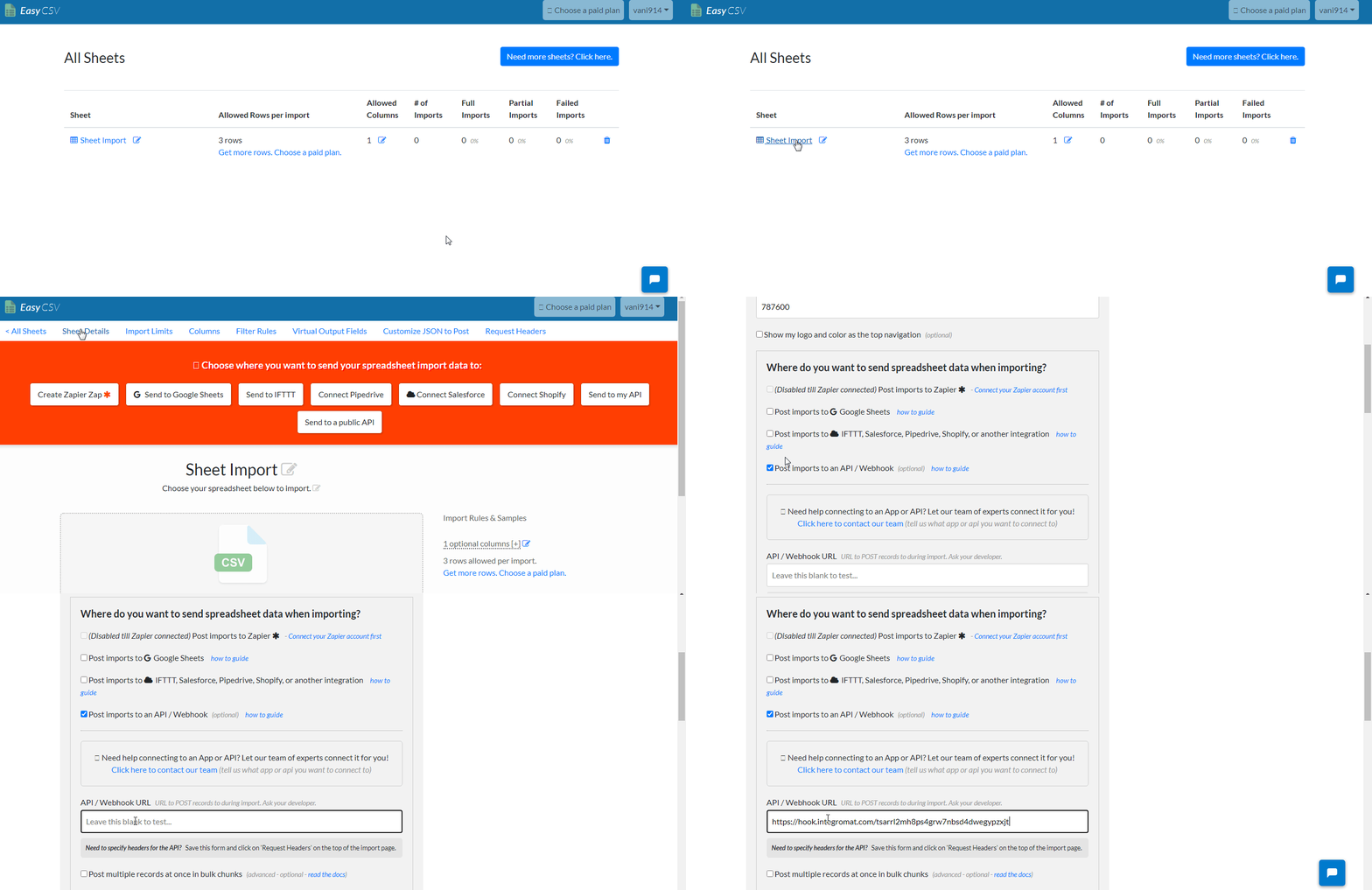
Login to your EasyCSV account, open the sheet to which you want to watch the data import, select Post imports to API/Webhook, and in the API/Webhook URL field, enter the URL address copied in step 1. Click Save.
Actions
Add Data
Uploads a new CSV file to EasyCSV.
Connection
Establish a connection to your EasyCSV account.
Public File URL
Enter the publicly accessible URL address to the CSV file whose data you are uploading.
Importer Email
Enter the email address to send the import results.
Import Name
Enter a name for this import. If no name is specified, the file name is considered as import name.
Legacy article, imported from the original Boost.space knowledge base (/knowledge-base/applications/file-and-document-management/easycsv/).

