Google Team Drive
The Google Team Drive modules enable you to monitor, upload, update, copy, delete, or retrieve files and create folders in your Google Shared Drive.
Getting Started with Google Shared Drives
Prerequisites
- A G Suite account
In order to use Google Team Drive with Boost.space Integrator, it is necessary to have a G Suite account. If you do not have one, you can create a G Suite account at gsuite.google.com/signup/basic/welcome.
The module dialog fields that are displayed in bold (in the Boost.space Integrator scenario, not in this documentation article) are mandatory!
Connecting Google Team Drive to Boost.space Integrator
To connect your Google Team Drive account to Boost.space Integrator follow the general instructions for Connecting to services.
NOTE:
In some cases, for modules that use sensitive or restricted scopes, you may encounter issues with the privacy policy not being properly configured. This is affecting users who have an active workspace (admin console). You can change those permissions as instructed below.
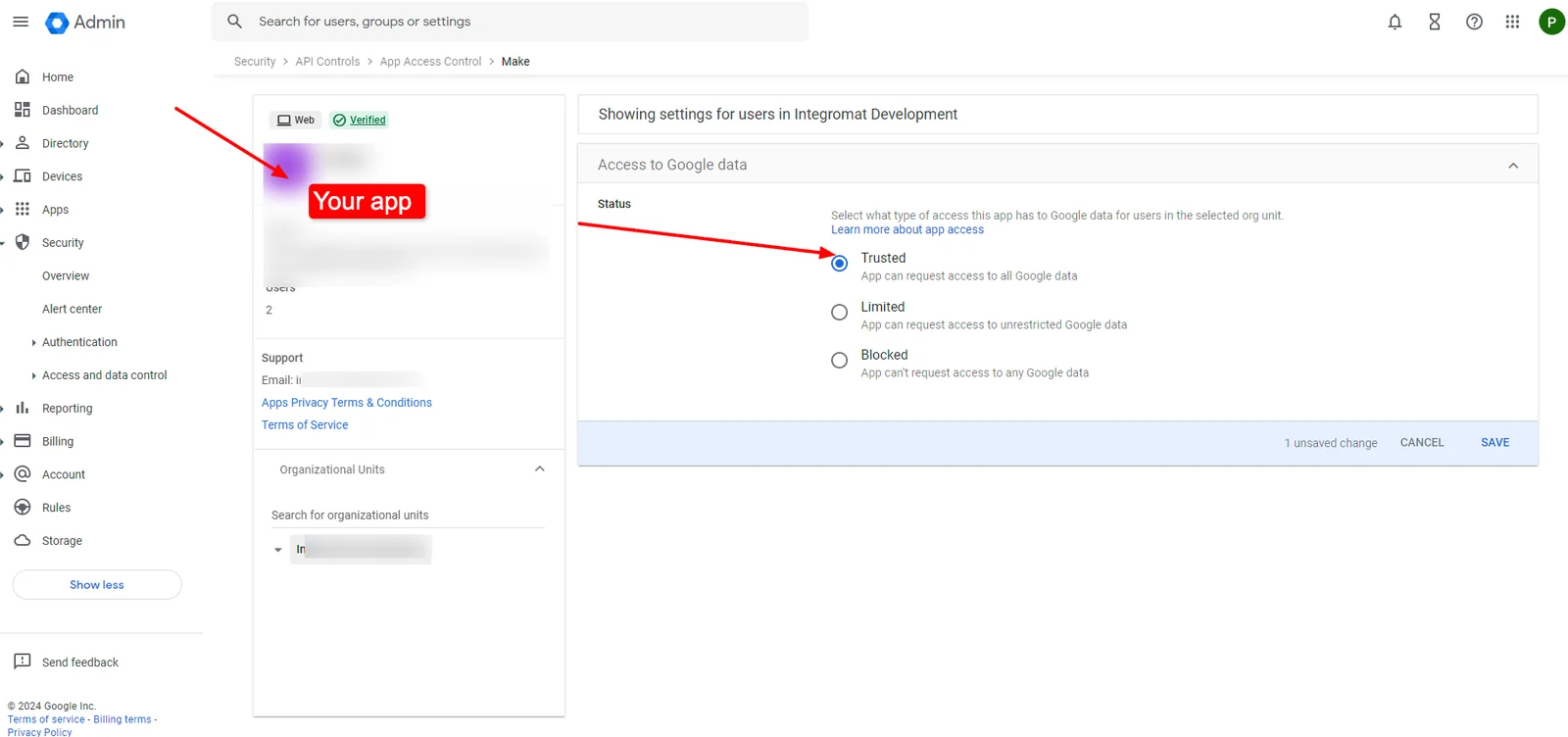 After you click the Continue button, Boost.space Integrator will redirect you to the Google website where you will be prompted to grant Boost.space Integrator access to your account.
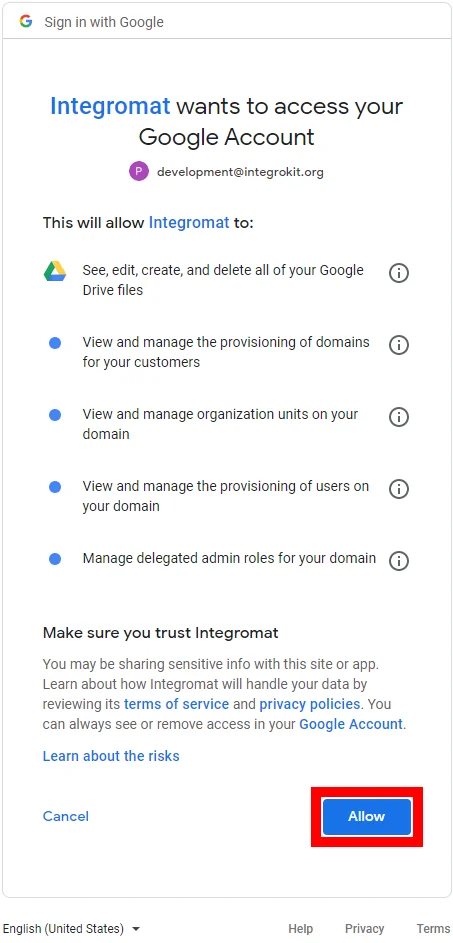
Confirm the dialog by clicking the Allow button.
Triggers
Watch Files
Returns file details when a new file is added and/or modified in the specified folder.
Connection
Establish a connection to your G Suite account.
Team Drive
Select the shared drive you want to watch.
Folder
Select the folder within the shared drive.
What files to watch
Select the type of files you want to watch.
Convert Google Documents files to format
Select the format you want the watched files converted to.
Watch
Select whether you want to monitor the folder for new and modified files or just for new files.
Maximum number of downloaded files
Set the maximum number of files Boost.space Integrator will return during one execution cycle.
Actions
Upload a File
Uploads a file to the specified shared drive.
Connection
Establish a connection to your G Suite account.
Team Drive
Select the shared drive you want to upload a file to.
Folder
Select the folder within the shared drive.
Source File
Specify the file you want to upload to the shared drive.
Map the file you want to upload from the previous module (e.g. HTTP > Get a File or Dropbox > Get a file), or enter the file name and file data manually.
Title
Enter the title of the file that will be displayed in the shared folder.
Convert a File
Enable this option to convert the file to the corresponding Google format in your shared folder.
Update a File
Allows you to change the file name and/or file content.
Connection
Establish a connection to your G Suite account.
Team Drive
Select the shared drive that contains the file you want to update.
Folder
Select the folder within the shared drive.
File ID
Enter (map) the ID of the file you want to update.
Source File
Specify the new file name and new file data.
Title
Enter the new title for the updated file.
Convert a File
Enable this option to convert the file to the corresponding Google format in your shared folder.
Copy a File
Copies a specified file to the selected folder.
Connection
Establish a connection to your G Suite account.
Team Drive
Select the shared drive that contains the file you want to copy.
Folder
Select the target folder you want to copy the file to.
File ID
Enter (map) the ID of the file you want to copy.
The name of the copy file
Enter the new file name if you want it to be changed in the target location.
Delete a File
Deletes a specified file.
Connection
Establish a connection to your G Suite account.
File ID
Enter or map the ID of the file you want to delete.
Move a File to Trash
Moves a specified file to the trash bin.
Connection
Establish a connection to your G Suite account.
File ID
Enter or map the ID of the file you want to move to the trash bin.
Get a File
Retrieves details about the specified file.
Connection
Establish a connection to your G Suite account.
File ID
Enter or map the ID of the file you want to retrieve details about.
Get a File List
Retrieves files and/or folders details based on the search term.
Connection
Establish a connection to your G Suite account.
Team Drive
Select the shared drive you want to list files from.
Folder
Select the folder you want to list files from.
Search
Select the type of search you want to perform – see below.
Query
- Search within file names Enter the file name (including the file extension) when the Search for exact term Search option is selected or enter the part of the name when the Search for names containing the searched term option is selected.
- Fulltext search Enter the search term to search through the file names, descriptions and contents.
- Custom search query Enter the Google search query term. For more details please refer to the Search Query Documentation. Example:
fullText contains '"Hello world"'
Create a Folder
Creates a new folder.
Connection
Establish a connection to your G Suite account.
Team Drive
Select the shared drive where you want to create a folder.
Folder
Select the folder you want to create a folder in.
The name of the new folder
Enter the name of the new folder.
Legacy article, imported from the original Boost.space knowledge base (/knowledge-base/applications/file-and-document-management/google-team-drive/).

